How to Run a Playwright Script in the Terminal
Run Playwright from any terminal: install browsers, execute one file or project, debug failures, tune workers, and read reports.
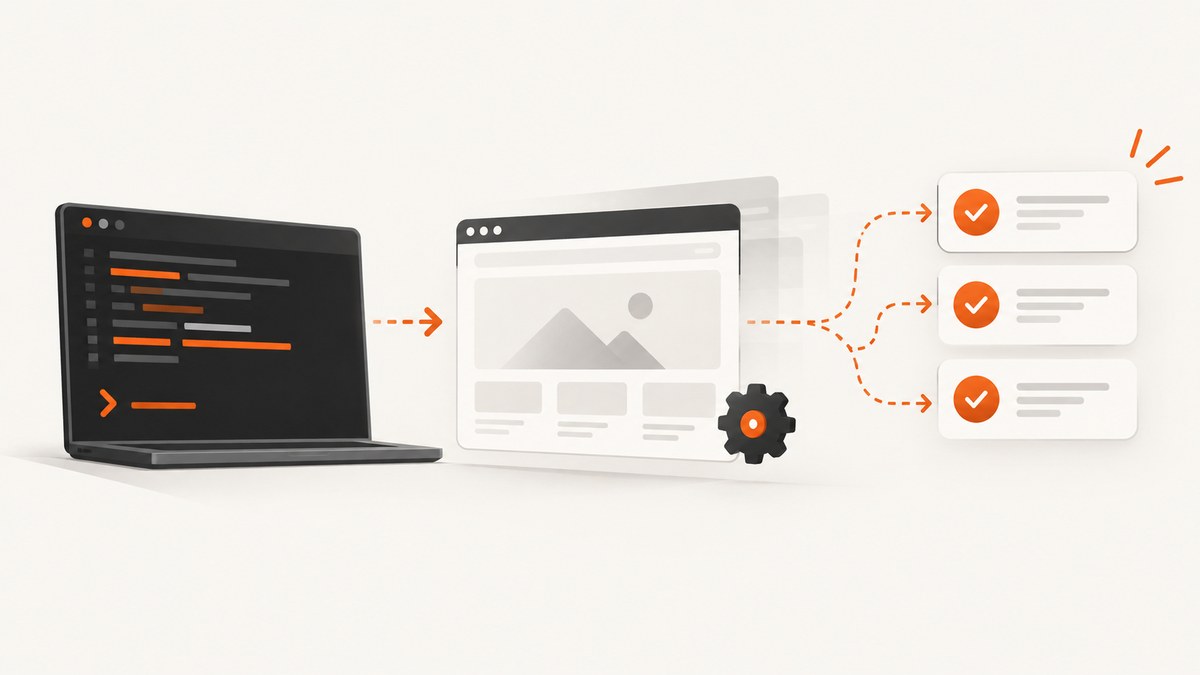
Use npx playwright test in the project directory. Playwright Test runs configured tests in headless mode by default and prints the results in your terminal. Add a file path, project name, title pattern, or debugging flag when you need a narrower run or more visibility.
cd path/to/your-project
npm install -D @playwright/test
npx playwright install
npx playwright test
The commands below assume a Node.js project containing package.json and a Playwright configuration file such as playwright.config.ts. The official references are the Playwright command-line documentation and running and debugging tests guide.
1. Prepare the project
Install Playwright Test
npm install -D @playwright/testEquivalent package-manager commands are:
yarn add --dev @playwright/test
pnpm add --save-dev @playwright/test
Install browser binaries
npx playwright install

# Install only Chromium
npx playwright install chromium

# On supported Linux CI images, install OS dependencies too
npx playwright install --with-deps chromium
Playwright downloads browser binaries separately from the npm package. Installing the package without installing the matching browser is the usual cause of an executable-missing error.
Minimal runnable example
Create tests/home.spec.ts:
import { test, expect } from '@playwright/test';

test('home page has a title', async ({ page }) => {
  await page.goto('https://example.com');
  await expect(page).toHaveTitle(/Example Domain/);
});
Run it from the directory containing package.json:
npx playwright test tests/home.spec.ts2. Run the complete suite
npx playwright testThis uses the projects, test directory, retries, workers, reporters, and browsers defined in your Playwright configuration. Tests run in parallel by default and headless, so no browser window opens unless you request one.
3. Run one file, directory, test, or browser project
| Goal | Command |
|---|---|
| One test file | npx playwright test tests/example.spec.ts |
| Several files or directories | npx playwright test tests/todo-page/ tests/landing-page/ |
| One configured browser project | npx playwright test --project=chromium |
| Test title or regular expression | npx playwright test -g "add a todo item" |
| Visible browser | npx playwright test --headed |
| Inspector debugging | npx playwright test --debug |
| Interactive UI mode | npx playwright test --ui |
| Single worker while diagnosing order issues | npx playwright test --workers=1 |
Arguments can be combined. For example, this runs one file in Chromium with a visible browser:
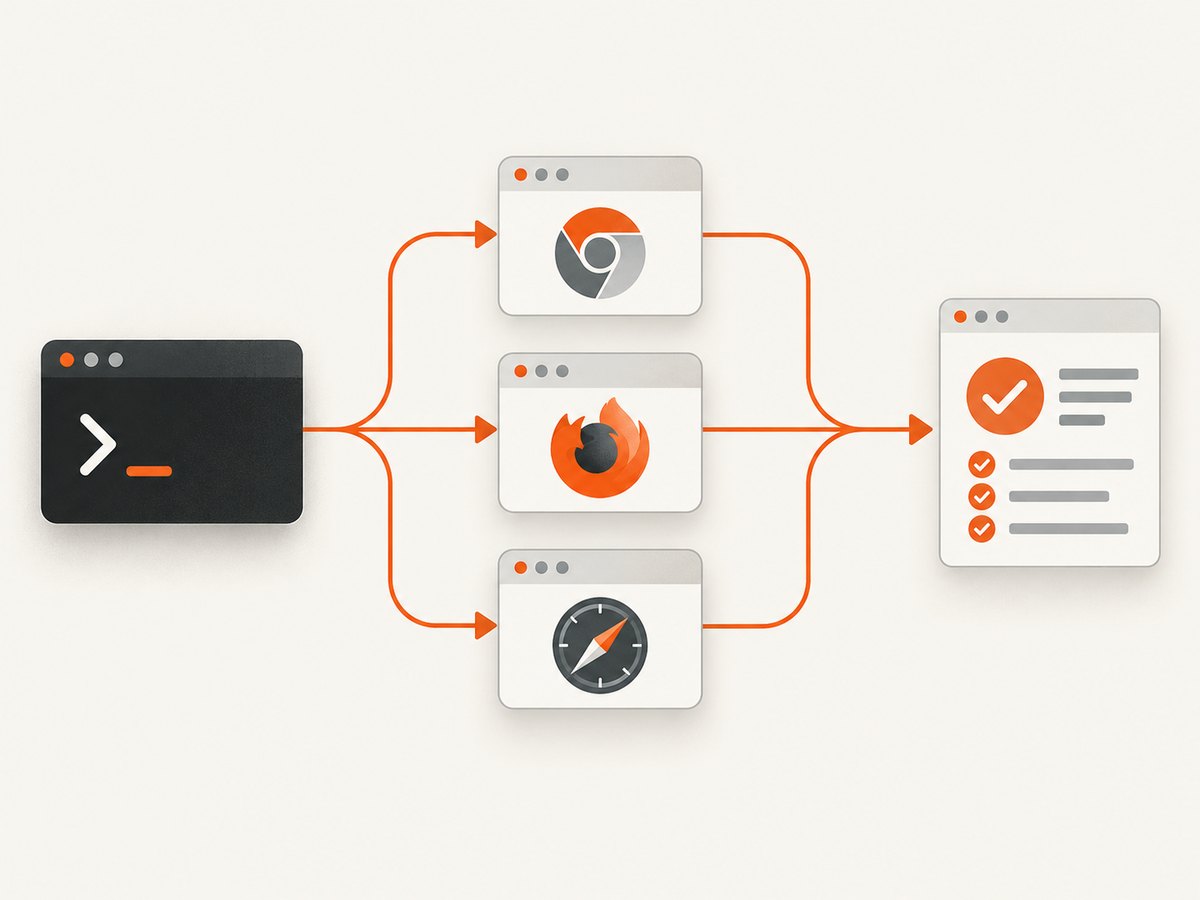
npx playwright test tests/home.spec.ts --project=chromium --headed4. Choose the right execution mode
Normal headless execution
Use the default command for local checks and CI:
npx playwright testHeaded execution
Use --headed when you need to watch the browser navigate, click, and submit:
npx playwright test --headedInspector debugging
--debug opens Playwright’s inspector and slows execution so you can step through actions and inspect locators:
npx playwright test tests/home.spec.ts --debugUI mode
--ui provides an interactive test view for selecting tests, watching traces, and rerunning failures:
npx playwright test --uiGenerate starter code
Record interactions against a live site with Codegen:
npx playwright codegen https://example.comCodegen creates a starter flow that you should refine with stable locators and assertions. See the official Codegen guide.
5. View reports and failure artifacts
After a run configured with the HTML reporter, open the report with:
npx playwright show-reportThe terminal output is useful for quick feedback; the HTML report is better for browsing failed tests, steps, screenshots, and traces when your configuration collects them.
6. A practical Playwright configuration
This configuration runs Chromium, Firefox, and WebKit, starts a local server, and records useful artifacts on failures:
import { defineConfig, devices } from '@playwright/test';

export default defineConfig({
  testDir: './tests',
  fullyParallel: true,
  retries: process.env.CI ? 2 : 0,
  reporter: [['list'], ['html', { open: 'never' }]],
  use: {
    baseURL: 'http://127.0.0.1:3000',
    trace: 'on-first-retry',
    screenshot: 'only-on-failure',
    video: 'retain-on-failure'
  },
  webServer: {
    command: 'npm run dev',
    url: 'http://127.0.0.1:3000',
    reuseExistingServer: !process.env.CI
  },
  projects: [
    { name: 'chromium', use: { ...devices['Desktop Chrome'] } },
    { name: 'firefox', use: { ...devices['Desktop Firefox'] } },
    { name: 'webkit', use: { ...devices['Desktop Safari'] } }
  ]
});
Run one configured project when you want fast feedback, then run all projects before release:
npx playwright test --project=chromium
npx playwright test
7. Terminal workflows for common situations
Run a single test during development
npx playwright test tests/cart.spec.ts -g "removes an item" --headedReproduce a CI-only failure locally
CI=1 npx playwright test tests/checkout.spec.ts --workers=1 --debugCheck the installed Playwright version
npx playwright --versionAfter upgrading Playwright, refresh the browser binaries:
npx playwright install8. Troubleshooting
| Error or symptom | Cause | Fix |
|---|---|---|
| Executable doesn’t exist or browser executable is missing | The npm package is installed but its browser binary is not. | Run npx playwright install. On supported Linux CI, use npx playwright install --with-deps chromium. |
| A browser window does not open | Tests are headless by default. | Rerun with --headed, --debug, or --ui. |
| The command finds no tests | You are in the wrong directory, the path is wrong, or the file does not match configured test patterns. | Run from the project root and pass the exact relative path, such as npx playwright test tests/home.spec.ts. |
| Only one browser runs | The command selected a project or the configuration defines only one. | Remove --project to run every configured project, or add the required browser projects. |
| Failures appear order-dependent | Parallel workers expose shared state or test isolation problems. | Use --workers=1 to diagnose, then remove shared state and make each test independent. |
| A failure is hard to inspect | Headless output alone does not show the page state. | Use --debug or --ui; enable traces and screenshots in the configuration. |
| Browsers fail after a Playwright upgrade | The package and downloaded binaries are out of sync. | Check npx playwright --version, then run npx playwright install. |
| Linux launches fail with missing shared libraries | Required OS packages are absent on the CI image. | Use npx playwright install --with-deps chromium on supported Linux environments. |
9. Performance, reliability, and cost considerations
- Scope runs deliberately. Use a file, title pattern, or project while iterating; reserve the full cross-browser suite for checkpoints and CI.
- Control concurrency. Parallel workers shorten suites when tests are isolated. Reduce workers while diagnosing resource contention or shared-state failures.
- Keep browser versions aligned. Reinstall binaries after Playwright upgrades and use the same installation step in CI.
- Separate fast feedback from release coverage. Chromium-only runs are usually a quicker local loop; configured Firefox and WebKit projects provide broader browser coverage.
- Preserve evidence on failure. HTML reports, traces, screenshots, and videos make intermittent failures easier to reproduce than terminal output alone.
- Budget CI resources. More workers consume more CPU and memory. Choose a worker count that your CI runner can sustain rather than maximizing parallelism blindly.
10. Or skip the browser setup
If your goal is a clean screenshot rather than browser-test assertions, ScreenshotNeo provides a hosted screenshot API. Its capture endpoint accepts one GET request and returns PNG, JPEG, WebP, or PDF. See the ScreenshotNeo API documentation for the complete option list.

cURL
curl -G "https://api.screenshotneo.com/v1/shot" -d access_key=YOUR_API_KEY --data-urlencode url=https://stripe.com -o shot.webpPython
import requests

r = requests.get(
    "https://api.screenshotneo.com/v1/shot",
    params={"access_key": "YOUR_API_KEY", "url": "https://stripe.com"},
    timeout=90,
)
r.raise_for_status()
open("shot.webp", "wb").write(r.content)
Node.js
const q = new URLSearchParams({ access_key: 'YOUR_API_KEY', url: 'https://stripe.com' });
const res = await fetch(`https://api.screenshotneo.com/v1/shot?${q}`);
if (!res.ok) throw new Error(`Screenshot failed: ${res.status}`);
const fs = await import('node:fs/promises');
await fs.writeFile('shot.webp', Buffer.from(await res.arrayBuffer()));
ScreenshotNeo removes cookie and consent banners, newsletter popups, and chat widgets before capture. Bot checks, blank pages, failed loads, timeouts, and cache hits are not billed; response headers identify the page verdict and whether the request was billed. Its MCP server gives Claude, Cursor, and other MCP clients take_screenshot, get_page_info, and capture_pdf tools. You can also choose full-page or element captures, device and viewport settings, dark mode, retina scale, custom CSS and JavaScript, waits, request blocking, headers, cookies, authentication, timezone, geolocation, transparency, resizing, caching, signed links, asynchronous webhooks, bulk capture, and PDF options.
Every plan includes every feature. The Free plan includes 1,000 screenshots per month with no card; paid plans start at $5 for 3,000 screenshots. Create a free ScreenshotNeo account.
11. FAQ
What is the shortest command to run Playwright?
From a configured project directory, run npx playwright test.
How do I run just one test file?
Pass its relative path: npx playwright test tests/example.spec.ts.
How do I see the browser?
Add --headed. For step-by-step inspection, use --debug.
Can I run Playwright without installing browsers?
No. Install the package and the matching browser binaries with npx playwright install.
Which command opens the report?
Run npx playwright show-report after the test run.
How do I run tests interactively?
Use npx playwright test --ui.
How do I run a test on only Chromium?
Use npx playwright test --project=chromium, assuming the configuration defines a project with that name.


