How to Run Playwright Scripts Online
Run Playwright in CI, containers, hosted browsers, or Cloudflare Workers with matching binaries, setup steps, code examples, and troubleshooting.
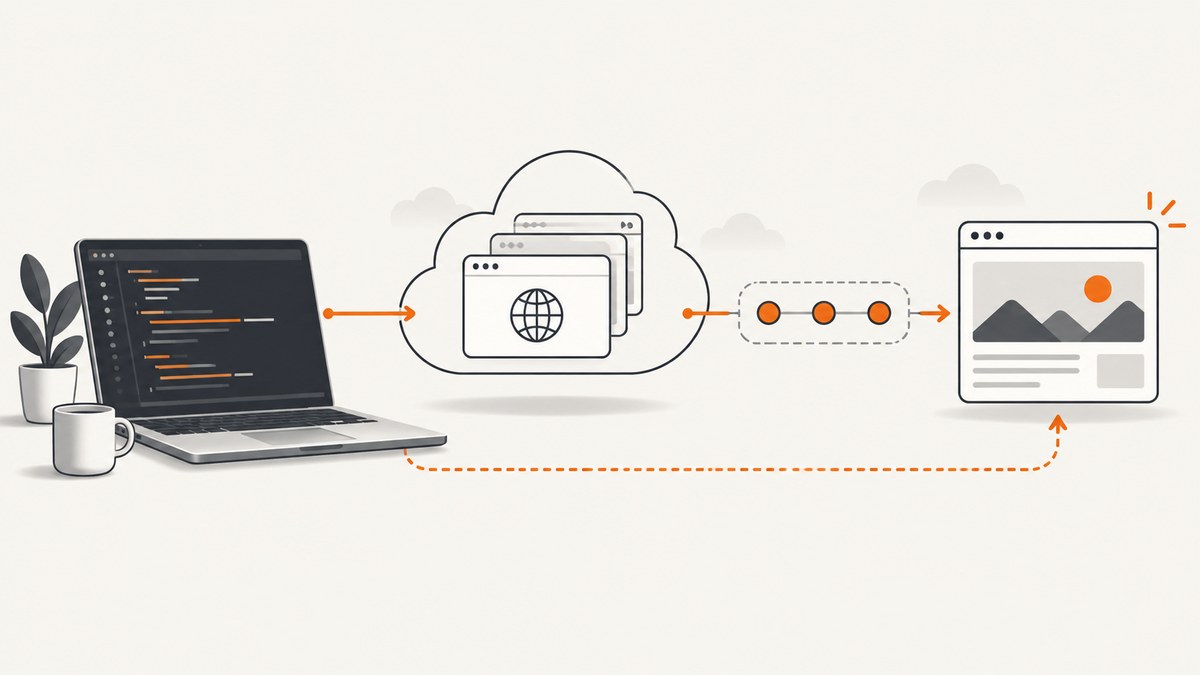
Direct answer: To run Playwright scripts online, put your project in an environment that has the Playwright package, compatible browser binaries, and the operating-system dependencies those browsers need. The practical choices are a CI runner or container for repeatable jobs, a hosted browser session that you connect to remotely, or a runtime-specific service such as Cloudflare Browser Run. Match the runtime, browser engine, Playwright version, and service API before moving a script.
Choose where the script will run
| Approach | Best for | Check before you commit |
|---|---|---|
| CI runner or container | Tests, scheduled jobs, and repository workflows | Operating-system dependencies, browser installation, secrets, artifacts, and whether headed mode is needed |
| Hosted browser session | Driving a browser that runs on a provider’s infrastructure | Connection method, Playwright API compatibility, session limits, geography, pricing, and credential handling |
| Cloudflare Workers Browser Run | Automation designed for the Workers runtime | Cloudflare documents an adapted Playwright fork, so validate API and runtime compatibility for your script |
Playwright supports Chromium, Firefox, and WebKit, with libraries for TypeScript, Python, .NET, and Java. Select the language and browser projects your script actually needs, then install the matching binaries. The official overview covers the available tooling and engines: Playwright overview.
Run a script in a CI runner or container
CI is usually the simplest online setup for unattended, repeatable execution. Your workflow checks out the repository, installs dependencies, installs the browsers, runs the script, and stores screenshots, traces, videos, or reports as artifacts.

1. Create a Node.js project
mkdir playwright-online
cd playwright-online
npm init -y
npm install -D playwright
2. Install browser binaries
npx playwright installInstall only one engine when that is all the job needs:
npx playwright install chromiumOn Linux images that do not already include required packages, install system dependencies as documented by Playwright:
npx playwright install --with-deps chromiumEach Playwright version expects specific browser binary versions. Re-run the browser installation after upgrading Playwright and keep the package and binaries from the same project image. See the official browser installation guide.
3. Add a runnable JavaScript script
const { chromium } = require('playwright');

(async () => {
  const browser = await chromium.launch({ headless: true });
  const page = await browser.newPage({ viewport: { width: 1440, height: 900 } });

  await page.goto('https://example.com', { waitUntil: 'domcontentloaded' });
  console.log(await page.title());
  await page.screenshot({ path: 'example.png', fullPage: true });

  await browser.close();
})().catch((error) => {
  console.error(error);
  process.exit(1);
});
Run it with:
node script.js4. Use a GitHub Actions job
name: Playwright script

on:
  push:
  workflow_dispatch:

jobs:
  run:
    runs-on: ubuntu-latest
    steps:
      - uses: actions/checkout@v4
      - uses: actions/setup-node@v4
        with:
          node-version: 20
          cache: npm
      - run: npm ci
      - run: npx playwright install --with-deps chromium
      - run: node script.js
      - uses: actions/upload-artifact@v4
        if: always()
        with:
          name: playwright-output
          path: |
            *.png
            test-results/
            playwright-report/
Playwright’s continuous-integration guide includes provider examples and points to a public Docker image for Google Cloud Build. Adapt the workflow to your CI provider’s artifact and secret conventions.
Python example
Install the Python package and the matching browsers in the same environment:
python -m venv .venv
. .venv/bin/activate
pip install playwright
playwright install chromium
from playwright.sync_api import sync_playwright
with sync_playwright() as p:
browser = p.chromium.launch(headless=True)
page = browser.new_page(viewport={"width": 1440, "height": 900})
page.goto("https://example.com", wait_until="domcontentloaded")
print(page.title())
page.screenshot(path="example.png", full_page=True)
browser.close()For asynchronous Python programs, use async_playwright and await the same browser and page operations.
Connect to a hosted browser over CDP
A hosted browser service keeps the browser on a remote machine while your script connects to its debugging endpoint. Browserbase’s official Playwright quickstart demonstrates this pattern with a CDP connection: Browserbase Playwright quickstart. The exact endpoint, authentication, session lifetime, and pricing come from the provider.
const { chromium } = require('playwright');

(async () => {
  const wsEndpoint = process.env.BROWSER_CDP_URL;
  if (!wsEndpoint) throw new Error('Set BROWSER_CDP_URL');

  const browser = await chromium.connectOverCDP(wsEndpoint);
  const context = browser.contexts()[0] || await browser.newContext();
  const page = await context.newPage();
  await page.goto('https://example.com', { waitUntil: 'domcontentloaded' });
  await page.screenshot({ path: 'remote.png', fullPage: true });
  await browser.close();
})().catch((error) => {
  console.error(error);
  process.exit(1);
});
Keep credentials in CI secret storage. Do not commit a browser endpoint, cookie, or authorization token to the repository. Confirm whether the provider exposes Chromium only or supports the engine and Playwright APIs your script uses.
Run Playwright in Cloudflare Workers Browser Run
Cloudflare documents Browser Run for Workers using a Playwright fork adapted to that runtime. It is therefore a Workers-specific integration, not a guarantee that every standard Playwright program runs unchanged. Read the Cloudflare Browser Run Playwright documentation, then validate selectors, supported methods, execution time, and package requirements for your script.
Browser, device, and context configuration
Make configuration explicit so online runs are reproducible.
- Engine: choose Chromium, Firefox, or WebKit. Use separate projects when cross-browser coverage matters.
- Headless mode: use headless mode in CI unless a provider specifically requires headed interaction.
- Viewport and device: set viewport dimensions and, where needed, use Playwright’s emulated device profiles.
- Navigation waits: use a meaningful readiness condition such as
domcontentloaded, a locator assertion, or a page-specific network-idle strategy. Avoid arbitrary long sleeps when a locator can express readiness. - Timeouts: set action and navigation timeouts that fit the CI job limit, and report the failing URL and operation.
- Artifacts: save screenshots, traces, videos, and logs on failure so a remote run is diagnosable.
- Secrets: pass credentials through the runner’s secret store and create a fresh browser context for each isolated task.
Online execution checklist
- Pin the Playwright package version in your lockfile.
- Install the browsers required by that exact version.
- Install Linux dependencies or use a maintained Playwright container image.
- Set headless mode, viewport, timeouts, and browser projects explicitly.
- Store credentials and remote browser URLs as secrets.
- Upload artifacts even when the job fails.
- Reinstall browser binaries when upgrading Playwright.
- Validate provider-specific API differences before switching runtimes.
Troubleshooting common failures
| Symptom | Likely cause | Fix |
|---|---|---|
Executable doesn't exist or browser launch failure |
The package is installed but its browser binary is missing | Run npx playwright install (or playwright install for Python) in the same image and versioned environment. |
| Missing shared libraries on Linux | The runner image lacks browser dependencies | Use npx playwright install --with-deps chromium or a Playwright image, subject to your provider’s permissions. |
| Works locally, fails in CI | Different browser version, viewport, OS, credentials, or network access | Pin versions, print environment details, use deterministic test data, and save a failure screenshot or trace. |
| Navigation timeout | The page is slow, blocked, waiting on a resource, or unreachable from the runner | Check the URL from the online environment, wait for a specific locator, raise the timeout only when justified, and capture console/network logs. |
| Selector timeout | The selector is unstable, the frame is wrong, or content is loaded later | Prefer role, label, or test-id locators; wait for the relevant frame or locator state; verify the page URL after redirects. |
| CDP connection rejected | Expired endpoint, invalid token, wrong protocol, or session limit | Create a fresh session, verify the provider’s endpoint format and credentials, and confirm that the session is Chromium-compatible. |
| Script fails only on Workers | Cloudflare’s integration uses an adapted Playwright fork with runtime constraints | Compare the script with the documented Browser Run API and replace unsupported methods or packages. |
| Blank or incomplete screenshot | Capture occurred before the application rendered or lazy content loaded | Wait for a page-specific locator, scroll or interact to trigger lazy loading, then capture. |
Performance, reliability, and cost
- Startup time: browser launch and dependency installation are fixed overhead. Reuse a browser process inside one job when isolation requirements allow it, and cache package downloads according to your CI provider’s guidance.
- Parallelism: parallel workers reduce wall-clock time but consume more CPU, memory, browser sessions, and provider quota. Start with the smallest concurrency that meets the schedule.
- Reliability: isolate contexts, use bounded retries for transient navigation failures, and retain artifacts. Retries should not hide deterministic selector or compatibility errors.
- Remote sessions: add connection and session cleanup in a
finallypath. Check session limits, geography, and current provider terms before estimating throughput or cost. - Cost: the reviewed sources do not provide an apples-to-apples price, region, or workload-limit comparison for hosted services. Check current provider pricing and limits before choosing one.
Or skip the browser setup
If your goal is a clean screenshot or PDF rather than arbitrary browser interaction, ScreenshotNeo provides a single HTTP request. Its API removes cookie and consent banners, newsletter popups, and chat widgets before capture; bot checks, blank pages, timeouts, failed loads, and cache hits are not billed, with the result identified by X-Page-Verdict and X-Billed headers. An MCP server lets Claude, Cursor, and other MCP clients call take_screenshot, get_page_info, and capture_pdf.
See the ScreenshotNeo API documentation for all options, including full-page and element capture, device and retina settings, PDF controls, custom CSS and JavaScript, clicks, waits, blocking rules, headers, cookies, user agents, timezone, geolocation, transparency, resizing, caching, signed links, asynchronous jobs, bulk capture, and usage reporting.
curl -G "https://api.screenshotneo.com/v1/shot" -d access_key=YOUR_API_KEY --data-urlencode url=https://playwright.dev -o shot.webpimport requests
r = requests.get("https://api.screenshotneo.com/v1/shot", params={"access_key": "YOUR_API_KEY", "url": "https://playwright.dev"}, timeout=90)
open("shot.webp", "wb").write(r.content)const q = new URLSearchParams({ access_key: 'YOUR_API_KEY', url: 'https://playwright.dev' });
const res = await fetch(`https://api.screenshotneo.com/v1/shot?${q}`);The free plan includes 1,000 screenshots each month with no card. Paid plans start at $5 for 3,000 shots, and every feature is available on every plan. Create a free ScreenshotNeo account.
FAQ
Can I run Playwright without installing a browser?
No. The execution environment needs browser binaries compatible with the installed Playwright version, whether you install them in a container, CI runner, or provider image.

Which online option should I start with?
Use CI for repeatable repository jobs, a hosted browser for a remote interactive session, and Browser Run when your application is already designed for Cloudflare Workers.
Does a hosted browser support every Playwright feature?
Not automatically. Confirm the provider’s engine, Playwright version, CDP behavior, session limits, and supported APIs before migrating.
How do I debug a failed online run?
Save a screenshot, trace, console output, URL, browser version, and relevant network errors as CI artifacts, then compare the online environment with the local one.


