How to Run the Official Puppeteer Docker Image on ARM
Learn what works on ARM, why Linux ARM64 differs, and how to run, build, troubleshoot, and operate Puppeteer containers reliably.
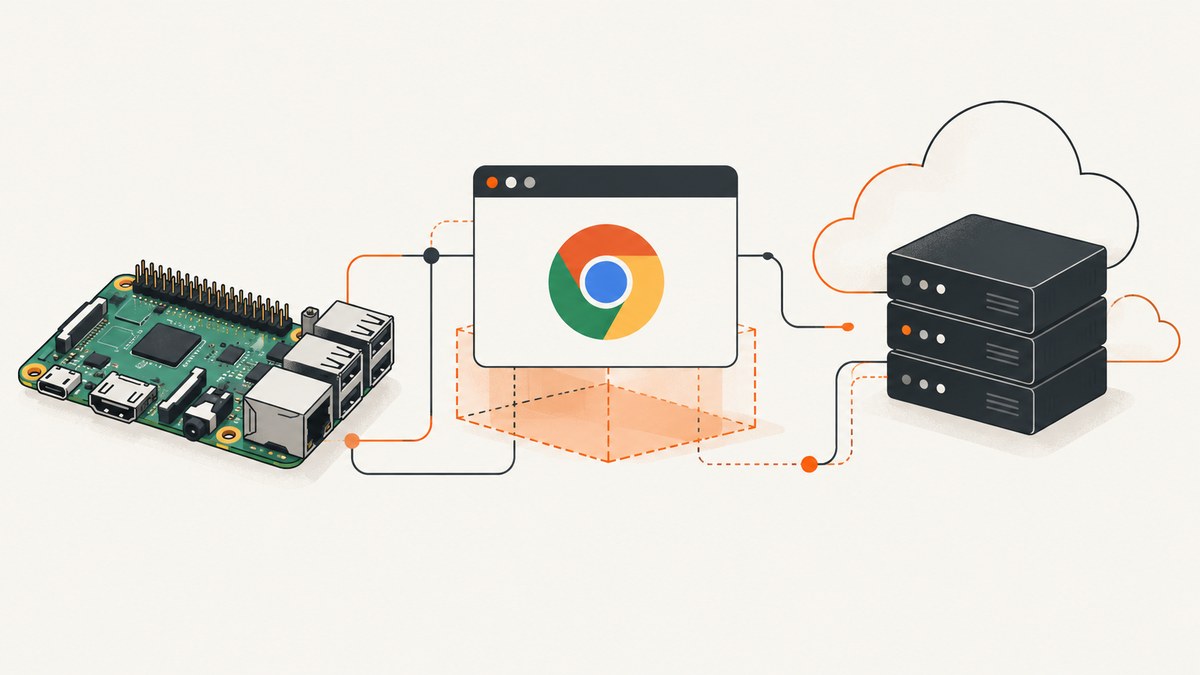
Short answer: Puppeteer publishes an official Docker image at GitHub Container Registry, but the image is not a native Linux ARM64 solution. The official image is Debian based and includes Chrome for Testing plus its system dependencies. Chrome has no official Linux ARM64 binaries, so an ARM64 Linux host needs a third party ARM64 Chromium build, an ARM64 targeted derivative image, or x64 emulation. macOS ARM64 is a separate case and is supported by Chrome.
This guide shows how to choose an approach, run the official image, build an ARM64 image with Buildx, configure permissions and writable paths, and diagnose the failures developers commonly see on Raspberry Pi, AWS Graviton, Ampere, and other ARM64 systems.
1. Understand the architecture problem first
Docker can pull an image for a CPU architecture, but that does not make every binary inside the image compatible with that architecture. Puppeteer is JavaScript and can run on ARM64 when Node.js is available. The blocking component is the browser executable: Chrome for Testing does not publish an official Linux ARM64 binary.
A Puppeteer collaborator summarized the situation in issue #7740: “macos arm64 is fully supported. As for linux arm64, Chrome does not officially support this platform so there are no arm64 binaries for linux.” The same comment identifies third party ARM64 Chromium builds or emulation as the practical workarounds.
| Host | Official image expectation | Recommended path |
|---|---|---|
| Linux amd64 | Supported when dependencies and permissions are correct | Use the official image and pin a tag or digest |
| macOS ARM64 | Chrome supports this platform | Use a compatible image or local browser setup |
| Linux ARM64 | No official Chrome ARM64 binary | Third party ARM64 Chromium, derivative image, or x64 emulation |
Before changing Dockerfiles, check the host architecture and the image manifest:
uname -m
docker version --format '{{.Server.Arch}}'
docker manifest inspect ghcr.io/puppeteer/puppeteer:25.12.0
aarch64 or arm64 indicates an ARM64 host. An x86_64 or amd64 result indicates an x64 host. The registry tag shown here is an example; tags and publication dates change, so review the current registry listing and pin a reviewed tag or digest for production.
2. What the official Puppeteer image contains
The current official Dockerfile uses node:24-bookworm. It sets locale and DBus environment variables, creates a non-root pptruser account with UID 10042, installs Puppeteer packages, then runs npx puppeteer browsers install chrome --install-deps as root so Chrome for Testing and its shared libraries are present. Runtime returns to the non-root user.
This layout matters for three reasons:
- Browser dependencies: Chrome needs shared libraries that a small base image may not include.
- Permissions: the browser should run as
pptruser, and its cache and profile directories must be writable by that user. - Reproducibility: pin the Puppeteer image tag or digest instead of relying on
latest.
Puppeteer’s troubleshooting documentation has shipped a Docker image through GitHub Container Registry since Puppeteer v16. The same documentation recommends an init process so orphaned browser processes are reaped correctly.
3. Run the official image on a supported host
On Linux amd64, start with a pinned image and a minimal launch check:
docker pull ghcr.io/puppeteer/puppeteer:25.12.0

docker run -i --init --rm --cap-add=SYS_ADMIN \
  --name puppeteer \
  ghcr.io/puppeteer/puppeteer:25.12.0 \
  node -e "const puppeteer = require('puppeteer'); puppeteer.launch({headless: true}).then(async b => { console.log(await b.version()); await b.close(); });"
--init inserts a small init process. --cap-add=SYS_ADMIN follows the documented development pattern for Chrome sandboxing; evaluate your container security policy before granting capabilities in production. The command prints the browser version and exits. If it fails, fix this minimal launch before adding application logic.
A basic screenshot script can be mounted into the container:
// screenshot.js
const puppeteer = require('puppeteer');

(async () => {
  const browser = await puppeteer.launch({
    headless: true,
    args: ['--no-sandbox', '--disable-setuid-sandbox']
  });
  try {
    const page = await browser.newPage();
    await page.goto('https://example.com', {
      waitUntil: 'networkidle2',
      timeout: 60000
    });
    await page.screenshot({path: '/tmp/example.png', fullPage: true});
  } finally {
    await browser.close();
  }
})();
docker run --rm --init \
--user 10042:10042 \
-v "$PWD/screenshot.js:/home/pptruser/screenshot.js:ro" \
-v "$PWD/output:/tmp" \
ghcr.io/puppeteer/puppeteer:25.12.0 \
node /home/pptruser/screenshot.jsUse the Chrome sandbox where your deployment allows it. If you must disable it, isolate the container, avoid mounting sensitive host paths, and run as the non-root user.
4. Linux ARM64 option A: use a third party ARM64 Chromium image
The fastest native route is an image that ships an ARM64-compatible Chromium binary and matching system libraries. CanardConfit documents a Puppeteer image with ARM64 pulls for Docker Hub, GitHub Container Registry, and Quay.io. Verify the publisher, image digest, Chromium version, Puppeteer version, and update process before adopting any third party image.
Keep your application layer small and explicit:
FROM <reviewed-arm64-puppeteer-image>

USER pptruser
ENV XDG_CONFIG_HOME=/tmp/.chromium \
    XDG_CACHE_HOME=/tmp/.chromium

WORKDIR /app
COPY --chown=pptruser:pptruser package*.json ./
RUN npm ci --omit=dev
COPY --chown=pptruser:pptruser screenshot.js ./

CMD ["node", "screenshot.js"]
Replace the placeholder only after reviewing the image’s documentation. Do not assume that a Chromium build is compatible with every Puppeteer release. Browser protocol changes and missing libraries can appear as launch or timeout errors.
5. Linux ARM64 option B: build an ARM64-targeted derivative
Buildx can produce a linux/arm64 image from an amd64 workstation or CI builder. You still need an ARM64-compatible Chromium package or binary; Buildx does not convert an x64 Chrome executable into ARM64.
docker buildx create --name arm-builder --use
docker buildx inspect --bootstrap

docker buildx build \
  --platform linux/arm64 \
  --tag registry.example.com/puppeteer-arm64:25.12.0 \
  --push .
A practical Dockerfile starts from an ARM64-capable Debian base, installs the Chromium package supplied by that distribution or your reviewed browser provider, then installs Puppeteer without downloading an incompatible Chrome binary:
FROM --platform=linux/arm64 node:24-bookworm

ENV PUPPETEER_SKIP_DOWNLOAD=true \
    XDG_CONFIG_HOME=/tmp/.chromium \
    XDG_CACHE_HOME=/tmp/.chromium

RUN apt-get update && apt-get install -y --no-install-recommends \
      chromium \
      ca-certificates \
      dumb-init \
    && rm -rf /var/lib/apt/lists/*

RUN useradd --create-home --uid 10042 pptruser
WORKDIR /app
COPY package*.json ./
RUN npm ci --omit=dev
COPY --chown=pptruser:pptruser screenshot.js ./
USER pptruser
ENTRYPOINT ["/usr/bin/dumb-init", "--"]
CMD ["node", "screenshot.js"]
Point Puppeteer at the system browser when launching:
const browser = await puppeteer.launch({
  executablePath: process.env.PUPPETEER_EXECUTABLE_PATH || '/usr/bin/chromium',
  headless: true
});
The exact executable path varies by distribution. Confirm it with which chromium or which chromium-browser inside the image.
6. Linux ARM64 option C: run x64 under emulation
Emulation follows the workaround described by the Puppeteer maintainer: run the x64 image on ARM64 through an emulation layer such as Docker’s binfmt support. This preserves the official Chrome binary, but adds setup and can reduce throughput for browser-heavy workloads. Measure your own pages and concurrency instead of assuming a fixed slowdown.
docker run --privileged --rm tonistiigi/binfmt --install all
docker run --rm --platform linux/amd64 --init \
  ghcr.io/puppeteer/puppeteer:25.12.0 \
  node -e "const p=require('puppeteer'); p.launch({headless:true}).then(async b => { console.log(await b.version()); await b.close(); })"
Use emulation when compatibility with the official image is more valuable than native ARM performance, or while you are validating an ARM64 migration. For steady production traffic, compare it with a native ARM64 Chromium image using the same pages, viewport, wait conditions, and concurrency.
7. Writable paths, users, and browser profiles
Chrome creates configuration, cache, and profile files at startup. Read-only containers therefore fail unless those paths point to writable storage. Set temporary directories explicitly and use a unique profile per worker:
ENV XDG_CONFIG_HOME=/tmp/.chromium \
    XDG_CACHE_HOME=/tmp/.chromium

const browser = await puppeteer.launch({
  headless: true,
  userDataDir: `/tmp/.puppeteer-profile-${process.pid}`
});
For concurrent jobs, do not share one userDataDir between browser processes. Give each job an isolated directory, or launch one browser and create separate pages when your workload permits. Ensure mounted output directories are writable by UID 10042.
8. Common errors and fixes
| Error or symptom | Likely cause | Fix |
|---|---|---|
Failed to launch the browser process |
Missing shared libraries or incompatible browser binary | Use the official Debian image on amd64, or install an ARM64 Chromium build with all dependencies. |
Exec format error |
An x64 executable is running on ARM64 without emulation | Use a native ARM64 browser/image or run the container with --platform linux/amd64 and configure emulation. |
| Browser starts, then exits immediately | Profile or cache directory is not writable | Set XDG_CONFIG_HOME, XDG_CACHE_HOME, and userDataDir to writable paths; check ownership. |
| Timeout waiting for navigation | Slow page, blocked resource, emulation overhead, or an incorrect wait condition | Set an explicit timeout, log the URL and navigation phase, and choose domcontentloaded, load, or networkidle2 based on the page. |
| Chrome sandbox error | Container user or kernel configuration prevents sandbox startup | Run as the provided non-root user and follow the image’s sandbox guidance. If disabling the sandbox is unavoidable, isolate the container and use --no-sandbox deliberately. |
| Alpine launch or timeout problems | Chrome does not support Alpine out of the box; Chromium and Puppeteer versions may not match | Prefer the Debian-based official image, or maintain an Alpine-specific dependency and version matrix. |
| Works locally but fails in CI | Different architecture, missing writable volume, or smaller shared memory | Print architecture and browser versions, verify mounts, and make temporary storage explicit. |
9. Reliability and performance checklist
- Pin the image by reviewed tag or digest and record the Puppeteer and browser versions.
- Run a startup smoke test that launches and closes a browser before accepting jobs.
- Use
--initordumb-initso child browser processes are reaped. - Keep one browser process per worker when isolation matters; reuse a browser and create pages when launch overhead dominates.
- Give each concurrent browser a separate profile directory.
- Set navigation and overall job timeouts, and close pages in a
finallyblock. - Capture browser stderr and the target URL on failure. Store screenshots or HTML only when your data policy permits it.
- For ARM64, compare native Chromium with emulated x64 using your real page mix. Rendering cost depends on JavaScript, images, fonts, network, and wait conditions.
- Limit concurrency to the CPU and memory available. A browser can consume substantially more memory than the Node.js script that controls it.
10. Cost and maintenance considerations
The image itself is only one part of operating a screenshot service. Budget for ARM compute, registry storage and transfer, browser updates, CI builds, observability, and time spent maintaining a compatible Chromium/Puppeteer pair. Native ARM64 can improve price efficiency on ARM hosts, but only when the browser build is reliable for your pages. Emulation can reduce image maintenance while increasing CPU work. A third party image reduces initial setup but adds publisher trust and update risk.
11. Or skip the browser setup
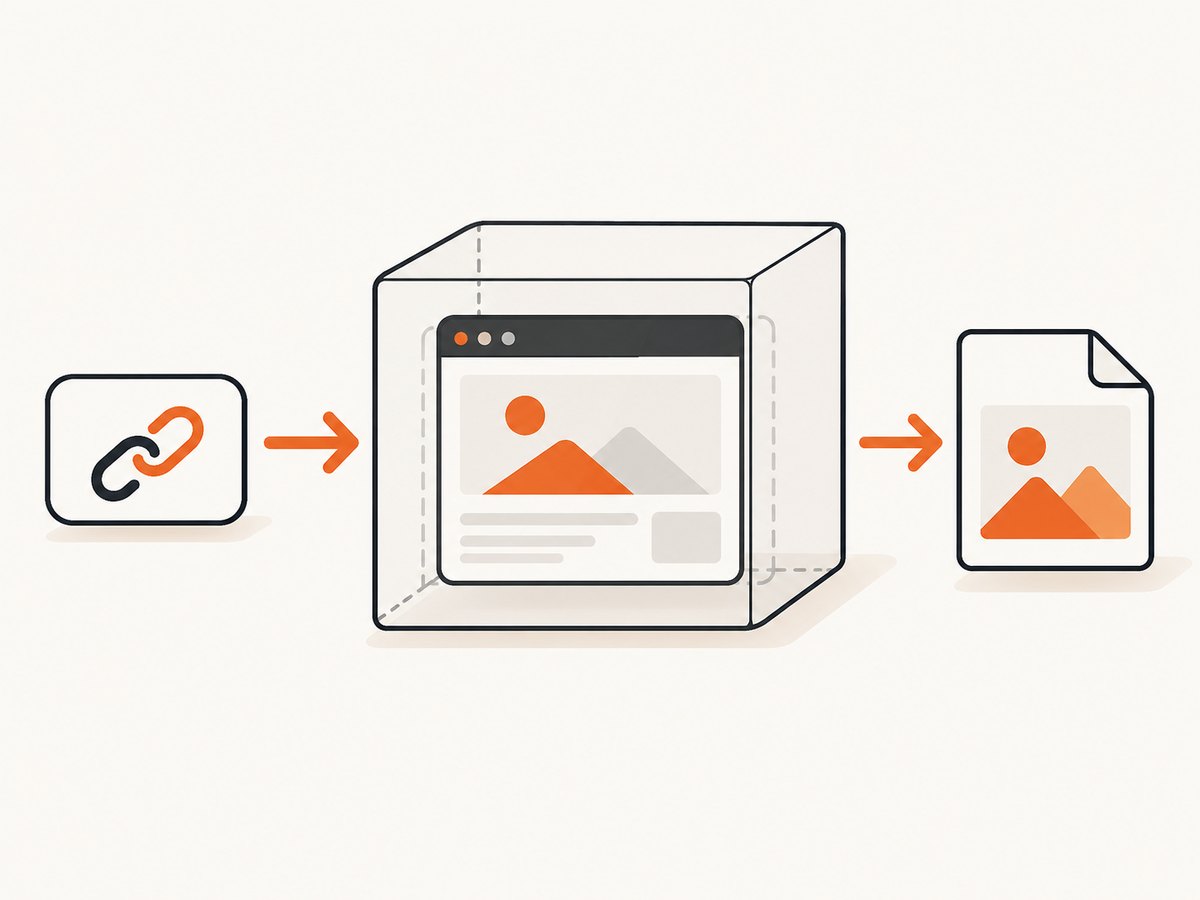
If your goal is dependable website screenshots rather than managing Chromium, ScreenshotNeo provides a single GET request that returns PNG, JPEG, WebP, or PDF. It accepts cookie and consent banners like a visitor, then removes more than 60 known consent platforms, newsletter popups, and chat widgets before capture. Each step can be turned off.

Only clean shots are billed. Bot checks or CAPTCHAs, blank pages, timeouts, failed loads, and cache hits cost nothing, and the response identifies the result with X-Page-Verdict and X-Billed headers. ScreenshotNeo also has an MCP server with take_screenshot, get_page_info, and capture_pdf tools for Claude, Cursor, and other MCP clients.
See the complete option list and request details in the ScreenshotNeo documentation.
cURL
curl -G "https://api.screenshotneo.com/v1/shot" -d access_key=YOUR_API_KEY --data-urlencode url=https://stripe.com -o shot.webpPython
import requests
r = requests.get("https://api.screenshotneo.com/v1/shot", params={"access_key": "YOUR_API_KEY", "url": "https://stripe.com"}, timeout=90)
open("shot.webp", "wb").write(r.content)
Node.js
const q = new URLSearchParams({ access_key: 'YOUR_API_KEY', url: 'https://stripe.com' }); const res = await fetch(`https://api.screenshotneo.com/v1/shot?${q}`);Every plan includes the full feature set: full-page and element capture, device presets and custom viewports, dark mode, retina scale, custom CSS and JavaScript, clicks, waits, request blocking, headers, cookies, user agents, authorization, timezone, geolocation, transparent backgrounds, resizing, caching, signed links, asynchronous jobs, webhooks, bulk capture, usage data, and PDF controls.
There are 1,000 screenshots per month free with no card. Paid plans start at $5 for 3,000 shots, and yearly billing gives two months free. Create your free ScreenshotNeo account and use the first 1,000 screenshots to validate your workflow.
12. FAQ
Can I run the official image directly on a Raspberry Pi?
Not as a native Linux ARM64 Chrome environment. Use an ARM64 Chromium image or derivative, or run the amd64 image through emulation.
Does an M1 or M2 Mac have the same limitation?
No. macOS ARM64 support is separate from Linux ARM64. The Linux limitation is the absence of an official Linux ARM64 Chrome binary.
Will Buildx make the official image ARM64 automatically?
No. Buildx creates an ARM64 image filesystem, but every executable inside it must also support ARM64. You still need an ARM64-compatible Chromium binary.
Should I use Alpine to make the image smaller?
Usually not for this workload. Puppeteer’s troubleshooting guidance warns that Chrome does not support Alpine out of the box. Debian-based images reduce dependency surprises.
What should I pin in production?
Pin the container tag or digest, Puppeteer version, browser version, base image, and any third party ARM64 image. Revalidate them together when upgrading.


