How to Run Puppeteer Inside a Google Cloud Function
Deploy Puppeteer and Chromium with a Node.js Cloud Run function, with complete code, deployment steps, troubleshooting, and production guidance.
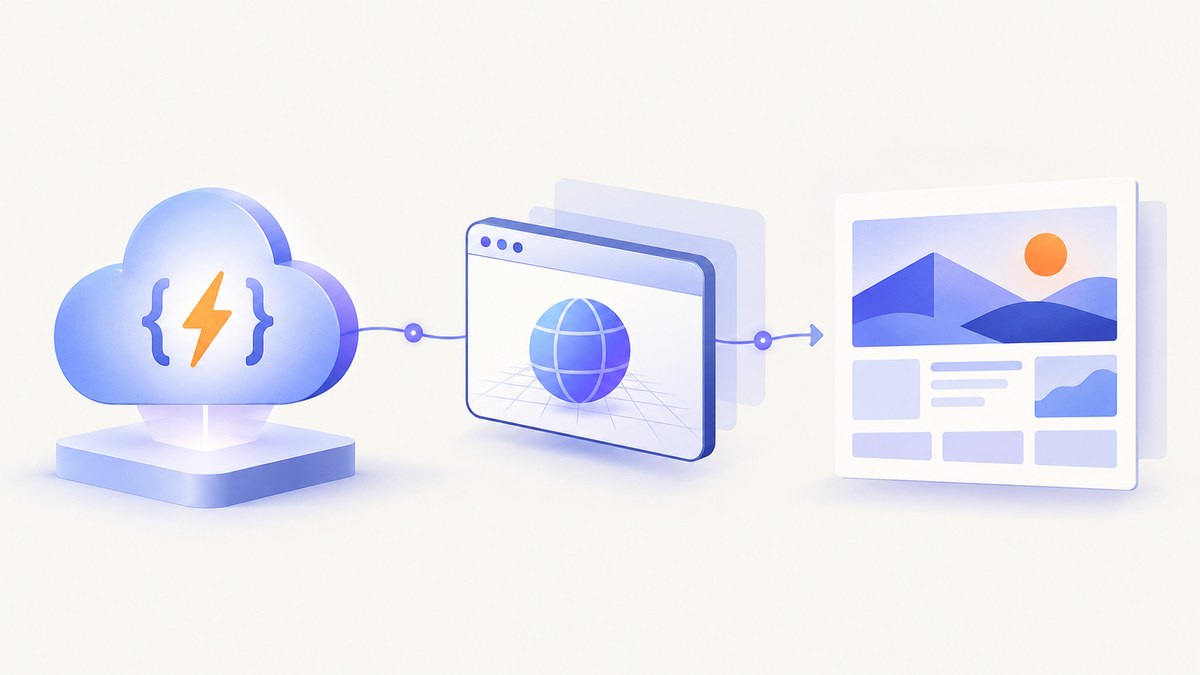
Short answer: deploy a Node.js Cloud Run function from source, make Chromium available in the deployed container, and launch it from your Puppeteer handler. Google’s current product terminology is Cloud Run functions; many existing tutorials and commands still say “Google Cloud Functions.” The source deployment flow builds your code into a container with buildpacks and Cloud Build, then stores the image in Artifact Registry.
Google’s browser automation documentation describes Puppeteer as a high-level browser-control library and says Chromium must be installed in the Cloud Run container. The same platform supports browser tasks such as scraping, form submission, UI testing, PDF generation, and screenshots. See Google’s browser automation guide and Cloud Run function deployment documentation.
1. Understand the deployment model
A Cloud Run function is still a managed HTTP function, but the build and execution environment is container based:
- Your source directory contains a Node.js entry point and dependency manifest.
- The Cloud Run functions build process uses buildpacks and Cloud Build to create a container image.
- The image is stored in Artifact Registry.
- Cloud Run starts instances of that image when requests arrive.
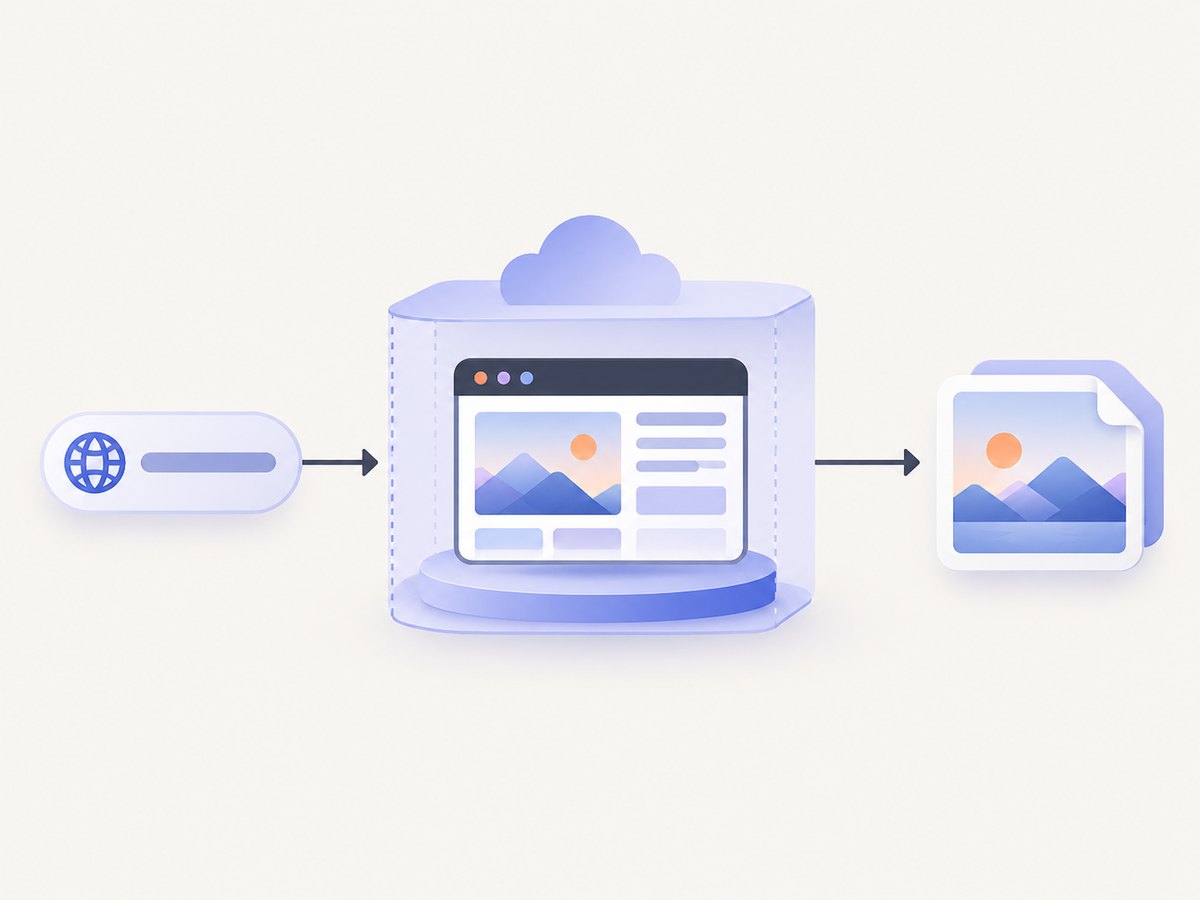
- Your function launches Chromium through Puppeteer, performs the browser work, and returns a response.
Puppeteer is the API layer. Chromium is the browser binary. Installing the npm package alone is not enough unless the package or your image also supplies a compatible browser. Google explicitly instructs developers to install Chromium in the Cloud Run container. The exact browser package, executable path, launch flags, memory allocation, timeout, and concurrency are implementation details you must validate against the runtime image you select; Google’s reviewed documentation does not prescribe one universal Puppeteer recipe.
2. Create the smallest working function
Start with a directory containing package.json and index.js. The following handler accepts a url query parameter, opens it, and returns a PNG screenshot.
package.json
{
  "name": "puppeteer-cloud-function",
  "version": "1.0.0",
  "private": true,
  "main": "index.js",
  "engines": {
    "node": ">=20"
  },
  "dependencies": {
    "puppeteer": "^24.0.0"
  }
}
index.js
const puppeteer = require('puppeteer');

let browserPromise;

function getBrowser() {
  if (!browserPromise) {
    const launchOptions = {
      headless: true,
      executablePath: process.env.CHROME_BIN || undefined
    };

    // Add runtime-specific Chromium flags only after validating them
    // against the image used by your deployment.
    browserPromise = puppeteer.launch(launchOptions);
  }
  return browserPromise;
}

exports.capture = async (req, res) => {
  const target = req.query.url;
  if (!target) {
    res.status(400).json({ error: 'Pass a url query parameter' });
    return;
  }

  let parsed;
  try {
    parsed = new URL(target);
    if (!['http:', 'https:'].includes(parsed.protocol)) {
      throw new Error('Only http and https URLs are supported');
    }
  } catch (error) {
    res.status(400).json({ error: 'Invalid URL' });
    return;
  }

  const browser = await getBrowser();
  const page = await browser.newPage();

  try {
    await page.setViewport({ width: 1440, height: 900, deviceScaleFactor: 1 });
    await page.goto(parsed.href, {
      waitUntil: 'networkidle2',
      timeout: 60000
    });
    const image = await page.screenshot({ type: 'png', fullPage: true });
    res.set('Content-Type', 'image/png');
    res.send(image);
  } catch (error) {
    console.error(error);
    res.status(502).json({ error: 'Browser capture failed' });
  } finally {
    await page.close();
  }
};
The module-level promise lets warm instances reuse one browser process while each request receives a fresh page. Always close the page in a finally block. If the browser crashes, clear the cached promise and create a new one on the next request; production code should add that recovery path.
3. Make Chromium available
There are two practical choices:
- Use a dependency that downloads or supplies Chromium. Confirm that the downloaded browser is present during the build and that the deployed runtime can execute it.
- Install Chromium in the container image. Google’s browser automation guidance explicitly uses this model. If the default source build does not contain the binary you need, use a container-based deployment path or a supported base image that includes it.
Do not hard-code an executable path until you inspect the actual deployed image. Set CHROME_BIN as an environment variable when your image places Chromium at a known location:
gcloud run deploy puppeteer-capture \
  --source . \
  --function capture \
  --base-image nodejs24 \
  --region us-central1 \
  --set-env-vars CHROME_BIN=/path/to/chromium
The path above is a placeholder. Replace it with the path provided by your selected image or browser package. If Chromium exits immediately in the sandbox, validate the launch flags required by that image rather than copying flags blindly from an unrelated tutorial.
4. Deploy as a Cloud Run function
Authenticate and select a Google Cloud project, then enable the services requested by the CLI. From the project directory, deploy with:
gcloud run deploy puppeteer-capture \
  --source . \
  --function capture \
  --base-image nodejs24 \
  --region us-central1 \
  --allow-unauthenticated
--function capture must match exports.capture. Keep the endpoint authenticated if screenshots expose private data; omit --allow-unauthenticated and invoke it with an identity token instead.
At the research date, Google lists Node.js 24 (nodejs24) for Run functions on the google-24 and google-24-full stacks. Node.js 22 is also listed, while Node.js 20 is approaching deprecation. These dates change, so check Google’s runtime support table before every new deployment. Choose a runtime that is supported in your region and compatible with your browser dependency.
5. Add navigation, waits, and browser controls
Navigation strategy
Use waitUntil: 'domcontentloaded' for pages where background requests never settle. Use networkidle2 when the page needs most network resources before capture. Neither condition guarantees that a single application has finished rendering; wait for a known selector when possible:
await page.goto(target, { waitUntil: 'domcontentloaded', timeout: 60000 });
await page.waitForSelector('#report-ready', { timeout: 30000 });
Viewport and device emulation
await page.setViewport({
  width: 1280,
  height: 800,
  deviceScaleFactor: 2,
  isMobile: false,
  hasTouch: false
});
Set the viewport before navigation when responsive CSS depends on it. For a mobile capture, change the width, height, device scale, and mobile flags together.
Authentication and request controls
await page.setExtraHTTPHeaders({
  Authorization: `Bearer ${process.env.TARGET_TOKEN}`
});
await page.setCookie({
  name: 'session',
  value: process.env.SESSION_VALUE,
  domain: 'example.com',
  path: '/'
});
Keep secrets in Secret Manager or environment configuration, not in source or query strings. Validate and restrict user-supplied URLs to prevent your function from becoming an open proxy or a path to internal services.
PDF output
const pdf = await page.pdf({
  format: 'A4',
  printBackground: true,
  landscape: false,
  margin: { top: '12mm', right: '12mm', bottom: '12mm', left: '12mm' }
});
res.set('Content-Type', 'application/pdf');
res.send(pdf);
6. Calling the function
After deployment, Google prints the service URL. Call it with a URL-encoded target:
curl -G 'https://YOUR_FUNCTION_URL' \
  --data-urlencode 'url=https://example.com' \
  -o example.png
const target = new URL('https://YOUR_FUNCTION_URL');
target.searchParams.set('url', 'https://example.com');
const response = await fetch(target);
if (!response.ok) throw new Error(`HTTP ${response.status}`);
const bytes = await response.arrayBuffer();
await require('node:fs').promises.writeFile('example.png', Buffer.from(bytes));import requests
r = requests.get(
"https://YOUR_FUNCTION_URL",
params={"url": "https://example.com"},
timeout=90,
)
r.raise_for_status()
open("example.png", "wb").write(r.content)7. Handle failures and edge cases
| Symptom | Likely cause | Fix |
|---|---|---|
Could not find Chrome |
Chromium was not included in the built image, or the path is wrong. | Install Chromium in the container or use the browser supplied by your dependency. Set and verify CHROME_BIN. |
| Browser starts locally but fails in Cloud Run | The deployed image has different libraries, permissions, or sandbox requirements. | Inspect the runtime image, validate launch flags for that image, and log the browser error. |
| Navigation timeout | The site is slow, blocked, or keeps connections open. | Raise the navigation timeout within the function deadline, use domcontentloaded, or wait for a specific selector. |
| Blank or partial screenshot | Client-side rendering or lazy content has not finished. | Wait for a readiness selector, a short delay, or an application-specific completion signal. |
| Function request times out | Browser startup, page load, and image generation exceed the configured request deadline. | Reduce page work, reuse warm browsers, increase the function timeout, or move long jobs to an asynchronous design. |
| Memory exhaustion | Chromium plus multiple pages or large full-page screenshots exceed instance memory. | Close pages, limit concurrency, avoid unnecessary tabs, and choose an appropriate memory allocation. |
| Works once, then fails on warm invocations | A stale browser process or leaked page remains in the instance. | Close every page, detect browser disconnects, and recreate the browser promise after a crash. |
| Private page cannot load | Cookies, headers, or network access are missing. | Set headers and cookies before navigation and verify that the function can reach the target network. |
8. Performance, reliability, and cost planning
Performance
Cold starts include Node.js initialization, Chromium startup, and the first page load. Reusing a browser in warm instances removes repeated startup work, but it does not remove page navigation cost. Measure your own pages because Google’s reviewed documentation does not publish a Puppeteer benchmark or a standard memory profile.
Use one page per request, close it promptly, and cap concurrent browser work. Full-page screenshots can consume considerably more memory than viewport shots, especially on long documents. Block unnecessary resources only when doing so does not change the result you need.
Reliability
Set explicit navigation and function deadlines. Return structured errors and log the target host, elapsed phases, and browser exit reason without logging credentials. Retry only failures that are plausibly transient; repeated retries can multiply load on the target site and your own instances. For large batches, queue work and process one URL per invocation or use an asynchronous workflow.
Cost
Your bill depends on Cloud Run functions execution, allocated CPU and memory, build and image storage, network egress, and any other Google Cloud services in your design. Chromium increases startup and memory requirements. The official sources reviewed here do not provide a Puppeteer-specific cost benchmark, so estimate from your workload and verify with Google Cloud pricing and billing reports.
9. When Puppeteer is the wrong operational choice
Running a browser yourself gives you control over scripts, cookies, headers, selectors, and output formats, but you also own browser packaging, version compatibility, cleanup, scaling, and failure handling. Google documents both Puppeteer and Playwright as high-level browser APIs; choose based on the browser and API your project already uses, package compatibility, and the operational cost of including Chromium. Chrome DevTools Protocol is a lower-level alternative when you need direct protocol control.
10. Or skip the browser setup
ScreenshotNeo provides a website screenshot API and MCP server. One GET request returns a PNG, JPEG, WebP, or PDF, while the service handles browser setup and capture options.
cURL:
curl -G "https://api.screenshotneo.com/v1/shot" -d access_key=YOUR_API_KEY --data-urlencode url=https://stripe.com -o shot.webpPython:
import requests
r = requests.get("https://api.screenshotneo.com/v1/shot", params={"access_key": "YOUR_API_KEY", "url": "https://stripe.com"}, timeout=90)
open("shot.webp", "wb").write(r.content)
Node.js:
const q = new URLSearchParams({ access_key: 'YOUR_API_KEY', url: 'https://stripe.com' }); const res = await fetch(`https://api.screenshotneo.com/v1/shot?${q}`);See the ScreenshotNeo API documentation for request options. Cookie and consent banners are accepted or removed before capture, along with more than 60 known consent platforms, newsletter popups, and chat widgets. Bot checks, blank pages, timeouts, failed loads, and cache hits are not billed; response headers identify the page verdict and whether the shot was billed. Options include full-page capture with lazy images, CSS element capture, dark mode, device presets, custom viewports, retina scale, PDF paper and margin controls, custom CSS and JavaScript, clicks, waits, blocked requests, headers, cookies, user agents, Authorization, timezone, geolocation, transparent backgrounds, resizing, cache TTLs, signed links, asynchronous jobs with signed webhooks, bulk capture for up to 100 URLs, usage reporting, and an OpenAPI specification. An MCP server provides take_screenshot, get_page_info, and capture_pdf tools for Claude, Cursor, and other MCP clients.
The Free plan includes 1,000 screenshots per month with no card. Paid plans start at $5 for 3,000 shots; yearly billing gives two months free. Create a free ScreenshotNeo account.
11. FAQ
Is this still called Google Cloud Functions?
Google’s current documentation uses Cloud Run functions. Existing Cloud Functions v2 terminology and commands remain common, and Google documents both paths.
Should I use Puppeteer or Playwright?
Neither is universally better. Compare the browser, API style, package compatibility, and operational cost that fit your project.
Can I keep one browser open forever?
Reuse a browser within a warm instance, but treat it as disposable. Detect disconnects, close pages, and recreate it after crashes or unexpected state.
Why does a page finish locally but not in the function?
The runtime may have different fonts, libraries, network access, browser versions, or deadlines. Log the deployed browser version and wait for an application-specific readiness signal.
Which Node.js runtime should I deploy?
Use a currently supported runtime and recheck Google’s lifecycle table before deployment. Node.js 24 is listed for the current Run functions stack at the research date.


