How to Run Python Selenium ChromeDriver on Amazon Linux and AWS Lambda
Package matching Chrome and ChromeDriver in an Amazon Linux Lambda image, test it locally, and troubleshoot Selenium deployment errors.
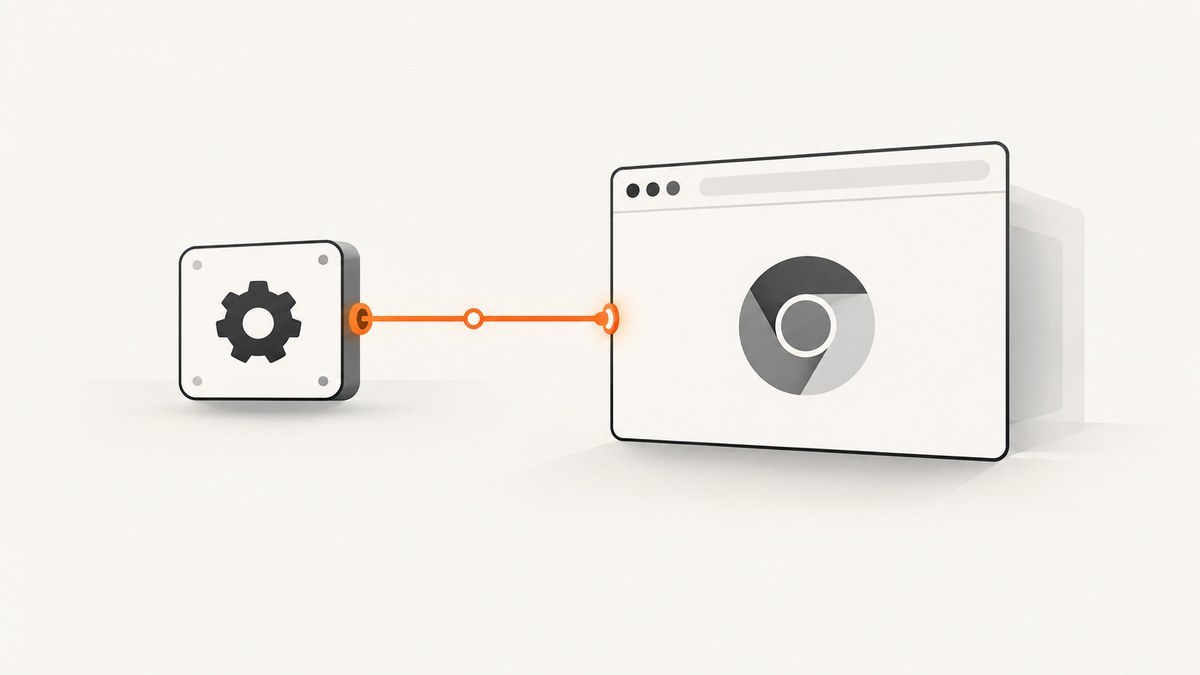
Direct answer: The most predictable way to run Python Selenium with ChromeDriver on Amazon Linux and AWS Lambda is to deploy a Lambda container image that contains the Python runtime, Selenium, a Chrome or Chromium binary, and a ChromeDriver binary built for the same CPU architecture. Select the Lambda runtime and architecture first, obtain a compatible browser and driver pair during the image build, configure Selenium for headless operation, and invoke the image locally through Lambda’s runtime interface before deploying it.
AWS maps Python 3.12 and later Lambda base images to Amazon Linux 2023 (AL2023), while Python 3.11 uses Amazon Linux 2 (AL2). AL2023 images use microdnf, also available as dnf, rather than the AL2-oriented yum. These differences affect native libraries and installation commands, so the operating-system generation must be part of your deployment decision. AWS’s container-image guide documents the image choices, architecture-specific builds, and local invocation flow.
1. Choose the Lambda runtime, architecture, and image
Start with three decisions:
- Python runtime: Use a current AWS Python base image. Python 3.12+ means AL2023; Python 3.11 means AL2.
- CPU architecture: Choose
linux/amd64orlinux/arm64. Chrome, ChromeDriver, and every native library must target that architecture. - Image type: An AWS Python language base image already includes the runtime interface client. An AWS OS-only image or another distribution requires you to add the Python Runtime Interface Client (
awslambdaric) yourself.
AWS also describes the execution environment and runtime choices in its Lambda runtimes documentation. Keep your local test image identical to the image pushed to Lambda; testing a desktop installation does not validate the Lambda filesystem, libraries, architecture, or startup path.
2. Obtain a matching Chrome and ChromeDriver pair
ChromeDriver must be compatible with the browser version. Do not copy a driver from a developer laptop or hard-code an old download URL. Resolve the current browser and driver release from an authoritative release source during your build, then record the versions in the image metadata. The research for this guide did not verify a current Chrome for Testing release URL, so the example below expects you to place the already-verified Linux binaries in the build context.
Use this checklist before building:
- Both binaries are Linux binaries, not macOS or Windows files.
- Both binaries target the image architecture.
- The driver version is compatible with the browser version.
- The browser’s shared-library requirements are available in the image.
- The files are executable and live at stable paths.
Inside a build or CI job, assert the architecture and versions instead of assuming them:
# Run on the same platform as the Lambda image
file chrome-linux64/chrome chromedriver-linux64/chromedriver
chrome-linux64/chrome --version
chromedriver-linux64/chromedriver --version
ldd chrome-linux64/chrome | grep "not found" || true
If ldd reports missing libraries, install the required packages for your selected AL2 or AL2023 base image and repeat the check. Package names vary by image generation and browser build; verify them in the image rather than copying a list intended for another distribution.
3. Build a Lambda container image
The following layout keeps the browser and driver under /opt and uses the AWS Python 3.12 base image. Put your verified browser directory at chrome-linux64/ and the matching driver directory at chromedriver-linux64/ next to the Dockerfile.
project/
├── Dockerfile
├── app.py
├── requirements.txt
├── chrome-linux64/
│   └── chrome
└── chromedriver-linux64/
    └── chromedriver
# Dockerfile
FROM public.ecr.aws/lambda/python:3.12
# AL2023 uses microdnf (also available as dnf). Add the native packages
# required by your verified Chrome build, then confirm them with ldd.
# Keep this command explicit so a package change is visible in code review.
RUN microdnf update -y && \
microdnf clean all
COPY requirements.txt ${LAMBDA_TASK_ROOT}/
RUN pip install --no-cache-dir -r ${LAMBDA_TASK_ROOT}/requirements.txt --target ${LAMBDA_TASK_ROOT}
COPY chrome-linux64 /opt/chrome
COPY chromedriver-linux64 /opt/chromedriver
RUN chmod +x /opt/chrome/chrome /opt/chromedriver/chromedriver
ENV CHROME_BIN=/opt/chrome/chrome
ENV CHROMEDRIVER_BIN=/opt/chromedriver/chromedriver
ENV HOME=/tmp
COPY app.py ${LAMBDA_TASK_ROOT}/
CMD ["app.handler"]# requirements.txt
selenium==4.XX.XPin Selenium to the version you use in your application. Replace 4.XX.X with the version selected by your dependency policy; the placeholder makes it clear that the value must be chosen rather than silently floating to a new release.
For Python 3.11, change the base image to public.ecr.aws/lambda/python:3.11 and follow AL2 package instructions. Do not run AL2023 microdnf commands in an AL2 image. For an OS-only or non-AWS image, install awslambdaric and configure the image entrypoint as AWS documents.
4. Configure Selenium for Lambda
Lambda has no desktop display. Run Chrome headlessly, use a writable profile under /tmp, and pass the explicit browser and driver paths. The handler below accepts a URL in the event, captures a PNG, and returns a base64 response. It also creates a unique temporary profile so concurrent or reused environments do not share profile state.
# app.py
import base64
import json
import os
import tempfile
import uuid
from pathlib import Path

from selenium import webdriver
from selenium.webdriver.chrome.options import Options
from selenium.webdriver.chrome.service import Service

CHROME_BIN = os.environ.get("CHROME_BIN", "/opt/chrome/chrome")
CHROMEDRIVER_BIN = os.environ.get("CHROMEDRIVER_BIN", "/opt/chromedriver/chromedriver")


def handler(event, context):
    url = event.get("url", "https://example.com")
    profile = Path("/tmp") / f"chrome-profile-{uuid.uuid4()}"
    profile.mkdir(parents=True, exist_ok=True)

    options = Options()
    options.binary_location = CHROME_BIN
    options.add_argument("--headless=new")
    options.add_argument("--no-sandbox")
    options.add_argument("--disable-dev-shm-usage")
    options.add_argument("--disable-gpu")
    options.add_argument(f"--user-data-dir={profile}")
    options.add_argument("--window-size=1365,768")

    driver = None
    try:
        service = Service(executable_path=CHROMEDRIVER_BIN)
        driver = webdriver.Chrome(service=service, options=options)
        driver.set_page_load_timeout(45)
        driver.get(url)
        png = driver.get_screenshot_as_png()
        return {
            "statusCode": 200,
            "headers": {"content-type": "image/png"},
            "isBase64Encoded": True,
            "body": base64.b64encode(png).decode("ascii"),
        }
    finally:
        if driver is not None:
            driver.quit()
        # The /tmp directory is reusable across warm invocations. Remove the
        # profile after each request to avoid unbounded growth.
        for child in profile.glob("**/*"):
            if child.is_file() or child.is_symlink():
                child.unlink(missing_ok=True)
        profile.rmdir()
The --no-sandbox flag is commonly required in restricted container environments. Keep the explicit timeout and cleanup. If your page needs authentication, provide cookies or headers through Selenium before navigation and never log secrets.
5. Build for the selected architecture and invoke locally
Build with Docker’s platform flag so the image and browser binaries agree:
# For an x86_64 Lambda function
docker buildx build --platform linux/amd64 -t selenium-lambda:latest --load .

# For an Arm64 Lambda function
docker buildx build --platform linux/arm64 -t selenium-lambda:latest --load .
Run the image locally. AWS’s Lambda base images expose the runtime endpoint on port 8080:
docker run --rm -p 9000:8080 selenium-lambda:latestIn another terminal, invoke the function with a controlled page:
curl -sS -X POST \
  'http://localhost:9000/2015-03-31/functions/function/invocations' \
  -H 'content-type: application/json' \
  -d '{"url":"https://example.com"}' > response.json
Decode the returned base64 body and inspect the container logs. This end-to-end test starts Chrome, loads a page, takes a screenshot, and exercises the same handler path Lambda will use. An import-only test will miss missing shared libraries, driver mismatches, profile permissions, and navigation timeouts.
6. Selenium Manager: useful locally, conditional in Lambda
Modern Selenium bindings include Selenium Manager, which can obtain a missing browser driver. Selenium documents Manager and its Python API behavior at selenium.dev/documentation/selenium_manager and in the Python API reference. It can simplify a developer workstation:
from selenium import webdriver
from selenium.webdriver.chrome.options import Options

options = Options()
options.add_argument("--headless=new")
driver = webdriver.Chrome(options=options)
try:
    driver.get("https://example.com")
    print(driver.title)
finally:
    driver.quit()
Do not treat this as proof that runtime downloads will work in every Lambda account. Network egress, writable caches, cold-start timing, browser availability, and native libraries still apply. For reproducible deployments, package the intended browser and driver in the image. If you choose Manager in production, validate its download and cache behavior in the exact deployed network and architecture.
7. Runtime options and edge cases
Cold starts and warm reuse
Launching Chrome is expensive relative to a normal Python import. Create the driver inside the handler when each request needs isolation, or keep a carefully managed driver outside the handler only when you can reset state between requests. A reused driver can retain cookies, local storage, tabs, and crashed processes. Always detect a dead session and recreate it.
Writable files
The deployed code and most of the image filesystem are read-only. Put profiles, downloads, screenshots, and browser caches under /tmp. Remove temporary files after each request and size ephemeral storage for the largest page assets you expect.
Long pages and lazy loading
A normal viewport screenshot captures only what is visible. For a full-page result, scroll in steps, wait for lazy images, and stitch screenshots, or use a capture service that implements full-page loading. Pages that never finish network activity need explicit waits rather than an infinite “network idle” assumption.
Authentication, consent, and bot checks
Pass test credentials securely and respect the target site’s access rules. A CAPTCHA or bot challenge is not a Selenium bug that should be bypassed blindly. Record the final URL, page title, and a bounded portion of console or driver logs so failures can be diagnosed without storing sensitive page data.
Architecture mismatches
An x86_64 Chrome binary in an Arm64 image fails before Selenium can create a session. Check docker image inspect, file, and the Lambda function architecture together. Build separate images when you support both architectures.
8. Troubleshooting common errors
| Error or symptom | Likely cause | Fix |
|---|---|---|
Exec format error |
Browser or driver architecture differs from the image. | Rebuild with --platform matching Lambda and obtain binaries for that platform. |
SessionNotCreatedException |
ChromeDriver and Chrome versions are incompatible, or the binary cannot start. | Print both versions during the build, replace the pair with a compatible release, and run ldd. |
error while loading shared libraries |
A native library required by Chrome is absent. | Identify the missing library, install the package for AL2 or AL2023, rebuild, and repeat the local invocation. |
| Chrome exits immediately | No headless mode, no writable profile, sandbox restrictions, or insufficient temporary space. | Use headless flags, set --user-data-dir=/tmp/..., verify permissions, and inspect container logs. |
| Works locally but times out in Lambda | Different architecture, outbound network path, DNS, memory, or page-load behavior. | Test the deployed image locally, verify networking, set explicit page and script timeouts, and increase memory only when measurements justify it. |
Read-only file system |
Chrome or the application writes outside /tmp. |
Redirect profile, cache, download, and output paths to /tmp. |
| Lambda returns an import error | Dependencies were installed outside the task root or the handler name is wrong. | Install requirements into ${LAMBDA_TASK_ROOT}, verify app.handler, and invoke the image locally. |
| Driver download fails under Selenium Manager | Outbound access or cache behavior is unavailable at invocation time. | Package pinned binaries in the image or explicitly validate network and cache configuration. |
9. Performance, reliability, and cost planning
- Measure startup separately from navigation. Log image initialization, driver creation, page load, screenshot encoding, and teardown. This shows whether the bottleneck is the browser or the target page.
- Choose memory for the browser workload. Large pages, several tabs, PDFs, and high-resolution screenshots need more memory and temporary storage than a simple page. The research does not provide a universal memory or duration benchmark, so size from your own smoke tests.
- Keep the image reproducible. Pin Selenium, record browser and driver versions, build for a declared architecture, and rebuild when security updates require it.
- Bound every wait. Use page-load, script, selector, and overall invocation deadlines. A page that never settles should produce a controlled failure rather than consume the entire function timeout.
- Plan retries carefully. Retry transient network failures with a limit and backoff. Do not blindly retry deterministic version, permission, or CAPTCHA errors.
- Account for Lambda billing separately. Lambda cost depends on configured memory, execution duration, requests, and related AWS services. This guide contains no topic-specific benchmark; use CloudWatch measurements from your workload.
10. Or skip the browser setup
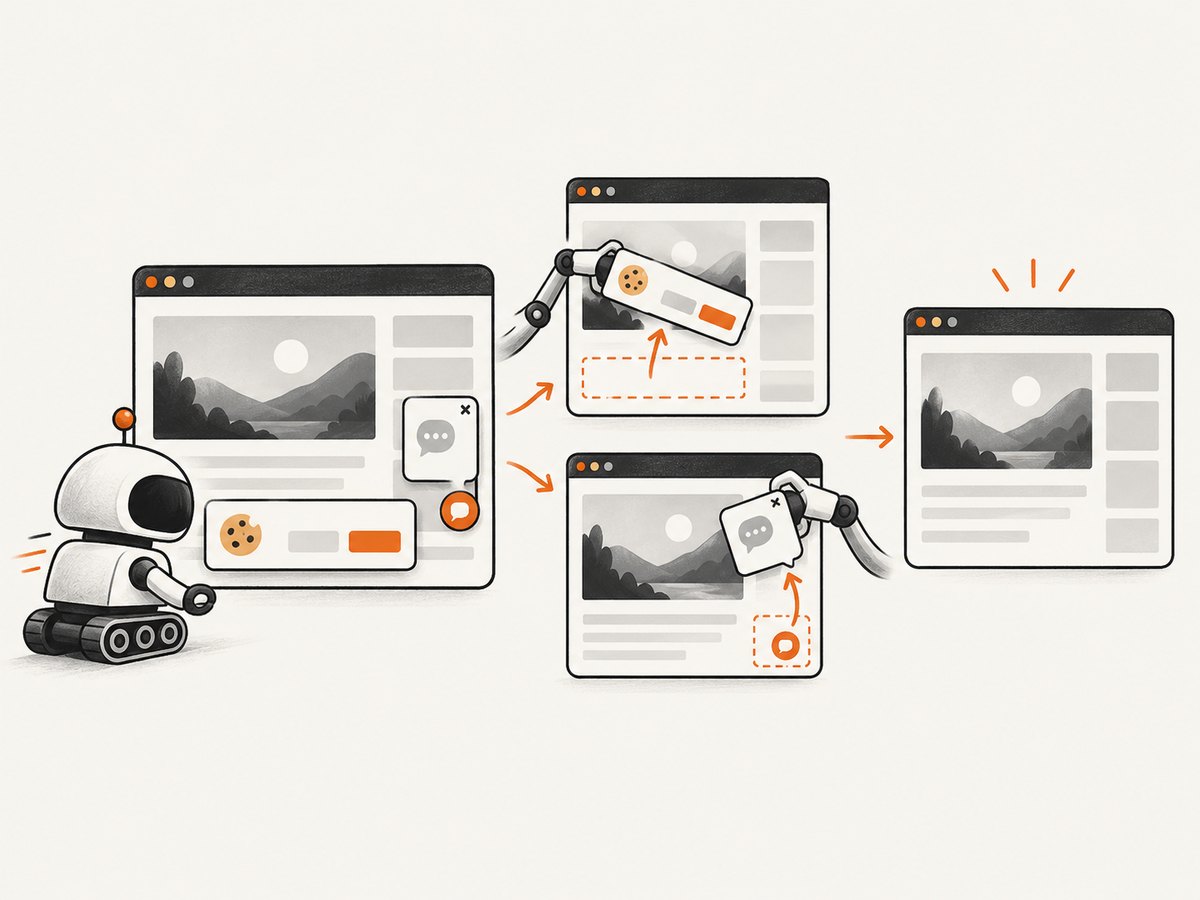
If your goal is a clean website image rather than maintaining Chrome inside Lambda, ScreenshotNeo provides a single screenshot API request. It accepts the cookie or consent banner like a visitor, removes more than 60 known consent platforms plus newsletter popups and chat widgets, and lets each cleanup step be disabled. Bot checks, CAPTCHAs, blank pages, timeouts, failed loads, and cache hits are not billed; response headers identify the page verdict and whether the request was billed.
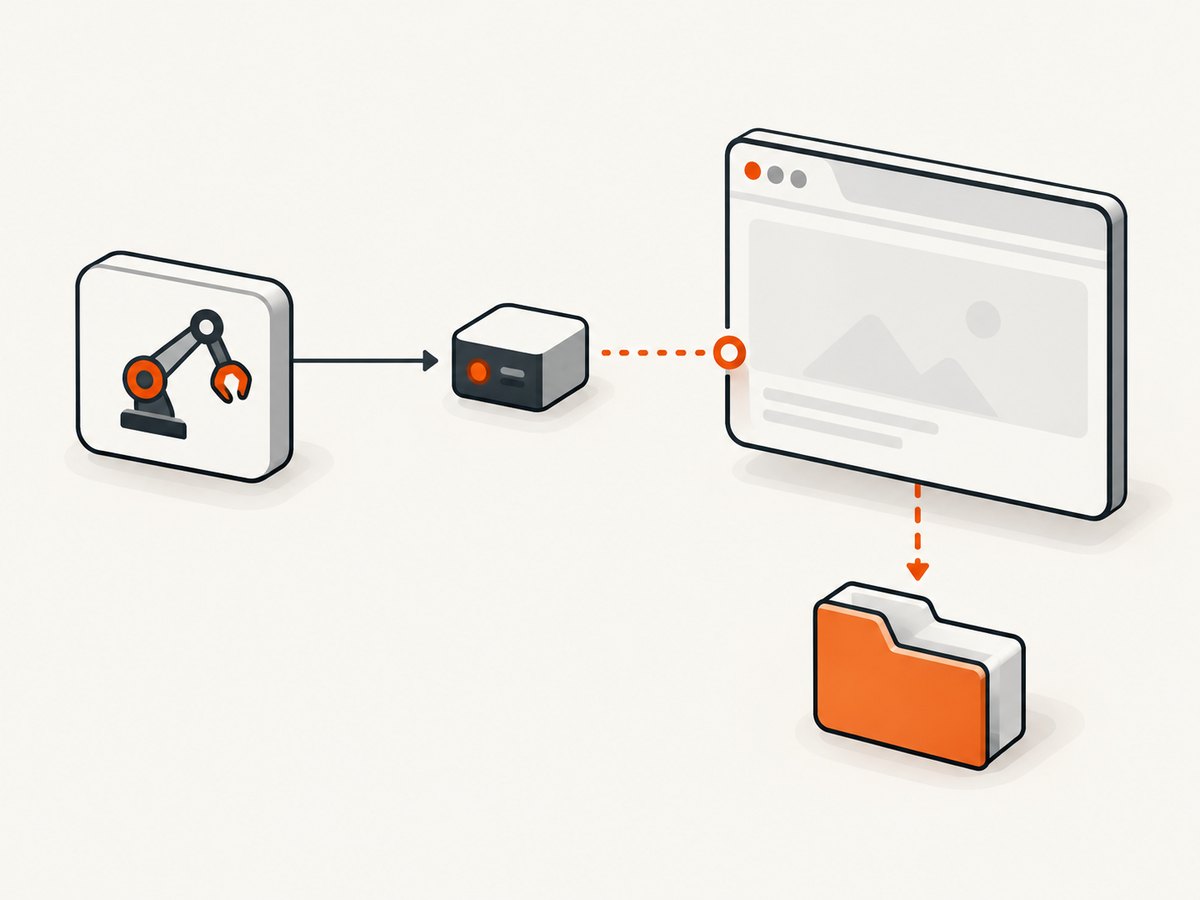
See the ScreenshotNeo API documentation for all options. The basic calls are:
curl -G "https://api.screenshotneo.com/v1/shot" -d access_key=YOUR_API_KEY --data-urlencode url=https://stripe.com -o shot.webpimport requests
r = requests.get("https://api.screenshotneo.com/v1/shot", params={"access_key": "YOUR_API_KEY", "url": "https://stripe.com"}, timeout=90)
open("shot.webp", "wb").write(r.content)const q = new URLSearchParams({ access_key: 'YOUR_API_KEY', url: 'https://stripe.com' });
const res = await fetch(`https://api.screenshotneo.com/v1/shot?${q}`);ScreenshotNeo also offers full-page capture with lazy images loaded, CSS-selector element capture, dark mode, device presets and custom viewports, retina scale, PDF output, custom CSS and JavaScript, click and wait actions, request blocking, custom headers and cookies, timezone and geolocation, transparent backgrounds, resizing, configurable caching, signed links, asynchronous jobs with signed webhooks, bulk capture for up to 100 URLs per call, a usage API, and an OpenAPI specification. An MCP server exposes take_screenshot, get_page_info, and capture_pdf to Claude, Cursor, and other MCP clients.
There is a free plan with 1,000 screenshots per month and no card. Paid plans start at $5 for 3,000 screenshots, and every feature is available on every plan. Create a free ScreenshotNeo account.
11. FAQ
Can I deploy Selenium as a ZIP instead of a container?
A ZIP can work for suitable dependency bundles, but the available evidence does not establish a universal package size or reliable full-Chrome procedure. A container makes the browser, driver, libraries, and runtime explicit and easier to test identically.
Should I use Python 3.11 or 3.12?
Either can be valid. Choose based on your application and dependency support, then follow the matching OS instructions: Python 3.11 uses AL2; Python 3.12 and later use AL2023.
Do I need ChromeDriver when using Selenium Manager?
Manager can obtain a missing driver in supported environments. In Lambda, packaging a verified pair is more predictable unless you have tested Manager’s network and cache behavior in production.
Why does a screenshot differ between my laptop and Lambda?
Viewport size, device scale, fonts, timezone, locale, permissions, network responses, and browser versions can differ. Set the viewport explicitly and record the image, browser, driver, and runtime versions used for each capture.
What should a health check verify?
Start the browser, navigate to a controlled page, take a small screenshot, and quit the driver. This catches missing libraries and incompatible binaries that an import-only health check cannot detect.


