How to Run Screenshot Capture Asynchronously
Await screenshot capture and wait for the page state you need. Learn reliable Playwright and Puppeteer patterns, visual assertions, troubleshooting, and API options.
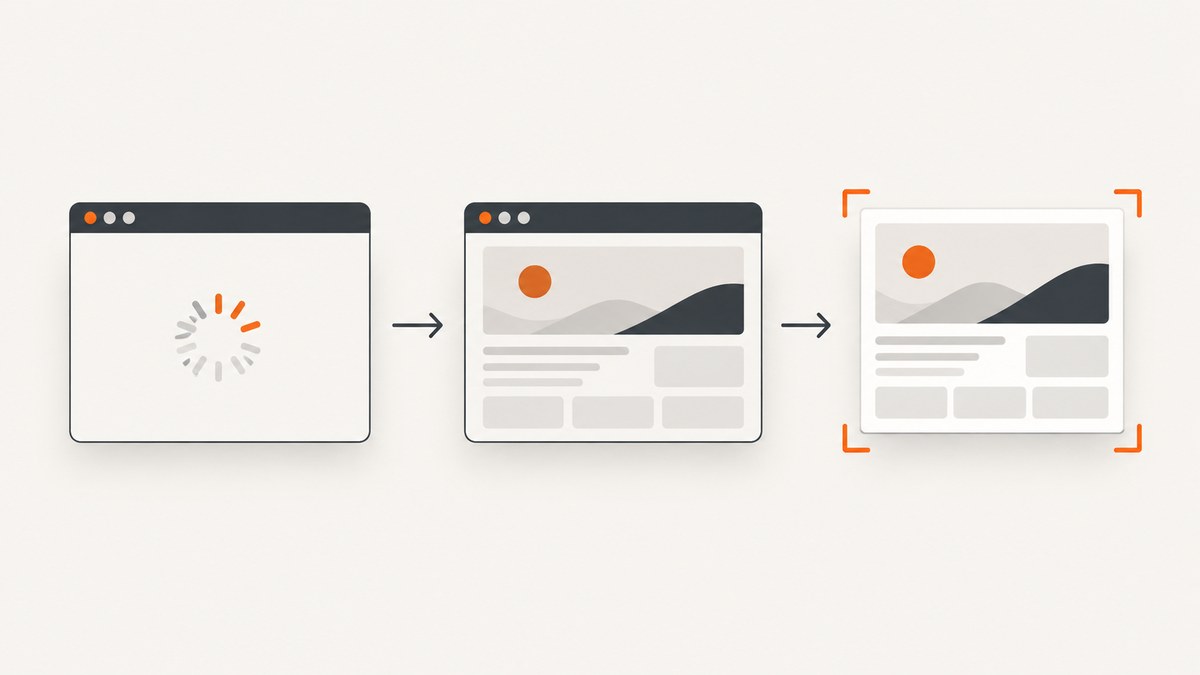
To capture a page asynchronously, await the screenshot call, then use the returned image only after that Promise resolves. Also wait for the page state the image needs to show: screenshot completion does not mean that application data or a particular component has rendered.
await page.goto('https://example.com');
await page.getByRole('heading', { name: 'Example Domain' }).waitFor({ state: 'visible' });
await page.screenshot({ path: 'page.png', fullPage: true });
This Playwright example waits for a meaningful page condition and writes the image after the capture finishes. For a one-off capture, page.screenshot() returns image data if you omit path; with a path, it saves the image to that file. The API also supports full-page capture, clipping, output format, timeout, and cancellation. See the Playwright Page API.
If your goal is to generate screenshots without managing browser setup, [ScreenshotNeo](https://screenshotneo.com) offers a one-request screenshot API and MCP server. Its API and options are documented at ScreenshotNeo docs.
1. Understand the two separate waits
“Wait for the screenshot” and “wait for the page” are different requirements. The first is handled by awaiting the asynchronous screenshot operation. The second depends on what the page must show: a heading, a chart, a route change, a loaded image, or another application-specific condition.
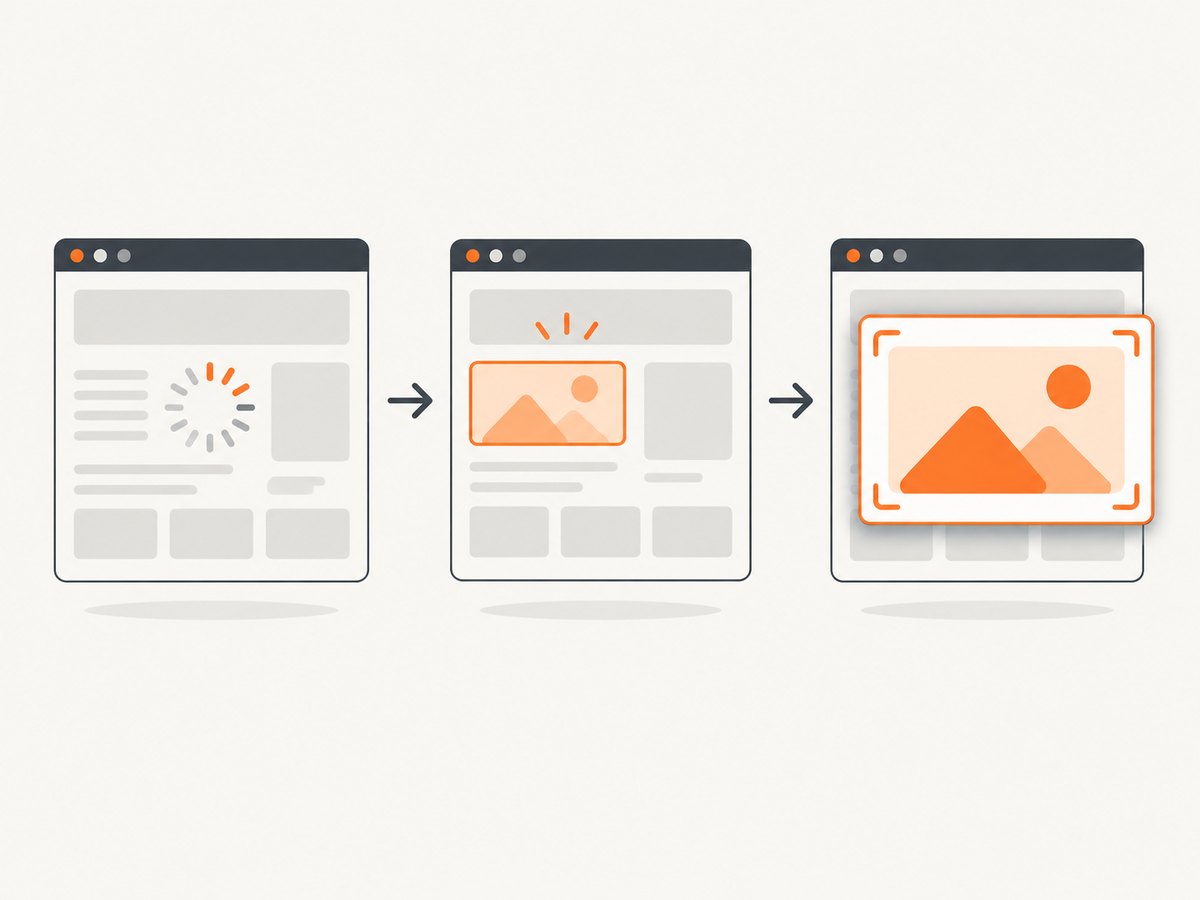
Navigation milestones such as commit, domcontentloaded, and load describe stages in document navigation. They do not necessarily indicate that your app has finished fetching data or rendering a component. Pick the milestone only if that milestone itself is enough for your capture; otherwise assert on the content that matters.
Playwright discourages using networkidle as a testing readiness strategy and recommends web assertions. A page can keep network connections open, or become network-quiet before the UI has reached the state you want. A targeted assertion states the actual requirement and tends to make the capture more dependable.
2. Playwright: capture a page and save the result
Install Playwright and its browser binaries using the instructions for your project and chosen Playwright version. The following Node.js example uses Playwright’s library API and an explicit locator wait.
import { chromium } from 'playwright';

const browser = await chromium.launch();
try {
  const page = await browser.newPage({ viewport: { width: 1440, height: 1000 } });
  await page.goto('https://example.com', { waitUntil: 'domcontentloaded' });
  await page.getByRole('heading', { name: 'Example Domain' }).waitFor({ state: 'visible' });

  const image = await page.screenshot({
    path: 'example.png',
    fullPage: true,
    type: 'png',
    timeout: 30_000
  });
  console.log(`Saved ${image.byteLength} bytes`);
} finally {
  await browser.close();
}
The await before page.screenshot() matters. It prevents subsequent code from reading, uploading, or closing resources around an unfinished capture. Keeping browser cleanup in finally also closes it if navigation, the assertion, or capture throws.
Return image data instead of writing a file
const bytes = await page.screenshot({ fullPage: false });
await uploadToStorage(bytes, 'viewport.png');
When no path is set, the call returns image data rather than writing a file. You can pass those bytes to an upload client, save them with Node’s filesystem APIs, or attach them to a test artifact. Avoid starting an upload before the screenshot Promise has resolved.
Capture a viewport, full page, or clip
fullPage: truecaptures the full scrollable page; without it, capture is limited to the viewport.cliplimits the capture to a rectangle. Use coordinates and dimensions appropriate to the page’s viewport and check the API’s requirements for the installed Playwright version.typeselects an image format such as PNG or JPEG; quality is relevant to supported lossy formats.pathsets the output filename. Without it, consume the returned bytes.timeoutsets a limit on how long the screenshot operation can take. A screenshot timeout is distinct from a navigation timeout.
For exact option types and current behavior, consult the official screenshot API reference. Keep capture dimensions intentional: very tall full-page images can use more memory and take longer to process than viewport captures.
3. Wait for a URL or application state
If a click triggers navigation, coordinate the action with the expected URL transition. Playwright marks waitForNavigation as inherently racy and recommends waitForURL. Register the URL wait while starting the action, so a fast navigation is not missed.
const destination = page.waitForURL('**/reports');
await page.getByRole('link', { name: 'Reports' }).click();
await destination;
await page.getByRole('heading', { name: 'Reports' }).waitFor({ state: 'visible' });
await page.screenshot({ path: 'reports.png' });
The URL wait confirms the route transition; the heading wait confirms the content condition. If navigation is not involved, skip the URL wait and wait directly for the UI condition.
Choose a condition that matches the image
- Write down what a reviewer must be able to see in the screenshot.
- Wait for a locator, URL, or other observable condition that establishes that state.
- Capture after the condition succeeds.
- Set explicit timeout limits and report which wait failed so the error is actionable.
For example, a dashboard capture might wait for its title and a chart’s visible state. A screenshot of a search result should wait for the result rows, not just the search page shell. Avoid arbitrary sleep delays as the sole readiness check: fixed delays can be both unnecessarily slow and too short under load.
4. Visual regression tests need a screenshot assertion
A saved screenshot is a one-off artifact. A visual regression check has a different goal: determine whether the rendered result differs from an accepted baseline. Playwright Test provides toHaveScreenshot(); it waits for two consecutive screenshots to match and compares the stable result with the expectation. This API is for the Playwright Test runner, rather than plain Playwright library scripts.
import { test, expect } from '@playwright/test';

test('dashboard visual baseline', async ({ page }) => {
  await page.goto('https://example.com/dashboard');
  await expect(page.getByRole('heading', { name: 'Dashboard' })).toBeVisible();
  await expect(page).toHaveScreenshot('dashboard.png', { fullPage: true });
});
Keep the test state controlled: use stable test data, consistent viewport settings, and the same relevant browser environment when comparing images. Update baselines deliberately when the intended design changes. See the Playwright screenshot assertions guide for configuration and baseline behavior.
5. Puppeteer: await the Promise before using the image
Puppeteer’s Page.screenshot() is also asynchronous. It returns a Uint8Array by default, or a base64 string when configured. Await it before saving, uploading, or processing the result.
import puppeteer from 'puppeteer';
import { writeFile } from 'node:fs/promises';

const browser = await puppeteer.launch();
try {
  const page = await browser.newPage();
  await page.goto('https://example.com', { waitUntil: 'domcontentloaded' });
  await page.waitForSelector('h1', { visible: true });
  const image = await page.screenshot({ path: 'example.png', fullPage: true });
  console.log(`Captured ${image.byteLength} bytes`);
} finally {
  await browser.close();
}
For current options, use Puppeteer’s official Page.screenshot API. Puppeteer documents that creating a new page or closing a page in the same BrowserContext automatically waits for an in-progress screenshot to finish; bringToFront() does not. Explicitly awaiting the screenshot still makes the program’s data flow clear and ensures the next step has the image.
6. Or skip the browser setup
ScreenshotNeo takes a URL in one GET request and returns a screenshot or PDF. See the API documentation for authentication and options.
curl -G "https://api.screenshotneo.com/v1/shot" -d access_key=YOUR_API_KEY --data-urlencode url=https://stripe.com -o shot.webpimport requests
r = requests.get("https://api.screenshotneo.com/v1/shot", params={"access_key": "YOUR_API_KEY", "url": "https://stripe.com"}, timeout=90)
open("shot.webp", "wb").write(r.content)const q = new URLSearchParams({ access_key: 'YOUR_API_KEY', url: 'https://stripe.com' });
const res = await fetch(`https://api.screenshotneo.com/v1/shot?${q}`);
if (!res.ok) throw new Error(`Screenshot request failed: ${res.status}`);
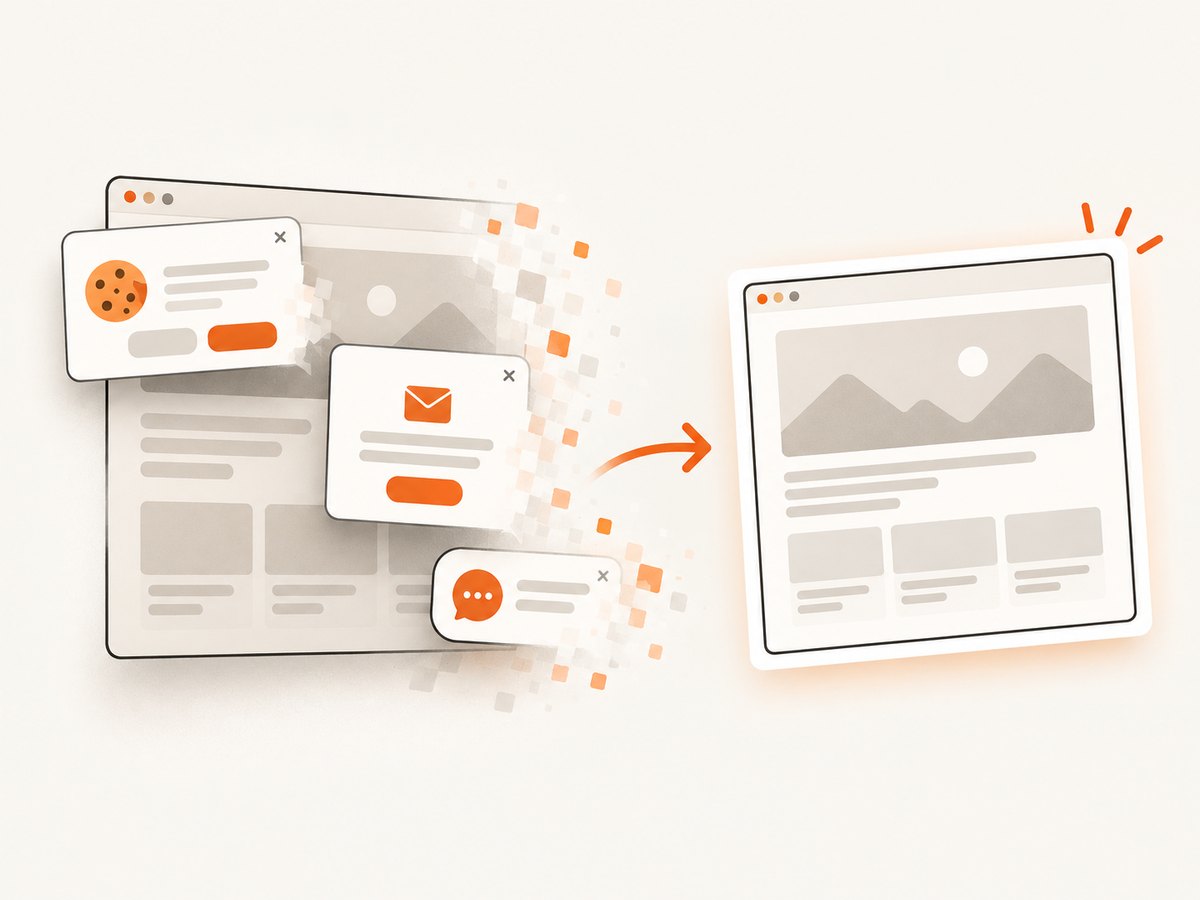
await import('node:fs/promises').then(({ writeFile }) => writeFile('shot.webp', Buffer.from(await res.arrayBuffer())));Cookie banners, newsletter popups, and chat widgets are removed before the shot; each cleanup step can be turned off. Bot checks, blank pages, timeouts, failed loads, and cache hits cost nothing, and response headers identify the page verdict and billing status. An MCP server provides take_screenshot, get_page_info, and capture_pdf for AI agents. The free plan includes 1,000 screenshots a month with no card; paid plans start at $5 for 3,000 shots.
Sign up free for 1,000 screenshots a month, with no card required.
7. Performance, reliability, and cost
For self-hosted browser automation, reusing a browser process across captures can avoid repeated startup work, while isolating pages or contexts keeps capture state manageable. Close pages and browsers when finished, especially in long-running workers. Set navigation and screenshot timeouts, and handle failures at each stage rather than treating every exception as a failed screenshot.
Full-page capture can produce large images, especially on long pages or high-resolution viewports. Use viewport capture when the whole document is unnecessary, and select a suitable format and dimensions for the downstream use. For batches, bound concurrency to the capacity of the host and browser; launching unbounded pages can exhaust memory or cause timeouts. The reviewed official API documentation gives no benchmark that establishes a universal capture speed or cost advantage between Playwright and Puppeteer, so choose based on your existing framework and workload.
Browser automation has infrastructure costs: compute, browser binaries, maintenance, and time spent handling site-specific behavior. A hosted API shifts browser operation to a service and may charge per eligible capture; compare plan limits and the billing rules for your workload. ScreenshotNeo lists a free allowance of 1,000 shots monthly, then Starter at $5 for 3,000, Growth at $15 for 15,000, Pro at $39 for 60,000, Scale at $99 for 250,000, and Business at $249 for 1,000,000. Yearly billing gives two months free, and every feature is on every plan. Check current plan details on the ScreenshotNeo site.
8. Troubleshooting asynchronous captures
| Symptom | Likely cause | Fix |
|---|---|---|
| Image shows a spinner or incomplete data | Navigation finished before the application state did. | Wait for a locator or URL that represents the desired state, then capture. |
| Capture result is undefined or a Promise | The screenshot call was not awaited, or downstream code ran before it completed. | Use const bytes = await page.screenshot(...) and pass the resolved bytes onward. |
| URL transition is missed intermittently | The wait was registered after the click or used a racy navigation wait. | Start waitForURL before the action, await both, then assert on the destination content. |
| Readiness wait times out | The selector is wrong, hidden, or the application failed to render it. | Confirm the locator against the page, inspect the navigation and app errors, and set a timeout appropriate to the task. |
| Screenshot itself times out | The capture exceeded its screenshot timeout or the page is unusually large. | Review screenshot options, use a smaller clip or viewport where appropriate, and distinguish capture timeout from navigation timeout. |
| File is missing | No output path was specified, or the process looked in a different working directory. | Set path explicitly or write the returned bytes yourself; resolve relative paths from the process working directory. |
| Visual test changes between runs | Dynamic content, environment differences, or timing affect the pixels. | Stabilize test data and viewport, wait for the relevant state, and update a baseline only for intended changes. |
| Worker slows or runs out of memory | Too many browser pages run at once, or full-page images are very large. | Bound concurrency, close pages, and reduce capture area or dimensions where acceptable. |
9. FAQ
Does awaiting a screenshot wait for network requests to finish?
No. It waits for screenshot capture to complete. Page readiness must be handled separately with a condition appropriate to the image.
Should I use networkidle before every screenshot?
No. Playwright discourages it for testing readiness. Prefer a URL or visible UI condition that reflects the actual requirement.
Can I take a screenshot without writing a file?
Yes. Omit path and await the returned image data, then pass it to an upload, comparison, or storage step.
Which framework should I choose?
Use the framework already in your project when its browser support and API fit the task. The reviewed sources do not establish a general performance winner. For visual comparisons with Playwright, use its test runner assertion rather than a one-off image save.
Can an AI agent request a screenshot?
ScreenshotNeo offers an MCP server with screenshot, page information, and PDF capture tools. See its documentation for setup details.


