How to Run Selenium and ChromeDriver Concurrently Without Startup Errors
Run parallel Selenium Chrome sessions safely with isolated WebDrivers, unique profiles, compatible drivers, and a clear startup troubleshooting path.
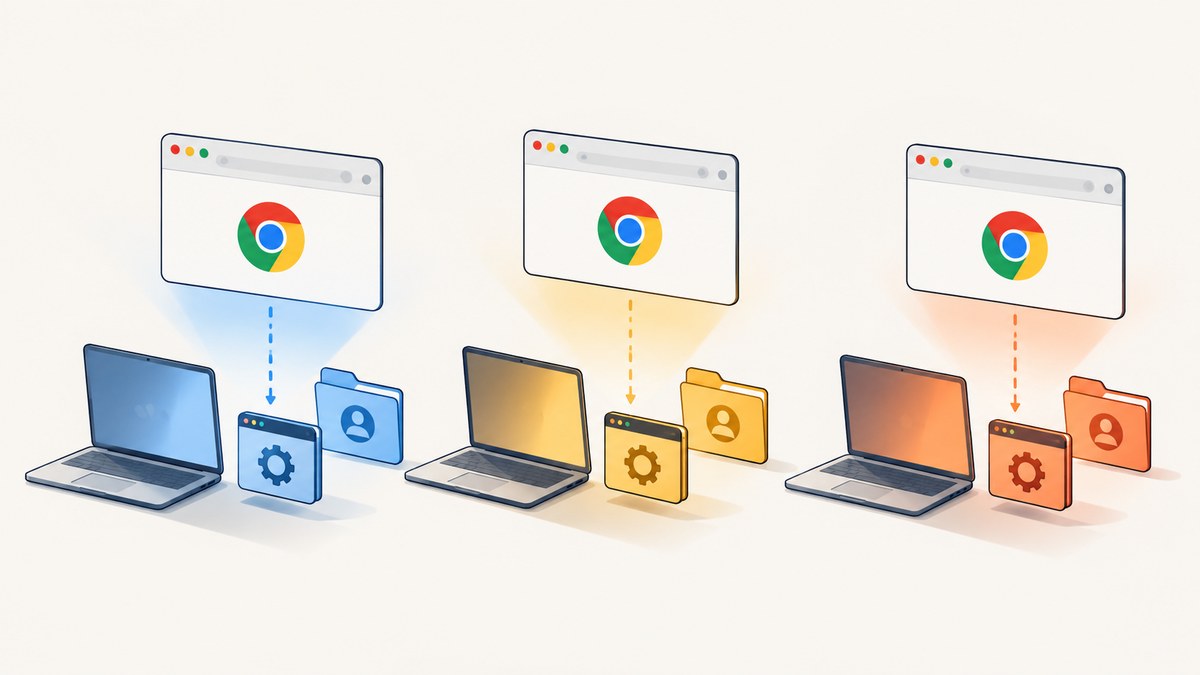
To run Selenium and ChromeDriver concurrently, create one independent WebDriver session per worker. Do not share a driver, custom Chrome profile, ChromeDriver service, or manually assigned debugging port between workers. With Selenium 4.6 or later, leave the driver path unset so Selenium Manager can find a compatible ChromeDriver. If you supply a custom --user-data-dir, make it unique per session. Capture browser and driver logs when startup fails.
For larger workloads, move sessions to Selenium Grid and set capacity to match available machine resources. The examples below use Python; cURL, Python, and Node.js examples for screenshot capture appear in the ScreenshotNeo section because the main task here is controlling live Selenium sessions.
1. Understand what must be independent
A WebDriver instance represents one browser session. Each local session starts a ChromeDriver service, which controls a Chrome process. Parallel workers should therefore each construct and quit their own driver. Selenium documents both local service startup and remote WebDriver sessions in its WebDriver driver documentation.
- Driver: create one
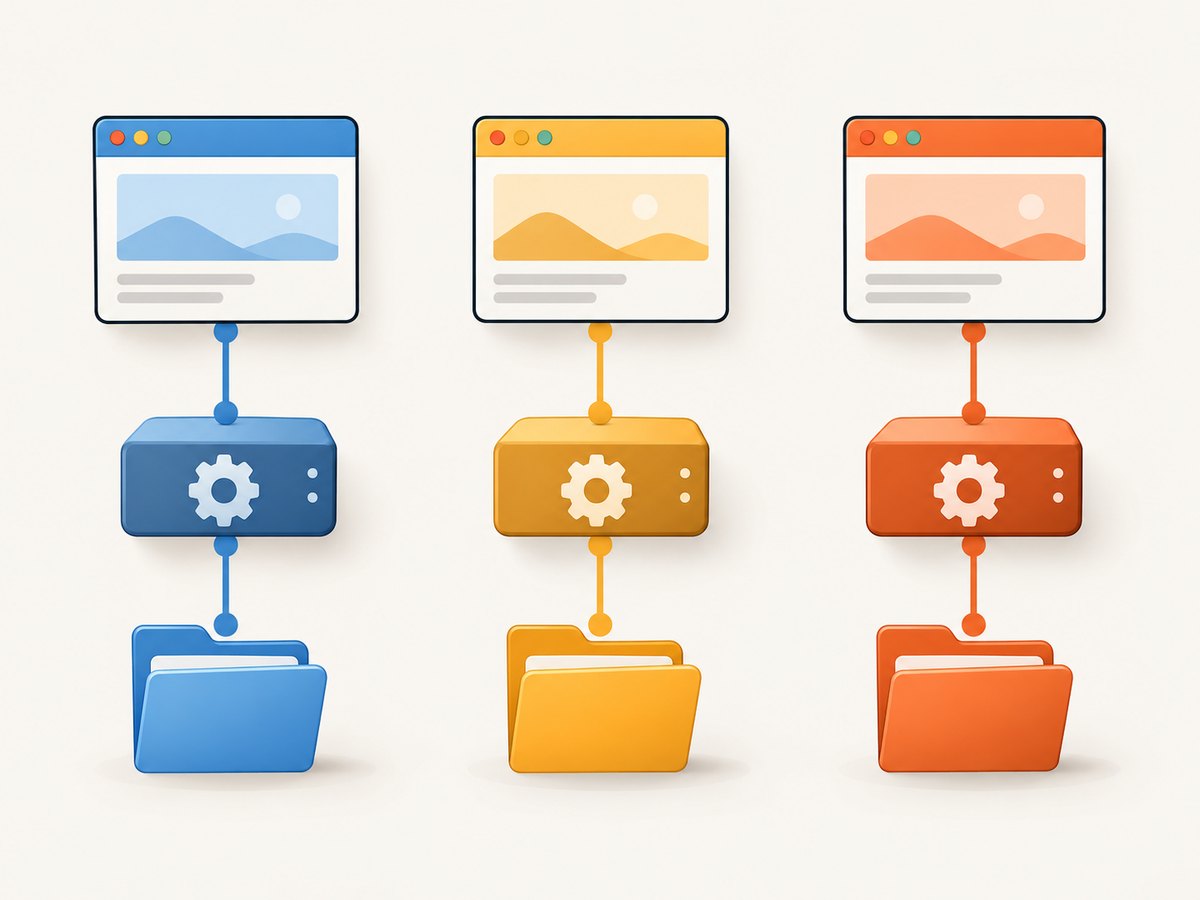
webdriver.Chrome()per task or worker; never call methods on one driver concurrently from several threads. - Profile: ChromeDriver creates a temporary profile by default. If you need a persistent custom profile, allocate a different directory to every simultaneous session.
- Service and ports: construct a service per local driver and let Selenium select its local port. Do not force every service or browser to use the same port.
- Resources: cap worker count to what the host can support. More sessions can reduce throughput or crash Chrome if CPU or memory is exhausted.
ChromeDriver is a separate executable that Selenium uses to control Chrome, and Chrome-specific command-line arguments belong in ChromeOptions. See the ChromeDriver documentation.
2. Run parallel sessions with Selenium Python
Install Selenium with python -m pip install -U selenium. The following script accepts a list of URLs, runs up to four independent sessions concurrently, and always quits each browser. Selenium Manager, included with Selenium releases since 4.6, resolves a matching driver when you do not provide a driver executable path.
from concurrent.futures import ThreadPoolExecutor, as_completed
from selenium import webdriver
from selenium.webdriver.chrome.options import Options

URLS = [
    "https://example.com",
    "https://www.python.org",
    "https://www.selenium.dev",
    "https://www.wikipedia.org",
]


def run_case(url: str) -> tuple[str, str]:
    options = Options()
    # Add headless mode only when a visible browser is not needed.
    # options.add_argument("--headless")

    # Do not set options.binary_location or a driver path unless you
    # deliberately manage a compatible Chrome/ChromeDriver pair.
    driver = webdriver.Chrome(options=options)
    try:
        driver.get(url)
        return url, driver.title
    finally:
        driver.quit()


if __name__ == "__main__":
    max_workers = 4
    with ThreadPoolExecutor(max_workers=max_workers) as pool:
        futures = [pool.submit(run_case, url) for url in URLS]
        for future in as_completed(futures):
            try:
                url, title = future.result()
                print(f"{url}: {title}")
            except Exception as exc:
                print(f"Session failed: {exc}")
Each submitted function creates and owns its own driver. For test frameworks, apply the same rule at the test or worker boundary: create the driver in setup, use it only in that worker, and call quit() in teardown even when assertions fail.
When custom profiles are required
Usually, omit --user-data-dir; ChromeDriver uses a temporary profile. When a test needs a prepared profile, create a unique directory for each concurrent run and remove it after the browser exits. For example:
from pathlib import Path
from tempfile import TemporaryDirectory
from selenium import webdriver
from selenium.webdriver.chrome.options import Options


def run_with_isolated_profile(url: str) -> str:
    with TemporaryDirectory(prefix="selenium-profile-") as profile:
        options = Options()
        options.add_argument(f"--user-data-dir={Path(profile).resolve()}")
        driver = webdriver.Chrome(options=options)
        try:
            driver.get(url)
            return driver.title
        finally:
            driver.quit()
The temporary directory must remain present until Chrome exits. Do not share one profile directory among workers, even if they visit different URLs: Chrome locks profile state and may refuse to launch or corrupt session state. See ChromeDriver’s temporary profile guidance.
3. Choose driver management and execution topology
| Approach | Use it when | Trade-off |
|---|---|---|
| Selenium Manager with local WebDriver | Small or medium parallel suites on one machine | First-time resolution needs access to browser-driver metadata and downloads; local CPU and memory set the practical limit. |
| Pinned ChromeDriver and local WebDriver | You need repeatable or air-gapped builds | Your team must deliberately update and validate the browser/driver pair. |
| Selenium Grid | Sessions need multiple machines or local capacity is insufficient | Requires a remote endpoint, node capacity planning, and infrastructure maintenance. |
Let Selenium Manager resolve the driver
Selenium Manager ships with Selenium since version 4.6. It can discover the browser, resolve a matching driver, download it, and cache it. Keep the default resolution path by not setting a driver executable path. Read the Selenium Manager documentation for browser discovery, configuration, proxy use, and caching behavior.
Pin a driver when builds require it
If your environment pins ChromeDriver, verify that its major version matches the installed Chrome major version. Create a distinct Service for every WebDriver instance; do not have parallel workers launch the same service object. Selenium’s Python Chrome Service API describes the service responsible for starting and stopping ChromeDriver.
from selenium import webdriver
from selenium.webdriver.chrome.options import Options
from selenium.webdriver.chrome.service import Service

options = Options()
service = Service(executable_path="/opt/chromedriver/chromedriver")
driver = webdriver.Chrome(service=service, options=options)
try:
    driver.get("https://example.com")
    print(driver.title)
finally:
    driver.quit()
Use that construction inside each worker so each worker owns a separate service and session. Keep the binary path under controlled configuration rather than assuming a path that exists on every host.
Move work to Selenium Grid
Grid provides remote nodes and configurable concurrent-session capacity. A test worker connects to the Grid URL rather than starting a local ChromeDriver service:
from selenium import webdriver
from selenium.webdriver.chrome.options import Options

options = Options()
driver = webdriver.Remote(
    command_executor="http://grid-host:4444",
    options=options,
)
try:
    driver.get("https://example.com")
    print(driver.title)
finally:
    driver.quit()
Configure Grid node capacity with --max-sessions according to CPU and memory available to that node. The Grid documentation shows an eight-session configuration for an eight-CPU node as an example, not as a universal performance recommendation. See Grid CLI configuration and the Selenium Grid guide.
4. Diagnose startup errors in order
SessionNotCreatedExceptionor version mismatch: remove stale manually downloaded drivers fromPATH, or deliberately pin a compatible Chrome and ChromeDriver pair. With Selenium Manager, leave the path unset so it can resolve the driver for the discovered browser. Check the complete exception message for supported-browser-version details.DevToolsActivePortmissing or Chrome exits immediately: run Chrome directly under the same account and environment to separate a Chrome launch problem from a Selenium problem. Check ChromeDriver verbose logs, filesystem permissions, installed runtime libraries, and whether the host has enough memory. Chrome’s troubleshooting guide identifies running Chrome as root on Linux as a common crash cause. Do not treat--no-sandboxas a general fix: Chrome documents it as unsupported and highly discouraged. See ChromeDriver’s Chrome startup troubleshooting.- “user data directory is already in use” or profile lock: remove the shared custom profile argument and use ChromeDriver’s temporary profile, or give each worker a unique profile path.
- Port or process collisions: stop hard-coding one remote-debugging port or sharing one ChromeDriver service among workers. Construct each driver independently and let its local service choose a port unless your infrastructure explicitly allocates separate ports.
- Works serially, fails in parallel: lower
max_workersand check CPU, RAM, process limits, and container shared memory. Increase concurrency only when the host has capacity. If the suite must exceed one host, use Grid. - Selenium Manager cannot download a driver: check DNS, proxy, TLS inspection, and outbound access to browser-driver metadata and download endpoints. Configure Selenium Manager’s proxy or use a controlled pinned driver path in restricted environments.
- Chrome runs in a container but crashes: verify the container image includes the runtime dependencies and writable temporary storage Chrome needs, and check the account and sandbox configuration. Avoid adding arbitrary flags from unrelated examples; use Chrome’s documented launch guidance and collect the actual browser error.
Enable ChromeDriver logs
For a failing local session, capture ChromeDriver’s verbose log and preserve it with the test output. The exact log path and options depend on the Selenium language binding and operating environment; Python supports a Service log output path and service arguments. Do not enable noisy logs for every successful test unless needed, and ensure logs do not expose sensitive URLs, headers, or test data.
from selenium import webdriver
from selenium.webdriver.chrome.options import Options
from selenium.webdriver.chrome.service import Service

options = Options()
service = Service(
    service_args=["--verbose"],
    log_output="chromedriver.log",
)
driver = webdriver.Chrome(service=service, options=options)
try:
    driver.get("https://example.com")
finally:
    driver.quit()
5. Keep parallel execution reliable and efficient
- Bound concurrency: start with a small worker count, observe memory and CPU under representative pages, then raise the limit only while runs remain stable.
- Always close sessions: put
driver.quit()in afinallyblock or framework teardown. A leaked Chrome process consumes resources and can leave profile locks behind. - Isolate mutable state: independent sessions should not share profile directories, mutable cookies, downloads directories, or output filenames. Give each worker a separate output location when tests write files.
- Separate startup from page failures: record whether failure occurred while constructing the driver, navigating, waiting, or asserting. A page load timeout is not the same failure as Chrome failing to start.
- Use explicit waits: avoid fixed long sleeps where a specific element or condition can be awaited. This improves throughput when pages are ready quickly and makes failures easier to diagnose.
- Plan first-run network behavior: Selenium Manager may need a network connection to resolve and download a driver the first time. Caching helps later runs, but clean CI workers may need access on each fresh image.
- Scale out deliberately: Grid can add nodes and set session capacity, but the capacity setting does not make a saturated node faster. Measure queueing and resource use in your own workload.
6. Capture a page without managing a browser session
If your goal is to save a rendered page as an image or PDF rather than interact with a live browser, ScreenshotNeo is a website screenshot API and MCP server from Yorker Media. It accepts one GET request with a URL and returns a PNG, JPEG, WebP, or PDF. The Selenium approach above remains appropriate when the test needs browser interaction, assertions, or application-specific session state.
cURL
curl -G "https://api.screenshotneo.com/v1/shot" \
  -d access_key=YOUR_API_KEY \
  --data-urlencode url=https://stripe.com \
  -o shot.webp
Python
import requests

r = requests.get(
    "https://api.screenshotneo.com/v1/shot",
    params={"access_key": "YOUR_API_KEY", "url": "https://stripe.com"},
    timeout=90,
)
r.raise_for_status()
open("shot.webp", "wb").write(r.content)
Node.js
const q = new URLSearchParams({
  access_key: 'YOUR_API_KEY',
  url: 'https://stripe.com'
});
const res = await fetch(`https://api.screenshotneo.com/v1/shot?${q}`);
if (!res.ok) throw new Error(`Screenshot request failed: ${res.status}`);
const bytes = new Uint8Array(await res.arrayBuffer());
await import('node:fs/promises').then(fs => fs.writeFile('shot.webp', bytes));
ScreenshotNeo MCP and capture options
See the ScreenshotNeo API documentation for request parameters and MCP setup. Its MCP server exposes take_screenshot, get_page_info, and capture_pdf for Claude, Cursor, and other MCP clients. Capture options include full-page screenshots with lazy images loaded, CSS element capture, dark mode, 12 device presets or custom viewports, retina scale, PDF paper size/margins/orientation/page ranges, HTML/CSS input, custom CSS and JavaScript, clicking before capture, hiding selectors, waits, request/resource blocking, headers, cookies, user agent and Authorization, timezone, geolocation, transparency, resizing, configurable cache TTL, signed public image links, asynchronous jobs with signed webhooks, bulk capture of up to 100 URLs per call, a usage API, and an OpenAPI spec. Parameter names used by other screenshot APIs also work to ease migration.
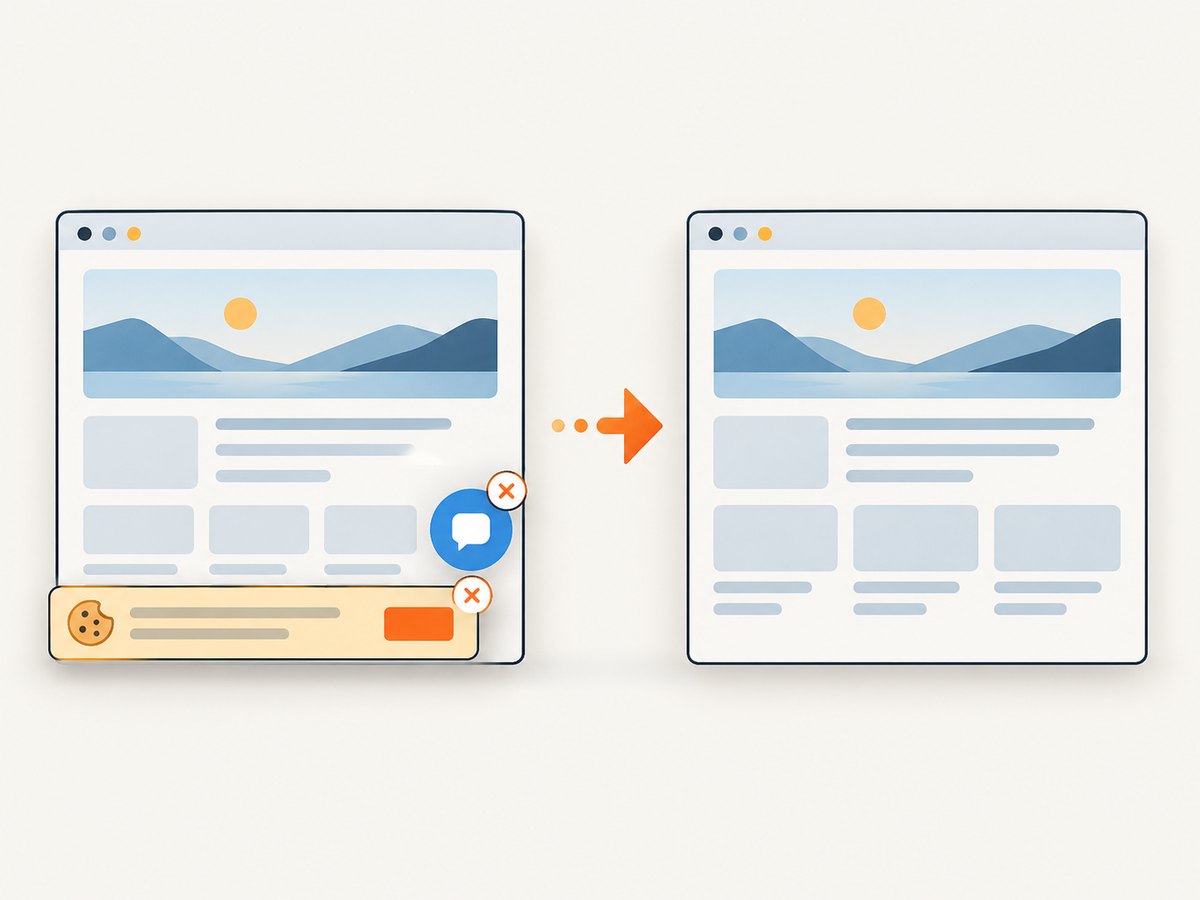
Cookie and consent banners are accepted as a visitor and more than 60 known consent platforms, newsletter popups, and chat widgets are removed before capture; each cleanup step can be turned off. Only clean shots are billed: bot checks or CAPTCHAs, blank pages, timeouts, failed loads, and cache hits cost nothing, with the result reported in X-Page-Verdict and X-Billed headers. Plans are Free for 1,000 shots/month with no card, Starter $5 for 3,000, Growth $15 for 15,000, Pro $39 for 60,000, Scale $99 for 250,000, and Business $249 for 1,000,000; yearly billing gives two months free, and every feature is on every plan.
Or skip the browser setup
Make one request to get a rendered page image. ScreenshotNeo removes cookie banners, popups, and chat widgets before the shot; bot checks, blank pages, and failed loads are never billed; an MCP server lets AI agents take screenshots; and 1,000 screenshots a month are free with no card, with paid plans starting at $5 for 3,000. Sign up for the free plan.
7. Frequently asked questions
Can two Selenium threads share one ChromeDriver?
No. Give each concurrently running task its own WebDriver session and keep all commands for that session within its owning worker.
Does Selenium Manager start Chrome itself?
Selenium Manager resolves the driver binary. Selenium’s WebDriver and ChromeDriver then start and control the browser session.
Should I use a new Chrome profile for every test?
ChromeDriver already uses a temporary profile by default. Allocate a unique custom profile only when the test needs custom or persistent profile state.
When should I switch to Grid?
Use Grid when you need sessions across machines or one machine cannot provide the capacity your suite needs. Set node maximum sessions based on that node’s measured resource capacity.


