How to Run Selenium Scripts in Headless Mode
Run Selenium without a visible browser in Python, Java, and Node.js. Configure Chrome, manage drivers, debug CI failures, and capture reliable screenshots.
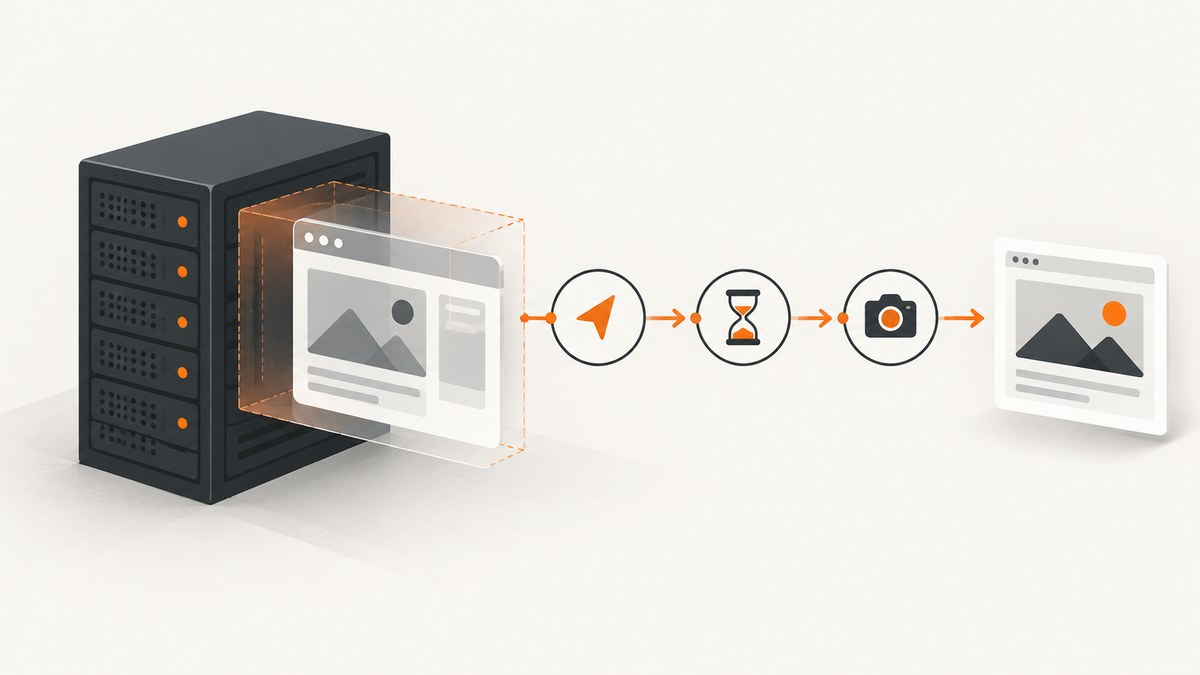
Headless Selenium runs a real browser without displaying its graphical window. The browser still loads pages, executes JavaScript, applies responsive layouts, and exposes the same WebDriver controls. In current Chrome, use the --headless=new argument before creating the driver.
Chrome’s current headless implementation shares Chrome’s browser code. In Chrome 112, headless mode changed so Chrome creates platform windows without displaying them. See the Chrome headless documentation and Selenium’s Chrome WebDriver documentation.
Run Selenium headlessly in Python
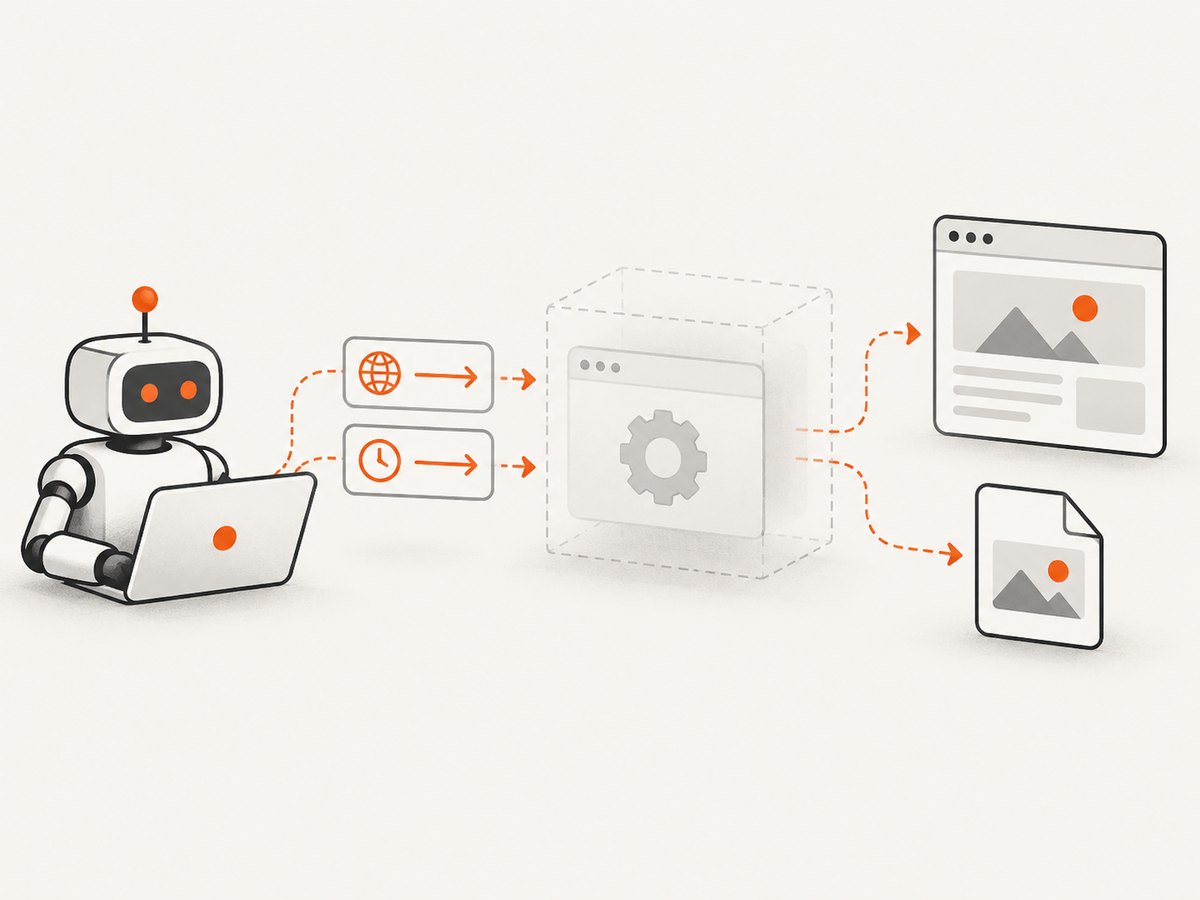
Install Selenium, make sure a supported Chrome installation is available, and let Selenium Manager resolve the compatible driver:
python -m pip install -U seleniumfrom selenium import webdriver
from selenium.webdriver.chrome.options import Options
options = Options()
options.add_argument("--headless=new")
options.add_argument("--window-size=1920,1080")
driver = webdriver.Chrome(options=options)
try:
driver.get("https://example.com")
print(driver.title)
finally:
driver.quit()The finally block matters in scripts, tests, and workers: it closes the browser even when navigation or an assertion fails. Add all browser arguments before constructing webdriver.Chrome.
Wait for dynamic content
Headless mode does not make asynchronous pages synchronous. Wait for a condition that represents readiness instead of relying on a fixed sleep:
from selenium.webdriver.common.by import By
from selenium.webdriver.support.ui import WebDriverWait
from selenium.webdriver.support import expected_conditions as EC

wait = WebDriverWait(driver, 20)
driver.get("https://example.com/dashboard")
wait.until(EC.visibility_of_element_located((By.CSS_SELECTOR, "main")))
print(driver.find_element(By.TAG_NAME, "body").text)
Use a longer timeout only when the application genuinely needs it. Explicit waits make failures easier to diagnose and avoid unnecessary idle time.
Run Selenium headlessly in Java
Add Selenium WebDriver to your build, then pass a ChromeOptions instance to ChromeDriver:
import org.openqa.selenium.WebDriver;
import org.openqa.selenium.chrome.ChromeDriver;
import org.openqa.selenium.chrome.ChromeOptions;

public class HeadlessExample {
    public static void main(String[] args) {
        ChromeOptions options = new ChromeOptions();
        options.addArguments("--headless=new");
        options.addArguments("--window-size=1920,1080");

        WebDriver driver = new ChromeDriver(options);
        try {
            driver.get("https://example.com");
            System.out.println(driver.getTitle());
        } finally {
            driver.quit();
        }
    }
}
For Firefox or Edge, use that browser’s options class and equivalent driver. The structure is the same: configure options, create the driver, perform WebDriver operations, and quit it in cleanup.
Run Selenium headlessly in Node.js
Install the JavaScript binding:
npm install selenium-webdriverconst { Builder } = require('selenium-webdriver');
const chrome = require('selenium-webdriver/chrome');
(async function () {
const options = new chrome.Options();
options.addArguments('--headless=new', '--window-size=1920,1080');
const driver = await new Builder()
.forBrowser('chrome')
.setChromeOptions(options)
.build();
try {
await driver.get('https://example.com');
console.log(await driver.getTitle());
} finally {
await driver.quit();
}
})();Do you still need ChromeDriver?
You need a WebDriver implementation, but you usually do not need to download and place ChromeDriver manually. Current Selenium releases include Selenium Manager. When a driver is unavailable, Selenium bindings can invoke it to discover the browser, resolve a compatible driver, download it, and cache it. See the Selenium Manager documentation.
Manual management is still possible when your organization pins browser binaries or runs without network access. Keep the Chrome and ChromeDriver major versions aligned. A stale executable earlier on PATH can override the version you intended to use.
Useful setup checklist
- Install the Selenium binding for your language.
- Install a supported browser in the host, container, or CI image.
- Prefer Selenium Manager with a current Selenium release.
- If pinning manually, match ChromeDriver’s major version to Chrome’s major version.
- Set
--headless=newand an explicit viewport before driver creation. - Use explicit waits for application-specific readiness.
- Always call
quit()in cleanup.
Headless options that affect results
| Option | Why it matters |
|---|---|
--headless=new |
Selects Chrome’s current headless mode. |
--window-size=1920,1080 |
Fixes the viewport and therefore responsive breakpoints, layout, and screenshots. |
| Browser-specific options | Firefox and Edge use their own options classes and driver implementations. |
| Profile settings | Cookies, local storage, permissions, and extensions can change what a page renders. |
Do not assume a headless run has the same layout as a visible run when the viewport differs. Set the same viewport, profile, locale, and authentication state when comparing results.
Capture a screenshot while debugging
A screenshot helps determine whether the page is empty, the viewport is wrong, or an element is hidden by a responsive breakpoint:
driver.save_screenshot("failure.png")For a CI-only failure, temporarily remove the headless argument and run with the same viewport and profile settings. Compare the visible and headless screenshots, then restore headless mode after diagnosing the difference.
Common errors and fixes
| Error or symptom | Likely cause | Fix |
|---|---|---|
| Session not created | Chrome and ChromeDriver major versions do not match. | Upgrade or downgrade one side, remove a stale manual driver, or let Selenium Manager resolve the driver. |
| Driver executable not found | The runtime has no driver and cannot resolve one. | Use a current Selenium release with Selenium Manager, or install a compatible driver and configure its path. |
| Elements are missing | Responsive breakpoints, delayed rendering, or an incorrect selector. | Set an explicit window size, wait for a meaningful condition, and verify the selector in a visible run. |
| CI crashes or exits early | Browser startup or environment failure. | Inspect ChromeDriver service logs and preserve them as CI artifacts. In Python, configure webdriver.ChromeService(log_output=...) to send service output to a file or stream. |
| Page is blank | Navigation failed, content is delayed, or the application needs authentication. | Check the current URL and page source, add an explicit readiness wait, verify credentials and network access, and save a failure screenshot. |
Old tutorial uses options.headless = True |
The example relies on an older convenience property. | Pass the explicit browser argument --headless=new through the options object. |
Reliability and performance practices
- Use deterministic inputs. Fix viewport size and keep browser, driver, profile, locale, and authentication settings consistent between runs.
- Wait on application state. A selector, visible element, or other explicit condition is more reliable than a guessed delay.
- Collect diagnostics. Save screenshots, page source, current URL, and driver service logs when a run fails.
- Close every session. One unclosed browser per job can exhaust memory and file descriptors in a long-running worker.
- Pin deliberately. Automatic driver management reduces maintenance; manually pinned browser images improve repeatability when your CI environment is intentionally offline.
- Measure the whole job. Startup, browser download, navigation, waits, and cleanup all contribute to elapsed time. Headless mode removes the visible window, but it still performs browser rendering and JavaScript execution.
There is no universal speed guarantee from headless mode. The page, network, browser startup, waits, and CI machine determine the actual runtime. The reviewed primary documentation does not publish a general headless speed or resource-saving benchmark.
Or skip the browser setup
If your goal is a clean screenshot rather than browser automation, ScreenshotNeo provides a one-request screenshot API and an MCP server for AI agents. The API accepts a URL and returns PNG, JPEG, WebP, or PDF. Documentation: ScreenshotNeo API docs.
curl -G "https://api.screenshotneo.com/v1/shot" -d access_key=YOUR_API_KEY --data-urlencode url=https://stripe.com -o shot.webpimport requests
r = requests.get("https://api.screenshotneo.com/v1/shot", params={"access_key": "YOUR_API_KEY", "url": "https://stripe.com"}, timeout=90)
open("shot.webp", "wb").write(r.content)const q = new URLSearchParams({ access_key: 'YOUR_API_KEY', url: 'https://stripe.com' });
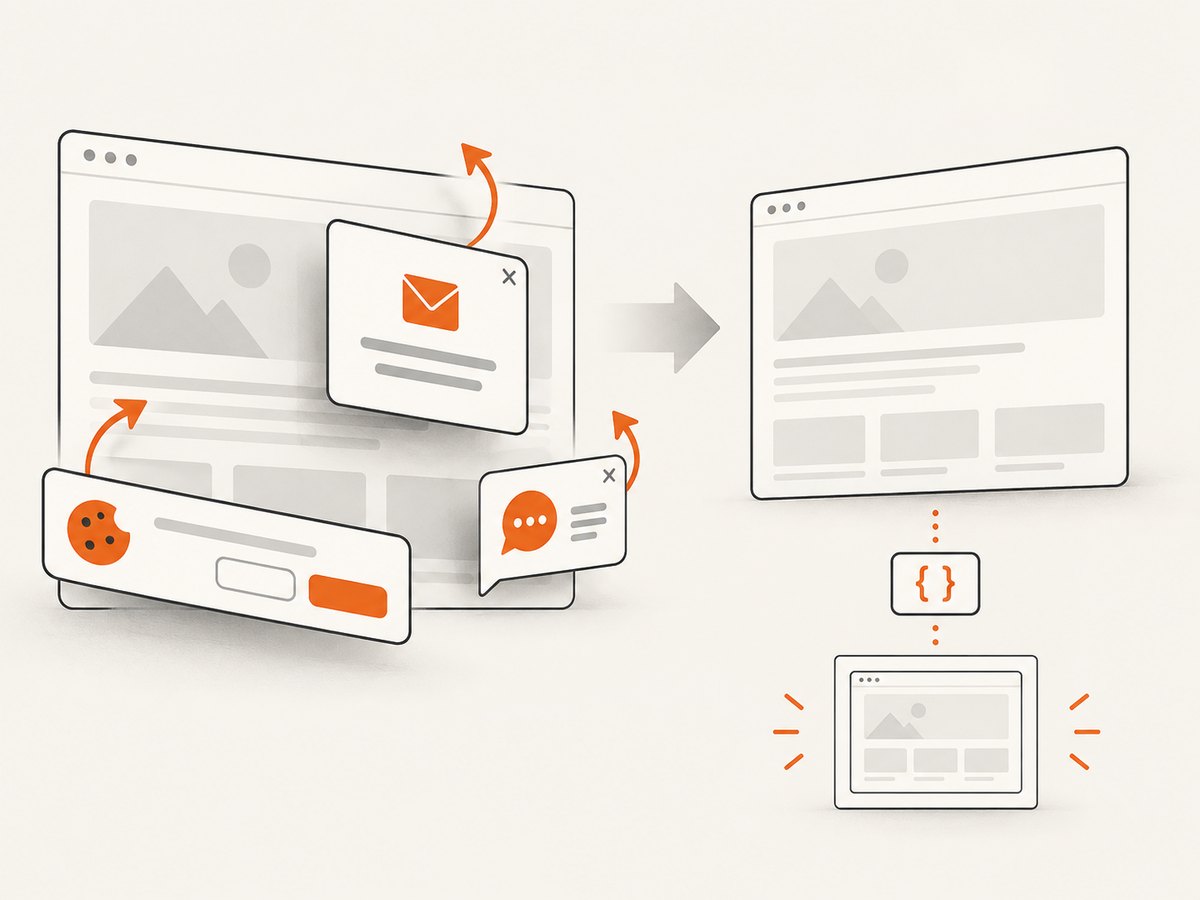
const res = await fetch(`https://api.screenshotneo.com/v1/shot?${q}`);Before capture, ScreenshotNeo accepts cookie and consent banners and removes more than 60 known consent platforms, newsletter popups, and chat widgets; each step can be turned off. Bot checks, CAPTCHAs, blank pages, timeouts, failed loads, and cache hits are not billed, and response headers report the page verdict and billing result. Its MCP server exposes take_screenshot, get_page_info, and capture_pdf for Claude, Cursor, and other MCP clients.
The Free plan includes 1,000 screenshots each month without a card. Paid plans start at $5 for 3,000 screenshots, and every feature is available on every plan. Create a free ScreenshotNeo account.
FAQ
Does headless Selenium execute JavaScript?
Yes. Headless Chrome still renders pages and runs page logic; it simply does not display the normal browser window.
Can I use headless mode with Firefox or Edge?
Yes. Use the browser-specific options class and driver, then configure that browser’s headless argument.
Why does my headless screenshot differ from my desktop screenshot?
Compare viewport size, profile, cookies, authentication, locale, and timing. Responsive breakpoints and delayed content commonly explain differences.
Should I use a fixed sleep?
Use an explicit wait for the state your test needs. A fixed delay can be too short on a slow run and waste time on a fast run.
What should I keep when a CI run fails?
Keep the driver service log, current URL, page source, and a screenshot from the same viewport and profile. These artifacts show whether startup, navigation, rendering, or the selector failed.


