How to Run wkhtmltopdf in a Windows Batch File
Run wkhtmltopdf reliably from Windows batch files with quoted paths, exit-code checks, diagnostics, loops, and fixes for common errors.
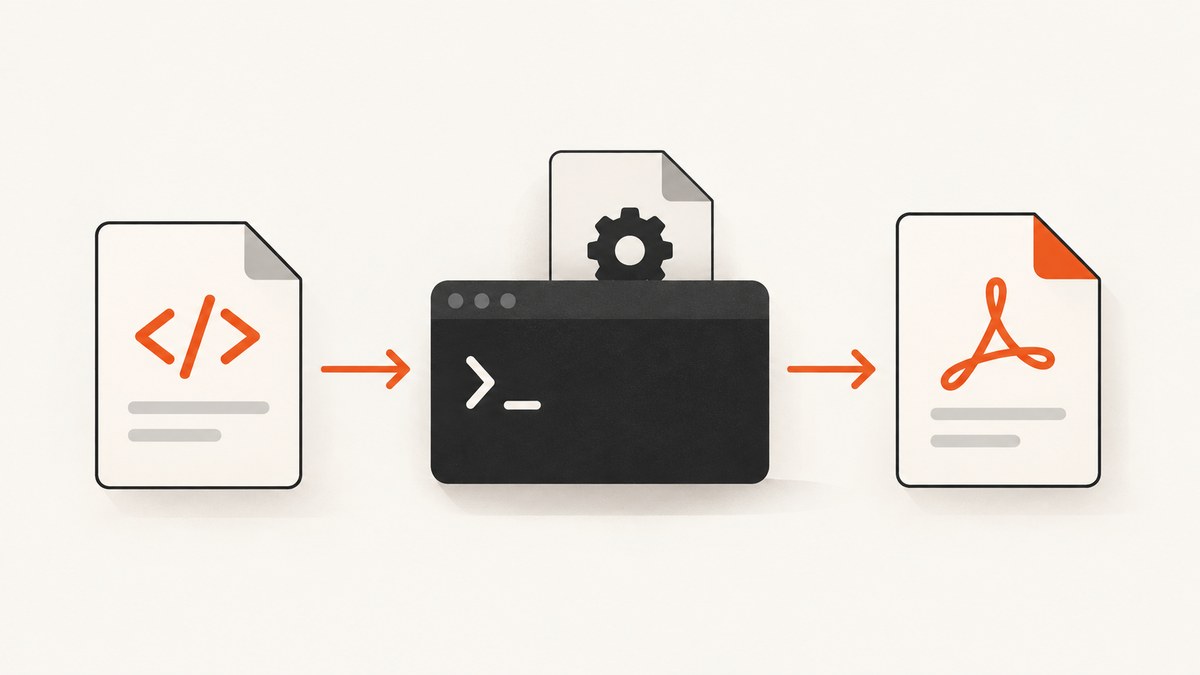
The basic Windows batch command is:
wkhtmltopdf "https://example.com" "C:\\Output\\example.pdf"For automation, use a full quoted executable path, quote every input and output path, verify that the executable exists, and check %ERRORLEVEL% immediately after the command. That separates a missing-installation problem from a conversion failure and lets Task Scheduler, CI, or another script detect the failure.
What wkhtmltopdf does
wkhtmltopdf is an open-source command-line program that renders HTML into PDF with the Qt WebKit rendering engine. It runs headlessly, so a Windows desktop session or display service is not required. The official usage form is wkhtmltopdf [GLOBAL OPTION]... [OBJECT]... <output file>, with examples for local files, remote URLs, multiple page objects, logging, JavaScript diagnostics, and reading arguments from standard input. See the official usage manual and the project documentation.
The renderer is based on Qt WebKit. The project repository documentation says it was archived on January 2, 2023, so test the exact installed version against modern JavaScript, CSS, fonts, and security requirements before making it part of a long-lived pipeline.
Install and verify it on Windows
- Install wkhtmltopdf and note the location of
wkhtmltopdf.exe. A common location isC:\\Program Files\\wkhtmltopdf\\bin\\wkhtmltopdf.exe. - Open a new Command Prompt so a newly changed PATH is loaded.
- Run:
wkhtmltopdf --versionIf that prints a version, Windows can find the executable through PATH. If it prints “not recognized,” use the absolute path while diagnosing:
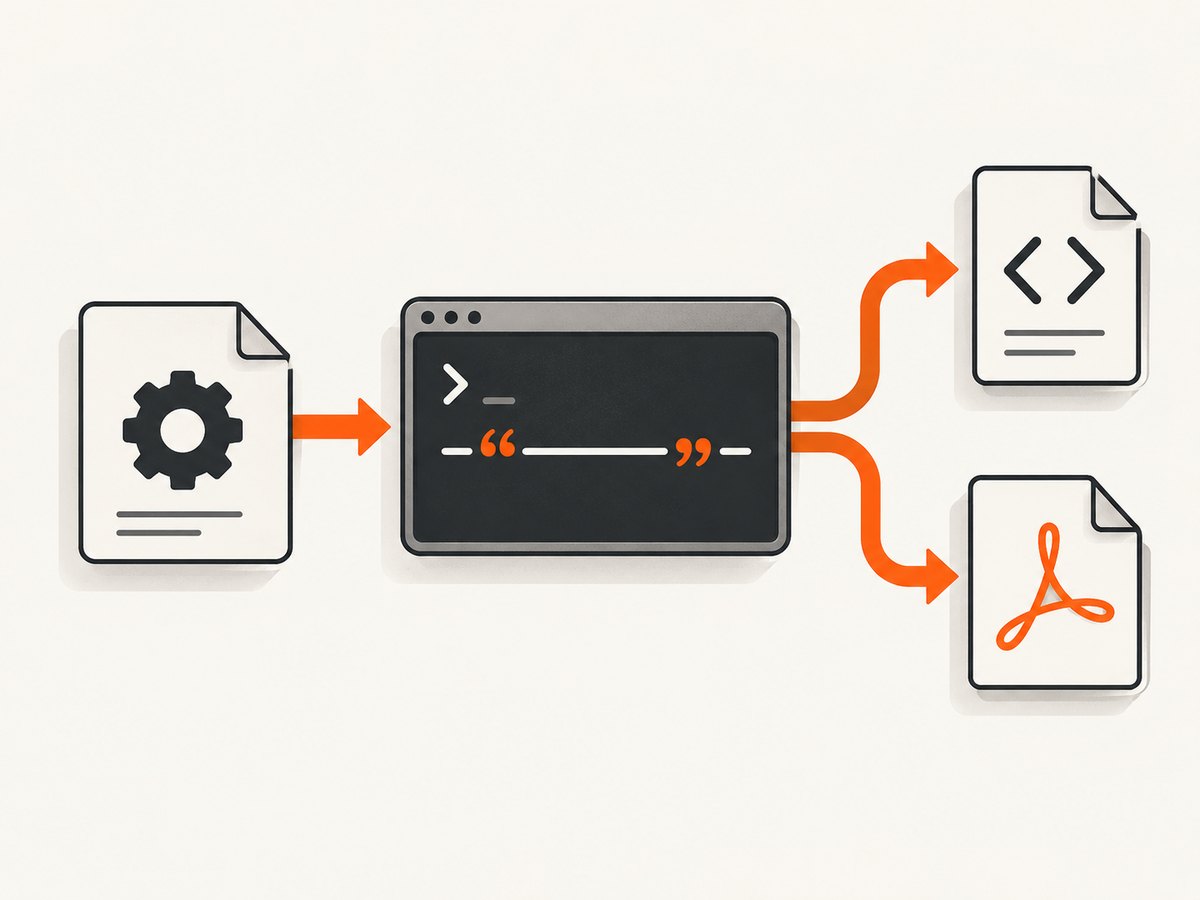
"C:\\Program Files\\wkhtmltopdf\\bin\\wkhtmltopdf.exe" --versionIf the absolute path works, the installation is present and PATH is the problem. Add the executable’s directory to the system or user PATH, open a new terminal, and run wkhtmltopdf --version again. The manual documents --version; Microsoft’s cmd documentation explains command parsing and quoting.
The reliable batch-file pattern
Create a file such as convert.bat beside input.html:
@echo off
set "WKHTMLTOPDF=C:\\Program Files\\wkhtmltopdf\\bin\\wkhtmltopdf.exe"
set "INPUT=%~dp0input.html"
set "OUTPUT=%~dp0output.pdf"

if not exist "%WKHTMLTOPDF%" (
  echo wkhtmltopdf.exe was not found at "%WKHTMLTOPDF%" >&2
  exit /b 2
)

if not exist "%INPUT%" (
  echo Input HTML was not found at "%INPUT%" >&2
  exit /b 3
)

"%WKHTMLTOPDF%" "%INPUT%" "%OUTPUT%"
if errorlevel 1 (
  echo Conversion failed with exit code %errorlevel% >&2
  exit /b %errorlevel%
)

echo Conversion complete: "%OUTPUT%"
exit /b 0
%~dp0 expands to the drive and directory containing the batch file. This makes the script work when launched from another working directory, such as Task Scheduler. Every path is quoted because Program Files contains a space and Windows command parsing treats characters such as &, |, <, >, and parentheses specially.
Using PATH instead of an absolute path
Once the installation directory is on PATH, the command is shorter:
@echo off
set "INPUT=%~dp0input.html"
set "OUTPUT=%~dp0output.pdf"

wkhtmltopdf "%INPUT%" "%OUTPUT%"
if errorlevel 1 (
  echo Conversion failed with exit code %errorlevel% >&2
  exit /b %errorlevel%
)

echo Conversion complete: "%OUTPUT%"
An absolute path is usually easier to support across machines because it makes the dependency explicit. PATH is convenient when administrators manage one standard installation location.
Convert a remote URL
Quote both the URL and output path. Quoting the URL protects query strings and ampersands from command parsing:
@echo off
set "WKHTMLTOPDF=C:\\Program Files\\wkhtmltopdf\\bin\\wkhtmltopdf.exe"
set "OUTPUT=%~dp0site.pdf"

"%WKHTMLTOPDF%" "https://example.com/?source=batch&format=pdf" "%OUTPUT%"
if errorlevel 1 exit /b %errorlevel%
The source server must be reachable from the Windows machine. Authentication, DNS, TLS, robots policies, redirects, and page-level JavaScript can all affect the result. Use the manual’s documented cookie, custom-header, proxy, encoding, image, header/footer, and JavaScript options when the target requires them. Check the installed build with wkhtmltopdf -H or wkhtmltopdf --help; do not assume every build supports every option.
Local HTML, CSS, images, and fonts
For a local document, pass the file path as the input object:
"C:\\Program Files\\wkhtmltopdf\\bin\\wkhtmltopdf.exe" "C:\\Reports\\invoice.html" "C:\\Reports\\invoice.pdf"Keep linked assets close to the HTML or use explicit, valid paths. A page can open successfully while its stylesheet, image, or font fails to load. Test the installed build’s local-file access behavior and use the documented file-access controls where applicable. Avoid unquoted paths in CSS URLs and batch variables. If a path contains parentheses or an ampersand, quoting the command argument is essential, but the HTML and CSS URL still need to be valid.
Useful options and diagnostics
| Need | What to use | Why |
|---|---|---|
| Confirm installation | --version |
Distinguishes PATH or installation issues from rendering issues. |
| See supported switches | -H or --help |
Builds differ; inspect the installed manual. |
| More conversion detail | --log-level info |
Shows useful progress and warning messages. |
| Investigate scripts | --debug-javascript |
Emits JavaScript diagnostics for script-heavy pages. |
| Multiple page objects | wkhtmltopdf page1.html page2.html combined.pdf |
Produces one PDF from several page objects. |
| Repeated jobs | --read-args-from-stdin |
Reads one invocation’s arguments per input line. |
Capture standard error in scheduled jobs so warnings are retained:
"%WKHTMLTOPDF%" --log-level info "%INPUT%" "%OUTPUT%" 1>"%~dp0convert.stdout.log" 2>"%~dp0convert.stderr.log"
if errorlevel 1 exit /b %errorlevel%
Do not put another command between wkhtmltopdf and the if errorlevel check. The next command can replace the status you intend to inspect.
Batch conversion of many files
A visible loop
A loop is easiest to understand and troubleshoot for a small number of files:
@echo off
set "WKHTMLTOPDF=C:\\Program Files\\wkhtmltopdf\\bin\\wkhtmltopdf.exe"
set "INPUT_DIR=%~dp0html"
set "OUTPUT_DIR=%~dp0pdf"

if not exist "%OUTPUT_DIR%" mkdir "%OUTPUT_DIR%"

for %%F in ("%INPUT_DIR%\\*.html") do (
  "%WKHTMLTOPDF%" "%%~fF" "%OUTPUT_DIR%\\%%~nF.pdf"
  if errorlevel 1 (
    echo Failed: "%%~fF" >&2
    exit /b %errorlevel%
  )
)

echo All conversions complete
Using --read-args-from-stdin
The manual documents a stdin mode in which each input line becomes a separate invocation. A producer can generate argument lines such as "input1.html" "output1.pdf" and pipe them to wkhtmltopdf. This can reduce repeated process-start overhead for a large set of files:
@echo off
set "WKHTMLTOPDF=C:\\Program Files\\wkhtmltopdf\\bin\\wkhtmltopdf.exe"
(
  echo "C:\\Reports\\input1.html" "C:\\Reports\\output1.pdf"
  echo "C:\\Reports\\input2.html" "C:\\Reports\\output2.pdf"
) | "%WKHTMLTOPDF%" --read-args-from-stdin
if errorlevel 1 exit /b %errorlevel%
Use the loop when each file needs custom handling or clear per-file logging. Use stdin mode when the arguments are generated systematically and process startup is a measurable bottleneck.
Calling the batch conversion from Python and Node.js
Python can invoke the executable directly and preserve its exit status:
from pathlib import Path
import subprocess

wkhtmltopdf = r'C:\\Program Files\\wkhtmltopdf\\bin\\wkhtmltopdf.exe'
source = Path(r'C:\\Reports\\input.html')
target = Path(r'C:\\Reports\\output.pdf')

result = subprocess.run(
    [wkhtmltopdf, str(source), str(target)],
    capture_output=True,
    text=True,
)
if result.returncode != 0:
    raise RuntimeError(f'wkhtmltopdf failed ({result.returncode}): {result.stderr}')
print(target)
Node.js can do the same with child_process:
const { execFile } = require('node:child_process');

const exe = 'C:\\Program Files\\wkhtmltopdf\\bin\\wkhtmltopdf.exe';
execFile(exe, ['C:\\Reports\\input.html', 'C:\\Reports\\output.pdf'], (error, stdout, stderr) => {
  if (error) {
    console.error(stderr || error.message);
    process.exit(error.code || 1);
  }
  console.log('Conversion complete');
});
Passing arguments as an array avoids having to build one shell command string and reduces quoting mistakes.
Common errors and fixes
| Error or symptom | Likely cause | Fix |
|---|---|---|
'wkhtmltopdf' is not recognized |
The executable directory is not on PATH. | Run --version with a full quoted path, then update PATH or keep the absolute path in the batch file. |
| “The system cannot find the path specified” | A typo, missing drive, or unquoted space. | Use if not exist, quote every path, and verify the exact installation directory. |
| Exit code is nonzero | Unreachable input, failed asset load, unsupported option, or rendering failure. | Check the input and output locations, add --log-level info, capture stderr, and verify options with --help. |
| PDF is blank or missing styles | Local assets were blocked or loaded from invalid paths. | Check CSS, image, and font URLs; test local-file access settings supported by the installed build. |
| Modern page renders incorrectly | Qt WebKit does not implement the page’s current JavaScript or CSS. | Test the exact version, simplify or pre-render the page, or choose a maintained browser-based renderer. |
| Scheduled task works manually but fails unattended | Different working directory, account permissions, PATH, or output permissions. | Use %~dp0, an absolute executable path, absolute output paths, and a writable directory. Log stdout and stderr. |
| Special characters break the command | cmd metacharacters were parsed as syntax. | Quote arguments and handle &, |, <, >, and parentheses carefully. |
Reliability, performance, and cost considerations
- Reliability: Validate the executable and input before conversion, check the exit code immediately, and propagate nonzero status with
exit /b. Keep stderr logs for failed jobs. - Performance: One process per file is simple but has startup overhead. For repeated conversions, compare a loop with
--read-args-from-stdin. Large pages, remote assets, JavaScript, and image-heavy documents take longer than simple local HTML. - Compatibility: Qt WebKit is an older rendering engine. A successful process exit does not guarantee visual parity with a current browser; inspect representative PDFs.
- Operations: Write output to a known writable directory, use deterministic filenames, and avoid overwriting an important PDF until the new conversion succeeds.
- Cost: wkhtmltopdf itself is a command-line utility, but your pipeline still consumes Windows CPU, memory, storage, and network resources. Remote pages can also change between runs.

Or skip the browser setup
If you need a clean screenshot or PDF from a URL without installing and maintaining a local renderer, ScreenshotNeo provides a single HTTP endpoint. It accepts the cookie or consent banner before capture and removes more than 60 known consent platforms, newsletter popups, and chat widgets; each step can be disabled. Only clean shots are billed: bot checks, CAPTCHAs, blank pages, timeouts, failed loads, and cache hits cost nothing, and response headers identify the page verdict and billing status.
ScreenshotNeo also supports full-page capture with lazy images, element capture by CSS selector, dark mode, device presets and custom viewports, retina scale, PDF paper size and margins, custom CSS and JavaScript, clicks, waits, blocked resources, headers, cookies, user agents, authorization, timezone, geolocation, transparent backgrounds, resizing, TTL caching, signed links, asynchronous jobs, bulk capture, a usage API, and an OpenAPI specification. Its MCP server exposes take_screenshot, get_page_info, and capture_pdf to Claude, Cursor, and other MCP clients.
See the ScreenshotNeo API documentation for request options. The following calls are runnable; replace YOUR_API_KEY and change the URL.
cURL
curl -G "https://api.screenshotneo.com/v1/shot" -d access_key=YOUR_API_KEY --data-urlencode url=https://stripe.com -o shot.webpPython
import requests; r = requests.get("https://api.screenshotneo.com/v1/shot", params={"access_key": "YOUR_API_KEY", "url": "https://stripe.com"}, timeout=90); open("shot.webp", "wb").write(r.content)Node.js
const q = new URLSearchParams({ access_key: 'YOUR_API_KEY', url: 'https://stripe.com' }); const res = await fetch(`https://api.screenshotneo.com/v1/shot?${q}`);The Free plan includes 1,000 shots each month with no card. Paid plans start at $5 for 3,000 shots, and every feature is available on every plan. Create a free ScreenshotNeo account.
FAQ
Do I need to use call to run wkhtmltopdf?
No. A direct executable invocation is enough in a normal batch file. Use call when invoking another batch file and you need execution to return to the current script.
Why check errorlevel immediately?
Each later command can change the status you meant to inspect. Checking immediately preserves the conversion result and lets you return it to the scheduler.
Can wkhtmltopdf render a login-protected page?
Only if the required authentication can be represented with the options supported by your installed build, such as cookies or headers. Verify the resulting PDF; a process that exits successfully can still produce an incomplete page.
Should I use a relative output path?
Use an absolute path in automation. A scheduled task may start in a different working directory, while %~dp0 gives you a stable path relative to the batch file.
How can I know whether a failure came from Windows or the page?
First run --version with the full executable path. If that works, validate the input and output paths, then rerun with --log-level info and --debug-javascript where supported. The exit code and stderr usually identify the next step.


