Why Website Images Don’t Load in Safari and How to Fix It
Find out why images are missing in Safari and follow a safe, step-by-step fix for iPhone, iPad, or Mac.

If images are blank or broken in Safari, first reload the page and check whether the problem affects one website or many. That quick comparison helps separate a site-specific problem from a Safari setting, extension, or network issue. Then change one thing at a time, starting with reversible steps; clearing website data can sign you out or remove saved site state.
This guide covers iPhone, iPad, and Mac. Apple’s published advice is mostly about pages that will not load, so treat the iPhone and iPad suggestions below as troubleshooting possibilities for missing images—not proof that any one setting caused the failure.
1. Identify where the problem is
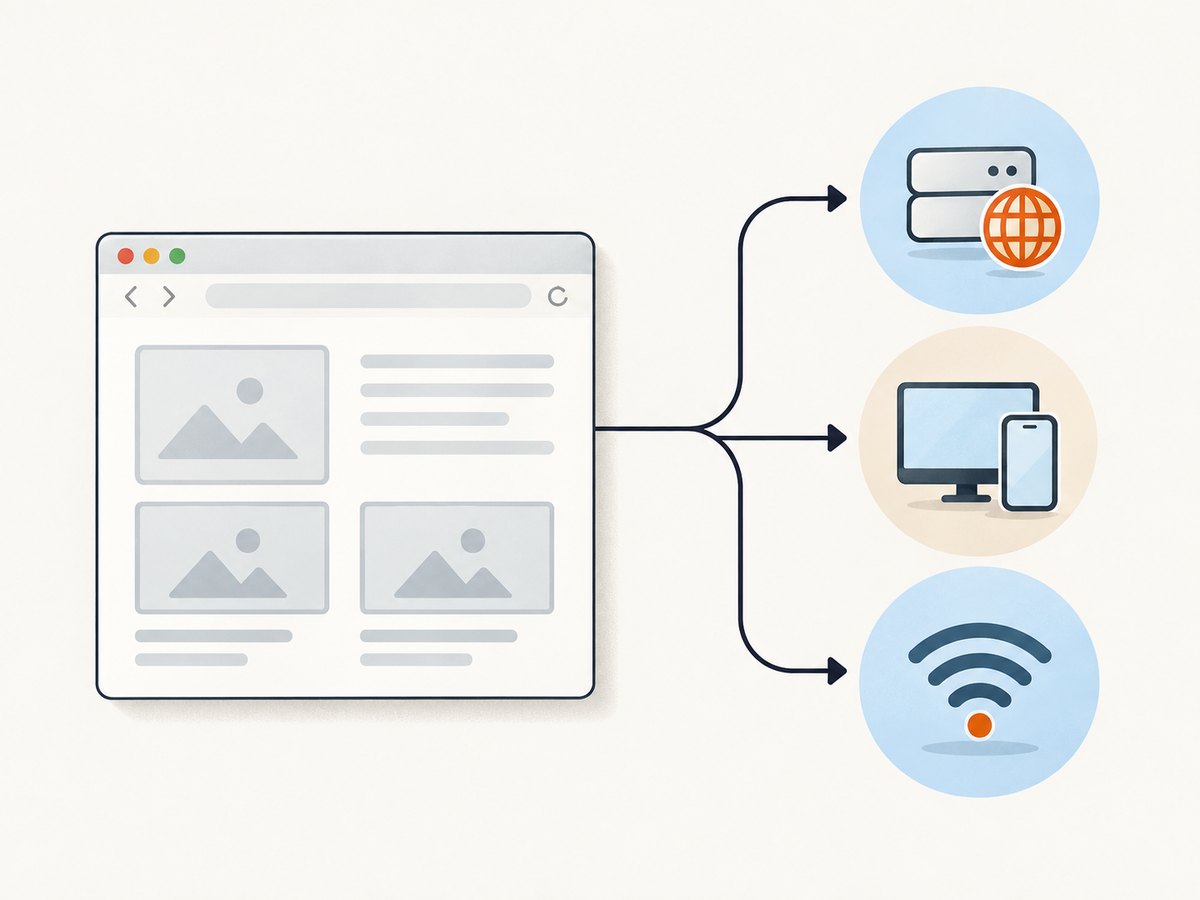
Before changing settings, note which pages and devices are affected. A missing image on one page can have a different cause from images failing on every site.
| What you observe | What to compare |
|---|---|
| One page or website has missing images | Reload it; try another page on the same site. On Mac, try a private window and inspect that site’s settings. |
| Several websites fail in Safari on one device | Check extensions, content blockers, JavaScript, and Safari data. Compare another browser. |
| Several devices or browsers fail on one network | Try another network. Review VPN, proxy, DNS, router, or security software. |
| The same site fails across devices and networks | The site may be serving broken image URLs, blocking requests, or having a compatibility problem. Contact its developer if it persists. |
- Reload the page. If it was a temporary failed request, images may appear on the next load.
- Open a different website with images. This checks whether the issue is isolated to one site.
- If available, compare another device or browser. For a network check, keep the device the same and switch from Wi-Fi to cellular or another network.
- Write down what changed between the successful and failed cases. That narrows the cause without resetting settings prematurely.
2. Fix missing images on iPhone or iPad
Try these steps in order. Menu labels can vary by iOS or iPadOS version. Apple’s instructions for Safari page-loading problems include testing another network, checking VPN, restarting, clearing site data, enabling JavaScript, and checking Private Relay for a site-specific problem.
Try a different network and review VPN
Switch from Wi-Fi to cellular data, or try another Wi-Fi network, then reload the affected page. If images load on the alternate network, the original network or a network-level filter may be interfering. Temporarily test with your VPN disconnected if you use one, then restore it. Apple notes that a VPN can cause some apps or websites to block content from loading. This test can help isolate a cause; it does not mean a VPN is generally incompatible with Safari.
Restart the device
Restart the iPhone or iPad and check the page again. A restart can clear a temporary problem with the browser or network connection. If images remain missing, continue with the next checks.
Confirm JavaScript is enabled
Some websites use scripts to insert images or load them as you scroll. Check Settings > Apps > Safari > Advanced and make sure JavaScript is on. The exact menu path may differ on older versions. Change this only if it is off; reload afterward.
Check iCloud Private Relay for a site-specific issue
If just one website is affected, test whether iCloud Private Relay is involved by checking its setting for your connection or device. Temporarily switching it off can help isolate the issue; turn it back on after the test if you want to keep using it. A result that changes when this setting changes points to a compatibility or connection interaction to investigate, not necessarily a broken image file.
Clear history and website data only after simpler tests
Apple’s general troubleshooting includes Settings > Apps > Safari > Clear History and Website Data. Clearing this information can remove cookies and affect saved sign-ins or website state. Use it after reload, network, restart, and settings checks—not as the first fix. If the problem is on a single site, consider whether losing saved state is acceptable before clearing data.
3. Fix missing images on Mac
Reload, update, and restart
Reload the affected page. Install available macOS and Safari updates, restart the Mac, and check again. This is a sensible early step when Safari behaves unexpectedly across multiple sites.
Test a private window
Open the same page in a Safari private window. If images appear there, a stored cookie, cache entry, or other site data may be involved. Remove data for the affected website and try again. In Safari, use Safari > Settings > Privacy > Manage Website Data, search for the site, select it, and remove its data. Removing site data may sign you out or reset saved preferences.
Temporarily turn off extensions
Extensions can alter or block page requests. Temporarily turn off Safari extensions, reload, and see whether the images return. If they do, re-enable extensions one at a time to identify the one affecting the page. Turn them back on after the test if they were not responsible.
Check the affected site’s content-blocker setting
Content blockers can block images and other resources. In Safari, open the affected site’s settings and check whether Enable Content Blockers is on for that site. Temporarily turn it off for the affected site, reload, and restore the setting after testing if it made no difference. Safari supports site-specific controls, so you can isolate one site instead of changing a global setting.
Review JavaScript, privacy, and security settings
Check Safari’s Privacy, Security, Websites, and Advanced settings for a setting that might prevent the affected site from loading its images. Confirm JavaScript is enabled if the site relies on scripts. Change one setting at a time and note its original value so you can restore it. Apple says a page may not be compatible with one or more browser settings, which can be turned on or off as needed.
Check VPN, security software, proxy, and DNS
Temporarily test another network. If that fixes the issue, check whether a VPN, security tool, custom proxy, or custom DNS configuration is filtering or failing to resolve the image host. Change only one item per test, and restore your preferred protection after the check. If the images fail on multiple devices and browsers on the same network, investigate the shared network environment as well as the website.
Check Private Relay if one site is affected
For a problem limited to one website, test whether iCloud Private Relay affects loading. Temporarily change the relevant setting, reload, and restore it after the test if there is no difference. If the site only works with the setting changed, report that detail to the site developer.
Apple says Safari 26 adds Report a Website Issue after reloading. Safari 26 is included with the latest updates for macOS Sequoia 15 or later. Availability depends on installed software; check your Safari and macOS version if the option is absent.
4. If you build the website: diagnose the image request
If users report missing images in your site, reproduce the problem in Safari and determine whether the browser requested the resource at all. A broken icon is only a symptom: the URL may be wrong, the response may fail, or client-side code may never insert the image.

- Open Safari’s Web Inspector and inspect the affected image element. Confirm that its
srcor selectedsrcsetcandidate points to the expected URL. - Inspect the Network panel while reloading. Look for failed image requests, redirects, blocked requests, and HTTP error responses. Check the final URL, response status, and response content type.
- Check the Console for JavaScript errors, mixed-content problems, or policy violations. If the image is added after page load, confirm the relevant script runs and its URL is valid.
- Test the exact URL directly in Safari and compare another browser or network. A CDN, authentication rule, hotlink restriction, or network filter may treat requests differently.
- Test lazy-loaded images by scrolling them into view. Confirm that the loading script updates
srcorsrcsetand that the image host remains reachable.
Use real response evidence to distinguish an application bug from a browser setting. Avoid asking users to disable privacy protection globally; if a site-level compatibility issue exists, fix the underlying resource or make the behavior clear to the site owner.
5. Common problems and fixes
| Symptom | Likely area to inspect | Next step |
|---|---|---|
| Images appear in a private Mac window | Stored website data or cookies | Remove data for that site and sign in again if needed. |
| Images appear after disabling an extension | Extension filtering or page modification | Re-enable extensions one at a time to identify the cause. |
| Only one site is affected | Site-specific blocker setting, Private Relay interaction, or site defect | Test that site’s settings; contact its developer if it persists. |
| Images work on cellular but not Wi-Fi | Wi-Fi network, DNS, proxy, router, or security filtering | Review network settings and compare another device on Wi-Fi. |
| Images fail across browsers and devices on one network | Shared network environment or site access | Test a different network; investigate VPN, DNS, proxy, or security tools. |
| Only images loaded while scrolling are missing | Lazy-loading script, image URL, or blocked request | Inspect the element and network request; test after scrolling into view. |
| Clearing data did not help | Cause may be elsewhere, including extension, network, or site | Continue with controlled comparisons; clearing data is not a universal fix. |
6. Make troubleshooting reliable and low-risk
- Change one thing at a time. If you disable an extension, switch networks, and clear data together, you will not know which change mattered.
- Prefer reversible checks first. Reloading, trying another network, and temporarily testing an extension are easier to undo than clearing stored site data.
- Record the conditions. Note the site, device, Safari version, network, time, and whether the failure affects all images or only some.
- Restore privacy and security settings. If a temporary test makes no difference, return the setting to its original state.
- Escalate with evidence. Tell the website developer whether the issue occurs on one or many devices, whether another network changes it, and which image URLs or pages are affected.
Do not buy a cleaner, replace your device, or install a paid repair utility based on a missing-image symptom. The official troubleshooting path is to compare scope, settings, and networks; the diagnosis depends on what changes the result.
Or skip the browser setup
If you are a developer who needs a page screenshot while investigating a rendering issue, ScreenshotNeo provides a website screenshot API and MCP server. A screenshot can show what a capture service received from a page; it does not diagnose why a particular person’s Safari installation failed. For the user’s exact device and network, Safari’s own Web Inspector and settings remain relevant.
One GET request returns an image or PDF. This example saves the response as WebP; see the ScreenshotNeo API documentation for request options and response details.
curl -G "https://api.screenshotneo.com/v1/shot" -d access_key=YOUR_API_KEY --data-urlencode url=https://stripe.com -o shot.webpimport requests
r = requests.get(
"https://api.screenshotneo.com/v1/shot",
params={"access_key": "YOUR_API_KEY", "url": "https://stripe.com"},
timeout=90,
)
open("shot.webp", "wb").write(r.content)const q = new URLSearchParams({ access_key: 'YOUR_API_KEY', url: 'https://stripe.com' });
const res = await fetch(`https://api.screenshotneo.com/v1/shot?${q}`);
if (!res.ok) throw new Error(`Screenshot request failed: ${res.status}`);
const image = Buffer.from(await res.arrayBuffer());
await import('node:fs/promises').then(fs => fs.writeFile('shot.webp', image));ScreenshotNeo accepts cookie or consent banners and removes more than 60 known consent platforms, newsletter popups, and chat widgets before capture; each of those steps can be turned off. Bot checks and CAPTCHAs, blank pages, timeouts, failed loads, and cache hits cost nothing, and responses include X-Page-Verdict and X-Billed headers. Its MCP server provides take_screenshot, get_page_info, and capture_pdf tools for Claude, Cursor, and other MCP clients. The free plan includes 1,000 screenshots per month with no card; paid plans start at $5 for 3,000. Sign up free for 1,000 screenshots a month, with no card.
FAQ
Why are images not showing in Safari when they work in another browser?
Compare Safari extensions, content-blocker settings, website data, and privacy settings. If only one site is affected, check that site’s settings and report the problem to its developer if it continues.
Should I clear Safari history to fix broken images?
It can help if stored site data is involved, but it can also affect sign-ins and saved site state. Try a reload, a different network, and reversible settings checks first.
Why do some images load only after I scroll?
The site may load images lazily as they approach the screen. If they remain missing after scrolling into view, the site developer should inspect the image URL, loading script, and request result.
What if images are missing on just one website?
On Mac, compare a private window, that site’s content-blocker setting, and its stored data. Check Private Relay if relevant. If the problem remains, contact the site developer with the device, network, and page details.
When should I use Report a Website Issue?
On Safari 26 or later, reload the problematic page and look for the reporting option. Availability depends on your installed Safari and macOS version.


