Why Pictures Won’t Load on Websites in Safari and How to Fix It
Safari images missing? Use this step-by-step guide to isolate site, blocker, privacy, network, and JavaScript problems on Mac, iPhone, and iPad.
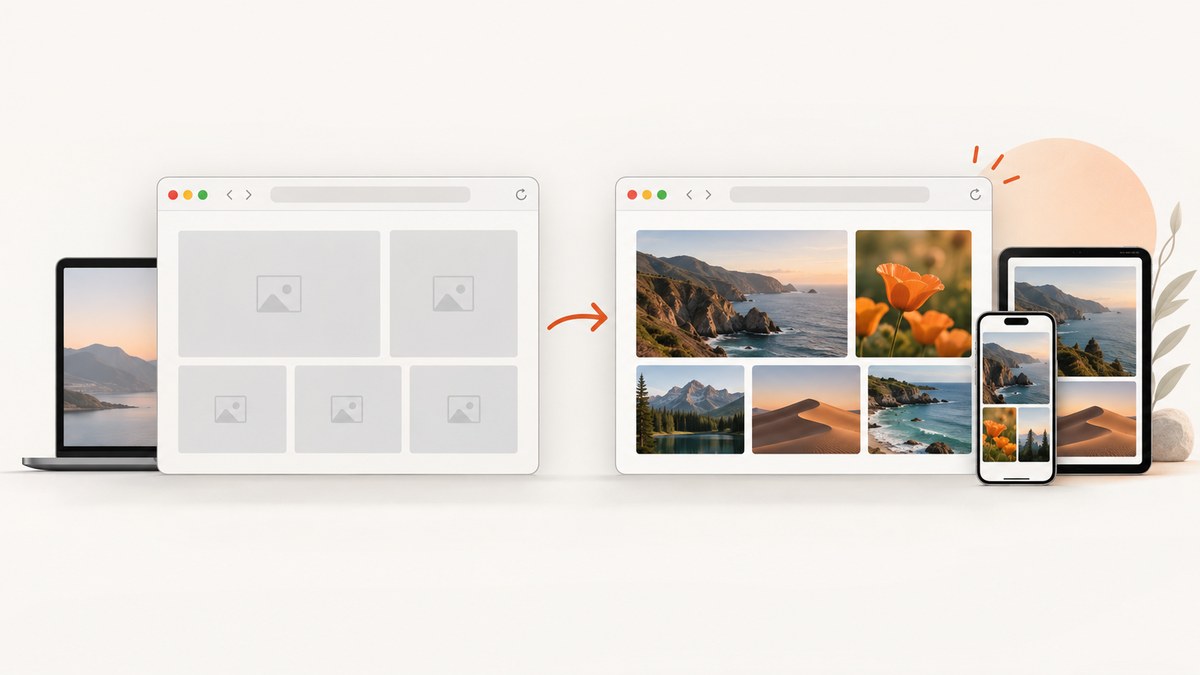
When pictures do not load in Safari, first find out whether the problem affects one website or many. Reload the page, open another site that normally displays images, and compare with a private window, another browser, or another network. If other sites show pictures, focus on the affected site’s data, content blockers, privacy settings, or image resources. If images fail across many sites, investigate Safari settings, extensions, VPN or security software, your network, and device software.
Apple’s troubleshooting guidance recommends these comparisons before changing settings. A site-specific failure may need the site owner to fix a blocked, missing, or incorrectly served image resource. Apple’s iPhone and iPad Safari guide and Apple’s Mac Safari guide cover the platform-specific steps.
1. Establish whether Safari or one website is responsible
- Reload the page.
- Open another page on the same site.
- Visit a separate site known to display pictures.
- Where possible, compare Safari with another browser or compare Wi-Fi with cellular data.
| What you observe | Most useful next area |
|---|---|
| Only one page or site is missing pictures | Site data, content blockers, privacy interaction, or a site-side image failure |
| Many unrelated sites are missing pictures | Safari settings, extensions, network, VPN/security software, or device software |
| Pictures work in a Mac private window | Stored site data or an extension/content blocker in the normal window |
| Pictures work on cellular but not Wi-Fi | Network filtering, DNS, VPN, or security software on the Wi-Fi path |
These comparisons narrow the likely cause; they do not prove one root cause by themselves.
2. Reload and check content blockers
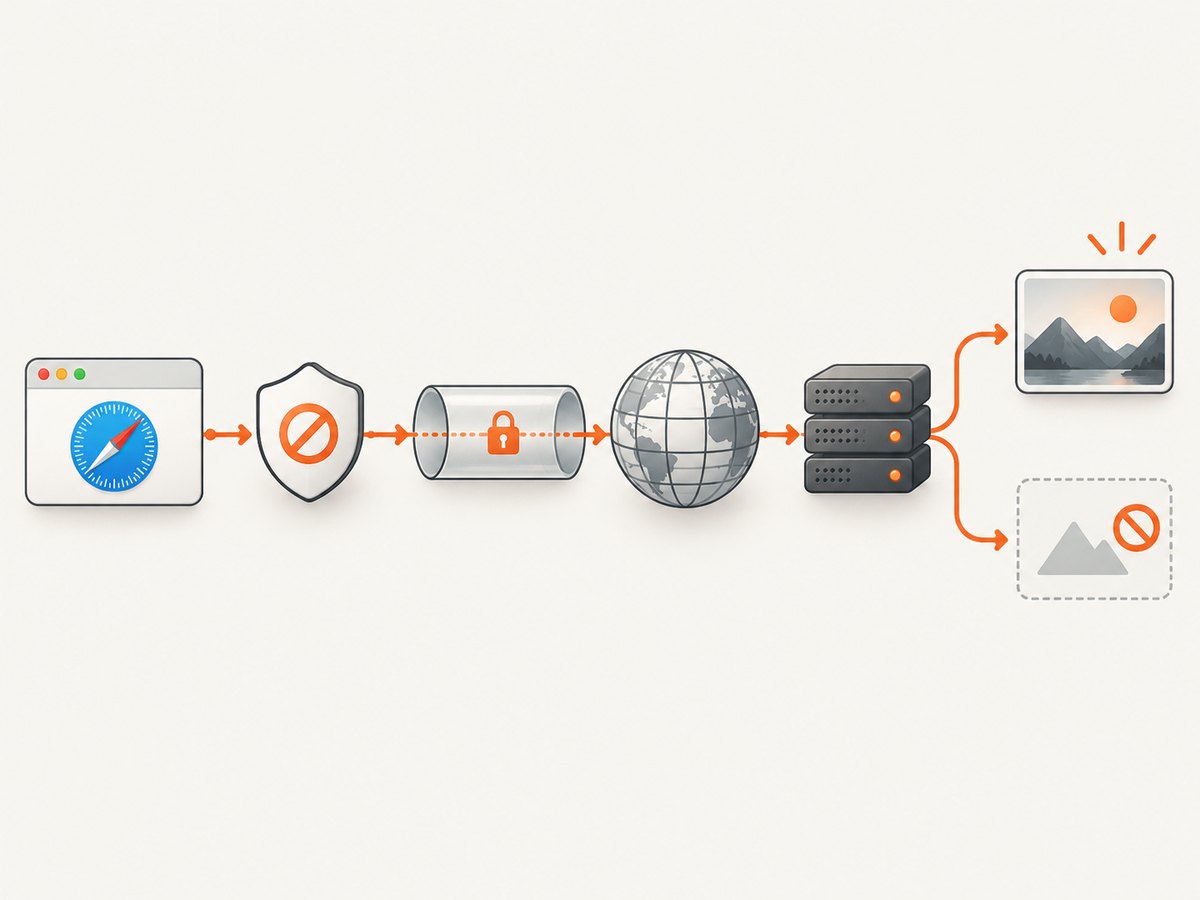
Safari content blockers are extensions with rules that can hide page elements or block requests. A blocked image may appear as a blank area rather than a broken-image icon, especially when the image is delivered through a third-party resource. WebKit describes how Safari content blockers work.
On Mac
- Reload the page using Safari’s reload command.
- Open Safari’s extensions settings and identify ad blockers, privacy tools, or security extensions.
- If Safari offers a per-site content-blocker control, temporarily disable the blocker for the affected site.
- Reload and check the same image.
- Restore the blocker setting after the comparison if it made no difference.
Disable a blocker only for the affected site while diagnosing. If images return, review that extension’s allowlist or filtering rules instead of leaving protection disabled everywhere.
3. Compare a normal window with a private window
On a Mac, open the affected URL in a private window. If pictures appear there, the normal window’s stored site data or an extension is a strong lead. Google’s official image troubleshooting sequence also includes private browsing, clearing cache and cookies, disabling extensions, and checking JavaScript.
Private browsing is a diagnostic comparison, not a permanent fix. Continue by identifying the setting or data that differs between the two windows.
4. Remove data for the affected site carefully
Corrupt or stale cookies, cached responses, service-worker data, or other website storage can prevent image requests from completing. Apple recommends removing data for the affected site on Mac when appropriate. Clearing data can sign you out and remove saved site state, so make sure you know the account password or recovery method first.
Mac
- Open Safari’s Privacy settings.
- Use the website-data management view to find the affected domain.
- Remove data for that domain.
- Quit and reopen Safari, then sign in again if required.
iPhone or iPad
Apple’s current path is Settings > Apps > Safari > Clear History and Website Data. This is broader than removing one domain, so expect sign-outs and loss of stored browsing state. After clearing, revisit the site and test the images.
5. Make sure JavaScript is enabled
Some sites insert images, choose responsive image sources, or request protected assets with JavaScript. On iPhone and iPad, Apple’s Safari guidance says to check that JavaScript is enabled under Safari’s Advanced settings. If JavaScript is disabled, enable it, reload the page, and test again.
On Mac, inspect Safari’s site settings and extension rules if only one domain is affected. Do not assume every missing image is a JavaScript problem: a static <img> can also fail because its URL, response headers, certificate, or network request is wrong.
6. Test VPN, Private Relay, and other network software
Apple notes that a VPN can cause some apps or websites to block content from loading. Security filters, DNS filtering, parental controls, and corporate network policies can have similar effects.
- Compare the site on Wi-Fi and cellular data, or on another trusted network.
- If a VPN is enabled, test the affected site briefly with the VPN disconnected, then restore it.
- Review antivirus, firewall, DNS-filtering, and traffic-inspection tools that may block image hosts or third-party domains.
If the site works only when a VPN is off, the result identifies an interaction, not necessarily a broken VPN. Check whether the VPN or network tool supports a narrow exception.
Private Relay
Apple explains that sites relying on IP filtering, monitoring, or rate limiting may not work correctly with Private Relay. When available for the affected site, use Safari’s site-specific Show IP Address option as a temporary comparison. This changes the privacy properties for that site, so restore the normal setting after testing. Apple’s Private Relay guidance explains the tradeoff.
7. Update and restart Safari or the device
Install available macOS, iOS, or iPadOS updates and restart the device. Apple includes restarting and updating in its general Safari troubleshooting guidance. A restart can clear a transient networking or rendering problem, while an update may include fixes for WebKit, extensions, or certificate handling.
8. When the website itself is broken
If pictures fail only on one site after blocker, private-window, data, JavaScript, and network comparisons, contact that site’s developer. Include:
- The exact URL and the image URL if visible.
- Your device model and operating-system version.
- Your Safari version.
- Whether the problem occurs in a private window, another browser, another network, or another device.
- Whether disabling the site’s content blocker changes the result.
- A screenshot of the blank area or error message.
On Mac, Safari may provide a Report a Website Issue option. Developers can use Safari Web Inspector and the Safari Developer documentation to inspect failed requests, console errors, response status codes, and content-security rules.
9. Mac image-setting caveat
An older Safari 9 help page mentions checking the Develop menu for disabled images. That page is not a reliable source for current Safari menu paths. Use the current Safari settings, extension controls, and content-blocker controls for your installed version instead of changing preference files based on legacy instructions. The older reference is Safari’s image-specific help page.
10. If you need a clean screenshot of a page
When the goal is to capture a page for documentation, monitoring, or debugging, a remote screenshot can separate Safari-on-your-device problems from the page’s server response. ScreenshotNeo is a website screenshot API and MCP server. It accepts one GET request and returns PNG, JPEG, WebP, or PDF.
Or skip the browser setup
Use the API documented at ScreenshotNeo’s API docs:
curl -G "https://api.screenshotneo.com/v1/shot" \
  -d access_key=YOUR_API_KEY \
  --data-urlencode url=https://stripe.com \
  -o shot.webp
import requests
r = requests.get(
"https://api.screenshotneo.com/v1/shot",
params={"access_key": "YOUR_API_KEY", "url": "https://stripe.com"},
timeout=90,
)
open("shot.webp", "wb").write(r.content)const q = new URLSearchParams({
access_key: 'YOUR_API_KEY',
url: 'https://stripe.com'
});
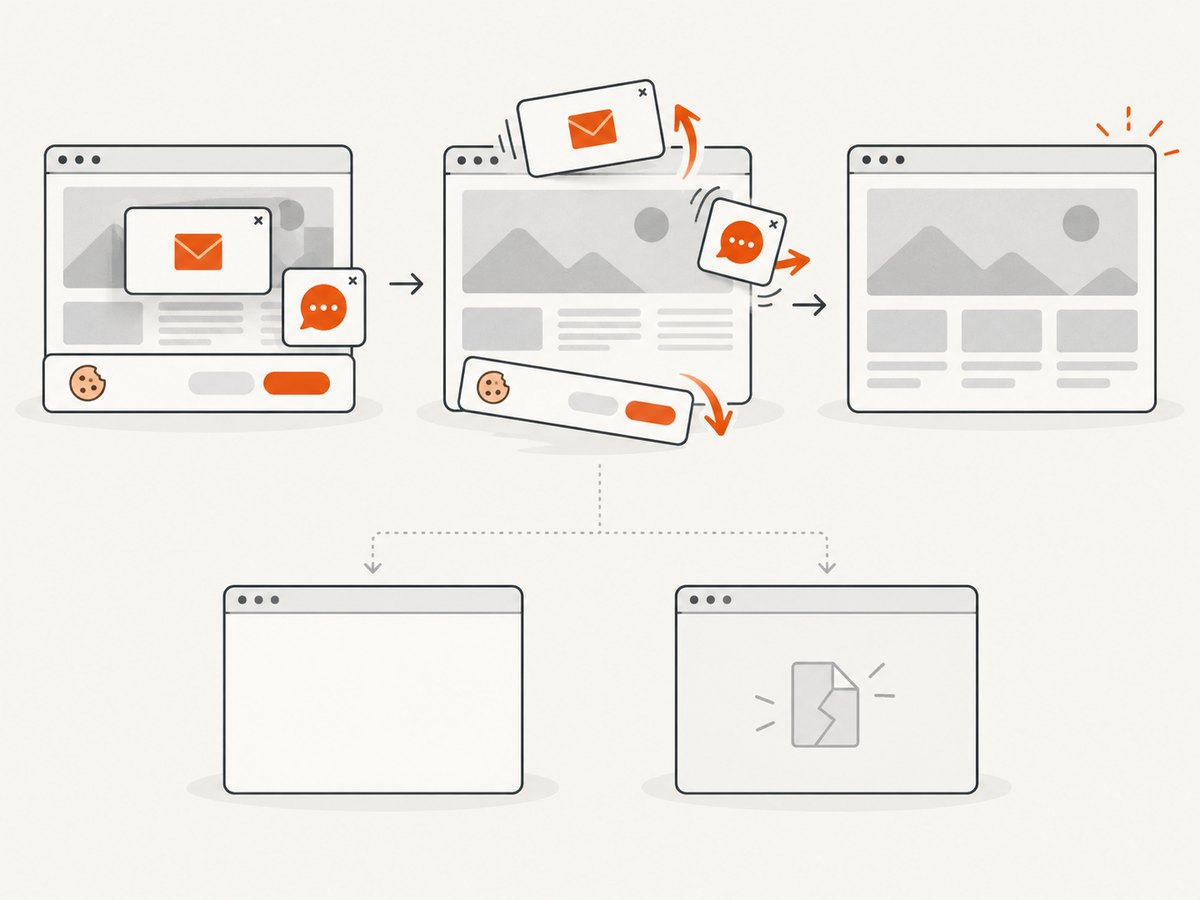
const res = await fetch(`https://api.screenshotneo.com/v1/shot?${q}`);ScreenshotNeo accepts cookie and consent banners before capture and removes more than 60 known consent platforms, newsletter popups, and chat widgets. Each step can be turned off. Bot checks or CAPTCHAs, blank pages, timeouts, failed loads, and cache hits are not billed, and the response identifies the result with X-Page-Verdict and X-Billed headers. Its MCP server provides take_screenshot, get_page_info, and capture_pdf tools for Claude, Cursor, and other MCP clients.
The service also supports full-page captures with lazy images loaded, CSS-selector element captures, dark mode, device presets and custom viewports, retina scale, PDF paper settings and page ranges, custom CSS and JavaScript, clicks, selector or network-idle waits, request blocking, headers, cookies, user agents, authorization, timezone, geolocation, transparent backgrounds, resizing, selectable cache TTLs, signed links, asynchronous jobs with signed webhooks, bulk capture of up to 100 URLs per call, a usage API, and an OpenAPI specification.
The Free plan includes 1,000 shots per month with no card. Paid plans start at $5 for 3,000 shots; yearly billing gives two months free. Create a free ScreenshotNeo account and use the API when you need a reproducible page capture without configuring a local browser.
11. Performance, reliability, and cost notes
- Performance: A private-window or second-network comparison usually takes less time than repeatedly changing unrelated settings. For screenshot captures, wait for a selector, a delay, or network idle when images are lazy-loaded.
- Reliability: Repeat a failing URL from a second browser, device, and network before concluding that the site is down. For automated captures, inspect
X-Page-VerdictandX-Billedrather than treating every HTTP response as a usable image. - Cost: Clearing Safari data and changing a per-site blocker costs nothing but can remove sessions. ScreenshotNeo bills only clean shots; failed loads, bot checks, blank pages, timeouts, and cache hits cost nothing.
- Privacy: Test VPN or Private Relay changes narrowly and restore protections after comparison. A site-specific IP-address exception changes what the network provider can observe for that browsing session.
12. Troubleshooting checklist
| Symptom | Likely cause | Fix |
|---|---|---|
| One site has blank image areas | Site data, blocker rule, or site-side resource failure | Private-window test, per-site blocker test, remove that site’s data, then contact the owner |
| All sites lack images | Safari-wide setting, extension, network, VPN, or device issue | Check JavaScript, extensions, VPN/security tools, another network, updates, and restart |
| Images work only in private browsing | Stored data or extension interaction | Remove affected-site data and identify the extension causing the difference |
| Images work on cellular but not Wi-Fi | Wi-Fi filtering, DNS, VPN, or firewall | Review network controls and compare with another Wi-Fi network |
| Only third-party images are missing | Content blocker, privacy rule, or blocked image host | Test the site-specific blocker setting and inspect the image host |
| Screenshot capture returns a blank page | Bot check, timeout, failed load, or page not ready | Use a wait condition, custom headers or cookies when authorized, and inspect verdict headers |
FAQ
Why do some pictures load while others do not?
Different images can come from different hosts, formats, or request paths. A blocker or network rule may affect only a third-party image host, while locally served images continue to work.
Will clearing Safari data delete my photos?
No. It removes website data such as cookies, cache, and stored site state. It can sign you out of websites and remove preferences for those sites.
Should I turn off Private Relay permanently?
No. Use a site-specific comparison only when needed. If the site depends on IP filtering or rate limiting, contact its owner about Private Relay compatibility.
Can a website owner verify the problem without a Mac?
Yes. Test the URL from another browser, device, network, or a remote screenshot service. Compare the returned image, response status, and request logs.
Does a screenshot prove that Safari will display the image?
No. A remote capture confirms what the page served to that capture environment. Safari-specific blockers, privacy settings, extensions, and local network rules can still change the result.


