How to Take Safari Screenshots with Selenium Grid and RemoteWebDriver
Capture Safari screenshots on a remote Selenium Grid node, save PNGs on your test runner, and troubleshoot setup, timing, and artifact issues.
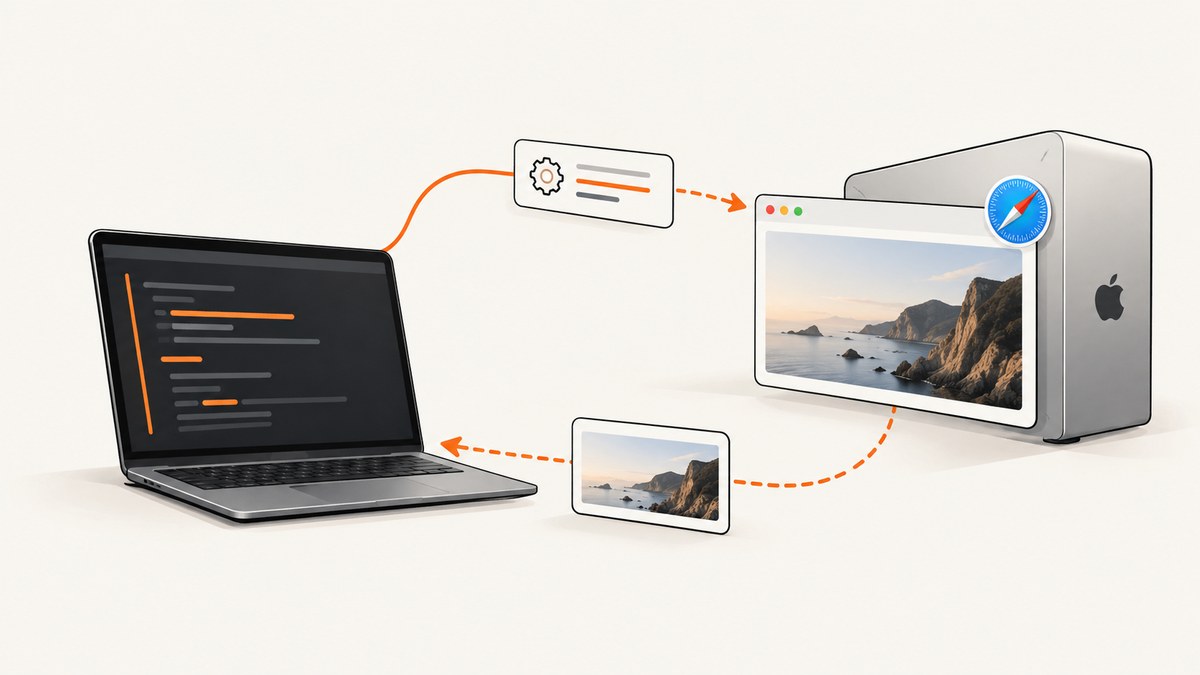
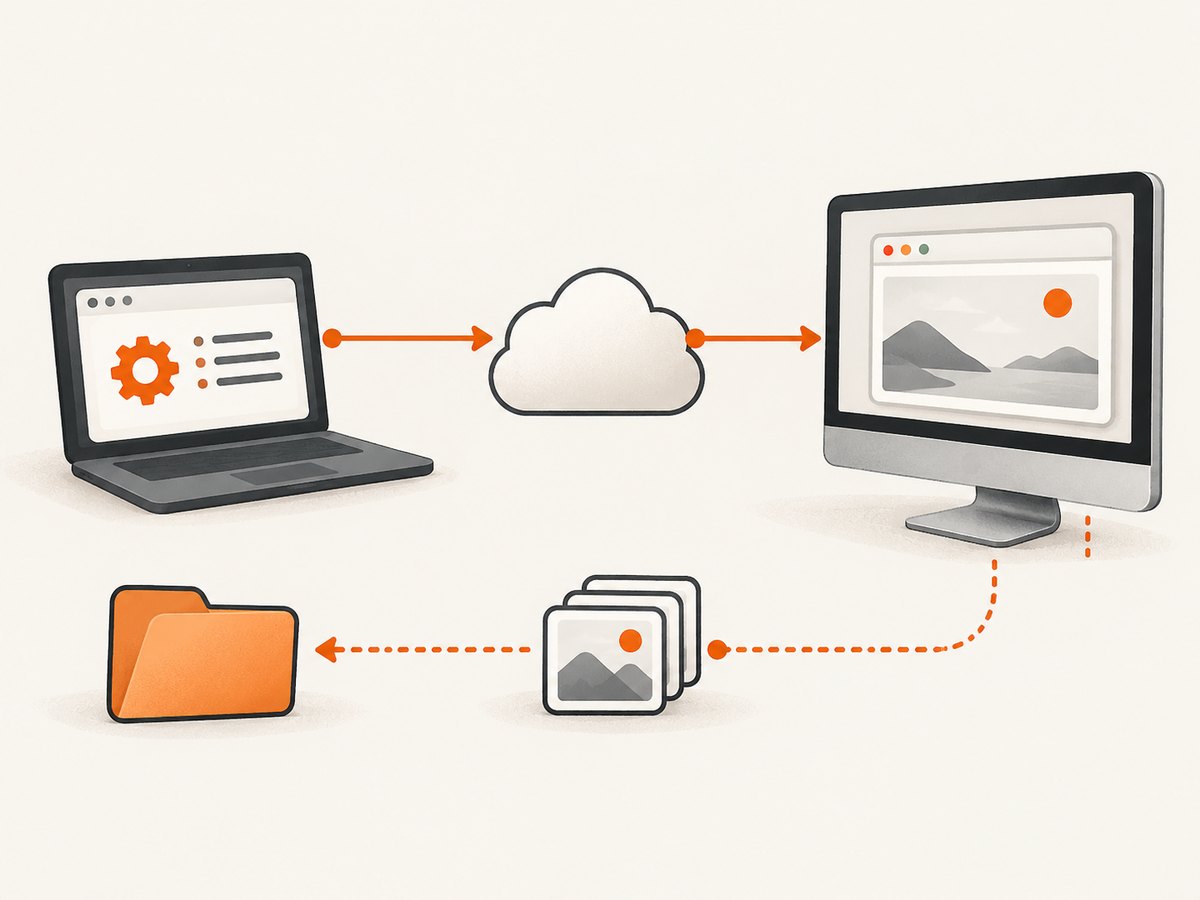
To take a Safari screenshot with Selenium Grid, enable Safari remote automation on the Mac that will run Safari, make that Mac available as a Grid node, connect to the Grid endpoint with RemoteWebDriver and Safari options, navigate and wait for the page state you need, then call the WebDriver screenshot API. In a remote setup, retrieve PNG bytes and write them on the test client when you want the artifact beside your test results.
The standard WebDriver screenshot captures the current browser window. It does not promise a full-page capture of all scrollable content. Safari runs on the node, while your test code and output path usually run on the client; keep those filesystems distinct.
1. Prepare the Safari Grid node
The browser and its driver must be available on the machine that executes the session. A Selenium Grid routes WebDriver commands from your test client to a remote browser node; installing Safari on the client does not make it available to the node.
- On the Mac that will host Safari, open Safari’s Develop menu and enable Allow Remote Automation. Apple documents this setting as
Develop > Allow Remote Automation. - Confirm
safaridriveris available on that Mac and that the Safari host can be registered or started as a node in your Grid deployment. - Start or configure Selenium Server according to your deployment. For a quick standalone setup, Selenium’s getting-started guide uses
java -jar selenium-server-<version>.jar standalone. For a distributed Grid, configure the Hub and node roles so the Safari-capable Mac executes Safari sessions. - Record the Grid URL reachable from the client, such as
http://grid-host:4444. Use the actual address and any required authentication or network configuration for your environment.
Selenium’s quick setup prerequisites include Java 11 or higher, installed browsers and drivers, and the Selenium Server jar. Grid nodes discover drivers from the system PATH by default. Selenium Manager can be enabled with --selenium-manager true, but verify the Safari node’s own driver and environment rather than assuming the client’s installation applies remotely. See Selenium Grid getting started and Apple’s Safari WebDriver guide.
2. Capture Safari and save the screenshot on the client
This Python example uses Selenium’s Remote API and writes PNG bytes to a path on the process running the test. Replace the Grid URL and target page with values for your environment. The Selenium Python API returns PNG data from get_screenshot_as_png().
from pathlib import Path
from selenium import webdriver
from selenium.webdriver.safari.options import Options

GRID_URL = "http://grid-host:4444"
TARGET_URL = "https://example.com"
OUTPUT = Path("artifacts/safari.png")

options = Options()
driver = webdriver.Remote(
    command_executor=GRID_URL,
    options=options,
)
try:
    driver.get(TARGET_URL)
    # Add a condition for the page state your test needs before capture.
    OUTPUT.parent.mkdir(parents=True, exist_ok=True)
    png_bytes = driver.get_screenshot_as_png()
    OUTPUT.write_bytes(png_bytes)
finally:
    driver.quit()
Install the Python binding with python -m pip install selenium in the client environment if it is not already installed. Keep the Selenium client and server versions compatible with your deployment. The current remote API pattern passes the Grid address as command_executor and browser options through options.
The screenshot bytes cross the WebDriver connection and are written by the client process. This makes the destination explicit: artifacts/safari.png is relative to the test client’s current working directory. It is not automatically a path on the Mac node.
Wait for the state you intend to capture
driver.get() returns according to the configured page load strategy, but modern pages can continue changing after navigation. Wait for a meaningful condition, such as a heading being visible, a loading indicator disappearing, or a known application state becoming ready. Do not rely on an arbitrary short sleep when an explicit condition is available.
from selenium.webdriver.common.by import By
from selenium.webdriver.support import expected_conditions as EC
from selenium.webdriver.support.ui import WebDriverWait

# After driver.get(...):
WebDriverWait(driver, 20).until(
    EC.visibility_of_element_located((By.CSS_SELECTOR, "main h1"))
)
png_bytes = driver.get_screenshot_as_png()
Choose a selector that reflects the content you need. A page can be technically loaded while images, client-rendered content, animations, or consent dialogs are still changing. If the application exposes a stable ready marker, waiting for it is generally more reliable than guessing a delay.
3. Choose a screenshot return method
Selenium’s Python API offers both a byte-returning path and a file-saving path. Both represent the current window. The main difference is where the file-writing process interprets the path and how your test handles the result.
| Method | Result | Use it when | Remote consideration |
|---|---|---|---|
get_screenshot_as_png() |
PNG bytes | You want explicit control over artifact storage, uploads, or in-memory processing. | Write the returned bytes from the client to make the destination clear. |
get_screenshot_as_file(path) |
Boolean success value | You want a concise save call and the binding’s file behavior suits your setup. | Check the boolean. Establish which process and filesystem own the path. |
save_screenshot(path) |
Boolean success value | You want the common convenience method to save a PNG. | Check success and confirm the resulting file is in the expected environment. |
For example, with the file method, create the parent directory first and fail clearly if the method reports failure:
from pathlib import Path

path = Path("artifacts/safari.png")
path.parent.mkdir(parents=True, exist_ok=True)
if not driver.get_screenshot_as_file(str(path)):
    raise RuntimeError(f"Could not save screenshot to {path}")
In a remote session, prefer returning bytes and writing them locally when the artifact should be collected by CI alongside test logs. Consult the API documentation for the Selenium version in use: Selenium Python WebDriver API.
4. Java RemoteWebDriver example
The same flow in Java creates a RemoteWebDriver with the Grid URL and Safari options, captures a PNG, and writes it on the client. The following is a complete class body; add Selenium Java to your build using the dependency version aligned with your Grid deployment.
import java.net.URL;
import java.nio.file.Files;
import java.nio.file.Path;
import org.openqa.selenium.OutputType;
import org.openqa.selenium.WebDriver;
import org.openqa.selenium.remote.RemoteWebDriver;
import org.openqa.selenium.safari.SafariOptions;

public class SafariGridScreenshot {
    public static void main(String[] args) throws Exception {
        URL gridUrl = new URL("http://grid-host:4444");
        SafariOptions options = new SafariOptions();
        WebDriver driver = new RemoteWebDriver(gridUrl, options);
        try {
            driver.get("https://example.com");
            Path output = Path.of("artifacts", "safari.png");
            Files.createDirectories(output.getParent());
            byte[] png = ((RemoteWebDriver) driver).getScreenshotAs(OutputType.BYTES);
            Files.write(output, png);
        } finally {
            driver.quit();
        }
    }
}
The bytes are written by the Java client. Java’s RemoteWebDriver needs the remote address and browser options. Selenium’s Java guidance notes that a browser-specific remote interface can require an Augmenter; use one only if the API you select requires that browser-specific interface.
5. Full-page screenshots and viewport details
The built-in WebDriver screenshot methods described here capture the current window. They should not be presented as capturing the complete scrollable document. If you need an entire long page, verify that your chosen Safari, Selenium binding, and remote setup support a separate full-page technique before depending on it. A workaround that stitches viewport captures can introduce seams, duplicate sticky elements, lazy-loading gaps, and timing problems.
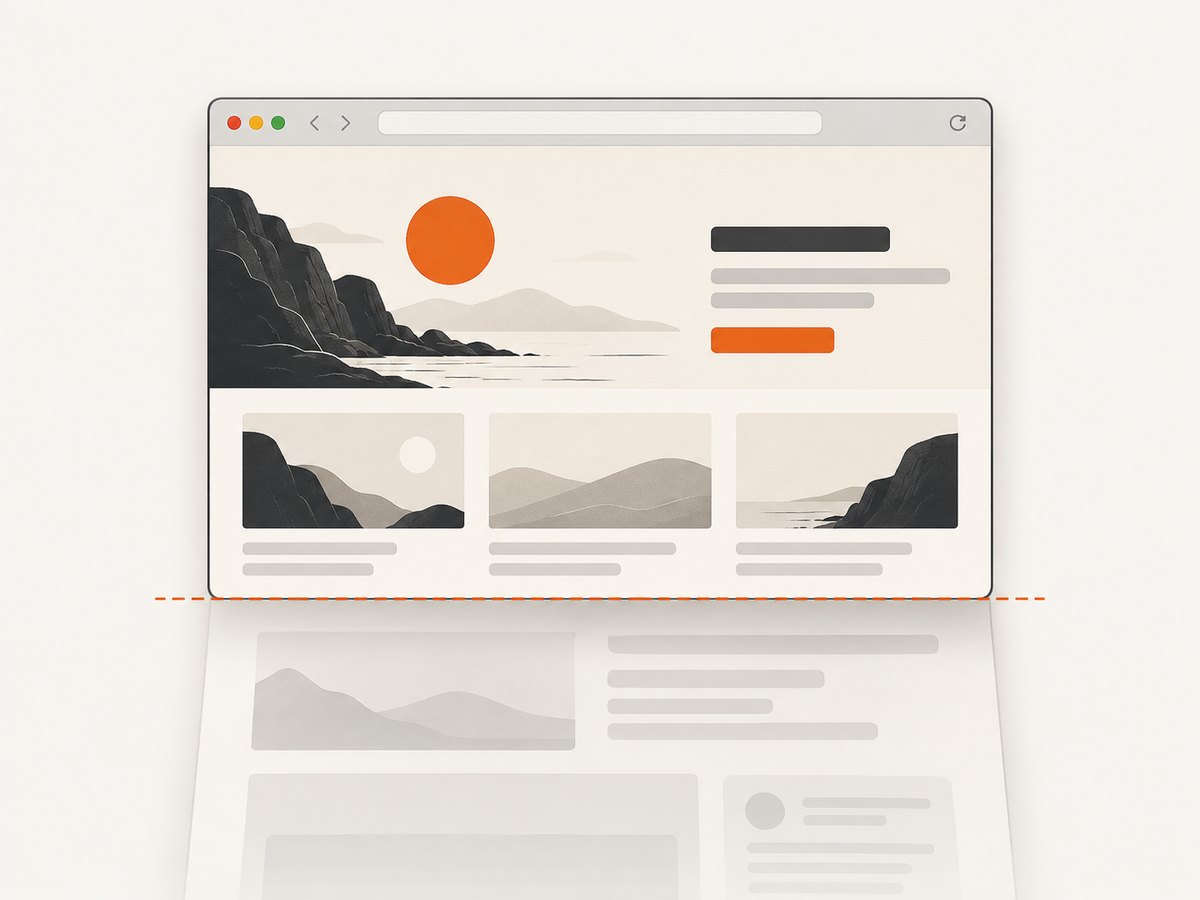
For a consistent current-window image, set the window size before navigation or capture, and keep it consistent across runs. The screenshot reflects the viewport and current page state, including visible overlays. Standard WebDriver screenshot output is PNG; if your downstream process needs another format, convert the PNG after retrieval using a library in the client environment.
6. Reliability, performance, and Grid capacity
- Always quit the session. Put
driver.quit()in afinallyblock so test failures do not leave sessions allocated. - Save artifacts where CI collects them. Create the output directory and use a stable artifact path. Upload or retain the client-side file using your test runner’s artifact mechanism.
- Use condition-based waits. Wait for content relevant to the screenshot. This reduces captures taken during loading without imposing a fixed delay on every run.
- Keep remote access restricted. Selenium warns that an exposed Grid can provide access to infrastructure and permit third parties to run custom binaries. Restrict access with network controls and your deployment’s security policy.
- Plan Safari parallelism by node count. Selenium’s current Grid guide documents one concurrent Safari session per node. If a suite needs more simultaneous Safari sessions, plan additional Safari-capable nodes and verify behavior with your installed Grid version.
Remote capture adds WebDriver command and image-transfer work across the client-node connection. Keep screenshot frequency proportional to debugging or visual-check needs, and avoid capturing huge numbers of images when a smaller set of failure artifacts will answer the question. No universal timing or resource figure applies here; page weight, network, Grid configuration, and image dimensions all matter.
7. Troubleshooting common problems
| Symptom | Likely cause | What to check or change |
|---|---|---|
| Session creation fails or Grid cannot find Safari | The Mac is not registered as a Safari-capable node, Safari automation is disabled, or safaridriver is unavailable to the node. |
Enable Develop > Allow Remote Automation on the Mac; verify Safari and safaridriver on that host; inspect node registration and PATH. |
| Connection refused or client times out | The endpoint is wrong, unreachable, or the Grid service is not listening at that address. | Use the endpoint reachable from the client, check Grid startup and network/firewall rules, and distinguish Hub URL from node host details. |
| Screenshot is blank or shows an incomplete page | The capture occurred before the intended content rendered, or the page itself failed or displayed an interstitial. | Wait for a page-specific ready condition; inspect the page title and URL; capture after the application state is stable. |
| Output file is missing | The parent directory does not exist, the save method returned false, or the path was assumed to refer to the node. | Create the directory, check the method’s boolean result, and write returned bytes on the client when client-side artifacts are desired. |
| Only part of a long page appears | The standard screenshot call captures the current window rather than promising a full document image. | Confirm whether your Safari and remote setup supports a dedicated full-page capability; do not assume the ordinary call scrolls and stitches. |
| Parallel tests queue or fail to start | A Safari node supports one concurrent Safari session in Selenium’s current Grid guidance. | Add Safari-capable nodes for concurrency and confirm the limit against your installed Selenium version. |
| Screenshot includes a consent banner or chat panel | The browser captured the page as rendered for the session, including visible overlays. | Configure the test’s consent state or application setup where appropriate, and ensure the desired visual state is established before capture. |
Or skip the browser setup
If you need a screenshot artifact without provisioning a Safari Grid node, ScreenshotNeo provides a website screenshot API and MCP server. One GET request returns a screenshot or PDF. For example, save a WebP capture of a target URL:
curl -G "https://api.screenshotneo.com/v1/shot" -d access_key=YOUR_API_KEY --data-urlencode url=https://stripe.com -o shot.webpEquivalent Python and Node.js requests are shown below. See the ScreenshotNeo API documentation for parameters and setup. The API captures websites; it is an alternative for website screenshots when you do not specifically need to exercise Safari through WebDriver.
import requests
r = requests.get("https://api.screenshotneo.com/v1/shot", params={"access_key": "YOUR_API_KEY", "url": "https://stripe.com"}, timeout=90)
open("shot.webp", "wb").write(r.content)
const q = new URLSearchParams({ access_key: 'YOUR_API_KEY', url: 'https://stripe.com' });
const res = await fetch(`https://api.screenshotneo.com/v1/shot?${q}`);- Cookie banners are accepted and removed before the shot, along with known newsletter popups and chat widgets; each of those steps can be turned off.
- Bot checks, blank pages, timeouts, failed loads, and cache hits are not billed. Response headers report the page verdict and billing status.
- An MCP server provides
take_screenshot,get_page_info, andcapture_pdftools for Claude, Cursor, and other MCP clients. - The free plan includes 1,000 shots per month with no card. Paid plans start at $5 for 3,000 shots; every feature is on every plan.
Get 1,000 free ScreenshotNeo screenshots a month with no card.
Frequently asked questions
Does the Selenium screenshot command save the image on the Safari Mac?
When you retrieve PNG bytes and write them with Python or Java client code, the client writes the file. The node and client have separate filesystems.
Can I take Safari screenshots without a Mac?
The Safari browser session described here runs on a Mac node with Safari and its driver available. A client elsewhere can control that node through Grid, but the browser itself executes on the Safari host.
Can I use this for visual regression tests?
Yes, provided you control the page state, viewport, and timing, and compare artifacts using your chosen test tooling. This WebDriver call supplies the screenshot; it does not define a comparison policy.
Will screenshots include browser chrome?
The WebDriver screenshot API captures the browser’s current window content as defined by the driver. It is not a desktop screenshot API for capturing the operating system or other applications.


