How to Use Sample Images for Website Screenshot Testing
Build repeatable screenshot tests with stable image fixtures, Playwright baselines, visual diff triage, and a hosted capture option.
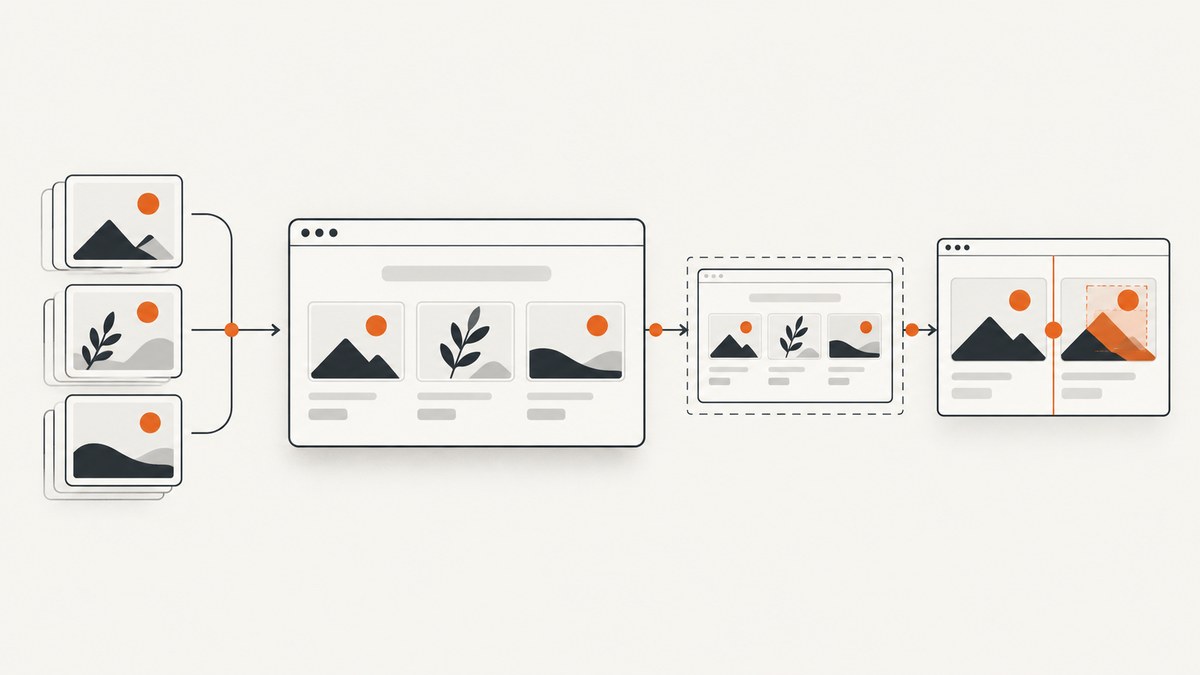
Direct answer: use small, deterministic image fixtures as inputs to the page or component, render each meaningful state in a controlled browser, and compare the result with an approved screenshot baseline. In Playwright Test, await expect(page).toHaveScreenshot() creates the first reference image and compares later runs against it. Keep fixtures, browser versions, viewport sizes, fonts, and operating-system assumptions stable so a diff represents a real UI change instead of rendering noise.
This guide covers fixture design, a complete Playwright setup, responsive and failure states, baseline review, troubleshooting, CI, performance, and an optional hosted capture path.
1. Decide Which Image States to Test
Sample images are test inputs. The screenshot is evidence of how the browser rendered those inputs. Start by listing the states your product actually supports:
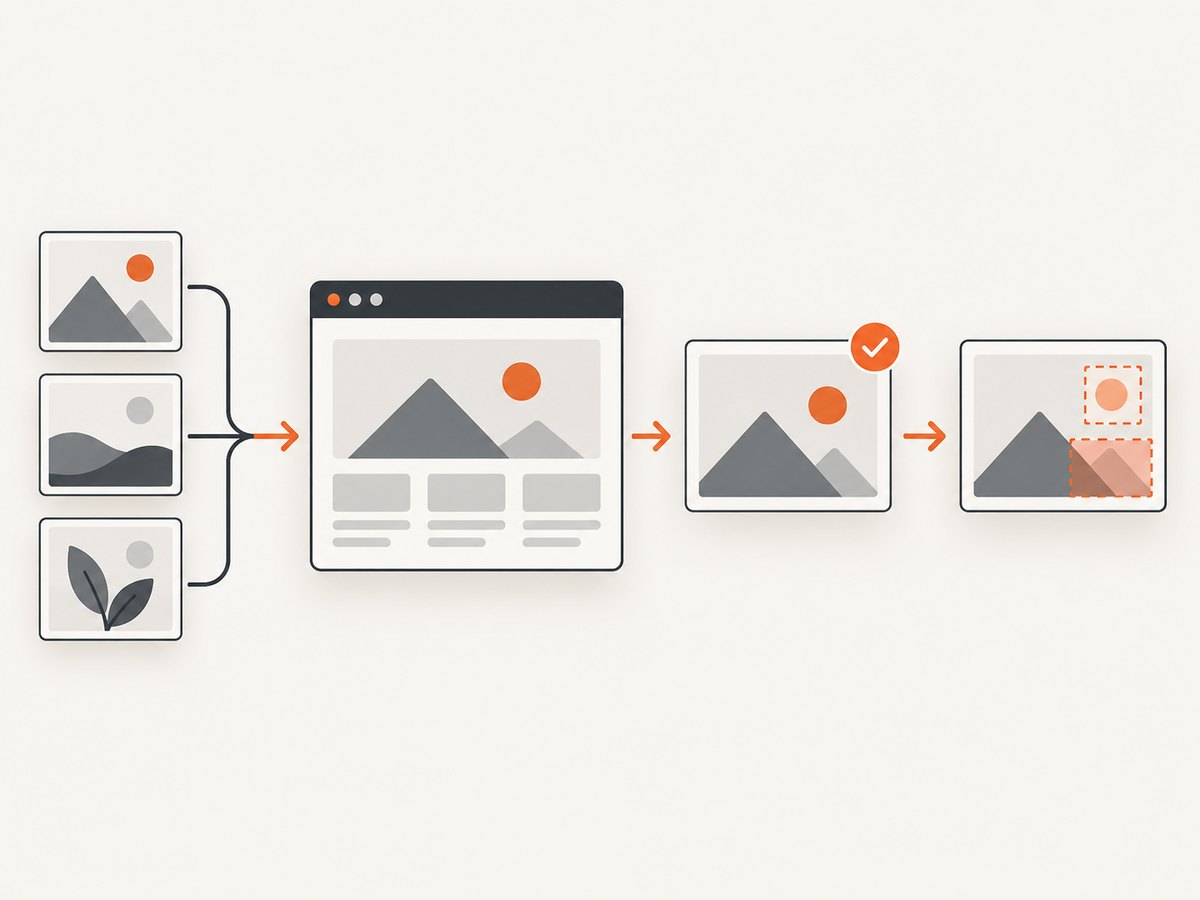
- A normal card image with the expected aspect ratio.
- A portrait or landscape asset that exercises cropping.
- A very wide or very tall image.
- A missing or rejected image, if the UI has a fallback.
- A loading state, if it is visible to users.
- An empty gallery or a card with no image, if that is a supported state.
- Responsive layouts where the same fixture changes size, crop, or position.
- Dark mode or other themes that alter borders, overlays, or contrast.
Do not add arbitrary cases just to increase coverage. Each fixture should correspond to a product behavior that could regress.
Make fixtures deterministic
- Store files in the repository or another controlled fixture location.
- Use stable contents and filenames. Avoid random image generators and changing third-party URLs.
- Keep dimensions and file formats intentional. A small PNG or WebP is usually easier to review than a large photographic asset.
- Use meaningful names such as
landscape-16x9.webp,portrait-3x4.webp, andmissing.webp. - Keep the fixture path available to the test server in every environment, including CI.
2. Create a Small Fixture Page
A dedicated route makes the test independent of production data. The example below uses a static HTML page and local assets.
<!-- tests/fixtures/gallery.html -->
<!doctype html>
<html lang="en">
  <head>
    <meta charset="utf-8">
    <meta name="viewport" content="width=device-width, initial-scale=1">
    <title>Image fixture gallery</title>
    <style>
      * { box-sizing: border-box; }
      body { margin: 0; font: 16px/1.4 system-ui, sans-serif; background: #fff; color: #111; }
      main { max-width: 960px; margin: 0 auto; padding: 24px; }
      .grid { display: grid; grid-template-columns: repeat(3, 1fr); gap: 16px; }
      .card { overflow: hidden; border: 1px solid #d7d7d7; border-radius: 10px; background: #fafafa; }
      .card img { display: block; width: 100%; height: 180px; object-fit: cover; }
      .card__body { padding: 12px; }
      .fallback { display: grid; place-items: center; height: 180px; background: #eee; color: #555; }
      @media (max-width: 700px) { .grid { grid-template-columns: 1fr; } }
    </style>
  </head>
  <body>
    <main>
      <h1>Fixture gallery</h1>
      <section class="grid" aria-label="Image fixtures">
        <article class="card">
          <img src="/fixtures/landscape-16x9.webp" alt="Landscape fixture">
          <div class="card__body">Landscape crop</div>
        </article>
        <article class="card">
          <img src="/fixtures/portrait-3x4.webp" alt="Portrait fixture">
          <div class="card__body">Portrait crop</div>
        </article>
        <article class="card">
          <img src="/fixtures/does-not-exist.webp" alt="">
          <div class="fallback" role="status">Image unavailable</div>
        </article>
      </section>
    </main>
  </body>
</html>
Serve tests/fixtures from your application’s test server or map it to the route used by the page. The important property is that every request resolves consistently.
3. Install Playwright and Write the Screenshot Test
Playwright’s visual assertions are part of Playwright Test. The first run writes a reference screenshot; later runs compare against it. See the official screenshot comparison documentation for the assertion API and snapshot behavior.
npm init playwright@latestCreate a test that waits for the page and its images before capturing:
// tests/gallery.spec.js
import { test, expect } from '@playwright/test';

test('renders sample image states', async ({ page }) => {
  await page.goto('http://127.0.0.1:3000/fixtures/gallery.html', {
    waitUntil: 'networkidle'
  });

  await page.locator('img').evaluateAll((images) =>
    Promise.all(images.map((img) => {
      if (img.complete) return img.decode?.().catch(() => {});
      return new Promise((resolve) => {
        img.addEventListener('load', resolve, { once: true });
        img.addEventListener('error', resolve, { once: true });
      });
    }))
  );

  await expect(page).toHaveScreenshot('gallery-desktop.png', {
    fullPage: true,
    animations: 'disabled',
    caret: 'hide'
  });
});

test('renders the mobile crop', async ({ page }) => {
  await page.setViewportSize({ width: 390, height: 844 });
  await page.goto('http://127.0.0.1:3000/fixtures/gallery.html', {
    waitUntil: 'networkidle'
  });
  await expect(page).toHaveScreenshot('gallery-mobile.png', {
    fullPage: true,
    animations: 'disabled'
  });
});
On the first run, inspect the generated snapshot and commit it to version control. On later runs, a mismatch fails the test and produces diff artifacts for review.
4. Configure Stable Projects and Baselines
Rendering can vary with the host operating system, browser version, settings, hardware, power source, and headless mode. Playwright documents these sources of variation in its visual comparison guidance. Use a pinned browser and run comparisons in the same environment whenever possible.
// playwright.config.js
import { defineConfig, devices } from '@playwright/test';

export default defineConfig({
  testDir: './tests',
  snapshotDir: './tests/__snapshots__',
  workers: 1,
  use: {
    browserName: 'chromium',
    viewport: { width: 1280, height: 800 },
    colorScheme: 'light',
    locale: 'en-US',
    timezoneId: 'UTC',
    deviceScaleFactor: 1,
    reducedMotion: 'reduce'
  },
  projects: [
    { name: 'chromium-linux', use: { ...devices['Desktop Chrome'] } }
  ],
  webServer: {
    command: 'npm run start:test',
    url: 'http://127.0.0.1:3000',
    reuseExistingServer: !process.env.CI
  }
});
If you intentionally support multiple browsers, viewports, or operating systems, create separate projects and baselines. Do not compare a Linux baseline with a macOS run and assume every pixel should match.
5. Tune Assertions Without Hiding Regressions
Use Playwright options narrowly:
fullPage: truecaptures the complete document; omit it for a component-level check.maxDiffPixelsallows a defined number of differing pixels when minor anti-aliasing noise is acceptable.stylePathcan hide clocks, rotating ads, or other volatile regions. Never hide the sample-image region when that region is the subject of the test.animations: 'disabled'andcaret: 'hide'remove common transient changes.
Playwright takes screenshots until two consecutive captures match, then saves the last one. This helps settle transient rendering but does not replace deterministic fixtures and a controlled environment.
6. Review and Update a Baseline Safely
- Open the actual image, expected image, and diff artifact.
- Check whether the fixture file changed, was recompressed, or is missing.
- Check crop dimensions, CSS object-fit rules, image loading, fonts, viewport, and device scale factor.
- Decide whether the change is an intended design update or a regression.
- Only after review, regenerate snapshots with
npx playwright test --update-snapshots. - Commit changed reference images alongside the code change so reviewers can inspect them.
Visual regression is a review signal, not an automatic defect verdict. A changed screenshot can be correct; an unchanged screenshot can still hide an untested state.
7. Test Components and Edge Cases
Element-level assertions
test('card image has the intended crop', async ({ page }) => {
  await page.goto('http://127.0.0.1:3000/fixtures/gallery.html');
  await expect(page.locator('.card').first()).toHaveScreenshot('card-landscape.png');
});
Broken-image fallback
Wait for the fallback selector rather than relying only on a network-idle event:
await page.goto('http://127.0.0.1:3000/fixtures/gallery.html');
await expect(page.locator('.fallback')).toBeVisible();
await expect(page.locator('.card').nth(2)).toHaveScreenshot('card-missing.png');
Lazy-loaded images
If images load only after scrolling, scroll the target into view and wait for its complete property or a visible state before capturing. A full-page screenshot should include the same scroll-triggered behavior on every run.
Fonts and layout shifts
Wait for document.fonts.ready when web fonts affect text wrapping. Avoid capturing while a responsive image is still changing intrinsic dimensions. Explicit width and height attributes or CSS aspect ratios reduce layout shift.
8. Troubleshooting Common Failures
| Symptom | Likely cause | Fix |
|---|---|---|
| Every pixel differs | Different browser, OS, viewport, scale factor, or font | Pin the Playwright browser and run in one CI image; create separate projects for supported environments. |
| Only images differ | Fixture URL, file contents, crop, or decoding timing changed | Use repository fixtures, verify dimensions and paths, and wait for image load and decode. |
| Screenshot captures a blank image | Capture occurs before lazy loading or route setup completes | Scroll the image into view, wait for a selector or image completion, then capture. |
| Text moves between runs | Fonts are late, animations run, or content is time-dependent | Preload or wait for fonts, disable animations, freeze time-dependent data, and hide only approved volatile elements. |
| Snapshot file is not found | It was written outside the configured snapshot directory or project name changed | Keep named snapshots under the project snapshot directory and review the generated path. |
| CI fails but local passes | Different rendering environment or missing fixture asset | Use the same container/browser, verify static-file routing, and retain CI diff artifacts. |
| Fallback never appears | The app does not handle an error event or the test expects the wrong state | Confirm the product’s fallback behavior and wait for its actual selector or role. |
9. Performance, Reliability, and Cost
- Keep fixtures small and local to reduce network and decoding time.
- Capture the smallest useful surface. Component screenshots are faster and produce more focused diffs than full-page captures.
- Run a focused image-state suite on every change and a broader browser or viewport matrix in CI when its coverage is needed.
- Use one worker for maximum determinism when shared resources or fonts are sensitive; increase workers only after confirming that parallel runs do not change rendering.
- Store snapshots in version control. Large binary churn increases review and repository cost, so remove redundant fixtures.
- Do not treat a screenshot assertion as an accessibility check, an image-file integrity check, or a performance benchmark. Add those checks separately.
10. Local Playwright Versus Hosted Review
Playwright keeps references in the test repository and is a practical starting point for a small suite. A hosted workflow can help when a team wants shared capture storage, interactive review, CI integration, and a broader browser or viewport matrix. Chromatic documents a Playwright integration that extends Playwright’s test and expect utilities and provides cloud capture and review. Compare options by baseline storage, approval workflow, browser coverage, CI setup, and governance of accepted changes. The cited documentation does not establish a price comparison.
For design acceptance, compare the rendered screenshot with an approved design reference. For visual regression, compare the current render with the approved prior browser baseline; those are related but different checks.
11. Or skip the browser setup
ScreenshotNeo provides a website screenshot API and MCP server when you need a rendered image or PDF without maintaining browser setup. One GET request returns PNG, JPEG, WebP, or PDF. Read the ScreenshotNeo API documentation for request options.
curl -G "https://api.screenshotneo.com/v1/shot" \
  -d access_key=YOUR_API_KEY \
  --data-urlencode url=https://example.com \
  -o shot.webp
import requests
r = requests.get(
"https://api.screenshotneo.com/v1/shot",
params={"access_key": "YOUR_API_KEY", "url": "https://example.com"},
timeout=90,
)
r.raise_for_status()
open("shot.webp", "wb").write(r.content)const q = new URLSearchParams({
access_key: 'YOUR_API_KEY',
url: 'https://example.com'
});
const res = await fetch(`https://api.screenshotneo.com/v1/shot?${q}`);
if (!res.ok) throw new Error(`Screenshot failed: ${res.status}`);
const buffer = Buffer.from(await res.arrayBuffer());
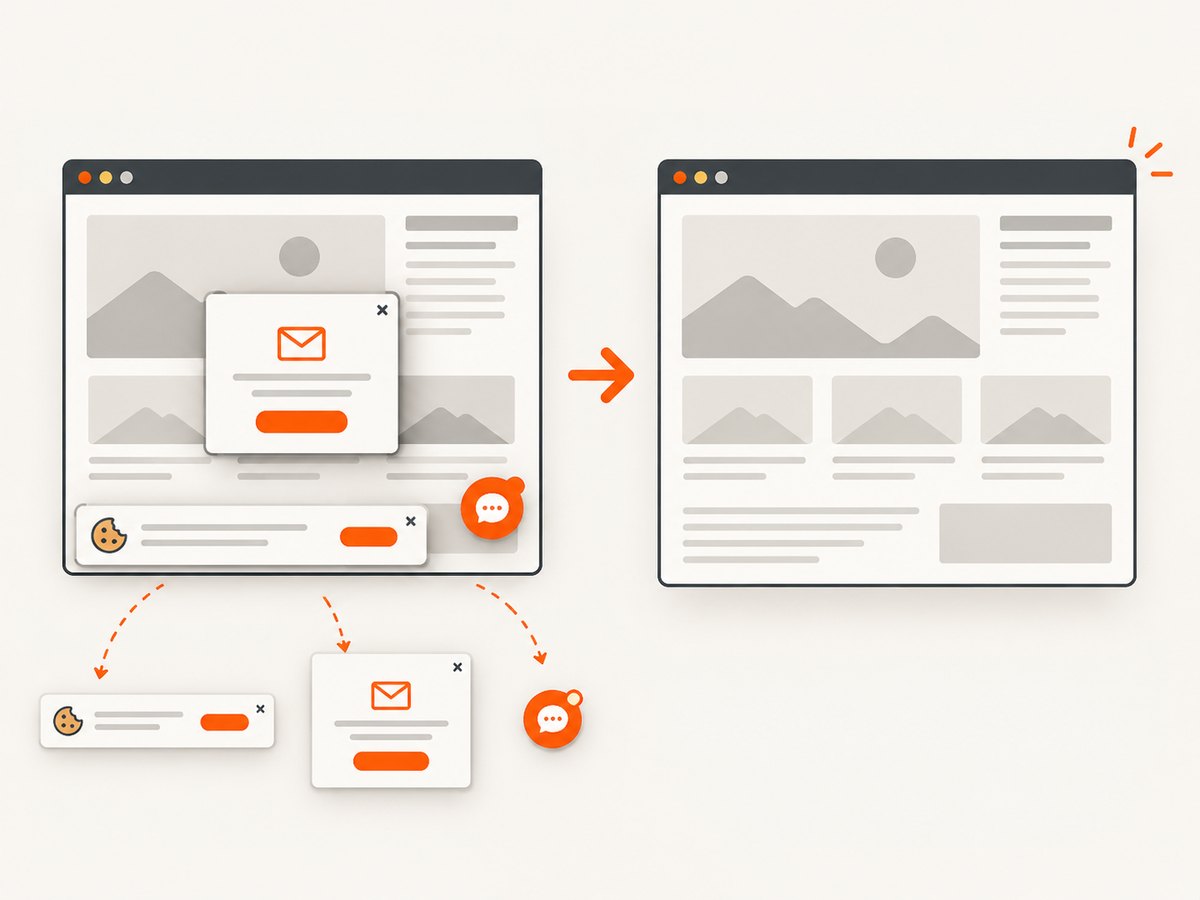
await import('node:fs/promises').then(fs => fs.writeFile('shot.webp', buffer));Cookie banners, newsletter popups, and chat widgets are removed before the shot. Bot checks, blank pages, failed loads, timeouts, and cache hits are not billed; response headers identify the page verdict and whether it was billed. Its MCP server lets Claude, Cursor, and other MCP clients call take_screenshot, get_page_info, and capture_pdf. The Free plan includes 1,000 screenshots per month with no card; paid plans start at $5 for 3,000 shots. Create a free ScreenshotNeo account.
12. FAQ
Should I use real production image URLs?
Use controlled local or versioned fixtures for repeatable tests. Test production URLs separately when availability and integration are the behavior under review.
Is a screenshot enough to prove an image loaded correctly?
No. Pair the screenshot with assertions for the image URL, dimensions, alt text, loading state, and fallback behavior.
How many fixtures do I need?
Enough to cover supported visual states and failure paths. A small set of intentional aspect ratios is more useful than a large random collection.
When should I update snapshots?
Only after confirming that the visual change is intentional and the fixture and rendering environment are correct.
Can I compare a screenshot with a Figma design?
You can use a design export as a reference for acceptance, but Playwright’s normal visual regression flow compares the current browser output with an approved prior browser screenshot.


