How to Use the Screenshot Gesture in Samsung One UI 8.5
Enable Samsung’s Palm swipe to capture gesture, use it correctly, fix common problems, and learn reliable screenshot alternatives.
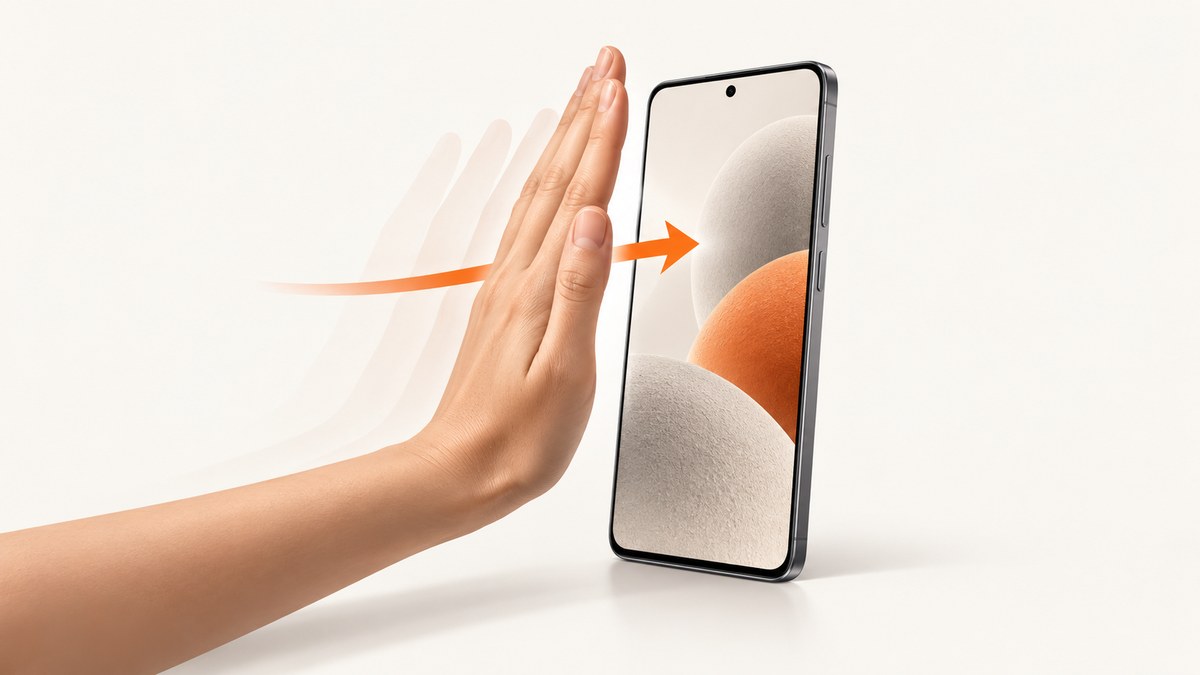
If you are asking, “How do I use the screenshot gesture in Samsung One UI 8.5?”, Samsung calls it Palm swipe to capture. Enable the option in Settings, then place the edge of your hand on one side of the display and sweep it across the screen.
The exact menu labels can differ by Galaxy model, country, carrier and One UI version. Samsung’s current general guidance uses the path below; if your phone does not show the option, use Settings search for Palm swipe to capture or check the manual for your model.
1. Enable Palm swipe to capture
- Swipe down from the top-right of the screen with two fingers to open the Quick panel.
- Tap the Settings gear.
- Open Advanced features.
- Tap Palm swipe to capture.
- Turn the switch on.
On some Samsung phones, the option appears under Settings > Advanced features > Motions and gestures > Palm swipe to capture. Samsung notes that available motions and gestures vary by model and software version, so this route is not guaranteed on every device running One UI 8.5.
2. Take a screenshot with the gesture
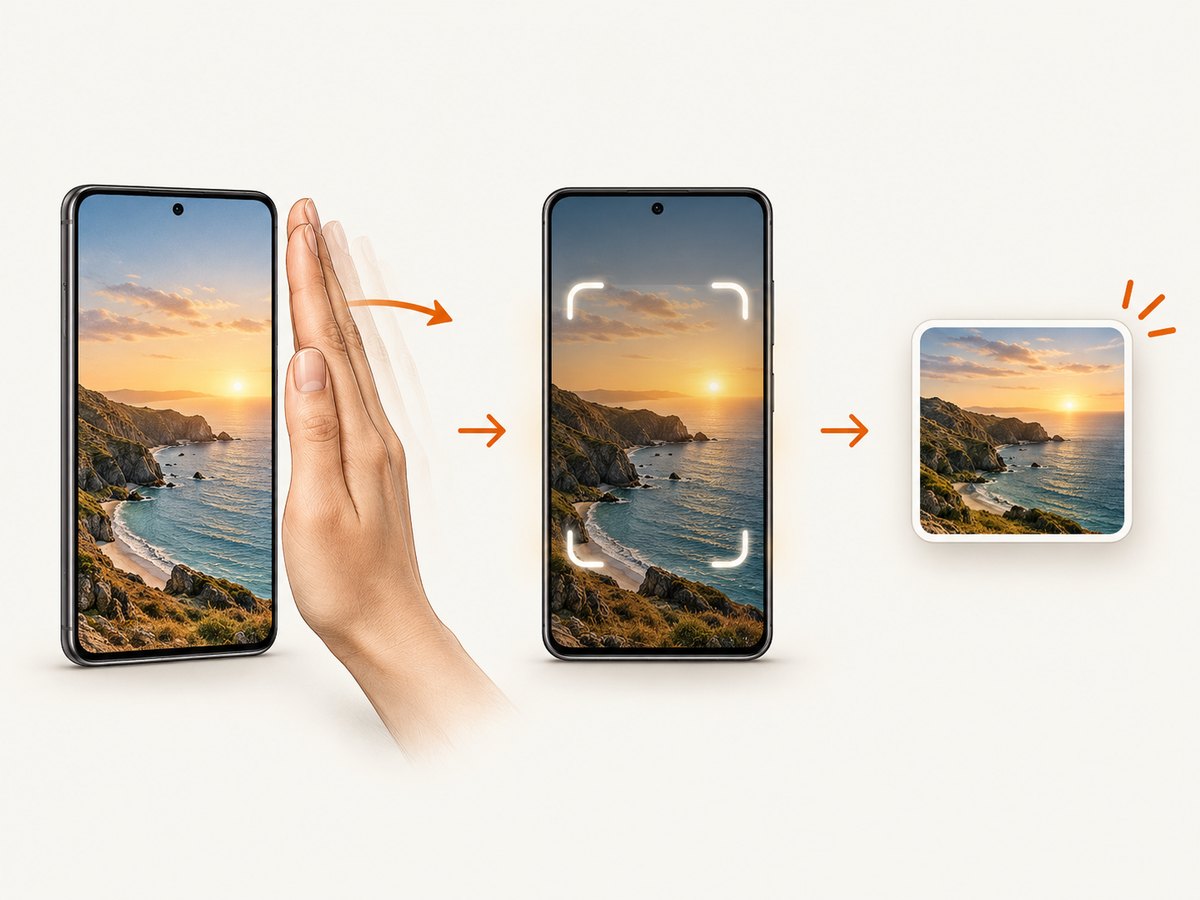
- Open the screen you want to save.
- Hold your hand vertically with the little-finger edge close to the display.
- Touch the edge of your hand to one side of the screen.
- Sweep your hand horizontally across the display in one smooth motion.
- Look for the screenshot animation or preview. The image is saved automatically.
Use the fleshy edge of your hand rather than the flat palm. Keep contact with the glass while moving from one side to the other. A slow, continuous sweep is easier for the phone to recognize than a quick tap or a short swipe.
The gesture is unavailable while the on-screen keyboard is showing. Hide the keyboard first, then try again.
3. Find, edit and share the screenshot
After capture, tap the preview thumbnail to open the editing tools. Depending on your model, you can crop, draw, add text, share the image or delete it.
To find older captures, open Gallery, choose Albums, and open Screenshots. You can also share the image directly from the preview notification.
4. Capture a long page with Scroll capture
For a web page, chat or document that extends below the visible screen:
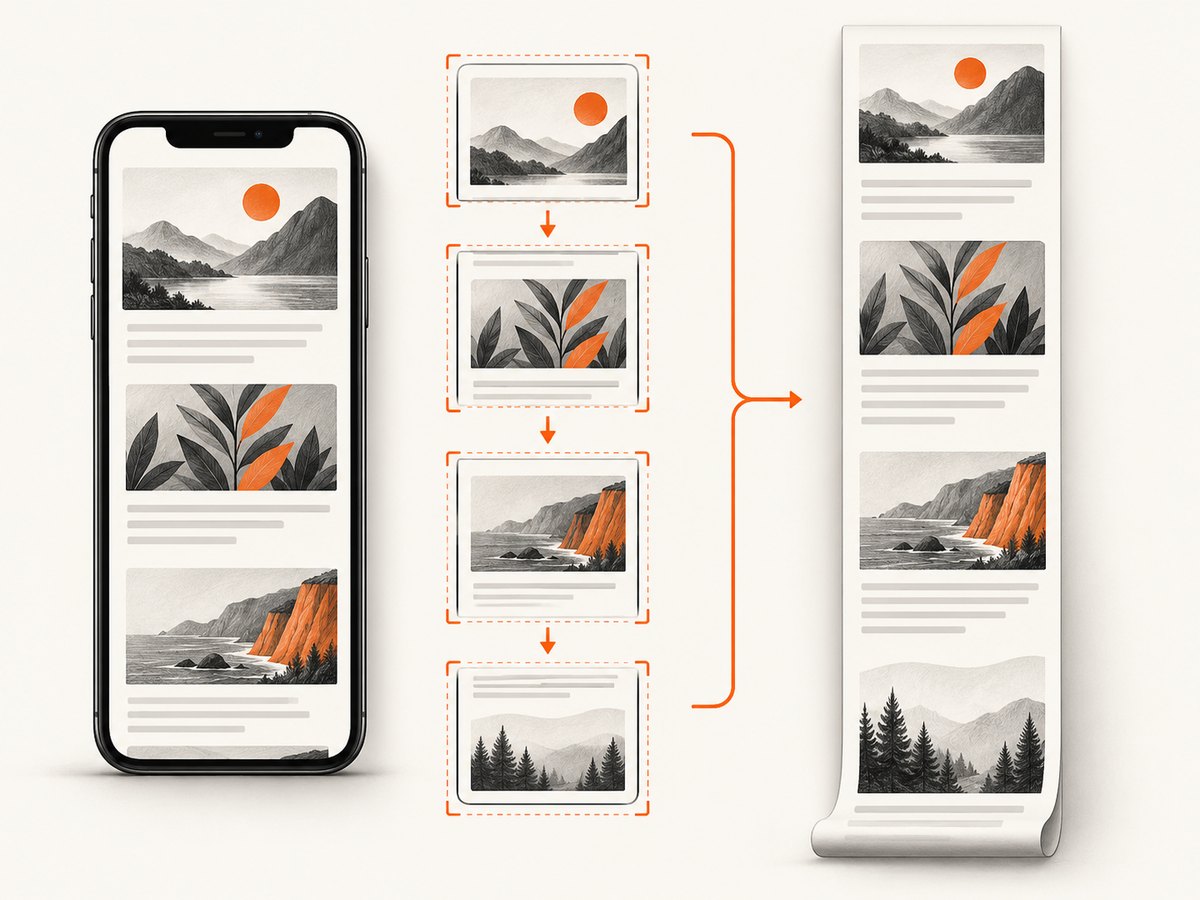
- Take a normal screenshot with Palm swipe or the side-key method.
- When the screenshot toolbar appears, tap the Scroll capture icon, usually shown as downward arrows.
- Continue tapping the icon until the required content is included.
- Tap the preview or outside the toolbar to finish.
Scroll capture only works when the current app exposes scrollable content and permits screenshots. A screen that blocks capture for privacy or security cannot be extended with this feature.
5. Reliable alternatives
| Method | Best for | How to use it |
|---|---|---|
| Side keys | A dependable fallback | Press Power/Side and Volume Down together, then release after a brief moment. |
| Scroll capture | Long web pages and documents | Take a screenshot, then tap the Scroll capture arrows when the toolbar appears. |
| S Pen Screen write | Compatible Galaxy devices with an S Pen | Open the S Pen command and choose Screen write, if your model supports it. |
The side-key combination is usually the quickest way to verify that screenshot capture itself works. Palm swipe is useful when you want a gesture; Scroll capture is for content longer than one screen; S Pen tools depend on compatible hardware.
6. Troubleshooting
The gesture does nothing
- Reopen Settings > Advanced features and confirm Palm swipe to capture is enabled.
- Make sure the keyboard is closed.
- Use the edge of your hand and sweep across the whole display in one motion.
- Remove gloves or anything that prevents the screen from detecting contact.
- Try the Power/Side + Volume Down method. If that also fails, the app or screen may block screenshots.
The setting is missing
Samsung says motions and gestures vary by model and software version. Use the Settings search field and search for palm or screenshot. If no result appears, consult the support guide for your exact Galaxy model and region. A One UI 8.5 update does not guarantee that every Galaxy device exposes the same menu.
The keyboard keeps interfering
Palm swipe is unavailable while the keyboard is visible. Tap the back button or keyboard-dismiss control, then perform the gesture again.
A banking, streaming or work app shows a black image
Some apps intentionally prevent screenshots to protect private or copyrighted content. This is an app security policy, not necessarily a broken gesture. Try capturing a permitted screen or use the app’s own export or sharing function.
Scroll capture is not offered
The current screen may not be scrollable, the app may disable extended screenshots, or the screenshot toolbar may have been dismissed. Take another screenshot and look for the downward-arrow button immediately after capture.
7. Reliability, privacy and storage notes
- Reliability: The button shortcut is a useful diagnostic because it does not depend on hand position or swipe recognition. Keep Palm swipe enabled when you want a hands-free alternative.
- Privacy: Treat screenshots as copies of everything visible, including account names, messages, notifications and one-time codes. Review an image before sharing it.
- Storage: Screenshots are image files and can consume space over time, especially when you capture long pages. Delete duplicates from Gallery or move important files to your normal backup location.
- Performance: A normal screenshot is immediate. A long Scroll capture takes longer because the phone collects several screen lengths into one file.
8. Or skip the browser setup
If your goal is to capture a website from code instead of taking a screenshot on a Galaxy phone, ScreenshotNeo provides a website screenshot API. Its capture can remove cookie and consent banners, newsletter popups and chat widgets before the shot. Bot checks, blank pages and failed loads are not billed, and an MCP server lets AI agents take screenshots.
See the ScreenshotNeo documentation for all parameters. The simplest request is:
curl -G "https://api.screenshotneo.com/v1/shot" \
  -d access_key=YOUR_API_KEY \
  --data-urlencode url=https://stripe.com \
  -o shot.webp
Python
import requests

r = requests.get(
    "https://api.screenshotneo.com/v1/shot",
    params={"access_key": "YOUR_API_KEY", "url": "https://stripe.com"},
    timeout=90,
)
r.raise_for_status()
open("shot.webp", "wb").write(r.content)
Node.js
const q = new URLSearchParams({
  access_key: 'YOUR_API_KEY',
  url: 'https://stripe.com'
});
const res = await fetch(`https://api.screenshotneo.com/v1/shot?${q}`);
if (!res.ok) throw new Error(`Screenshot failed: ${res.status}`);
const image = Buffer.from(await res.arrayBuffer());
require('fs').writeFileSync('shot.webp', image);
ScreenshotNeo includes options for full-page captures, lazy-loaded images, CSS-element captures, dark mode, device presets, custom viewports, retina scale, PDFs, custom CSS and JavaScript, waits, blocked resources, headers, cookies, user agents, geolocation, caching, signed links, asynchronous jobs, bulk capture and usage reporting. Responses identify the page verdict and whether the request was billed.
The Free plan includes 1,000 screenshots each month with no card. Paid plans start at $5 for 3,000 shots, and every feature is available on every plan. Create a free ScreenshotNeo account.
9. FAQ
Is Palm swipe to capture confirmed specifically for One UI 8.5?
Samsung’s support guidance documents the gesture generally, but the reviewed support pages do not verify one universal One UI 8.5 menu path. Check your own model’s Settings search if the labels differ.
Which direction should I swipe?
Swipe the edge of your hand across the display from one side to the other. Either horizontal direction can work when the gesture is enabled and recognized.
Can I use Palm swipe while the keyboard is open?
No. Samsung’s gestures guidance says the gesture is unavailable while the keyboard is showing.
Why can I screenshot the home screen but not one app?
Apps can block screenshots for privacy or security. In that case, the restriction belongs to the app or screen.
Where are screenshots saved?
Open Gallery, select Albums, and open Screenshots.


