How to Save an Appium Screenshot to a Word Document in Java
Capture an Appium screen as PNG bytes and embed it in a .docx with Selenium’s TakesScreenshot API and Apache POI, with troubleshooting and automation tips.
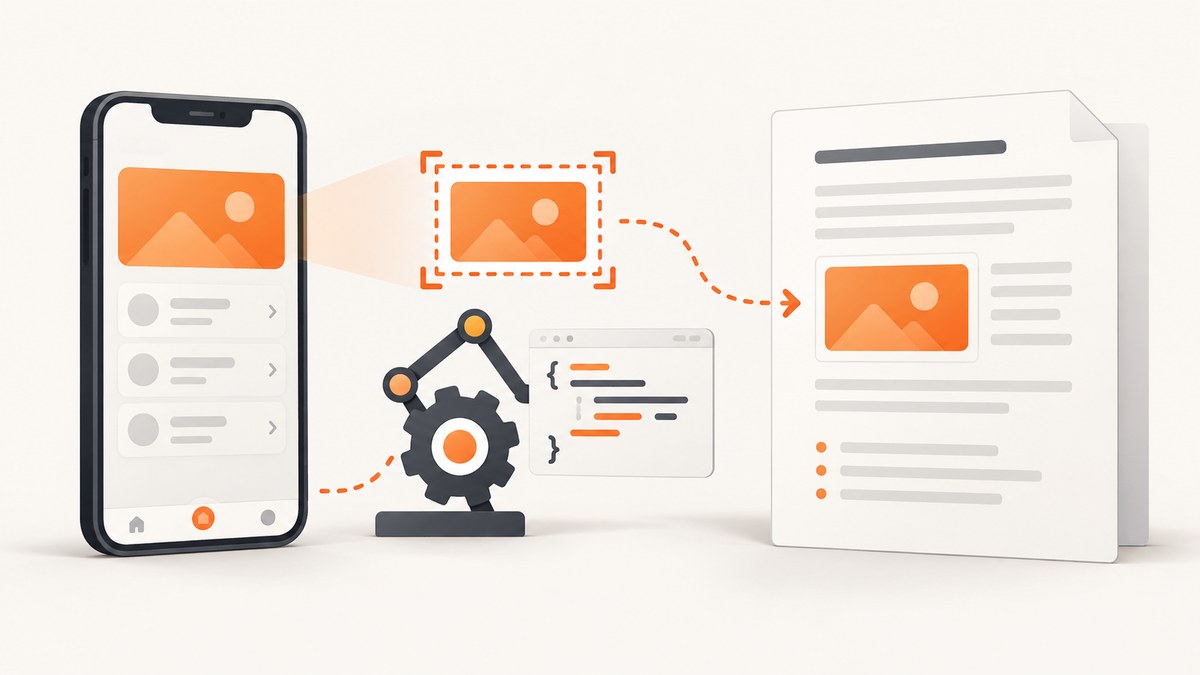
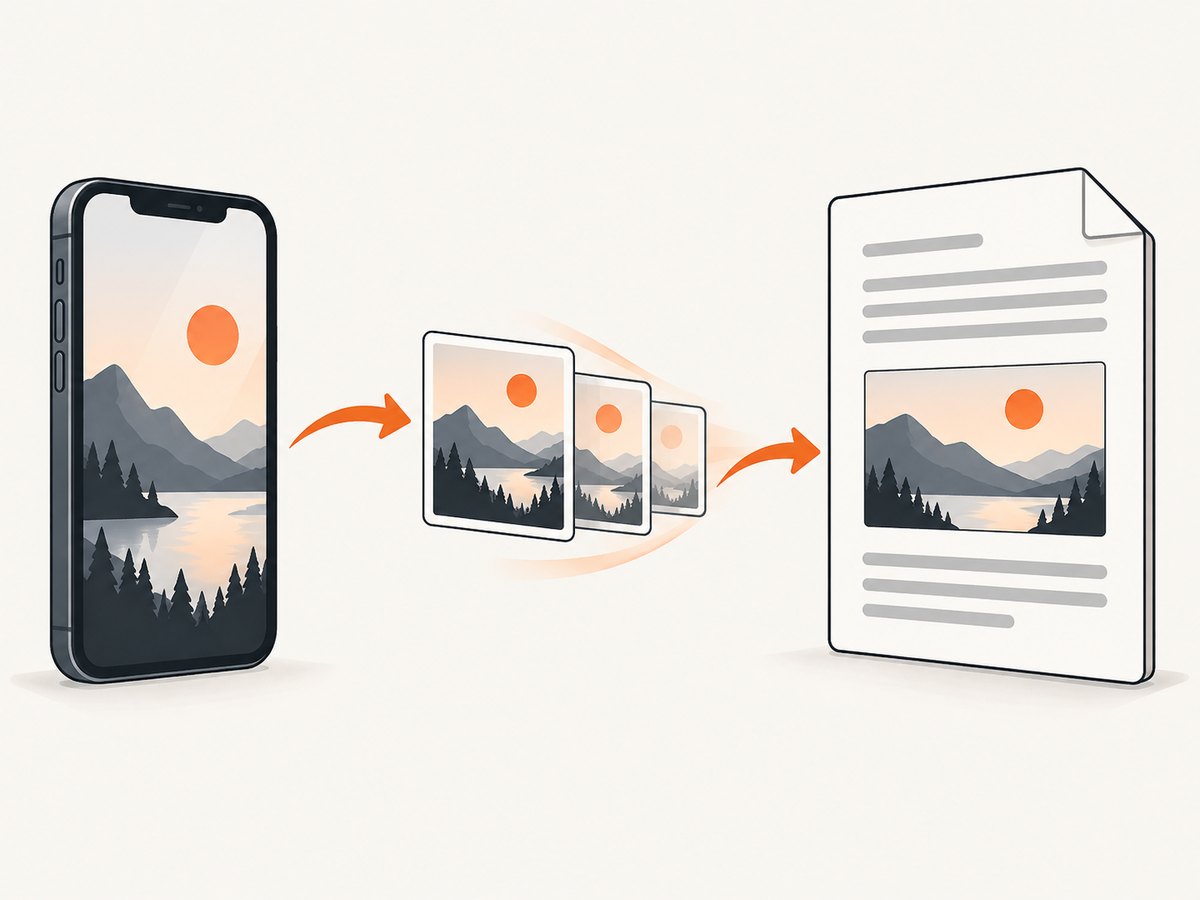
Direct answer: use Appium’s Java driver as a Selenium TakesScreenshot, request OutputType.BYTES, and pass those PNG bytes to Apache POI’s XWPFRun.addPicture(). Then write the XWPFDocument to a .docx file. Keeping the image in memory avoids temporary-file cleanup and makes the workflow suitable for test reports.
Appium’s official Java client is built on Selenium, so Selenium’s screenshot interfaces are the API surface you use for this task. The official client documentation is available in the Appium Java quickstart, while Selenium documents TakesScreenshot and its output types. Apache POI’s XWPFRun.addPicture method embeds an image stream in a Word run using dimensions measured in EMUs.
What you need
- A running Appium server and a connected Android or iOS session.
- The Appium Java client and its compatible Selenium dependencies.
- Apache POI’s
poi-ooxmldependency for creating DOCX files. - A screen displayed in the current driver context when the screenshot is requested.
Appium captures the current viewport, window, or page. Native and web contexts can have different behavior, so select the intended context before calling the screenshot method. Platform security settings can also prevent capture; Appium’s screenshot guidance cites Android’s FLAG_SECURE as an example. Check the current driver documentation for your platform and Appium version.
Project dependencies
For Maven, add the Appium Java client and Apache POI. Keep the Appium version aligned with the driver and server versions used by your project. The exact compatible version is environment-specific, so use the versions already approved by your test suite.
<dependencies>
  <dependency>
    <groupId>io.appium</groupId>
    <artifactId>java-client</artifactId>
    <version>YOUR_APPIUM_JAVA_CLIENT_VERSION</version>
  </dependency>

  <dependency>
    <groupId>org.apache.poi</groupId>
    <artifactId>poi-ooxml</artifactId>
    <version>YOUR_POI_VERSION</version>
  </dependency>
</dependencies>
Apache POI’s XWPF API writes Office Open XML documents. The image insertion method accepts an InputStream, a picture type, a filename, and width and height in English Metric Units (EMUs).
Complete Java example: Appium to DOCX
The following example assumes that driver is an already-created Appium driver and that the desired application screen is visible. It requests PNG bytes, inserts them into a paragraph, and writes appium-screenshot.docx.
import java.io.ByteArrayInputStream;
import java.io.IOException;
import java.io.OutputStream;
import java.nio.file.Files;
import java.nio.file.Path;

import org.apache.poi.util.Units;
import org.apache.poi.xwpf.usermodel.Document;
import org.apache.poi.xwpf.usermodel.XWPFDocument;
import org.apache.poi.xwpf.usermodel.XWPFParagraph;
import org.apache.poi.xwpf.usermodel.XWPFRun;
import org.openqa.selenium.OutputType;
import org.openqa.selenium.TakesScreenshot;

// driver is your existing AppiumDriver instance.
public final class AppiumWordReport {
    private AppiumWordReport() {}

    public static void saveScreenshot(TakesScreenshot driver, Path output)
            throws IOException {
        byte[] png = driver.getScreenshotAs(OutputType.BYTES);

        // Choose a width that fits the document page. Keep the original ratio.
        int widthEmu = Units.toEMU(6.0);
        int heightEmu = Units.toEMU(10.67);

        try (XWPFDocument document = new XWPFDocument();
             ByteArrayInputStream image = new ByteArrayInputStream(png);
             OutputStream file = Files.newOutputStream(output)) {

            XWPFParagraph paragraph = document.createParagraph();
            XWPFRun run = paragraph.createRun();
            run.addPicture(
                image,
                Document.PICTURE_TYPE_PNG,
                "appium-screenshot.png",
                widthEmu,
                heightEmu
            );

            document.write(file);
        }
    }
}
Call it after your test has navigated to the required state:
AppiumWordReport.saveScreenshot(
    driver,
    Path.of("target", "appium-screenshot.docx")
);
Create the parent directory before writing if it may not exist:
Files.createDirectories(Path.of("target"));Preserving the screenshot’s aspect ratio
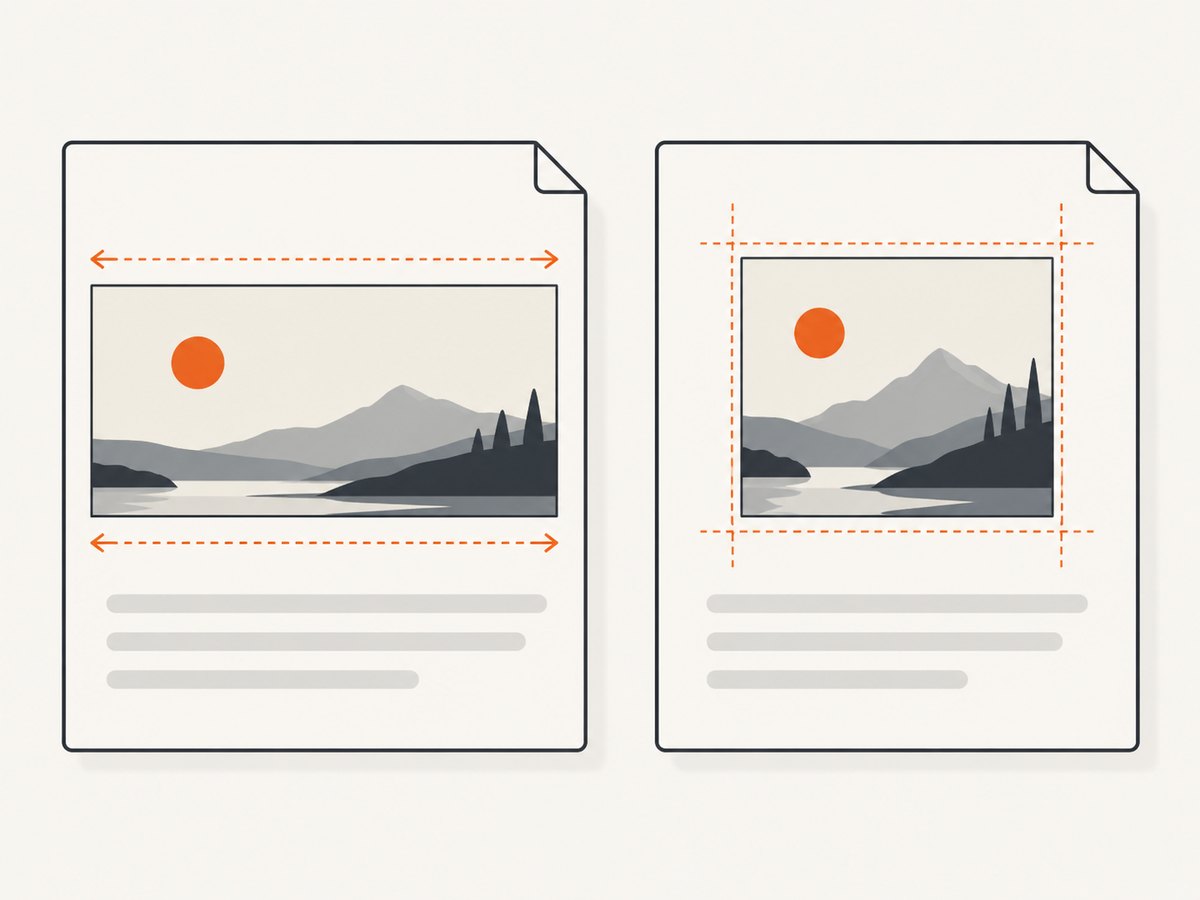
addPicture requires both dimensions. Supplying arbitrary values stretches the image, so calculate the height from the PNG’s pixel dimensions and your chosen width. A six-inch width is often suitable for a portrait page, but the correct value depends on margins, orientation, and whether the device screenshot is portrait or landscape.
import java.awt.image.BufferedImage;
import java.io.ByteArrayInputStream;
import javax.imageio.ImageIO;

BufferedImage source = ImageIO.read(new ByteArrayInputStream(png));
int widthEmu = Units.toEMU(6.0);
double ratio = (double) source.getHeight() / source.getWidth();
int heightEmu = (int) (widthEmu * ratio);
Use the calculated values in addPicture. If ImageIO.read returns null, the bytes are not a format that the installed ImageIO reader recognizes; Appium’s PNG output should normally be readable as PNG, but validate the bytes before producing a report.
Adding headings, metadata, and several screenshots
A report is easier to review when each image has a heading and a short caption. Create a new paragraph for each screen and insert the images in the order in which the test reached them.
try (XWPFDocument document = new XWPFDocument()) {
    XWPFParagraph heading = document.createParagraph();
    heading.createRun().setText("Checkout screen");

    XWPFParagraph imageParagraph = document.createParagraph();
    XWPFRun imageRun = imageParagraph.createRun();
    try (ByteArrayInputStream image = new ByteArrayInputStream(png)) {
        imageRun.addPicture(
            image,
            Document.PICTURE_TYPE_PNG,
            "checkout.png",
            Units.toEMU(6.0),
            Units.toEMU(10.67)
        );
    }

    XWPFParagraph caption = document.createParagraph();
    caption.createRun().setText("Captured after submitting the address form.");

    try (OutputStream file = Files.newOutputStream(Path.of("checkout.docx"))) {
        document.write(file);
    }
}
For a production report, keep the document open for the entire test or test case, append each screenshot, and close it once. Opening and rewriting a DOCX for every image is slower and can overwrite earlier content if handled incorrectly.
Choosing the screenshot output type
| Output type | Use it when | Important detail |
|---|---|---|
BYTES |
You will embed the screenshot directly in a document | Keeps the image in memory and works with ByteArrayInputStream. |
FILE |
Your pipeline already consumes files | Selenium documents the result as temporary. Copy it promptly if it must persist. |
BASE64 |
You need text transport or storage | Decode the Base64 data before passing image bytes to POI. |
For a Word report, BYTES is usually the simplest choice. It avoids relying on the lifetime of a temporary file and removes a second file read. Very large screenshots still consume heap memory, so close streams and documents deterministically with try-with-resources.
Native context, web context, and timing
Capture only after the UI has reached a stable state. A fixed sleep can work for a demonstration, but an explicit wait for a visible element or a state change is more reliable. In a web context, wait for the page element that proves rendering is complete. In a native context, wait for a platform-specific element or accessibility identifier.
If the screenshot is blank or shows an earlier screen, the usual cause is a race between the test action and rendering. Add a condition-based wait, confirm the active context, and make sure the action did not trigger a transition that is still in progress.
Common errors and fixes
| Symptom | Likely cause | Fix |
|---|---|---|
ClassCastException when requesting a screenshot |
The driver reference is not typed as a screenshot-capable Selenium driver. | Use an Appium driver that implements TakesScreenshot, or cast the existing driver to TakesScreenshot after confirming the implementation. |
| Screenshot command fails | The session ended, the server is unreachable, or the platform blocks capture. | Check the Appium server log, session status, device connection, and security flags such as Android FLAG_SECURE. |
| Word file opens with a repair warning | The output stream was not closed or the document was not fully written. | Use try-with-resources and call document.write(file) before closing the file stream. |
| Image is stretched | Width and height do not share the screenshot’s aspect ratio. | Read the image dimensions and calculate the second EMU value from the ratio. |
InvalidFormatException from POI |
The declared picture type does not match the bytes. | Use Document.PICTURE_TYPE_PNG for Appium PNG bytes; do not label JPEG or another format as PNG. |
| Temporary screenshot disappears | OutputType.FILE returned a temporary file. |
Copy it to a permanent path immediately, or use OutputType.BYTES. |
| Only part of a long web page appears | The driver captured the current viewport rather than a full-page document. | Use the platform and driver capabilities that support full-page capture, or capture multiple viewport sections and append them. |
Reliability and performance checklist
- Wait for a deterministic UI condition instead of relying only on a delay.
- Record the active Appium context and test step beside each image.
- Use
BYTESwhen the next step is POI insertion; useFILEonly when a file pipeline adds value. - Close
InputStream,OutputStream, andXWPFDocumentin all paths. - Keep one document open while appending a series of screenshots.
- Resize very large images before insertion if report size or memory is a concern.
- Write reports to a unique test artifact path so parallel tests do not overwrite one another.
- Preserve the original PNG separately when the DOCX is only a presentation format.
Or skip the browser setup
If your requirement is to save website screenshots rather than capture a screen from an Appium mobile session, ScreenshotNeo returns a clean PNG, JPEG, WebP, or PDF from one GET request. It removes cookie and consent banners, newsletter popups, and chat widgets before capture. Bot checks, blank pages, failed loads, timeouts, and cache hits are not billed, and the response identifies the result with X-Page-Verdict and X-Billed headers. Its MCP server also lets Claude, Cursor, and other MCP clients call take_screenshot, get_page_info, and capture_pdf.
See the ScreenshotNeo API documentation for all options. The basic request is:
curl -G "https://api.screenshotneo.com/v1/shot" \
  -d access_key=YOUR_API_KEY \
  --data-urlencode url=https://stripe.com \
  -o shot.webp
import requests
r = requests.get(
"https://api.screenshotneo.com/v1/shot",
params={"access_key": "YOUR_API_KEY", "url": "https://stripe.com"},
timeout=90,
)
r.raise_for_status()
open("shot.webp", "wb").write(r.content)const q = new URLSearchParams({
access_key: 'YOUR_API_KEY',
url: 'https://stripe.com'
});
const res = await fetch(`https://api.screenshotneo.com/v1/shot?${q}`);
if (!res.ok) throw new Error(`Screenshot failed: ${res.status}`);
const fs = await import('node:fs/promises');
await fs.writeFile('shot.webp', Buffer.from(await res.arrayBuffer()));Features include full-page capture with lazy images loaded, CSS-selector element capture, device presets, custom viewport and retina scale, dark mode, custom CSS and JavaScript, click and wait controls, request blocking, headers, cookies, user agents, authorization, timezone, geolocation, transparent backgrounds, resizing, caching with a chosen TTL, signed links, asynchronous jobs with signed webhooks, bulk capture for up to 100 URLs per call, usage reporting, and an OpenAPI specification.
Create a free ScreenshotNeo account for 1,000 screenshots each month with no card. Paid plans start at $5 for 3,000 screenshots.
Frequently asked questions
Can I insert a screenshot without saving a PNG first?
Yes. Request OutputType.BYTES and wrap the returned array in a ByteArrayInputStream for addPicture.
Why use EMUs instead of pixels?
POI’s XWPF picture API defines its dimensions in EMUs, the unit used by WordprocessingML. Convert a desired document size with Units.toEMU.
Is OutputType.FILE permanent?
No. Selenium documents it as a temporary file that may be deleted when the JVM exits. Copy it immediately if it must remain available.
Can Appium capture secure screens?
Not always. Platform security policies can block screenshots. Android’s FLAG_SECURE is a documented example; verify the behavior for your driver and platform.
Can this create a PDF instead of a DOCX?
The code here creates a Word document. PDF conversion requires a separate document conversion step or a PDF-generation library.
With the in-memory approach, the workflow is straightforward: wait for the correct Appium state, capture PNG bytes through Selenium, insert them into an XWPF run with dimensions that preserve the aspect ratio, and close the document cleanly. That keeps the screenshot and the test evidence in one portable Word file.


