How to Save an ASP.NET MVC Div as an Image on the Server
Render the MVC page in a server-side browser, capture the target div with Playwright for .NET, and return or store the resulting image.
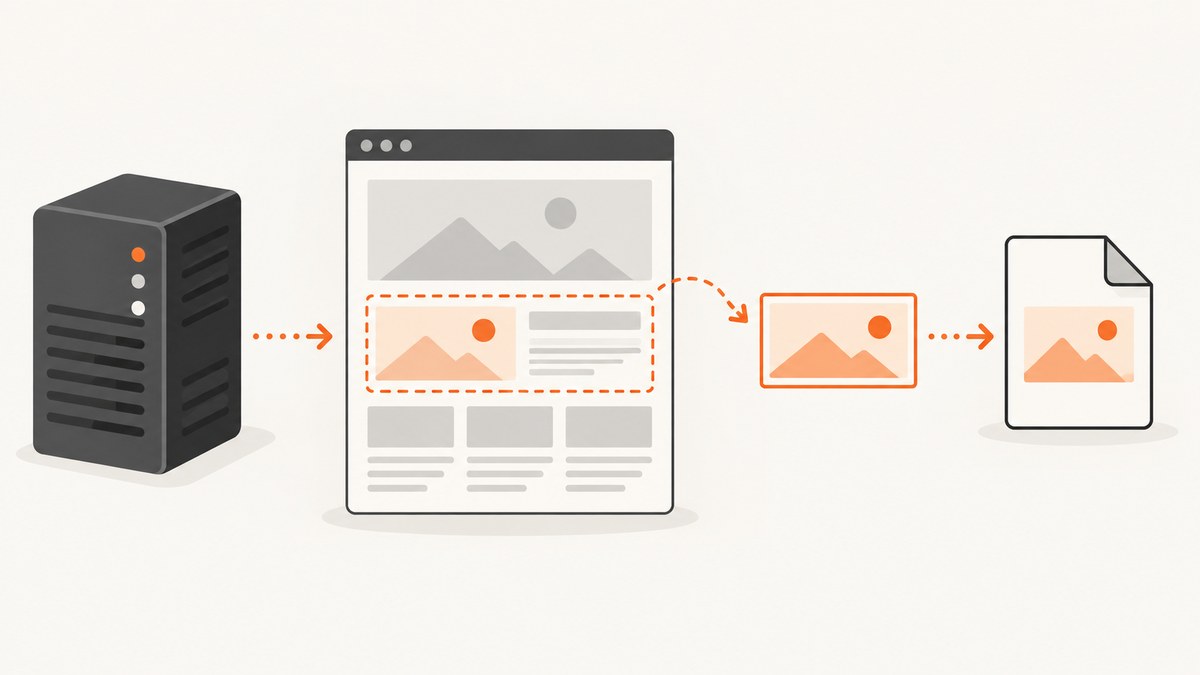
Direct answer: ASP.NET MVC does not turn an arbitrary HTML div into pixels by itself. On the server, render the page in a browser engine, wait for the element and its assets to finish, select the element, and take an element screenshot. Playwright for .NET is a practical choice because it documents screenshots of individual locators and can return image bytes instead of only writing a file.
What the server-side flow looks like
- Open the MVC route, or load HTML into a browser page.
- Provide the same authentication, data, CSS, fonts, images, and JavaScript the user would receive.
- Wait for the target
divand any client-rendered content. - Locate the element with a stable CSS selector.
- Capture the locator as PNG, JPEG, or WebP bytes.
- Return the bytes from an MVC action, save them to storage, or process them further.
The browser must see the rendered version of the content. A server-side HTML parser alone cannot reproduce layout, fonts, CSS painting, or JavaScript output.
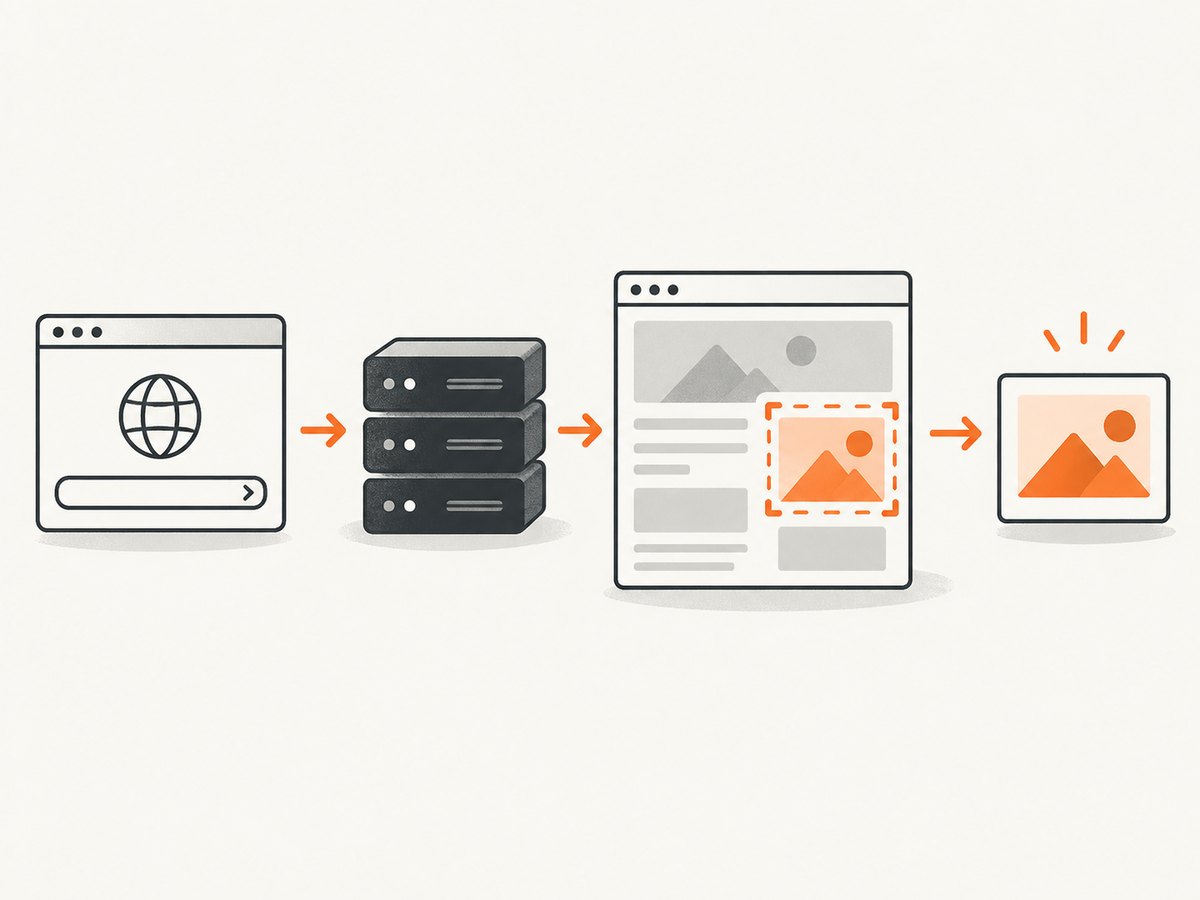
Recommended implementation with Playwright for .NET
Install the package in the MVC application:
dotnet add package Microsoft.PlaywrightAfter installing or upgrading the package, install the browser binaries that match the Playwright version. Playwright’s browser installation guide explains the required command and why browser versions are tied to Playwright releases.
dotnet build
pwsh bin/Debug/net8.0/playwright.ps1 install chromium
Adjust the output path for your target framework and build configuration.
Minimal MVC action that returns a PNG
This example opens a route, waits for #invoice-card, captures only that element, and returns the bytes as an HTTP response.
using Microsoft.AspNetCore.Mvc;
using Microsoft.Playwright;

public class PreviewController : Controller
{
    [HttpGet]
    public async Task InvoiceImage(CancellationToken cancellationToken)
    {
        using var playwright = await Playwright.CreateAsync();
        await using var browser = await playwright.Chromium.LaunchAsync(new BrowserTypeLaunchOptions
        {
            Headless = true
        });

        await using var context = await browser.NewContextAsync(new BrowserNewContextOptions
        {
            ViewportSize = new ViewportSize { Width = 1280, Height = 900 },
            DeviceScaleFactor = 1
        });

        var page = await context.NewPageAsync();
        await page.GotoAsync(
            Url.Action("Invoice", "Orders", null, Request.Scheme)!,
            new PageGotoOptions { WaitUntil = WaitUntilState.NetworkIdle, Timeout = 60_000 });

        var card = page.Locator("#invoice-card");
        await card.WaitForAsync(new LocatorWaitForOptions
        {
            State = WaitForSelectorState.Visible,
            Timeout = 30_000
        });

        var image = await card.ScreenshotAsync(new LocatorScreenshotOptions
        {
            Type = ScreenshotType.Png,
            Animations = ScreenshotAnimations.Disabled,
            Timeout = 30_000
        });

        return File(image, "image/png", "invoice.png");
    }
}
When a screenshot path is omitted, Playwright returns the image bytes. The Page API documents this buffer-oriented behavior. Returning bytes avoids creating a temporary file and lets your MVC action choose the final destination.
Save the image to disk instead
await card.ScreenshotAsync(new LocatorScreenshotOptions
{
    Path = Path.Combine("wwwroot", "captures", "invoice.png"),
    Type = ScreenshotType.Png,
    Animations = ScreenshotAnimations.Disabled
});

return Ok(new { path = "/captures/invoice.png" });
Create the destination directory before capture, and generate unique names when concurrent requests can target the same file.
Make the captured div deterministic
Use a stable selector
Prefer an ID or a dedicated data attribute over a class shared by many elements:
<div id='invoice-card' data-screenshot-target='invoice'>...</div>var card = page.Locator("[data-screenshot-target='invoice']");Do not depend on a selector that changes with framework-generated class names.
Wait for data and fonts
NetworkIdle is useful when the page loads a finite set of resources, but it is not a guarantee that an application’s data or animations are finished. Add an application-specific readiness marker:
<div id='invoice-card' data-render-state='ready'>...</div>await page.Locator("#invoice-card[data-render-state='ready']")
.WaitForAsync(new LocatorWaitForOptions { State = WaitForSelectorState.Visible });
await page.EvaluateAsync("document.fonts.ready");For charts or other asynchronous widgets, wait for a selector that only appears after the widget has finished, or expose a page-level promise specifically for capture.
Disable motion
Animations can produce inconsistent frames. Pass Animations = ScreenshotAnimations.Disabled, or inject capture-only CSS:
await page.AddStyleTagAsync(new PageAddStyleTagOptions
{
    Content = "*, *::before, *::after { animation: none !important; transition: none !important; caret-color: transparent !important; }"
});
Capture a page supplied as HTML
If the div is not available at a public MVC URL, set the page content directly. This is useful for a trusted, server-generated template:
await page.SetContentAsync(html, new PageSetContentOptions
{
    WaitUntil = WaitUntilState.NetworkIdle,
    Timeout = 60_000
});

var card = page.Locator("#invoice-card");
await card.WaitForAsync(new LocatorWaitForOptions { State = WaitForSelectorState.Visible });
var bytes = await card.ScreenshotAsync(new LocatorScreenshotOptions { Type = ScreenshotType.Png });
When using external stylesheets, fonts, or images, make sure the browser can resolve them from the server environment. Inline critical CSS and use absolute, reachable asset URLs when appropriate.
Screenshot options that matter
| Need | Setting or approach | Notes |
|---|---|---|
| Lossless UI or text | Type = Png |
Best default for sharp text and transparency. |
| Smaller photographic output | Type = Jpeg, Quality = 80 |
JPEG is lossy and does not preserve transparency. |
| Modern compressed output | Type = Webp, with supported quality options |
Confirm your downstream image consumers accept WebP. |
| Transparent background | Use a transparent page background and PNG/WebP | Omitted backgrounds do not apply to JPEG. |
| High-density output | Set the browser context’s DeviceScaleFactor |
Higher values increase dimensions, memory, and processing time. |
| Full page | Use Page.ScreenshotAsync with full-page options |
For this task, locator screenshots are preferable because they crop to the div. |
| Long content inside the div | Ensure the element has its final height before capture | Lazy-loaded children may require scrolling or an explicit readiness signal. |
See the official Playwright screenshots guide for the current option names and behavior.
Authentication, cookies, and private MVC pages
The browser context must be authenticated independently of the incoming MVC request unless you explicitly transfer that state. Common application-specific approaches include:
- Navigate to a capture-only route that authorizes the server-side caller with a short-lived token.
- Copy a narrowly scoped authentication cookie into the browser context.
- Use a service account and a private endpoint that returns only the required data.
- Render the HTML in the server process and use
SetContentAsync, avoiding a second authenticated request.
Do not put long-lived user cookies or bearer tokens in URLs. Keep capture endpoints access-controlled and validate the requested record before rendering it.
Deployment checklist
- Install browser binaries during deployment, and repeat that step after Playwright upgrades.
- Verify that the host permits child processes and has enough memory for Chromium.
- Install Linux system dependencies, or use an image that contains them.
- For containers, align the Playwright package and browser image versions. Playwright’s Docker guidance describes supplied images and warns that they are intended for testing and development; evaluate whether your production image meets your operational requirements.
- Confirm the MVC target framework, operating system, filesystem permissions, and outbound access to every asset the page loads.
- Reuse a browser process where your hosting model allows it, while creating isolated contexts and pages per capture.
Alternative: PuppeteerSharp
PuppeteerSharp is another .NET wrapper for headless Chrome/Chromium. Its API includes browser launch, page navigation, SetContentAsync, and ScreenshotAsync. Package compatibility differs by target framework; the NuGet listing and the project repository should be checked against your application before installation.
Choose between the two libraries using the same practical questions: Does the package support your target framework? Can your host install and run its browser? Do you need element-level screenshots, supplied HTML, returned bytes, or file output? The reviewed sources do not establish a universal speed or visual-accuracy winner.
Troubleshooting
| Symptom | Likely cause | Fix |
|---|---|---|
| Browser executable not found | Playwright browsers were not installed or do not match the package. | Run the Playwright browser install command during deployment and pin compatible versions. |
| Missing shared-library error on Linux | System dependencies are absent. | Install the required dependencies or build from a suitable base image. |
| Timeout waiting for the div | The selector is wrong, the route redirects, authorization failed, or client rendering never completed. | Inspect the final URL, verify the selector, expose a readiness marker, and increase the timeout only after fixing the underlying condition. |
| Blank or partially styled image | CSS, fonts, images, or scripts were unreachable from the server. | Check browser console/network failures, use reachable asset URLs, and wait for fonts and data. |
| Only the top of the div appears | Content height was still changing, or an inner scroll container was not expanded. | Wait for final layout, remove the inner scroll constraint for capture, or capture the intended scroll container deliberately. |
| Different result on each request | Animations, clocks, random data, ads, or responsive breakpoints vary. | Disable motion, set a fixed viewport/timezone where needed, and make data deterministic. |
| Authentication redirect | The browser context has no valid session. | Use a protected capture route, transfer a short-lived cookie, or render trusted HTML with SetContentAsync. |
| File write fails | The process lacks directory permissions or the directory does not exist. | Create a writable directory, use unique names, or return the screenshot bytes instead. |
| Requests hang under load | A new browser process is launched for every request, exhausting CPU or memory. | Pool or reuse the browser process, limit concurrent pages, and apply request timeouts. |

Performance, reliability, and cost
Performance
- Launching Chromium is expensive; keep one long-lived browser per worker when safe, then create isolated contexts for requests.
- Use a fixed viewport and avoid unnecessary device scale factors.
- Wait on a precise readiness condition instead of an unnecessarily long arbitrary delay.
- Reduce large images and third-party resources when they are not part of the capture.
- Cache identical outputs when the underlying data and styling have not changed.
Reliability
- Apply navigation, selector, and screenshot timeouts.
- Close pages and contexts in
finallyblocks or useawait using. - Record the target URL, selector, browser version, viewport, and failure reason for diagnosis.
- Retry only transient navigation failures; repeated retries will not fix a missing selector or invalid authentication.
- Keep capture routes idempotent and avoid mutating application data during rendering.
Cost
Your main costs are browser CPU and memory, host time, storage, and any external resources loaded by the page. A self-hosted browser gives control over those costs but adds deployment and maintenance work. Estimate capacity with your actual page complexity and concurrency; the cited documentation does not provide a universal benchmark.
Or skip the browser setup
If you want an API to render the MVC URL and return an image, ScreenshotNeo provides a single request-based option. It can capture a selected element by CSS selector, wait for a selector, delay, or network idle, use custom headers and cookies, and return PNG, JPEG, WebP, or PDF. Its clean-shot process accepts cookie and consent banners before capture and removes more than 60 known consent platforms, newsletter popups, and chat widgets; each step can be turned off.
See the ScreenshotNeo API documentation for the current parameters. A basic capture is:
curl -G "https://api.screenshotneo.com/v1/shot" -d access_key=YOUR_API_KEY --data-urlencode url=https://your-app.example.com/orders/42 -o shot.webpimport requests
r = requests.get("https://api.screenshotneo.com/v1/shot", params={"access_key": "YOUR_API_KEY", "url": "https://your-app.example.com/orders/42"}, timeout=90)
open("shot.webp", "wb").write(r.content)const q = new URLSearchParams({ access_key: 'YOUR_API_KEY', url: 'https://your-app.example.com/orders/42' });
const res = await fetch(`https://api.screenshotneo.com/v1/shot?${q}`);For an element capture, add the service’s CSS selector parameter shown in the documentation. ScreenshotNeo does not bill bot checks/CAPTCHAs, blank pages, timeouts, failed loads, or cache hits; response headers identify the page verdict and whether the response was billed. It also offers an MCP server with take_screenshot, get_page_info, and capture_pdf for AI agents.
The Free plan includes 1,000 screenshots per month with no card. Paid plans start at $5 for 3,000 shots, and every feature is available on every plan. Create a free ScreenshotNeo account.
FAQ
Can MVC render a div to an image without a browser?
Not for arbitrary HTML and CSS. You need a browser engine or a specialized renderer that implements the layout and painting required by the page.
Should I capture the URL or inject HTML?
Use the URL when you need the real route, authentication flow, and asset loading. Use injected HTML when the server already has trusted, complete markup and you want to avoid a second request.
Which format should I choose?
Use PNG for sharp interface graphics and transparency, JPEG for smaller lossy photographic output, and WebP when your consumers support it and you want modern compression.
Can I run this on a shared hosting plan?
Only if the plan permits the browser process, required binaries, system dependencies, memory, and filesystem or network access. Verify those capabilities with the host.
How do I keep screenshots consistent across machines?
Pin the Playwright package and browser version, use a fixed viewport and scale factor, disable animations, wait for a deterministic readiness marker, and make fonts and data available in the deployment environment.


