How to Save Automated Screenshots to Azure Blob Storage
Capture screenshots as bytes, authenticate safely, and upload them to Azure Blob Storage with TypeScript, Python, cURL, and browser-direct SAS.

Direct answer: capture the screenshot as a file or bytes, then upload those contents as an Azure block blob. For automation running in Azure, use Microsoft Entra ID with a managed identity and an Azure Storage SDK. For browser uploads, have a trusted backend issue a short-lived, narrowly scoped user-delegation SAS; never place a storage account key in frontend code.
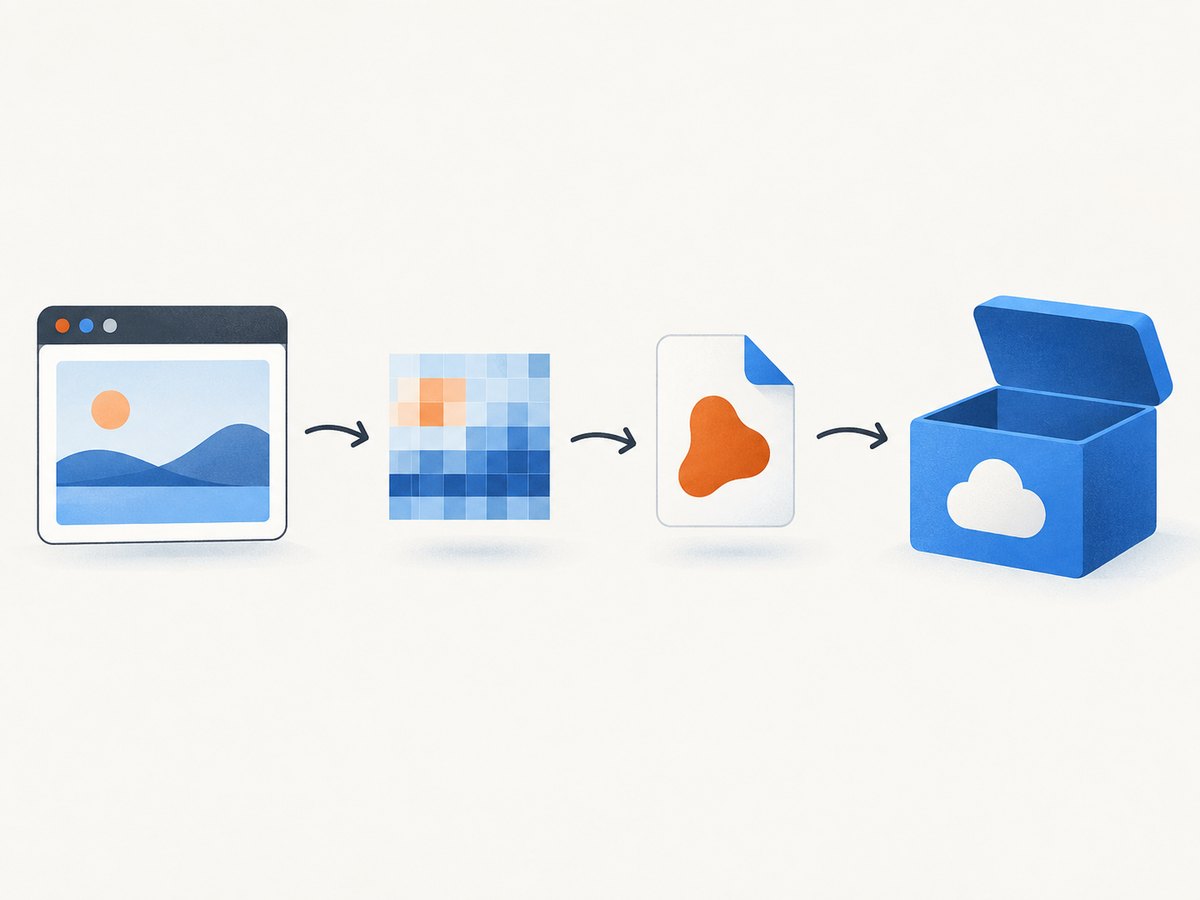
A typical pipeline is:
- Your browser automation or test runner captures PNG, JPEG, or WebP bytes.
- Your worker chooses a unique blob name such as
runs/2026-09-29/checkout/attempt-001.webp. - The worker authenticates with
DefaultAzureCredentialor another approved identity. - The Azure Blob Storage client uploads a block blob.
- Your test report stores the blob URL, run metadata, and (if needed) a retention or deletion policy.
Microsoft recommends Microsoft Entra ID with managed identities to authorize requests to Azure Storage. The documented built-in role for creating or overwriting a block blob with Entra authorization is Storage Blob Data Contributor; scope that role to the required storage account or container. See Microsoft’s Put Blob documentation and role assignment guidance.
Choose an upload pattern
| Pattern | Best for | Credential model | Does your backend handle bytes? |
|---|---|---|---|
| Server-side SDK | Azure-hosted test workers and CI jobs | Managed identity or Entra service principal | Yes, in the worker process |
| Browser-direct SAS | Web apps where the browser already has the screenshot | Short-lived user-delegation SAS from a trusted backend | No; browser sends directly to Blob Storage |
| Portal upload | One-off manual files | Azure portal identity | Not applicable |
The SDK approach is the default for Azure-hosted automation. The SAS approach reduces backend bandwidth for browser clients, but your token endpoint must strictly control the container, blob name, permissions, and expiry. Microsoft’s browser tutorial uses a backend API to issue a time-limited user-delegation SAS; its 10–60 minute validity is an example from that tutorial, not a universal requirement.
Server-side TypeScript upload with a managed identity
Install the SDK and identity package:
npm install @azure/storage-blob @azure/identity
npm install -D typescript tsx @types/node
The following program uploads a local screenshot. It works locally with credentials supported by DefaultAzureCredential (for example, an Azure CLI login) and in Azure with the worker’s managed identity. The identity needs Storage Blob Data Contributor at an appropriate scope.
import { BlobServiceClient } from "@azure/storage-blob";
import { DefaultAzureCredential } from "@azure/identity";
import { readFile } from "node:fs/promises";
import path from "node:path";

const account = process.env.AZURE_STORAGE_ACCOUNT;
const containerName = process.env.AZURE_STORAGE_CONTAINER ?? "screenshots";
const inputPath = process.argv[2] ?? "shot.webp";
const blobName = process.argv[3] ?? `runs/${new Date().toISOString().replace(/[:.]/g, "-")}-${path.basename(inputPath)}`;

if (!account) throw new Error("Set AZURE_STORAGE_ACCOUNT");

const service = new BlobServiceClient(
  `https://${account}.blob.core.windows.net`,
  new DefaultAzureCredential()
);
const container = service.getContainerClient(containerName);
await container.createIfNotExists();

const bytes = await readFile(inputPath);
const blob = container.getBlockBlobClient(blobName);
await blob.uploadData(bytes, {
  blobHTTPHeaders: { blobContentType: contentType(inputPath) },
  metadata: { source: "automated-test" }
});

console.log(blob.url);

function contentType(file: string): string {
  if (file.endsWith(".png")) return "image/png";
  if (file.endsWith(".jpg") || file.endsWith(".jpeg")) return "image/jpeg";
  if (file.endsWith(".pdf")) return "application/pdf";
  return "image/webp";
}
Run it with:
export AZURE_STORAGE_ACCOUNT=myaccount
export AZURE_STORAGE_CONTAINER=screenshots
npx tsx upload.ts ./artifacts/login.webp "runs/build-1842/login.webp"
For a screenshot already held in memory, replace readFile with the capture library’s buffer and pass that Buffer to uploadData. For large files or many parallel uploads, use the SDK’s block-upload APIs and cap concurrency so retries do not overwhelm the worker.
Capture and upload in a Playwright test
The capture library is independent of Azure. This example writes a Playwright screenshot to a buffer, then uploads it without creating a temporary file:
import { chromium } from "playwright";
import { BlobServiceClient } from "@azure/storage-blob";
import { DefaultAzureCredential } from "@azure/identity";

const browser = await chromium.launch();
const page = await browser.newPage({ viewport: { width: 1440, height: 900 } });
await page.goto("https://example.com", { waitUntil: "networkidle" });
const screenshot = await page.screenshot({ fullPage: true, type: "png" });
await browser.close();

const account = process.env.AZURE_STORAGE_ACCOUNT!;
const containerName = process.env.AZURE_STORAGE_CONTAINER ?? "screenshots";
const service = new BlobServiceClient(`https://${account}.blob.core.windows.net`, new DefaultAzureCredential());
const blob = service.getContainerClient(containerName).getBlockBlobClient(
  `runs/${process.env.CI_BUILD_ID ?? "local"}/example-${Date.now()}.png`
);
await blob.uploadData(screenshot, {
  blobHTTPHeaders: { blobContentType: "image/png" }
});
console.log(blob.url);
Keep the capture and upload steps separate in your test code. That lets you retry an upload without repeating a slow or nondeterministic page load, and lets a failed upload preserve the screenshot locally for diagnosis.
Python upload
Install the Azure SDK packages:
pip install azure-storage-blob azure-identityimport os
from datetime import datetime, timezone
from azure.identity import DefaultAzureCredential
from azure.storage.blob import BlobServiceClient, ContentSettings
account = os.environ["AZURE_STORAGE_ACCOUNT"]
container_name = os.getenv("AZURE_STORAGE_CONTAINER", "screenshots")
input_path = "shot.webp"
blob_name = f"runs/{datetime.now(timezone.utc).strftime('%Y%m%dT%H%M%SZ')}/{input_path}"
service = BlobServiceClient(
account_url=f"https://{account}.blob.core.windows.net",
credential=DefaultAzureCredential(),
)
container = service.get_container_client(container_name)
container.create_container()
try:
with open(input_path, "rb") as data:
container.upload_blob(
name=blob_name,
data=data,
overwrite=False,
content_settings=ContentSettings(content_type="image/webp"),
metadata={"source": "automated-test"},
)
except Exception as exc:
# ContainerAlreadyExists is safe to ignore in a concurrent setup.
if "ContainerAlreadyExists" not in str(exc):
raise
print(f"https://{account}.blob.core.windows.net/{container_name}/{blob_name}")Use overwrite=True only when replacing a known artifact is intentional. Otherwise, unique names and overwrite=False protect earlier attempts.
cURL and the REST API
For a quick integration or a language without an SDK, send a PUT request to the blob URL. A production REST client must authenticate with Entra OAuth, a SAS, or another supported method; do not copy an account key into scripts or source control.
curl -X PUT \
  -H "x-ms-version: 2023-11-03" \
  -H "x-ms-blob-type: BlockBlob" \
  -H "Content-Type: image/png" \
  --upload-file shot.png \
  "https://ACCOUNT.blob.core.windows.net/screenshots/runs/build-1842/shot.png?YOUR_SAS"
Put Blob creates or replaces the complete contents of a block blob. It does not merge partial changes. If a same-name upload must never replace an existing artifact, generate a unique name or use a conditional request such as If-None-Match: * where your authentication and client support it.
Browser-direct upload with a user-delegation SAS
Never expose a storage account key in browser JavaScript. Instead:

- The browser sends the intended file name and content type to your backend.
- The backend validates the user and constructs a safe blob path. Do not accept an arbitrary container or allow path traversal.
- The backend requests a user-delegation SAS with only the required write permission and a short expiry.
- The browser uploads the bytes directly to the returned blob URL.
- The backend records the resulting name and invalidates or lets the SAS expire.
// Browser: the backend returns { uploadUrl }
const screenshot = await page.screenshot({ type: "jpeg", quality: 85 });
const token = await fetch("/api/screenshot-upload", {
  method: "POST",
  headers: { "Content-Type": "application/json" },
  body: JSON.stringify({ extension: "jpg", contentType: "image/jpeg" })
}).then(r => r.json());

const response = await fetch(token.uploadUrl, {
  method: "PUT",
  headers: {
    "x-ms-blob-type": "BlockBlob",
    "Content-Type": "image/jpeg"
  },
  body: screenshot
});
if (!response.ok) throw new Error(`Blob upload failed: ${response.status}`);
Configure Blob Storage CORS for the exact origins and methods your app needs. A SAS is a bearer token: keep its lifetime short, avoid logging it, and grant only the permissions required for this upload.
Blob names, metadata, and overwrite rules
Blob names are your indexing system. Include stable dimensions such as test suite, browser, build ID, commit SHA, and attempt number:
ui-regression/{commit}/{browser}/{viewport}/checkout/attempt-02.webp- Use UTC timestamps or immutable run IDs to preserve every run.
- Use a deterministic name only when you want the newest result to replace the previous one.
- Set the correct
Content-Typeso browsers and report viewers render the image directly. - Store small searchable values as metadata, but keep large test records in your test database.
- Use lifecycle rules or a cleanup job to remove artifacts after the retention period your team chooses.
The portal may display slash-separated names as virtual folders; folders are naming conventions inside a container, not separate filesystem directories.
Reliability and performance checklist
- Retry transient failures: retry timeouts and 5xx responses with exponential backoff and a bounded attempt count.
- Preserve evidence: write the screenshot to a temporary path before upload when losing the artifact would make a test failure hard to diagnose.
- Control concurrency: limit simultaneous uploads per worker and avoid starting one connection per screenshot in a large suite.
- Choose a format deliberately: PNG preserves exact pixels; JPEG is smaller for photographic pages; WebP often reduces transfer size when your viewer supports it.
- Use regional placement: keep the storage account near the automation workers when latency and egress matter.
- Make uploads observable: log blob name, byte count, duration, HTTP status, and retry count, but redact SAS query strings.
- Separate verdicts from transport errors: a successful upload only means Azure stored bytes; it does not prove that the page capture was valid.
Azure charges depend on the storage account’s redundancy, capacity, operations, and data transfer choices. The screenshot pipeline itself should avoid needless duplicate uploads and should delete expired artifacts according to your retention policy.
Troubleshooting
| Error or symptom | Likely cause | Fix |
|---|---|---|
| 401 or 403 | Identity lacks data-plane permission, SAS is expired, or its scope is wrong. | Assign Storage Blob Data Contributor at the narrowest useful scope; check tenant, account, container, SAS expiry, and permissions. |
| AuthorizationPermissionMismatch | The token permits a different operation than the request. | Issue a SAS with create/write permissions appropriate to the exact upload operation, or use the SDK with Entra identity. |
| ContainerNotFound | The container was not created, or the name differs by case. | Create it during deployment or call the SDK’s create-if-not-exists method; verify the exact name. |
| 409 BlobAlreadyExists | Your client disallows overwrite and reused a blob name. | Add a run or attempt ID, or explicitly enable overwrite when replacement is intended. |
| Image downloads instead of rendering | The blob has a generic or missing content type. | Set image/png, image/jpeg, or image/webp in blob HTTP headers. |
| Browser CORS error | Storage CORS does not allow the requesting origin, method, or headers. | Allow only the required production origins and the PUT and request headers used by the SDK or fetch call. |
| Upload times out | Large image, slow network, overloaded worker, or an overly short client timeout. | Compress where acceptable, increase the timeout, use bounded retries, and reduce concurrency. |
| Screenshot is blank or shows a consent dialog | The capture step completed before the page was ready or interactive overlays remained. | Wait for a meaningful selector or network idle, handle consent explicitly, and save a local diagnostic copy. |
Or skip the browser setup
ScreenshotNeo returns a screenshot or PDF from one GET request, so your worker can upload the response bytes to Azure using any method above. See the ScreenshotNeo API docs for all options.
# cURL
curl -G "https://api.screenshotneo.com/v1/shot" -d access_key=YOUR_API_KEY --data-urlencode url=https://stripe.com -o shot.webp

# Python
import requests
r = requests.get("https://api.screenshotneo.com/v1/shot", params={"access_key": "YOUR_API_KEY", "url": "https://stripe.com"}, timeout=90)
open("shot.webp", "wb").write(r.content)

# Node.js
const q = new URLSearchParams({ access_key: 'YOUR_API_KEY', url: 'https://stripe.com' });
const res = await fetch(`https://api.screenshotneo.com/v1/shot?${q}`);
Cookie banners, newsletter popups, and chat widgets are removed before the shot. Bot checks, blank pages, failed loads, timeouts, and cache hits are never billed, and each response identifies the result with X-Page-Verdict and X-Billed headers. An MCP server lets AI agents take screenshots, inspect pages, and capture PDFs. The free plan includes 1,000 screenshots a month with no card; paid plans start at $5 for 3,000. Create a free ScreenshotNeo account.
FAQ
Should I store screenshots as block blobs?
Yes. Automated screenshots are complete objects, and block blobs are the standard object type for this upload pattern.
Can I upload from a browser with an account key?
No. Keep account keys server-side. Use a trusted backend to issue a narrowly scoped, short-lived user-delegation SAS.
What happens when two jobs use the same blob name?
A block-blob upload can replace the existing contents. Use unique run names when retention matters, or enable overwrite deliberately for a “latest result” artifact.
Do I need to route browser bytes through my API?
No. A backend-issued SAS allows the browser to upload directly to Blob Storage while your backend controls authorization and naming.
Which identity should an Azure-hosted worker use?
Use its managed identity through DefaultAzureCredential where possible, with the minimum data-plane role and scope required.


