How to Save a Canvas as a PNG in Selenium
Save a rendered canvas or its pixel buffer as a PNG in Selenium with runnable Python code, JavaScript export, troubleshooting, and an API alternative.
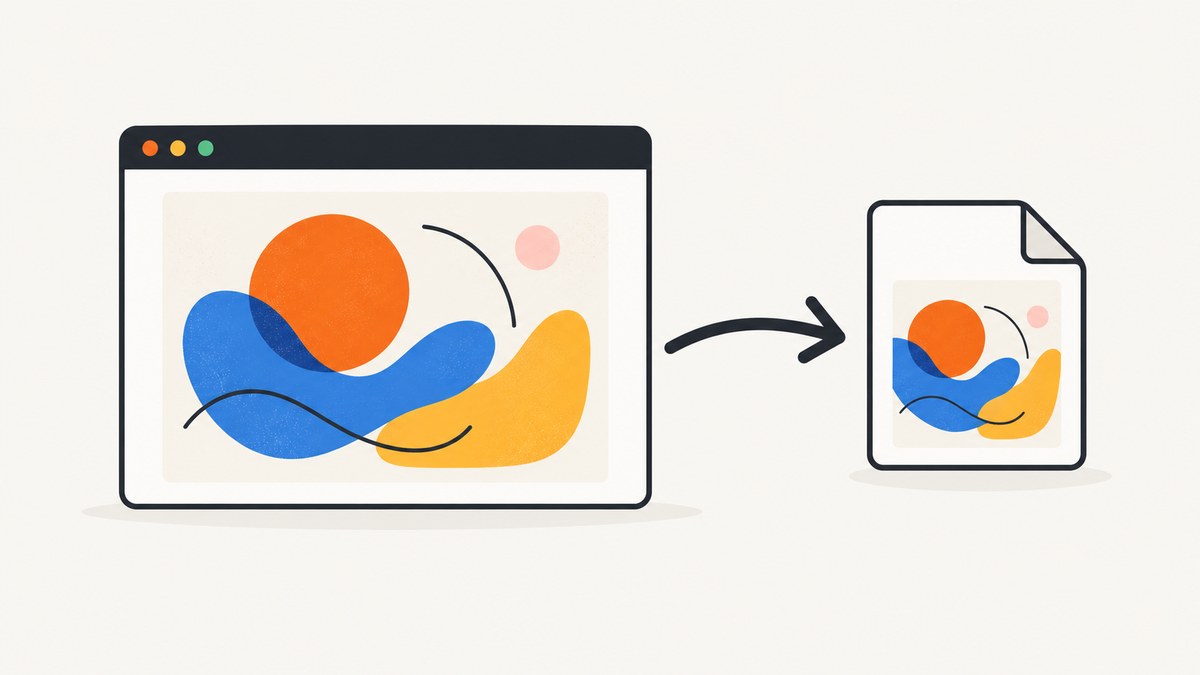
Direct answer: use Selenium’s element screenshot API when you need an image of the rendered <canvas> on screen:
from selenium.webdriver.common.by import By

canvas = driver.find_element(By.CSS_SELECTOR, "canvas")
canvas.screenshot("canvas.png")
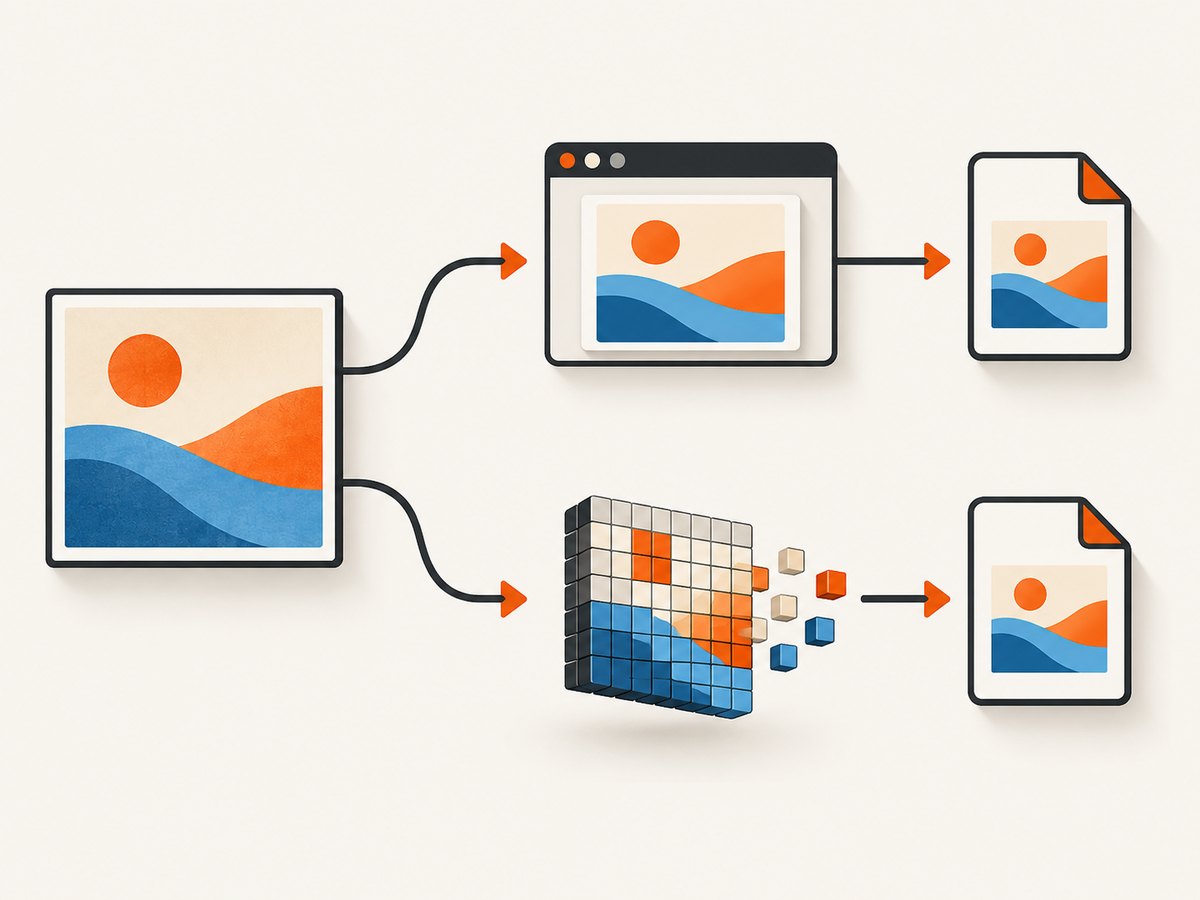
That captures the element as WebDriver sees it. If you need the canvas’s own pixel buffer, execute JavaScript and call toDataURL('image/png'), then decode the returned Base64 data. These outputs can look similar, but they come from different layers: an element screenshot is a browser-rendered capture, while toDataURL() serializes canvas pixels. Choose the first for a visual capture and the second when the page’s drawing data must be exported.
1. Set up Selenium and a test page
Install Selenium and a browser driver that matches the browser installed on your machine. Selenium Manager can download and manage drivers in current Selenium releases.
python -m pip install -U seleniumThe following complete script opens a data URL containing a canvas, waits for it, and saves both kinds of PNG. Replace the data URL with your application URL in production.
from base64 import b64decode
from pathlib import Path
from selenium import webdriver
from selenium.webdriver.common.by import By
from selenium.webdriver.support.ui import WebDriverWait
from selenium.webdriver.support import expected_conditions as EC

output_dir = Path("captures")
output_dir.mkdir(exist_ok=True)

options = webdriver.ChromeOptions()
options.add_argument("--headless=new")
options.add_argument("--window-size=1440,1000")

driver = webdriver.Chrome(options=options)
try:
    driver.get("data:text/html,"
               "<canvas id='art' width='800' height='500'></canvas>"
               "<script>const c=document.querySelector('canvas');"
               "const x=c.getContext('2d');x.fillStyle='royalblue';"
               "x.fillRect(0,0,800,500);x.fillStyle='white';"
               "x.font='48px sans-serif';x.fillText('Canvas',280,270);</script>")

    canvas = WebDriverWait(driver, 10).until(
        EC.presence_of_element_located((By.CSS_SELECTOR, "canvas#art"))
    )

    # 1) Screenshot of the rendered element.
    if not canvas.screenshot(str(output_dir / "element.png")):
        raise OSError("Selenium could not write element.png")

    # 2) Export of the canvas pixel buffer.
    data_url = driver.execute_script(
        "return arguments[0].toDataURL('image/png');", canvas
    )
    prefix = "data:image/png;base64,"
    if not data_url.startswith(prefix):
        raise ValueError("The page did not return a PNG data URL")
    (output_dir / "buffer.png").write_bytes(b64decode(data_url[len(prefix):]))
finally:
    driver.quit()
Selenium’s Python WebElement API documents screenshot(filename) as writing a PNG and returning True on success or False for an I/O error. Give it a full path and a filename ending in .png. The same API exposes screenshot bytes and a Base64 representation when your program needs to process the image before writing it.
2. Method A: save the rendered canvas element
Python element screenshot
from selenium.webdriver.common.by import By

canvas = driver.find_element(By.CSS_SELECTOR, "canvas")
canvas.screenshot("/absolute/path/canvas.png")
Use a stable selector such as an ID or a data attribute. If several canvases exist, select the one whose dimensions or surrounding container identify the intended chart. Scroll it into view before capture if a browser or driver reports that it is outside the viewport:
driver.execute_script(
    "arguments[0].scrollIntoView({block: 'center', inline: 'center'});", canvas
)
canvas.screenshot("canvas.png")
This method captures the displayed element, including CSS scaling and the pixels the browser has painted. It is therefore useful for charts, games, diagrams, and WebGL output where the visible result is the artifact you want.
Keep the result in memory
png_bytes = canvas.screenshot_as_png
png_base64 = canvas.screenshot_as_base64

with open("canvas.png", "wb") as file:
    file.write(png_bytes)
Bytes are convenient for uploading to object storage or an HTTP endpoint. Base64 is useful when a downstream API accepts text, but it is larger than binary data and should not be stored unnecessarily.
Control the captured dimensions
The output dimensions follow the WebElement’s rendered box and the browser’s device scale factor. Set the canvas’s intrinsic width and height attributes for its drawing buffer; CSS width and height only change display size. For deterministic captures, set a window size and, when appropriate, a device scale factor in the browser configuration. Do not assume a CSS-sized 800 by 500 canvas produces an 800 by 500 file if the drawing buffer has different intrinsic dimensions.
3. Method B: export the canvas pixel buffer with toDataURL()
Call JavaScript in the page and pass the WebElement as an argument. Selenium’s JavaScript execution examples show this element-argument pattern.
from base64 import b64decode

canvas_data_url = driver.execute_script(
    "return arguments[0].toDataURL('image/png');",
    canvas,
)
header, encoded = canvas_data_url.split(',', 1)
if header != 'data:image/png;base64':
    raise ValueError(f"Unexpected data URL header: {header}")
with open("canvas-buffer.png", "wb") as file:
    file.write(b64decode(encoded))
Canvas API documentation describes toDataURL() as returning a data URL containing an image of the canvas; PNG is the default when no type is supplied, and passing 'image/png' makes the intent explicit. The returned string includes metadata before the comma, so decode only the payload after that comma.
Use another image type only when required
jpeg_url = driver.execute_script(
    "return arguments[0].toDataURL('image/jpeg', 0. nueve);", canvas
)
For this article’s PNG result, keep image/png. JPEG quality is lossy and transparency is not preserved. Some browsers may fall back to PNG for unsupported MIME types, so inspect the returned header rather than trusting the requested type.
Large canvases and toBlob()
Data URLs duplicate the image in a JavaScript string and can consume substantial memory for large drawings. The browser’s MDN toBlob() reference documents an asynchronous Blob export that is generally a better fit for large images. A Selenium script can invoke it and return a Base64 string, but the callback and browser binding details need careful handling. If you control the page, have application JavaScript upload the Blob directly or expose a small promise-based export function, then call that function with execute_async_script.
4. Choosing between an element screenshot and canvas export
| Question | Element screenshot | toDataURL() |
|---|---|---|
| Where pixels come from | WebDriver capture of the rendered element | Canvas drawing buffer serialization |
| Typical output | PNG file, bytes, or Base64 | Data URL, decoded to PNG bytes |
| Best for | What a user sees, including rendered WebGL or CSS scaling | Canvas-owned pixel data for export or processing |
| Origin-clean restriction | Usually captures the rendered result | Can throw a security error for tainted canvases |
| Failure mode | Missing element, viewport or file I/O problems | JavaScript exception, invalid data URL, or CORS violation |
Do not treat the two files as guaranteed byte-for-byte equivalents. A screenshot records composited display output; serialization reads the canvas buffer before browser compositing effects outside that buffer.
5. Wait for the canvas to be ready
Finding a canvas only proves that its element exists. Charts often draw later, after data arrives or fonts load. Wait for a page-specific readiness condition instead of adding an arbitrary sleep:
WebDriverWait(driver, 20).until(
    lambda d: d.execute_script(
        "const c=arguments[0]; return c.width > 0 && c.height > 0 "
        "+&& c.dataset.ready === 'true';", canvas
    )
)
If your application cannot expose a readiness flag, wait until a known pixel or application state exists. A short delay can be a fallback for animation, but it is less reliable than an explicit condition. For animated canvases, pause the animation or capture at a defined frame if repeatability matters.
6. Troubleshooting common failures
NoSuchElementException
Cause: the selector is wrong, the canvas is inside an iframe, or it has not been added yet. Fix: use an explicit wait, switch to the correct iframe with driver.switch_to.frame(...), and verify the selector in browser developer tools.
Empty or transparent PNG
Cause: capture happened before drawing completed, the canvas was cleared, or its intrinsic dimensions are zero. Fix: wait for application readiness, check canvas.width and canvas.height, and capture after the drawing callback runs.
SecurityError from toDataURL()
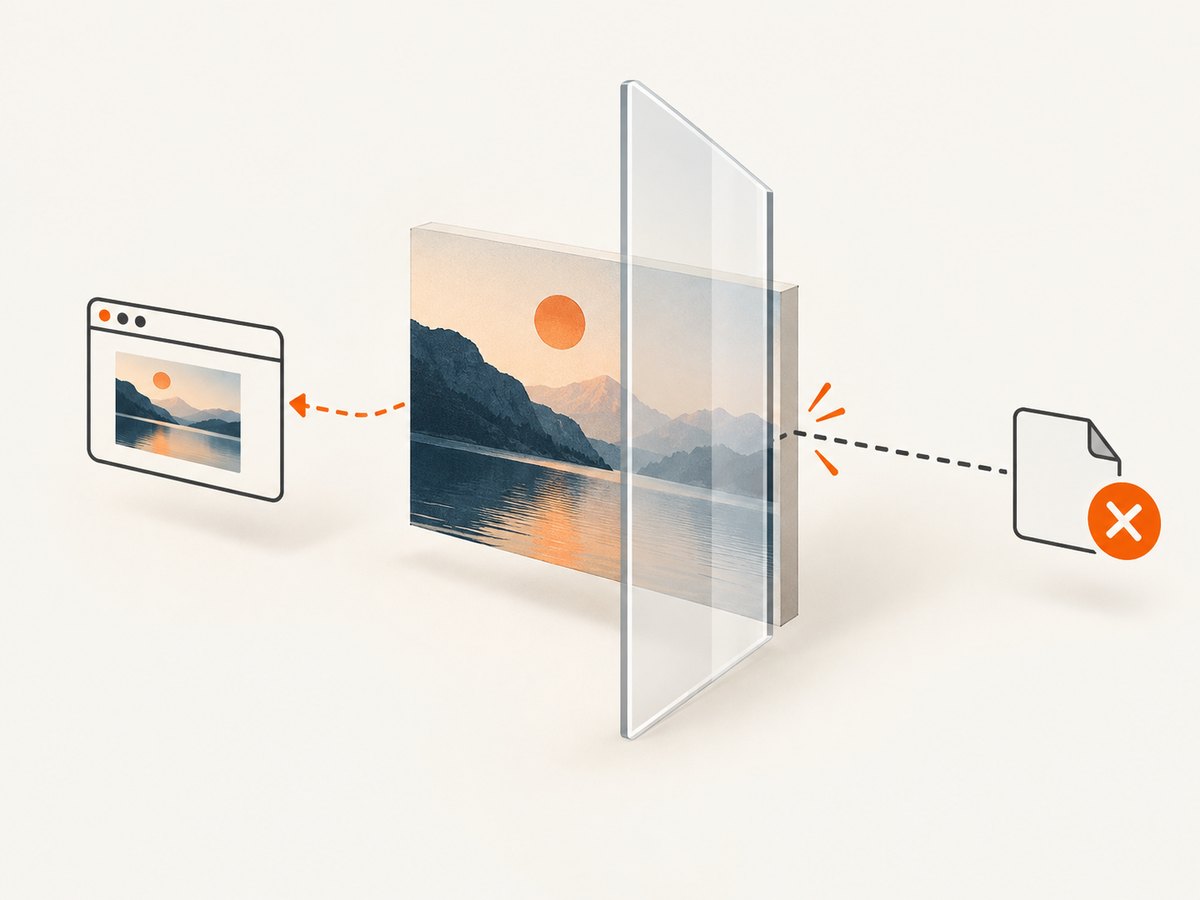
Cause: an image from another origin was drawn without appropriate CORS permission, making the canvas not origin-clean. Fix: serve the image with the required Access-Control-Allow-Origin response, set the image element’s crossOrigin before assigning src, and ensure the server permits the requesting origin. See MDN’s cross-origin canvas guide. A WebDriver element screenshot may still capture what is visibly rendered, but it does not make the canvas buffer exportable.
File is not created
Cause: the directory does not exist, the process lacks write permission, or a relative path points somewhere unexpected. Fix: create the directory, use Path.resolve(), and check the Boolean returned by screenshot(). The browser cannot repair a filesystem permission error.
Screenshot is clipped or the wrong size
Cause: CSS scaling, device pixel ratio, or a driver limitation. Fix: inspect both DOM attributes and getBoundingClientRect(), set a deterministic window size, and compare element screenshot output with toDataURL() to identify whether the difference is display scaling or buffer dimensions.
Canvas is inside a shadow root
Cause: ordinary document selectors do not cross shadow DOM boundaries. Fix: locate the host, access its shadow root with JavaScript, and return the canvas element or query through Selenium’s shadow-root support where available.
7. Reliability, performance, and cost
- Reliability: use explicit waits, stable selectors, deterministic viewport settings, and a unique output filename per test or job. Always call
driver.quit()in afinallyblock. - Performance: element screenshots avoid creating a large JavaScript data URL. For large buffers, prefer Blob-based application exports or stream bytes to the next service. Disable unnecessary animations and wait only for the assets required by the canvas.
- Parallel runs: give each browser session its own temporary directory and avoid sharing a single driver between threads. Browser startup usually costs more than writing one PNG.
- Cost: Selenium itself has no per-screenshot API charge, but your infrastructure pays for browser CPU, memory, storage, and execution time. A remote grid or CI runner can add its own pricing.
8. Or skip the browser setup
If your goal is a clean image of a URL rather than canvas pixel access inside an existing test, ScreenshotNeo provides a single HTTP request. Its service accepts cookie and consent banners before capture and removes more than 60 known consent platforms, newsletter popups, and chat widgets. Bot checks, blank pages, timeouts, failed loads, and cache hits are not billed, and each response reports its page verdict and billing status in X-Page-Verdict and X-Billed headers. An MCP server also lets Claude, Cursor, or another MCP client call screenshot tools directly.
See the ScreenshotNeo documentation for all options. The basic call returns WebP by default in this example; request the format and options your workflow needs.
cURL
curl -G "https://api.screenshotneo.com/v1/shot" -d access_key=YOUR_API_KEY --data-urlencode url=https://stripe.com -o shot.webpPython
import requests
r = requests.get("https://api.screenshotneo.com/v1/shot", params={"access_key": "YOUR_API_KEY", "url": "https://stripe.com"}, timeout=90)
open("shot.webp", "wb").write(r.content)
Node.js
const q = new URLSearchParams({ access_key: 'YOUR_API_KEY', url: 'https://stripe.com' });
const res = await fetch(`https://api.screenshotneo.com/v1/shot?${q}`);
const image = Buffer.from(await res.arrayBuffer());
require('fs').writeFileSync('shot.webp', image);
ScreenshotNeo supports full-page and element captures, custom CSS and JavaScript, waits, device presets, retina scale, headers, cookies, user agents, geolocation, caching, signed links, asynchronous jobs, bulk capture, PDF, and HTML/CSS rendering. Every feature is on every plan. The Free plan includes 1,000 shots per month without a card; paid plans start at $5 for 3,000 shots. Create a free ScreenshotNeo account to try it.
9. FAQ
Does Selenium save a canvas as PNG by default?
Yes. WebElement.screenshot() writes a PNG file. toDataURL() also defaults to PNG when no type is supplied; specifying image/png makes the code clear.
Can I capture only part of a canvas?
Use a second canvas and draw the desired rectangle into it before exporting, or crop the PNG bytes with an image library after an element screenshot.
Why does my exported PNG differ from the screenshot?
The screenshot is rendered output; toDataURL() is the canvas buffer. CSS transforms, overlays, browser compositing, and device scale can make them differ.
Can I save SVG or PDF instead?
A canvas is raster data, so PNG is the lossless export represented by these APIs. Use an application-specific vector export for SVG or a separate print/PDF workflow when those formats are required.
Should I use toBlob() for production?
For large canvases, yes, when your page and Selenium integration can handle its asynchronous callback. It avoids keeping the complete image in a long data URL string.


