How to Save a Chrome Webpage With All Images
Save a Chrome page with its images for offline use using HTML, MHTML, PDF, or a screenshot API.
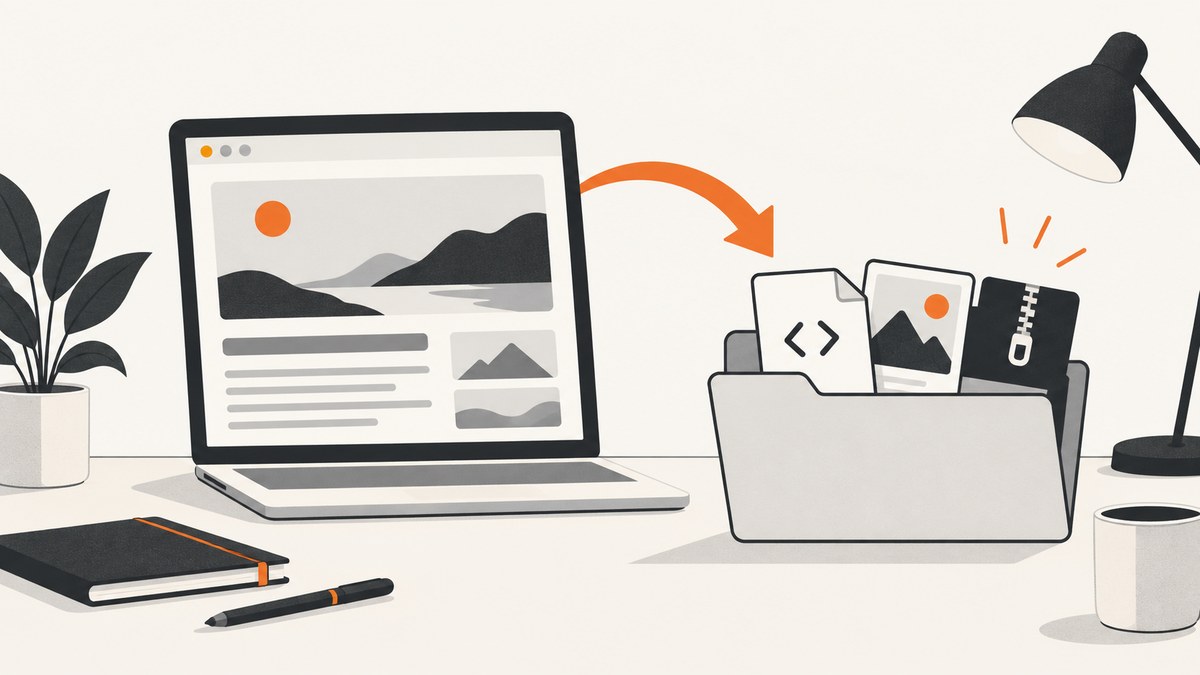
Direct answer: In Chrome, open the page, choose More → More tools → Save page as (or More → Cast, save, and share → Save page as), select a destination, and save it. Keep the HTML file and its companion resource folder together. If you need one portable file containing the page and its resources, use an MHTML workflow. Open the saved result locally to verify that the images you need are present.
1. Save the page with Chrome’s built-in command
- Open the webpage in Chrome.
- Wait until the page and the images you need finish loading. Scroll through lazy-loaded sections if necessary.
- Open the three-dot menu.
- Select More tools → Save page as. In some Chrome versions, the command is under Cast, save, and share → Save page as. See Chrome’s official saving instructions.
- Choose a folder with enough free space and select Save.
- If Chrome creates an HTML file and a resource folder, leave both in the same location. Moving only the HTML file can break image links.
- Open the saved HTML file from your computer and check the important images, fonts, and styles.
Chrome’s normal webpage save is best when you want a browsable local copy. The result is generally an HTML file plus a folder containing downloaded resources.
2. Choose the right output format
| Format | Best for | What it preserves | Main limitation |
|---|---|---|---|
| HTML plus resource folder | Offline reading and a locally browsable copy | HTML, downloaded CSS, and available images/resources | Two items must stay together; dynamic features may not work |
| MHTML | One portable archive | A page and its resources in one file | Not every dynamic request or interactive feature is captured |
| Printing, sharing, or visual records | Rendered page appearance | Not an editable webpage; responsive and lazy content can differ | |
| PNG/JPEG/WebP screenshot | A fixed visual snapshot | What was rendered in the capture | No HTML structure or interaction |
3. Create a single-file MHTML archive
MHTML packages a page and its resources, including CSS and images, into one file. Chrome’s pageCapture documentation describes this as encapsulating a page and all its resources in a single file.
For a one-off manual save, use Chrome’s normal Save page command if your version offers an MHTML option. For an automated workflow, an extension or browser automation script can call the page-capture API and write the returned archive to disk. Confirm that your organization allows extensions and that the page is fully loaded before capture.
4. Make sure lazy-loaded images are included
- Wait for the page’s loading indicator to finish.
- Scroll from top to bottom once. Many sites request images only when their placeholders approach the viewport.
- Expand accordions, galleries, and tabs containing images you need.
- Wait briefly after each interaction for network requests to complete.
- Save again after all required images are visible.
Images that require a click, permission, a login, or a later API request may not be present in a static save. A page can also replace image URLs after the initial load; reopening the local file is the quickest way to detect that case.

5. Save as PDF or capture an image
Use Chrome’s print dialog and choose Save to PDF when you need a document for printing or sharing. A PDF records the rendered layout rather than an editable copy of the site.
For a long visual page, a full-page capture extension can export PNG, JPG, or PDF. PageSaver advertises PDF, image, and Markdown exports, while GoFullPage advertises full-page PNG, JPG, and PDF exports. Check each tool’s current availability and permissions before using it.
6. Automate the capture with ScreenshotNeo
When you need repeatable captures from scripts or a server, ScreenshotNeo returns a PNG, JPEG, WebP, or PDF from one GET request. It can capture full pages, load lazy images, wait for a selector or network idle, set cookies and headers, choose a viewport or device preset, and apply custom JavaScript or CSS.
cURL
curl -G "https://api.screenshotneo.com/v1/shot" -d access_key=YOUR_API_KEY --data-urlencode url=https://example.com -o shot.webpPython
import requests

r = requests.get(
    "https://api.screenshotneo.com/v1/shot",
    params={"access_key": "YOUR_API_KEY", "url": "https://example.com"},
    timeout=90,
)
r.raise_for_status()
open("shot.webp", "wb").write(r.content)
Node.js
import { writeFile } from 'node:fs/promises';

const q = new URLSearchParams({ access_key: 'YOUR_API_KEY', url: 'https://example.com' });
const res = await fetch(`https://api.screenshotneo.com/v1/shot?${q}`);
if (!res.ok) throw new Error(`Screenshot failed: ${res.status}`);
await writeFile('shot.webp', Buffer.from(await res.arrayBuffer()));
See the ScreenshotNeo API documentation for all options and parameter names.
Useful capture options
| Need | Relevant option |
|---|---|
| Entire page | Full-page capture with lazy images loaded |
| Only one component | Capture an element by CSS selector |
| Consistent appearance | Device preset, custom viewport, retina scale, dark mode, timezone, or geolocation |
| Remove page clutter | Hide selectors; block ads, trackers, requests, or resource types |
| Authenticated content | Custom headers, cookies, user agent, and Authorization |
| Wait for content | Wait for a selector, delay, or network idle; click an element before capture |
| Portable documents | PDF paper size, margins, landscape mode, and page ranges |
| Repeat jobs | Choose a cache TTL, use async jobs and signed webhooks, or capture up to 100 URLs per call |
7. Or skip the browser setup
Use one request when you need a clean visual copy without managing Chrome:
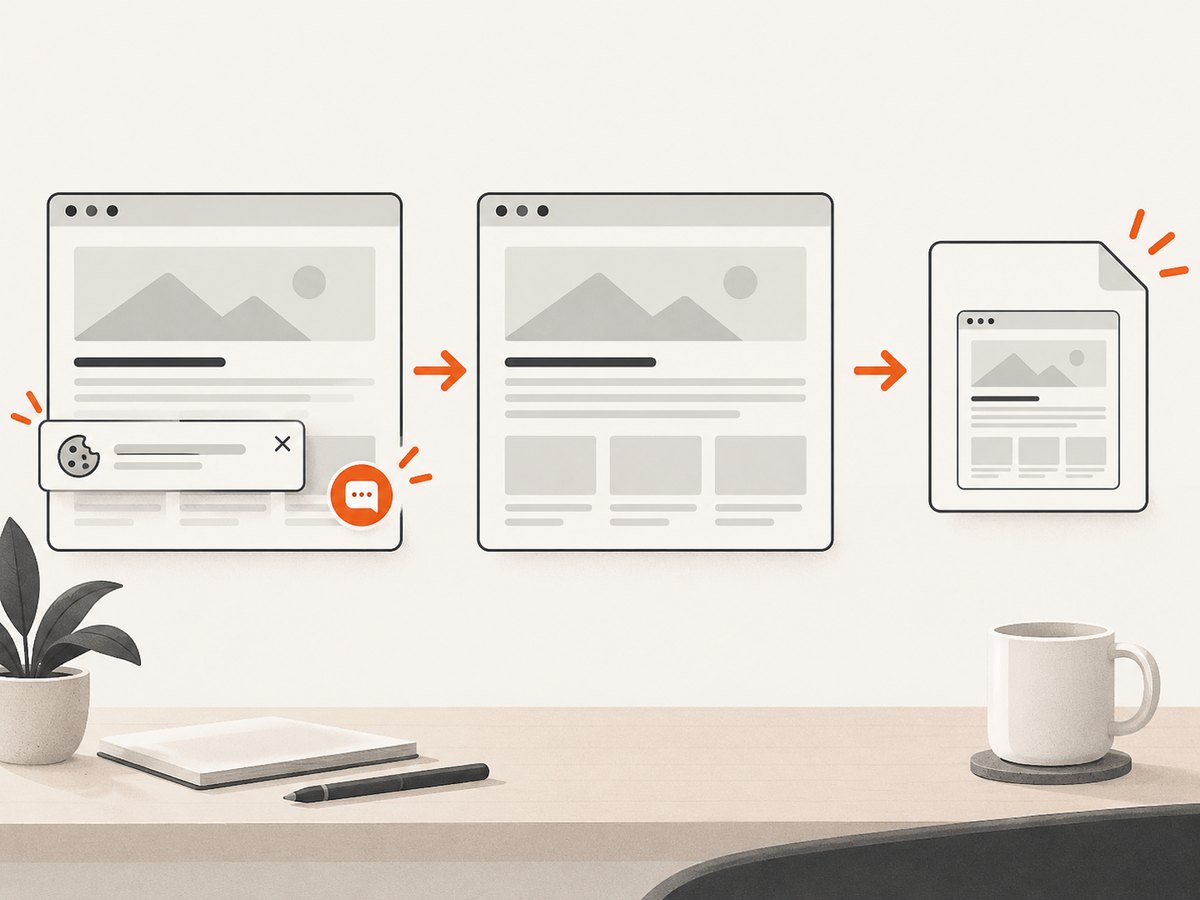
curl -G "https://api.screenshotneo.com/v1/shot" -d access_key=YOUR_API_KEY --data-urlencode url=https://example.com -o shot.webpScreenshotNeo accepts cookie and consent banners before capture and removes more than 60 known consent platforms, newsletter popups, and chat widgets. Bot checks, blank pages, failed loads, timeouts, and cache hits are not billed; response headers identify the page verdict and billing status. Its MCP server lets Claude, Cursor, and other MCP clients use take_screenshot, get_page_info, and capture_pdf. The Free plan includes 1,000 screenshots each month with no card, and paid plans start at $5 for 3,000 shots.
Create a free ScreenshotNeo account and start with 1,000 screenshots a month at no charge.
8. Troubleshooting missing images
| Symptom | Likely cause | Fix |
|---|---|---|
| The HTML opens but images are broken | The resource folder was moved, renamed, or deleted | Restore the folder beside the HTML file and reopen it |
| Only images near the top were saved | Lower sections use lazy loading | Scroll through the complete page, wait for images, then save again |
| An image area is blank | The request needs a login, permission, cookie, or JavaScript interaction | Sign in first, allow the required permission, perform the interaction, and recapture |
| Remote images fail offline | The page still references a network URL or the host blocks the request | Use MHTML where supported, or verify that the downloaded resource exists locally |
| The saved page looks different | Responsive CSS, fonts, ads, or live data changed | Save at the intended viewport and wait for fonts and network requests to finish |
| The file is too large | High-resolution images and embedded resources consume disk space | Remove unneeded tabs or assets, use a visual screenshot, or resize output |
| A ScreenshotNeo response is not an image | The URL failed, timed out, or triggered a bot check | Inspect the HTTP status and X-Page-Verdict/X-Billed headers, then adjust waits, headers, cookies, or the URL |
9. Performance, reliability, and cost
- Performance: Saving after lazy images load takes longer and creates larger files. For automation, capture only the required element when a full page is unnecessary.
- Reliability: Keep the HTML and resource folder together, verify a local reopen, and retain the original URL and save time for audit purposes.
- Dynamic pages: HTML and MHTML preserve available resources, not a guarantee that live search, checkout, login, or post-load API features will work offline.
- Storage: A USB flash drive can store an offline archive when the computer’s disk is limited; Chrome lets you choose the destination during saving.
- API cost: ScreenshotNeo bills only clean shots. Failed loads, blank pages, bot checks, timeouts, and cache hits cost nothing, and every response reports its verdict and billing status.
10. Quick checklist
- ☐ Page finished loading
- ☐ Full page scrolled to trigger lazy images
- ☐ Required tabs, accordions, and galleries opened
- ☐ Login and permissions completed
- ☐ HTML and resource folder kept together, or MHTML selected for one file
- ☐ Saved copy reopened and important images checked
Frequently asked questions
Does Save Page As download every image?
It downloads resources available to Chrome at save time. Images loaded only after interaction, blocked by permissions, protected by login, or unavailable can be missing.
What is the most portable Chrome format?
MHTML is the most convenient single-file archive when your workflow supports it. HTML plus its resource folder is easier to inspect and edit.
Can I edit a saved webpage?
HTML saves can be edited locally, although scripts, server requests, and site dependencies may no longer behave as they did online.
Should I use a screenshot or an archive?
Choose a screenshot or PDF for a fixed visual record. Choose HTML or MHTML when offline browsing and source structure matter.
Can an API save pages without opening Chrome?
Yes. ScreenshotNeo provides an HTTP screenshot API and an MCP server for AI clients, with options for full-page capture, waits, authentication, and PDF output.


