How to Save a Firefox Web Page as an Image
Save a Firefox page as a PNG with built-in screenshots, Developer Tools, command-line options, and an automated API workflow.
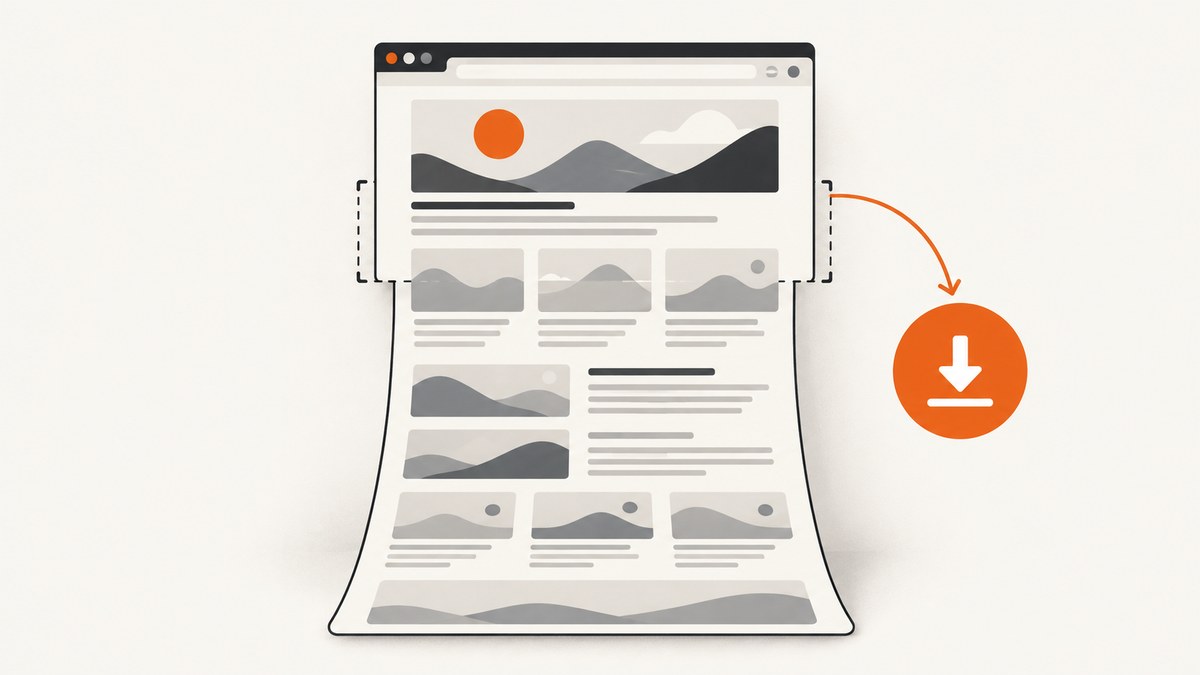
Firefox can save a web page as an image without an extension. For a normal capture, open the page, press Ctrl+Shift+S on Windows or Linux ( Command+Shift+S on macOS), choose Save full page, and select Download. Firefox writes a PNG to your usual Downloads folder. Use Save visible for only the current viewport, drag to select a region, or click an automatically highlighted page part to capture one element.
This guide covers the built-in tool, Developer Tools, the Web Console command, difficult pages, file naming, troubleshooting, automation, and an API option when you need repeatable captures from code or a server.
1. Save a full Firefox page with the built-in screenshot tool
- Navigate to the page you want to save and wait for its important content to render.
- Right-click an empty area and choose Take Screenshot. You can also use the keyboard shortcut: Ctrl+Shift+S on Windows/Linux or Command+Shift+S on macOS. Mozilla documents both entry points in Take screenshots in Firefox.
- Choose one of the capture modes: Save full page, Save visible, a dragged region, or an automatically highlighted page part.
- Review the preview. Select Download to save an image file or Copy to put it on the clipboard.
Save full page includes content below the fold. It is the right choice for an article, documentation page, landing page, or long report. Save visible captures only what is currently displayed. Region selection is useful for a chart or a small section. Automatic page-part selection lets you capture an article, card, or other component without measuring its coordinates.
Downloaded screenshots use the same folder as ordinary Firefox downloads. Mozilla describes a default name similar to Screenshot year-month-day at hour-minute-second Page title.png; localization and Firefox implementation can change the exact text. Rename the file after download when a stable name matters.
2. Prepare the page before capturing
What you see at capture time becomes part of the image. Before opening the screenshot tool:
- Scroll or interact with the page if a menu, tab, accordion, or chart must be visible.
- Dismiss cookie dialogs, newsletter forms, chat bubbles, and sticky notices that obscure content.
- Wait for images, fonts, charts, and client-rendered text to finish loading. A full-page image can otherwise contain empty placeholders.
- Set the browser zoom and window size deliberately. Zoom changes the amount of content in the viewport and can change text wrapping.
- For a page that loads content as you scroll, scroll through it once before capturing so lazy resources have a chance to load.
Fixed headers and floating buttons may appear repeatedly or cover content in a full-page result. If the built-in capture is not clean, use the Developer Tools controls below or hide the obstructing element temporarily with the Inspector.
3. Capture an entire page or one element with Developer Tools
Firefox Source Docs describe an additional screenshot button that is disabled by default. Open Developer Tools with F12 or Ctrl+Shift+I, open its settings, and find Available Toolbox Buttons. Enable Take a screenshot of the entire page. A camera button then appears in the Developer Tools toolbar; clicking it saves the full document to Downloads.
The Inspector can capture a selected node. Select the element in the markup tree, open its context menu, and choose Screenshot Node. This is useful when the page has a large layout but you need one product card, table, or article body. The method and button names are documented in Firefox screenshot documentation.
When Developer Tools is preferable
- You need a CSS-selected element rather than a manually dragged rectangle.
- You want a repeatable command or a delay before capture.
- You need to adjust device-pixel ratio (DPR) for sharper output.
- The context-menu tool is missing or difficult to invoke in an embedded frame.
4. Use the Web Console screenshot command
Firefox’s Web Console provides a command-line route for captures. Open Developer Tools, select Console, and run:
screenshot page.png --fullpageThe --fullpage flag includes content outside the current window. Firefox documents options for delaying capture, selecting a device-pixel ratio, forcing file output, setting a filename, and selecting one CSS element:
screenshot report.png --fullpage --delay 2 --dpr 2 --selector "main article"| Option | Purpose | Example |
|---|---|---|
--fullpage |
Capture the complete document, not only the viewport. | --fullpage |
--delay |
Wait before taking the image so animations or late content can settle. | --delay 2 |
--dpr |
Set device-pixel ratio for output density. | --dpr 2 |
--filename |
Choose the output filename. | --filename archive.png |
--file |
Force writing the result to a file. | --file |
--selector |
Capture the element matching a CSS selector. | --selector "#invoice" |
Use a delay only when needed. A long delay slows every capture, while a short delay can still catch an animation or network request in progress. Prefer a selector for an element whose size changes; coordinate-based regions become invalid when text wraps differently.
5. Choosing PNG, resolution, and output handling
Firefox’s screenshot tool produces an image suitable for sharing or archiving. PNG is lossless and preserves text and sharp UI edges, but a very long page can create a large file. If you need a different format, save the PNG and convert it with an image tool after capture. Keep the original when the screenshot is evidence or may need later cropping.
DPR controls pixel density in the Console workflow. A DPR of 2 can make text clearer on high-density displays but approximately increases pixel count in both dimensions, which raises memory and file-size pressure. Extremely long pages at high DPR may exceed image or clipboard limits. Capture sections or reduce DPR when Firefox becomes unresponsive.
6. Pages that do not capture cleanly
Full-page screenshots are assembled from a document that may be changing while Firefox scrolls or renders. Common complications include:
- Lazy images: images appear only after entering the viewport. Scroll through the page first, or use a capture method that explicitly waits for them.
- Nested scroll containers: a panel with its own scrollbar may not expand when the outer document is captured. Capture that element separately.
- Fixed and sticky UI: headers, consent bars, and chat buttons can overlap content or repeat. Dismiss or hide them before capture.
- Iframes: cross-origin frames may render differently from the parent document and cannot always be inspected from the parent page.
- Animations and carousels: two captures can differ because the frame changed. Pause animation or add a Console delay.
- Virtualized lists: a framework may keep only visible rows in the DOM. A screenshot cannot include rows that the page never rendered.
Browser-internal pages, the built-in PDF viewer, some extension pages, and certain about: pages restrict access. Mozilla Add-ons guidance also notes restrictions around internal pages, addons.mozilla.org, the PDF viewer, and Reader View. In those cases, use the page’s own export function or a permitted URL instead.
7. Optional extension for complex pages
GoFullPage – Full Page Screen Capture is listed in Mozilla Add-ons and describes support for complex pages, inner scrollable elements, and embedded iframes, with image or PDF download. Treat any extension as optional: review its current permissions, update history, and operating terms before installing it. A browser extension also cannot bypass Firefox restrictions on protected internal pages.
8. Troubleshooting checklist
| Symptom | Likely cause | Fix |
|---|---|---|
| Take Screenshot is missing | Menu item is unavailable in the current layout. | Use the keyboard shortcut, or add the Screenshot button through Customize Toolbar. |
| Only the viewport is saved | Save visible was selected. | Run the tool again and choose Save full page, or use --fullpage in the Console. |
| Bottom sections are blank | Lazy loading had not run. | Scroll through the document, wait for images, then capture again. |
| Content is covered by a bar | Sticky consent, chat, or newsletter UI is still present. | Dismiss it, hide the selector in Inspector, or capture the underlying element. |
| Screenshot Node is unavailable | No element is selected, or the page is protected. | Select a DOM node in Inspector and retry; use a normal page URL when internal-page restrictions apply. |
| Output is blurry | Low DPR, browser zoom, or an image that was scaled after capture. | Use --dpr 2, keep the original dimensions, and resize only at the end. |
| Firefox freezes on a huge page | Full-page pixel dimensions exceed practical memory limits. | Capture sections, lower DPR, close other tabs, or use an automated service that can process jobs separately. |
| Two captures differ | Dynamic data, ads, animation, or time-dependent content changed. | Pause animation, block changing content where possible, add a delay, and record the capture URL and time. |
9. Automate captures with ScreenshotNeo
Manual Firefox capture is ideal for an occasional page. For scheduled reports, many URLs, server-side jobs, or a pipeline that must return an image without a desktop browser, ScreenshotNeo provides a website screenshot API and MCP server. A GET request returns PNG, JPEG, WebP, or PDF. Its capture options include full-page output with lazy images loaded, CSS-element capture, dark mode, device presets or custom viewports, retina scale, custom CSS and JavaScript, clicks, selector waits, delays, network-idle waits, request blocking, headers, cookies, user agents, Authorization, timezone, geolocation, transparent backgrounds, resizing, caching, signed links, asynchronous jobs, webhooks, bulk capture of up to 100 URLs per call, usage data, and an OpenAPI specification.
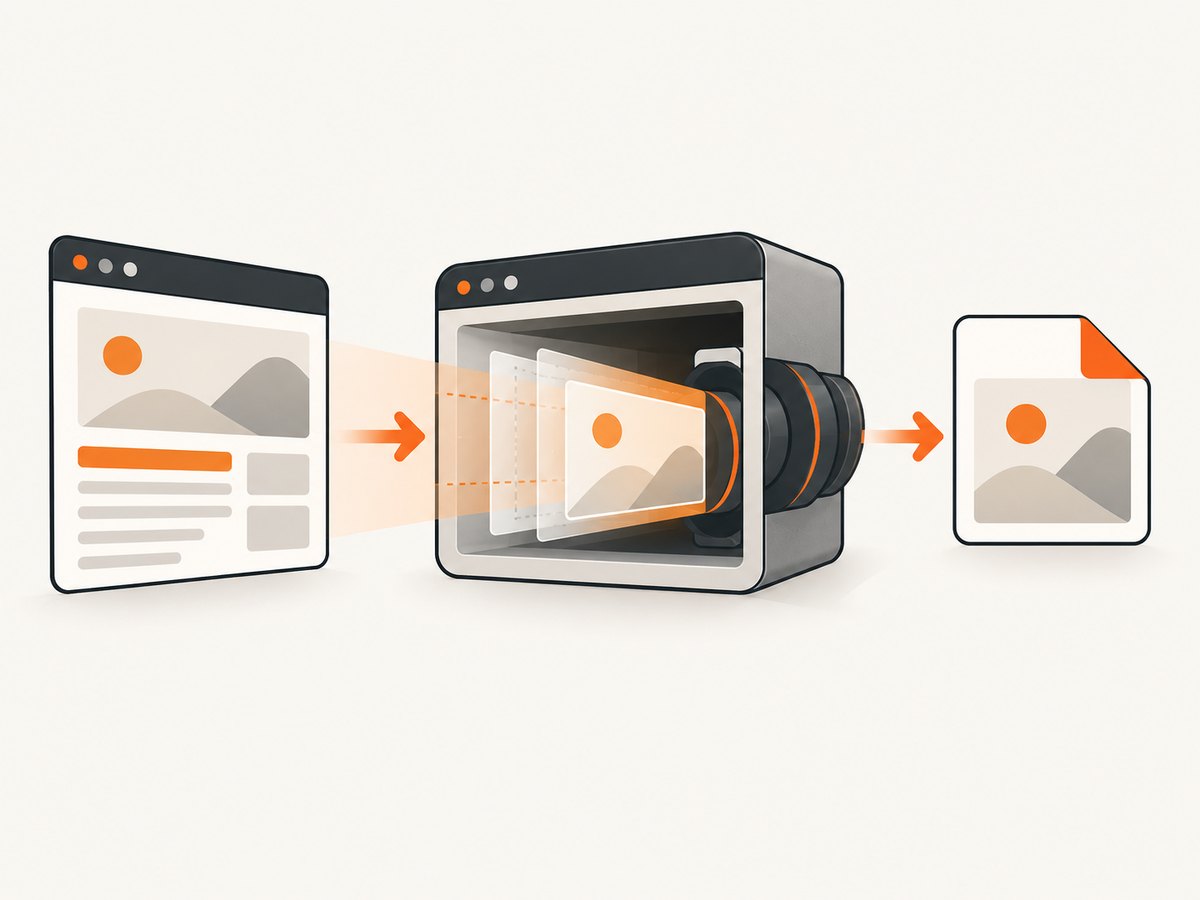
See the ScreenshotNeo documentation for parameter details. The following examples use the same URL and write the returned bytes to a file.
cURL
curl -G "https://api.screenshotneo.com/v1/shot" -d access_key=YOUR_API_KEY --data-urlencode url=https://stripe.com -o shot.webpPython
import requests

r = requests.get("https://api.screenshotneo.com/v1/shot", params={"access_key": "YOUR_API_KEY", "url": "https://stripe.com"}, timeout=90)
r.raise_for_status()
open("shot.webp", "wb").write(r.content)
Node.js
const q = new URLSearchParams({ access_key: 'YOUR_API_KEY', url: 'https://stripe.com' });
const res = await fetch(`https://api.screenshotneo.com/v1/shot?${q}`);
if (!res.ok) throw new Error(`HTTP ${res.status}`);
const bytes = Buffer.from(await res.arrayBuffer());
await import('node:fs/promises').then(fs => fs.writeFile('shot.webp', bytes));
ScreenshotNeo accepts the parameter names used by other screenshot APIs, which can reduce migration work. For a public <img> tag, use a signed link instead of exposing an access key. For long-running captures, use asynchronous jobs and signed webhooks; for repeated requests, choose a cache TTL that matches how often the page changes.
10. Why an automated capture may be cleaner
ScreenshotNeo accepts cookie and consent banners like a visitor and removes more than 60 known consent platforms, newsletter popups, and chat widgets before the capture; each step can be disabled. Bot checks or CAPTCHAs, blank pages, timeouts, failed loads, and cache hits are not billed as clean shots. Responses identify the result with X-Page-Verdict and X-Billed headers. An MCP server exposes take_screenshot, get_page_info, and capture_pdf to Claude, Cursor, and other MCP clients.

For reliability, check the HTTP status and verdict headers, set a client timeout longer than the page’s expected load time, retry only transient failures, and keep the source URL with each artifact. Full-page images can still be large; use WebP or resizing when downstream storage and transfer matter. Caching avoids repeated work for unchanged URLs, while a short TTL keeps frequently updated pages fresh.
11. Cost and plan considerations
ScreenshotNeo’s Free plan includes 1,000 shots per month with no card. Paid plans are Starter ($5 for 3,000), Growth ($15 for 15,000), Pro ($39 for 60,000), Scale ($99 for 250,000), and Business ($249 for 1,000,000); yearly billing provides two months free. Every feature is available on every plan. Because only clean shots are billed, inspect the verdict and billed headers when estimating usage for pages that often fail or show bot checks.
12. FAQ
Can Firefox save a page as JPEG?
The built-in workflow saves a screenshot image as a PNG. Convert the downloaded PNG afterward if a JPEG is required, or request JPEG from an image API such as ScreenshotNeo.
Does full-page capture include content below the fold?
Yes. Choose Save full page or run the Console command with --fullpage. Content that the site never renders, such as virtualized rows, cannot appear.
How do I capture just one article?
Use automatic page-part selection, drag a region, choose the article node in Inspector and select Screenshot Node, or run screenshot article.png --selector "article".
Can I copy the screenshot without saving it?
Yes. Select Copy in the preview to place the image on the clipboard.
What is the best method for many URLs?
Use an automated API or job queue. ScreenshotNeo supports bulk capture for up to 100 URLs per call, asynchronous jobs, signed webhooks, caching, and an MCP server for AI-assisted workflows.
Or skip the browser setup
Use one API call when you need a repeatable capture from a script or server. ScreenshotNeo removes cookie banners, popups, and chat widgets before the shot; bot checks, blank pages, and failed loads are never billed; its MCP server lets AI agents take screenshots; 1,000 screenshots a month are free with no card and paid plans start at $5 for 3,000. Create a free ScreenshotNeo account.


