How to Save a Full-Page iPhone Screenshot as a PDF
Save an entire Safari page as a PDF on iPhone using Full Page, or export a webpage with Safari’s separate PDF workflow.
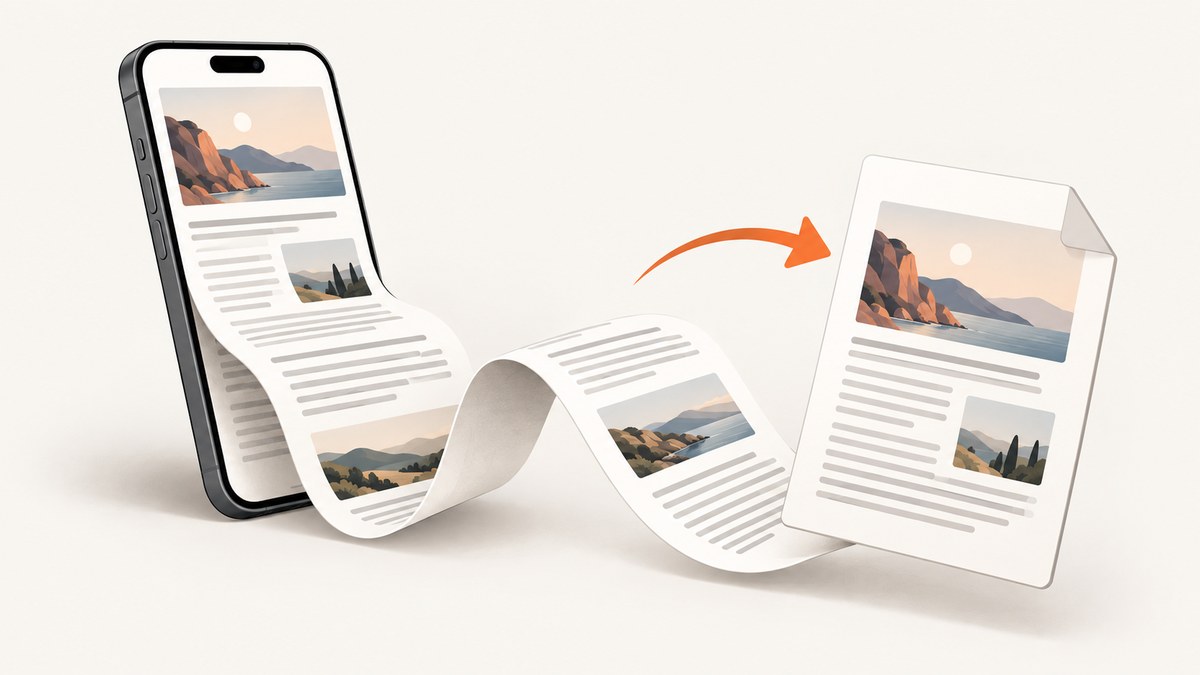
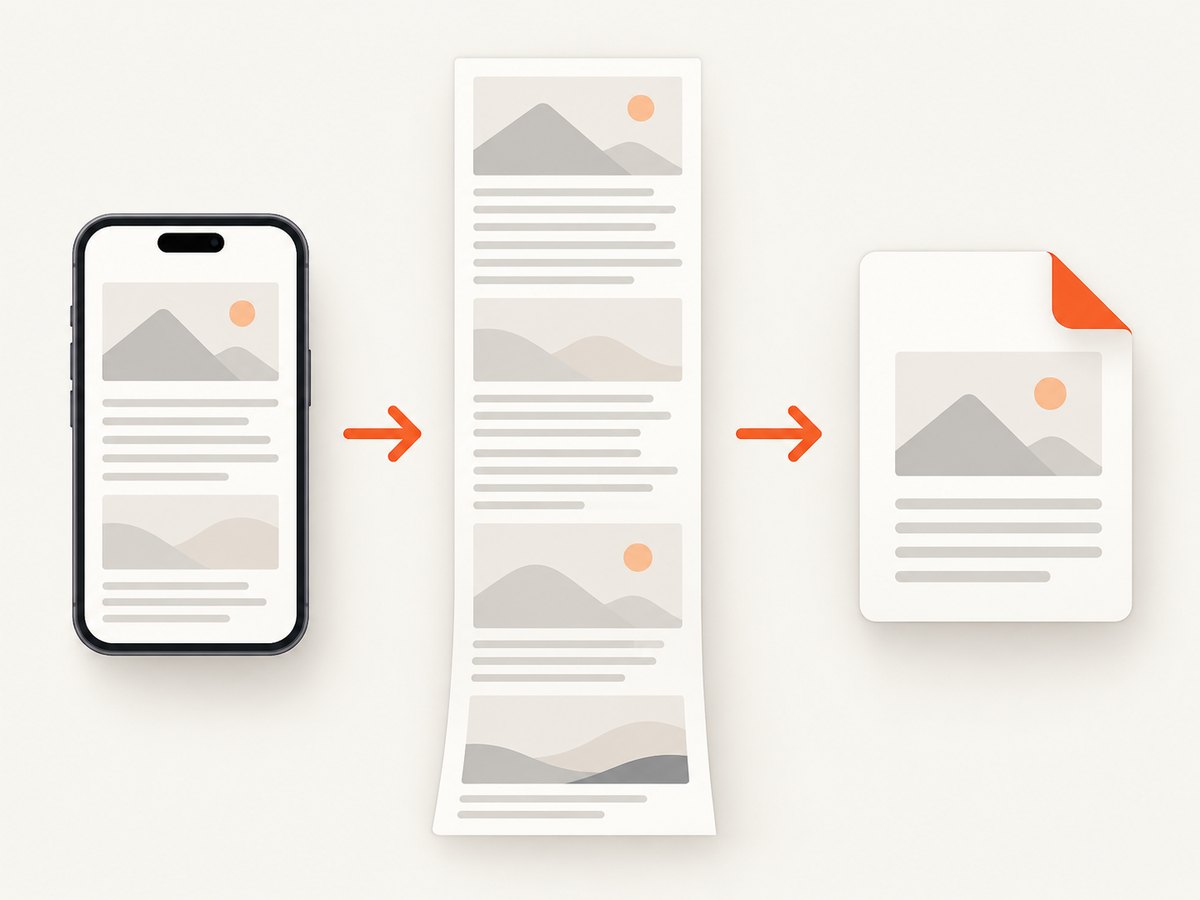
To save a full-page iPhone screenshot as a PDF, open the content, take a screenshot, tap Full Page, then choose Save PDF to Files. Apple documents this flow for content that extends beyond the visible screen, with an entire Safari webpage as its example. The resulting PDF is saved in Files; an ordinary screenshot is saved to Photos by default.
Save a full-page screenshot as a PDF on iPhone
- Open the content. In Safari, load the webpage you want to preserve. Let the page finish loading before capturing it. Full Page is intended for content that continues below the visible screen. Apple’s instructions use a webpage as the example, but they do not say that every third-party app supports full-page capture.
- Take a screenshot. On an iPhone with Face ID, quickly press and release the side button and Volume Up together. On an iPhone with a Home button, quickly press and release the side button and Home button together.
- Tap the screenshot preview. A thumbnail appears briefly. Tap it to open the screenshot controls.
- Select Full Page. This option appears in the screenshot editor when the current content supports a full-page capture. Drag the preview to inspect the portion below the visible screen.
- Crop if necessary. Use the crop controls to remove unwanted margins or content. Review the entire document before saving because a long page can contain sections you did not notice in the initial view.
- Open the save or options control. Choose Save PDF to Files, select a folder, optionally rename the file, and tap Save.
Apple distinguishes this from the normal screenshot behavior: screenshots are automatically saved to Photos, while the PDF route is an explicit save action to Files. The file you create is a PDF representation of the captured page, rather than a series of separate image files.
What to check before saving
- Scroll through the preview to confirm that the lower sections loaded.
- Close or dismiss a fixed cookie notice if it covers the page before you capture it.
- Check that expandable sections, lazy-loaded images, and accordions show the information you need.
- Crop browser-only whitespace when a compact document is easier to read or share.
- Choose a known Files location, such as iCloud Drive or On My iPhone, so you can find the PDF later.
Why Full Page may not appear
The Full Page control is contextual. Apple’s guide establishes the feature and demonstrates it with an entire webpage in Safari; it does not promise that every app, document viewer, or embedded web view exposes the option. If you do not see Full Page, first confirm that you captured a supported webpage or document view rather than an app screen with fixed content.
Some pages also behave differently because their content is inside a scrollable panel, an iframe, or a reader that loads sections only as you move. A screenshot can capture the visible surface while the rest remains unavailable to the system’s full-page capture. In that situation, try the page directly in Safari, wait for it to finish loading, and capture again. If the information is a webpage and you mainly need a PDF export, Safari has a separate workflow described below.
Safari’s separate webpage-to-PDF workflow
Safari can export a webpage as a PDF without using the screenshot editor. This is a webpage export flow, not the Full Page screenshot route. Use it when you want Safari to produce a document from the page and do not need to mark up a screenshot.
- Open the webpage in Safari.
- Tap Share. Depending on the Safari layout, Apple says the control may also be available through the Page Menu.
- Choose Markup.
- Review the generated page, then tap Done.
- Choose Save File To, select a destination, name the PDF, and save it.
Use the screenshot route when you specifically need a full-page screenshot that you can review and crop. Use the Safari export route when your goal is a webpage PDF and you do not need the screenshot controls. The two routes have different entry points and save actions, even though both can result in a PDF in Files.
| Question | Full Page screenshot | Safari webpage export |
|---|---|---|
| Where it starts | Take a screenshot, then open its controls | Safari Share or Page Menu |
| What you select | Full Page | Markup |
| Save action | Save PDF to Files | Done, then Save File To |
| Best for | Capturing and cropping a long page as a screenshot | Exporting a webpage as a PDF document |
Handling pages that are difficult to capture
Cookie banners, chat bubbles, and newsletter popups
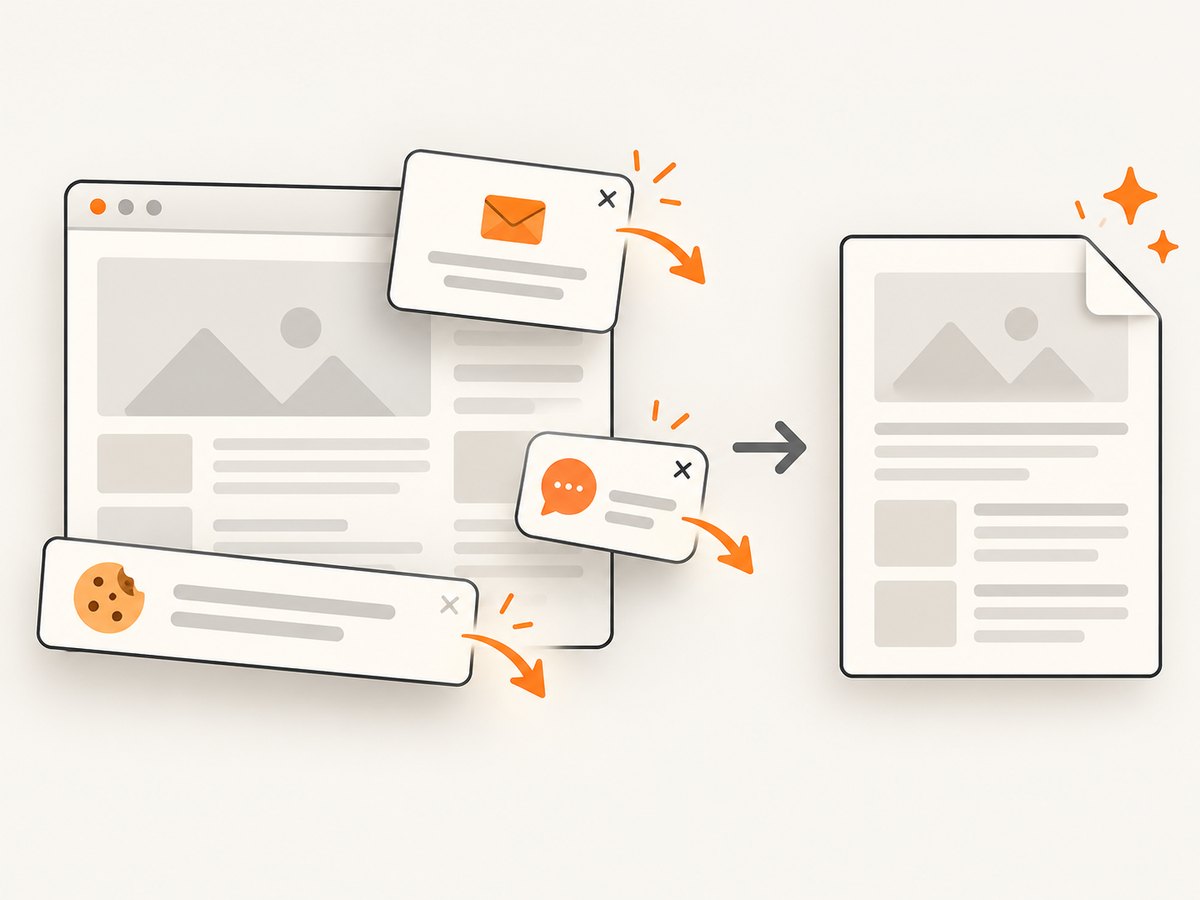
A consent banner or floating chat widget can cover the page in both the screenshot preview and the exported document. Dismiss it before capturing when the page provides a close or accept control. If the banner returns on every visit, open the site’s settings and make the choice that matches your privacy preference, then reload the page.
Lazy-loaded images and long feeds
Some sites load images only after you scroll near them. Move through the page once before taking the screenshot so the content you need has loaded. A page that uses an internal scroll area may still omit content outside that area, because Full Page follows the supported document surface rather than every nested panel.
Fixed headers and repeated navigation
A sticky header may appear repeatedly or cover text while you review the result. Crop the PDF when the header is only visual clutter. If it hides important content, try a reader view or the site’s print-friendly page, if available, before exporting.
Very long pages
Long pages take longer to render and review. Wait for the screenshot editor to finish generating the preview, then inspect the beginning, middle, and end. If the page is too large to handle comfortably, save separate sections or use the site’s own PDF or print feature.
Or skip the browser setup
If you need repeatable captures from code, ScreenshotNeo provides a website screenshot API and MCP server. A single request to ScreenshotNeo can return a clean PNG, JPEG, WebP, or PDF. The service accepts options for full-page capture, lazy-image loading, PDF paper size, margins, landscape mode, page ranges, custom CSS and JavaScript, waiting for a selector or network idle, and many other capture controls. See the ScreenshotNeo documentation for the current request parameters.
Here is the basic request shape. Replace the URL with the page you need and provide your API key. Configure PDF output using the documented PDF options for your request.
cURL
curl -G "https://api.screenshotneo.com/v1/shot" -d access_key=YOUR_API_KEY --data-urlencode url=https://stripe.com -o shot.webpPython
import requests

r = requests.get(
    "https://api.screenshotneo.com/v1/shot",
    params={"access_key": "YOUR_API_KEY", "url": "https://stripe.com"},
    timeout=90,
)
r.raise_for_status()
open("shot.webp", "wb").write(r.content)
Node.js
const q = new URLSearchParams({ access_key: 'YOUR_API_KEY', url: 'https://stripe.com' });
const res = await fetch(`https://api.screenshotneo.com/v1/shot?${q}`);
if (!res.ok) throw new Error(`Screenshot failed: ${res.status}`);
const buffer = Buffer.from(await res.arrayBuffer());
require('node:fs').writeFileSync('shot.webp', buffer);
ScreenshotNeo removes cookie and consent banners, newsletter popups, and chat widgets before capture. Bot checks, blank pages, timeouts, failed loads, and cache hits are not billed; the response identifies the result with X-Page-Verdict and X-Billed headers. Its MCP server exposes take_screenshot, get_page_info, and capture_pdf tools for Claude, Cursor, and other MCP clients. You can also use custom viewport or device presets, retina scale, element selectors, hidden selectors, request blocking, headers, cookies, user agents, authorization, timezone, geolocation, transparent backgrounds, resizing, caching with a chosen TTL, signed links, asynchronous jobs with signed webhooks, bulk capture of up to 100 URLs per call, and the usage API.
There are 1,000 free screenshots each month with no card. Paid plans start at $5 for 3,000 shots; yearly billing gives two months free, and every feature is available on every plan. Create a free ScreenshotNeo account to start.
Troubleshooting checklist
| Symptom | Likely cause | Fix |
|---|---|---|
| Full Page is missing | The app or embedded view does not expose supported full-page content | Try the page directly in Safari or use Safari’s webpage-to-PDF workflow. |
| The PDF stops early | Content is inside a nested scroll panel or did not finish loading | Wait, scroll through the page once, and retry from the main document view. |
| Images are blank | Images are lazy-loaded or blocked until scrolling | Scroll through the page before capture and check the connection. |
| A banner covers text | Consent, newsletter, or chat overlay is still open | Dismiss it, reload, and capture again; crop only after verifying no text is hidden. |
| The file cannot be found | It was saved to a different Files location | Open Files, use Search, and check iCloud Drive, On My iPhone, and Recent. |
| The export looks different from the screen | Screenshot and webpage export use different rendering paths | Choose Full Page for a screenshot-like result or Safari Markup for a webpage PDF. |
Reliability, privacy, and file management
For a one-off document, the built-in iPhone workflow is usually the shortest path. Review the preview before saving because a PDF can contain more content than the visible screen. For recurring reports or many URLs, automation is easier to repeat: define the URL, wait condition, viewport, and output format in code, then store the returned file with a predictable name.
Keep the original webpage URL with the PDF when the document may need to be verified later. Webpages change, links expire, and interactive content may not be represented in a static file. If the PDF contains private information, choose a protected Files location and share it only through a channel appropriate for that information.
Frequently asked questions
Does a full-page iPhone screenshot always create a PDF?
No. A normal screenshot is saved to Photos. You must open the screenshot controls, choose Full Page, and select Save PDF to Files.
Can I use Full Page in every iPhone app?
Apple’s documented example is an entire webpage in Safari. Availability can depend on the app or document view.
Is Safari Markup the same as Full Page?
No. Full Page is a screenshot-editor option. Safari Markup is a separate webpage export flow that ends with Save File To.
Can I save a PDF that is already open in Safari?
Yes. Apple documents using the Page Menu or Share control and choosing Save to Files for a downloaded PDF.
How do I automate a webpage PDF?
Use an API such as ScreenshotNeo, configure the documented PDF options, and request the page from code. Its MCP tools can also let supported AI agents call screenshot and PDF capture operations.
Summary
For an iPhone, the direct route is: take a screenshot, tap Full Page, review or crop it, and choose Save PDF to Files. When you want a webpage export instead, use Safari’s Share or Page Menu, Markup, Done, and Save File To sequence. For repeatable captures across many pages, ScreenshotNeo handles page cleanup and automated PDF capture through an API or MCP server.


