How to Save a Full-Page Screenshot of a Website
Save an entire webpage with Firefox, Edge, Chrome extensions, or one ScreenshotNeo API call. Includes full-page tips, code, troubleshooting, and format options.

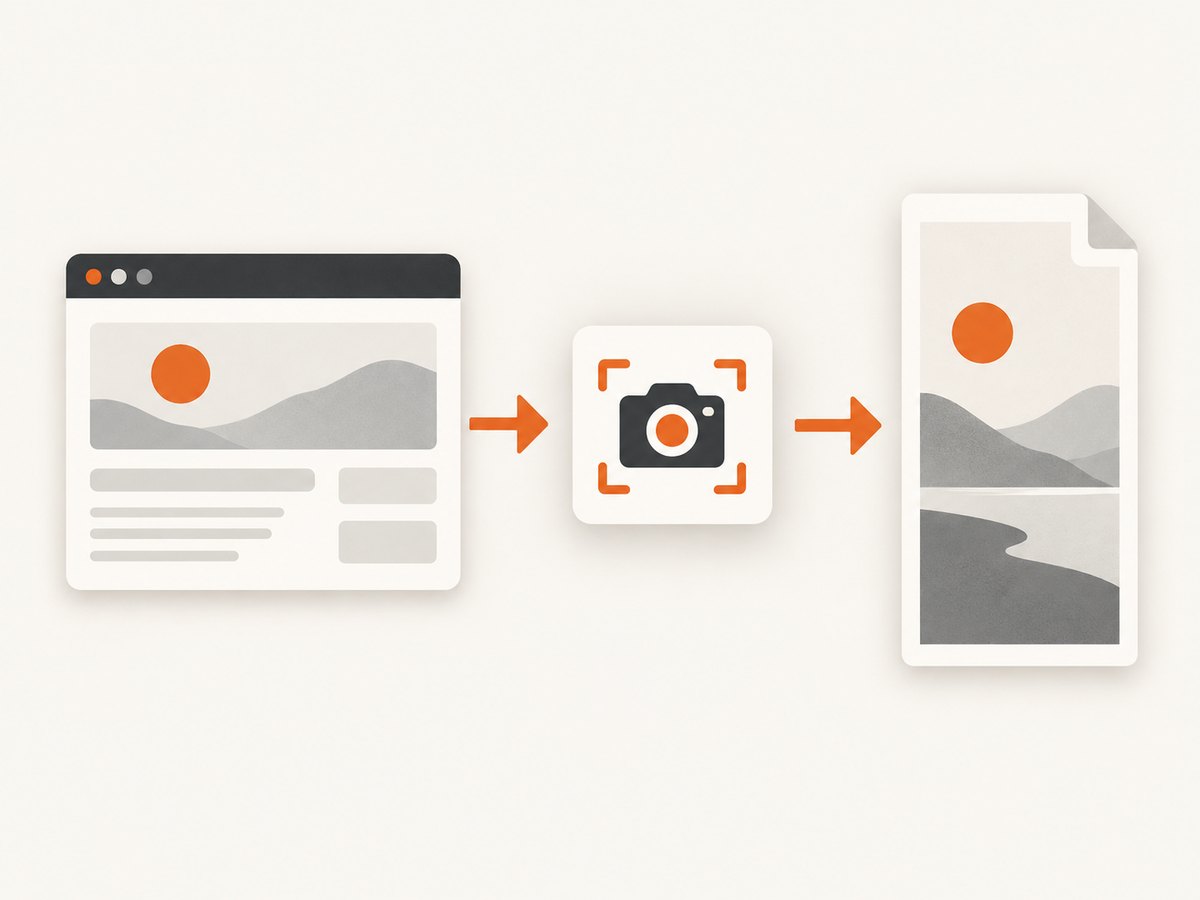
A full-page screenshot captures the content below the browser window, including sections you would normally need to scroll to see. The quickest method depends on your browser:
- Firefox: use the built-in Screenshot tool and choose Save full page.
- Microsoft Edge: open Screenshot and choose the full-page option.
- Chrome: use a current full-page capture extension; the research for this guide did not verify a current native Chrome workflow.
- Automation: use a browser script or ScreenshotNeo when you need repeatable captures, custom settings, or an API.
For a one-off image, start with the browser instructions below. For scheduled captures, many URLs, or clean output without consent banners and overlays, jump to Or skip the browser setup.
Firefox: save the entire page
Firefox includes a Screenshot tool that can save either the visible viewport or the complete page. The labels can change slightly between Firefox versions.
Using the Screenshot button
- Open the webpage you want to capture.
- Right-click the page and choose Take Screenshot, or open the browser menu and select the Screenshot tool.
- Choose Save full page in the upper-right area of the capture interface.
- Choose Download to save a PNG to Firefox’s normal downloads folder, or choose Copy to place the image on your clipboard.
Firefox also supports keyboard shortcuts for the final action: Ctrl+S or Command+S downloads the image, while Ctrl+C or Command+C copies it. Mozilla documents these controls in its Firefox Screenshots guide.
Using Firefox Developer Tools
Developer Tools gives you a repeatable full-page command and an option to capture a particular element.
- Open Developer Tools with F12 or Ctrl+Shift+I (Command+Option+I on macOS).
- Open the Developer Tools settings menu.
- Under Available Toolbox Buttons, enable the screenshot button.
- Click the screenshot button and enable Take a screenshot of the entire page.
- Click the screenshot icon. Firefox saves the PNG in your Downloads directory.
Mozilla’s Developer Tools screenshot documentation also describes the Web Console helper:
:screenshot --fullpageUseful options include:
:screenshot --fullpage --delay 2000 --dpr 2 --filename page.png
:screenshot --selector ".article" --filename article.png
:screenshot --fullpage --clipboard--delaywaits before capture, useful for animations or late content.--dprsets device pixel ratio.--filenamechooses the output name. Use a.pngextension.--clipboardcopies the result instead of saving it.--selectorcaptures an element and its descendants instead of the whole document.
Reusing a filename overwrites the previous image, so use unique names when collecting several versions.
Microsoft Edge: capture a full webpage
Edge’s Screenshot tool can capture the complete webpage, including content below the viewport. Microsoft says you can open it from the right-click menu or Edge settings, and the shortcut is Ctrl+Shift+S. See Microsoft’s Screenshot feature page for current availability.
- Open the page in Edge.
- Right-click and select Screenshot, open Edge settings and choose Screenshot, or press Ctrl+Shift+S.
- Select the full-page capture option.
- Use the overlay tools if you need to draw or mark up the capture.
- Choose Save to download the image or Copy to put it on the clipboard.
Edge can keep moving content such as GIFs and carousels on screen while capturing. Availability and behavior can vary by device, market, and browser version, so check the current tool if a menu item is missing.
Chrome: use a full-page capture extension
The research for this guide did not establish a current, authoritative native Chrome procedure. Chrome Web Store listings do provide full-page capture extensions. For example, the GoFullPage listing describes long-page scrolling, fixed elements, frames, and PDF export, and another listing advertises annotation plus PNG, JPG, and PDF output. Those are publisher claims from marketplace listings, not independent performance guarantees.
- Open the Chrome Web Store and search for a full-page screenshot extension.
- Review the current publisher, permissions, privacy policy, reviews, and store status.
- Install the extension and open the page to capture.
- Use the extension’s full-page command and export the result in its supported format.
If the result is incomplete, first load the page normally and scroll through it. Dynamic pages, lazy-loaded images, sticky headers, nested scrolling regions, and cross-origin frames can produce different results between extensions and browser versions.
Browser-independent method: automate Chromium
When you need repeatable captures, a script gives you control over the viewport, wait time, and output path. The following example uses Playwright with Node.js.
npm install playwright
npx playwright install chromium
import { chromium } from 'playwright';
const browser = await chromium.launch();
const page = await browser.newPage({ viewport: { width: 1440, height: 900 }, deviceScaleFactor: 1 });
await page.goto('https://example.com', { waitUntil: 'networkidle', timeout: 90000 });
await page.screenshot({ path: 'full-page.png', fullPage: true });
await browser.close();Change waitUntil to domcontentloaded for pages that keep network connections open. Add an explicit wait for content that appears after JavaScript runs:
await page.waitForSelector('main article', { state: 'visible', timeout: 30000 });
await page.waitForTimeout(1000);
You can capture one element instead of the complete document:
const article = page.locator('main article');
await article.screenshot({ path: 'article.png' });
For pages with lazy images, scroll before taking the screenshot so image requests are triggered:
await page.evaluate(async () => {
  await new Promise(resolve => {
    let y = 0;
    const step = 700;
    const timer = setInterval(() => {
      window.scrollBy(0, step);
      y += step;
      if (y >= document.body.scrollHeight) {
        clearInterval(timer);
        window.scrollTo(0, 0);
        resolve();
      }
    }, 100);
  });
});
Options that affect the result
| Requirement | Approach | Common issue |
|---|---|---|
| Entire document | Full-page mode or fullPage: true |
Very tall pages can create large files. |
| One section | Firefox --selector, a locator screenshot, or a CSS selector API option |
The selector may not exist until JavaScript finishes. |
| Late content | Delay, selector wait, or network-idle wait | Network idle may never occur on pages with analytics or live feeds. |
| Retina quality | Set device scale factor or DPR | Higher scale increases memory use and file size. |
| Fixed headers | Hide the header with CSS or remove it before capture | A sticky header can cover content repeatedly. |
| Cookie banners | Accept or dismiss them before capture | Consent state can differ between a fresh and returning session. |
| Nested scroll area | Scroll the inner container separately | Full-page mode may only expand the document, not an inner panel. |
Why full-page captures fail
Lazy-loaded images are missing
Many sites request images only when they approach the viewport. Scroll through the document first, wait for image requests to finish, and then return to the top before capturing. In automation, trigger a controlled scroll and wait for the image selector or network activity to settle.
The page is blank or only partly rendered
Check that the URL is reachable without a login, that JavaScript is enabled, and that the page did not show a bot check. Increase the navigation timeout and wait for a meaningful selector instead of relying only on a short fixed delay.
A cookie notice or chat widget covers content
Dismiss the notice before capture. For scripts, click its close or accept button, or inject CSS that hides the known selector. Chat widgets and newsletter popups often load after the initial page, so wait briefly before the screenshot.
Sticky elements appear many times
A fixed header can be painted at each segment of a long capture. Hide it with custom CSS, switch to an element capture, or use a capture service with hide-selector support.
The image is too large
Reduce viewport width, device scale factor, or output dimensions. JPEG or WebP usually produces smaller files than PNG when photographic content dominates. Keep PNG for sharp text, transparency, or archival lossless output.
Fonts or icons are missing
Wait for document.fonts.ready, confirm that font requests are not blocked, and capture after the page has finished layout:
await page.evaluate(() => document.fonts.ready);Performance, reliability, and cost considerations
- Wait intelligently: A selector wait is usually more predictable than an arbitrary long delay. Use a timeout so a missing element fails clearly.
- Control page size: Extremely long pages consume more memory and produce large files. Capture a relevant element when the full document is unnecessary.
- Reuse a browser: For batches, keep one Chromium process open and create a new page per URL.
- Retry transient failures: Retry navigation timeouts and connection resets with backoff, but do not blindly retry authentication failures or bot checks.
- Record metadata: Save the URL, timestamp, viewport, DPR, and browser version with each image so you can reproduce differences.
- Protect credentials: Keep cookies, authorization headers, and extension permissions limited to the pages that need them.
- Watch third-party content: Ads, trackers, live feeds, and analytics can keep a page busy and make network-idle waits unreliable.
Browser features are convenient for occasional work. A hosted API adds usage cost but removes browser installation, process management, and deployment maintenance. Choose based on capture volume and how much control you need.
Or skip the browser setup
ScreenshotNeo is a website screenshot API and MCP server. One GET request returns a PNG, JPEG, WebP, or PDF. It supports full-page captures with lazy images loaded, element capture by CSS selector, dark mode, device presets or custom viewports, retina scale, custom CSS and JavaScript, clicks, selector or delay waits, network-idle waits, blocked ads and trackers, custom headers, cookies, user agents, Authorization, timezone, geolocation, transparent backgrounds, resizing, caching, signed links, asynchronous jobs, webhooks, bulk capture of up to 100 URLs per call, usage data, and an OpenAPI specification. The parameter names used by other screenshot APIs also work, which can simplify migration.

Use the API at https://api.screenshotneo.com/v1/shot. The basic request is:
curl -G "https://api.screenshotneo.com/v1/shot" -d access_key=YOUR_API_KEY --data-urlencode url=https://stripe.com -o shot.webpPython:
import requests

r = requests.get(
    "https://api.screenshotneo.com/v1/shot",
    params={"access_key": "YOUR_API_KEY", "url": "https://stripe.com"},
    timeout=90,
)
r.raise_for_status()
open("shot.webp", "wb").write(r.content)
Node.js:
const q = new URLSearchParams({ access_key: 'YOUR_API_KEY', url: 'https://stripe.com' });
const res = await fetch(`https://api.screenshotneo.com/v1/shot?${q}`);
if (!res.ok) throw new Error(`HTTP ${res.status}`);
const buffer = Buffer.from(await res.arrayBuffer());
await import('node:fs/promises').then(fs => fs.writeFile('shot.webp', buffer));
See the ScreenshotNeo documentation for every option and response detail. Before capture, ScreenshotNeo accepts cookie and consent banners and removes more than 60 known consent platforms, newsletter popups, and chat widgets; each step can be turned off. Bot checks and CAPTCHAs, blank pages, timeouts, failed loads, and cache hits are not billed. Response headers identify the page verdict and whether the request was billed with X-Page-Verdict and X-Billed.
An MCP server provides take_screenshot, get_page_info, and capture_pdf tools for Claude, Cursor, and other MCP clients. The Free plan includes 1,000 screenshots per month without a card. Paid plans start at $5 for 3,000 shots; yearly billing gives two months free, and every feature is available on every plan. Create a free ScreenshotNeo account.
FAQ
Can I save a full-page screenshot as a PDF?
Firefox and Edge focus on image captures, while some Chrome extensions advertise PDF export. ScreenshotNeo supports PDF output with paper size, margins, landscape mode, and page ranges.
Why is my capture longer than the visible page?
Full-page tools include content below the viewport. Sticky headers, expanded menus, and hidden overflow can also change the document’s measured height.
Does full-page capture include content behind a login?
Only if the browser or service has a valid authenticated session. Supply the required cookies or authorization headers when using automation or an API.
What format should I choose?
PNG preserves sharp text and transparency. JPEG is smaller for photographs. WebP is often a practical compact default when the consuming application supports it.
How do I capture a page regularly?
Use a scheduled script or an API with caching, retries, and a stored capture manifest. An API also avoids maintaining a browser process on your server.


