How to Save Generated PDFs to Amazon S3 in Go
Upload generated PDF bytes to Amazon S3 from Go with AWS SDK for Go v2, correct metadata, multipart guidance, retries, and production troubleshooting.
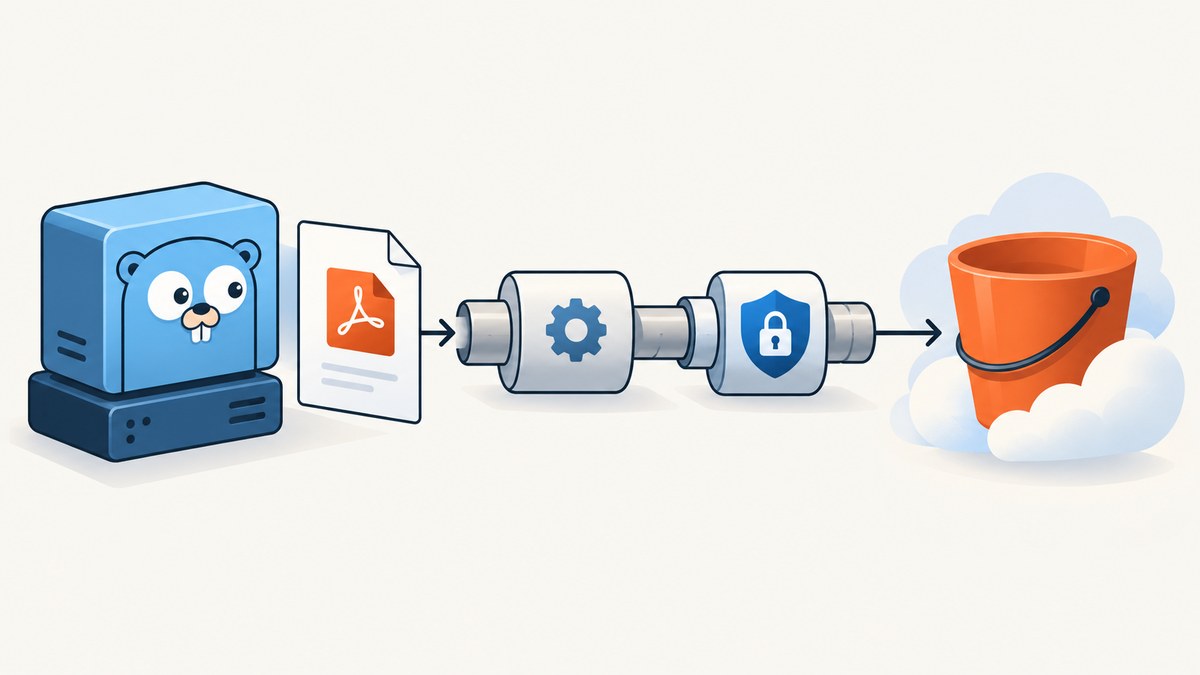
Direct answer: generate the document as []byte (or expose it through an io.Reader), then call AWS SDK for Go v2 PutObject with the destination bucket, object key, reader, and ContentType: application/pdf. For very large PDFs, use the SDK’s S3 transfer manager so the upload can use multipart transfers and bounded concurrency.
This design keeps PDF generation independent from storage. Your generator can be replaced later without changing the S3 code. AWS’s Go examples show both reader-backed uploads and file uploads, while the S3 API defines Content-Type as the MIME type describing the object contents. See the AWS SDK for Go v2 S3 code examples and the PutObject API reference.
What you need before writing code
- An AWS account and an S3 bucket in a chosen region.
- A Go module using AWS SDK for Go v2.
- Credentials available through the SDK’s normal credential provider chain, such as an attached workload role, environment variables, or a local AWS profile.
- A policy allowing the application to write objects to the selected bucket and key prefix.
- A PDF generator that returns bytes, writes to a buffer, or can provide an
io.Reader.
The title does not identify a particular PDF library. That choice depends on layout, fonts, forms, licensing, and other document requirements. The storage boundary below works with output from any generator.
Minimal Go implementation: upload PDF bytes
For ordinary generated documents, keep the PDF in memory and pass a bytes.Reader to PutObject. The SDK’s Body field is an io.Reader, so no temporary file is required.
package main

import (
    "bytes"
    "context"
    "fmt"
    "log"
    "os"

    "github.com/aws/aws-sdk-go-v2/aws"
    "github.com/aws/aws-sdk-go-v2/config"
    "github.com/aws/aws-sdk-go-v2/service/s3"
)

func SavePDF(ctx context.Context, client *s3.Client, bucket, key string, pdf []byte) error {
    if len(pdf) == 0 {
        return fmt.Errorf("PDF is empty")
    }

    _, err := client.PutObject(ctx, &s3.PutObjectInput{
        Bucket:      aws.String(bucket),
        Key:         aws.String(key),
        Body:        bytes.NewReader(pdf),
        ContentType: aws.String("application/pdf"),
    })
    return err
}

func main() {
    ctx := context.Background()

    cfg, err := config.LoadDefaultConfig(ctx)
    if err != nil {
        log.Fatalf("load AWS config: %v", err)
    }

    client := s3.NewFromConfig(cfg)

    // Replace this with output from your PDF generator.
    pdfBytes, err := os.ReadFile("report.pdf")
    if err != nil {
        log.Fatalf("read generated PDF: %v", err)
    }

    if err := SavePDF(ctx, client, "my-report-bucket", "reports/report-2026-09-30.pdf", pdfBytes); err != nil {
        log.Fatalf("upload PDF: %v", err)
    }

    log.Println("PDF uploaded")
}
Install the dependencies with:
go mod init example.com/pdf-upload
go get github.com/aws/aws-sdk-go-v2/config
go get github.com/aws/aws-sdk-go-v2/service/s3
go run .
The call should be considered successful only when PutObject returns without an error. Do not log success before checking that result.
Generate directly into memory
Most PDF packages can write to an io.Writer. A bytes.Buffer lets you generate and upload without creating a temporary file:
var buf bytes.Buffer

// Replace GeneratePDF with the API of your chosen PDF package.
if err := GeneratePDF(&buf, reportData); err != nil {
    return fmt.Errorf("generate PDF: %w", err)
}

if err := SavePDF(ctx, s3Client, bucket, key, buf.Bytes()); err != nil {
    return fmt.Errorf("save PDF: %w", err)
}
For a generator that already provides a seekable reader, adapt the storage function to accept io.Reader or io.ReadSeeker and pass that value as Body. Keeping the function independent of a generator makes it easier to test and reuse.
Object keys, metadata, and download behavior
Choose a key deliberately
The minimum S3 destination is a bucket and key. A deterministic key such as reports/account-42/latest.pdf intentionally overwrites that object on each run. A unique key such as reports/account-42/2026/09/30/report-uuid.pdf preserves each output. Select the pattern according to your retention and overwrite requirements. If reports must remain distinct, include a report ID, timestamp, or UUID.
Set the content type
Always set ContentType to application/pdf. Without it, a browser or downstream client may not handle the object as a PDF. You can also set presentational metadata when needed:
_, err := client.PutObject(ctx, &s3.PutObjectInput{
    Bucket:             aws.String(bucket),
    Key:                aws.String(key),
    Body:               bytes.NewReader(pdfBytes),
    ContentType:        aws.String("application/pdf"),
    ContentDisposition: aws.String(`attachment; filename="report.pdf"`),
})
ContentDisposition controls how clients present the object, for example whether a browser downloads it with a suggested filename. Use a filename derived from trusted data and quote or sanitize it before placing it in a header.
Large PDFs: multipart transfer and concurrency
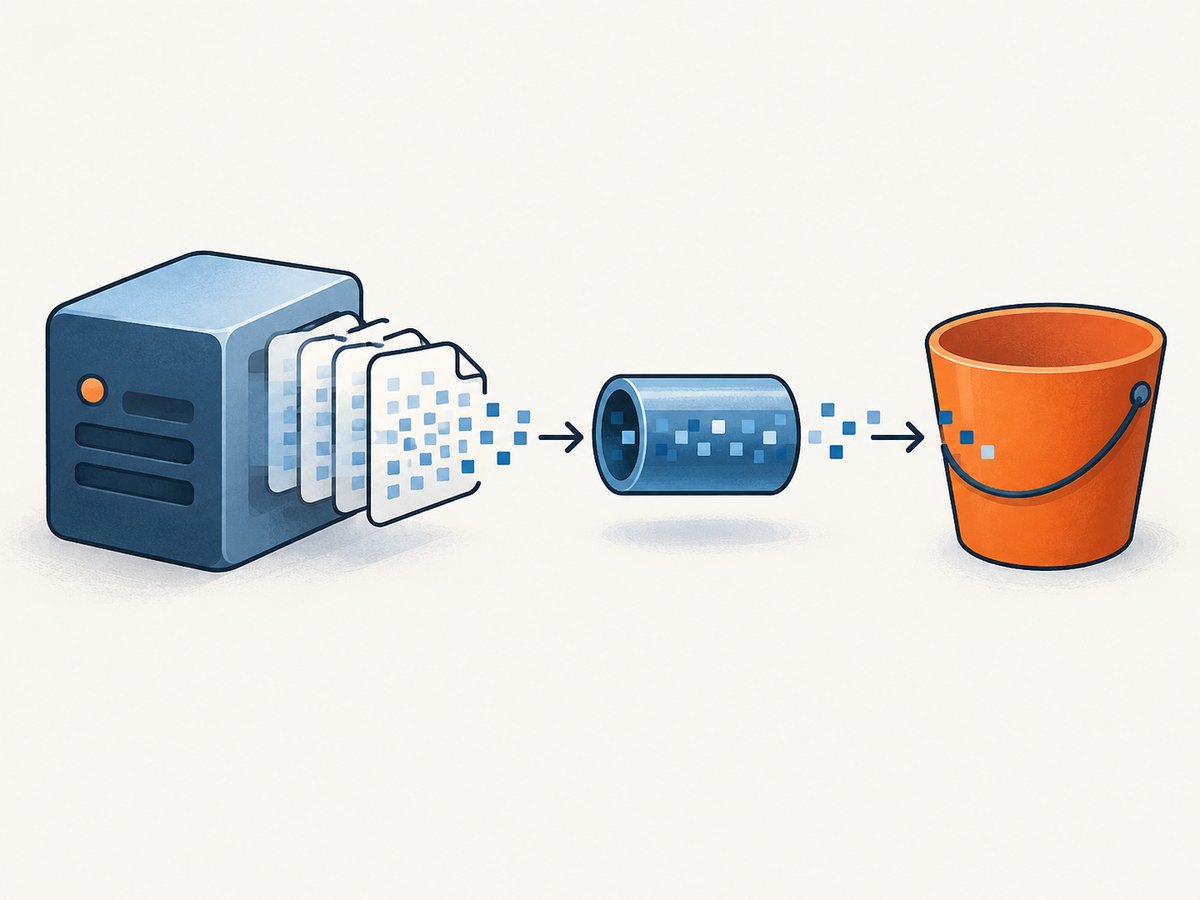
Direct PutObject is the simplest choice for normal report sizes. When outputs are large or uploads need higher throughput, the AWS SDK for Go v2 transfer manager can split the body into multipart parts and upload parts concurrently. AWS documents a 5 MiB minimum part size for multipart uploads and warns that unbounded concurrent calls can exhaust memory, connections, or CPU. Read the S3 transfer manager documentation before selecting settings.
| Concern | Direct PutObject | Transfer manager |
|---|---|---|
| Implementation | One operation with a reader | Manager coordinates multipart parts |
| Best fit | Ordinary generated PDFs | Large files or throughput-focused workloads |
| Controls | Few explicit transfer knobs | Part size and concurrency must be bounded |
| Failure handling | Return the operation error | Handle manager errors and incomplete multipart cleanup according to SDK behavior |
Do not choose multipart solely because it is available. Measure the document sizes and network conditions in your deployment, then set concurrency so several simultaneous uploads cannot exhaust process resources.
Request options worth deciding
- Context and timeout: pass a request context that is cancelled when the job deadline expires. A hung upload should not hold a worker forever.
- Region: load the region through AWS configuration or set it explicitly when your deployment requires it.
- Encryption: apply the bucket’s encryption policy or add the S3 server-side encryption fields required by your environment.
- Cache behavior: if a key is reused, decide whether consumers should see the newest object immediately through your normal S3 consistency and caching architecture.
- Access: keep objects private by default and issue controlled access through your application when documents are sensitive.
- Content length: the SDK can read from a reader; use a source with a known size when your chosen transfer path benefits from it.
cURL, Python, and Node.js alternatives
The Go implementation is the focus of this guide. These equivalents show the same storage boundary when another service or script performs the upload.
cURL with a presigned upload URL
A server can create a presigned S3 URL and let a client upload the generated file without receiving AWS credentials:
curl -X PUT \
  -H 'Content-Type: application/pdf' \
  --upload-file report.pdf \
  'PRESIGNED_S3_PUT_URL'
Python with boto3
import boto3

s3 = boto3.client("s3")
s3.upload_file(
    "report.pdf",
    "my-report-bucket",
    "reports/report.pdf",
    ExtraArgs={"ContentType": "application/pdf"},
)
Node.js with AWS SDK for JavaScript v3
import { S3Client, PutObjectCommand } from "@aws-sdk/client-s3";
import { readFile } from "node:fs/promises";

const client = new S3Client({});
const body = await readFile("report.pdf");

await client.send(new PutObjectCommand({
  Bucket: "my-report-bucket",
  Key: "reports/report.pdf",
  Body: body,
  ContentType: "application/pdf"
}));
Or skip the browser setup
If your PDF starts as a web page, ScreenshotNeo can capture it as a PDF through one HTTP request. You can then send the response bytes to the same S3 function shown above. The API accepts PDF options such as paper size, margins, landscape mode, and page ranges.

See the ScreenshotNeo API documentation for the complete option list. A minimal request is:
curl -G "https://api.screenshotneo.com/v1/shot" -d access_key=YOUR_API_KEY --data-urlencode url=https://stripe.com -o shot.webpFor a PDF response, add the PDF format and relevant PDF parameters described in the documentation, then upload the returned bytes to S3 with ContentType: application/pdf. ScreenshotNeo removes cookie banners, newsletter popups, and chat widgets before capture. Bot checks, blank pages, failed loads, timeouts, and cache hits are not billed, and response headers identify the page verdict and billing result. It also provides an MCP server so Claude, Cursor, and other MCP clients can call take_screenshot, get_page_info, and capture_pdf. The Free plan includes 1,000 screenshots per month without a card; paid plans start at $5 for 3,000.
Create a free ScreenshotNeo account to try the PDF capture flow.
Troubleshooting common failures
| Symptom | Likely cause | Fix |
|---|---|---|
AccessDenied |
The active identity lacks permission for the bucket or key. | Inspect the role or user policy and bucket policy. Confirm the key prefix is allowed. |
NoSuchBucket |
Bucket name is wrong, or the request is going to the wrong account or region. | Verify the exact bucket name and AWS configuration used by the process. |
MissingRegion |
The SDK configuration has no region. | Set the region in your environment, profile, or explicit SDK configuration. |
| Object downloads as generic data | ContentType was omitted or incorrect. |
Set ContentType to application/pdf. |
| Upload times out | Document generation or network transfer exceeds the request deadline. | Use a context with a realistic deadline, retry transient failures, and consider multipart transfer for large outputs. |
| Memory spikes | Several large PDFs or multipart parts are held concurrently. | Bound worker and transfer concurrency, stream where practical, and choose part sizes deliberately. |
| Reports overwrite each other | Every job uses the same key. | Include a report identifier or unique suffix in the key. |
| PDF is empty or corrupt | The generator failed, returned zero bytes, or the response was not actually a PDF. | Check generation errors, reject empty byte slices, and validate the upstream response before uploading. |
Reliability, performance, and cost checklist
- Return generation errors and upload errors to the caller.
- Use a context deadline so failed jobs release workers.
- Retry transient AWS or network errors with bounded backoff; avoid retrying authorization and validation errors.
- Keep object keys unique when reports are immutable.
- Set the PDF content type and any required disposition metadata on every upload.
- Limit concurrent multipart uploads and application workers.
- Record bucket, key, byte size, duration, and the final error without logging document contents or credentials.
- Choose lifecycle and retention rules appropriate for generated reports.
S3 charges depend on storage, requests, transfer, and your AWS region and account configuration. Multipart uploads can improve throughput but add operational complexity and request activity. The right choice depends on PDF size, upload frequency, network capacity, and the cost of keeping old report versions.
FAQ
Can I upload without writing a temporary file?
Yes. Generate into a byte slice or buffer and pass bytes.NewReader(pdfBytes) as the request body.
Do I need a special PDF generator for S3?
No. S3 only receives bytes. Select a generator based on your document requirements, then pass its output to the storage function.
When should I use multipart upload?
Use the transfer manager when PDFs are large enough that one request is unsuitable or when concurrent parts improve throughput. Bound part size and concurrency.
How do I make the uploaded PDF downloadable?
Set ContentType to application/pdf and optionally set ContentDisposition with a safe filename.
Can a browser upload directly to S3?
Yes. Your Go service can create a presigned URL, after which the browser uploads with an HTTP PUT. The service should still control authorization, key naming, and content constraints.
What does ScreenshotNeo add to this workflow?
It converts web pages to clean PDF or image responses before your Go service stores them. Consent banners, popups, and chat widgets are removed, and failed or blocked captures are not billed.


