How to Save a Hidden Div as a Canvas Image With html2canvas
Render a hidden div with html2canvas by changing its styles in the cloned document, then download the resulting canvas as a PNG.
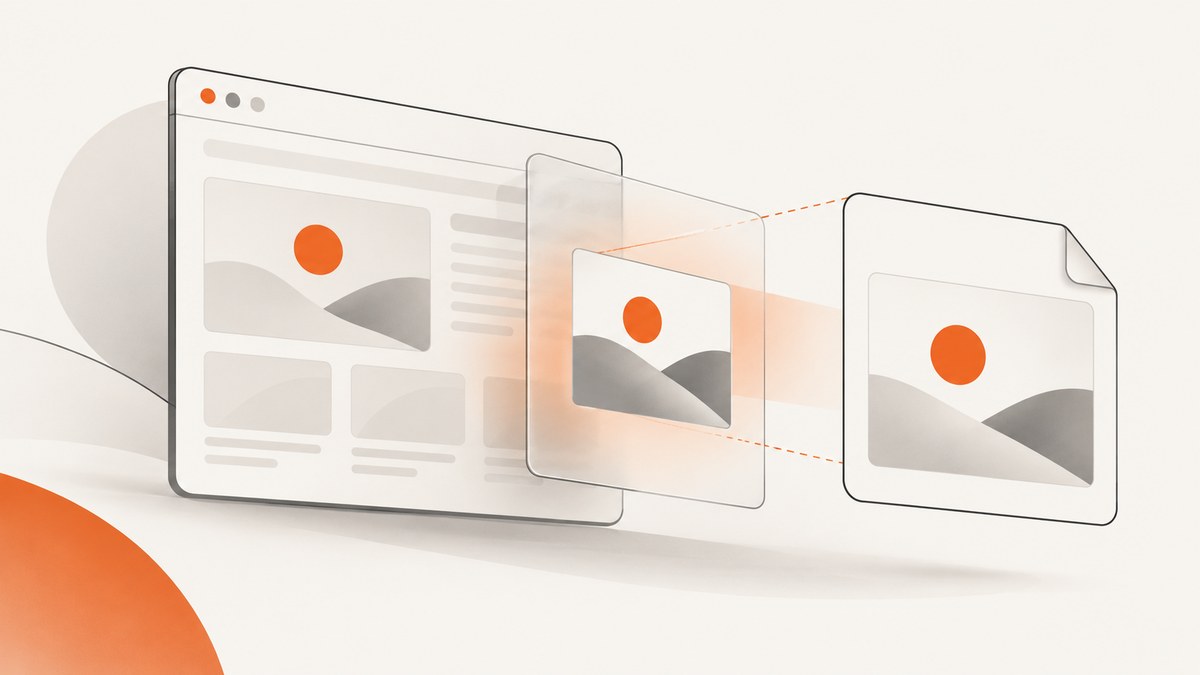
To save a hidden div with html2canvas, render it in a visible state in html2canvas’s cloned document, then export the returned canvas and download it. The onclone option lets you adjust the clone without changing the live page. This works when the clone contains the target and your style changes give it usable dimensions; it is not a universal fix for every way a page can hide content.
This guide uses a browser module script and saves a PNG. html2canvas reconstructs an image from DOM information rather than taking a literal screenshot of the browser’s pixels, so CSS support and cross-origin image rules affect the result. See the html2canvas documentation for its rendering model and limitations.
1. Install html2canvas
For a project with a JavaScript package setup, install the package:
npm install html2canvasThe following complete example assumes the page contains a target panel and a button. It uses a class to hide the panel visually, but keeps the element in the document so it can be selected. Adjust the sample content and selector to match your application.
<!doctype html>
<html lang="en">
<head>
  <meta charset="utf-8">
  <meta name="viewport" content="width=device-width, initial-scale=1">
  <title>Save a hidden panel</title>
  <style>
    .is-hidden {
      display: none;
    }
    #receipt {
      width: 640px;
      padding: 24px;
      color: #20242a;
      background: white;
      font: 16px/1.5 system-ui, sans-serif;
    }
  </style>
</head>
<body>
  <button id="save" type="button">Download receipt</button>
  <section id="receipt" class="is-hidden">
    <h1>Order complete</h1>
    <p>Your receipt is ready to save.</p>
  </section>

  <script type="module">
    import html2canvas from './node_modules/html2canvas/dist/html2canvas.esm.js';

    const button = document.querySelector('#save');
    const selector = '#receipt';

    button.addEventListener('click', async () => {
      button.disabled = true;
      try {
        const canvas = await html2canvas(document.querySelector(selector), {
          backgroundColor: '#ffffff',
          onclone(clonedDocument) {
            const clonedElement = clonedDocument.querySelector(selector);
            if (!clonedElement) throw new Error('Target not found in render clone');
            clonedElement.classList.remove('is-hidden');
            clonedElement.style.display = 'block';
            clonedElement.style.visibility = 'visible';
            clonedElement.style.opacity = '1';
          },
        });

        const link = document.createElement('a');
        link.download = 'receipt.png';
        link.href = canvas.toDataURL('image/png');
        link.click();
      } catch (error) {
        console.error('Could not render the receipt:', error);
      } finally {
        button.disabled = false;
      }
    });
  </script>
</body>
</html>
The module import path shown is a typical npm installation path for a local static setup. If your bundler resolves package imports, use import html2canvas from 'html2canvas'; instead. The project’s getting started guide covers installation and invocation.
2. What the hidden-element workaround does
The first argument to html2canvas is the DOM element to render. The function returns a Promise that resolves to a canvas. The options object’s onclone callback receives the cloned document used for rendering, allowing you to change the target’s styles there. The original document stays as it was. The option is documented in the configuration reference.
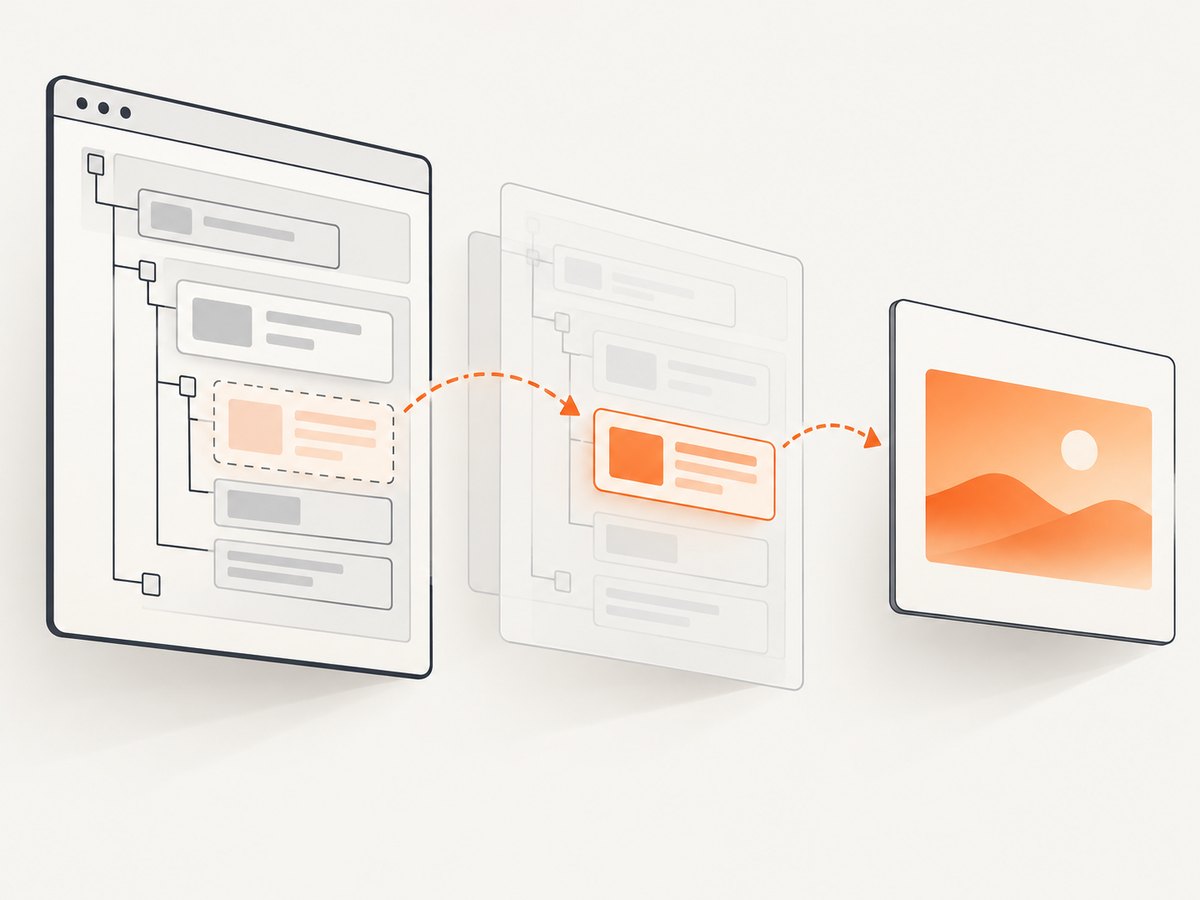
Removing the class that applies display: none matters because an inline display: block can be overridden by a stylesheet rule with higher priority. Setting visibility and opacity as well covers other common hiding styles, but inspect your actual CSS: a parent may be hidden, clipped, transformed off-screen, or conditionally omitted. Make the clone render the intended dimensions and state.
If a parent container is also hidden, adjust that parent in the clone too. If the target is only mounted after a user action, ensure it exists before calling html2canvas. If a framework re-renders while capture is starting, wait for the relevant update to complete before selecting and rendering the element.
3. Download the canvas as a PNG
Once the Promise resolves, canvas.toDataURL('image/png') produces a PNG data URL. Set it as the href of an anchor with a download filename and activate the anchor. This is the export flow used in the project’s examples.
Use a different MIME type and file extension together when you want another supported output, such as JPEG. For JPEG, a background color is usually useful because JPEG does not preserve transparency. A canvas can also be passed to other browser APIs or displayed on the page if downloading is not the desired workflow.
4. Tune capture dimensions and rendering
Choose options to fit the output you need. The complete set and defaults are listed in the official configuration reference.
| Option | When to use it | Considerations |
|---|---|---|
onclone |
Reveal the hidden target or apply capture-only styles. | Find the matching target in the cloned document; update hidden ancestors too. |
backgroundColor |
Set a predictable canvas background. | Use a color such as '#ffffff'; use null when transparency is desired and supported by the chosen output. |
scale |
Control output resolution relative to the CSS dimensions. | Higher scale creates more pixels and a larger canvas. Large values can hit browser canvas limits. |
width, height |
Set the render viewport dimensions. | For a clipped result, compare these with the target’s scroll dimensions and intended layout. |
windowWidth, windowHeight |
Control the cloned window viewport used for layout. | Responsive breakpoints may produce a different layout at another viewport size. |
useCORS |
Attempt to load cross-origin images with CORS. | The image server must send suitable CORS headers; this option cannot bypass browser security rules. |
proxy |
Load resources through a server-side proxy where appropriate. | Use a proxy you control and configure safely; do not treat it as a way to ignore access controls. |
ignoreElements |
Exclude selected elements from the render. | Useful for controls or transient decorations that should not appear in the saved image. |
logging |
Diagnose resource and rendering behavior during development. | Disable verbose logging in normal production use if it is not useful. |
For a long or full-height target, inspect element.scrollWidth and element.scrollHeight. Browser canvas limits vary by platform; there is no one safe maximum that applies everywhere. Rendering a very large element at high scale can fail or consume substantial memory. If the output is too large, reduce scale, capture smaller sections, or use a browser screenshot service designed to capture page output.
5. Handle images and other edge cases
Cross-origin images
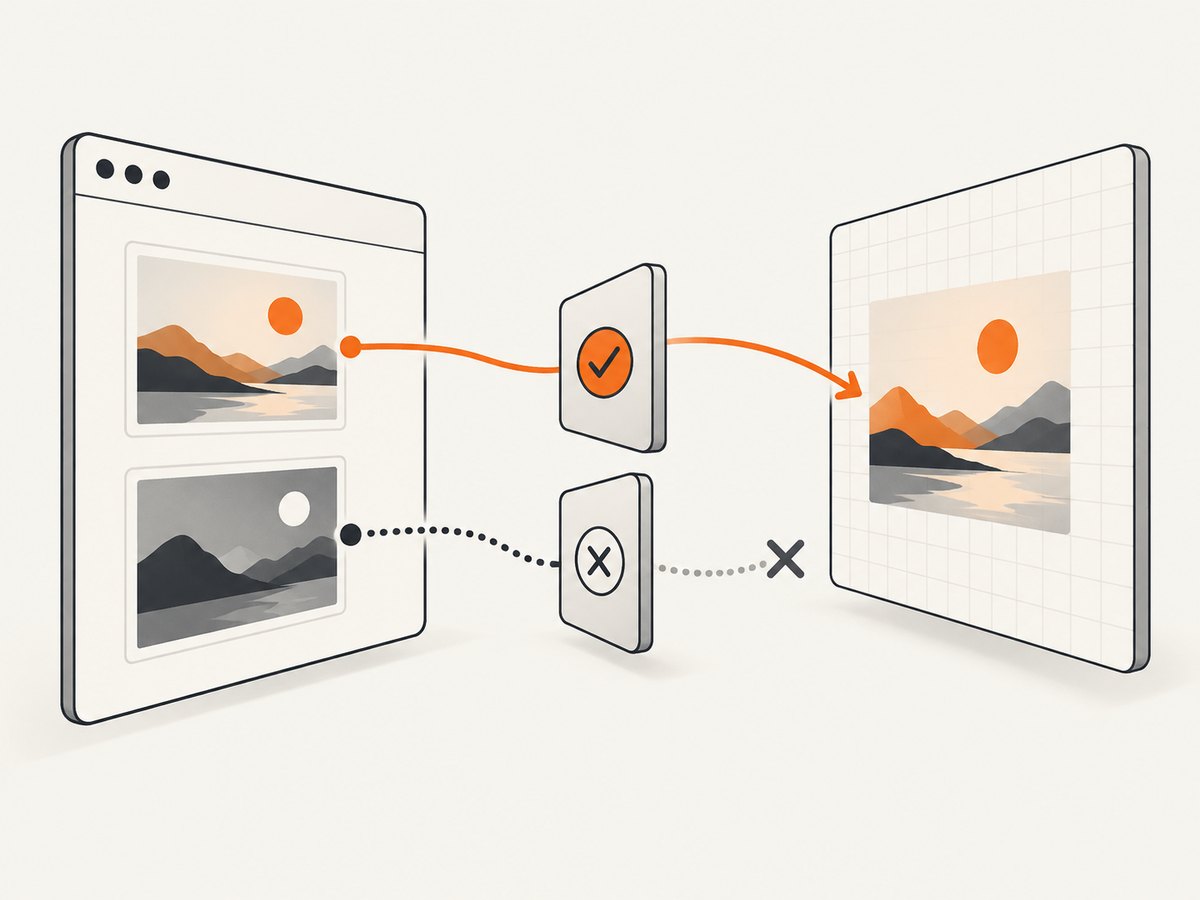
Canvas security rules can prevent exporting a canvas after it draws an image from another origin without permission. The html2canvas FAQ describes useCORS when the remote server allows it, or a proxy approach. If the image host does not grant cross-origin access, client-side JavaScript cannot make the browser ignore that restriction. See the FAQ.
Fonts, styles, and asynchronous content
Wait until fonts, images, and any application data needed by the target have loaded before capture. A missing web font can change line wrapping and dimensions. If content appears after a fetch or animation, trigger capture only after your application signals that it is ready. For styles that apply only to the live page’s state, reproduce the needed visual state in onclone.
Clipping and responsive layouts
The cloned window size can affect media queries and layout. If the capture unexpectedly wraps or clips, set a deliberate windowWidth and windowHeight, and compare the target’s bounding rectangle with its scroll dimensions. Elements positioned relative to a hidden or transformed ancestor can also land somewhere unexpected in the clone. Test the actual viewport and hidden state your application uses.
Browser download behavior
Initiate the capture from a user action, such as a button click. Some browsers restrict downloads not associated with a user gesture. If repeated captures are needed, provide a clear action for each download or display the generated image for the user to save.
6. Troubleshooting
| Symptom | Likely cause | What to do |
|---|---|---|
| Blank image | The target remains hidden in the clone, is absent from the clone, or has no layout size. | Check the selector and log whether the cloned target exists. Remove its hiding class and inspect hidden ancestors. Ensure it has nonzero dimensions. |
| Original page flashes or changes | The live element’s styles were changed for capture. | Move capture-only changes into onclone, which modifies the rendering clone. |
| Some CSS looks different | html2canvas reconstructs from DOM and supports only implemented CSS properties. | Check the project’s supported features, simplify unsupported effects, or adjust the clone’s styles for capture. |
| Images are missing or export throws a security error | An image is cross-origin without suitable CORS permission, tainting the canvas. | Use useCORS: true only when the host sends the required headers, or serve through an appropriately configured proxy. |
| Output is clipped | The render dimensions or viewport are smaller than the content, or browser canvas limits were reached. | Compare dimensions, set appropriate options, lower scale, or capture the content in sections. |
| Text wraps differently | The clone uses a different viewport, font availability, or responsive breakpoint. | Wait for fonts, choose the intended window dimensions, and verify the clone’s computed layout. |
| Download does not start | The browser blocked a script-triggered download or the click lacked a user gesture. | Run capture from a user action and test browser download restrictions. Consider displaying a link after capture. |
| Import fails | The example’s local ESM path does not match the bundler or package layout. | Use your bundler’s package import resolution or configure the correct module entry for your setup. |
7. Performance, reliability, and cost
html2canvas runs in the browser and builds a canvas from the page’s DOM and styles. Its work grows with the amount and complexity of content to render. Keep captures focused on the element the user needs, avoid unnecessarily large scales, and wait only for resources that affect the output. The project documentation does not promise identical rendering across browsers or all CSS; treat the result as a generated representation and check it in the browsers you support.
Browser-side capture has no per-request screenshot API charge, but the page still spends client CPU and memory creating the canvas. Large canvases and data URLs can use considerable memory, and browser limits differ. If reliability across varied pages, automated capture, or a clean screenshot without managing browser rendering is more important than local DOM access, a screenshot API may fit better.
Or skip the browser setup
If you need a screenshot of a URL rather than a particular in-memory DOM state, ScreenshotNeo returns an image or PDF from one API request. It accepts cookie and consent banners like a visitor and removes 60+ known consent platforms, newsletter popups, and chat widgets before capture; each step can be turned off. Bot checks and CAPTCHAs, blank pages, timeouts, failed loads, and cache hits cost nothing, and the response identifies the page verdict and billing state in headers. Its MCP server provides take_screenshot, get_page_info, and capture_pdf for Claude, Cursor, and other MCP clients. The free plan includes 1,000 shots per month without a card; paid plans start at $5 for 3,000 shots. See the ScreenshotNeo API docs for request options.
curl -G "https://api.screenshotneo.com/v1/shot" -d access_key=YOUR_API_KEY --data-urlencode url=https://stripe.com -o shot.webpGet 1,000 screenshots a month free with no card.
8. FAQ
Can I capture a div with display: none?
Try revealing it in onclone and verify that it has layout dimensions there. The exact result depends on the page’s CSS and how the element is hidden.
Does html2canvas capture exactly what the browser displays?
No. It reconstructs an image from DOM information, and unsupported CSS or browser differences can change the output.
Can html2canvas save a PDF?
html2canvas produces a canvas. A separate PDF workflow is needed to place that image into a PDF document.
Does useCORS bypass cross-origin restrictions?
No. It can request CORS-enabled images, but the remote server must allow access. Otherwise use an authorized proxy or omit the resource.
For a hidden div, the essential sequence is: select the element, make the cloned copy renderable with onclone, await the canvas, and download the exported image. Test the actual page state, since CSS, external images, viewport size, and browser canvas limits all affect the result.


