How to Save an HTML Document as JPG in Chrome
Save any rendered HTML page as a JPG in Chrome with full-page extensions, viewport captures, PDF conversion, and an automated API workflow.
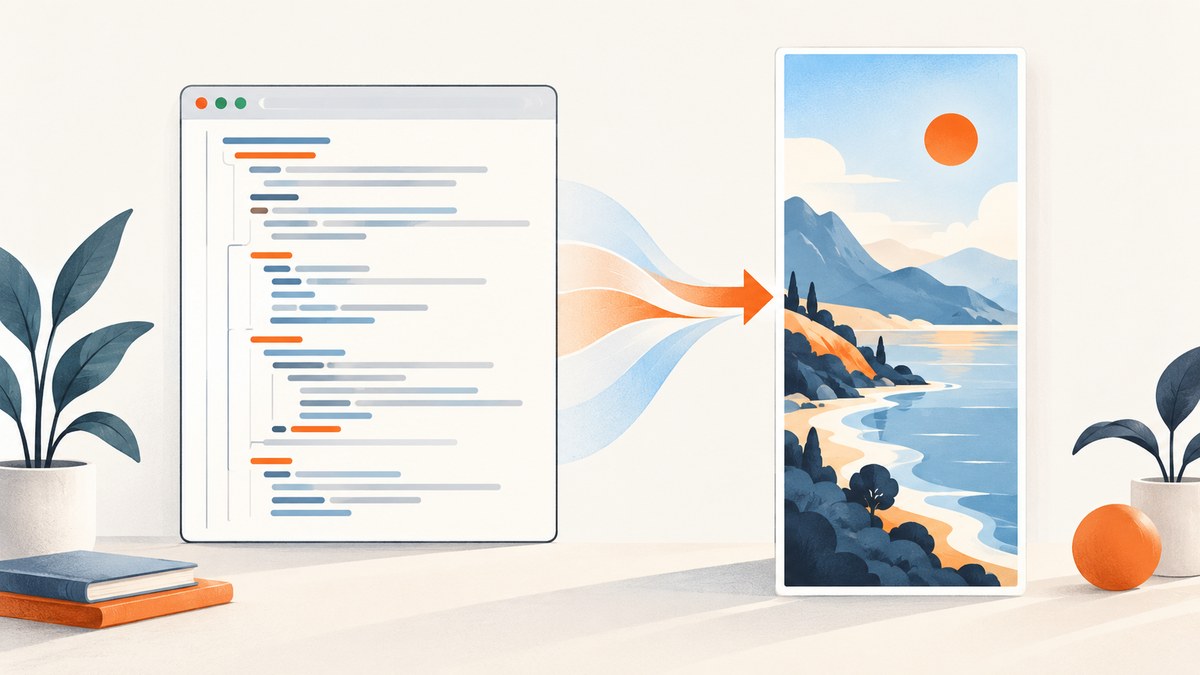
Short answer: Chrome does not have a native “Save HTML as JPG” command. Chrome’s built-in Print workflow saves a page as PDF. To create a JPG, capture the rendered document with a screenshot extension that supports JPEG export, then download the image. Use full-page mode for the entire scrollable document, visible-area mode for the current viewport, or selection mode for one region.
This guide explains each method, how to handle long pages and dynamic content, what JPG changes compared with PDF, and how to automate the same job with ScreenshotNeo.
Choose the right HTML-to-JPG method
| Goal | Best method | Output | Main trade-off |
|---|---|---|---|
| One image of the whole page | Full-page screenshot extension | Tall JPG/JPEG | Very long pages can be large or difficult to view |
| Only what is visible | Visible-area capture | Viewport JPG/JPEG | Content below the fold is omitted |
| One section or element | Selection capture | Cropped JPG/JPEG | Requires accurate selection |
| Searchable document or printing | Chrome Print | Print styles may reflow the layout | |
| Offline archive | Chrome extension using pageCapture | MHTML | MHTML is an archive, not an image |
| Repeatable, server-side automation | Screenshot API | JPG, PNG, WebP or PDF | Requires an API key and request handling |
A screenshot is a rasterized view of the page as Chrome rendered it. A PDF is a document output that can preserve selectable text and use print-specific layout rules. Decide which behavior you need before choosing an export format.
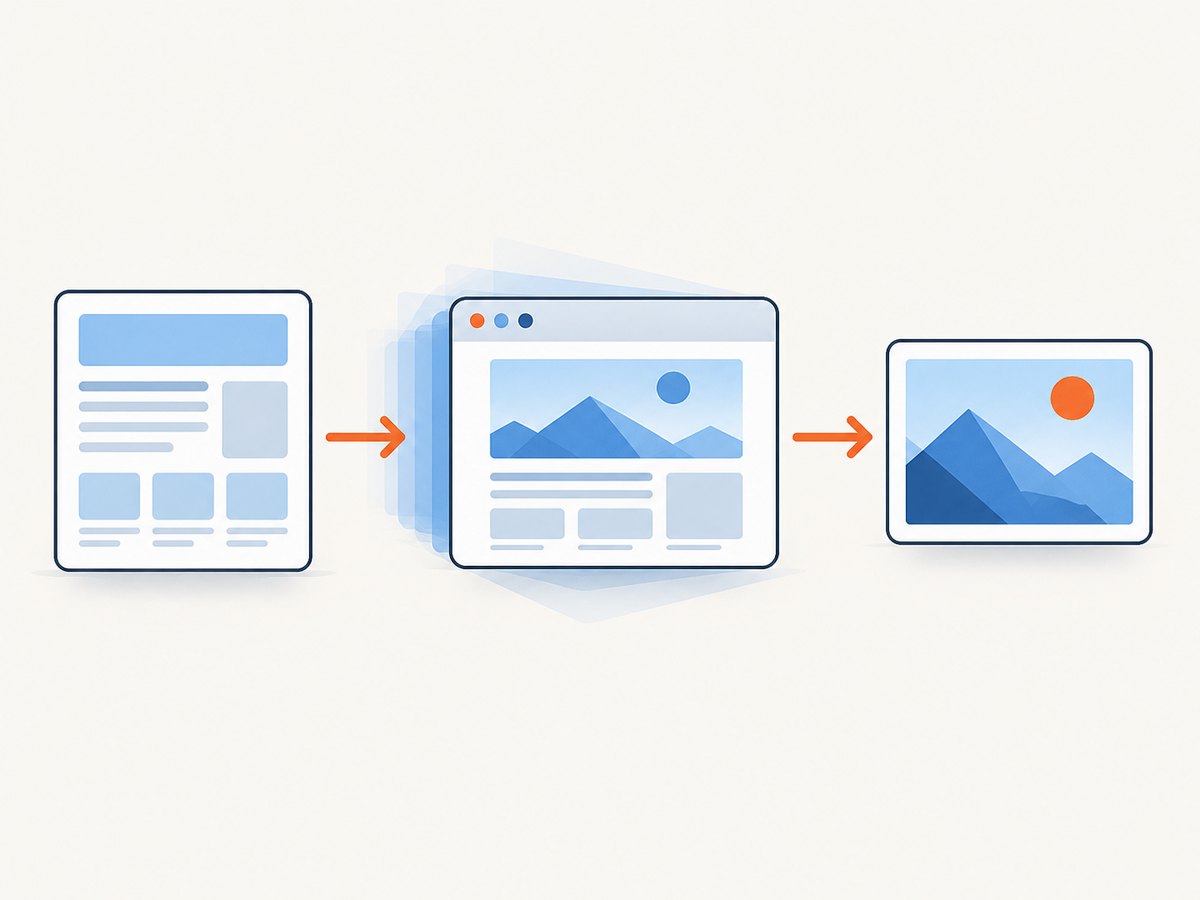
Save a complete HTML document as one JPG
Step 1: Open the document in Chrome
Open the local HTML file or web page in Chrome. For a local file, use File → Open File, drag the file into a tab, or type its file:// path. Wait for fonts, images, charts and other asynchronous content to finish loading.
Step 2: Install a full-page capture extension
Install a reputable extension from the Chrome Web Store and review its current permissions and export options. Examples documented in the research for this task include GoFullPage, PageSaver, Page to Image and FireShot. Their listings describe full-page capture and JPEG/JPG export; capabilities and availability can change, so check the current listing before deployment.
Step 3: Start full-page capture
- Open the extension from Chrome’s toolbar.
- Choose its full-page, entire-page or capture-all-pages command.
- Keep the tab active while the extension scrolls and stitches the document.
- Wait for the editor or preview to finish rendering before exporting.
Full-page tools generally capture the viewport repeatedly and combine the pieces. Fixed headers, sticky toolbars and animated widgets can therefore appear more than once or create seams. If that happens, hide the fixed element with the extension’s editing controls or temporarily disable the page’s animation.
Step 4: Export as JPG or JPEG
Choose JPG or JPEG in the extension’s download or export control. JPG and JPEG are the same image format. Use a higher quality setting for small text and diagrams; use a lower setting when file size matters. Open the downloaded file in an image viewer and inspect the top, middle and bottom of a long page.
Step 5: Check the result
- Confirm that lazy-loaded images appeared before capture.
- Check that sticky headers were not duplicated at every scroll segment.
- Look for missing fonts, blank chart areas or content hidden behind cookie banners.
- Verify that the image dimensions are accepted by the destination system.
- Crop or annotate a copy when you need redaction or presentation edits.
Capture only the visible Chrome viewport
Use visible-area mode when the required JPG is exactly what the reader sees. Open the extension, select visible part or viewport, and export as JPEG. This is useful for a hero section, a debugging state, or a short form that fits on screen. It does not include content below the fold.
For a predictable viewport, resize Chrome before capturing. Responsive layouts can change when the window width changes, so record the approximate viewport dimensions if the image will be regenerated later. Browser zoom also affects the rendered result; 100% zoom is the simplest baseline.
Capture a selected HTML region
Selection mode lets you drag around a specific element or region and save only that area as JPG. FireShot’s documented modes include an entire page, the visible part and a selection, with PDF, PNG and JPEG output. Selection capture is practical for a card, table, chart or isolated component.
- Scroll the target region into view.
- Choose the extension’s selection command.
- Drag from one corner to the opposite corner.
- Adjust the selection in the preview if available.
- Export as JPG and inspect text at the target scale.
If the element is clipped, first expand accordions, menus or “show more” controls. A selection tool captures pixels; it cannot recover content that the page has not rendered or that is hidden by CSS.
Native Chrome option: save as PDF, then rasterize
Chrome Help documents the Print path for saving a page, image or file as PDF. Press Ctrl+P on Windows/Linux or Cmd+P on macOS, choose Save as PDF, select the paper size, margins and scale, then save.
This is not a direct JPG export. If a JPG is mandatory, open the PDF in an image editor or a PDF-to-image converter and export the required page as JPEG. The extra conversion can change page dimensions, introduce white margins or apply print-style reflow. Use this route when searchable text or print layout matters more than pixel-for-pixel browser appearance.
Why MHTML is not a JPG replacement
Chrome’s chrome.pageCapture API saves a tab as MHTML and requires the pageCapture permission in an extension manifest. MHTML packages page resources for offline preservation. It is useful for archiving and later inspection, but it is not a raster image and cannot be uploaded where a JPG is required.
Make full-page captures reliable
Wait for content that loads late
Single-page apps, web fonts, ads, charts and lazy images can finish after the initial load event. Scroll through the page once, wait for visible loading indicators to disappear, and capture only after the layout stops shifting. If the extension offers a delay, increase it for pages with known asynchronous rendering.
Control sticky and animated elements
Pause carousels and videos when possible. Hide chat bubbles, cookie dialogs and floating bars before capture. A fixed element can be stitched repeatedly because it remains in the same viewport position while the extension scrolls.
Handle very long documents
A single tall JPG may exceed an editor’s canvas or an upload service’s dimension limit. If the export fails, capture logical sections separately, reduce the browser zoom, or use PDF for the complete document. Keep the original captures when you need to reassemble or crop the result later.
Preserve privacy
Review extension permissions before installing. A screenshot extension may need access to the pages you ask it to capture. Avoid capturing passwords, personal data or private dashboards into a shared download folder. For sensitive pages, prefer a controlled browser profile and delete temporary files after delivery.
Or skip the browser setup
ScreenshotNeo captures a URL through one API request and returns a JPG, PNG, WebP or PDF. It is useful when you need repeatable captures in a build, report or backend job instead of an interactive Chrome session. Read the ScreenshotNeo API documentation for the complete parameter reference.

cURL
curl -G "https://api.screenshotneo.com/v1/shot" \
  -d access_key=YOUR_API_KEY \
  --data-urlencode url=https://stripe.com \
  -o shot.webp
Python
import requests

r = requests.get(
    "https://api.screenshotneo.com/v1/shot",
    params={"access_key": "YOUR_API_KEY", "url": "https://stripe.com"},
    timeout=90,
)
r.raise_for_status()
open("shot.webp", "wb").write(r.content)
Node.js
const q = new URLSearchParams({
  access_key: 'YOUR_API_KEY',
  url: 'https://stripe.com'
});
const res = await fetch(`https://api.screenshotneo.com/v1/shot?${q}`);
if (!res.ok) throw new Error(`Screenshot failed: ${res.status}`);
const bytes = new Uint8Array(await res.arrayBuffer());
await Bun.write('shot.webp', bytes);
Change the target URL and request the output format you need. ScreenshotNeo supports full-page capture with lazy images loaded, CSS selector element capture, dark mode, device presets or custom viewports, retina scale, custom CSS and JavaScript, clicks, selector or network-idle waits, request blocking, headers, cookies, user agents, authorization, timezone, geolocation, transparent backgrounds, resizing, caching with a chosen TTL, signed links, asynchronous jobs with signed webhooks, bulk capture for up to 100 URLs per call, a usage API and an OpenAPI specification. Parameter names used by other screenshot APIs also work, which can simplify migration.
Cookie and consent banners are accepted and more than 60 known consent platforms, newsletter popups and chat widgets are removed before capture; each cleanup step can be disabled. Bot checks or CAPTCHAs, blank pages, timeouts, failed loads and cache hits are not billed, and the response reports the page verdict and billing status in X-Page-Verdict and X-Billed headers. An MCP server provides take_screenshot, get_page_info and capture_pdf tools for Claude, Cursor and other MCP clients.
The Free plan includes 1,000 shots each month with no card. Paid plans start at $5 for 3,000 shots; Growth is $15 for 15,000, Pro is $39 for 60,000, Scale is $99 for 250,000 and Business is $249 for 1,000,000. Yearly billing gives two months free, and every feature is available on every plan. Create a free ScreenshotNeo account to start.
Troubleshooting HTML-to-JPG captures
| Symptom | Likely cause | Fix |
|---|---|---|
| The extension captures only the viewport | Visible-area mode was selected | Choose full-page or entire-page capture |
| The JPG has repeated headers | A sticky element was stitched in every segment | Hide the element, disable sticky positioning temporarily, or crop the duplicates |
| Images are blank | Lazy loading had not completed | Scroll through the page first and wait for images; then recapture |
| Fonts look different | Web fonts were still loading or unavailable | Wait for font loading, verify network access and capture again |
| Cookie dialog covers content | The consent banner remained open | Accept or dismiss it before capture; use a cleanup-capable API for automation |
| Export fails on a very tall page | Canvas or destination dimension limits | Capture sections, reduce scale, or use PDF |
| PDF looks unlike the browser page | Print CSS and paper layout reflowed content | Use a screenshot workflow for rendered pixels |
| Local file assets are missing | Relative paths or blocked local resources | Check asset paths, serve the folder locally and recapture |
Performance, reliability and cost considerations
Full-page browser capture costs local CPU, memory and time as the extension scrolls and stitches. Very tall pages, high device scale and large images increase memory use and JPG size. Visible or element captures are faster when you do not need the entire document. For recurring jobs, cache unchanged URLs and choose an image width appropriate to the destination.
Extensions depend on the active browser tab, extension permissions and the page’s current state. Automation through an API gives you explicit timeouts, request parameters and response headers. Build retries around transient network failures, inspect HTTP status codes, and store the page verdict when deciding whether to accept an image. ScreenshotNeo’s cache, asynchronous jobs, signed webhooks and bulk endpoint can reduce repeated browser work for larger batches.
JPG uses lossy compression. It is usually smaller than PNG for photographic pages, but sharp text and line art can show compression artifacts. Keep PNG for pixel-precise UI evidence or transparent backgrounds; choose JPG when broad compatibility and smaller files matter. Use PDF when readers need selectable text, print pagination or searchable archives.
FAQ
Can Chrome save an HTML file directly as JPG?
No. Chrome’s native Print workflow saves PDF. Use a screenshot extension or an image-capable screenshot API for JPG.
What is the difference between JPG and JPEG?
They refer to the same common image format. The file extension may be .jpg or .jpeg.
Can I save a page as JPG without installing an extension?
You can use Chrome Print to create a PDF and then rasterize it, but that adds a conversion step and may change the layout.
Why is my full-page JPG extremely tall?
Full-page mode includes the complete scrollable document. Capture only a selection or viewport when a single tall image is not practical.
Does MHTML convert to JPG?
No. MHTML is an offline web archive. Open it in a browser and capture the rendered page if you need an image.
Which method is best for repeated captures?
Use an automated screenshot API with explicit waits, output settings and error handling. ScreenshotNeo provides URL capture, cleanup of common overlays, billing verdict headers and an MCP server for AI-agent workflows.


