How to Save HTML as a PNG in Python
Render HTML in a real browser, capture the viewport, full page, or an element, and save reliable PNG files with Python.
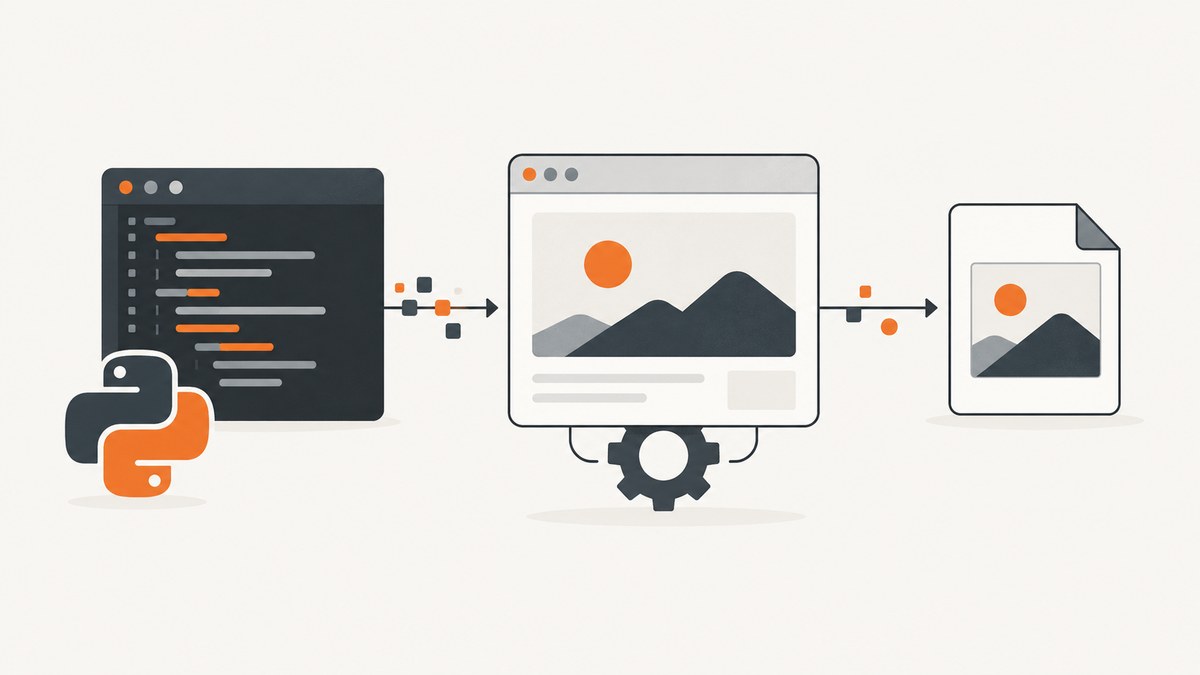
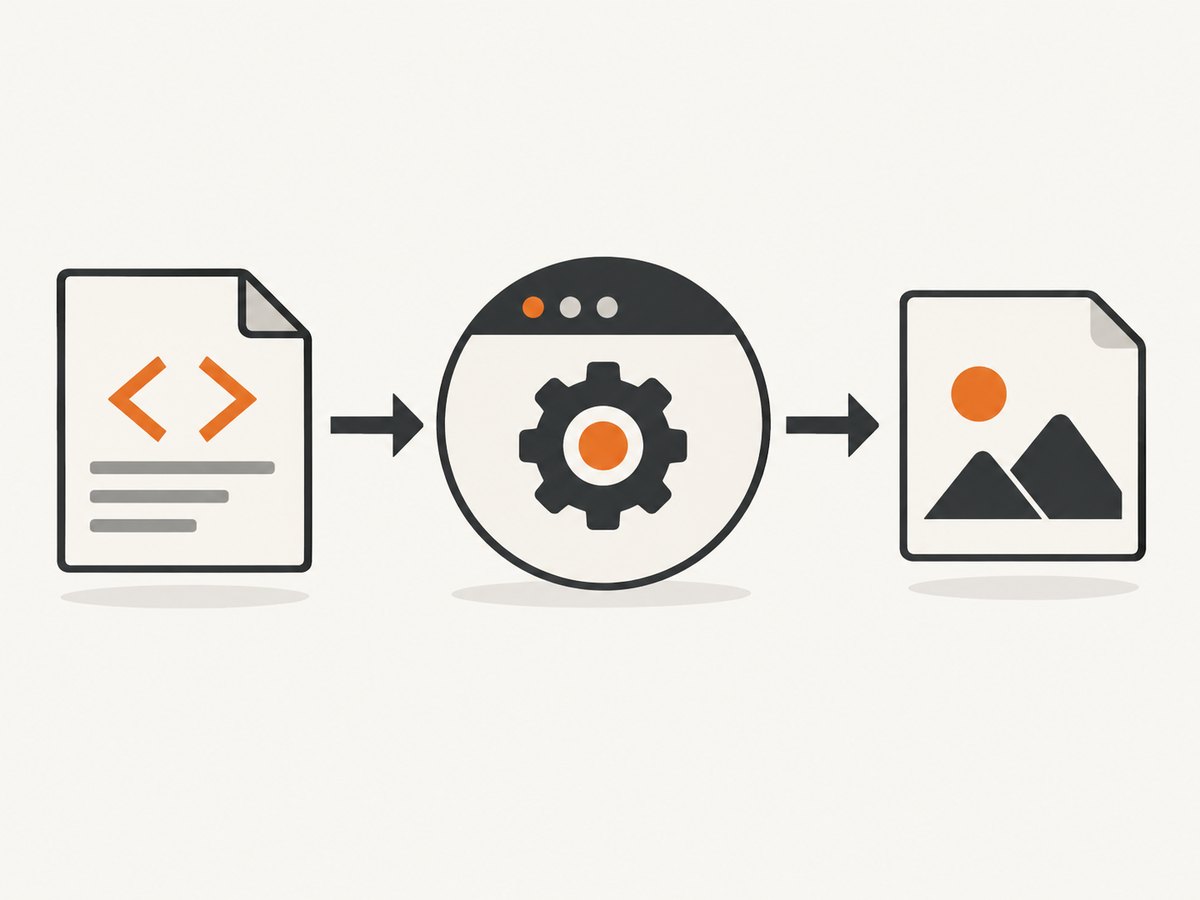
Direct answer: render the HTML in a real browser, then call the browser’s screenshot API. Playwright is the simplest Python approach for viewport, full-page, element, and in-memory PNG capture.
from playwright.sync_api import sync_playwright

with sync_playwright() as p:
    browser = p.chromium.launch()
    page = browser.new_page(viewport={"width": 1440, "height": 900})
    page.goto("https://example.com", wait_until="networkidle")
    page.screenshot(path="page.png", full_page=True)
    browser.close()
Install Playwright and its browser runtime first:
python -m pip install playwright
python -m playwright install chromium
The Playwright Python screenshot documentation covers the API used below.
1. Capture a webpage as a PNG
A screenshot is a rendered browser image, not a conversion of HTML text. The browser must load the page’s CSS, JavaScript, fonts, images, and other resources before the capture.
from playwright.sync_api import sync_playwright

URL = "https://example.com"

with sync_playwright() as p:
    browser = p.chromium.launch()
    page = browser.new_page(viewport={"width": 1440, "height": 900})
    page.goto(URL, wait_until="networkidle")
    page.screenshot(path="page.png")
    browser.close()
With a .png filename, Playwright selects PNG output. PNG is lossless, so JPEG quality settings do not apply.
2. Capture the full scrollable page
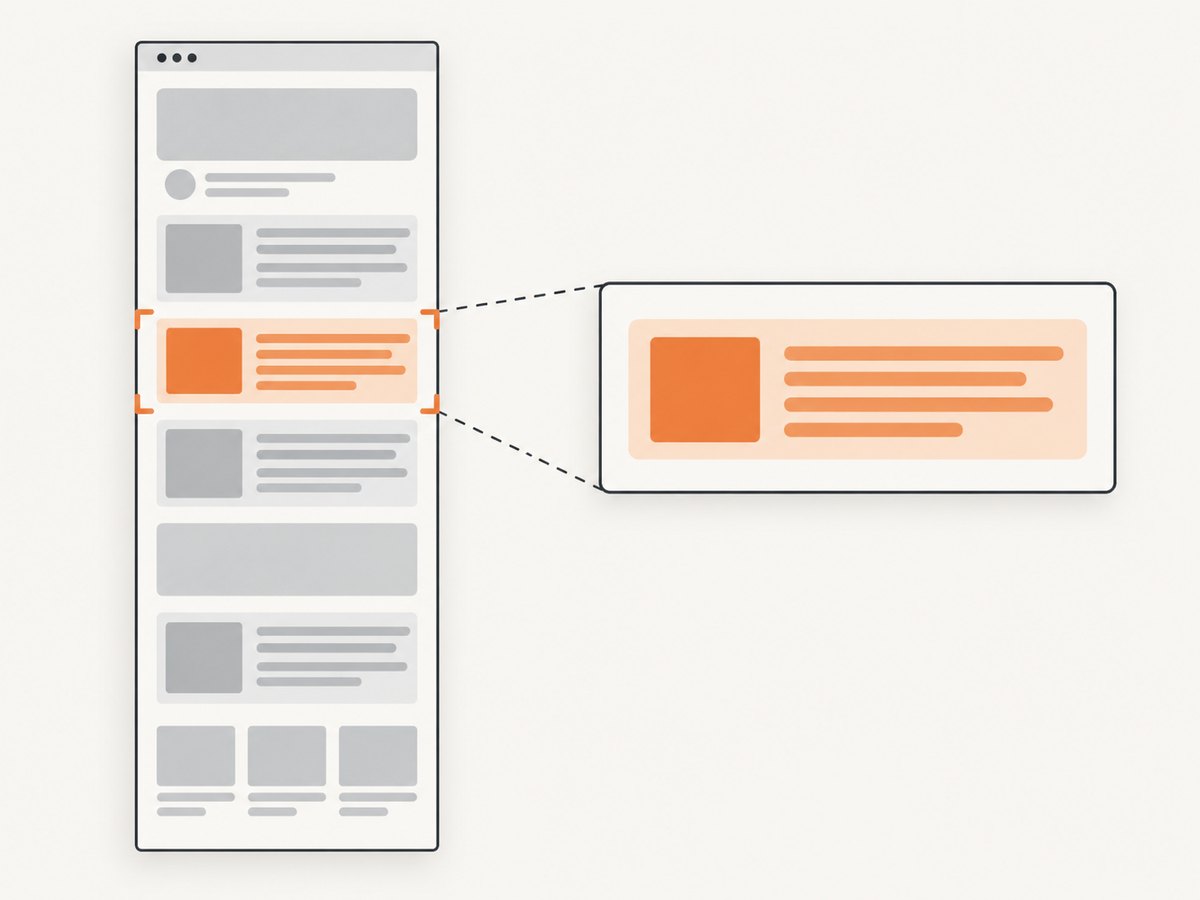
The normal call captures only the visible viewport. Pass full_page=True to capture the complete scrollable document.
from playwright.sync_api import sync_playwright

with sync_playwright() as p:
    browser = p.chromium.launch()
    page = browser.new_page(viewport={"width": 1440, "height": 900})
    page.goto("https://example.com", wait_until="networkidle")
    page.screenshot(path="full-page.png", full_page=True)
    browser.close()
Very long documents produce very tall images. If the result is impractical to display or process, capture a specific section or element instead.
3. Save one HTML element
Use a locator when the desired output is an invoice, chart, card, or other element rather than the entire page.
from playwright.sync_api import sync_playwright

with sync_playwright() as p:
    browser = p.chromium.launch()
    page = browser.new_page(viewport={"width": 1440, "height": 900})
    page.goto("https://example.com", wait_until="networkidle")
    page.locator(".invoice").screenshot(path="invoice.png", animations="disabled")
    browser.close()
Make the selector specific enough to identify one stable element. Disabling animations can make repeated captures more consistent.
4. Capture PNG bytes instead of writing a file
Omit path and Playwright returns PNG bytes. This is useful when the image will be uploaded, stored in object storage, or passed to another pipeline.
from pathlib import Path
from playwright.sync_api import sync_playwright

with sync_playwright() as p:
    browser = p.chromium.launch()
    page = browser.new_page(viewport={"width": 1440, "height": 900})
    page.goto("https://example.com", wait_until="networkidle")
    png_bytes = page.screenshot(full_page=True)
    Path("page.png").write_bytes(png_bytes)
    browser.close()
5. Save a local HTML file
Convert the local path to a file URL before navigating. Resolving the path avoids problems with relative references.
from pathlib import Path
from playwright.sync_api import sync_playwright

html_url = Path("page.html").resolve().as_uri()

with sync_playwright() as p:
    browser = p.chromium.launch()
    page = browser.new_page(viewport={"width": 1440, "height": 900})
    page.goto(html_url, wait_until="networkidle")
    page.screenshot(path="page.png", full_page=True)
    browser.close()
External stylesheets, fonts, images, and scripts still need to be reachable by the browser. A local HTML file that refers to unavailable network resources will render differently from the original page.
6. Wait for content before taking the shot
networkidle is useful when the page finishes loading its requests, but it is not a guarantee that the exact content you need is visible. Prefer a selector or another page state that represents readiness.
from playwright.sync_api import sync_playwright

with sync_playwright() as p:
    browser = p.chromium.launch()
    page = browser.new_page(viewport={"width": 1440, "height": 900})
    page.goto("https://example.com", wait_until="domcontentloaded")
    page.locator(".report-ready").wait_for(state="visible")
    page.screenshot(path="report.png", full_page=True)
    browser.close()
Use a fixed delay only when the page has no observable readiness signal. Waiting for the relevant selector is usually more reliable than guessing a sleep duration.
7. Control the viewport and output format
Set the viewport explicitly so line wrapping and responsive breakpoints are deterministic.
from playwright.sync_api import sync_playwright

with sync_playwright() as p:
    browser = p.chromium.launch()
    page = browser.new_page(viewport={"width": 1280, "height": 800})
    page.goto("https://example.com", wait_until="networkidle")
    page.screenshot(path="page.png")
    page.screenshot(path="page.jpg")
    page.screenshot(path="page.webp")
    browser.close()
Playwright supports PNG, JPEG, and WebP. The output type is inferred from the filename extension when a path is supplied. Use PNG when you need lossless pixels or transparency; choose another format when smaller files are more important.
8. Selenium alternative
If Selenium is already your project standard, its Python WebDriver can save the current window as a PNG or return PNG bytes. Its documented core screenshot methods target the current window; full-page capture may require browser-specific techniques or stitching.
from selenium import webdriver

options = webdriver.ChromeOptions()
options.add_argument("--headless=new")
driver = webdriver.Chrome(options=options)
try:
    driver.get("https://example.com")
    driver.save_screenshot("page.png")
finally:
    driver.quit()
For bytes, use driver.get_screenshot_as_png(). For a file-returning method, use driver.get_screenshot_as_file("page.png"). Compare the two libraries on browser setup, JavaScript and CSS rendering, full-page support, element targeting, and timing controls.
9. Or skip the browser setup
ScreenshotNeo provides a website screenshot API: one GET request returns a PNG, JPEG, WebP, or PDF. Its capture pipeline accepts consent banners like a visitor and removes more than 60 known consent platforms, newsletter popups, and chat widgets before the shot. Bot checks, blank pages, timeouts, failed loads, and cache hits are not billed, and response headers identify the page verdict and billing result. It also provides an MCP server with take_screenshot, get_page_info, and capture_pdf tools for AI agents.
See the ScreenshotNeo API documentation for authentication and options.
cURL
curl -G "https://api.screenshotneo.com/v1/shot" -d access_key=YOUR_API_KEY --data-urlencode url=https://example.com -o shot.webpPython
import requests

r = requests.get(
    "https://api.screenshotneo.com/v1/shot",
    params={"access_key": "YOUR_API_KEY", "url": "https://example.com"},
    timeout=90,
)
r.raise_for_status()
open("shot.webp", "wb").write(r.content)
Node.js
const q = new URLSearchParams({ access_key: 'YOUR_API_KEY', url: 'https://example.com' });
const res = await fetch(`https://api.screenshotneo.com/v1/shot?${q}`);
if (!res.ok) throw new Error(`HTTP ${res.status}`);
const buffer = Buffer.from(await res.arrayBuffer());
require('fs').writeFileSync('shot.webp', buffer);
ScreenshotNeo also supports full-page capture with lazy images loaded, CSS element capture, dark mode, device presets and custom viewports, retina scale, custom CSS and JavaScript, clicks, waits, request blocking, headers, cookies, user agents, authorization, timezone, geolocation, transparent backgrounds, resizing, configurable caching, signed links, asynchronous jobs with signed webhooks, bulk capture of up to 100 URLs per call, a usage API, and an OpenAPI specification. Parameter names used by other screenshot APIs also work, which can simplify migration.
There is a free allowance of 1,000 screenshots per month without a card. Paid plans start at $5 for 3,000 screenshots; yearly billing provides two months free, and every feature is available on every plan. Create a free ScreenshotNeo account.
10. Troubleshooting
| Symptom | Likely cause | Fix |
|---|---|---|
| Browser executable not found | Playwright is installed but Chromium is not. | Run python -m playwright install chromium. |
| PNG is blank or incomplete | Capture happened before dynamic content rendered. | Wait for a meaningful selector or page state before calling screenshot. |
| Only the top of the page appears | The default screenshot is viewport-only. | Pass full_page=True. |
| Element screenshot fails | The selector matches nothing, or the element is not visible. | Use a stable locator and wait for state="visible". |
| Fonts or images differ | Resources are blocked, unavailable, or still loading. | Ensure network access and wait for the resources your image requires. |
| Output changes between runs | Responsive layout, animations, time, or late network responses vary. | Fix the viewport, disable animations for element shots, and wait for a deterministic readiness condition. |
| Local file has missing CSS | Relative paths resolve differently or referenced files are unavailable. | Use Path(...).resolve().as_uri() and verify every referenced resource. |
| Screenshot is too large | A full-page document can be extremely tall. | Capture a section or element, or resize the output in a later image step. |
| Selenium does not capture the full document | Its core method captures the current window. | Use Playwright’s full_page=True or a browser-specific Selenium stitching approach. |
11. Performance, reliability, and cost notes
- Reuse a browser process when taking many screenshots; launching a new browser for every image adds startup work.
- Use a deterministic viewport and readiness selector to reduce retries caused by layout and timing differences.
- Full-page captures consume more memory as document height grows. Prefer element or section captures for very long pages.
- Keep network resources available and make fonts load before capture when visual fidelity matters.
- Playwright and Selenium require a browser runtime and its maintenance. An API removes that setup but adds request, authentication, and service usage considerations.
- ScreenshotNeo reports whether a response was a clean page, a bot check, a blank page, a timeout, a failed load, or a cache hit through response headers; only clean shots are billed.
12. Practical checklist
- Install the library and browser driver/runtime.
- Set the viewport explicitly.
- Navigate to the URL or resolved local file URL.
- Wait for the content that must appear.
- Choose viewport, full-page, or element capture.
- Use a
.pngpath or write returned bytes. - Close the browser in a
finallyblock for long-running scripts. - Inspect very tall images and split them into sections when necessary.
13. FAQ
Can Python convert HTML to PNG without a browser?
For web pages that depend on CSS, JavaScript, fonts, or images, a real browser is the dependable rendering layer. Browser screenshot APIs capture the result after those resources are applied.
How do I capture only the visible area?
Call page.screenshot(path="page.png") without full_page=True.
How do I capture a chart or invoice?
Locate it with page.locator(".chart") or another stable selector, then call the locator’s screenshot method.
Can I send the PNG directly to storage?
Yes. Call page.screenshot() without a path and pass the returned bytes to your storage or image-processing client.
Which tool should an existing Selenium project use?
Keep Selenium when its driver and test infrastructure are already established. Choose Playwright when direct full-page and locator screenshots, browser installation, and timing controls are central requirements.