How to Save an HTML Canvas With a Background Image to the Server Using html2canvas
Capture a DOM element with html2canvas, preserve its background image, export a Blob, and upload it safely to your server.

To save an html2canvas image with a CSS background image, capture the element, keep every image origin-clean, export the resulting canvas with toBlob(), and upload that Blob in FormData. Your server then validates the multipart upload and stores the bytes.
The complete flow is:
- Make sure the target element has dimensions and its background image can be loaded under browser CORS rules.
- Call
html2canvas(element, options)and await the returned Promise. - Convert the canvas to a PNG, JPEG, or WebP Blob.
- POST the Blob to an authenticated application endpoint.
- Validate, rename, and persist the received image on the server.
html2canvas renders the DOM in the browser. It does not take a privileged screenshot and cannot bypass the same-origin policy. A remote background image must either come from the same origin, grant access with CORS, or be fetched through a proxy that you control.
1. Capture the element and upload a Blob
Assume this element contains the design you want to save:
<section id="capture" class="poster">
  <h1>Launch day</h1>
  <p>A poster with a CSS background image.</p>
</section>

<script type="module">
  import html2canvas from 'https://cdn.jsdelivr.net/npm/html2canvas@1.4.1/+esm';

  const target = document.querySelector('#capture');

  if (!target || target.offsetWidth === 0 || target.offsetHeight === 0) {
    throw new Error('The capture element is missing or has no dimensions');
  }

  const canvas = await html2canvas(target, {
    useCORS: true,
    backgroundColor: null
  });

  const blob = await new Promise((resolve, reject) => {
    canvas.toBlob(result => {
      if (result) resolve(result);
      else reject(new Error('Canvas export failed'));
    }, 'image/png');
  });

  const form = new FormData();
  form.append('image', blob, 'canvas.png');

  const response = await fetch('/api/canvas-upload', {
    method: 'POST',
    body: form
  });

  if (!response.ok) {
    throw new Error(`Upload failed: ${response.status}`);
  }

  const result = await response.json();
  console.log('Stored image:', result);
</script>
Do not set the Content-Type header yourself. When the body is a FormData object, the browser adds multipart/form-data and the required boundary. A manually supplied header commonly causes the server to reject or misread the upload.
backgroundColor: null preserves transparency where the rendered design has no background. Set a CSS color such as '#ffffff' when you need an opaque fallback. This option controls the canvas fill; it does not download or repair a missing CSS background image.
2. Make a CSS background image exportable
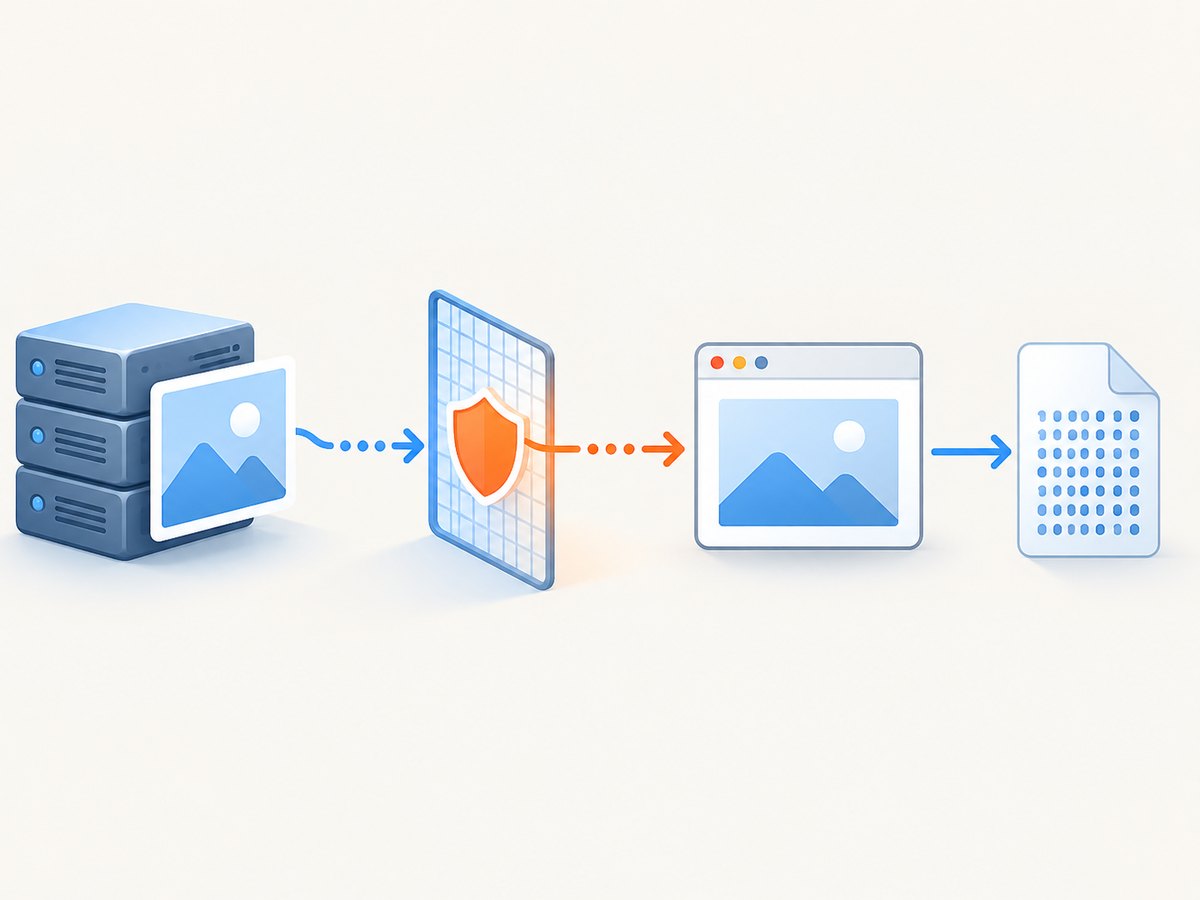
A background-image is still an external resource. During rendering, html2canvas requests it and draws its pixels into the canvas. The browser permits the pixels to be read only when the resource is same-origin or has granted cross-origin access.
Same-origin image
This is the simplest arrangement:
.poster {
  width: 900px;
  min-height: 500px;
  background-image: url('/assets/launch.jpg');
  background-size: cover;
  background-position: center;
}
Because the image is served from the same origin as the page, it can normally be included in the exported bitmap. Check that the URL does not redirect to another host and that authentication does not prevent the browser from fetching it.
Cross-origin image with CORS
For an image on another origin, the image response needs an appropriate Access-Control-Allow-Origin header. Then ask html2canvas to use CORS-enabled image loading:
const canvas = await html2canvas(document.querySelector('#capture'), {
  useCORS: true,
  imageTimeout: 15000
});
The image server must cooperate. useCORS: true cannot grant permission by itself. If your page is served from https://app.example, a response might include:
Access-Control-Allow-Origin: https://app.exampleIf credentials are involved, the server and request must use a compatible credentialed CORS policy. Avoid using a wildcard origin with credentialed requests.
Proxy fallback
If the image host cannot send CORS headers, configure a server-side proxy that fetches the image and returns it from an origin permitted by your application. html2canvas exposes a proxy option for this case:
const canvas = await html2canvas(target, {
  proxy: '/api/image-proxy',
  imageTimeout: 15000
});
A proxy should allow only approved image hosts, enforce response-size and timeout limits, validate the returned content, and avoid forwarding user-controlled internal network requests. The proxy must return image bytes with a usable content type and the headers required by your application.
Wait for the background image
When an image is loaded dynamically, wait for it before capturing. For a CSS background, preload the computed URL:
async function waitForBackgroundImage(element) {
  const value = getComputedStyle(element).backgroundImage;
  const match = value.match(/^url\(["']?(.*?)["']?\)$/);
  if (!match) return;

  await new Promise((resolve, reject) => {
    const image = new Image();
    image.crossOrigin = 'anonymous';
    image.onload = resolve;
    image.onerror = () => reject(new Error(`Background image failed: ${match[1]}`));
    image.src = match[1];
  });
}

await waitForBackgroundImage(target);
const canvas = await html2canvas(target, { useCORS: true });
This does not override CORS. It only prevents capture from racing the resource load.
3. Choose an export format
toBlob() produces binary data and is usually the right choice for a server upload. It avoids placing a large base64 string in JavaScript memory and in a request body.
| Format | Use it when | Tradeoff |
|---|---|---|
| PNG | You need lossless artwork, sharp text, or transparency. | Larger files for photographic backgrounds. |
| JPEG | The image is opaque and a smaller file matters. | Lossy compression and no transparency. |
| WebP | Your storage and consumers support modern WebP images. | Check downstream compatibility. |
const png = await new Promise((resolve, reject) => {
  canvas.toBlob(blob => blob ? resolve(blob) : reject(new Error('No PNG Blob')),
    'image/png');
});

const jpeg = await new Promise((resolve, reject) => {
  canvas.toBlob(blob => blob ? resolve(blob) : reject(new Error('No JPEG Blob')),
    'image/jpeg',
    0.88
  );
});
PNG is the safe default when the design may contain transparent areas. JPEG and WebP accept a quality value between 0 and 1 in browsers that support the requested type. Always check that the callback receives a non-null Blob.
4. Build a server upload endpoint
The browser only creates and sends the bytes. Your endpoint owns authentication, authorization, validation, naming, and durable storage. The following Node.js example uses Express and a multipart parser such as multer:
import express from 'express';
import multer from 'multer';
import crypto from 'node:crypto';
import fs from 'node:fs/promises';
import path from 'node:path';

const app = express();
const upload = multer({
  storage: multer.memoryStorage(),
  limits: { fileSize: 10 * 1024 * 1024 },
  fileFilter: (req, file, callback) => {
    callback(null, ['image/png', 'image/jpeg', 'image/webp'].includes(file.mimetype));
  }
});

app.post('/api/canvas-upload', upload.single('image'), async (req, res) => {
  if (!req.file) return res.status(400).json({ error: 'image is required' });

  // Authenticate the caller before this point in a real application.
  const extension = req.file.mimetype === 'image/png' ? 'png'
    : req.file.mimetype === 'image/webp' ? 'webp' : 'jpg';
  const name = `${crypto.randomUUID()}.${extension}`;
  const directory = path.resolve('uploads');
  await fs.mkdir(directory, { recursive: true });
  await fs.writeFile(path.join(directory, name), req.file.buffer, { flag: 'wx' });

  res.status(201).json({ id: name });
});

app.listen(3000);
For production, validate the decoded image rather than trusting only the submitted MIME type. Enforce a byte limit, reject unexpected dimensions, generate the filename on the server, and store files in an object store or configured filesystem. Apply the same authorization rules you use for other uploaded assets. Return a small identifier or URL instead of echoing the entire image.
5. Complete browser example with retries and status
This helper waits for the target, captures it, creates a Blob, and reports useful errors:
async function saveCanvasImage(selector) {
  const target = document.querySelector(selector);
  if (!target) throw new Error(`No element matches ${selector}`);

  const rect = target.getBoundingClientRect();
  if (rect.width <= 0 || rect.height <= 0) {
    throw new Error('The target must have nonzero width and height');
  }

  await document.fonts?.ready;
  await waitForBackgroundImage(target);

  const canvas = await html2canvas(target, {
    useCORS: true,
    backgroundColor: null,
    imageTimeout: 15000,
    scale: Math.min(window.devicePixelRatio || 1, 2)
  });

  const blob = await new Promise((resolve, reject) => {
    canvas.toBlob(value => value ? resolve(value) : reject(new Error('toBlob returned null')),
      'image/png');
  });

  const body = new FormData();
  body.append('image', blob, 'capture.png');

  const response = await fetch('/api/canvas-upload', {
    method: 'POST',
    body,
    credentials: 'same-origin'
  });
  if (!response.ok) {
    const detail = await response.text();
    throw new Error(`Upload failed (${response.status}): ${detail}`);
  }
  return response.json();
}

saveCanvasImage('#capture').then(console.log).catch(console.error);
6. Troubleshooting html2canvas uploads
| Symptom | Likely cause | Fix |
|---|---|---|
| Background is missing | Image failed to load, redirected, or lacks CORS. | Open the computed URL directly, inspect the network response, add CORS, or use a proxy. |
SecurityError from toBlob() or toDataURL() |
A cross-origin pixel tainted the canvas. | Find the first non-CORS image, then serve it same-origin, enable CORS, or proxy it. |
useCORS: true did not help |
The image server did not send a matching Access-Control-Allow-Origin header. |
Change the image server configuration or use a cooperating proxy. |
| Canvas is blank | The target is hidden, has zero dimensions, or capture ran before layout/resources finished. | Capture a visible element after fonts and images are ready; log its bounding rectangle. |
| Upload returns 400 | Field name mismatch or multipart parsing failure. | Use form.append('image', ...) and configure the server parser for the image field. |
| Upload returns 413 | File exceeds a reverse proxy or application limit. | Reduce scale or quality, raise the limit intentionally, and keep server-side limits aligned. |
| Server sees an empty body | Content-Type was manually set without the multipart boundary. |
Remove the header and let fetch set it. |
| Text or layout differs | Web fonts, animations, responsive dimensions, or unsupported CSS have not settled. | Wait for document.fonts.ready, pause animation, fix the viewport, and inspect html2canvas’s supported CSS. |
allowTaint: true is frequently misunderstood. It may allow html2canvas to render an image that would otherwise be skipped, but it does not make the canvas readable. A tainted canvas can still throw when you call toDataURL(), toBlob(), or getImageData(). Use it only when you do not need to export pixel data.
7. Performance, reliability, and cost decisions
Control output size
Canvas memory grows with width multiplied by height and by the pixel scale. A device-pixel ratio of 3 can produce nine times as many pixels as a scale of 1. For server-bound images, cap the scale and set a maximum target size:
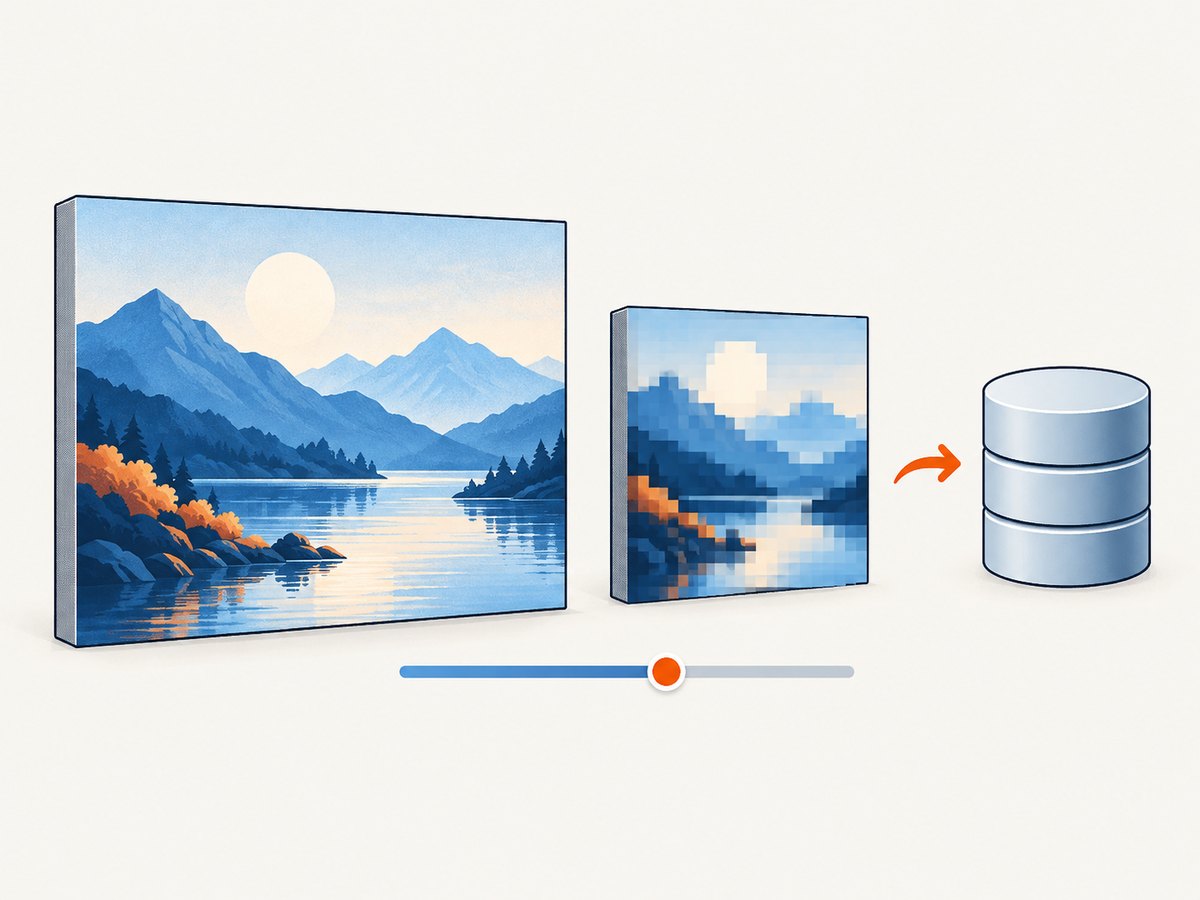
const scale = Math.min(window.devicePixelRatio || 1, 2);
const canvas = await html2canvas(target, { scale });
Use JPEG or WebP for photographic backgrounds when transparency is unnecessary. Keep PNG for diagrams, text-heavy graphics, and transparent output.
Make captures deterministic
- Wait for fonts and images.
- Freeze animations and carousels.
- Use a fixed element width and height.
- Capture after any data-bound content has rendered.
- Set an image timeout so a dead host does not hold the page indefinitely.
Retry only transient failures
A failed DNS lookup, timeout, or temporary upload interruption may be retried with exponential backoff. A CORS failure, rejected file type, authorization error, or tainted canvas will not be fixed by retrying. Log the capture stage separately from the upload stage so you can distinguish rendering failures from server failures.
Protect the endpoint
Require authentication, apply CSRF protection where appropriate, cap request size, validate decoded image bytes, and prevent uploaded names from becoming paths. If you use a proxy for remote backgrounds, restrict destination hosts and block private address ranges. Store immutable objects under server-generated identifiers and apply retention rules that fit your application.
8. Or skip the browser setup
If you need a clean screenshot of a URL rather than a user-specific in-browser canvas, ScreenshotNeo provides a one-call screenshot API and an MCP server. It removes cookie and consent banners, newsletter popups, and chat widgets before capture. Bot checks, blank pages, failed loads, timeouts, and cache hits are not billed, and the response reports the result with X-Page-Verdict and X-Billed headers. Its MCP tools let Claude, Cursor, and other MCP clients call take_screenshot, get_page_info, and capture_pdf.
See the ScreenshotNeo API documentation for all options. A basic request is:
curl -G "https://api.screenshotneo.com/v1/shot" -d access_key=YOUR_API_KEY --data-urlencode url=https://stripe.com -o shot.webpimport requests
r = requests.get(
"https://api.screenshotneo.com/v1/shot",
params={"access_key": "YOUR_API_KEY", "url": "https://stripe.com"},
timeout=90,
)
r.raise_for_status()
open("shot.webp", "wb").write(r.content)const q = new URLSearchParams({
access_key: 'YOUR_API_KEY',
url: 'https://stripe.com'
});
const res = await fetch(`https://api.screenshotneo.com/v1/shot?${q}`);
if (!res.ok) throw new Error(`Screenshot failed: ${res.status}`);
const bytes = Buffer.from(await res.arrayBuffer());
await import('node:fs/promises').then(fs => fs.writeFile('shot.webp', bytes));ScreenshotNeo includes full-page capture, lazy-image loading, element selectors, custom CSS and JavaScript, device presets, dark mode, PDF output, request blocking, headers and cookies, geolocation, caching, signed links, asynchronous jobs, bulk capture, and a usage API. The Free plan includes 1,000 screenshots per month with no card; paid plans start at $5 for 3,000 shots.
Create a free ScreenshotNeo account and start with 1,000 screenshots a month at no charge.
9. FAQ
Can html2canvas save a background image from any website?
No. The image must be same-origin or served with CORS, or your server must proxy it. Browser JavaScript cannot bypass those restrictions.
Should I use toDataURL() instead of toBlob()?
Use toBlob() for uploads. toDataURL() is convenient for short-lived previews but expands the image into a base64 string and can consume substantially more memory.
Why does backgroundColor not restore my missing image?
It sets the canvas fill color. It does not fetch a CSS background resource or solve a CORS failure.
Can I set the multipart content type manually?
No. Leave it unset when sending FormData; the browser adds the boundary required by the multipart parser.
Where should uploaded images be stored?
Use your configured filesystem or object storage after validation. Generate names on the server and return an identifier or controlled URL.


