How to Save an HTML Document as JPG in Microsoft Edge
Save a webpage as a JPG in Microsoft Edge with full-page capture, conversion steps, troubleshooting, and an automated ScreenshotNeo option.
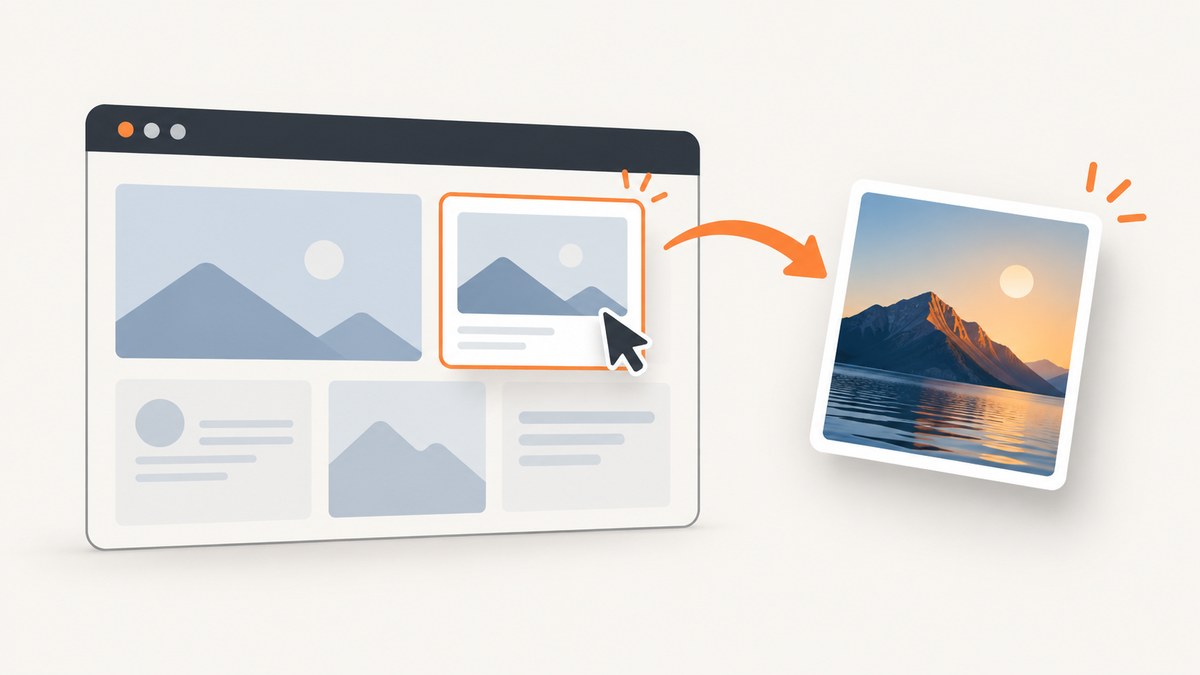
Short answer: Open the webpage in Microsoft Edge, press Ctrl+Shift+S, choose Capture full page or select an area, then use the capture overlay’s Save or Copy action. Edge does not promise a JPG export in every version. If the save dialog produces PNG or another format, open the capture in an image editor and export it as JPEG/JPG. Do not simply rename a PNG file to .jpg; that changes the name, not the encoding.
The HTML document remains HTML. You are saving a raster image of the page as Edge rendered it, including its current layout, fonts, images, and visible state. The original source, links, forms, animations, and selectable text are not preserved in the JPG.
1. Save a webpage as JPG with Edge Screenshot
Microsoft describes Screenshot (formerly Web Capture) as a way to turn web content into a shareable image. It can capture a selected region or a complete long page, then let you copy or save the result. Feature availability and the exact controls can vary by Edge version, device, market, and administrator policy. See Microsoft’s Screenshot feature page for the current product description.
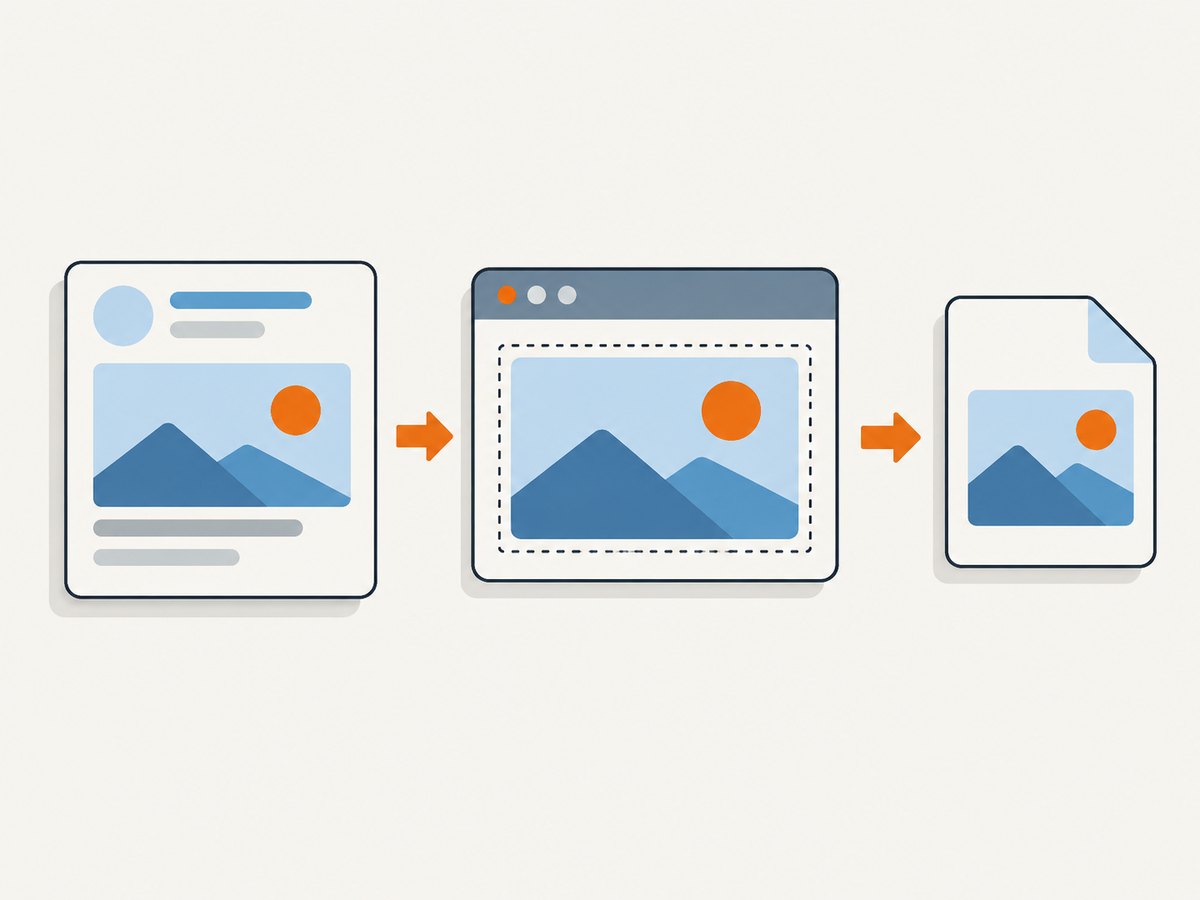
- Open the page. Navigate to the HTML document in Edge and wait for the content you need to appear. For pages with lazy-loaded images, scroll through the page first if you need every image included.
- Open Screenshot. Press Ctrl+Shift+S. You can also right-click the page and choose Screenshot, or open Settings and more and find the capture command.
- Choose the capture scope. Select Capture full page for the entire webpage, including content below the fold, or drag over a region for a partial image.
- Review the overlay. Edge may provide markup tools and controls for copying or saving. Check the output extension in the save dialog instead of assuming it is JPG.
- Save or copy. Choose Save to write a file, or Copy and paste the image into an editor such as Paint.
- Convert when necessary. If the capture is PNG, open it in an image editor, choose an export or Save As command, select JPEG or JPG, choose a quality level, and save a new file.
Edge’s documentation supports the capture and save workflow but does not guarantee that JPG is offered as a direct format in every release. Treat the format shown by your own save dialog as authoritative.
2. Full-page capture versus a selected area
Use a full-page capture when you need a complete article, documentation page, invoice, or landing page. Use a selected area when you need a chart, one paragraph, a product image, or a redacted portion of a page.
| Need | Edge choice | What to watch |
|---|---|---|
| Entire long webpage | Capture full page | Lazy content, sticky headers, and animations can change while the page is assembled. |
| Visible rectangle | Drag a selection | The result contains only the selected rendered pixels. |
| One screen or window | Windows Snipping Tool | It is designed for screen-based captures and is not documented as a scrolling webpage tool. |
| Printable document | Edge Print | Print preview is a document layout path, not a documented JPG exporter. |
For a long page, let fonts and images finish loading before starting. If a page loads content only after scrolling, scroll from top to bottom once, pause for images to appear, then run Screenshot again. A full-page image can be very tall; an editor or image viewer may downscale it for display even though the saved file retains its dimensions.
3. Convert Edge’s capture to JPG without losing the original
JPEG is a lossy format. It usually produces smaller files for photographs and web imagery, while PNG preserves sharp text and flat-color edges better. Keep the original capture until you have checked the JPEG.
Windows Paint workflow
- Open the saved capture in Paint. Microsoft documents opening Snipping Tool captures in Paint for editing; the exact menu labels can differ by Windows version.
- Use File, then the available Save as or export command.
- Select JPEG picture or .jpg.
- Choose a new filename so the original PNG is retained.
- Open the JPG and inspect small text, gradients, and image edges.
Other image editors
In an editor such as Photoshop, GIMP, Affinity Photo, or a browser-based editor approved by your organization, import the capture and export JPEG. A quality setting around 80–90 is a practical starting point for screenshots that contain both text and images, but the best setting depends on the page and the required file size. Avoid repeated JPEG re-saving; each generation can add artifacts.
Command-line conversion
If your team already uses ImageMagick, the conversion is:
magick edge-capture.png -quality 88 edge-capture.jpgThis command assumes ImageMagick is installed and available as magick. It does not capture the webpage; it only converts an existing image.
4. What Edge Screenshot captures—and what it does not
- Rendered appearance: pixels produced by the current page, viewport, zoom, fonts, theme, and loaded resources.
- Below-the-fold content: Edge can assemble a full-page capture, including long pages.
- Current state: open menus, consent dialogs, signed-in content, and other state visible at capture time can appear in the result.
- Not source HTML: the JPG cannot be edited as an HTML document and does not retain links or text semantics.
- Not a guaranteed universal format: Microsoft does not state that every Edge version offers direct JPG output.
For reproducible captures, record the page URL, date, viewport size, Edge version, zoom level, and whether the page was signed in. These details explain why two captures of the same URL may differ.
5. Fallbacks when Screenshot is unavailable
Windows Snipping Tool
Snipping Tool supports rectangle, window, full-screen, and freeform modes. It is useful for a visible portion of the page: capture the screen, open the result in Paint, and export JPEG. The documented modes do not promise a scrolling full-webpage capture, so use Edge Screenshot for a complete long page when it is available. Microsoft’s overview is on the Snipping Tool support page.
Edge Print
Press Ctrl+P to open print preview. You can adjust paper, margins, scale, headers, footers, and background graphics, then save a PDF or print. Microsoft’s print guidance does not describe direct JPG export, so use Print when you need a document layout rather than an image file.
Optional Edge add-ons
Edge Add-ons listings such as PageSaver and FireShot advertise additional full-page or image-export workflows. These are vendor descriptions, not independent performance tests. Review permissions, current availability, output formats, and maintenance before installing an extension. An extension is not required for the built-in Screenshot workflow.
6. Troubleshooting Edge JPG captures
| Problem | Likely cause | Fix |
|---|---|---|
| Screenshot is missing from the menu | The feature is unavailable for the device/version or disabled by policy. | Try the shortcut and Settings menu. If all entry points are absent, ask your administrator about the WebCaptureEnabled policy; Microsoft’s policy documentation explains that disabling it removes access. |
| The saved file is PNG, not JPG | Edge’s current build does not offer direct JPEG output. | Open the PNG in Paint or another editor and export a new JPEG. Do not rename the extension. |
| Only the visible viewport was captured | A selected-area capture was used, or full-page assembly failed. | Choose Capture full page, wait for the page to settle, disable disruptive extensions, and try again. |
| Images are blank or missing | Lazy loading, blocked requests, a network delay, or images that appear only after scrolling. | Scroll through the page, wait for images, confirm the network is stable, then recapture. |
| Sticky navigation appears many times | The page’s fixed header is included during full-page stitching. | Use a selected capture, temporarily collapse the header if the site permits it, or crop the result in an editor. |
| Text looks blurry after conversion | JPEG compression or editor downscaling damaged fine detail. | Export at a higher quality, keep the original PNG, and avoid repeated JPEG saves. PNG may be the better delivery format for text-heavy pages. |
| The page changed between captures | Dynamic content, ads, personalization, or a different login/session state. | Capture at a consistent time, use a stable session, and document viewport, zoom, and URL parameters. |
7. Automate the capture with ScreenshotNeo
Manual Edge capture is useful for an occasional page. For repeatable captures, scheduled jobs, many URLs, or server-side workflows, ScreenshotNeo provides a website screenshot API. It accepts one GET request and returns PNG, JPEG, WebP, or PDF. It can capture a full page with lazy images loaded, one element by CSS selector, a chosen viewport or device preset, dark mode, retina scale, custom CSS and JavaScript, clicks, waits, blocked resources, headers, cookies, user agents, authorization, timezone, geolocation, transparent backgrounds, resizing, caching, signed links, asynchronous jobs, webhooks, bulk capture, and usage data. See the ScreenshotNeo API documentation for parameter details.
8. Or skip the browser setup
Use the same URL-based request from cURL, Python, or Node.js. Replace the example URL with the HTML page you need to save.
cURL
curl -G "https://api.screenshotneo.com/v1/shot" \
  -d access_key=YOUR_API_KEY \
  --data-urlencode url=https://stripe.com \
  -o shot.webp
Python
import requests

r = requests.get(
    "https://api.screenshotneo.com/v1/shot",
    params={"access_key": "YOUR_API_KEY", "url": "https://stripe.com"},
    timeout=90,
)
r.raise_for_status()
open("shot.webp", "wb").write(r.content)
Node.js
const q = new URLSearchParams({
  access_key: 'YOUR_API_KEY',
  url: 'https://stripe.com'
});

const res = await fetch(`https://api.screenshotneo.com/v1/shot?${q}`);
if (!res.ok) throw new Error(`Screenshot failed: ${res.status}`);
const fs = await import('node:fs/promises');
await fs.writeFile('shot.webp', Buffer.from(await res.arrayBuffer()));
For a JPG result, request the JPEG output option documented by ScreenshotNeo and use a filename ending in .jpg. Keep your access key on the server; do not expose it in browser JavaScript or public source.
Why the automated route is useful
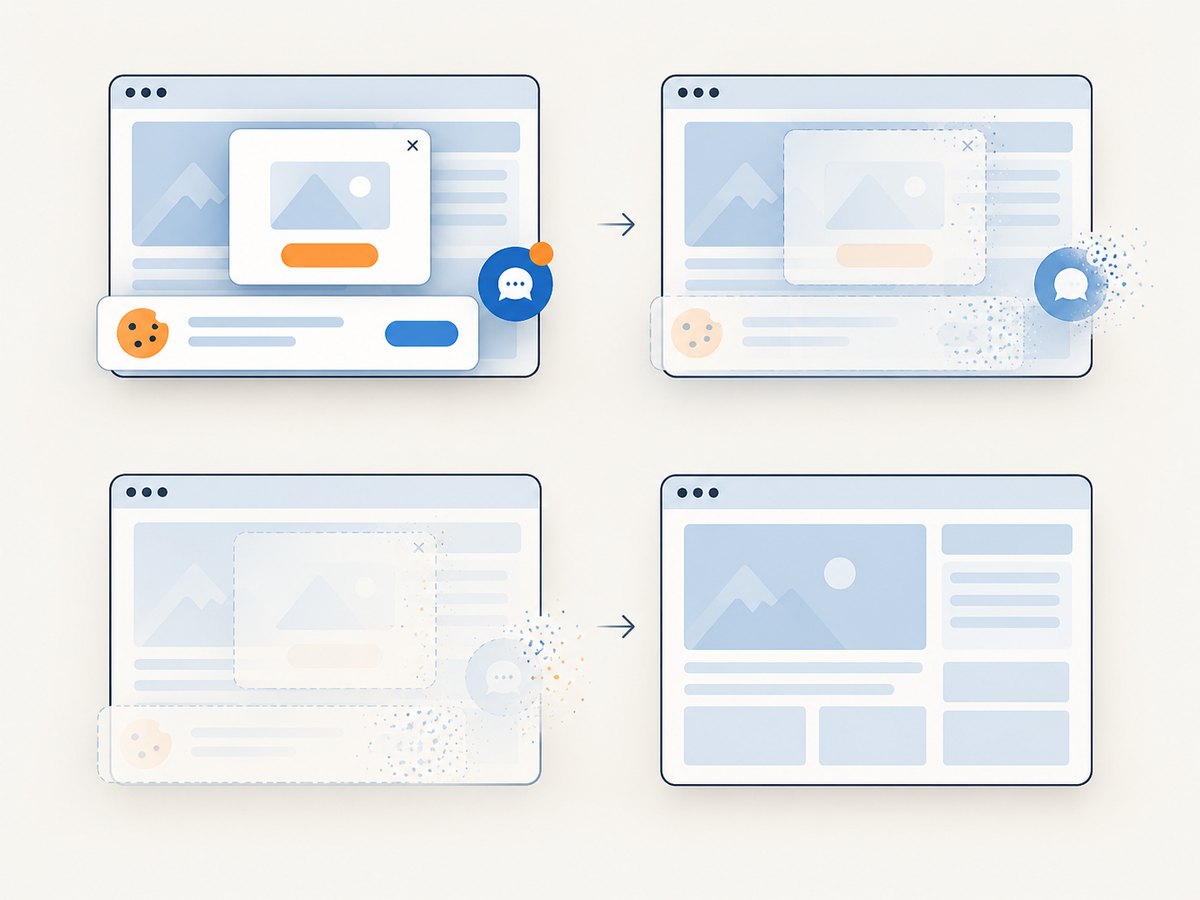
- Cookie and consent banners are accepted and removed before the shot, along with more than 60 known consent platforms, newsletter popups, and chat widgets. Each cleanup step can be turned off.
- Bot checks, CAPTCHAs, blank pages, timeouts, failed loads, and cache hits cost nothing. The response identifies the result with
X-Page-VerdictandX-Billedheaders. - An MCP server provides
take_screenshot,get_page_info, andcapture_pdftools for Claude, Cursor, and other MCP clients. - The Free plan includes 1,000 shots per month with no card. Paid plans start at $5 for 3,000 shots; yearly billing gives two months free, and every feature is available on every plan.
Create a free ScreenshotNeo account to get 1,000 screenshots each month without a card.
9. Performance, reliability, and cost considerations
Browser workflow
Edge Screenshot has no API charge, but it consumes a person’s time and depends on a live desktop session. Large pages take longer to assemble and produce large files. Dynamic pages can change while you capture them, and local extensions, login state, viewport size, and network conditions affect the output.
Automated workflow
An API is easier to repeat and integrate into a build, monitoring, or content pipeline. Set a request timeout that allows slow pages to finish, use waits for selectors or network idle when required, and use caching with a chosen TTL when the same URL does not need a fresh render every time. For batches, ScreenshotNeo supports up to 100 URLs per call and asynchronous jobs with signed webhooks. Check verdict and billing headers so your application can distinguish a clean image from a failed or blocked page.
Choosing an image format
- JPEG: smaller files and good photographic content; compression can soften small text.
- PNG: lossless edges and text; often larger for photographic pages.
- WebP: a compact modern format when the consuming system supports it.
- PDF: better when the recipient needs selectable text or print-oriented pagination rather than a single raster image.
10. Checklist for a clean JPG
- Confirm the correct URL and login state.
- Wait for fonts, images, and interactive content to load.
- Choose full page or selected area deliberately.
- Verify the actual saved format.
- Export to JPEG instead of renaming a PNG.
- Inspect small text and image edges at 100% zoom.
- Keep the original capture for future conversion.
- Record URL, date, viewport, zoom, and Edge version when reproducibility matters.
FAQ
Is an HTML document converted into an editable JPG?
No. JPG is a raster image of the rendered page. The HTML source, links, text semantics, and form controls are not preserved.
Can Edge always save screenshots directly as JPG?
No. Microsoft’s feature documentation describes copying and saving but does not guarantee a universal JPG option across Edge versions. Convert the saved image in an editor when necessary.
What shortcut opens Edge Screenshot?
Ctrl+Shift+S on supported desktop Edge installations.
Why is PNG often better for a page full of text?
PNG is lossless, so letters and sharp borders avoid the block artifacts that JPEG compression can introduce. JPEG is useful when file size matters more than pixel-perfect text.
Can I capture a page automatically without running Edge?
Yes. ScreenshotNeo takes a URL and returns an image or PDF through its API, with options for full-page capture, waits, cleanup, authentication, caching, and bulk jobs.


