How to Save an HTML Page as a PDF Using JavaScript
Learn three reliable ways to save HTML as PDF with JavaScript: browser printing, html2pdf.js, and automated Puppeteer or Playwright.
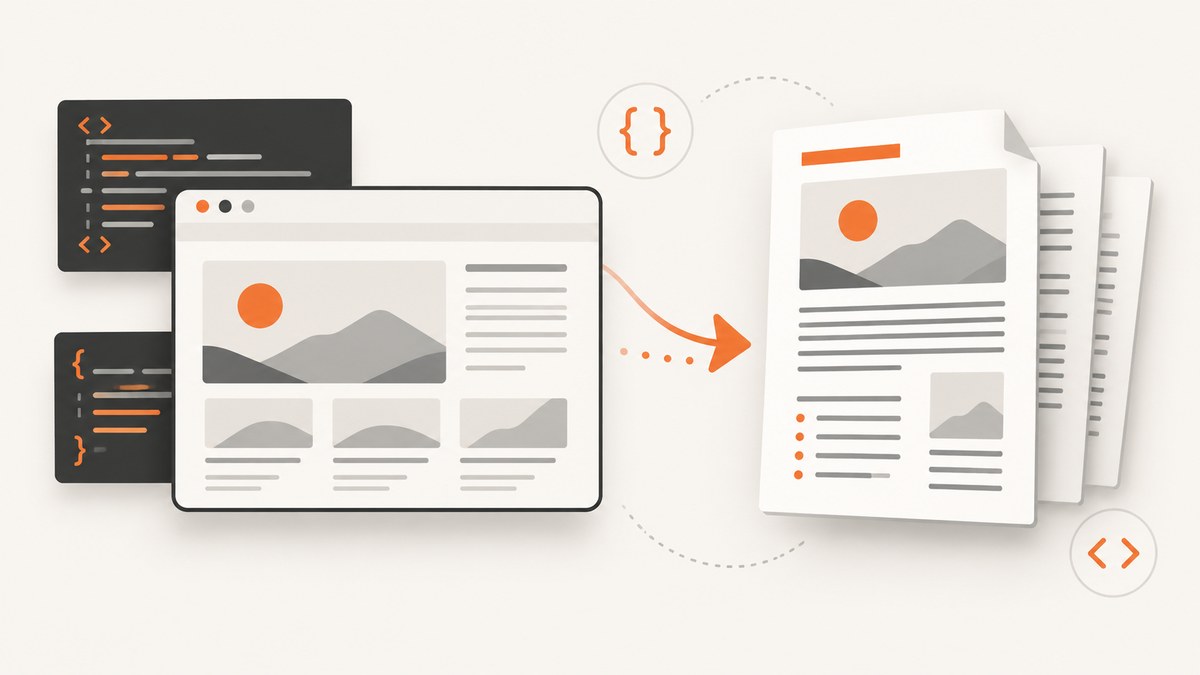
Direct answer: JavaScript’s built-in window.print() opens the browser’s print dialog. The user can then choose a PDF destination. It does not silently save a PDF file by itself. For a programmatic PDF buffer or file, use an automated browser such as Puppeteer or Playwright. For a browser-side download from one element, html2pdf.js is an option when image-based output is acceptable.
Which JavaScript PDF method should you use?
| Requirement | Best fit | What happens |
|---|---|---|
| A user clicks “Save as PDF” | window.print() |
The browser opens its print dialog. The user chooses the PDF printer or destination. |
| Download one element in the browser | html2pdf.js | The library converts the element through canvas and an image before saving a PDF. |
| Generate files on a server or in CI | Puppeteer or Playwright | An automated browser loads the page and returns PDF bytes or writes a file. |
| Capture a URL without managing a browser | ScreenshotNeo | A hosted API returns a screenshot or PDF from one HTTP request. |
1. Use window.print() for a normal Save as PDF button
MDN describes window.print() as opening the print dialog for the current document. If the document is still loading, the browser finishes loading before opening the dialog, and the call blocks while the dialog is open. See the MDN Window.print() reference.

<button type="button" id="save-pdf">Save as PDF</button>

<script>
  document.getElementById('save-pdf').addEventListener('click', () => {
    window.print();
  });
</script>
Add print-specific CSS so navigation, controls, and other screen-only elements do not appear in the PDF:
/* screen.css */
@media print {
  .no-print,
  nav,
  footer,
  .toolbar {
    display: none !important;
  }

  main {
    width: auto;
    max-width: none;
  }
}

@page {
  /* Adjust these values for your document. */
  margin: 12mm;
}
You can also load a dedicated print stylesheet:
<link rel="stylesheet" href="print.css" media="print">The MDN printing guide documents @media print, @page, print-only stylesheets, and the beforeprint and afterprint events.
Temporarily change the page while printing
function prepareForPrint() {
  document.body.classList.add('printing');
}

function restoreAfterPrint() {
  document.body.classList.remove('printing');
}

window.addEventListener('beforeprint', prepareForPrint);
window.addEventListener('afterprint', restoreAfterPrint);
This approach leaves the destination and many print settings under browser and user control. Page JavaScript cannot guarantee a silent download, a particular filename, or that every browser exposes the same PDF destination.
2. Generate a browser-side PDF with html2pdf.js
html2pdf.js is useful when the user must download a selected element without relying on the print dialog. Its documented pipeline is source element → cloned container → canvas → image → PDF → save. The project documentation also lists known limitations: rendering can differ from the original page, cloned-node CSS can be imperfect, resizing can cause reflow, the rendered content is placed as an image, and content larger than the browser canvas can produce blank output. Text in that image-based output is not selectable or searchable and files can be large. Read the html2pdf.js README before choosing it for long or highly interactive documents.
Complete browser example
<!doctype html>
<html lang="en">
<head>
  <meta charset="utf-8">
  <title>Browser PDF export</title>
  <script src="https://cdnjs.cloudflare.com/ajax/libs/html2pdf.js/0.10.1/html2pdf.bundle.min.js" defer></script>
</head>
<body>
  <main id="content-to-export">
    <h1>Invoice</h1>
    <p>This section will be rendered into a PDF.</p>
  </main>

  <button type="button" id="download-pdf">Download PDF</button>

  <script>
    document.getElementById('download-pdf').addEventListener('click', async () => {
      const element = document.getElementById('content-to-export');

      await html2pdf().set({
        margin: 12,
        filename: 'invoice.pdf',
        image: { type: 'jpeg', quality: 0.95 },
        html2canvas: { scale: 2, useCORS: true },
        jsPDF: { unit: 'mm', format: 'a4', orientation: 'portrait' },
        pagebreak: { mode: ['css', 'legacy'] }
      }).from(element).save();
    });
  </script>
</body>
</html>
Options that matter
margin: page margin in the unit accepted by the selected jsPDF configuration.filename: the suggested download name.image.typeandimage.quality: the intermediate image format and quality.html2canvas.scale: higher values can improve sharpness while increasing memory use.jsPDF.format,orientation, andunit: paper size, orientation, and measurement unit.pagebreak: controls page-break handling using CSS and legacy rules.
Export only an element
const element = document.querySelector('.report');
await html2pdf().from(element).save('report.pdf');
Make images available to the browser with suitable CORS headers. Wait for fonts and images before starting the conversion, and avoid exporting a container whose width changes during rendering. For very tall pages, split the content into sections or use an automated browser instead of relying on one giant canvas.
3. Generate a PDF with Puppeteer
Puppeteer is suited to server-side jobs, scheduled exports, batch conversion, and CI. Its page.pdf() API generates a PDF using the print CSS media type, returns PDF bytes, and waits for fonts by default. The Puppeteer PDF guide shows the same browser, page, navigation, and PDF workflow.
Runnable Node.js example
import puppeteer from 'puppeteer';

const browser = await puppeteer.launch();
try {
  const page = await browser.newPage();
  await page.goto('https://example.com', { waitUntil: 'networkidle2' });

  await page.pdf({
    path: 'page.pdf',
    format: 'A4',
    printBackground: true,
    margin: {
      top: '12mm',
      right: '12mm',
      bottom: '12mm',
      left: '12mm'
    }
  });
} finally {
  await browser.close();
}
Use await page.emulateMediaType('screen') before page.pdf() when the PDF should use screen media instead of print media. For a selected element, measure or style the page so the element occupies the intended printable area; the PDF API itself renders the page, not an arbitrary DOM node as a standalone canvas.
4. Generate a PDF with Playwright
Playwright’s page.pdf() API returns a PDF buffer and supports paper format, dimensions, margins, page ranges, and print-color behavior. It uses print CSS by default.
import { chromium } from 'playwright';
import { writeFile } from 'node:fs/promises';

const browser = await chromium.launch();
try {
  const page = await browser.newPage();
  await page.goto('https://example.com', { waitUntil: 'networkidle' });

  const pdf = await page.pdf({
    format: 'A4',
    printBackground: true,
    margin: {
      top: '12mm',
      right: '12mm',
      bottom: '12mm',
      left: '12mm'
    }
  });

  await writeFile('page.pdf', pdf);
} finally {
  await browser.close();
}
To render screen styles, call await page.emulateMedia({ media: 'screen' }) before generating the PDF. Use page ranges when only selected pages belong in the result.
Make HTML render predictably
Wait for asynchronous content
Navigation completion does not always mean that charts, fonts, lazy images, or application data are ready. In Puppeteer or Playwright, wait for a meaningful selector or an application-specific readiness signal:
await page.goto(url, { waitUntil: 'networkidle' });
await page.waitForSelector('[data-pdf-ready]');
For client-side conversion, await document.fonts.ready and image loading before calling html2pdf.js:
await document.fonts.ready;
await Promise.all([...document.images].map((image) => {
  if (image.complete) return Promise.resolve();
  return new Promise((resolve) => {
    image.addEventListener('load', resolve, { once: true });
    image.addEventListener('error', resolve, { once: true });
  });
}));
Control page breaks
.keep-together {
  break-inside: avoid;
  page-break-inside: avoid;
}

.start-new-page {
  break-before: page;
  page-break-before: always;
}
Handle backgrounds, colors, and links
Print rendering may omit backgrounds unless the browser or API is configured to print them. Puppeteer and Playwright expose a print-background option. Check contrast, link wrapping, table headers, and repeated page headers on representative documents.
Or skip the browser setup
ScreenshotNeo provides a hosted capture API that can return a screenshot or PDF from one GET request. See the ScreenshotNeo API documentation for the PDF options and response details.
cURL
curl -G "https://api.screenshotneo.com/v1/shot" -d access_key=YOUR_API_KEY --data-urlencode url=https://stripe.com -o shot.webpPython
import requests
r = requests.get("https://api.screenshotneo.com/v1/shot", params={"access_key": "YOUR_API_KEY", "url": "https://stripe.com"}, timeout=90)
open("shot.webp", "wb").write(r.content)
Node.js
const q = new URLSearchParams({ access_key: 'YOUR_API_KEY', url: 'https://stripe.com' });
const res = await fetch(`https://api.screenshotneo.com/v1/shot?${q}`);
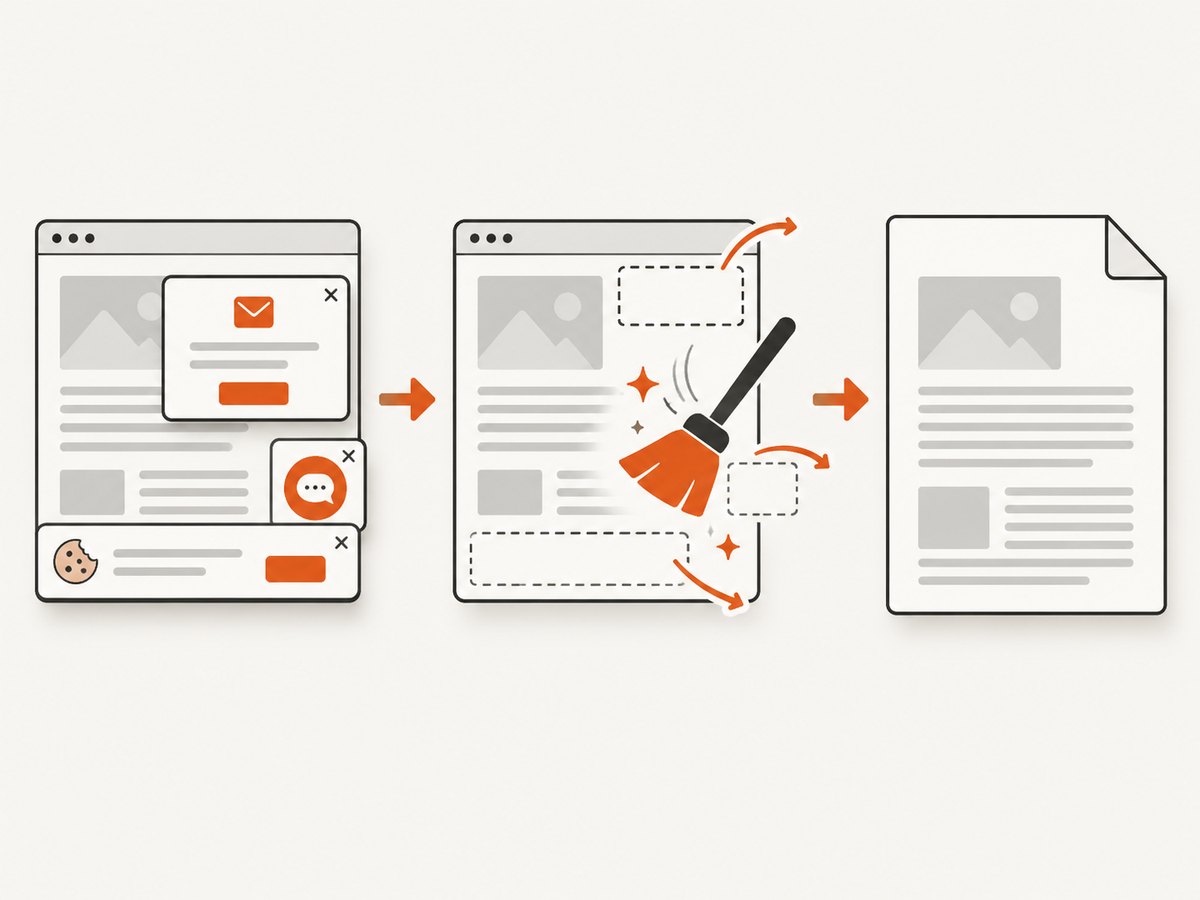
ScreenshotNeo removes cookie banners, newsletter popups, and chat widgets before capture. Bot checks, blank pages, failed loads, timeouts, and cache hits are not billed, and the response identifies the result with X-Page-Verdict and X-Billed headers. It also offers an MCP server with take_screenshot, get_page_info, and capture_pdf tools for AI agents. The free plan includes 1,000 screenshots per month with no card; paid plans start at $5 for 3,000 shots. Create a free ScreenshotNeo account.
Troubleshooting
| Symptom | Likely cause | Fix |
|---|---|---|
Nothing downloads after calling window.print() |
The API opens a dialog rather than writing a file. | Ask the user to choose a PDF destination, or use html2pdf.js, Puppeteer, or Playwright for programmatic output. |
| Headers, navigation, or buttons appear in the PDF | No print stylesheet hides screen-only elements. | Add @media print rules and classes such as .no-print. |
| Fonts or images are missing | Assets have not loaded, are blocked, or fail CORS checks. | Wait for fonts and images; serve assets reliably and configure CORS where a canvas-based library needs it. |
| Layout shifts before capture | Late data, web fonts, ads, or responsive reflow. | Wait for a readiness selector, set a stable viewport, and disable or replace nondeterministic content. |
| html2pdf.js output is blurry or huge | Canvas scale and image quality are too high or too low. | Adjust html2canvas.scale, image type, and quality; test the resulting file size. |
| html2pdf.js produces a blank page | The rendered canvas exceeds browser canvas dimensions. | Split very tall content, reduce scale, or use an automated browser. |
| Text cannot be selected in an html2pdf.js PDF | The pipeline places rendered content as an image. | Use Puppeteer or Playwright when searchable, selectable text matters. |
| Server PDF uses unexpected colors | The page is rendered with print media or backgrounds are disabled. | Choose print or screen media deliberately and enable print backgrounds where supported. |
| Puppeteer or Playwright hangs | Network requests never settle or the page waits on a resource indefinitely. | Use a navigation timeout, wait for a specific application signal, and close the browser in a finally block. |
Performance, reliability, and cost
- Print dialog: simplest setup, but completion depends on the user and browser settings.
- html2pdf.js: avoids a server browser, but canvas memory, image encoding, and long-page limits affect runtime and output size.
- Puppeteer or Playwright: provide strong control and repeatability, but browser startup, fonts, external assets, and concurrency consume server resources.
- Reliability: make the document deterministic. Pin a viewport, wait for fonts and application data, handle failed images, and test long tables and page breaks.
- Cost: the research sources do not provide a like-for-like benchmark across these methods. Measure representative documents in your own browsers and deployment environment.
FAQ
Can JavaScript save a PDF without opening the print dialog?
Not with window.print(). Use a client-side PDF library or an automated browser to generate the file in code.
Can I save only one HTML element?
Yes. html2pdf.js accepts an element. With Puppeteer or Playwright, style the page around the target element or generate a dedicated print route.
Why does my PDF look different from the webpage?
PDF generation uses print media rules, browser print behavior, or a canvas-image conversion pipeline. Screen and print styles can legitimately differ.
Which option produces searchable text?
Automated browser PDF APIs preserve browser-rendered document structure more directly. html2pdf.js documents image-based output, so its text is not selectable or searchable.
Should I use a browser library for a batch of URLs?
For batch work, a managed capture API or a controlled Puppeteer or Playwright worker is usually easier to operate than launching a new browser for every URL. Test concurrency and failure handling with your own pages.


