How to Save HTML and Resources with ChromeDriver Headless
Learn whether you need rendered HTML, an MHTML archive, downloaded files, or response bodies, then save the right artifact with headless ChromeDriver.
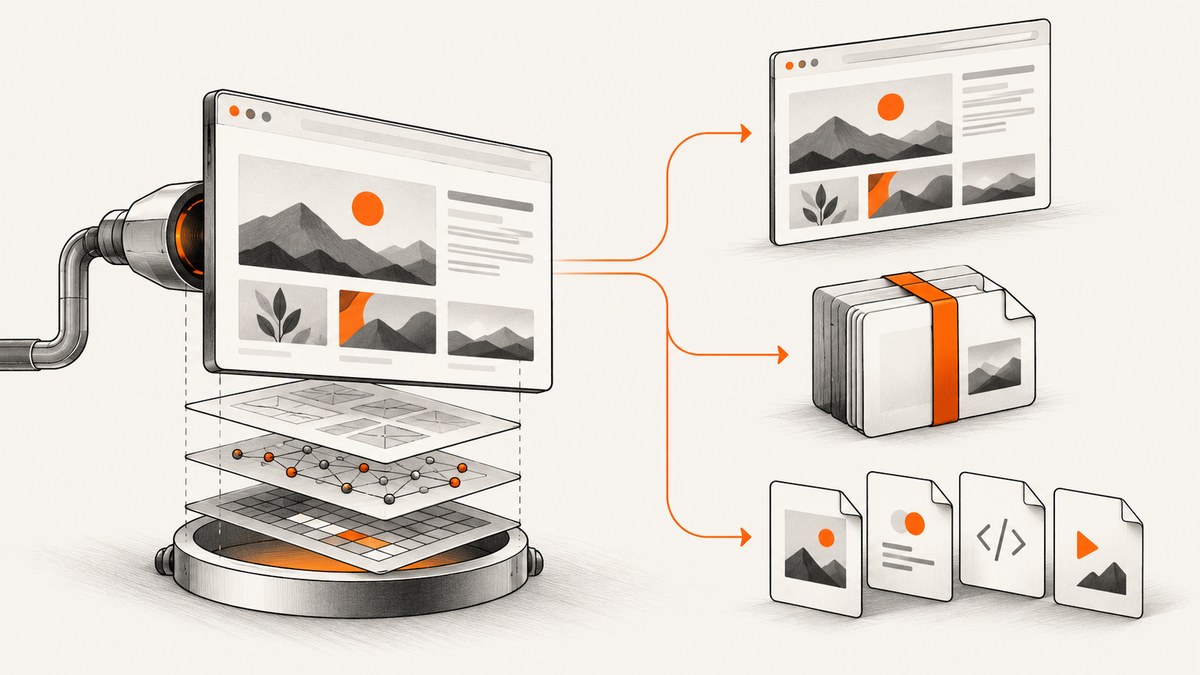
“Save the page” can mean several different outputs. You might need the original response, the live DOM after JavaScript runs, one self-contained archive, each CSS/image/font file separately, network response bodies, or a file the page downloads. ChromeDriver can help with all of these, but each requires a different capture layer.
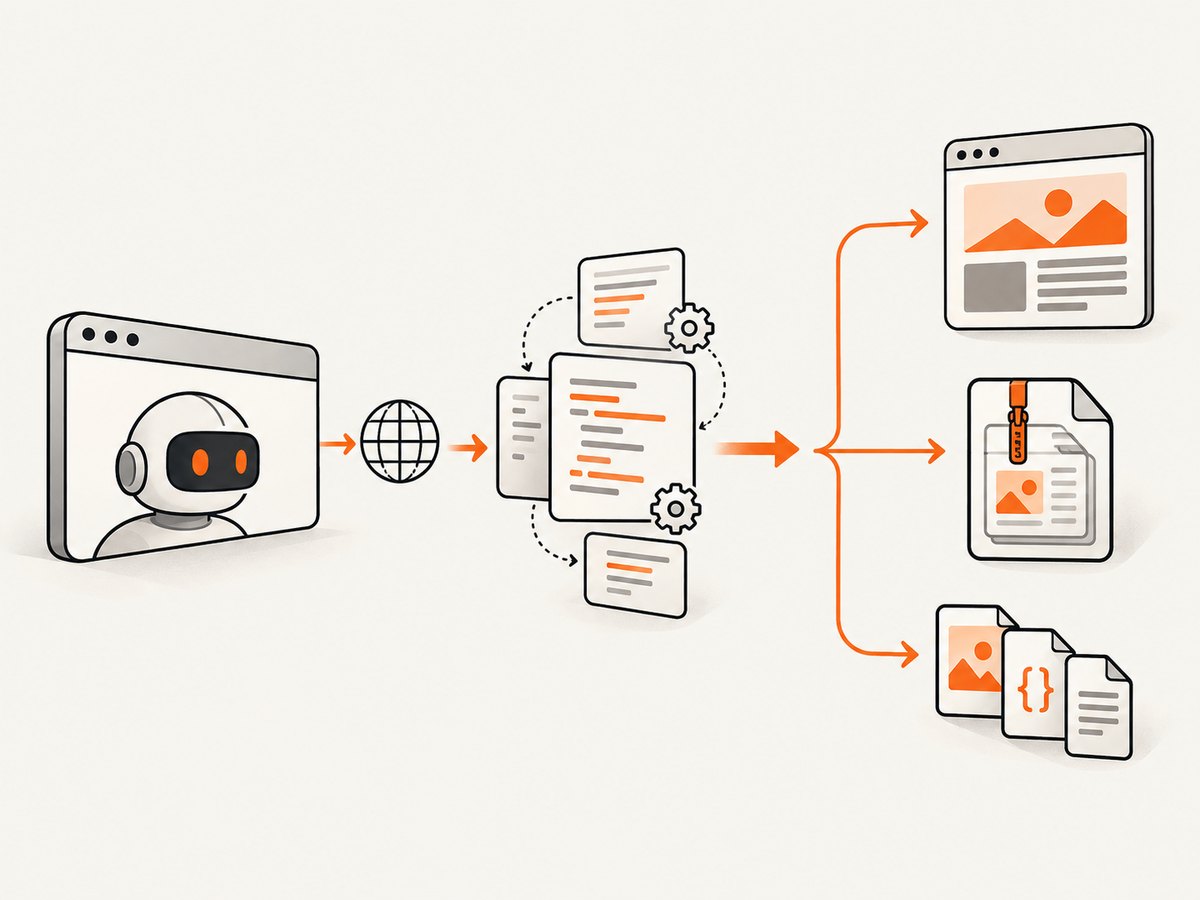
This guide shows how to choose the artifact first, run Chrome headlessly, wait for dynamic content, and save it reliably. The examples use Python Selenium, with equivalent cURL and Node.js approaches where they make sense.
Choose the artifact before writing code
| What you need | Recommended route | What you get | Boundary |
|---|---|---|---|
| Current rendered markup | WebDriver JavaScript or --dump-dom |
Serialized live DOM after scripts run | Not the original HTTP bytes; external resources remain separate |
| One file containing a page and dependencies | DevTools Protocol Page.captureSnapshot (MHTML) |
Packaged snapshot including documented frames, shadow DOM and external resources | Protocol support follows the installed Chrome version |
| Individual resources or response inspection | Network events plus response-body retrieval | Request metadata and bodies associated with request IDs | You must handle redirects, encoding, naming and large files |
| A normal browser download | Chrome download preferences and a completion check | The file written by the browser | ChromeDriver does not wait for completion automatically |
| A visual or printable result | Screenshot or PDF commands | PNG, JPEG, WebP or PDF | These are not HTML/resource archives |
A DOM dump is the right answer when you need to inspect what the application rendered. MHTML is usually the simplest one-file archive. Network capture is the right answer when you need separate assets or exact response bodies.
Install compatible ChromeDriver and Selenium
ChromeDriver is the WebDriver control layer for Chrome. Install Chrome, a compatible ChromeDriver, and Selenium in the same environment. ChromeDriver documentation advises Chrome 115 and later users to use the Chrome for Testing release channels and availability information. Keep browser and driver versions aligned; mismatches commonly fail before the first page loads.
python -m pip install seleniumUnified Headless is enabled through Chrome options with --headless. The Chrome Headless documentation describes the unified implementation introduced in Chrome 112; newer installations may also expose the separate chrome-headless-shell binary.
Start a reliable headless session
Navigation finishing means the document event completed, not that an application has fetched every API response. Wait for a page-specific condition such as a results container, a known heading, or a loading indicator disappearing.
from pathlib import Path
from selenium import webdriver
from selenium.webdriver.chrome.options import Options
from selenium.webdriver.support.ui import WebDriverWait
from selenium.webdriver.common.by import By

url = "https://example.com"
out = Path("capture-output")
out.mkdir(parents=True, exist_ok=True)

options = Options()
options.add_argument("--headless")
options.add_argument("--window-size=1440,1000")
options.add_argument("--disable-gpu")
options.add_argument("--no-sandbox")
options.add_argument("--disable-dev-shm-usage")

# Selenium Manager can locate a compatible driver. If your deployment
# manages binaries itself, pass a Service object here.
driver = webdriver.Chrome(options=options)
try:
    driver.get(url)
    WebDriverWait(driver, 30).until(
        lambda d: d.execute_script("return document.readyState") == "complete"
    )
    # Replace this with a condition specific to your application.
    WebDriverWait(driver, 30).until(
        lambda d: d.find_element(By.TAG_NAME, "body").text.strip() != ""
    )
finally:
    driver.quit()
Use a longer timeout only when the site genuinely needs it. A fixed sleep can be useful for a known animation, but a selector or application state is less wasteful and more reliable.
Save the rendered DOM as HTML
Execute document.documentElement.outerHTML after your readiness condition. This serializes the current DOM, including changes made by scripts. It does not embed images, stylesheets, fonts, scripts or other external resources.
from pathlib import Path
from selenium import webdriver
from selenium.webdriver.chrome.options import Options
from selenium.webdriver.support.ui import WebDriverWait

url = "https://example.com"
Path("page.html").parent.mkdir(parents=True, exist_ok=True)
options = Options()
options.add_argument("--headless")
options.add_argument("--window-size=1440,1000")

driver = webdriver.Chrome(options=options)
try:
    driver.get(url)
    WebDriverWait(driver, 30).until(
        lambda d: d.execute_script("return document.readyState") == "complete"
    )
    html = driver.execute_script("return document.documentElement.outerHTML")
    Path("page.html").write_text(html, encoding="utf-8")
finally:
    driver.quit()
The result is not necessarily byte-for-byte equivalent to the original response. The browser parsed markup, normalized it, and allowed scripts to mutate it. If you need the server response itself, use an HTTP client and save the response separately; WebDriver is observing the browser’s live document.
Chrome’s command-line DOM dump
For a quick one-off dump, Chrome supports --dump-dom. The command runs scripts before serializing the resulting DOM.
google-chrome --headless --disable-gpu --dump-dom https://example.com > page.htmlUse --timeout to bound waiting and --virtual-time-budget to advance time-dependent JavaScript. These options do not prove that a site’s asynchronous data has finished; application-specific waits remain necessary for complex pages.
Save a self-contained MHTML snapshot
MHTML packages a page with its external resources in one file. The Chrome DevTools Protocol command Page.captureSnapshot returns MHTML and documents inclusion of frames, shadow DOM and external resources. It is a DevTools Protocol command, not a standard WebDriver method, so check support against the Chrome version deployed in your environment. The protocol’s tip-of-tree definition changes frequently and has no backward-compatibility guarantee.
from pathlib import Path
from selenium import webdriver
from selenium.webdriver.chrome.options import Options
from selenium.webdriver.support.ui import WebDriverWait

options = Options()
options.add_argument("--headless")
options.add_argument("--window-size=1440,1000")
driver = webdriver.Chrome(options=options)
try:
    driver.get("https://example.com")
    WebDriverWait(driver, 30).until(
        lambda d: d.execute_script("return document.readyState") == "complete"
    )
    result = driver.execute_cdp_cmd("Page.captureSnapshot", {"format": "mhtml"})
    Path("page.mhtml").write_text(result["data"], encoding="utf-8")
finally:
    driver.quit()
Some Selenium bindings expose CDP commands differently. If execute_cdp_cmd is unavailable, use Selenium’s documented CDP integration for your language or connect to Chrome’s debugging endpoint. Treat the exact command surface as version-dependent.
Extension API alternative
A Chrome extension can call chrome.pageCapture.saveAsMHTML(). The extension needs the pageCapture permission, and the API is available from Chrome 116. This route is useful when your workflow already runs as an extension; for a server-side Selenium job, the CDP snapshot is usually simpler.
Capture resources and response bodies
When you need separate files or want to inspect what the page requested, enable Network tracking before navigation. Network events identify requests and responses with request IDs. Retrieve a response body while it is still available, then choose a safe filename based on the URL and content type.
from selenium import webdriver
from selenium.webdriver.chrome.options import Options

options = Options()
options.add_argument("--headless")
options.set_capability("goog:loggingPrefs", {"performance": "ALL"})
driver = webdriver.Chrome(options=options)
try:
    driver.execute_cdp_cmd("Network.enable", {})
    driver.get("https://example.com")
    events = driver.get_log("performance")
    for entry in events:
        # Each entry contains a JSON message. Parse it and inspect
        # Network.responseReceived and Network.loadingFinished events.
        pass
finally:
    driver.quit()
ChromeDriver performance logging is opt-in when the session is created. The log is an event source, not a finished downloader: you must correlate Network.responseReceived and Network.loadingFinished, retain request IDs, account for redirects, and call the DevTools Network.getResponseBody command for bodies you want to save. Encoded or binary bodies may require decoding before writing.
# Illustrative body retrieval after parsing a response event:
body = driver.execute_cdp_cmd(
    "Network.getResponseBody",
    {"requestId": request_id}
)
data = body["body"]
if body.get("base64Encoded"):
    import base64
    raw = base64.b64decode(data)
    open("resource.bin", "wb").write(raw)
else:
    open("resource.txt", "w", encoding="utf-8").write(data)
For large sites, stream your metadata to a database or JSONL file instead of retaining every event in memory. Sanitize URL-derived names, preserve the original URL in a manifest, and avoid overwriting two resources with the same basename.
Save files downloaded by the page
A link or button can trigger a normal browser download rather than a network body you want to intercept. Configure a dedicated absolute directory before starting Chrome, click the control, and wait until temporary extensions such as .crdownload disappear.
import time
from pathlib import Path
from selenium import webdriver
from selenium.webdriver.chrome.options import Options
from selenium.webdriver.common.by import By

folder = Path.cwd() / "downloads"
folder.mkdir(exist_ok=True)
options = Options()
options.add_argument("--headless")
options.add_experimental_option("prefs", {
    "download.default_directory": str(folder),
    "download.prompt_for_download": False,
    "download.directory_upgrade": True,
    "safebrowsing.enabled": True,
})

driver = webdriver.Chrome(options=options)
try:
    driver.get("https://example.com/download-page")
    driver.find_element(By.CSS_SELECTOR, "a.download").click()
    deadline = time.time() + 60
    while time.time() < deadline:
        partial = list(folder.glob("*.crdownload"))
        files = [p for p in folder.iterdir() if p.is_file() and p.suffix != ".crdownload"]
        if files and not partial:
            break
        time.sleep(0.25)
    else:
        raise TimeoutError("Download did not finish")
finally:
    driver.quit()
Use a full suitable path and a fresh directory per job when possible. Calling quit() immediately after the click can terminate Chrome before the file is complete.
Waiting, lazy loading and blocked resources
Full-page applications often lazy-load images only after scrolling. Scroll in increments, wait for the page’s loading marker, and then capture the DOM or MHTML.
driver.execute_script("window.scrollTo(0, document.body.scrollHeight)")
WebDriverWait(driver, 20).until(
    lambda d: d.execute_script("return document.readyState") == "complete"
)
Requests can fail because of authentication, robots or bot checks, certificate errors, CSP, a proxy, DNS, or a resource that exists only in a normal user session. Capture browser console and performance logs when diagnosing. If a resource is intentionally blocked, document that boundary in your manifest rather than presenting the archive as complete.
Performance, reliability and cost considerations
- Reuse a browser session for related URLs when isolation is not required, but create separate profiles or containers when cookies and local storage must not leak between jobs.
- Set explicit page and download deadlines. Without them, a stalled request can consume a worker indefinitely.
- Limit screenshots, DOM strings and response bodies retained in memory. Write incrementally for large pages.
- Pin the Chrome image and driver version in deployment. DevTools Protocol tip-of-tree changes are not a compatibility contract.
- Record URL, timestamp, browser version, viewport, wait condition and failures beside each artifact so captures can be reproduced.
- Headless Chrome still consumes CPU, memory and bandwidth for every navigation. MHTML and response-body archives can become large when fonts, video, analytics and third-party frames are included.
Or skip the browser setup
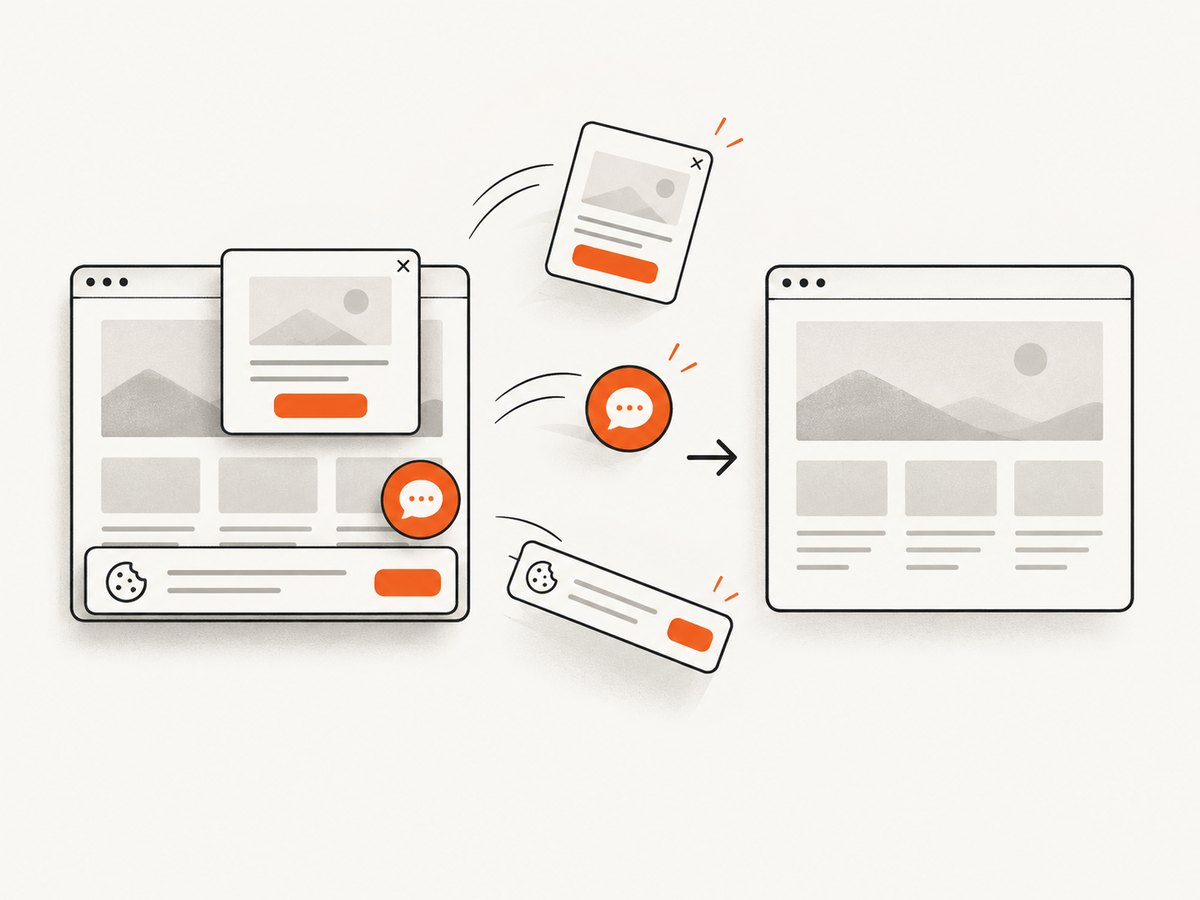
If your goal is a clean screenshot rather than an HTML archive, ScreenshotNeo provides a single GET request that returns PNG, JPEG, WebP or PDF. It accepts the cookie or consent banner like a visitor and removes more than 60 known consent platforms, newsletter popups and chat widgets before capture; each step can be turned off. Bot checks, blank pages, timeouts, failed loads and cache hits cost nothing, and the response identifies the result with X-Page-Verdict and X-Billed headers.
See the ScreenshotNeo API documentation for all options, including full-page lazy-image loading, element selectors, dark mode, device presets, retina scale, PDF paper and page ranges, custom CSS and JavaScript, clicks, waits, request blocking, headers, cookies, user agents, authorization, timezone, geolocation, transparent backgrounds, resizing, TTL caching, signed links, asynchronous webhooks, bulk capture and usage reporting.
curl -G "https://api.screenshotneo.com/v1/shot" -d access_key=YOUR_API_KEY --data-urlencode url=https://stripe.com -o shot.webpimport requests
r = requests.get("https://api.screenshotneo.com/v1/shot", params={"access_key": "YOUR_API_KEY", "url": "https://stripe.com"}, timeout=90)
open("shot.webp", "wb").write(r.content)const q = new URLSearchParams({ access_key: 'YOUR_API_KEY', url: 'https://stripe.com' });
const res = await fetch(`https://api.screenshotneo.com/v1/shot?${q}`);ScreenshotNeo also has an MCP server with take_screenshot, get_page_info and capture_pdf tools for Claude, Cursor and other MCP clients. The Free plan includes 1,000 screenshots each month with no card; paid plans start at $5 for 3,000. Create a free ScreenshotNeo account.
Troubleshooting
“I saved HTML, but images and CSS are missing”
You saved the live DOM, which references external resources. Use MHTML for a one-file package, or capture Network events and download individual bodies.
“The HTML contains a loading shell”
Navigation completed before application data arrived. Wait for a page-specific selector or state, and scroll if content is lazy-loaded.
“Chrome cannot start or the session is rejected”
Check Chrome and ChromeDriver compatibility, especially after an automatic browser update. For Chrome 115+, use the Chrome for Testing release information and pin versions in CI.
“Page.captureSnapshot is unknown”
Your deployed Chrome or driver may not expose that CDP command, or the binding is calling it incorrectly. Check the protocol version exposed by that browser and use the binding’s CDP method.
“Performance logs are empty”
Performance logging must be enabled in capabilities before the session starts. Enable Network tracking before navigation, then inspect the correct log type.
“The downloaded file is truncated or absent”
Use an absolute download directory, wait for the file and for .crdownload files to disappear, and only then quit Chrome.
“Some resources are inaccessible”
Inspect status codes, redirects, authentication, certificate and proxy errors. A browser archive can only include resources the session was allowed to request.
FAQ
Is outerHTML the original page source?
No. It is a serialization of the current DOM after parsing and script mutations. Use an HTTP client when the original response bytes matter.
Does MHTML preserve every browser state?
It packages documented page content and dependencies, but it is not a full profile backup. IndexedDB, service-worker state and server-side data need separate handling.
Can ChromeDriver automatically download every resource?
No. You must enable and process Network events, retrieve bodies, and implement naming, decoding and storage rules.
Should I use a screenshot or PDF as an archive?
Use them for visual or printable evidence. They do not preserve editable HTML or individual resource files.
When is a hosted screenshot API easier?
When you need image or PDF output without maintaining Chrome, driver binaries, waits and download directories. ScreenshotNeo provides that request-based path and an MCP server for AI agents.


