How to Save an HTML Table as an Image
Render an HTML table to a sharp PNG with html2canvas, solve cross-origin issues, and use ScreenshotNeo for reliable server capture.
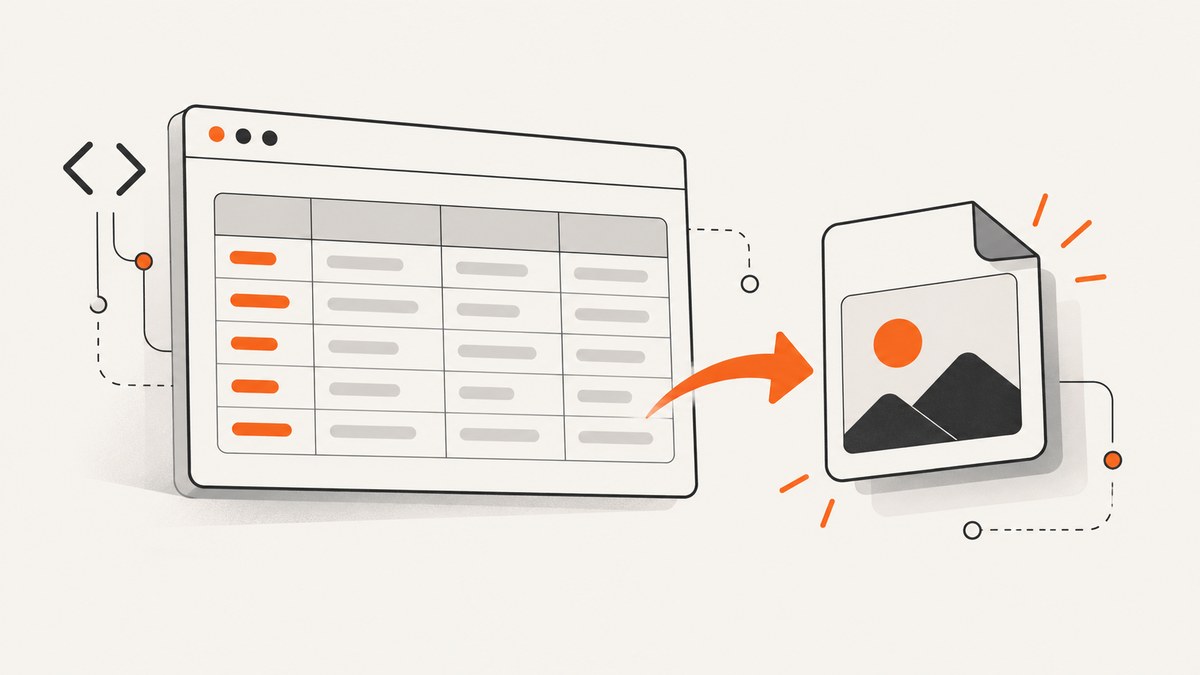
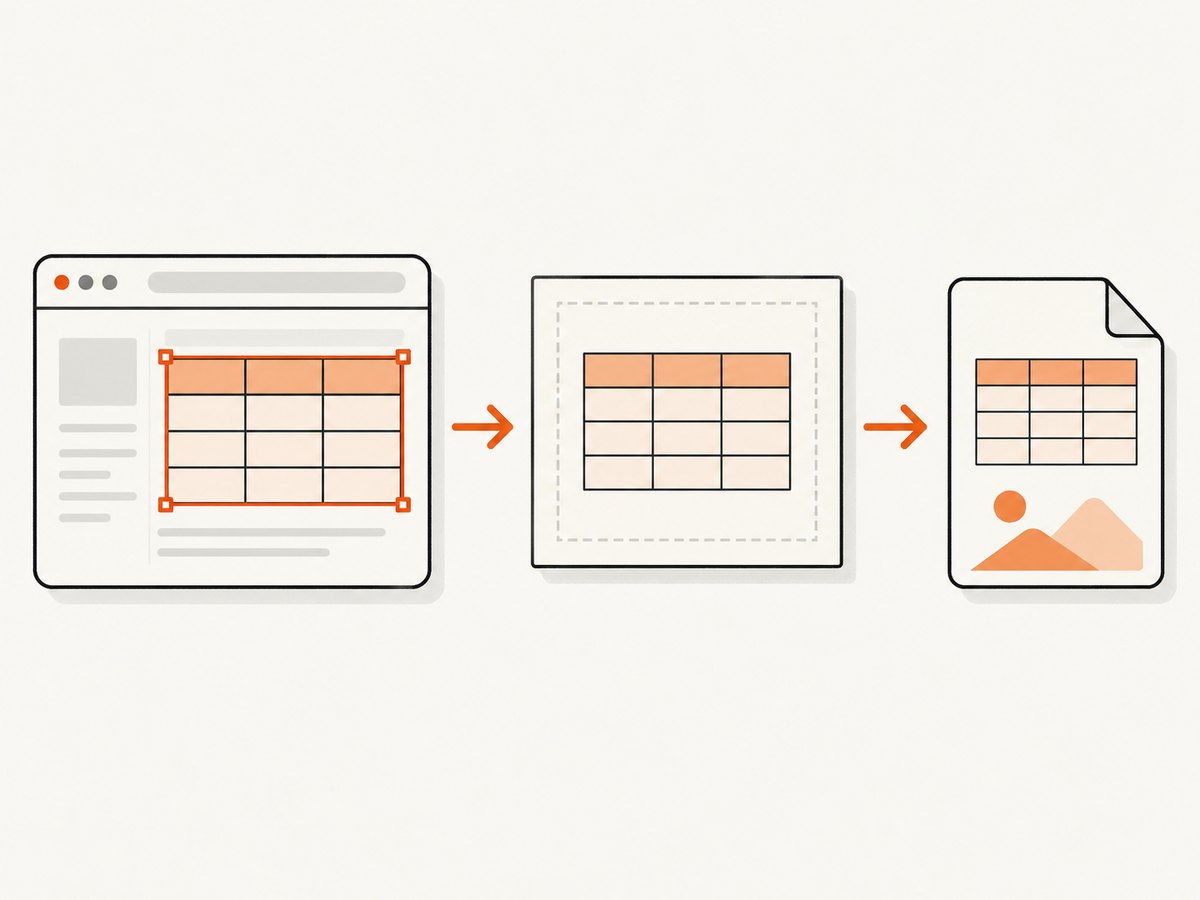
Direct answer: select the table (or a wrapper around it), render that element with html2canvas, then download the returned canvas as a PNG. This captures the table without the rest of the page.
1. Save a table as PNG in the browser
This complete example renders only #sales-table, waits for fonts, uses the device pixel ratio for sharper text, and downloads a PNG.
<!doctype html>
<html lang='en'>
<head>
  <meta charset='utf-8'>
  <script src='https://cdnjs.cloudflare.com/ajax/libs/html2canvas-next/1.8.0/html2canvas.min.js'></script>
  <style>
    body { font: 16px system-ui, sans-serif; margin: 2rem; }
    table { border-collapse: collapse; background: #fff; }
    th, td { border: 1px solid #cbd5e1; padding: .6rem .8rem; text-align: left; }
    th { background: #e2e8f0; }
  </style>
</head>
<body>
  <table id='sales-table'>
    <thead><tr><th>Product</th><th>Units</th><th>Revenue</th></tr></thead>
    <tbody>
      <tr><td>Analytics</td><td>184</td><td>$12,880</td></tr>
      <tr><td>Reports</td><td>96</td><td>$7,140</td></tr>
    </tbody>
  </table>
  <button id='save-table' type='button'>Save as PNG</button>
  <script>
    document.querySelector('#save-table').addEventListener('click', async () => {
      const table = document.querySelector('#sales-table');
      if (!table) throw new Error('Table not found');
      if (document.fonts?.ready) await document.fonts.ready;
      const canvas = await html2canvas(table, {
        scale: Math.max(1, window.devicePixelRatio || 1),
        backgroundColor: '#ffffff',
        useCORS: true
      });
      const link = document.createElement('a');
      link.download = 'sales-table.png';
      link.href = canvas.toDataURL('image/png');
      link.click();
    });
  </script>
</body>
</html>
With a bundler, install @html2canvas/html2canvas and import it:
import html2canvas from '@html2canvas/html2canvas';
const canvas = await html2canvas(document.querySelector('#sales-table'));
See the official getting-started guide and configuration reference.
2. Capture a wrapper around the table
Capture a wrapper when the image should include a title, legend, or footer.
const card = document.querySelector('#table-card');
if (document.fonts?.ready) await document.fonts.ready;
const canvas = await html2canvas(card, {
  scale: Math.max(1, window.devicePixelRatio || 1),
  backgroundColor: '#ffffff'
});
canvas.toBlob(blob => {
  const url = URL.createObjectURL(blob);
  const link = Object.assign(document.createElement('a'), { href: url, download: 'sales-card.png' });
  link.click();
  URL.revokeObjectURL(url);
}, 'image/png');
toBlob() avoids retaining a large base64 string. PNG keeps table text sharp; JPEG can be smaller but introduces compression artifacts.
3. Rendering options that matter
scale: usewindow.devicePixelRatiofor sharper output. Cap it for huge tables because memory grows with pixel area.backgroundColor: usenullfor transparency or white for a predictable document-ready image.useCORS: enables CORS image loading only when the image server sends a suitableAccess-Control-Allow-Originheader.x,y,width, andheight: crop a region when selecting the element itself is not convenient.ignoreElements: omit controls, or adddata-html2canvas-ignoreto elements that should not appear.
const canvas = await html2canvas(document.querySelector('#table-card'), {
  scale: 2,
  backgroundColor: '#fff',
  ignoreElements: element => element.matches('button, .no-capture')
});
4. Wait for data, fonts, and images
Call html2canvas only after the table has been populated and laid out. Wait for web fonts and decode images where supported:
await document.fonts?.ready;
await Promise.all([...document.images].map(img => img.decode?.().catch(() => {})));
const canvas = await html2canvas(document.querySelector('#sales-table'));
Disable animations for the capture view and avoid changing cell contents while rendering.
5. Browser limitations
html2canvas reconstructs pixels from DOM information and supported styles; it does not take a literal browser screenshot. Unsupported CSS can differ from the live page. Browser content-policy rules still apply. Cross-origin images can be skipped or taint the canvas, and cross-origin iframes cannot be rendered because scripts cannot read their documents.
| Situation | Likely result | Fix |
|---|---|---|
| Remote image without CORS | Missing image or export error | Enable CORS or use a same-origin proxy |
| Cross-origin iframe | Iframe contents unavailable | Capture that page from its own origin |
| Unsupported CSS | Visual mismatch | Use simpler CSS in a capture view |
| Very large table | Slow render or canvas-size error | Lower scale or capture sections |
6. Troubleshooting
html2canvas is not defined
The script failed to load or your code ran first. Check the network panel, place your code after the script tag, or import the npm package.
The image is blank
Check that the selector returns an element with non-zero dimensions. Run after data rendering, remove display:none, and wait for fonts and images.
Tainted canvas error
A cross-origin resource was painted without CORS permission. Add the correct response header, use useCORS: true, or proxy the resource through your origin. JavaScript cannot bypass this policy.
The table is clipped
Capture the table element directly, remove restrictive ancestor overflow for the capture view, or provide explicit crop dimensions.
Text wraps differently
Wait for web fonts, set a fixed capture width, and keep the layout stable during capture.
7. Performance, reliability, and privacy
- Rendering cost increases with DOM size, effects, pixel dimensions, and scale. Keep the capture subtree small and cap scale for long tables.
- Handle rejected Promises and treat the resulting Blob as the artifact. Freeze rapidly changing values before capture.
- The work runs in the user’s browser, so visible sensitive cells can be included in the download.
- Use server capture for scheduled jobs, consistent device settings, or pages with cross-origin resources that you cannot make CORS-compatible.
8. Or skip the browser setup
If the table is on a reachable URL, ScreenshotNeo captures the rendered page as PNG, JPEG, WebP, or PDF with one GET request:
curl -G "https://api.screenshotneo.com/v1/shot" -d access_key=YOUR_API_KEY --data-urlencode url=https://example.com/report -o table.webpSee the ScreenshotNeo API docs. Python:
import requests
r = requests.get("https://api.screenshotneo.com/v1/shot", params={"access_key": "YOUR_API_KEY", "url": "https://example.com/report"}, timeout=90)
r.raise_for_status()
open("table.webp", "wb").write(r.content)
Node.js:
const q = new URLSearchParams({ access_key: 'YOUR_API_KEY', url: 'https://example.com/report' });
const res = await fetch(`https://api.screenshotneo.com/v1/shot?${q}`);
if (!res.ok) throw new Error(`HTTP ${res.status}`);
require('node:fs').writeFileSync('table.webp', Buffer.from(await res.arrayBuffer()));
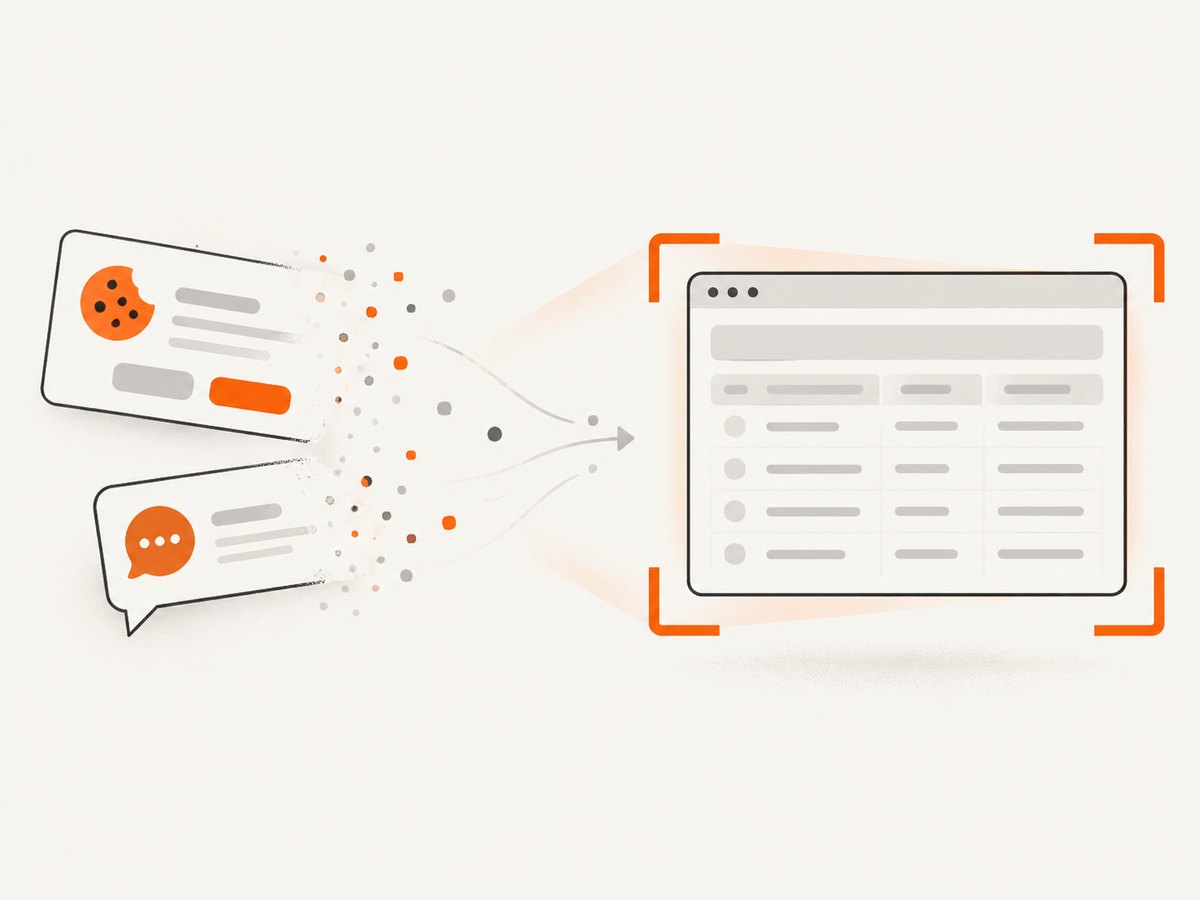
ScreenshotNeo supports full-page capture, CSS-selector element capture, custom CSS and JavaScript, viewport and device settings, waits for a selector, delay or network idle, custom headers and cookies, and image format controls. It removes cookie banners, newsletter popups, and chat widgets before capture. Bot checks, blank pages, timeouts, failed loads, and cache hits are not billed; response headers identify the page verdict and billing status. Its MCP server provides take_screenshot, get_page_info, and capture_pdf for Claude, Cursor, and other MCP clients.
The Free plan includes 1,000 shots per month with no card. Paid plans start at $5 for 3,000 shots, and every feature is included on every plan. Create a free ScreenshotNeo account.
9. FAQ
Can I save only one table?
Yes. Pass that table element to html2canvas; use a wrapper for labels or footnotes.
Can html2canvas run in Node.js?
No. It depends on browser APIs. Use browser automation or ScreenshotNeo for server-side jobs.
Which format should I choose?
PNG is best for crisp table text. JPEG is smaller but lossy; WebP is useful when supported by the consuming application.
Why is the result different from a browser screenshot?
The library paints from DOM information and supported styles, so unsupported CSS, cross-origin content, and browser effects may not match a literal screenshot.


