How to Save HTML to PDF
Save a webpage as a PDF from your browser, phone, or code. Learn which method fits, how to check the result, and what to do when a page prints badly.
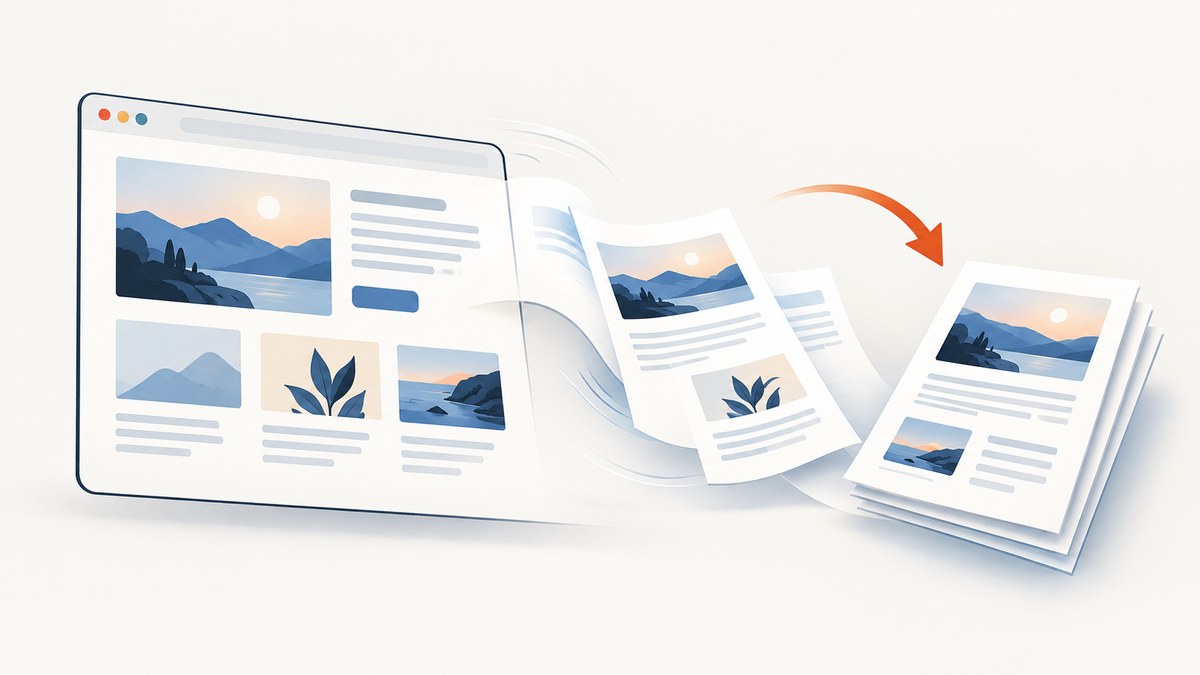
To save a webpage as a PDF, open it in a browser, choose Print, select Save as PDF (or the equivalent PDF destination), preview the pages, and save. A PDF is a portable document copy. If you want a webpage file that you can reopen in a browser, use the browser’s Save Page As command instead; those are different outputs.
This guide covers desktop and mobile browser workflows, what to check in the preview, common problems, and a code-based approach for developers who need to create PDFs. If you only need a copy for reading, sharing, or archiving, the built-in browser workflow is usually the quickest place to start.
1. Choose the right output: PDF or HTML
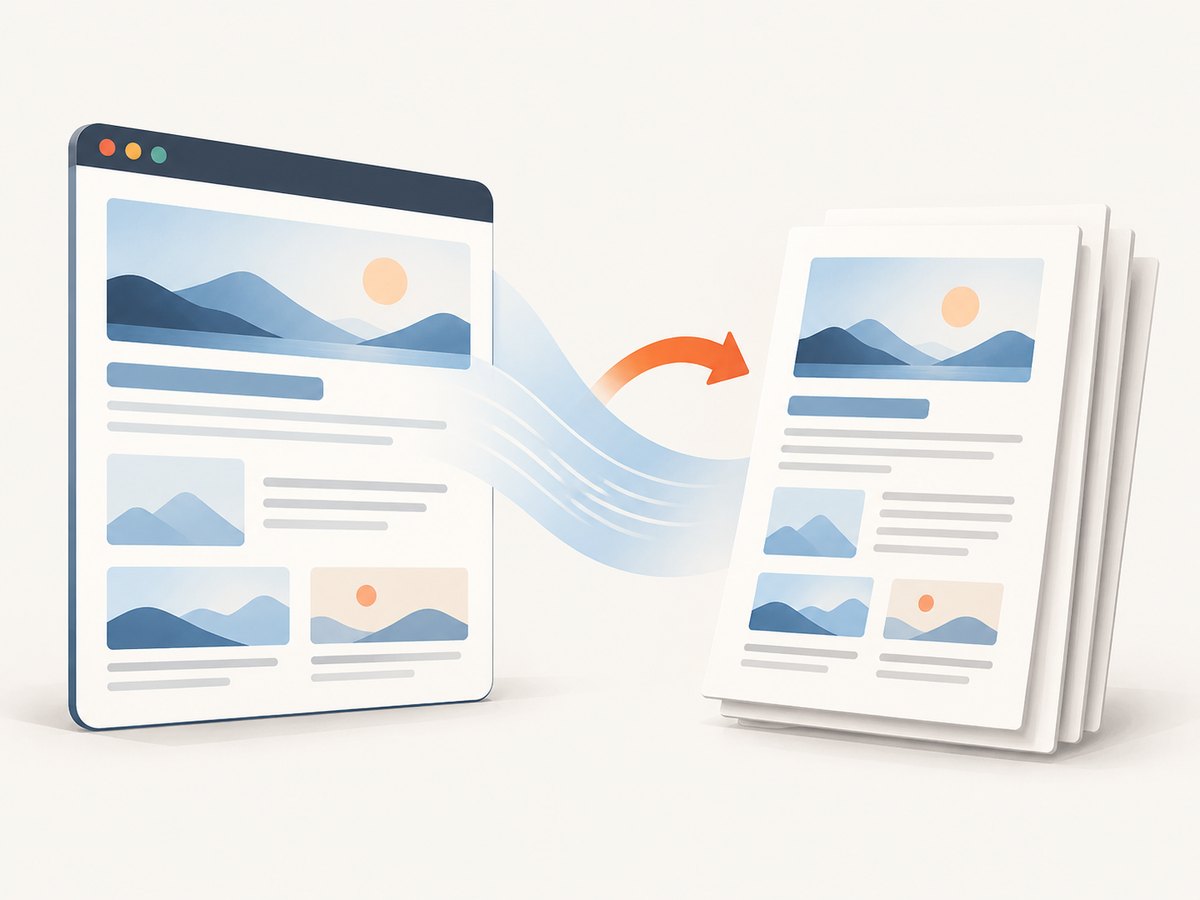
“Save HTML to PDF” can mean two things: converting the page currently open in a browser into a PDF, or downloading the page as a webpage file. Choose based on what you need afterward.
| Need | Choose | What you get |
|---|---|---|
| Share, print, or keep a document-style copy | Print to PDF | A PDF generated from the browser’s print view. |
| Keep a webpage file you can reopen in a browser | Save Page As | A webpage download rather than a PDF document. |
| Generate PDFs repeatedly in an application or workflow | A browser-based PDF tool or API | A programmatic PDF, with options depending on the tool. |
Google documents both printing to a PDF destination and saving a webpage with Save Page As. Its instructions do not promise that every saved webpage includes all associated resources or will behave offline exactly like the original. For a PDF, use print preview and inspect the result before relying on it.
2. Save a webpage as a PDF on a computer
Chrome on Windows, Linux, or Mac
- Open the webpage in Chrome and wait for the content you need to appear.
- Choose File > Print, or press Ctrl+P on Windows or Linux, or Command+P on Mac.
- In the print dialog or preview, select the PDF destination, such as Save as PDF.
- Review the preview and available print settings. Check that the content is present and the page breaks are acceptable.
- Select Save, choose a file name and destination, then confirm.
The exact labels and placement can differ by browser version and operating system. The important step is selecting a PDF destination in the print workflow, rather than sending the page to a physical printer.
Firefox on a computer
- Open the page in Firefox.
- Open the Firefox menu and choose Print. Firefox opens a print preview.
- In the destination dropdown, choose Save to PDF.
- Review the preview and print options, then save the file.
Mozilla’s Firefox printing guide describes choosing Save to PDF in the destination dropdown to save the shown preview. If you need a cleaner, less cluttered print layout, Firefox also documents a simplified printing view. Whether that view is suitable depends on what content you need to preserve.
3. Save a webpage as a PDF on a phone
Chrome on Android
- Open the webpage in the Chrome app.
- Tap More (the three-dot menu), then Share, then Print.
- In the print settings, choose Save as PDF as the destination.
- Choose where to save the PDF and complete the save from the preview.
These are Google’s documented Android steps. The print settings include a destination selector; if a physical printer is selected, change it to Save as PDF.
Firefox for Android
- Open the webpage in Firefox for Android.
- Tap the three-dot menu, then tap Share.
- Choose Save as PDF.
- Tap Download in the prompt and wait for the download-completed message.
- Find the file in Downloads or open it from Firefox’s Downloads list.
Mozilla says the saved PDF is placed in the Downloads folder.
Safari on iPhone
- Open the page in Safari and tap the page menu, then Share. Depending on your Safari layout, the Share control may be directly visible.
- Tap Markup if you want to annotate the page before saving.
- Tap Done, choose Save File To, enter a name, then tap Save.
Apple documents this Safari workflow for saving a webpage as a PDF. The saved file goes to the location you choose in the file-saving step.
4. Check the PDF before you share it
The preview is your chance to catch a poor conversion before the file becomes someone else’s problem. A webpage’s print view is not necessarily identical to what you saw while scrolling or interacting with it. The official browser instructions explain how to save the preview; they do not guarantee a universal match for every website.
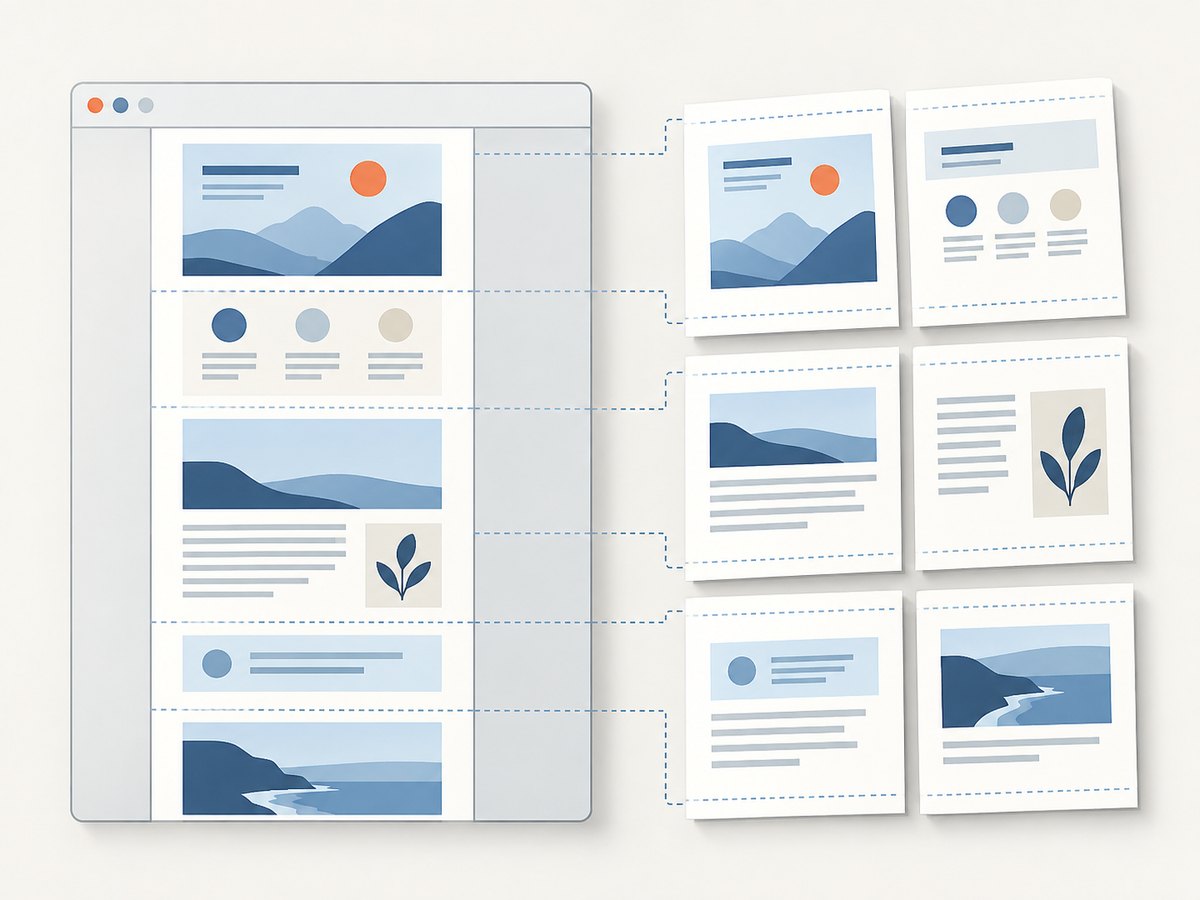
- Check page count and breaks. Look for headings stranded at the bottom of a page, split tables, or content cut off at the margins.
- Check the required content. Confirm that the relevant text, images, charts, and links appear in the preview and resulting file.
- Check orientation and paper size. A wide table may be easier to read in landscape orientation if that option is available.
- Check the destination. Give the file a recognizable name and confirm where it was saved before closing the dialog.
- Open the saved PDF. For a document you intend to distribute or archive, inspect the actual saved file, not only the preview.
Interactive elements may not translate into a static document as expected. A page that changes after a click, loads more content as you scroll, or depends on a logged-in session can require extra care. Make sure the exact content you need is visible before starting the print workflow; if it still does not appear, try the site’s own print or export option when available.
5. Generate a PDF from code
For an occasional save, use the browser steps above. For a repeatable developer workflow, use a browser automation library that can render a page and save a PDF. The specific library, installation process, and API vary; do not assume that every service endpoint returning an image also returns a PDF. If you choose a code tool, check its official documentation for PDF support and the options it accepts.
A practical implementation needs to decide: which URL to open, how to wait for the page, whether authentication is required, which paper size and orientation to use, where output is written, and what to do if navigation fails. Treat the PDF as an output artifact to validate: a successful request alone does not establish that the intended content was present.
For a one-off PDF from the current browser session, built-in printing avoids writing code or managing a browser runtime. For automated capture of many pages, a browser-based PDF API can remove the need to operate browser infrastructure. Compare options by PDF support, page settings, authentication handling, waiting controls, and transparent reporting of failed or empty captures.
6. Or skip the browser setup
ScreenshotNeo is a website screenshot API and MCP server from Yorker Media. One GET request to its API can return a screenshot or PDF. For a PDF, use the PDF option described in the ScreenshotNeo API documentation. Example request:
curl -G "https://api.screenshotneo.com/v1/shot" \
  -d access_key=YOUR_API_KEY \
  --data-urlencode url=https://stripe.com \
  -d format=pdf \
  -o page.pdf
Replace the example URL with the page you are authorized to capture. Check the documentation for the supported PDF settings and exact parameter names for your use case.
ScreenshotNeo accepts cookie or consent banners like a visitor and removes 60+ known consent platforms, newsletter popups, and chat widgets before capture; each of these steps can be turned off. Bot checks, blank pages, timeouts, failed loads, and cache hits are not billed, and response headers report the page verdict and billing status. Its MCP server provides tools for AI agents, including Claude, Cursor, and other MCP clients. The free plan includes 1,000 shots a month with no card; paid plans start at $5 for 3,000. Create a free ScreenshotNeo account and get 1,000 screenshots a month with no card.
7. Troubleshooting
| Problem | Likely cause | What to try |
|---|---|---|
| There is no Save as PDF option | The browser or device uses a different label, or a printer destination is selected. | Open the destination or printer dropdown in the print view and look for a PDF option. On Android, Google documents choosing Save as PDF in the print settings. |
| The saved file is missing | The file was saved to a different folder or provider than expected. | Check the location chosen in the save dialog, the device’s Downloads folder, or the browser’s download list. |
| The PDF is blank or missing sections | The preview did not include the content, or the content had not appeared when printing began. | Return to the page, wait for the needed content to appear, and inspect the preview again. Try the site’s own export or print function if available. |
| Text or tables are cut off | The layout does not fit the selected page size, margins, or orientation. | Review the available print settings. Try landscape for wide content and inspect each page in the preview before saving. |
| Page breaks interrupt a section | The browser’s print layout divides content across pages. | Check the preview and any available scale, margin, or layout controls. If the site provides a downloadable document, compare that output. |
| The PDF differs from the live page | A PDF captures a print-oriented view, not necessarily every interactive behavior or screen detail. | Confirm the intended content is present. Use the site’s official export when fidelity to a particular view is necessary. |
| Automation fails on a page that works manually | The automated request may encounter navigation delays, authentication, or content that appears only after interaction. | Check the URL and access requirements, wait for the required content, and inspect the tool’s response and documented failure signals. Do not treat a returned file as proof of a complete capture. |
8. Performance, reliability, and cost
For a single page, printing from the browser you already have open has little setup cost. Your time is mainly spent checking the preview and saving the file. For repeated jobs, automation can save manual steps, but introduces code, browser or API configuration, failure handling, and output validation. Choose based on frequency and the need to reproduce the same capture settings.
Page complexity and network conditions can affect how long it takes before a page is ready to print or capture. For important documents, avoid assuming that a fixed short wait means all content has loaded. A robust workflow should wait for the content it needs, record failures, and keep a way to review output quality. If a page requires sign-in, use a permitted authenticated workflow and protect any credentials or cookies used.
Cost depends on the method. Browser printing uses the browser’s built-in workflow. An API may charge according to its plan and billing rules, so check its current pricing and whether unsuccessful, empty, or cached results are billable. ScreenshotNeo’s stated plans are Free: 1,000 shots monthly; Starter: $5 for 3,000; Growth: $15 for 15,000; Pro: $39 for 60,000; Scale: $99 for 250,000; and Business: $249 for 1,000,000. Yearly billing gives two months free, and every feature is on every plan. Its billing behavior and response headers are described above; consult its site for current plan details.
9. Frequently asked questions
Does saving a webpage as a PDF save its HTML source?
No. Print-to-PDF creates a document from the browser’s print view. To download a webpage file, use Save Page As; Google’s guidance treats that as a separate workflow.
Can I save a webpage as a PDF on my phone?
Yes. Chrome and Firefox document PDF saving workflows on Android, and Apple documents saving a Safari webpage as a PDF on iPhone. Follow the relevant device steps above.
Where did my PDF go?
Check the folder or destination you selected. Firefox for Android saves the file to Downloads; on other devices, the chosen destination or browser download list can help locate it.
Will every website look the same in the PDF?
No universal fidelity guarantee is established by the browser help sources. Use the preview, save the file, and inspect the result; use a site-provided export if it better fits your needs.
Can I create PDFs in bulk?
Manual browser printing is suited to individual pages. For repeatable or bulk capture, use an automated browser workflow or an API whose documentation explicitly supports PDF output and the options you require.


