How to Save an html2canvas Screenshot as JPEG
Capture any element with html2canvas, encode it as a JPEG, download large files safely, and fix CORS, quality, canvas, and iframe problems.
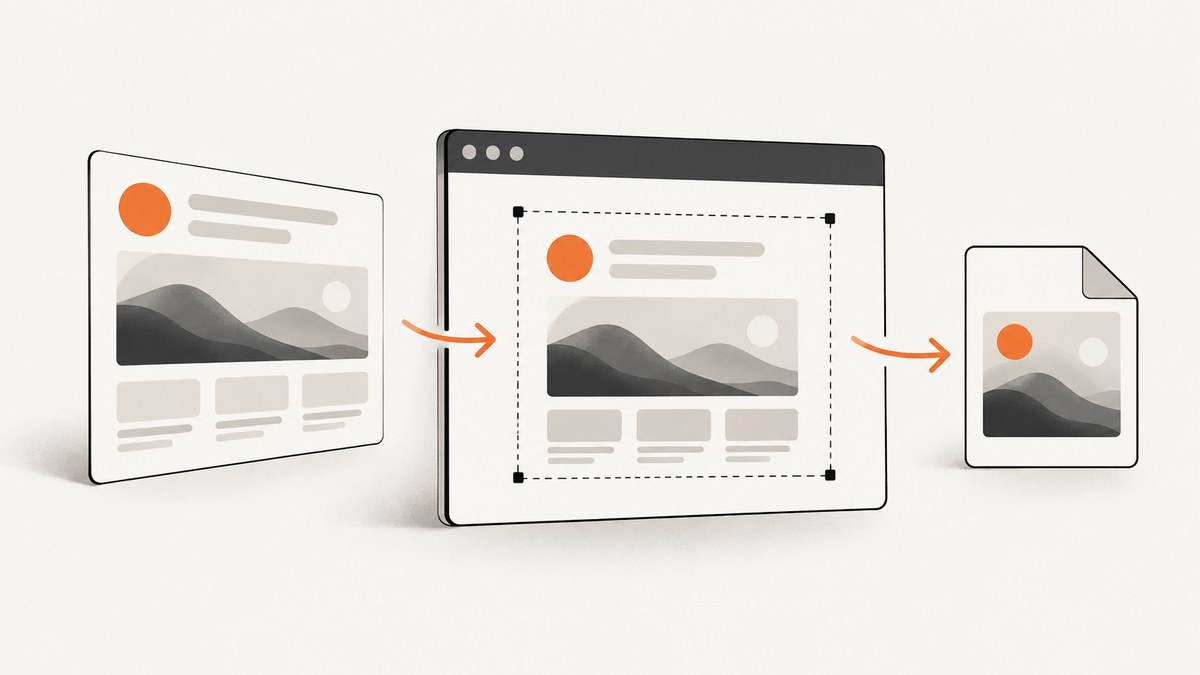
To save an html2canvas screenshot as a JPEG, await the canvas returned by html2canvas(), call canvas.toDataURL('image/jpeg', quality), and download the resulting data URL from an anchor element. Use toBlob() instead when captures are large.
<button id="save">Save JPEG</button>
<div id="capture">
  <h1>Invoice preview</h1>
  <p>This element will become a JPEG.</p>
</div>

<script src="https://cdn.jsdelivr.net/npm/html2canvas@1.4.1/dist/html2canvas.min.js"></script>
<script>
async function saveAsJpeg() {
  const element = document.querySelector('#capture');
  if (!element) throw new Error('The #capture element was not found');

  const canvas = await html2canvas(element, {
    backgroundColor: '#ffffff',
    scale: window.devicePixelRatio,
    useCORS: true
  });

  const link = document.createElement('a');
  link.download = 'screenshot.jpg';
  link.href = canvas.toDataURL('image/jpeg', 0.92);
  link.click();
}

document.querySelector('#save').addEventListener('click', saveAsJpeg);
</script>
The second argument to toDataURL() is JPEG quality from 0 to 1. A value around 0.9 to 0.95 is a practical starting point, but the browser’s encoder determines the exact file size and visual result.
1. How the conversion works
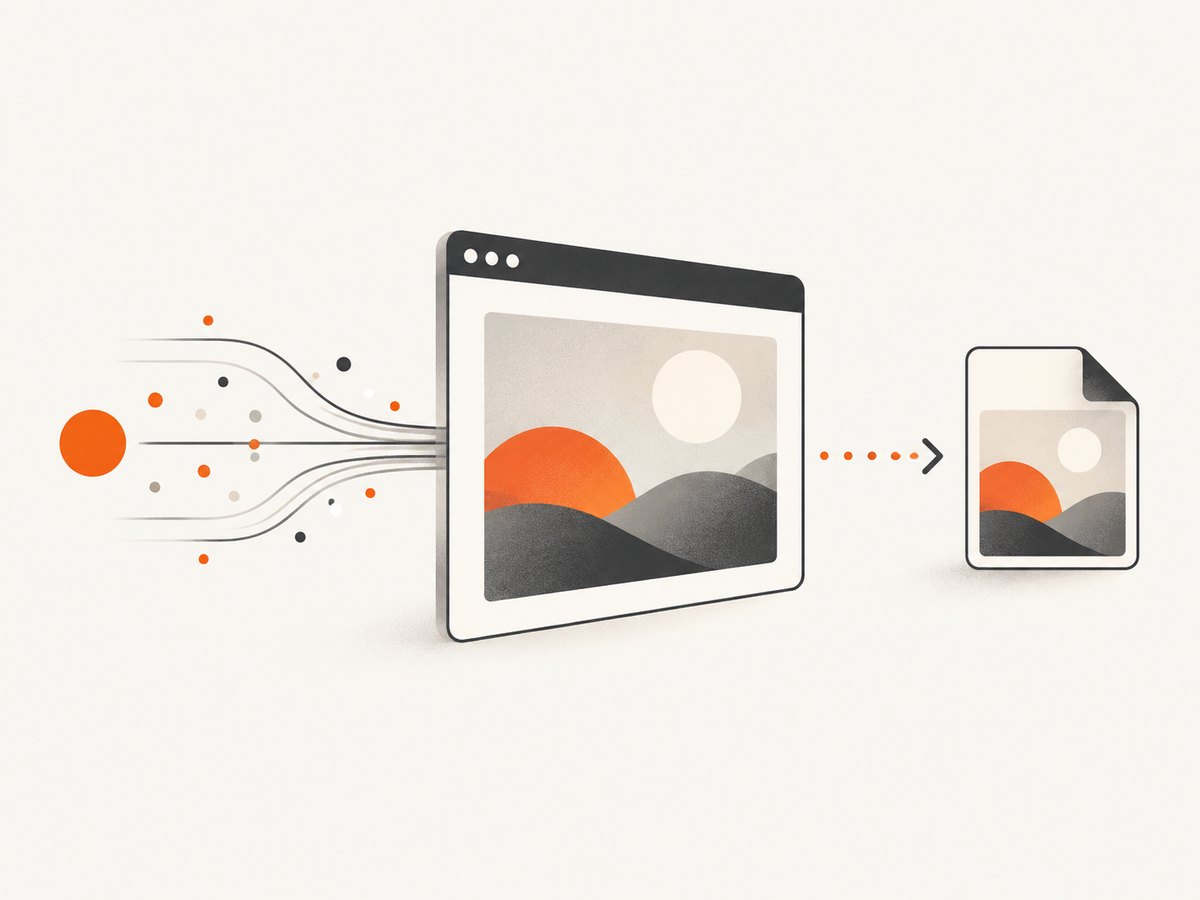
html2canvas does not take a native operating-system screenshot. It reads the DOM and CSS, reconstructs a representation in a canvas, and then the browser’s Canvas API encodes that canvas as JPEG. The project documentation describes the result as a screenshot based on information available from the page, so unsupported CSS, browser-only effects, and inaccessible content can differ from what you see on screen.
- Select the element you want to capture.
- Call
html2canvas(element, options)and await the returned promise. - Encode the canvas with
toDataURL('image/jpeg', quality)ortoBlob(). - Set a
.jpgfilename and trigger a download.
JPEG has no alpha channel. If your page or canvas is transparent, choose a solid backgroundColor first; otherwise transparent pixels are flattened during JPEG encoding, commonly against black or another implementation-defined color.
2. A complete browser example
This example captures one card, waits for fonts and images already present in the page, and reports errors instead of silently failing.
async function downloadCardJpeg() {
  const element = document.querySelector('#capture');
  const button = document.querySelector('#save');

  button.disabled = true;
  try {
    if (document.fonts?.ready) await document.fonts.ready;

    const canvas = await html2canvas(element, {
      backgroundColor: '#ffffff',
      scale: Math.min(window.devicePixelRatio || 1, 2),
      useCORS: true,
      logging: false,
      imageTimeout: 15000
    });

    const dataUrl = canvas.toDataURL('image/jpeg', 0.92);
    const link = document.createElement('a');
    link.download = `card-${new Date().toISOString().slice(0, 10)}.jpg`;
    link.href = dataUrl;
    link.click();
  } catch (error) {
    console.error('JPEG export failed', error);
    alert('The screenshot could not be exported. Check the console for details.');
  } finally {
    button.disabled = false;
  }
}
Call this function from a user gesture such as a button click. Browsers are more likely to permit downloads started directly by a click than downloads started later by an unrelated timer.
Capture the full element
For a scrollable panel, set the render dimensions to its scroll dimensions. This captures content outside the visible viewport when the layout permits it:
const panel = document.querySelector('#long-panel');
const canvas = await html2canvas(panel, {
  width: panel.scrollWidth,
  height: panel.scrollHeight,
  windowWidth: panel.scrollWidth,
  windowHeight: panel.scrollHeight,
  backgroundColor: '#fff',
  useCORS: true
});
Very long documents can exceed browser canvas limits. If the result is blank or truncated, capture smaller sections and join them server-side or reduce the scale.
Capture only part of an element
Use x, y, width, and height to crop the rendered region:
const canvas = await html2canvas(document.querySelector('#capture'), {
  x: 20,
  y: 10,
  width: 800,
  height: 450,
  backgroundColor: '#fff'
});
3. Use toBlob() for large JPEGs
toDataURL() creates a long base64 string in memory. It is convenient for a small download, but large images can consume more memory and may hit URL length limits. MDN recommends toBlob() for larger files.
async function saveLargeJpeg(element) {
  const canvas = await html2canvas(element, {
    backgroundColor: '#ffffff',
    scale: 2,
    useCORS: true
  });

  const blob = await new Promise((resolve, reject) => {
    canvas.toBlob(result => {
      if (result) resolve(result);
      else reject(new Error('The browser could not encode the canvas'));
    }, 'image/jpeg', 0.92);
  });

  const url = URL.createObjectURL(blob);
  const link = document.createElement('a');
  link.download = 'large-screenshot.jpg';
  link.href = url;
  link.click();
  URL.revokeObjectURL(url);
}
Revoke the object URL after starting the download so repeated exports do not retain blobs indefinitely. If you need to upload the file, pass the blob directly to fetch() or FormData instead of converting it back to base64.
4. Options that control output
| Option | Use | Trade-off |
|---|---|---|
scale |
Controls output pixel density; it defaults to window.devicePixelRatio. |
Higher values are sharper but require more memory and render time. |
backgroundColor |
Sets the canvas background. Use null for transparency. |
JPEG cannot preserve transparency, so use a solid color for predictable output. |
useCORS |
Attempts to load remote images with CORS. | Works only when the image server sends suitable Access-Control-Allow-Origin headers. |
proxy |
Routes image requests through a same-origin proxy. | Requires a proxy you operate and configure securely. |
x, y, width, height |
Crops the capture. | Coordinates refer to the rendered capture region. |
ignoreElements |
Returns true for nodes that should be excluded. | Ignored controls will not appear in the output. |
data-html2canvas-ignore |
Marks an individual element to skip. | Useful for buttons, carets, or temporary overlays. |
imageTimeout |
Sets how long html2canvas waits for an image. | Too short can omit slow images; too long delays failure handling. |
const canvas = await html2canvas(document.querySelector('#capture'), {
  backgroundColor: '#f7f7f7',
  scale: 1.5,
  useCORS: true,
  proxy: '/html2canvas-proxy',
  ignoreElements: element => element.matches('.do-not-export'),
  logging: false,
  imageTimeout: 20000
});
Do not enable a proxy merely to hide an application bug. First check whether the remote image can legally and reliably send CORS headers. A proxy should validate destination URLs, limit response size, and avoid becoming an open proxy.
5. Cross-origin images and tainted canvases
The most common JPEG failure is a security exception when calling toDataURL() or toBlob(). An image loaded from another origin can taint the canvas. Once tainted, browser content policy prevents scripts from reading or exporting its pixels.
useCORS: true asks the browser to use CORS, but it cannot grant permission by itself. The image server must return an appropriate Access-Control-Allow-Origin header, and the image must be requested with CORS enabled. If the server is not under your control, use a carefully restricted same-origin proxy or replace the image with a permitted asset.
const canvas = await html2canvas(element, {
  useCORS: true,
  imageTimeout: 15000
});

try {
  const jpeg = canvas.toDataURL('image/jpeg', 0.9);
} catch (error) {
  if (error.name === 'SecurityError') {
    console.error('A cross-origin resource tainted the canvas', error);
  }
}
Cross-origin iframes are a separate limitation. The browser does not expose their contentDocument to a page from another origin, so html2canvas cannot reconstruct the iframe contents. Capture the iframe’s own page from within that origin or use a server-side browser capture.
6. Timing, fonts, and dynamic content
Call html2canvas only after the content you need is ready. Wait for web fonts, relevant images, data requests, and animations. Freeze animated elements with a temporary CSS class, or capture at a deterministic state.
await document.fonts.ready;
await Promise.all([...document.images].map(image => {
  if (image.complete) return Promise.resolve();
  return new Promise(resolve => {
    image.addEventListener('load', resolve, { once: true });
    image.addEventListener('error', resolve, { once: true });
  });
}));

document.documentElement.classList.add('export-mode');
try {
  const canvas = await html2canvas(document.querySelector('#capture'));
  // encode canvas here
} finally {
  document.documentElement.classList.remove('export-mode');
}
Use data-html2canvas-ignore on spinners, hover menus, and export buttons. Remember that the library reconstructs supported DOM and CSS; filters, blend modes, video frames, plugins, and some advanced effects may not match the native rendering.
7. Performance and reliability checklist
- Choose the smallest element and dimensions that meet your requirement.
- Cap
scaleat a known value instead of blindly multiplying it on high-density displays. - Prefer
toBlob()for large captures or uploads. - Compress JPEG only as much as your text and line art allow; inspect at 100% before lowering quality.
- Remove unnecessary images and wait for required assets before capture.
- Split very tall pages into sections when approaching canvas-size limits.
- Run exports in a modern evergreen browser; html2canvas is a browser library and is not suitable for Node.js.
- Keep the export action tied to a user click when downloading.
For repeatable output, set the viewport, background, scale, fonts, and data state explicitly. Treat the resulting JPEG as a rendered snapshot, not as a pixel-perfect replacement for a native browser screenshot.
8. Troubleshooting common errors
| Symptom | Cause | Fix |
|---|---|---|
SecurityError: Tainted canvases may not be exported |
A cross-origin image lacks usable CORS headers. | Enable useCORS and configure the image server, or use a restricted same-origin proxy. |
| Remote images are missing | Requests timed out, were blocked, or were not CORS-enabled. | Check the image URL, increase imageTimeout, and inspect response headers. |
| JPEG is black where transparency was expected | JPEG has no alpha channel. | Set a solid backgroundColor before encoding. |
| Output is blurry | The canvas has too few pixels for its display size. | Increase scale moderately, then export with toBlob() if memory rises. |
| Output is blank or truncated | The capture exceeds browser canvas limits or dimensions are wrong. | Reduce scale, set explicit width and height, or split the capture. |
| Iframe content is absent | Cross-origin iframe access is prohibited. | Capture from the iframe’s origin or use a server-side browser. |
| Styles differ from the page | html2canvas supports a DOM/CSS subset and reconstructs pixels. | Simplify unsupported styles or use a native browser screenshot service. |
| Download does nothing | The browser blocked a delayed or non-user-initiated download. | Start the function directly from a click and check popup/download settings. |
9. Or skip the browser setup
If you need a screenshot of a URL rather than an element already rendered in your app, ScreenshotNeo returns an image from one request. Its capture process accepts cookie and consent banners, removes more than 60 known consent platforms plus newsletter popups and chat widgets, and lets you turn each step off. Bot checks, blank pages, timeouts, failed loads, and cache hits are not billed; response headers identify the page verdict and billing status.

See the ScreenshotNeo API documentation for all options. This JPEG request uses the same endpoint with an output format parameter:
curl -G "https://api.screenshotneo.com/v1/shot" \
  -d access_key=YOUR_API_KEY \
  --data-urlencode url=https://stripe.com \
  -d format=jpeg \
  -o shot.jpg
import requests
r = requests.get(
"https://api.screenshotneo.com/v1/shot",
params={
"access_key": "YOUR_API_KEY",
"url": "https://stripe.com",
"format": "jpeg",
},
timeout=90,
)
r.raise_for_status()
open("shot.jpg", "wb").write(r.content)const q = new URLSearchParams({
access_key: 'YOUR_API_KEY',
url: 'https://stripe.com',
format: 'jpeg'
});
const res = await fetch(`https://api.screenshotneo.com/v1/shot?${q}`);
if (!res.ok) throw new Error(`Screenshot failed: ${res.status}`);
const fs = await import('node:fs/promises');
await fs.writeFile('shot.jpg', Buffer.from(await res.arrayBuffer()));ScreenshotNeo also supports full-page captures with lazy images loaded, CSS-selector element captures, dark mode, device presets, custom viewports, retina scale, custom CSS and JavaScript, clicks, waits, blocked resources, headers, cookies, user agents, authorization, timezone, geolocation, resizing, caching, signed links, asynchronous jobs, webhooks, bulk capture, usage data, and PDF output. An MCP server exposes take_screenshot, get_page_info, and capture_pdf to Claude, Cursor, and other MCP clients.
There is a free plan with 1,000 screenshots each month and no card. Paid plans start at $5 for 3,000 screenshots, and every feature is available on every plan. Create a free ScreenshotNeo account.
10. FAQ
Can html2canvas save directly as JPG?
It returns a canvas. Encode that canvas with toDataURL('image/jpeg', quality) or toBlob(..., 'image/jpeg', quality), then download or upload the result.
What quality value should I use?
Start around 0.92. Lower values reduce file size but can blur text and introduce block artifacts. The best value depends on the image and browser encoder.
Why does PNG work while JPEG fails?
PNG may appear to work until you export a tainted canvas; the underlying cross-origin restriction still applies. JPEG also exposes transparency differences because it cannot store alpha.
Can I run html2canvas in Node.js?
No. html2canvas runs in the browser. For URL-based server workflows, use a browser automation stack or a screenshot API such as ScreenshotNeo.
Can I capture a whole webpage with html2canvas?
You can capture an element sized to the document and set explicit dimensions, but very tall pages can exceed canvas limits. Split the page or use a server-side full-page capture when reliability matters.


