How to Save an Image From a Website
Save website images on desktop or mobile, find downloads, fix missing options, and automate clean captures when browser controls are not enough.

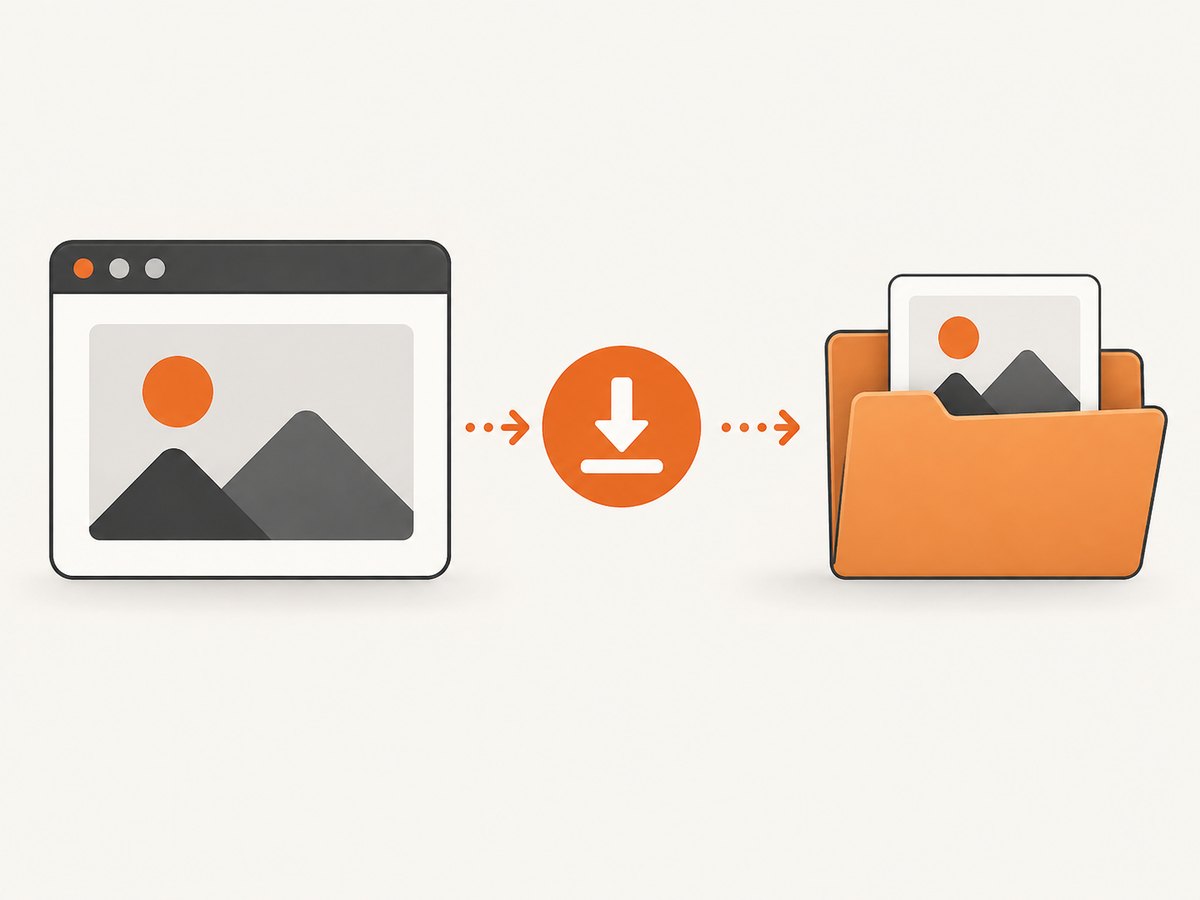
To save an image from a website, use the browser’s image menu or a page-provided download link. On a computer, right-click (or Control-click on a Mac) the image and choose the save or download command. On a phone, press and hold the image and choose the browser’s save option. Then check your Downloads folder or the browser’s downloads list.
The exact menu label depends on your browser, device, and the way the website serves the file. This guide covers desktop and mobile steps, download locations, formats, missing menu commands, permissions, automation, and reliable alternatives.
1. Save an image on a computer
Chrome, Edge, Brave, and other Chromium browsers
- Open the page containing the image.
- Right-click the image. On a Mac, Control-click it.
- Choose Save image as… or the similarly named download command.
- Choose a folder and filename, then select Save.
Chrome documents downloading files and managing them from the browser’s downloads interface. The wording can vary between Chromium-based browsers, but the process is generally the same. Chrome’s download instructions explain the standard workflow.
Safari on macOS
- Open the page in Safari.
- Control-click the image or another downloadable object.
- Choose Download Linked File when the image is supplied through a link, or use the available image-saving command.
- Safari saves the item to the download location configured in Safari settings.
Apple’s instructions cover Control-clicking an image or object and selecting Download Linked File. They also explain how to choose where Safari stores downloads. Apple’s Safari download documentation is the primary reference.
Firefox on Windows, macOS, and Linux
- Right-click the image.
- Select Save Image As….
- Pick the destination and confirm the filename.
If the image opens in a new tab first, save it from that tab. A direct image tab usually removes page overlays and makes the browser’s image menu available.
2. Save an image on a phone or tablet
Android
- Open the page in your browser.
- Press and hold the image until a menu appears.
- Choose Download image, Save image, or an equivalent command.
- Open your Files app, Gallery, or the browser’s downloads list to locate it.
Firefox for Android documents selecting Save image. Mozilla’s menu names and destinations can differ from Chrome or a manufacturer browser, so use the closest save or download action shown. See Mozilla’s Firefox for Android download guide.
iPhone and iPad
- Press and hold the image in Safari or another browser.
- Choose Save to Photos, Save Image, or Download Linked File, depending on the page and browser.
- Check Photos, Files, or the browser’s download list.
If the long-press menu only offers to open or copy the image, open the image in a new tab and repeat the action there.
3. Find the file after downloading
A successful download can seem to disappear when the browser saves it somewhere unexpected. Check these locations:
- Browser downloads list: open the browser menu and select Downloads. Selecting an item often reveals its folder.
- Desktop Downloads folder: Windows, macOS, and Linux commonly use a folder named
Downloads. - Android Files app: look under
Downloads, then sort by date. - iPhone or iPad Files app: check
On My iPhone/iPadandiCloud Drive > Downloads. Images saved to Photos appear in the Photos library instead. - Safari’s configured location: Safari can save to Downloads, iCloud Drive, or another folder selected in settings.
Use the file’s date and size to distinguish the new copy from an older image with the same name. If a browser asks where to save each file, the chosen folder may differ from the default.
4. Understand what you actually downloaded
The visible picture may be a thumbnail, a responsive variant, or an image generated by JavaScript. Saving it does not always produce the original resolution.
| What you see | Likely result | What to try |
|---|---|---|
| Small preview in a gallery | Thumbnail or resized derivative | Open the image, select “view original,” or use the gallery’s download control. |
| Image opens in a separate tab | Direct file URL | Save from that tab for the browser’s simplest file handling. |
| Modern format such as WebP or AVIF | File keeps the server’s format | Use an image editor or converter only if your next tool cannot read that format. |
| Image displayed inside a viewer | Viewer may assemble tiles or protect the original URL | Look for an official download button or contact the site owner. |
A server’s MIME type (also called the Content-Type) helps the browser decide whether to display, download, or hand the file to another application. Mozilla explains that available actions vary by the supplied media type. See Mozilla’s file-type documentation.
5. When “Save image” is missing
Use a download link
Some pages place the image inside an anchor link. Right-click the image or nearby button and choose Save link as… or Download Linked File. This downloads the linked resource even when the image itself is rendered through a script.
Open the image directly
Select Open image in new tab (or copy the image address and paste it into a new tab). Once the browser is displaying the file directly, use the normal save command.
Check for an official export control
Photo galleries, document viewers, and design tools may provide a download button with the correct resolution and permissions. Prefer that control when it exists. There is no universal browser workaround for every embedded viewer, and attempting to bypass access controls may violate the site’s terms.
6. Troubleshooting checklist
| Symptom | Cause | Fix |
|---|---|---|
| No save command | The page uses a script, overlay, or linked object. | Open the image in a new tab, right-click the link, or use the site’s download button. |
| Only a tiny image saves | You selected a thumbnail or responsive variant. | Open the full-size view or choose the gallery’s original download option. |
| Downloaded file has an unfamiliar extension | The server supplied WebP, AVIF, SVG, or another media type. | Open it in a compatible viewer or convert it for your workflow; keep the original file unchanged. |
| File cannot be opened | The response was incomplete, blocked, or not actually an image. | Retry, inspect the file size, and download from a reputable source. If it opens as HTML, the site may require a login or interaction. |
| Browser warns about the download | The browser detected a potentially unsafe or unwanted file. | Do not ignore the warning automatically. Confirm the domain and expected file type first. Google describes Chrome’s download warnings, and Microsoft recommends downloading from reputable sources: Chrome warnings and Microsoft’s safe-browsing guidance. |
| Nothing appears in Downloads | The browser uses another destination, or the item was saved to Photos. | Open the downloads list, reveal the file location, and check Photos on mobile. |
| Image is hidden behind consent or chat UI | A banner or widget covers the page. | Accept or dismiss the banner, close the widget, or use a clean capture workflow described below. |
7. Save images with browser automation
Manual saving is best for a few files. For a catalog, visual regression job, or recurring archive, automate the browser with Playwright or Puppeteer. A typical flow is:
- Navigate to the page.
- Wait for the image selector or network idle.
- Dismiss consent and other overlays.
- Read the image URL or capture the element.
- Write the response bytes to disk.
Automation must handle lazy loading, authentication, cookie banners, bot checks, changing selectors, and rate limits. Use the site’s permission and terms as your boundary. For a single image, browser setup, dependencies, and maintenance can cost more time than the download itself.
8. Or skip the browser setup
ScreenshotNeo provides a website screenshot API and MCP server. One GET request returns a PNG, JPEG, WebP, or PDF. It can load lazy images, capture a full page or one CSS-selected element, set a viewport or one of 12 device presets, use dark mode and retina scale, and apply custom CSS or JavaScript.

Before capture, ScreenshotNeo can accept cookie or consent banners and remove more than 60 known consent platforms, newsletter popups, and chat widgets. Each cleanup step can be turned off. Bot checks and CAPTCHAs, blank pages, timeouts, failed loads, and cache hits cost nothing; response headers identify the page verdict and whether the request was billed.
See the ScreenshotNeo API documentation for the complete option list, OpenAPI specification, and parameter names shared by other screenshot APIs.
cURL
curl -G "https://api.screenshotneo.com/v1/shot" -d access_key=YOUR_API_KEY --data-urlencode url=https://stripe.com -o shot.webpPython
import requests
r = requests.get("https://api.screenshotneo.com/v1/shot", params={"access_key": "YOUR_API_KEY", "url": "https://stripe.com"}, timeout=90)
open("shot.webp", "wb").write(r.content)
Node.js
const q = new URLSearchParams({ access_key: 'YOUR_API_KEY', url: 'https://stripe.com' });
const res = await fetch(`https://api.screenshotneo.com/v1/shot?${q}`);
Options for image capture
- Page scope: full-page capture with lazy images loaded, or one element selected by CSS.
- Appearance: dark mode, transparent background, any viewport, 12 device presets, and retina scale.
- Timing: wait for a selector, a fixed delay, or network idle.
- Page control: click an element, hide selectors, inject CSS or JavaScript, and set timezone or geolocation.
- Network: block ads, trackers, requests, or resource types; send custom headers, cookies, a user agent, or an
Authorizationheader. - Output: PNG, JPEG, WebP, image resizing, or PDF with paper size, margins, landscape mode, and page ranges.
- Operations: choose a cache TTL, create signed links for public image tags, submit asynchronous jobs with signed webhooks, capture up to 100 URLs per bulk call, and read usage through the usage API.
ScreenshotNeo also exposes an MCP server with take_screenshot, get_page_info, and capture_pdf for Claude, Cursor, and other MCP clients. That lets an AI agent inspect a page and save a capture without you wiring a browser runtime.
9. Performance, reliability, and cost
For manual work, the fastest path is the direct image tab and the browser’s save command. For automation, wait only for the selector or network condition you need; unnecessary fixed delays increase latency. Block ads and trackers when they are irrelevant to the image, and use caching with a TTL when the same URL is captured repeatedly. Bulk capture can reduce request overhead for up to 100 URLs per call.
Keep the returned verdict and billing headers in logs. They help separate a real page failure from a successful clean capture and show whether a request was billed. For public pages, signed links avoid exposing your API key in an HTML img tag. For long-running jobs, asynchronous capture and signed webhooks prevent a request timeout from becoming a lost job.
ScreenshotNeo includes 1,000 shots per month free with no card. Paid plans are Starter ($5 for 3,000), Growth ($15 for 15,000), Pro ($39 for 60,000), Scale ($99 for 250,000), and Business ($249 for 1,000,000); yearly billing gives two months free, and every feature is available on every plan. Only clean shots are billed.
10. Rights, safety, and responsible use
Saving a copy is separate from permission to reuse, publish, or sell an image. Check the image’s license and obtain permission when required. Download from reputable domains, treat browser warnings seriously, and avoid entering credentials into unexpected download prompts. If a site requires a login or explicitly blocks downloading, use its approved export process.
FAQ
Can I save an image if right-click is disabled?
Try the page’s download link, open the image in a new tab, or use an official export control. A disabled context menu does not establish that you have permission to bypass the site’s controls.
Why did I save WebP instead of JPG?
The website chose the media format through its response headers. Keep the original or convert it only when your destination requires another format.
Where do iPhone downloads go?
Files downloaded through the browser normally appear in the Files app under Downloads; images saved with Save to Photos appear in Photos.
Can ScreenshotNeo download the original source file?
It captures the rendered page or selected element as PNG, JPEG, WebP, or PDF. If you need the site’s original binary asset, use the site’s own download link or asset API.
How do I start with ScreenshotNeo?
Create a free account with no card and receive 1,000 screenshots each month. Sign up for ScreenshotNeo.


