How to Save an Image as JPG Instead of WebP
A browser’s Save Image command may download WebP without converting it. Here’s how to make a real JPEG, preserve the original, and choose the right format.

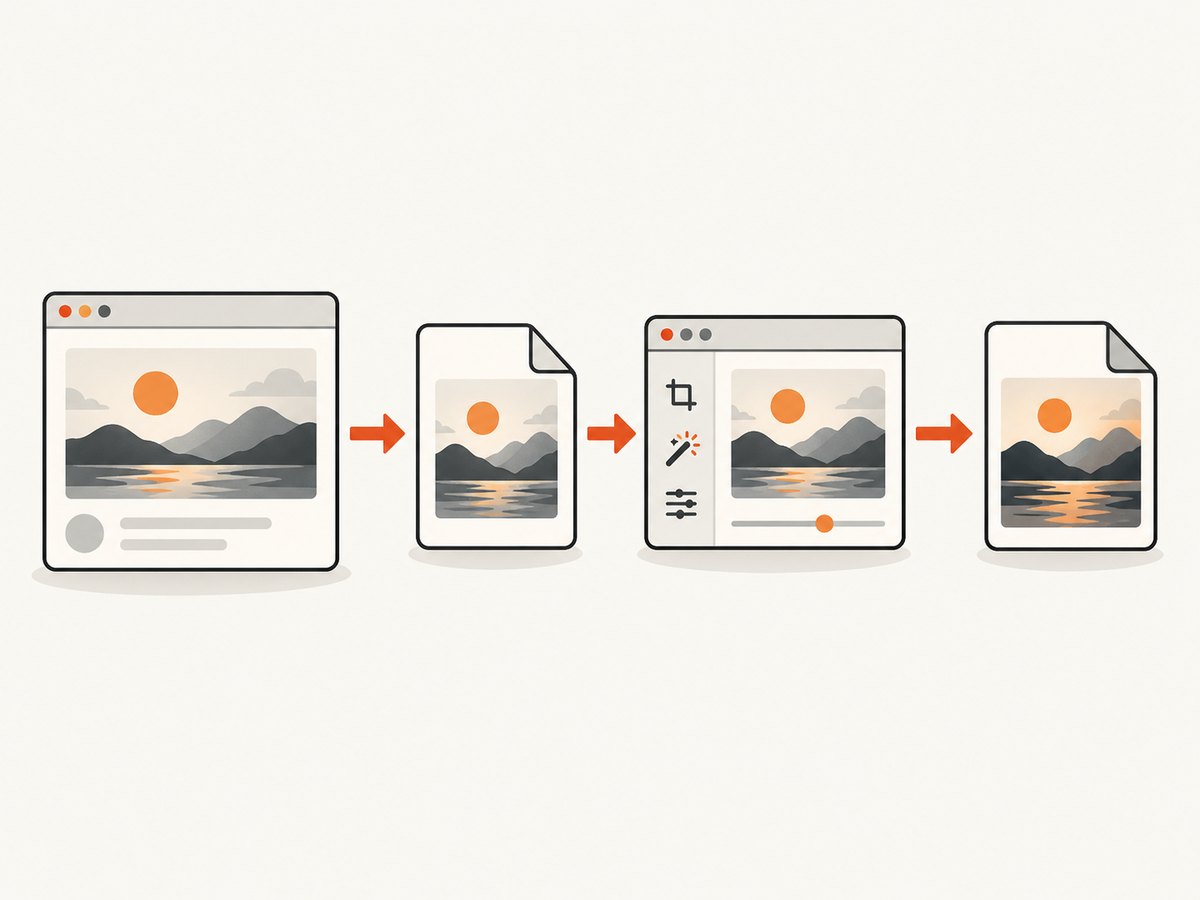
If a website offers a JPEG download, choose that. Otherwise, save the image in the format provided, open it in an image editor that supports WebP, then export a copy as JPEG or JPG. Saving and converting are different operations: changing the filename from .webp to .jpg does not change the image data.
Use JPEG when the destination specifically requires it and the image is an ordinary still photograph. JPEG cannot preserve transparency or animation. Keep the original WebP if you may need those features or want to avoid another lossy encode.
1. Understand what your browser saved
A website can deliver an image as WebP, and the browser’s save command may save the format it received. That action downloads a file; it does not necessarily convert it to the format you want. A file ending in .webp is still WebP even if you rename it to .jpg. A real conversion decodes the source and encodes a new file as JPEG.
WebP is not inherently a broken or low-quality image. Google describes it as a format with lossy and lossless compression, transparency, and animation. Its published comparisons say lossy WebP images are 25–34% smaller than comparable JPEGs at equivalent quality, and lossless WebP images are 26% smaller than PNGs. Those are format comparisons, not a prediction for a particular image or JPEG export. Google’s WebP overview explains the format and figures.
Modern browsers support WebP, although exact support depends on the browser and operating system version. Google’s FAQ lists historical minimum versions, including Chrome 17+, Edge 18+, Firefox 65+, and Safari 14+. Those are milestones, not a guarantee for every device or application today. See Google’s WebP FAQ.
2. Convert WebP to JPG with an image editor
- Use the website’s JPEG download or “original” option if available. A site may offer alternate formats, but not every site does.
- Otherwise, download the WebP image using the browser’s save command. Keep the original file.
- Open the downloaded file in an editor that supports WebP.
- Choose the editor’s export, save a copy, or Save As command, then select JPEG or JPG as the output format.
- If the editor offers JPEG quality or compression settings, choose an appropriate quality level. Higher quality usually creates a larger file; lower quality can produce visible artifacts.
- Save with a new name, such as
photo.jpg, rather than overwriting the WebP. - Open the new file and confirm it displays correctly and is recognized as JPEG by the destination app or upload form.
Menu names and available settings vary by editor and version. The important step is selecting JPEG as the export format, not merely typing a different extension in the filename box.
Photoshop
Adobe documents native WebP support beginning in Photoshop 23.2. You can open and work with WebP in supported versions, then export a copy in the format you need. The precise JPEG export menu can vary by version, so check the format selected in the export dialog before saving. Adobe’s article confirms WebP support and its version requirement: Photoshop WebP support.
Windows Paint
A Microsoft Q&A community answer suggests opening a WebP in Paint and using Save As > JPEG. This is community guidance, and the available menu depends on the Paint version installed on your computer. If JPEG is not offered, use an editor that explicitly supports opening WebP and exporting JPEG. Read the Microsoft Q&A thread.
macOS, iPhone, and Android
The exact built-in steps depend on the operating system version and the app handling the image. The platform-specific menus have not been verified here, so do not assume that every built-in viewer can convert WebP. Open the file in an installed editor that lists JPEG or JPG as an export format. On a phone, check the final file in your Files or photo-management app and make sure the destination can select it.
3. Choose the right output format
| Need | Choose | Reason |
|---|---|---|
| A still photo accepted by a JPEG-only form | JPEG/JPG | It meets the requested format. Export quality affects file size and visual detail. |
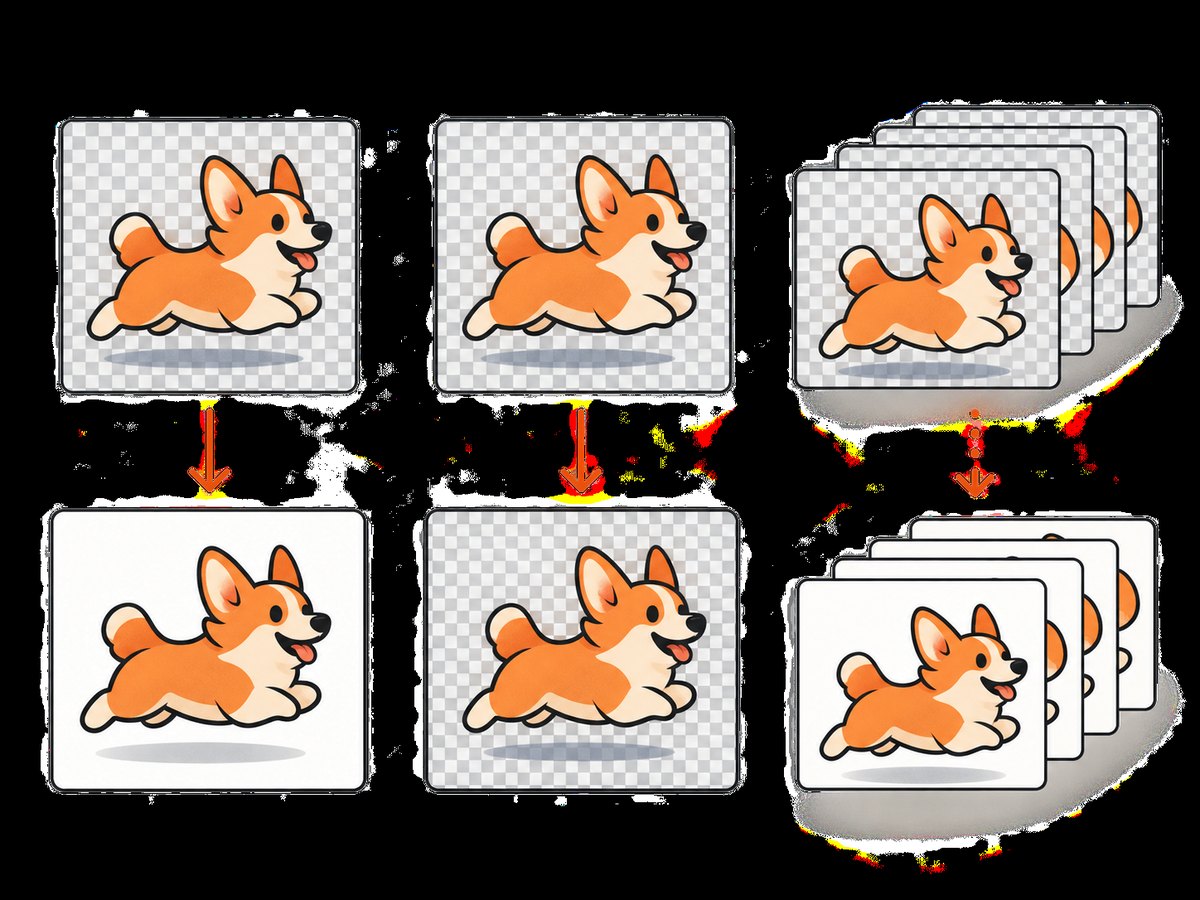
| Transparent background | PNG or a supported WebP | JPEG cannot preserve transparent areas; they may become a solid background. |
| All frames of an animated image | Keep the original animated WebP or use a format that supports animation | JPEG is a still-image format and cannot contain the animation. |
| Keep the original image data available | Keep the WebP and export a separate copy | Conversion may introduce another lossy encode, and cannot restore detail already lost in a lossy source. |
| An upload workflow rejects WebP | Export to the specific format the workflow accepts | Use the stated requirements; JPEG is not universally better for every image. |
WebP can include transparency and animation; JPEG cannot preserve either. PNG is a suitable choice when transparency matters. Keep an animated source if all frames matter. These format properties are covered in Google’s WebP overview and FAQ.
4. Convert from the command line with Python
For a repeatable local conversion, Python’s Pillow package can open WebP and save the decoded image as JPEG. Install Pillow first:
python -m pip install PillowSave this as convert_webp_to_jpg.py and run it with the input path and output path:
from pathlib import Path
import sys
from PIL import Image

if len(sys.argv) != 3:
    raise SystemExit("Usage: python convert_webp_to_jpg.py input.webp output.jpg")

source = Path(sys.argv[1])
destination = Path(sys.argv[2])

if not source.is_file():
    raise SystemExit(f"Input file not found: {source}")
if destination.suffix.lower() not in {".jpg", ".jpeg"}:
    raise SystemExit("Output filename must end in .jpg or .jpeg")

with Image.open(source) as image:
    # JPEG does not support alpha transparency. Composite transparent pixels
    # over white so the result has a predictable background.
    if image.mode in ("RGBA", "LA") or (image.mode == "P" and "transparency" in image.info):
        rgba = image.convert("RGBA")
        background = Image.new("RGB", rgba.size, "white")
        background.paste(rgba, mask=rgba.getchannel("A"))
        output = background
    else:
        output = image.convert("RGB")

    output.save(destination, format="JPEG", quality=90, optimize=True)

print(f"Saved JPEG: {destination}")
Run it like this:
python convert_webp_to_jpg.py downloaded.webp converted.jpgThis makes an RGB JPEG at quality 90. Adjust the quality value to trade image detail against file size. Transparent areas become white in this example; change the background color if white is unsuitable. The script handles still images. If animation matters, do not treat a single JPEG conversion as a way to preserve all frames.
5. Convert with a desktop app or online service
A compatible desktop editor is the simplest local route: open the WebP, export JPEG, and check the result. It avoids uploading the image to a third party and gives you a chance to choose output quality and background behavior. Do not overwrite the source until you have checked the new file.
An online converter can be convenient when you cannot install software or are switching devices. No particular converter is recommended here. Before uploading, consider whether the image is private or sensitive, and check the resulting file’s format and visual quality. Do not assume a service’s output is JPEG just because the page says “convert”; verify the downloaded file and destination compatibility.
Browser extensions may also offer conversion, but they are third-party software. Check the current publisher, permissions, and security information before installing one. A browser extension is not required for conversion.
6. Or skip the browser setup
If what you need is a screenshot of a webpage, ScreenshotNeo captures the page directly as an image or PDF. That is different from converting an existing downloaded WebP file. The ScreenshotNeo API accepts one GET request with a URL and returns a PNG, JPEG, WebP, or PDF. See the API documentation.
curl -G "https://api.screenshotneo.com/v1/shot" -d access_key=YOUR_API_KEY --data-urlencode url=https://stripe.com -o shot.webpimport requests
r = requests.get(
"https://api.screenshotneo.com/v1/shot",
params={"access_key": "YOUR_API_KEY", "url": "https://stripe.com"},
timeout=90,
)
open("shot.webp", "wb").write(r.content)const q = new URLSearchParams({ access_key: 'YOUR_API_KEY', url: 'https://stripe.com' });
const res = await fetch(`https://api.screenshotneo.com/v1/shot?${q}`);
if (!res.ok) throw new Error(`Screenshot request failed: ${res.status}`);
await Bun.write('shot.webp', res);These examples use the supplied API call and a WebP output filename. Select the desired response format using the documented API options when you need JPEG; renaming the returned file does not convert it. ScreenshotNeo removes cookie banners, newsletter popups, and chat widgets before capture. Bot checks, blank pages, and failed loads are never billed, and response headers report the page verdict and billing status. Its MCP server lets AI agents take screenshots. The free plan includes 1,000 screenshots a month with no card; paid plans start at $5 for 3,000. Learn about ScreenshotNeo, then sign up for 1,000 free screenshots a month, no card required.
7. Troubleshooting
| Symptom | Likely cause | Fix |
|---|---|---|
| The file is still WebP after renaming | The extension changed, but the encoded image did not. | Open it in a WebP-capable editor and export with JPEG selected. |
| The editor cannot open the file | The app or version may not support WebP, or the download may be incomplete. | Confirm the file opens in a WebP-capable editor; download it again if it appears truncated. |
| The JPEG background is no longer transparent | JPEG has no transparency channel. | Use PNG or keep WebP if transparency is required. If JPEG is mandatory, choose the background color used when flattening. |
| The result looks blocky or blurry | JPEG quality may be too low, or the source was already compressed. | Export again at a higher quality from the original WebP. Keep expectations realistic: conversion cannot recover lost detail. |
| The file is larger than expected | JPEG quality settings, image dimensions, and image content affect size; WebP may have compressed this particular image efficiently. | Try a lower JPEG quality only if the visual result remains acceptable, or resize if the receiving app permits it. |
| The upload form still rejects the file | The form may inspect actual file content, impose dimensions or size limits, or require a different format. | Export as JPEG rather than renaming; check the form’s format, pixel dimensions, and maximum file-size requirements. |
| A command-line conversion fails on transparency | JPEG cannot encode alpha transparency. | Composite onto a deliberate background color before saving as JPEG, or select PNG/WebP if transparency must remain. |
8. Quality, performance, and file handling
For one image, opening an editor and exporting a copy is usually the least complicated route. For repeated conversions, a local script avoids uploading files and makes output choices repeatable. Conversion time and file size depend on image dimensions, content, computer, and encoder settings; there is no single reliable size or speed prediction for every image.
JPEG is lossy. If the WebP source is already lossy, exporting it as JPEG can introduce another lossy encoding step. Keep the original and compare the output at the size it will actually be viewed or printed. If file size is important, lower the quality gradually and inspect for artifacts rather than assuming a particular setting is universally best.
For reliable file handling, save the converted copy under a different name, confirm it opens, and check any upload size and dimension restrictions. If the target system asks for JPG, a JPEG file is generally what it means; JPG and JPEG are common extensions for the same format. The file’s encoding matters more than the spelling of its suffix.
9. Frequently asked questions
Can I force every website to download JPEG?
No universal browser setting guarantees that. The website controls the image it serves and may or may not offer a JPEG original or alternate download. Convert a saved copy when needed.
Is JPG different from JPEG?
For this task, JPG and JPEG refer to the same image format. The shorter extension is common in systems with older three-character extension conventions.
Will converting WebP to JPG improve quality?
No. Conversion changes the encoding, not the detail in the source. A JPEG export can lose additional detail; it cannot recreate information already absent from the WebP.
Should I use JPEG for every image?
No. Choose it when required or suitable for a still image. Use a format that supports transparency when you need transparent areas, and preserve an animated source when all frames matter.


