How to Save an Image with Python: Code Examples
Save images to files or memory with Python using Pillow, Matplotlib, or OpenCV. Choose the right format, set common options, and fix typical save errors.
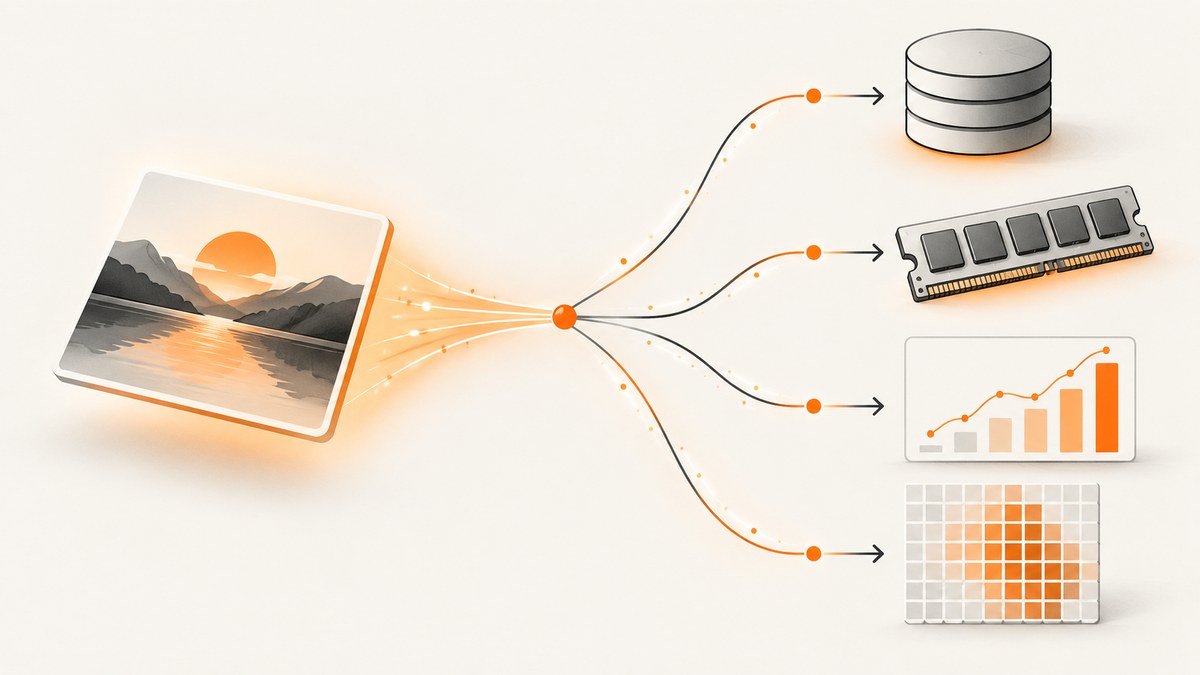
To save an image with Python, use the save function that matches the object you have: Pillow’s Image.save() for an image object, Matplotlib’s fig.savefig() for a chart, or OpenCV’s cv2.imwrite() for an image array. For an in-memory file, use a binary stream such as io.BytesIO and specify the format. The examples below write PNG files; replace the format and extension when you need another supported format.
1. Choose the right Python API
Start with the object you already have. You usually do not need to convert it to another library’s representation just to write it.
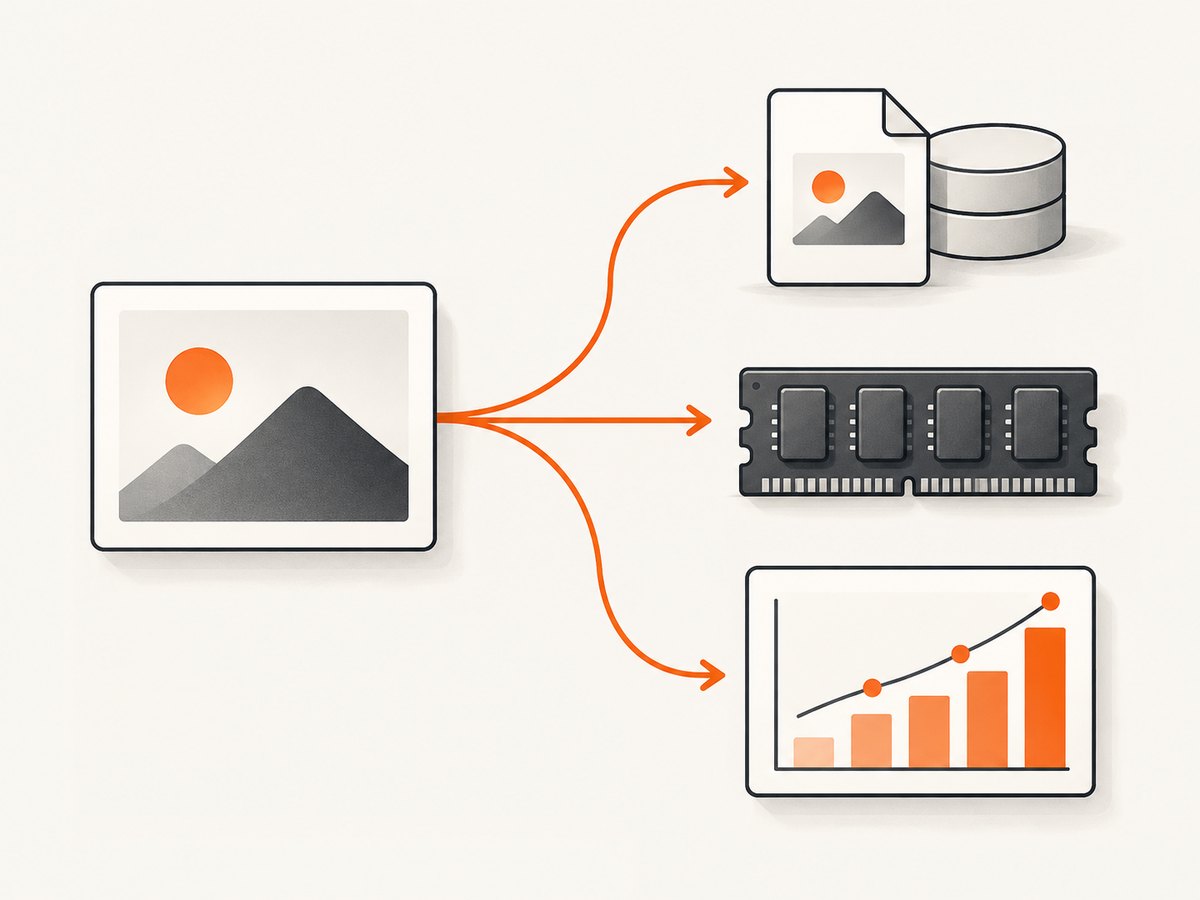
| Your input | Use | Typical output |
|---|---|---|
| An image opened or created with Pillow | image.save(path) |
PNG, JPEG, WebP, and other supported formats |
| A Matplotlib chart or figure | fig.savefig(path) |
PNG, JPEG, SVG, PDF, and formats supported by the active backend |
| An OpenCV image array | cv2.imwrite(path, image) |
Format selected from the filename extension |
| Bytes needed by an API, upload, or database | Save to a binary stream | Encoded image bytes in memory |
Pillow infers the output format from the filename extension unless you pass format=. Matplotlib similarly accepts a path or file-like object, and its output format depends on the extension or explicit format. OpenCV selects the image format from the extension. See the official documentation for Pillow Image.save, Matplotlib Figure.savefig, and OpenCV image input/output.
2. Save an existing image with Pillow
Install Pillow if it is not already available:
python -m pip install PillowOpen an input image and save it as PNG:
from PIL import Image

with Image.open("input.jpg") as image:
    image.save("output.png")
The extension tells Pillow to encode the output as PNG. The input can be a different format; opening a JPEG and saving it as PNG creates a new PNG file. It does not restore detail lost when the original JPEG was compressed.
Use an explicit format when the filename has no recognized extension, or when the extension does not describe the encoding you want:
from PIL import Image

with Image.open("input.jpg") as image:
    image.save("output.data", format="PNG")
In this example, the contents are PNG even though the file is named output.data. Prefer matching the extension and format in ordinary use so other software can identify the file correctly.
Set common format options
Writer options depend on the format. For JPEG, choose a quality value and convert images with transparency to a compatible color mode first:
from PIL import Image

with Image.open("input.png") as image:
    rgb_image = image.convert("RGB")
    rgb_image.save("output.jpg", format="JPEG", quality=90, optimize=True)
JPEG does not preserve an alpha transparency channel. Converting an image with transparent pixels to RGB removes that channel; decide on a background color first if transparent areas should appear as a particular color. JPEG is a lossy format, so a higher quality setting generally retains more visual detail at the cost of a larger file. The exact file size depends on the content and encoder.
For a transparent PNG, retain an alpha-capable mode such as RGBA:
from PIL import Image

with Image.open("input.png") as image:
    image.convert("RGBA").save("output.png", format="PNG", optimize=True)
Check Pillow’s format documentation for the options supported by a particular writer; options are not interchangeable across formats. Unknown writer options can be silently ignored, so do not assume an option took effect without consulting the format documentation.
3. Save image bytes to memory instead of a named file
Use BytesIO when another part of your program needs the encoded image bytes—for example, to send an upload or return a response. Pillow requires a file-like object that supports seek(), tell(), and write(), is opened in binary mode, and has an explicit format.
from io import BytesIO
from PIL import Image

with Image.open("input.jpg") as image:
    buffer = BytesIO()
    image.save(buffer, format="PNG")
    png_bytes = buffer.getvalue()

print(f"Encoded {len(png_bytes)} bytes")
getvalue() returns the complete contents without changing the stream position. If you pass the stream to a consumer that reads from its current position, rewind it first with buffer.seek(0). Keep the buffer alive for as long as the consumer needs it. For large images, in-memory encoding increases memory use because the encoded bytes are held in process memory.
To write bytes to a normal file yourself, open the destination in binary mode:
with open("output.png", "wb") as file:
    file.write(png_bytes)
Use wb, not text mode (w): image encodings are binary data and must not be treated as text.
4. Save a Matplotlib figure
Call savefig on the figure object to make it clear which chart is being written. This standalone example creates a chart and saves a 300-DPI PNG:
import matplotlib.pyplot as plt

fig, ax = plt.subplots()
ax.plot([1, 2, 3], [1, 4, 9])
ax.set_xlabel("Input")
ax.set_ylabel("Output")
fig.savefig("plot.png", dpi=300, bbox_inches="tight")
plt.close(fig)
dpi controls raster resolution. bbox_inches="tight" trims surrounding whitespace to fit the figure content; use it when that crop is desired. Closing a figure after writing releases its plotting resources, which matters in scripts that create many figures. Matplotlib documents path and file-like outputs and options such as format, dpi, transparent, facecolor, bbox_inches, and pad_inches in its savefig reference.
Save a figure to memory by passing a binary stream and naming the format:
from io import BytesIO
import matplotlib.pyplot as plt

fig, ax = plt.subplots()
ax.plot([1, 2, 3], [1, 4, 9])

buffer = BytesIO()
fig.savefig(buffer, format="png", dpi=150, bbox_inches="tight")
png_bytes = buffer.getvalue()
plt.close(fig)
When you provide format, make sure the filename extension matches if you also provide a filename: Matplotlib writes the selected format and does not necessarily change the name to match it. For headless servers, select a non-interactive Matplotlib backend before importing pyplot if your environment has no display.
5. Save an OpenCV image array
Install the headless package for a server environment, or the standard package if you need its GUI features:
python -m pip install opencv-python-headlessRead an image, write it, and check whether the operation succeeded:
import cv2

image = cv2.imread("input.jpg")
if image is None:
    raise FileNotFoundError("Could not read input.jpg")

ok = cv2.imwrite("output.png", image)
if not ok:
    raise OSError("OpenCV could not write output.png")
OpenCV determines the output encoding from the destination extension. The boolean result matters: a failed write may otherwise leave your program assuming the file exists. OpenCV arrays conventionally store color channels in BGR order; this does not prevent saving, but it matters if you manipulate channels or pass the array to a library expecting RGB. OpenCV also provides in-memory encoding APIs when a path is not appropriate; consult its image input/output documentation for your installed version.
6. Pick a format and destination deliberately
| Format | Useful when | Things to check |
|---|---|---|
| PNG | You need lossless output, sharp edges, or transparency. | Files can be larger than lossy alternatives; preserve an alpha-capable mode for transparency. |
| JPEG | You are storing photographs and need broadly compatible compressed output. | Lossy encoding; no alpha transparency; quality affects the size and visible artifacts. |
| WebP | Your target software supports WebP and you want its supported lossy or lossless encodings. | Confirm the installed Pillow build has the needed support and specify relevant writer options. |
| SVG or PDF from Matplotlib | You need vector output for supported plot elements. | These are not raster images; output support depends on the Matplotlib backend. |
For a filesystem destination, create parent directories when needed and use a path object for clear path handling:
from pathlib import Path
from PIL import Image

output = Path("exports") / "result.png"
output.parent.mkdir(parents=True, exist_ok=True)

with Image.open("input.jpg") as image:
    image.save(output, format="PNG")
Relative paths are resolved from the program’s current working directory, which may differ from the script’s directory. Use an absolute path or build a path from a known project location when the execution context varies. Saving overwrites an existing destination in typical use; choose a unique filename or check before writing if replacing output would be a problem.
7. Save a webpage screenshot with Python
If the image you need is a rendered webpage rather than an image object, saving an image file comes after capturing the page. With browser automation, the browser must load the page, wait for the content you want, and take the screenshot. Then write its returned bytes in binary mode. Here is a runnable Playwright example:

# Install: python -m pip install playwright
# Then install its browser: playwright install chromium

from pathlib import Path
from playwright.sync_api import sync_playwright

with sync_playwright() as playwright:
    browser = playwright.chromium.launch()
    page = browser.new_page(viewport={"width": 1440, "height": 900})
    page.goto("https://example.com", wait_until="networkidle", timeout=60000)
    image_bytes = page.screenshot(full_page=True, type="png")
    Path("page.png").write_bytes(image_bytes)
    browser.close()
The full-page option captures beyond the viewport, which can produce a much taller and larger image. Waiting for network idle can be unsuitable for sites with persistent connections or background requests; wait for a meaningful selector or use an explicit delay when that better matches the page. Close the browser even if navigation or writing fails by using a try/finally block in long-running production code.
8. Or skip the browser setup
For a webpage capture, ScreenshotNeo returns a screenshot or PDF from one API request. The Python example below saves the response body as a WebP file; see the ScreenshotNeo API documentation for request options.
import requests

r = requests.get(
    "https://api.screenshotneo.com/v1/shot",
    params={"access_key": "YOUR_API_KEY", "url": "https://stripe.com"},
    timeout=90,
)
r.raise_for_status()
open("shot.webp", "wb").write(r.content)
Cookie and consent banners are accepted before capture, and more than 60 known consent platforms, newsletter popups, and chat widgets can be removed. Each step can be turned off. Bot checks or CAPTCHAs, blank pages, timeouts, failed loads, and cache hits cost nothing; response headers report the page verdict and billing status. An MCP server gives AI agents tools to take screenshots, get page information, and capture PDFs. The free plan includes 1,000 shots a month with no card; paid plans start at $5 for 3,000 shots.
Create a free ScreenshotNeo account for 1,000 screenshots a month with no card.
9. Common errors and fixes
| Symptom | Likely cause | Fix |
|---|---|---|
ValueError: unknown file extension |
The filename extension is missing or unsupported by the selected writer. | Use a supported extension or pass an explicit Pillow/Matplotlib format. |
| A file has the wrong contents for its extension | The explicit format and filename extension disagree. | Make them match, or rename the file to match its actual encoding. |
OSError: cannot write mode RGBA as JPEG |
JPEG cannot store the image’s alpha channel in this workflow. | Convert to RGB and choose a background if transparency must become visible. |
cv2.imwrite returns False |
The parent directory may not exist, the path may not be writable, or the encoder may not support the requested format. | Create the directory, check permissions and extension, then raise an error on failure. |
| The saved chart is blank or incomplete | The wrong figure was saved, rendering had not completed, or layout cropped content. | Save the explicit fig object after plotting; inspect bbox_inches and layout settings. |
| BytesIO output is empty or unreadable | The stream was not saved with an explicit format, or a downstream reader is at the end of the stream. | Pass format="PNG" and rewind with seek(0) before handing off the stream. |
FileNotFoundError for input or output |
The path is relative to a different working directory, or the output parent is absent. | Print or resolve the path, use Path, and create parent directories explicitly. |
10. Performance, reliability, and cost
For local image processing, encoding time and memory depend on pixel dimensions, format, compression settings, and image content. Avoid repeatedly converting between libraries unless a processing step requires it. Resize before encoding when a smaller image is acceptable; this reduces the number of pixels to encode and usually reduces output size. For a large batch, close opened images and Matplotlib figures as you finish each item, and handle individual write failures so one bad file does not silently invalidate the whole batch.
Saving locally has no per-image API fee, but it uses your machine’s CPU, memory, and storage. A memory buffer avoids a temporary named file but holds encoded bytes in memory. For browser screenshots, browser installation, startup, page load, and capture waits contribute to end-to-end time. Reuse a browser process where appropriate, set navigation timeouts, wait for the specific content you need, and make cleanup happen on errors. If capturing pages is the actual task and you do not want to operate a browser, ScreenshotNeo’s API provides the capture path and bills only clean shots; review its plan limits and options before choosing a paid plan.
11. Quick checklist
- Identify whether the input is a Pillow image, Matplotlib figure, OpenCV array, or browser page.
- Pick a format that supports the needed transparency, quality, or vector output.
- Match the extension to the actual format; specify the format for file-like objects.
- Use binary mode for image bytes and check OpenCV’s write result.
- Create output directories, handle errors, and release image, figure, or browser resources.
- For screenshots, wait for the right page state and account for navigation timeouts.
12. FAQ
How do I save an image without changing its format?
Open it with Pillow and save using the same format and a matching extension. If you need to preserve metadata or animation, check the format-specific behavior; a simple re-save may not preserve every property.
How do I save raw image bytes in Python?
“Raw” can mean encoded file bytes or unencoded pixel data. For a normal PNG or JPEG payload, save to BytesIO with an explicit format and read its bytes. Pixel arrays require a separate agreed layout and metadata such as dimensions, channels, and data type.
How do I save an image returned by an HTTP request?
Write the response’s binary content to a file opened with wb, after checking that the request succeeded. If the response comes from an untrusted URL, validate its content and impose size limits before decoding it as an image.
Can I save a Matplotlib chart as a JPEG?
Yes. Use fig.savefig("plot.jpg", format="jpg", dpi=200) or a matching JPEG extension. Be aware that JPEG is lossy and does not represent transparency.


