How to Save an Image Resource with Selenium and Python
Use Selenium to resolve lazy and protected image URLs, then stream the original bytes with Python Requests—plus validation, retries, and fixes.
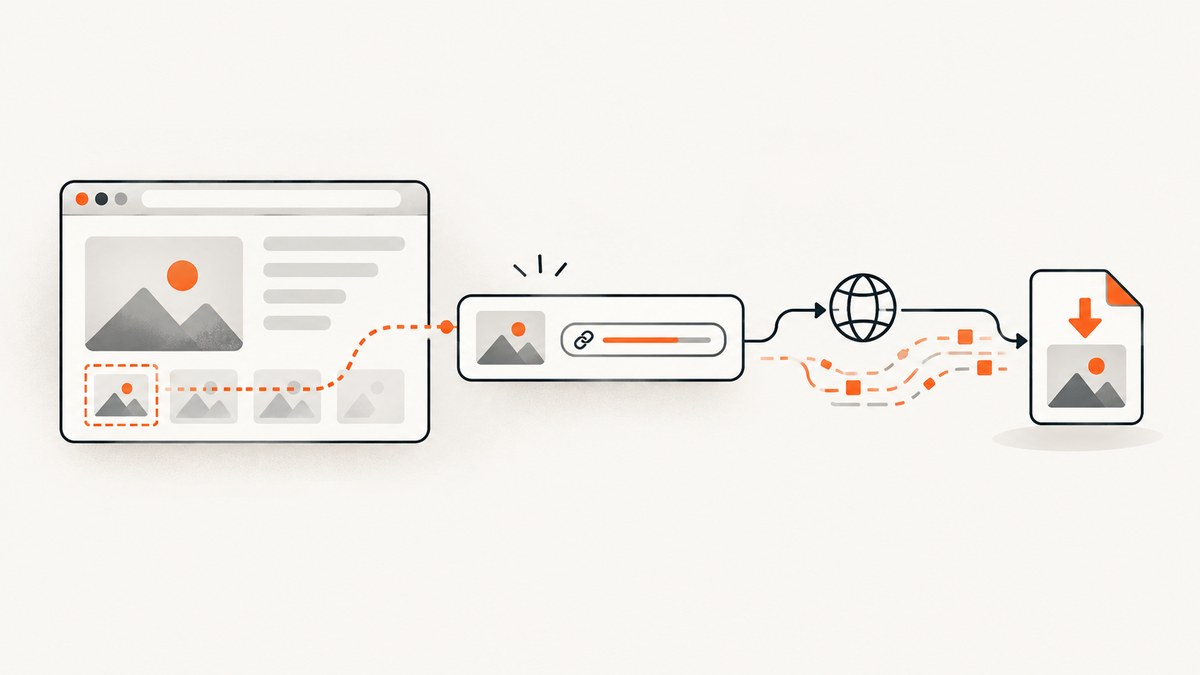
Direct answer: use Selenium to load the page and establish browser state, locate the <img> element, read its resolved URL with currentSrc, then download that URL with Requests. This saves the original image bytes instead of a screenshot. Copy Selenium cookies into a Requests session when the image requires a login, and validate the response before writing it in binary mode.
The pattern below handles ordinary images, responsive srcset, lazy-loading attributes, authenticated pages, and large files. It also explains when a screenshot is the right output and when it is not.
1. Install Selenium and Requests
Use Python 3.9 or newer, create an isolated environment, and install both libraries:
python -m venv .venv
source .venv/bin/activate
python -m pip install --upgrade selenium requests
Recent Selenium versions can locate a compatible browser driver automatically. Install Chrome, Firefox, or another supported browser. Selenium’s WebDriver documentation covers browser setup and element APIs.
2. Save the original resource
This complete script opens a page, waits for an image, scrolls to trigger lazy loading, resolves the best URL exposed by the DOM, transfers browser cookies to Requests, streams the response, and checks that the server returned an image.

from pathlib import Path
from urllib.parse import urljoin
import time
import requests
from selenium import webdriver
from selenium.webdriver.common.by import By
from selenium.webdriver.support.ui import WebDriverWait
from selenium.webdriver.support import expected_conditions as EC

PAGE_URL = 'https://example.com/gallery'
IMAGE_SELECTOR = 'img.hero'
OUTPUT = Path('image.jpg')

options = webdriver.ChromeOptions()
options.add_argument('--headless=new')
options.add_argument('--window-size=1440,1200')
driver = webdriver.Chrome(options=options)
try:
    driver.get(PAGE_URL)
    image = WebDriverWait(driver, 30).until(EC.presence_of_element_located((By.CSS_SELECTOR, IMAGE_SELECTOR)))
    driver.execute_script("arguments[0].scrollIntoView({block: 'center'});", image)
    time.sleep(1)
    raw_url = driver.execute_script('''
        const el = arguments[0];
        return el.currentSrc || el.src || el.dataset.src || el.getAttribute('data-lazy-src') || el.getAttribute('data-original');
    ''', image)
    if not raw_url:
        raise RuntimeError('The image has no usable URL')
    image_url = urljoin(driver.current_url, raw_url)
    session = requests.Session()
    session.headers['User-Agent'] = driver.execute_script('return navigator.userAgent')
    for cookie in driver.get_cookies():
        session.cookies.set(cookie['name'], cookie['value'], domain=cookie.get('domain'), path=cookie.get('path', '/'))
    with session.get(image_url, stream=True, timeout=(10, 60), headers={'Referer': driver.current_url}) as response:
        response.raise_for_status()
        content_type = response.headers.get('content-type', '').split(';', 1)[0].lower()
        if not content_type.startswith('image/'):
            raise ValueError(f'Expected image bytes, got Content-Type: {content_type or "missing"}')
        with OUTPUT.open('wb') as file:
            for chunk in response.iter_content(chunk_size=64 * 1024):
                if chunk:
                    file.write(chunk)
    print(f'Saved {OUTPUT} from {image_url}')
finally:
    driver.quit()
currentSrc is preferable because the browser resolves srcset for the current viewport and device-pixel ratio. The fallbacks cover sites that keep the URL in data-src, data-lazy-src, or similar attributes. urljoin handles relative paths.
3. Choose the correct image element
Generic img selectors often match logos, icons, and tracking pixels. Narrow the selector by class, id, an ancestor, or an accessible attribute:
img.product-photo
article figure img
[data-testid='hero-image'] img
img[alt='Mountain at sunset']
When several images match, inspect them and choose by dimensions or URL:
images = driver.find_elements(By.CSS_SELECTOR, 'article img')
for index, element in enumerate(images):
    print(index, element.get_attribute('alt'), element.get_attribute('currentSrc') or element.get_attribute('src'), element.size)
For a <picture>, read currentSrc from its child img. For CSS backgrounds, query computed style:
background_url = driver.execute_script('''
const value = getComputedStyle(arguments[0]).backgroundImage;
const match = value.match(/^url\\(["']?(.*?)["']?\\)$/);
return match ? match[1] : null;
''', element)
Canvas drawings and blob: URLs may have no public HTTP resource. You may need page-specific JavaScript to export the canvas or browser network logging.
4. Lazy-loaded and responsive images
A lazy image may start with a placeholder and receive its real URL only after entering the viewport. Scroll it into view, wait for currentSrc or src to change, then fetch:
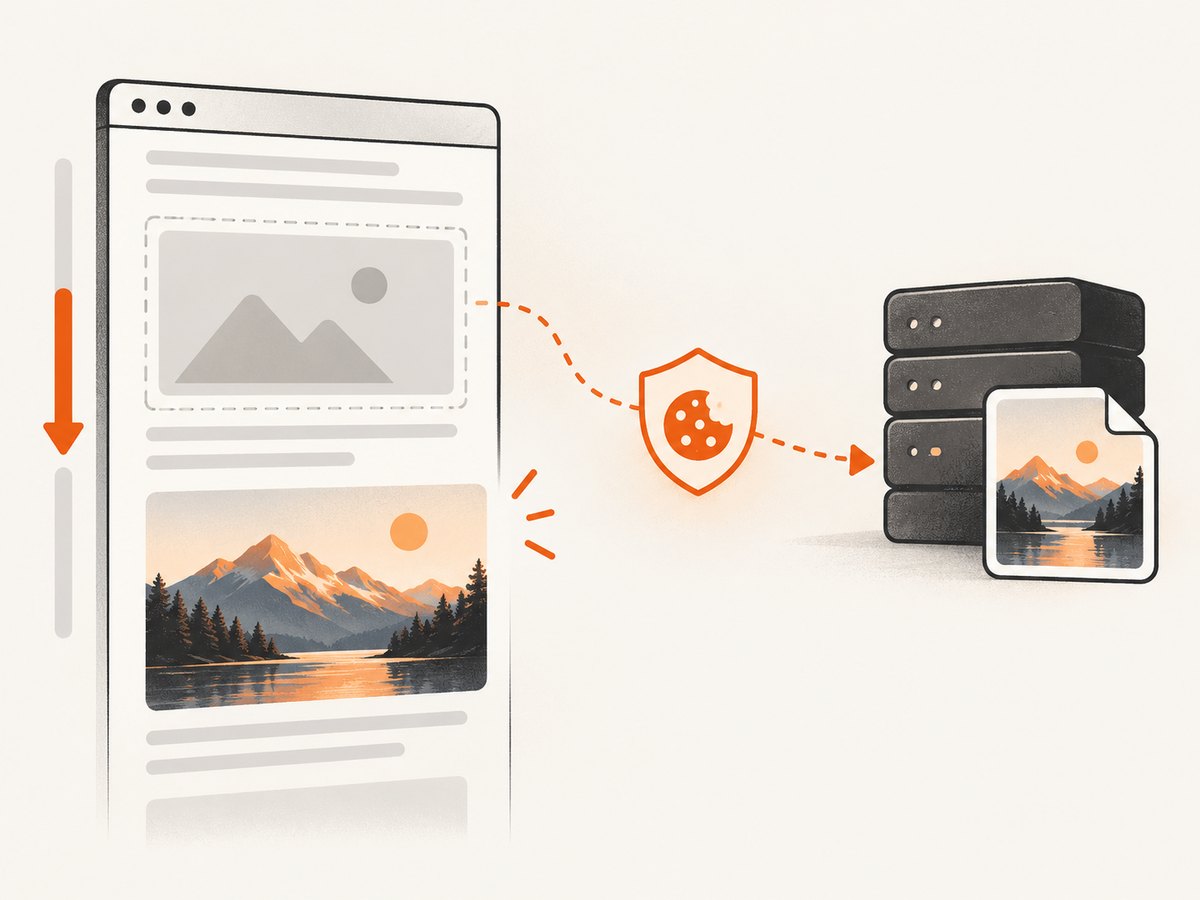
image = WebDriverWait(driver, 30).until(EC.presence_of_element_located((By.CSS_SELECTOR, 'img.lazy')))
driver.execute_script("arguments[0].scrollIntoView({block: 'center'});", image)
WebDriverWait(driver, 30).until(lambda d: d.execute_script('return arguments[0].currentSrc || arguments[0].src || arguments[0].dataset.src;', image))
resolved = driver.execute_script('return arguments[0].currentSrc || arguments[0].src;', image)
If the page uses an IntersectionObserver, a condition-based wait is more reliable than a long fixed sleep. For carousels, activate the desired slide before resolving its URL. Respect the site’s access rules and avoid downloading unnecessary variants.
5. Authenticated images and request headers
A browser may display an image while an anonymous requests.get receives a login page or 403. Cookie synchronization keeps the same session. Some CDNs also require a matching Referer or user agent.
Selenium’s cookie-aware request context is another option where your binding provides it:
response = driver.request.get(image_url)
response.raise_for_status()
Path('image.jpg').write_bytes(response.body())
Use a Requests session when you need streaming, retries, or custom headers. Never log cookies or authorization tokens; keep credentials in environment variables or a secret manager.
6. Validate bytes and preserve the filename
Always check status and content type. A successful status does not guarantee an image; a proxy can return HTML with status 200. For stronger validation, inspect the saved file with Pillow:
from PIL import Image
with Image.open('image.jpg') as picture:
    print(picture.format, picture.size)
    picture.verify()
Derive an extension from the response type when the URL has none. Write with wb; text mode can corrupt binary data. Streaming with iter_content keeps memory bounded. Requests documents binary responses and streamed downloads in its Quickstart.
7. Screenshot versus original image
driver.save_screenshot('page.png'), get_screenshot_as_file, and get_screenshot_as_png capture what the browser renders. They can include layout, overlays, scaling, and only the viewport. They do not preserve the source image’s compression, dimensions, or metadata.
Use a screenshot for a rendered-page or visual-regression artifact. Use the HTTP workflow for original resource bytes, full resolution, or exact metadata. A screenshot cannot recover pixels cropped by CSS or hidden outside the viewport.
8. Browser-managed downloads
If clicking an image or link starts a download, configure a directory and accepted MIME types before creating the driver. Firefox supports preferences such as browser.download.dir and browser.helperApps.neverAsk.saveToDisk; see the Selenium preferences guide.
from selenium.webdriver.firefox.options import Options
options = Options()
options.add_argument('-headless')
options.set_preference('browser.download.folderList', 2)
options.set_preference('browser.download.dir', str(Path('downloads').resolve()))
options.set_preference('browser.helperApps.neverAsk.saveToDisk', 'image/jpeg,image/png,image/webp')
options.set_preference('pdfjs.disabled', True)
Browser downloads help when a click generates a file. For deterministic names, retries, content checks, and progress reporting, direct Requests transfer is easier. A preliminary requests.head can reveal Content-Type, but some servers disallow HEAD, so handle 405 with a small GET.
9. cURL and Node.js alternatives
Once Selenium reveals a public URL, any HTTP client can save it. cURL:
curl -L --fail --retry 3 'https://cdn.example.com/image.jpg' -o image.jpgNode.js 18+ with streaming:
import { createWriteStream } from 'node:fs';
import { pipeline } from 'node:stream/promises';
const response = await fetch('https://cdn.example.com/image.jpg');
if (!response.ok || !response.body) throw new Error(`HTTP ${response.status}`);
const type = response.headers.get('content-type') || '';
if (!type.startsWith('image/')) throw new Error(`Unexpected type: ${type}`);
await pipeline(response.body, createWriteStream('image.jpg'));
10. Reliability, performance, and cost
- Reuse a driver: open one browser for a batch instead of starting Chrome for every image. Quit it in
finally. - Wait for conditions: prefer element and URL waits to long sleeps. Set page-load and HTTP connect/read timeouts separately.
- Retry transient failures: retry 429 and selected 5xx responses with exponential backoff; do not blindly retry 401, 403, or missing elements.
- Limit concurrency: browsers consume CPU and memory. A small worker pool avoids exhaustion and reduces origin load.
- Cache safely: cache immutable URLs, but treat signed URLs as expiring. Store final bytes and content type together.
- Control spend: hosted browsers, bandwidth, and storage can cost money. Download only the needed variant and enforce maximum byte sizes.
For protected content, keep browser and HTTP request close together because signed URLs and cookies may expire. Record source URL, final URL, status, content type, and byte count without recording secrets.
11. Troubleshooting checklist
| Symptom | Cause | Fix |
|---|---|---|
NoSuchElementException |
Selector ran too early or is wrong. | Use WebDriverWait, inspect the DOM, and correct the selector. |
| Empty URL or 1×1 placeholder | Lazy loading has not fired. | Scroll into view, wait for currentSrc, and check lazy attributes. |
| 403 or login HTML | Cookies, referer, user agent, or authorization is missing. | Copy cookies, send matching headers, or use driver.request; do not bypass access controls. |
text/html content type |
Error page, consent wall, or redirect. | Inspect the final URL and resolve page state in Selenium first. |
| File will not open | Text-mode write, truncation, or non-image response. | Use wb, stream all chunks, verify type, and validate with Pillow. |
| Only part of a gallery | Carousel or virtualized list has not rendered all items. | Activate each slide or scroll through the list, resolving each URL after render. |
| Chrome exits in CI | Missing browser, sandbox restrictions, or low shared memory. | Install the browser, use headless mode, provide required CI flags, and increase shared memory. |
| Download prompt blocks progress | MIME preferences are not configured. | Set download preferences or use Requests directly. |
12. Or skip the browser setup
If your goal is a clean visual of a page rather than original image bytes, ScreenshotNeo provides a single GET request. It accepts cookie or consent banners before capture and removes more than 60 known consent platforms, newsletter popups, and chat widgets; each step can be disabled. Bot checks, blank pages, timeouts, failed loads, and cache hits are not billed, and responses identify the result with X-Page-Verdict and X-Billed headers.
It supports full-page capture with lazy images loaded, CSS-selector element capture, dark mode, device presets and custom viewports, retina scale, PDFs, HTML/CSS, custom JavaScript, blocked resources, custom headers and cookies, user agents, Authorization, timezone, geolocation, transparent backgrounds, resizing, caching, signed links, async jobs, bulk requests, usage data, and an MCP server. See the ScreenshotNeo API documentation.
curl -G "https://api.screenshotneo.com/v1/shot" -d access_key=YOUR_API_KEY --data-urlencode url=https://stripe.com -o shot.webpimport requests
r = requests.get("https://api.screenshotneo.com/v1/shot", params={"access_key": "YOUR_API_KEY", "url": "https://stripe.com"}, timeout=90)
open("shot.webp", "wb").write(r.content)const q = new URLSearchParams({ access_key: 'YOUR_API_KEY', url: 'https://stripe.com' });
const res = await fetch(`https://api.screenshotneo.com/v1/shot?${q}`);ScreenshotNeo’s MCP server includes take_screenshot, get_page_info, and capture_pdf tools for Claude, Cursor, and other MCP clients. The Free plan includes 1,000 shots each month with no card; paid plans start at $5 for 3,000 shots, and every feature is on every plan. Create a free ScreenshotNeo account.
13. FAQ
Can Selenium download an image without Requests?
Yes, through a browser download or a cookie-synchronized driver.request context where available. Requests gives clearer streaming, validation, naming, and retry control.
How do I get the original instead of a thumbnail?
Inspect srcset, currentSrc, and links around the image. Sites often expose an original URL only after opening a lightbox.
Why does the browser show an image but my script gets 403?
The browser carries cookies and headers that the standalone request lacks. Synchronize cookies and send the required referer or user agent while respecting authorization.
Can I save a canvas or blob URL?
Not with a normal URL fetch. Export the canvas in page JavaScript or capture the resource through browser network tooling; implementation is site-specific.
Should I use a screenshot API for this task?
Use one when you need the rendered page or element. Keep Selenium plus Requests when you need source image bytes, metadata, or original dimensions.