How to Save an Image From a Website When Right-Click Is Disabled
Learn how to save the original image, inspect how a page loads it, or capture what you see when right-click is disabled.
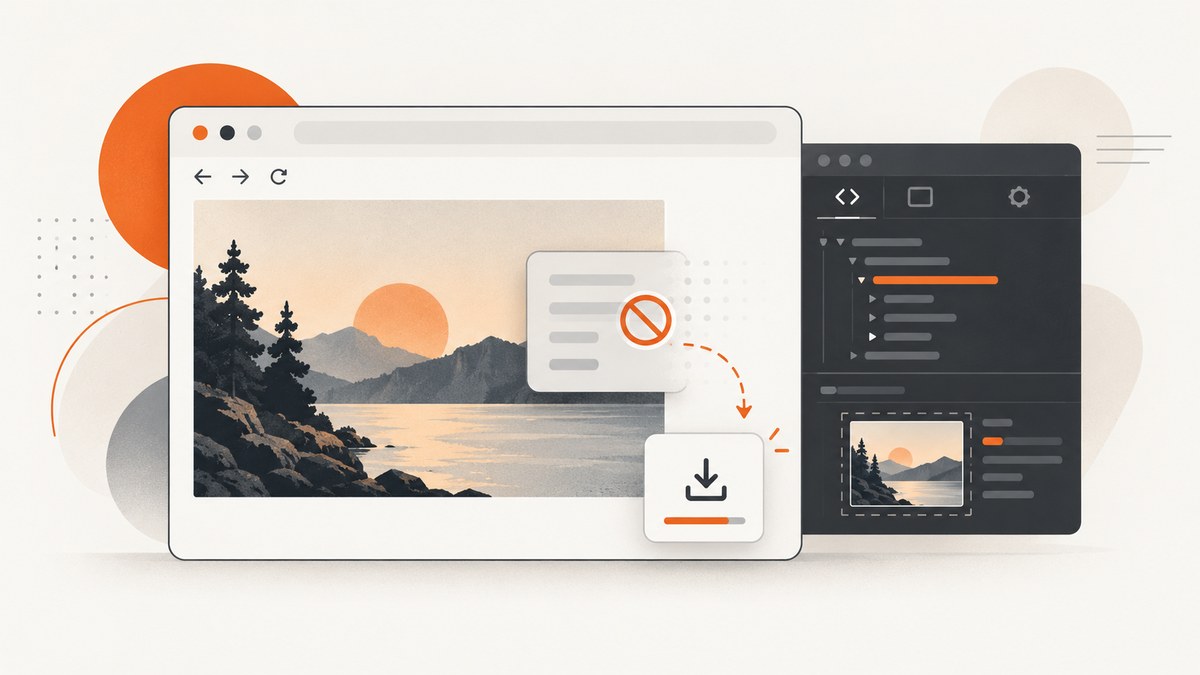
Start with the site’s own Download or Export control. If none exists and right-click is disabled, first decide whether you need the original image file or only a visual record. For the original, inspect how the page presents the image with built-in developer tools. For a visual record, use your browser’s screenshot feature. A screenshot captures what is displayed; it is not necessarily the original file, dimensions, format, or resolution.
These methods depend on how the site is built. An image may be an <img> element, a CSS background, a canvas drawing, a protected viewer, or content loaded after JavaScript runs. No single extraction method works on every website.
1. Check for an authorized download first
Look for buttons labeled Download, Export, Save, or a download icon inside the image viewer. This is the most reliable route because it follows the publisher’s intended workflow and may provide the highest-quality asset or the correct license information.
If the page offers only a thumbnail, open the image viewer or detail page before saving. Some sites load a larger asset only after you click the image. Do not assume that a visible preview is the full-resolution source.
2. Try the normal browser command when it is available
On Chrome, the documented method is to right-click the image and choose Save Image As. This applies only when the page allows the context menu. Chrome also supports downloading files and saving a webpage, but those commands do not create a universal image-extraction workflow for pages that suppress right-click.
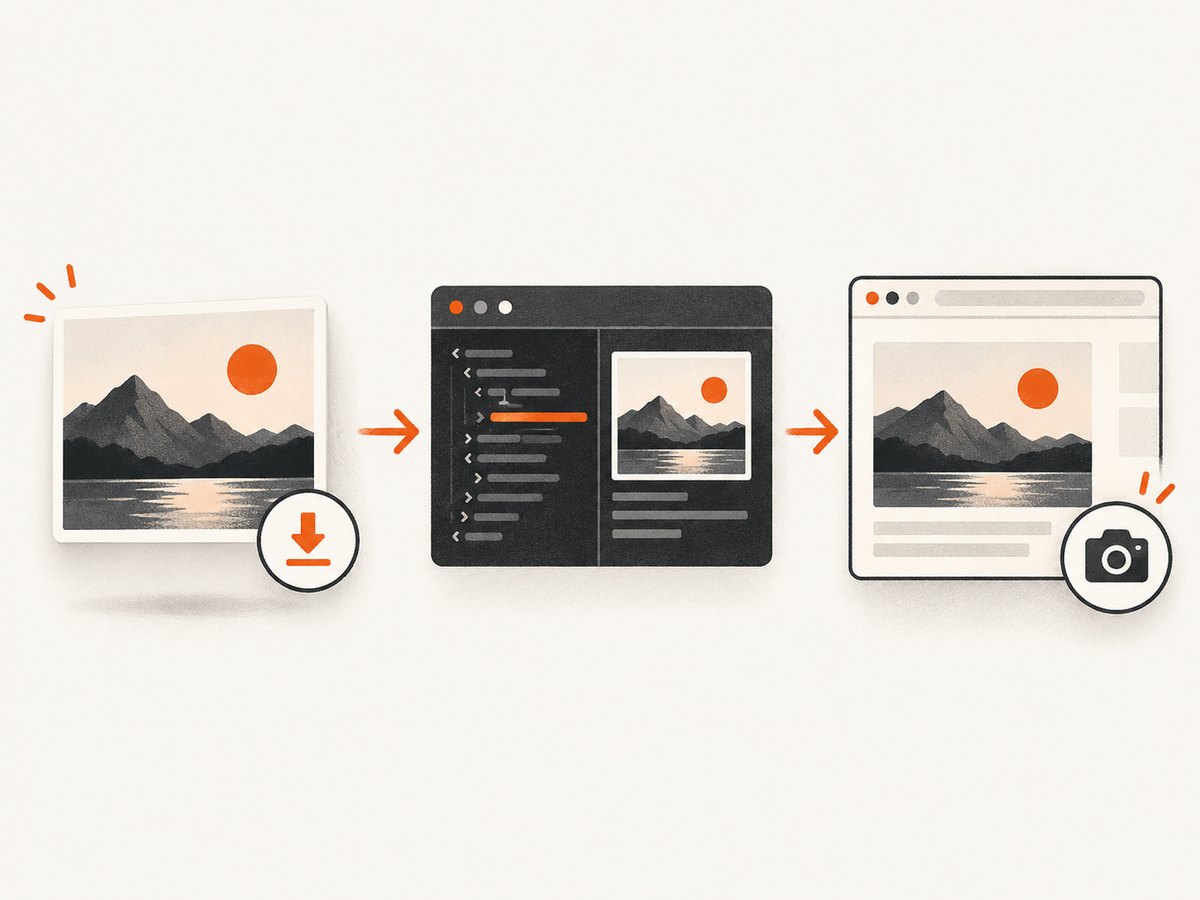
If the context menu is blocked by page JavaScript, clicking elsewhere and trying again may work only if the script is attached to a specific element. Do not repeatedly bypass a site’s controls if its terms prohibit downloading.
Source: Google Chrome Help.
3. Use Firefox’s built-in screenshot tool for a visual copy
Firefox can save what is displayed without using the page’s context menu:
- Right-click an empty part of the page and choose Take Screenshot, or press Ctrl+Shift+S on Windows/Linux or Command+Shift+S on macOS.
- Choose the visible area, a selected region, or the full page.
- Select Download to save the image to Firefox’s default download folder.
This creates a screenshot image. It does not recover the source image file and may include surrounding page content, overlays, or browser-rendered scaling.
Source: Mozilla’s Firefox screenshot instructions (updated June 15, 2026).
4. Inspect the image with developer tools
Developer tools let you investigate the page’s runtime HTML and applied CSS. They are useful when you need the image asset rather than a screenshot, but the exact steps depend on the site’s implementation.
Open the inspector
- Chrome or Edge: open the browser menu and choose More tools → Developer tools, or use the browser’s developer-tools shortcut.
- Firefox: open the browser menu and choose More tools → Browser Tools → Web Developer Tools (labels can vary by release).
- Safari: enable the Develop menu in Safari settings first, then open Show Web Inspector.
MDN documents these access routes and the inspector’s role in viewing HTML and CSS: What are browser developer tools?
Look for an image element
- Open the Elements or Inspector panel.
- Use the element picker and click the image.
- Look for an
<img>element and inspect itssrc,srcset, or related attributes. - If a usable URL is shown, open it in a new tab and use the browser’s normal save command there.
srcset may list several sizes. Choose the largest appropriate candidate rather than assuming the first URL is the original.
Check CSS backgrounds
If selecting the visible image highlights a normal container instead of an <img>, inspect the Styles or Computed panel for background-image: url(...). Open the referenced URL in a new tab if it is exposed as a normal resource.
Recognize canvas and viewer limitations
A canvas may contain pixels without exposing a simple image URL. A viewer may assemble tiles, request a short-lived URL, or render content after a user action. In those cases, the inspector can explain how the page works, but it does not guarantee a downloadable original. If you only need what is visible, use a screenshot instead.
5. Choose the right method
| Goal | Best first option | What you receive | Main limitation |
|---|---|---|---|
| Keep the publisher’s intended file | Download or Export control | Authorized asset, often with correct quality | Only available when the site provides it |
| Find an exposed image asset | Developer tools | Potential original URL or a selected size | Depends on HTML, CSS, JavaScript, and access controls |
| Record the page or visible image | Browser screenshot | PNG or another screenshot file | Not necessarily the original file or resolution |
6. Troubleshooting
The image is missing from the inspector
It may be a CSS background, canvas drawing, or an element created after JavaScript runs. Inspect its parent containers, check computed styles, and wait for the image to finish loading before selecting it.
The URL works briefly, then expires
The site may use a signed or session-bound URL. Save the file through the site’s own control while the session is valid. Do not publish or redistribute a temporary URL.
The saved file is a tiny thumbnail
Inspect srcset, responsive image attributes, or the viewer’s larger version. A page can display a low-resolution preview while keeping larger candidates available.
The screenshot is blank or incomplete
Wait for lazy-loaded content, fonts, and animations to finish. Capture the full page only after the target image is visible. A screenshot cannot recover pixels that the browser never rendered.
Download is blocked by a login or permission check
Sign in through the site’s normal flow or ask the publisher for access. Technical visibility does not grant permission to retrieve or reuse restricted material.
The browser shortcuts do not work
Use the browser menu instead of a shortcut, because operating-system and browser versions can change key combinations. Check the current official help page for your browser.
7. Rights and reuse
Being able to save an image does not automatically give you permission to publish, distribute, modify, or use it commercially. U.S. Copyright Office guidance says original photographs are generally protected when fixed and that the photographer is generally the initial copyright owner, subject to exceptions such as work made for hire. Permission is generally needed for protected uses of someone else’s photograph.
Fair use is fact-dependent. The Copyright Office identifies purpose and character, nature of the work, amount used, and effect on the potential market as considerations; there is no fixed percentage or amount that guarantees fair use. This is general U.S. information, not a determination of your particular case or the law in every jurisdiction. See the Fair Use FAQ, photographer guidance, and Photography & Copyright PDF.
8. Or skip the browser setup
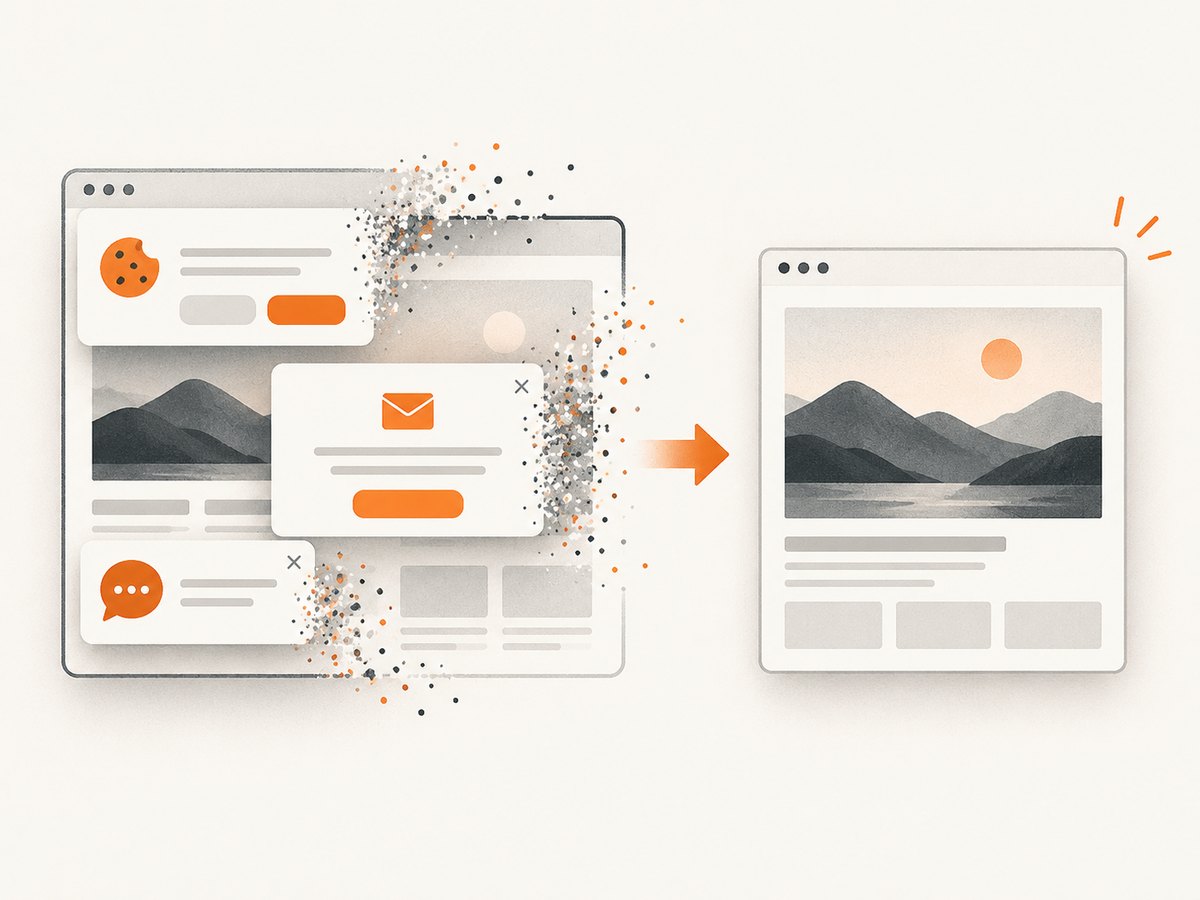
If you need repeatable captures for a script, documentation pipeline, archive, or QA job, ScreenshotNeo returns a PNG, JPEG, WebP, or PDF from one GET request. It accepts consent banners before capture and removes more than 60 known consent platforms, newsletter popups, and chat widgets; each step can be turned off. Bot checks, CAPTCHAs, blank pages, timeouts, failed loads, and cache hits cost nothing, and the response identifies the result with X-Page-Verdict and X-Billed headers. Its MCP server provides take_screenshot, get_page_info, and capture_pdf for Claude, Cursor, and other MCP clients.
See the ScreenshotNeo API documentation for the complete option list.
cURL
curl -G "https://api.screenshotneo.com/v1/shot" -d access_key=YOUR_API_KEY --data-urlencode url=https://stripe.com -o shot.webpPython
import requests
r = requests.get("https://api.screenshotneo.com/v1/shot", params={"access_key": "YOUR_API_KEY", "url": "https://stripe.com"}, timeout=90)
open("shot.webp", "wb").write(r.content)
Node.js
const q = new URLSearchParams({ access_key: 'YOUR_API_KEY', url: 'https://stripe.com' });
const res = await fetch(`https://api.screenshotneo.com/v1/shot?${q}`);
For image saving, use the returned bytes as a file. For difficult pages, configure full-page capture, a CSS selector, dark mode, a device preset or custom viewport, retina scale, waits, custom headers or cookies, timezone, geolocation, blocked requests, custom CSS or JavaScript, and caching with a TTL you choose. ScreenshotNeo also supports element capture, click actions, transparent backgrounds, resizing, signed public links, asynchronous jobs with signed webhooks, bulk capture of up to 100 URLs per call, usage reporting, and an OpenAPI specification.
The Free plan includes 1,000 shots per month with no card. Paid plans start at $5 for 3,000 shots; every feature is available on every plan, and yearly billing gives two months free. Create a free ScreenshotNeo account.
9. Performance, reliability, and cost notes
- For one image: use the site’s download control or a browser screenshot; setup time is usually lower than writing automation.
- For many URLs: automate with ScreenshotNeo, reuse caching where appropriate, and use bulk capture for up to 100 URLs per call.
- For dynamic pages: wait for a selector, delay, or network idle so lazy images and JavaScript-rendered content are present.
- For clean output: enable consent and popup removal, hide selectors, or block ads and trackers before capture.
- For billing control: inspect
X-Page-VerdictandX-Billed; failed loads, bot checks, blank pages, timeouts, and cache hits are not billed. - For public embeds: use signed links instead of exposing an access key in an HTML page.
10. FAQ
Can I always recover the original image?
No. Some pages expose an image URL, while others render pixels in a canvas, assemble tiles, or require authorization. A screenshot is the dependable fallback for recording what is visible.
Does disabling right-click make an image protected?
It only changes the page’s context-menu behavior. It does not by itself establish copyright ownership, licensing terms, or a technical guarantee that the asset cannot be inspected.
Will a screenshot have the same quality as the source?
Not necessarily. Browser zoom, viewport size, device pixel ratio, page scaling, and compression can change the result.
Is attribution enough to reuse a saved photograph?
No general rule makes attribution alone sufficient. Check the license or obtain permission, and consider the applicable law and use.
Can ScreenshotNeo save an image without showing browser controls?
Yes. It captures the target webpage server-side and returns the image or PDF bytes; browser chrome is not part of the webpage capture.


