How to Save an Image From a Website as a JPG
Save a website image in Chrome, check its real format, and convert WebP or PNG to JPG without losing the details that matter.

The quickest method on a computer is: open the page in Chrome, right-click the image, choose Save Image As, pick a folder, and save it. Then inspect the downloaded file. The command downloads the format the website provides, so the result may be WebP or PNG rather than JPG. If you specifically need JPEG, convert or export a copy with an image editor or converter.
Save an image as JPG in Chrome
- Open the webpage containing the image in Chrome on your computer.
- Right-click the image.
- Select Save Image As.
- Choose a destination if Chrome asks where to save it, then select Save.
- Open the downloaded file or its file information and check the extension and format.
Chrome uses the Downloads folder by default on Windows, Mac, and Linux when that setting has not been changed. The browser’s documented desktop instruction is right-click the image and choose Save Image As.
Check whether the file is really JPEG
Look at the filename extension, but do not rely on renaming it. A file called photo.jpg can still contain WebP data if someone only changed the suffix. Use your operating system’s file information or open the file in an editor that reports the actual format.
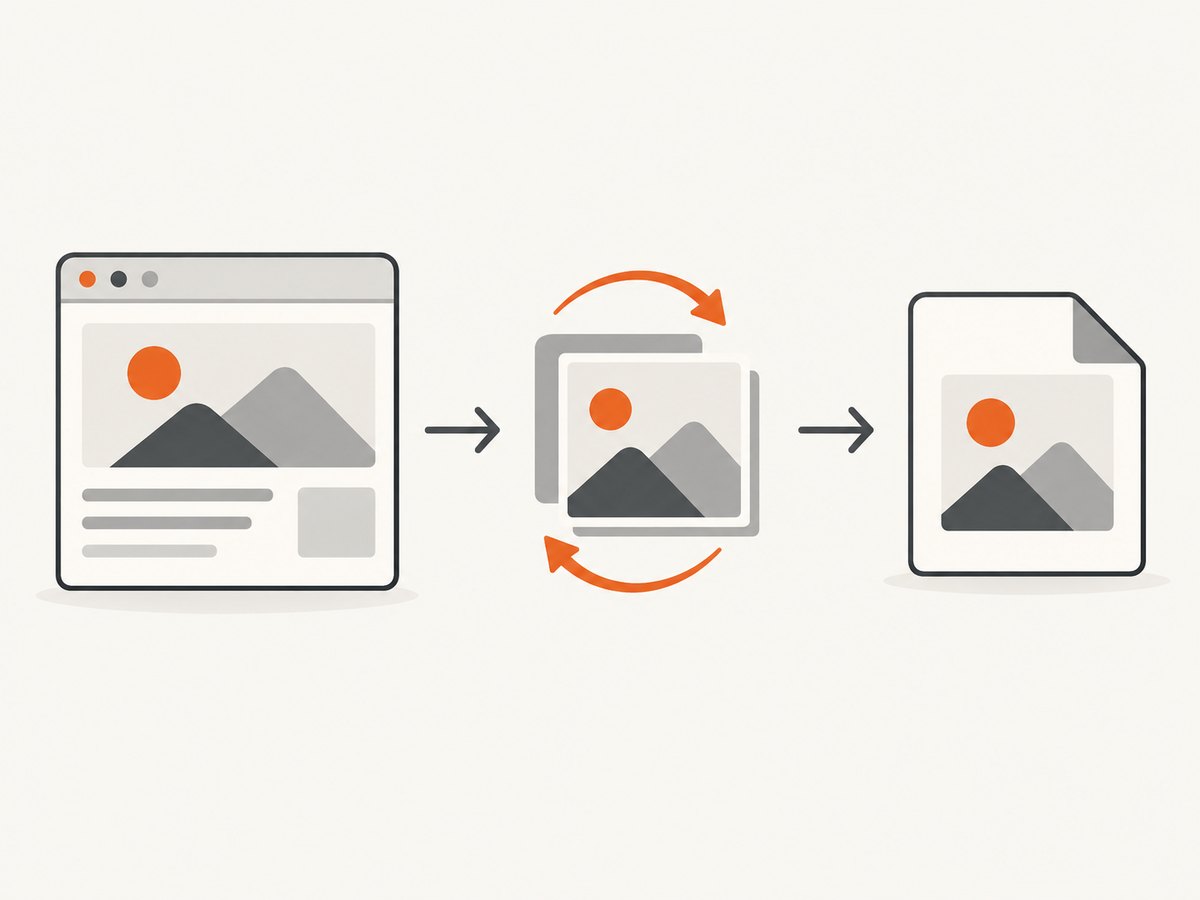
- JPEG/JPG: Usually suitable for photographs and other continuous-tone images. JPEG uses lossy compression, so repeated exports or very high compression can soften fine detail.
- PNG: Better for sharp diagrams, text, screenshots, and images that need transparency. JPEG cannot preserve an alpha channel.
- WebP: Supports both lossy and lossless compression and is supported by current major browsers. Keeping WebP is often sensible unless a destination explicitly requires JPEG.
MDN documents JPEG’s lossy behavior and its limitations for sharp content and transparency: JPEG on MDN. Google’s WebP FAQ describes WebP support and conversion tools.
Convert WebP or PNG to JPG
Using an image editor
- Open the downloaded WebP or PNG in an image editor.
- Choose Export, Export As, or Save As.
- Select JPEG or JPG as the output format.
- Choose a quality level, preview the result if available, and save a new copy.
Do not overwrite the original when you may need its lossless data or transparency. Adobe’s documented Photoshop route is File > Export > Save for Web, choose JPEG, adjust quality, preview the file size, and save: Adobe’s Photoshop save and export guidance.
Command-line conversion
For repeatable workflows, use a real image conversion tool rather than changing the extension. Google’s WebP documentation covers its command-line tools and conversion workflow: WebP documentation. The exact command depends on the tool and operating system, so preserve the source file and verify the output after conversion.
Choose quality deliberately
- Use higher quality for photographs with faces, gradients, or fine texture.
- Use PNG instead when the image contains small text, diagrams, hard edges, or transparency.
- Expect a transparent source to receive a solid background when exported to JPEG, because JPEG has no alpha channel.
- Keep the original WebP or PNG if you may need to edit or re-export the image later.
When Save Image As is missing
A page may draw the visual inside an interactive element, replace the normal context menu, or provide its own download control. Try the site’s visible download button first and check the site’s terms before taking another copy. Browser-specific workarounds are not universal and can fail when the image is assembled by script or protected by access controls.
If you only need a visual record of the page, capture the rendered page instead of extracting the original asset. A screenshot will represent what was visible at capture time, but it is not the same as downloading the source image at its original resolution.
Or skip the browser setup
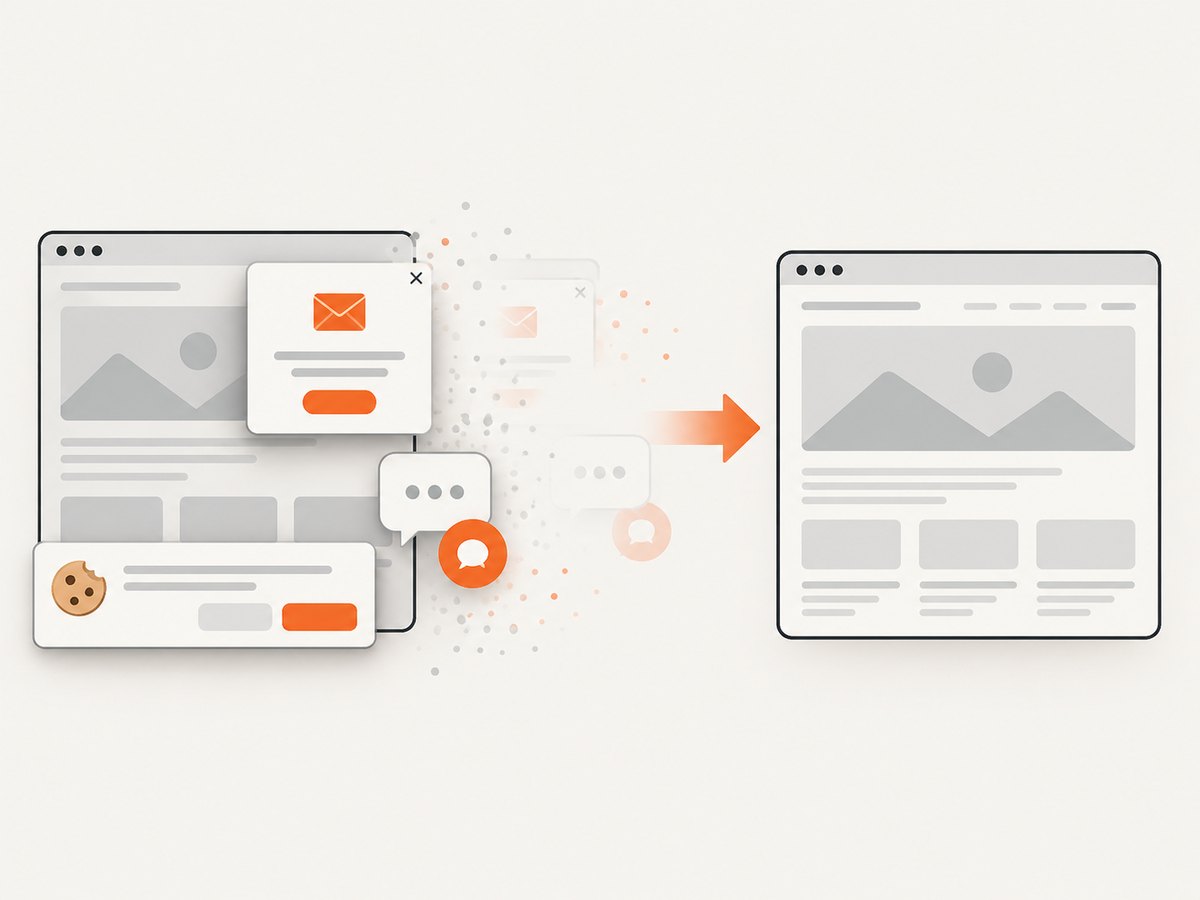
ScreenshotNeo provides a website screenshot API and MCP server. One GET request returns a clean PNG, JPEG, WebP, or PDF capture. It can accept consent banners before capture, remove more than 60 known consent platforms plus newsletter popups and chat widgets, and capture a whole page or a selected element. See the ScreenshotNeo documentation for the available options.
curl -G "https://api.screenshotneo.com/v1/shot" -d access_key=YOUR_API_KEY --data-urlencode url=https://stripe.com -o shot.webpimport requests
r = requests.get("https://api.screenshotneo.com/v1/shot", params={"access_key": "YOUR_API_KEY", "url": "https://stripe.com"}, timeout=90)
open("shot.webp", "wb").write(r.content)const q = new URLSearchParams({ access_key: 'YOUR_API_KEY', url: 'https://stripe.com' });
const res = await fetch(`https://api.screenshotneo.com/v1/shot?${q}`);Cookie banners, popups, and chat widgets are removed before the shot. Bot checks, blank pages, timeouts, failed loads, and cache hits are never billed, and response headers identify the page verdict and billing result. An MCP server lets AI agents use take_screenshot, get_page_info, and capture_pdf. The Free plan includes 1,000 screenshots a month with no card; paid plans start at $5 for 3,000 shots. Create a free ScreenshotNeo account.
Troubleshooting
| Problem | Likely cause | Fix |
|---|---|---|
| The saved file is WebP, not JPG | The site served WebP. | Convert or export a copy to JPEG with an image tool. Do not just rename the extension. |
| There is no Save Image As option | The visual is inside an interactive element or the page changed the context menu. | Use the site’s download control, check its terms, or capture the rendered page when a screenshot is sufficient. |
| The JPG looks blurry | JPEG compression discarded detail, or the source was already small. | Start from the largest available source and export at a higher quality. Keep PNG for diagrams and text. |
| Transparency disappeared | JPEG cannot store transparent pixels. | Keep PNG or export onto an intentional solid background. |
| The extension says JPG but software rejects the file | The suffix was renamed without converting the data. | Open the source and perform a real JPEG export. |
| The screenshot contains a cookie banner or popup | The page was captured before consent or cleanup. | Dismiss the banner manually, wait for the page to settle, or use ScreenshotNeo’s cleanup options. |
| An automated capture is blank or times out | The page failed to load, blocked automation, or depended on delayed content. | Check the URL and required access, wait for the page’s content, and inspect the response verdict and billing headers. |
Performance, reliability, and cost considerations
- Manual downloads: Best for one or two images when the original asset is available and no conversion pipeline is needed.
- Conversion: Exporting repeatedly adds processing time and can compound JPEG quality loss. Convert once from the highest-quality source.
- Rendered captures: Screenshots depend on page load timing, responsive layout, lazy images, and access checks. For repeatable jobs, wait for a selector, delay, or network idle condition and use a consistent viewport or device preset.
- ScreenshotNeo billing: Only clean shots are billed. Bot checks/CAPTCHAs, blank pages, timeouts, failed loads, and cache hits cost nothing. A selectable cache TTL, bulk capture for up to 100 URLs per call, async jobs with signed webhooks, and a usage API help with larger workflows.
- Format choice: Use JPEG when the receiving system requires it; otherwise retaining WebP or PNG may preserve quality or transparency better.
FAQ
Is JPG different from JPEG?
No. They are two common filename extensions for the JPEG image format.
Can I save any website image as JPG?
You can save an image only when the page exposes it to your browser and its terms allow copying. The downloaded format may not be JPEG, so conversion may still be required.
Will converting WebP to JPG improve quality?
No. Conversion changes the format and may reduce quality. It is useful when a system requires JPEG, not as a way to recover detail.
Should screenshots be JPG or PNG?
PNG is usually safer for text, interfaces, and sharp edges. JPEG can produce smaller files for photographic content and is useful when the destination requires it.
Can ScreenshotNeo download the original image file?
ScreenshotNeo captures the rendered webpage or selected element and returns an image or PDF. It is useful when you need a reliable page or element capture, including cleanup of consent UI, rather than the site’s untouched source asset.


