How to Save Images in C#
Save images to files or streams in C# with format and JPEG quality control, plus WPF and cross-platform options, troubleshooting, and a browser screenshot alternative.
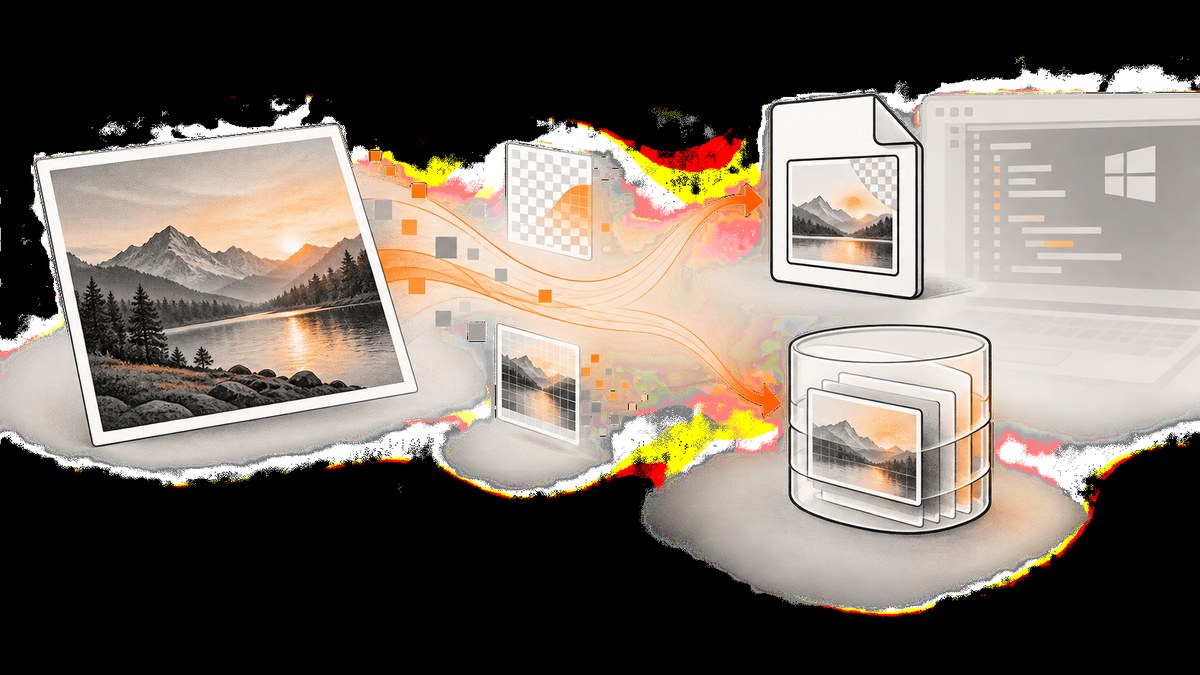
To save an image to a file in C#, use Image.Save and specify the output format explicitly. With System.Drawing on Windows, this saves a JPEG as a PNG:
using System.Drawing;
using System.Drawing.Imaging;

using var image = Image.FromFile("input.jpg");
image.Save("output.png", ImageFormat.Png);
The extension and the requested format should agree: the format argument controls the encoded image data, while the filename is just a path. Save to a different path from the source. For streams, use a fresh stream positioned at its beginning. This guide covers files, streams, format selection, JPEG quality, WPF, Linux and macOS limitations, and common failures.
1. Save an image to a file with System.Drawing
The simplest pattern loads an existing image, saves it with the format you want, and disposes the image when done. using statements ensure unmanaged image resources are released even if saving throws an exception.
using System.Drawing;
using System.Drawing.Imaging;

string sourcePath = "input.jpg";
string destinationPath = "output.png";

using var image = Image.FromFile(sourcePath);
image.Save(destinationPath, ImageFormat.Png);
Image.Save supports a filename or a stream, and accepts an ImageFormat. Microsoft documents it as saving the image to a specified file in the specified format. See the Image.Save API documentation and ScreenshotNeo documentation for the separate screenshot API option later in this guide.
Choose the format deliberately
| Format | Use it when | Keep in mind |
|---|---|---|
| PNG | You need lossless output, sharp graphics, or transparency. | It is a common choice for UI images, diagrams, and images with alpha. |
| JPEG | The image is photographic and lossy compression is acceptable. | JPEG does not preserve transparency. Use the encoder overload to control quality. |
| BMP | A consumer specifically requires a Windows bitmap. | It is uncompressed in common use and can produce large files. |
| GIF | You need the GIF format. | Format and animation behavior depend on the image and encoder; verify the output matches your needs. |
Pass the matching format explicitly: ImageFormat.Png, ImageFormat.Jpeg, ImageFormat.Bmp, or ImageFormat.Gif. Renaming a JPEG file to .png does not convert it; encoding the image as PNG does.
Make the destination path predictable
A relative path such as output.png is resolved against the process’s current working directory, which may differ between an IDE, a scheduled task, a service, and a deployed application. For predictable output, construct an absolute destination from a known directory, create that directory, and handle filesystem permissions:
using System.Drawing;
using System.Drawing.Imaging;
using System.IO;

string inputPath = Path.GetFullPath("input.jpg");
string outputDirectory = Path.GetFullPath("images");
Directory.CreateDirectory(outputDirectory);
string outputPath = Path.Combine(outputDirectory, "output.png");

using var image = Image.FromFile(inputPath);
image.Save(outputPath, ImageFormat.Png);
Do not save back to the same file from which the image was loaded. Microsoft warns that attempting this can corrupt data or throw an exception. Save to a new destination; if replacing a file is required, use a separate temporary output and a deliberate replacement step after encoding completes.
2. Save an image to a MemoryStream or byte array
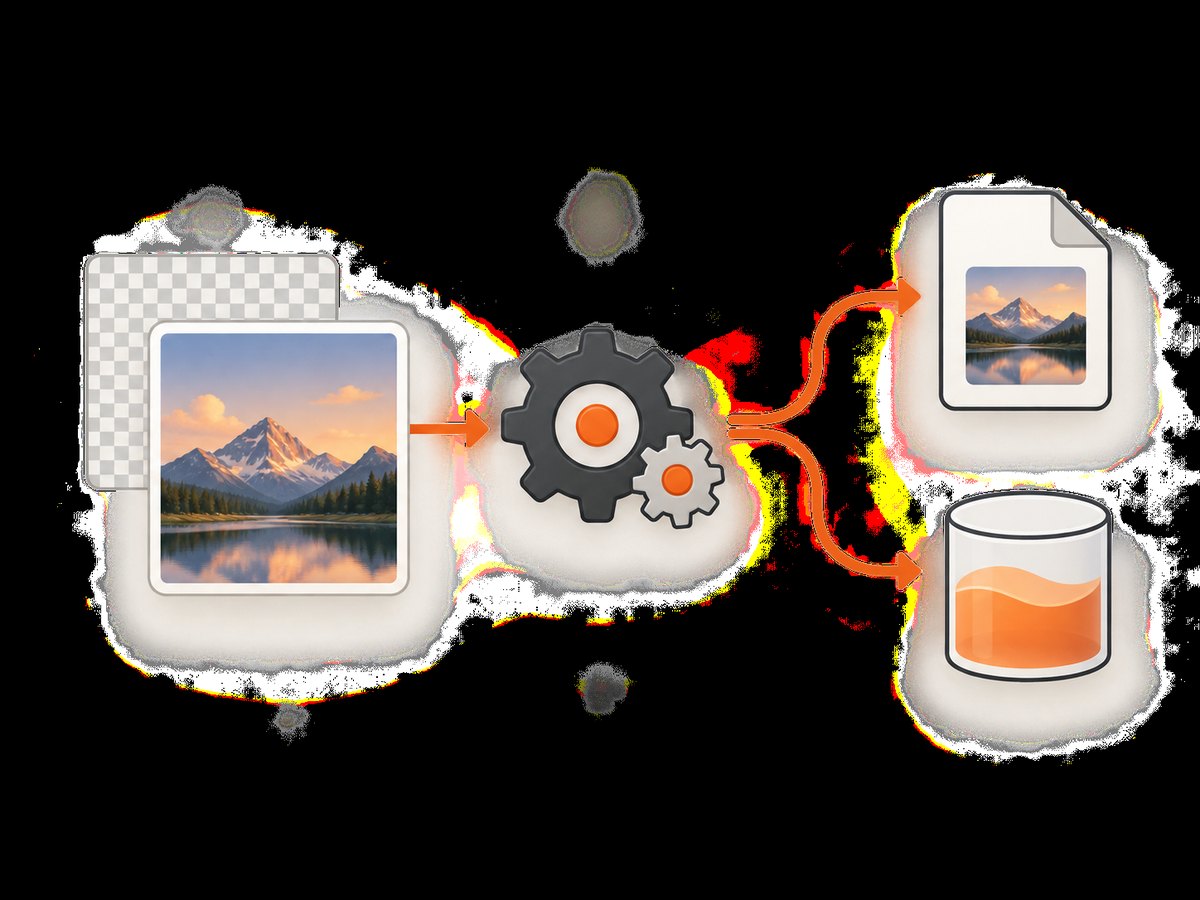
When an API needs encoded bytes rather than a disk file, save to a new MemoryStream. Then call ToArray() to get a copy of the encoded contents:
using System.Drawing;
using System.Drawing.Imaging;
using System.IO;

using var image = Image.FromFile("input.jpg");
using var output = new MemoryStream();

image.Save(output, ImageFormat.Png);
byte[] pngBytes = output.ToArray();
The stream should be new and positioned at offset zero when passed to Save. Avoid saving to the same stream that was used to construct or load the image: source and destination overlap can corrupt the data or raise an exception. If you need to write into a stream that already contains data, create a fresh destination or reset it and ensure its contents can safely be replaced.
Write the bytes to a file
If the next step needs a file, you can write the byte array directly. Remember that this example encodes PNG bytes, so use a PNG extension.
using System.Drawing;
using System.Drawing.Imaging;
using System.IO;

using var image = Image.FromFile("input.jpg");
using var output = new MemoryStream();
image.Save(output, ImageFormat.Png);

string outputPath = "output.png";
File.WriteAllBytes(outputPath, output.ToArray());
For large images, be mindful that ToArray() creates a byte-array copy in memory. Prefer a file stream when the consumer can accept a file, or use a streaming design where the receiving API supports it, to avoid holding multiple full-size copies at once.
3. Control JPEG quality with an encoder
The basic ImageFormat.Jpeg overload selects JPEG output, but it does not expose a quality setting. Find the JPEG encoder and pass an EncoderParameters object to the codec overload:
using System.Drawing;
using System.Drawing.Imaging;
using System.Linq;

using var image = Image.FromFile("photo.png");

ImageCodecInfo jpegCodec = ImageCodecInfo.GetImageEncoders()
    .First(codec => codec.FormatID == ImageFormat.Jpeg.Guid);

using var parameters = new EncoderParameters(1);
parameters.Param[0] = new EncoderParameter(Encoder.Quality, 85L);
image.Save("photo.jpg", jpegCodec, parameters);
The quality value is an encoder setting: choose it according to the visible quality and file-size needs of your application, then validate representative images. The dossier does not establish one universally best quality setting. JPEG is lossy and does not keep alpha transparency, so use PNG when those properties matter. The codec overload also supports encoder-specific controls beyond quality; consult the API and the encoder’s supported parameters for the target environment.
4. Save images with WPF
WPF applications commonly work with BitmapSource values and a BitmapEncoder, rather than calling System.Drawing.Image.Save. Add a frame from the bitmap source, open a file stream, and invoke the encoder:
using System.IO;
using System.Windows.Media.Imaging;

BitmapSource bitmapSource = GetBitmapSource();

var encoder = new PngBitmapEncoder();
encoder.Frames.Add(BitmapFrame.Create(bitmapSource));

using var file = File.Create("output.png");
encoder.Save(file);
GetBitmapSource() represents the point where your application obtains or creates the WPF bitmap; replace it with your actual source. For JPEG, use JpegBitmapEncoder:
using System.IO;
using System.Windows.Media.Imaging;

BitmapSource bitmapSource = GetBitmapSource();
var encoder = new JpegBitmapEncoder();
encoder.Frames.Add(BitmapFrame.Create(bitmapSource));

using var file = File.Create("output.jpg");
encoder.Save(file);
These are WPF APIs for WPF applications. Choose an encoder appropriate to the destination and framework, and remember that JPEG does not preserve transparency.
5. Understand the platform boundary
System.Drawing.Common is Windows-specific in modern .NET. Microsoft states in its .NET 6 breaking-change guidance that the package is now attributed as a Windows-specific library. The Unix compatibility switch introduced around .NET 6 was removed in .NET 7, so it is not a durable way to use System.Drawing.Common on Linux or macOS. See also the .NET 7 compatibility guidance.
If your application must run cross-platform, Microsoft’s guidance identifies ImageSharp, SkiaSharp, Aspose.Drawing, and Microsoft.Maui.Graphics as alternatives. Compare them for the platforms you deploy to, supported formats, API model, licensing, deployment dependencies, and support needs. There is no official benchmark in the research for this guide, so no library should be called universally fastest or smallest.
| Application context | Starting point | Decision to make |
|---|---|---|
| Windows-targeted .NET application | System.Drawing file or stream APIs. |
Pick the output format and encoder settings explicitly. |
| WPF desktop application | BitmapEncoder, such as PNG or JPEG. |
Use the bitmap source already used by your WPF UI. |
| Linux or macOS deployment | A cross-platform library listed in Microsoft’s guidance. | Check format coverage, licensing, deployment requirements, and support. |
| Browser screenshot capture | A browser automation workflow or screenshot API. | Decide whether you need to operate a browser yourself or request a rendered capture. |
6. Capture a website image, then save it
If the source is a web page rather than an image already available to your C# program, image encoding is only the final step. You also need a browser renderer or screenshot service to load the URL and produce pixels. A browser-automation workflow gives you control over browser setup, navigation, timing, and output; an API can return the capture directly as an image or PDF.
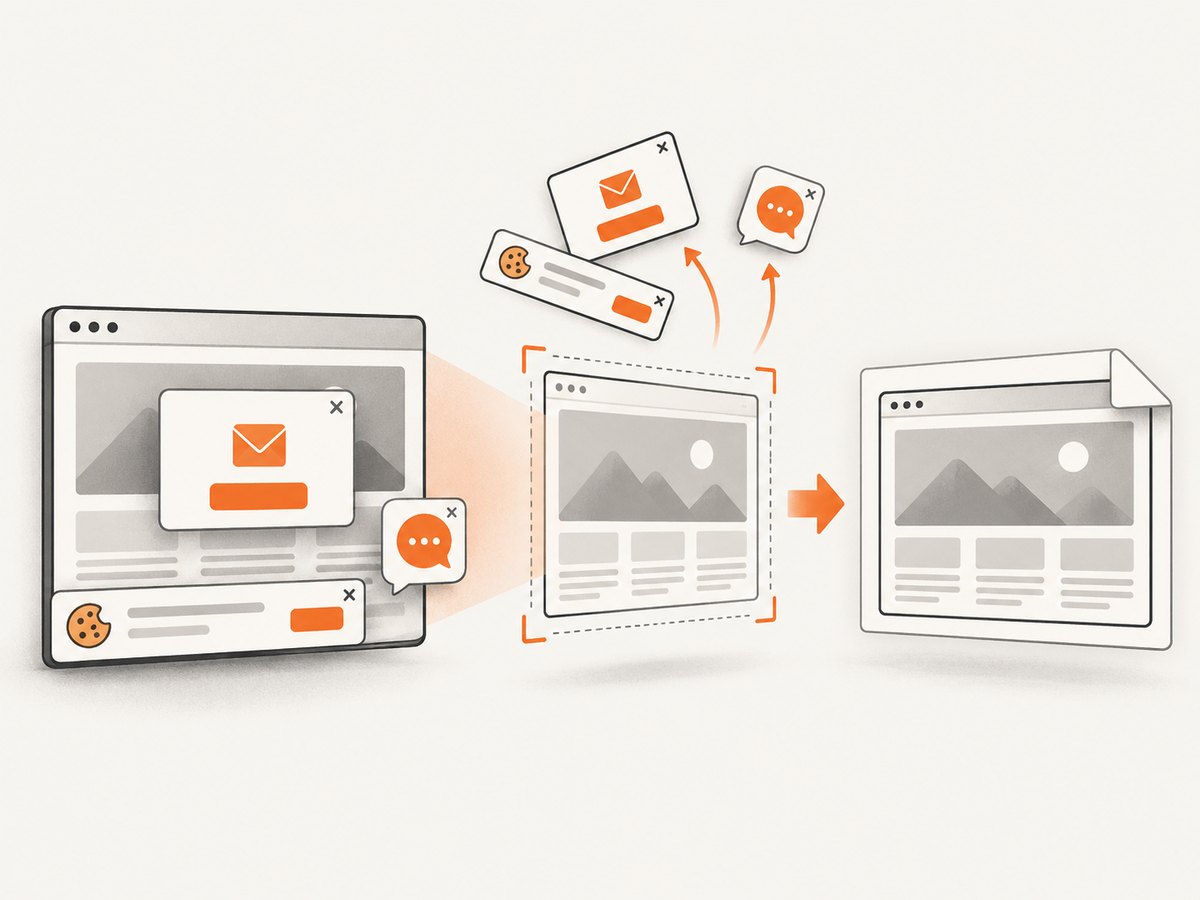
For a self-managed browser, the general sequence is: launch a browser, navigate to the page, wait for the content you need, capture the viewport or full page, and write the resulting bytes to a new file. Browser-library APIs and setup vary by package and version, so use that library’s official documentation for a runnable implementation. Once you have image bytes, the same file-versus-stream considerations apply: choose an output format, use a new destination, and avoid unnecessary copies.
Or skip the browser setup
ScreenshotNeo is a website screenshot API and MCP server from Yorker Media. A single GET request takes a URL and returns a PNG, JPEG, WebP, or PDF. The API base is https://api.screenshotneo.com/v1/shot; see the API documentation. This cURL example saves a WebP screenshot of Stripe:
curl -G "https://api.screenshotneo.com/v1/shot" -d access_key=YOUR_API_KEY --data-urlencode url=https://stripe.com -o shot.webpScreenshotNeo accepts cookie or consent banners like a visitor and removes more than 60 known consent platforms, newsletter popups, and chat widgets before capture; each step can be turned off. Bot checks and CAPTCHAs, blank pages, timeouts, failed loads, and cache hits cost nothing, and response headers identify the page verdict and billing status. Its MCP server exposes take_screenshot, get_page_info, and capture_pdf for Claude, Cursor, and other MCP clients. The free plan includes 1,000 shots a month with no card; paid plans start at $5 for 3,000.
Sign up free for 1,000 screenshots a month, with no card.
7. Troubleshooting common save errors
| Symptom | Likely cause | Fix |
|---|---|---|
| The output file has the wrong format. | The filename extension and requested encoder format do not match, or the code only renamed the file. | Pass the intended ImageFormat or encoder and use a matching extension. |
| Saving throws while the source is still open. | The code is trying to overwrite the same file used to create the image. | Save to a separate destination. Dispose the source image before any deliberate replacement step. |
| The saved stream is corrupt or saving fails. | The destination is the stream used to construct the image, or its position/state is unsuitable. | Use a fresh destination stream at offset zero; avoid source/destination overlap. |
System.Drawing.Common fails on Linux or macOS. |
Modern .NET treats this library as Windows-specific; the old Unix compatibility switch is not available in .NET 7 and later. | Use a cross-platform alternative from Microsoft’s guidance, such as ImageSharp, SkiaSharp, Aspose.Drawing, or Microsoft.Maui.Graphics. |
| The file cannot be created. | The directory may not exist, the process may lack permission, or the relative path may resolve somewhere unexpected. | Create the destination directory, inspect the resolved absolute path, and grant the process write access. |
| JPEG output has no transparency. | JPEG does not preserve transparency. | Use PNG when alpha transparency is required. |
| JPEG files are larger or less clear than expected. | Quality settings trade file size against compression artifacts, or the image content is not suited to JPEG. | Use the JPEG codec overload to set quality and compare representative output; use PNG for lossless graphics. |
8. Performance, reliability, and cost considerations
For local image conversion, the main practical resource concerns are image dimensions, encoder work, disk I/O, and memory copies. Large images can occupy substantial memory while decoded, and saving a stream followed by ToArray() can add another full-size allocation. Use a file destination when possible and dispose images, streams, encoders, and parameters with using.
For reliability, make file paths explicit, create destination directories as needed, use a new output path, and handle I/O and image-decoding failures at the application boundary. If output must replace an existing file, only do so after a complete new output has been written successfully. When writing to a stream supplied by another component, establish ownership and position expectations rather than assuming it starts empty.
Cost for a local save operation comes from the application environment and storage, not a per-image API charge. A screenshot API adds a service plan and network dependency. ScreenshotNeo’s listed options are Free (1,000 shots/month), Starter ($5 for 3,000), Growth ($15 for 15,000), Pro ($39 for 60,000), Scale ($99 for 250,000), and Business ($249 for 1,000,000); yearly billing gives two months free, and every feature is on every plan. Select a plan from your expected capture volume and inspect the response’s billing headers when your workflow needs to distinguish successful, failed, and cache outcomes.
9. Checklist before shipping
- Choose a target supported by the image library: Windows for modern
System.Drawing.Common, or a cross-platform alternative where required. - Choose the format based on transparency, losslessness, and photographic compression needs.
- Make the filename extension match the actual encoder format.
- Save to a different destination from the source image.
- For streams, use a fresh stream at offset zero and avoid reusing the image’s input stream.
- Dispose image and stream resources deterministically.
- Test paths and permissions under the same service account and deployment environment used in production.
- For JPEG quality, validate representative images rather than assuming one setting fits all content.
10. FAQ
Can I save a PNG as a JPEG in C#?
Yes. Load the image and call Save(path, ImageFormat.Jpeg), or use the JPEG codec overload when you need an explicit quality parameter. Transparency will not survive JPEG encoding.
Does changing the extension convert an image?
No. The output format is determined by the encoder selected in the save call. Specify the format and use the matching extension.
Can I use System.Drawing in an ASP.NET service on Linux?
Modern .NET treats System.Drawing.Common as Windows-specific. For a Linux service, choose a cross-platform library and verify its formats, licensing, dependencies, and support fit the deployment.
Should I save to a file or a stream?
Use a file when the next step needs a path. Use a stream or byte array when an in-memory API needs the encoded bytes, while accounting for memory use and stream ownership.
Is PNG always better than JPEG?
No. PNG is useful for lossless images and transparency; JPEG suits photographic content when lossy compression is acceptable. The source image and consumer requirements determine the choice.


