How to Save Images with Selenium and Firefox
Learn when to capture rendered pixels or download original image bytes with Selenium and Firefox, including headless setup, MIME types, waits, and fixes.
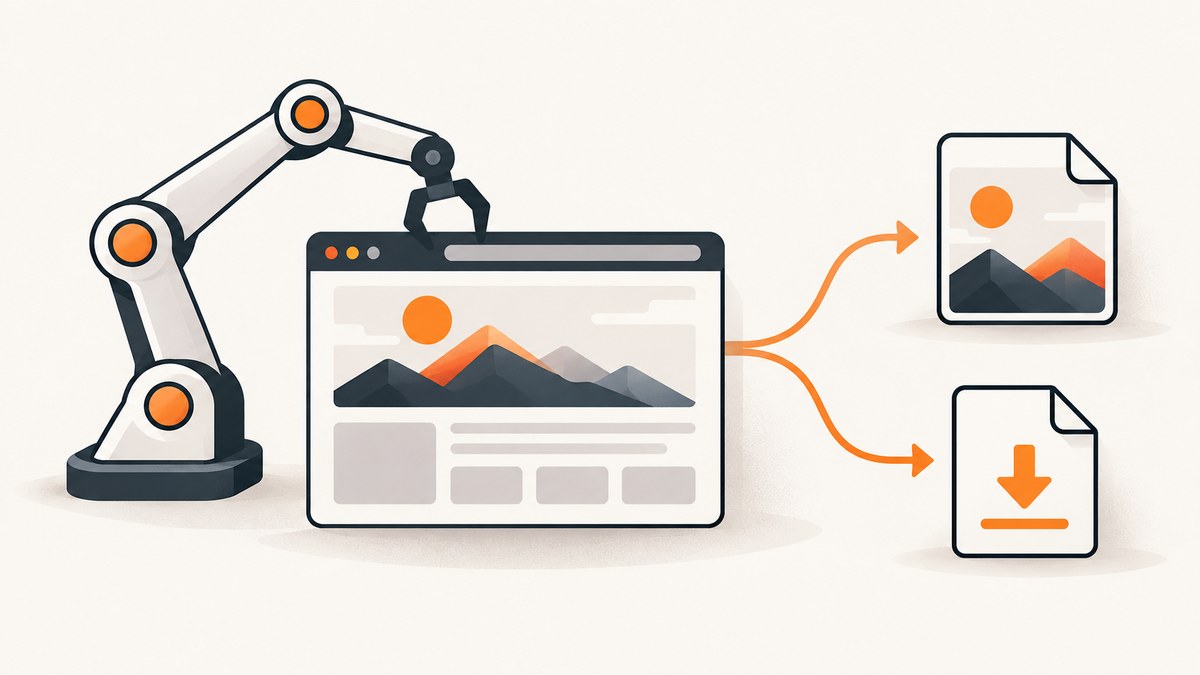
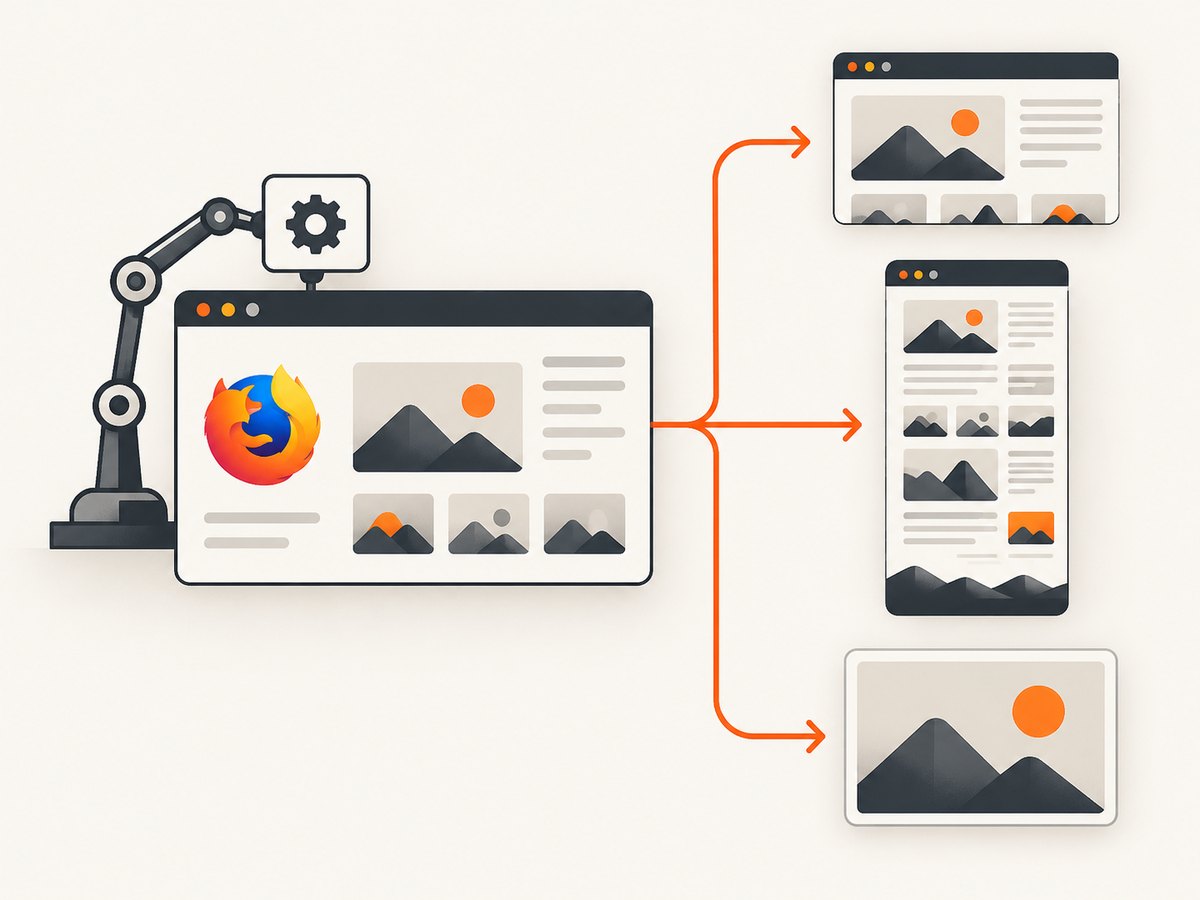
Direct answer: first decide whether you need a screenshot of what Firefox rendered or the original image response. Use driver.save_screenshot() for the visible viewport, driver.save_full_page_screenshot() for the complete document, and element.screenshot() for one rendered element. If you need the original JPEG, PNG, WebP, or other response bytes, configure Firefox’s download preferences before starting WebDriver and click a download link, or request the image URL with an HTTP client using the required cookies.
A screenshot is a rasterized view. It can include CSS scaling, overlays, lazy-loaded content, and browser rendering differences. An original download preserves the server response bytes and metadata. Choosing the wrong path is the most common reason an implementation produces a file that looks right but is unusable for later processing.
Choose the output you actually need
| Requirement | Use | Result |
|---|---|---|
| Visible browser viewport | driver.save_screenshot(path) |
PNG of the current viewport |
| Entire rendered page | driver.save_full_page_screenshot(path) |
Full-document PNG (use a .png path) |
| One rendered image or region | element.screenshot(path) |
PNG cropped to the element’s rendered bounds |
| Original file bytes | Firefox download preferences plus a click, or an HTTP request | Server response such as JPEG, PNG, or WebP |
Selenium documents the viewport and full-document screenshot methods in the Firefox WebDriver API. The element method writes a PNG and returns a Boolean success value; see the WebElement API.
Set up Selenium and Firefox
Install Selenium and make Firefox available on the machine running the script. Recent Selenium versions can manage the driver automatically, but your CI image still needs a compatible Firefox installation.
python -m pip install seleniumUse an explicit output directory and absolute paths. This avoids failures caused by a process running from a different working directory.
Save a viewport screenshot
This complete example opens a page, waits for the document to become usable, saves the visible viewport, checks the return value, and always closes Firefox.
from pathlib import Path
from selenium import webdriver
from selenium.webdriver.firefox.options import Options

out = Path("artifacts").resolve()
out.mkdir(parents=True, exist_ok=True)

options = Options()
# Uncomment for a headless CI run:
# options.add_argument("-headless")

driver = webdriver.Firefox(options=options)
try:
    driver.set_window_size(1440, 1000)
    driver.get("https://example.com")

    path = out / "page.png"
    ok = driver.save_screenshot(str(path))
    if not ok:
        raise OSError(f"Firefox could not write {path}")
    print(path)
finally:
    driver.quit()
save_screenshot captures the current viewport, so a long page is not included below the fold. Set the window size before navigation when responsive breakpoints affect the result.
Save the complete rendered document
Firefox’s full-page API captures the document rather than only the visible window. Give it a full path ending in .png, as shown in the Selenium documentation.
from pathlib import Path
from selenium import webdriver

out = Path("artifacts").resolve()
out.mkdir(parents=True, exist_ok=True)

driver = webdriver.Firefox()
try:
    driver.get("https://example.com/article")
    path = out / "article-full.png"
    ok = driver.save_full_page_screenshot(str(path))
    if not ok:
        raise OSError("Full-page screenshot was not written")
finally:
    driver.quit()
Full-page capture is still a rendering operation. It does not recover the original image files referenced by src or srcset. If you need those bytes, use the download workflow later in this guide.
Save one image element
Targeting an element is useful when a page has a hero image, overlays, responsive layout, or unrelated content that should not appear in the output.
from pathlib import Path
from selenium import webdriver
from selenium.webdriver.common.by import By
from selenium.webdriver.support.ui import WebDriverWait

out = Path("artifacts").resolve()
out.mkdir(parents=True, exist_ok=True)

driver = webdriver.Firefox()
try:
    driver.get("https://example.com/gallery")
    image = WebDriverWait(driver, 30).until(
        lambda d: d.find_element(By.CSS_SELECTOR, "img.hero")
    )
    WebDriverWait(driver, 30).until(
        lambda d: d.execute_script(
            "return arguments[0].complete && arguments[0].naturalWidth > 0", image
        )
    )
    if not image.screenshot(str(out / "hero.png")):
        raise OSError("Element screenshot failed")
finally:
    driver.quit()
An element screenshot contains the rendered pixels inside the element’s bounds. It may include CSS filters or a low-resolution image selected by responsive rules. For an original file, inspect the element’s URL and download it instead.
Wait for lazy images and dynamic page state
Calling a screenshot method immediately after get() can capture a placeholder. Use a condition that represents the state you need: an element exists, its complete property is true, and naturalWidth is greater than zero.
from selenium.webdriver.common.by import By
from selenium.webdriver.support.ui import WebDriverWait

wait = WebDriverWait(driver, 30)
image = wait.until(
    lambda d: d.find_element(By.CSS_SELECTOR, "img[data-testid='product-image']")
)
wait.until(lambda d: d.execute_script(
    "return arguments[0].complete && arguments[0].naturalWidth > 0", image
))
image.location_once_scrolled_into_view
image.screenshot("artifacts/product.png")
For pages that lazy-load only after scrolling, scroll in measured steps before waiting. For animations, wait for the animation to finish or inject page-specific CSS that disables transitions. Record the selector and wait condition in your code so a future markup change is easy to diagnose.
Download the original image file
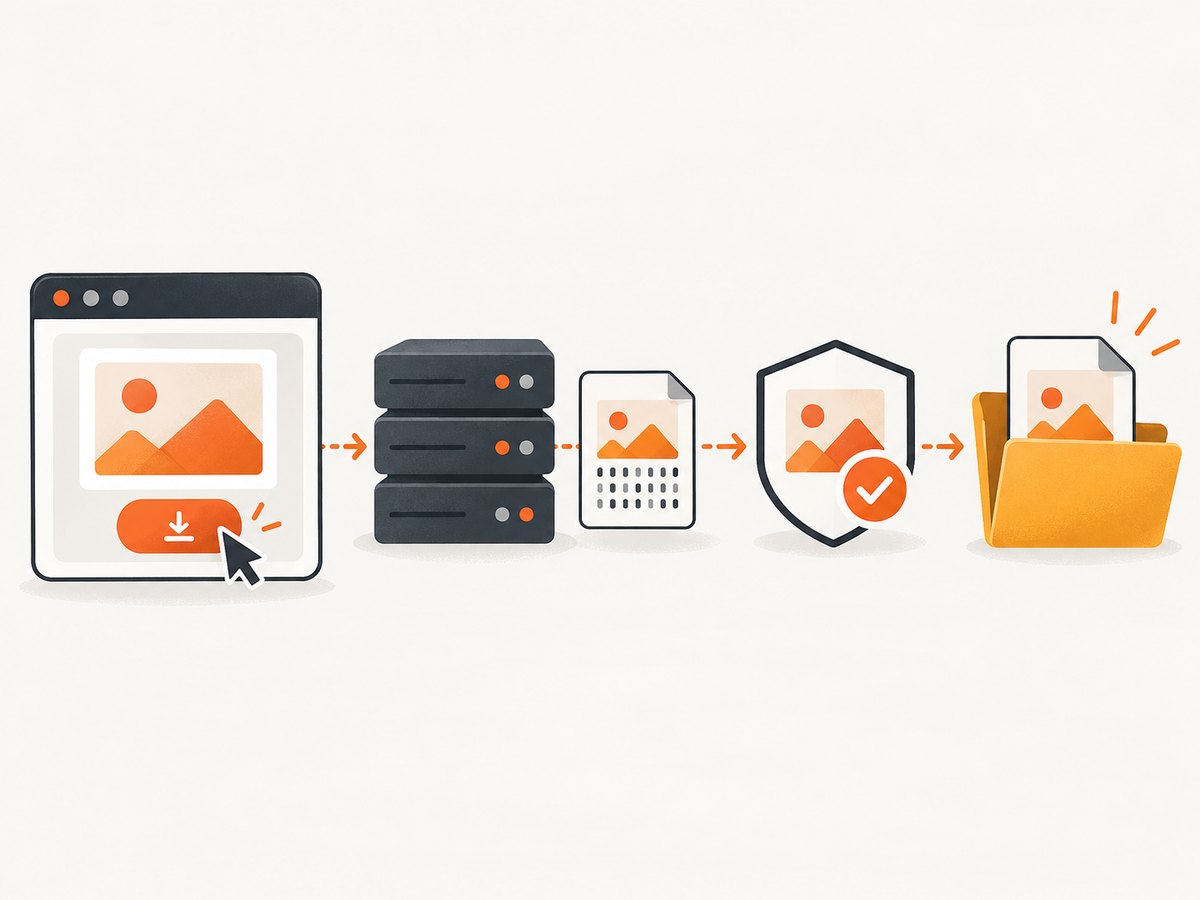
When the requirement is the server’s original response, configure Firefox before constructing webdriver.Firefox(). The Selenium Python FAQ describes a custom download folder, suppression of the download manager prompt, and a MIME-type allowlist. Mozilla documents the destination folder and per-file-type actions as separate browser settings.
from pathlib import Path
from selenium import webdriver
from selenium.webdriver.firefox.options import Options

out = Path("downloads").resolve()
out.mkdir(parents=True, exist_ok=True)

options = Options()
options.set_preference("browser.download.folderList", 2)
options.set_preference("browser.download.dir", str(out))
options.set_preference("browser.download.useDownloadDir", True)
options.set_preference(
    "browser.helperApps.neverAsk.saveToDisk",
    "image/jpeg,image/png,image/webp,application/octet-stream",
)
# Prevent Firefox's built-in PDF viewer from intercepting PDF downloads.
options.set_preference("pdfjs.disabled", True)
# options.add_argument("-headless")

driver = webdriver.Firefox(options=options)
try:
    driver.get("https://example.com/gallery")
    download_link = driver.find_element(By.CSS_SELECTOR, "a.download-image")
    download_link.click()
finally:
    driver.quit()
Include the response’s actual Content-Type whenever possible. Do not assume a URL ending in .jpg returns image/jpeg; a CDN may return WebP or another format. The preference names and MIME behavior can vary with Firefox versions, so verify them against the Firefox version used by CI.
Wait until the download is complete
Firefox writes a temporary file while a download is in progress. Poll the directory and wait until the expected file exists and no temporary download extension remains. Use a timeout so a broken link cannot hang a worker forever.
import time
from pathlib import Path

def wait_for_download(folder: Path, timeout: float = 60) -> Path:
    deadline = time.monotonic() + timeout
    while time.monotonic() < deadline:
        temporary = list(folder.glob("*.part")) + list(folder.glob("*.tmp"))
        files = [p for p in folder.iterdir() if p.is_file() and p not in temporary]
        if files and not temporary:
            return max(files, key=lambda p: p.stat().st_mtime)
        time.sleep(0.25)
    raise TimeoutError(f"No completed download appeared in {folder}")

# Call this after clicking the download link, before quitting the driver.
path = wait_for_download(Path("downloads").resolve())
print(f"Downloaded {path} ({path.stat().st_size} bytes)")
For production code, capture the directory contents before clicking and select the newly created file. That prevents an older download from being mistaken for the current one.
Download through an HTTP client instead
If the page exposes an image URL and access does not depend on browser-only behavior, an HTTP request is simpler and preserves the response bytes. An authenticated page may require cookies, an authorization header, or a user agent copied from the browser. Respect the site’s access rules and do not bypass controls.
import requests

url = "https://example.com/media/photo.webp"
r = requests.get(url, timeout=30)
r.raise_for_status()
content_type = r.headers.get("content-type", "")
if not content_type.startswith("image/"):
    raise ValueError(f"Expected an image, got {content_type!r}")
with open("downloads/photo.webp", "wb") as f:
    f.write(r.content)
For a protected image, obtain cookies from the Selenium session and pass only the cookies your application is authorized to use. This approach is application-level downloading, rather than a generic Selenium file API.
Headless Firefox and save dialogs
Headless mode does not remove the need for preferences. Set every download preference before creating the driver, and include the real MIME type. If a dialog still appears, inspect the response headers, confirm the destination is absolute and writable, and check that the link is a download response rather than an inline image or a JavaScript-generated blob.
Keep headed and headless runs on the same Firefox and Selenium versions when comparing failures. Log those versions, the viewport size, target URL, response MIME type when available, and the final directory listing.
Common errors and fixes
| Symptom | Likely cause | Fix |
|---|---|---|
| The file is a screenshot instead of the original JPEG | A screenshot API rasterizes the page | Use the download workflow or request the image URL with an HTTP client. |
| A save dialog appears | Preferences were set after driver startup, or MIME type is missing | Set preferences before webdriver.Firefox() and add the response’s exact MIME type. |
| No file is found | Relative path, unwritable directory, or download still in progress | Create the folder, use Path.resolve(), and wait for temporary files to disappear. |
| Screenshot is blank or incomplete | Lazy loading or asynchronous rendering has not finished | Wait for the element and naturalWidth > 0; scroll to trigger lazy loading. |
| Only the visible top portion is saved | Viewport method was used for a long page | Use save_full_page_screenshot or capture sections deliberately. |
| Element screenshot has the wrong crop | Responsive layout, overlays, or element not in its final position | Set the viewport, wait for layout, scroll the element into view, and hide overlays if appropriate. |
| Firefox cannot use a generic downloadable-file method | That API is not portable to Firefox | Use Firefox preferences and filesystem polling, or download the URL with an HTTP client. The current reference limits get_downloadable_files to RemoteWebDriver. |
Authentication, cookies, and protected images
Browser authentication can affect both screenshots and downloads. Navigate through the normal sign-in flow, establish the session, then open the image or click its download control. If you switch to an HTTP client, transfer the necessary session cookies carefully and preserve the request headers required by the application. A URL copied from src may be a short-lived signed URL; fetch it before it expires.
Do not treat a screenshot as proof that the original asset was fetched successfully. A CSS background, canvas, placeholder, or cross-origin image may render without exposing a directly downloadable URL. In those cases, use the browser capture API when rendered pixels are the deliverable.
Performance and reliability practices
- Reuse a driver for a controlled batch of pages, but reset state between jobs when cookies or local storage could leak between users.
- Set explicit page and wait timeouts. A download poll should have its own deadline.
- Use element screenshots when you need one asset; full-page screenshots consume more memory on very tall documents.
- Write to unique job directories so parallel workers cannot select one another’s files.
- Validate output size and, for original downloads, validate the
Content-Typeand file signature before downstream processing. - Keep Firefox preferences in one function and log the effective output directory and MIME allowlist.
- Capture after the page reaches a defined state rather than adding an arbitrary long sleep.
There is no universal screenshot timing value: page scripts, network speed, lazy-loading thresholds, and animation behavior differ. A condition tied to the required state is more reliable than a fixed delay.
Or skip the browser setup
If you only need a clean rendered capture, ScreenshotNeo provides a website screenshot API. One GET request returns PNG, JPEG, WebP, or PDF. It accepts the cookie or consent banner like a visitor and removes more than 60 known consent platforms, newsletter popups, and chat widgets before capture; each cleanup step can be turned off. Bot checks or CAPTCHAs, blank pages, timeouts, failed loads, and cache hits are not billed, and response headers identify the page verdict and whether the request was billed.
Use the ScreenshotNeo documentation for the complete option list. The same call works from cURL, Python, or Node.js:
curl -G "https://api.screenshotneo.com/v1/shot" -d access_key=YOUR_API_KEY --data-urlencode url=https://stripe.com -o shot.webpimport requests
r = requests.get("https://api.screenshotneo.com/v1/shot", params={"access_key": "YOUR_API_KEY", "url": "https://stripe.com"}, timeout=90)
open("shot.webp", "wb").write(r.content)const q = new URLSearchParams({ access_key: 'YOUR_API_KEY', url: 'https://stripe.com' }); const res = await fetch(`https://api.screenshotneo.com/v1/shot?${q}`);ScreenshotNeo also supports full-page capture with lazy images loaded, CSS-selector element capture, dark mode, device presets and custom viewports, retina scale, custom CSS and JavaScript, click and wait actions, request and resource blocking, custom headers and cookies, user agents and authorization, timezone and geolocation, transparent backgrounds, resizing, configurable caching, signed image links, asynchronous jobs with signed webhooks, bulk capture of up to 100 URLs per call, a usage API, and an OpenAPI specification. An MCP server exposes take_screenshot, get_page_info, and capture_pdf to Claude, Cursor, and other MCP clients.
There are 1,000 screenshots per month on the free plan with no card. Paid plans start at $5 for 3,000 shots; yearly billing gives two months free, and every feature is available on every plan. Create a free ScreenshotNeo account.
FAQ
Can Selenium save a PNG without displaying Firefox?
Yes. Add the -headless argument to Firefox options. Keep the same download preferences and waits as in a headed run.
Does an element screenshot preserve the original file format?
No. Selenium’s element screenshot is a rendered PNG. Use a download or HTTP request for original response bytes.
Why does the downloaded file have a surprising extension?
The server’s Content-Type can differ from the URL or link text. Inspect the response and choose the filename and decoder from the actual type.
Should I use a full-page screenshot for every image?
No. Use the smallest scope that matches the deliverable: viewport, element, or full document. Smaller captures usually simplify memory use and validation.
Is Firefox’s download API interchangeable with Chrome’s?
No. Firefox’s documented portable approach is preference-based downloading. Do not assume a generic downloadable-file method is implemented by Firefox.
Final checklist
- Defined whether the output is rendered pixels or original bytes.
- Selected viewport, full-document, or element scope.
- Created an absolute output directory.
- Set Firefox download preferences before driver startup.
- Matched the real response MIME type.
- Waited for image readiness and download completion.
- Validated the file and logged browser, Selenium, and job details.
With those decisions explicit, Selenium and Firefox can produce repeatable screenshots or reliable original-image downloads without confusing the two workflows.


