How to Save Images from a Browser with Selenium in Python
Learn when to download an image URL or capture the browser view, with Selenium Python code for lazy loading, login cookies, and reliable files.
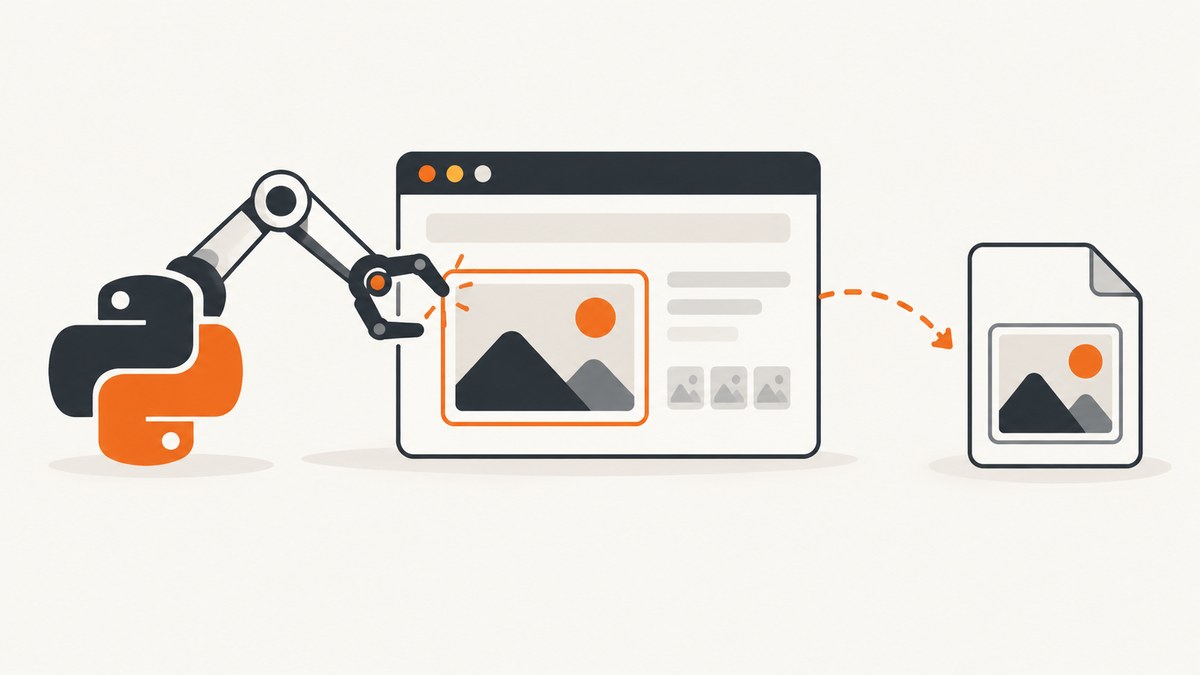
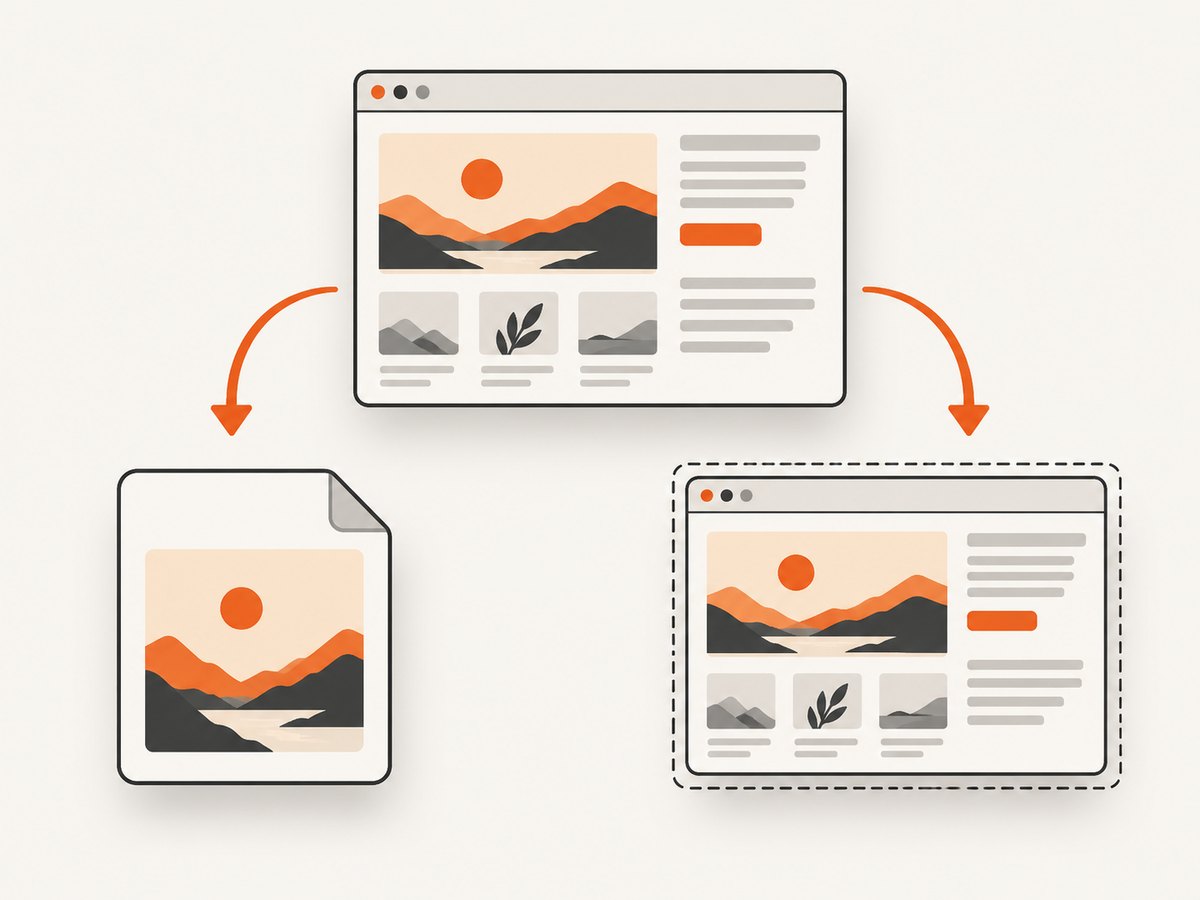
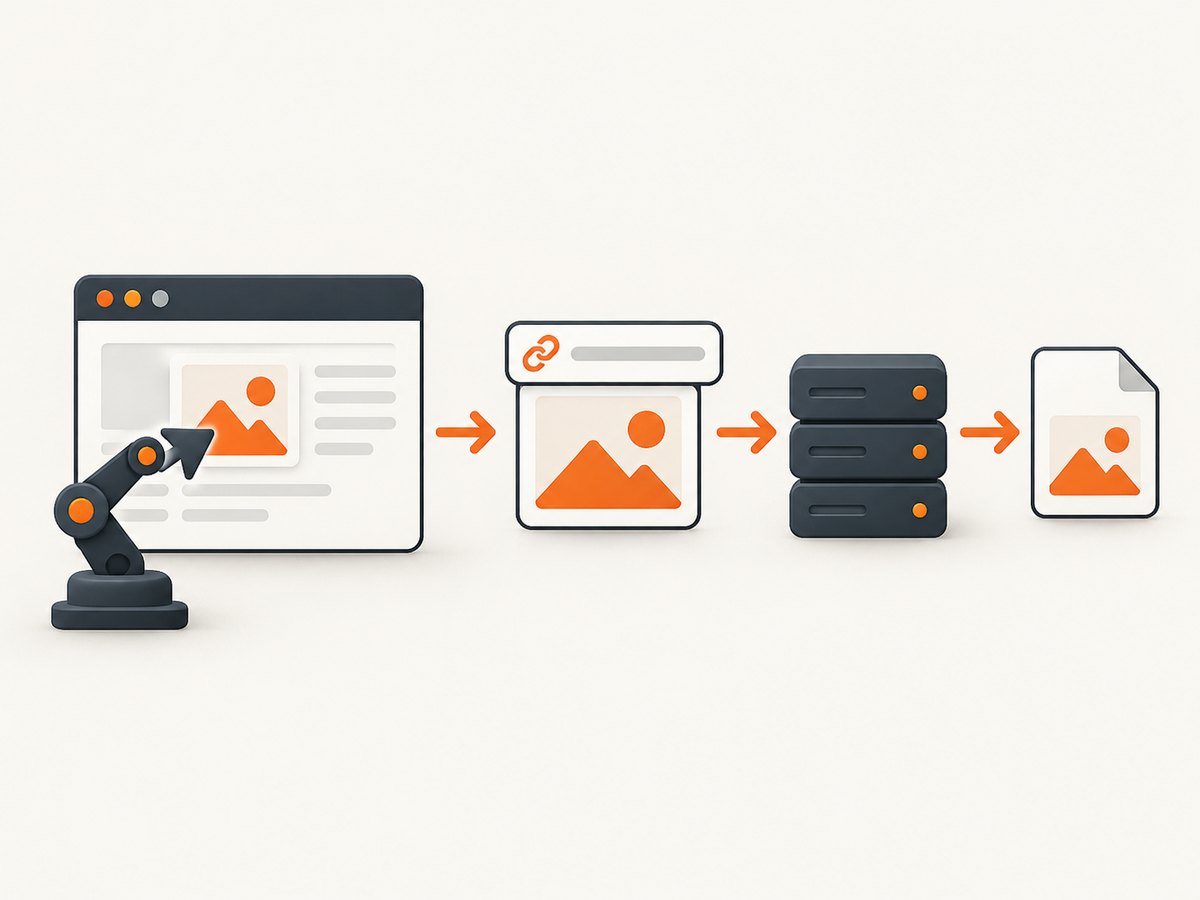
Direct answer: decide whether you need the original image file or a picture of what the browser displays. To save the original image, use Selenium to open the page, locate the <img> element, read its URL, and download that URL as bytes. To save what the browser renders, use Selenium’s screenshot methods. These produce different files: an image download preserves the source asset, while a screenshot captures the browser window.
For dynamic pages, wait for the image and its final URL before downloading. For protected images, synchronize the browser’s cookies with your HTTP client, or use Selenium’s request context. Selenium’s current Python API documents browser-cookie synchronization for HTTP requests and documents save_screenshot() for PNG screenshots. Selenium Python API reference
Choose the output you actually need
| Goal | Use | Result |
|---|---|---|
| Keep the original JPEG, PNG, WebP, or other asset | Read the image URL, then download it | Original response bytes and metadata |
| Save the page as a user sees it | driver.save_screenshot() |
PNG of the current browser window |
| Download a file after clicking a button | Configure browser downloads and wait for the file | Browser-managed download |
Set up Selenium
python -m venv .venv
source .venv/bin/activate        # Windows: .venv\\Scripts\\activate
python -m pip install --upgrade selenium requests
Recent Selenium versions can manage a compatible browser driver automatically. Install Chrome, Chromium, Firefox, or another supported browser on the machine running the script.
Download the original image with Selenium and Python
This script waits for a visible image, resolves a relative URL, downloads it, checks that the response succeeded, and chooses a safe extension. It assumes the image URL is publicly accessible without login.
from pathlib import Path
from urllib.parse import urlparse, urljoin

import requests
from selenium import webdriver
from selenium.webdriver.common.by import By
from selenium.webdriver.support import expected_conditions as EC
from selenium.webdriver.support.ui import WebDriverWait

PAGE_URL = "https://example.com/gallery"
IMAGE_SELECTOR = "img"                 # Use a narrower selector in production
OUTPUT_DIR = Path("images")
OUTPUT_DIR.mkdir(parents=True, exist_ok=True)

options = webdriver.ChromeOptions()
options.add_argument("--headless=new")
options.add_argument("--window-size=1440,1200")

driver = webdriver.Chrome(options=options)
try:
    driver.get(PAGE_URL)

    image = WebDriverWait(driver, 15).until(
        EC.visibility_of_element_located((By.CSS_SELECTOR, IMAGE_SELECTOR))
    )

    image_url = image.get_attribute("src")
    if not image_url:
        raise RuntimeError("The image element has no src URL")

    image_url = urljoin(PAGE_URL, image_url)
    response = requests.get(image_url, timeout=30)
    response.raise_for_status()

    suffix = Path(urlparse(image_url).path).suffix.lower()
    if suffix not in {".jpg", ".jpeg", ".png", ".webp", ".gif", ".avif", ".svg"}:
        suffix = ".img"

    output_path = OUTPUT_DIR / f"image{suffix}"
    output_path.write_bytes(response.content)
    print(f"Saved {output_path} ({len(response.content)} bytes)")
finally:
    driver.quit()
The URL in src may not be the asset you want. Responsive images can use srcset; lazy-loading libraries may place the real URL in data-src or another attribute; and a CSS background has no src at all. Inspect the rendered element and select the URL that represents the required variant.
Handle responsive images and lazy loading
from urllib.parse import urljoin


def image_url_from_element(element, page_url):
    # Prefer the browser's loaded URL.
    for name in ("src", "currentSrc", "data-src", "data-lazy-src"):
        value = element.get_attribute(name)
        if value:
            return urljoin(page_url, value)

    # Fall back to the first URL in srcset when no single URL is present.
    srcset = element.get_attribute("srcset")
    if srcset:
        first_candidate = srcset.split(",")[0].strip().split(" ")[0]
        return urljoin(page_url, first_candidate)

    raise RuntimeError("No image URL found on the element")
For a page that loads images after scrolling, scroll the element into view and wait again:
driver.execute_script("arguments[0].scrollIntoView({block: 'center'});", image)
WebDriverWait(driver, 15).until(
    lambda d: image.get_attribute("currentSrc") or image.get_attribute("src")
)
image_url = image_url_from_element(image, PAGE_URL)
A srcset string contains several candidates with width or density descriptors. The simple fallback above chooses the first candidate; use your own selection rule when a particular resolution matters.
Download an image that requires login cookies
A normal requests.get() call does not automatically share Selenium’s session. Copy the visible browser cookies into a requests session before fetching the image.
import requests

session = requests.Session()
for cookie in driver.get_cookies():
    session.cookies.set(
        cookie["name"],
        cookie["value"],
        domain=cookie.get("domain"),
        path=cookie.get("path", "/"),
    )

response = session.get(image_url, timeout=30)
response.raise_for_status()
Path("images/protected-image.bin").write_bytes(response.content)
Keep the browser open while you copy cookies. Some sites also require a matching user agent, referer, authorization header, or a short-lived signed URL. Cookie synchronization does not bypass access controls.
Use Selenium’s request context
The current Selenium Python API also exposes driver.request, an HTTP request context synchronized with browser cookies. The API reference shows calls such as driver.request.get(...). Check the response status and body according to the Selenium version installed in your environment before writing bytes.
Save the browser view as a screenshot
Use this when the required output is a picture of the rendered page rather than the original image asset.
from selenium import webdriver

options = webdriver.ChromeOptions()
options.add_argument("--headless=new")
options.add_argument("--window-size=1440,1200")

driver = webdriver.Chrome(options=options)
try:
    driver.get("https://example.com/gallery")
    saved = driver.save_screenshot("page.png")
    if not saved:
        raise OSError("Could not save screenshot")
finally:
    driver.quit()
Selenium documents save_screenshot(filename) as saving the current window to PNG and returning False on an I/O error. For bytes instead of a file, use driver.get_screenshot_as_png().
Capture a full page or one element
A normal screenshot captures the current viewport. Set the window size before navigation for predictable dimensions. Full-page behavior differs by browser and driver, so for a portable result either use a browser-specific full-page capability or capture the page in sections and stitch the images.
element = WebDriverWait(driver, 15).until(
    EC.presence_of_element_located((By.CSS_SELECTOR, ".product-image"))
)
element.screenshot("product-image.png")
Element screenshots are useful when the page contains navigation, cookie banners, or other content that should not be included.
Browser-managed downloads
If the page exposes a download button and you want the browser to perform the download, configure its download directory and preferences, click the control, then wait until the expected file appears and any temporary download suffix disappears. Settings differ by browser and version. Selenium’s FAQ includes a Firefox download-folder and MIME-type example, but that documentation is legacy; check the current browser and Selenium options before copying preferences. Selenium WebDriver documentation
Or skip the browser setup
ScreenshotNeo returns a screenshot or PDF from one GET request. See the ScreenshotNeo API documentation for all options.
curl -G "https://api.screenshotneo.com/v1/shot" -d access_key=YOUR_API_KEY --data-urlencode url=https://stripe.com -o shot.webpimport requests
r = requests.get("https://api.screenshotneo.com/v1/shot", params={"access_key": "YOUR_API_KEY", "url": "https://stripe.com"}, timeout=90)
r.raise_for_status()
open("shot.webp", "wb").write(r.content)const q = new URLSearchParams({ access_key: 'YOUR_API_KEY', url: 'https://stripe.com' });
const res = await fetch(`https://api.screenshotneo.com/v1/shot?${q}`);ScreenshotNeo removes cookie banners, newsletter popups, and chat widgets before capture. Bot checks, blank pages, failed loads, timeouts, and cache hits are not billed, and the response identifies the page verdict and billing status in X-Page-Verdict and X-Billed headers. It also provides an MCP server so Claude, Cursor, and other MCP clients can take screenshots. You can control full-page capture, CSS-selector element capture, dark mode, device presets, viewport and retina scale, custom CSS and JavaScript, clicks, waits, blocked requests, cookies, headers, user agent, timezone, geolocation, transparent backgrounds, resizing, caching, signed links, asynchronous jobs, bulk capture, and PDF settings. The free plan includes 1,000 screenshots per month with no card; paid plans start at $5 for 3,000 shots.
Start with 1,000 free screenshots a month—no card required.
Troubleshooting
| Symptom | Cause | Fix |
|---|---|---|
| Saved file is a screenshot, not the original image | Screenshot APIs capture rendered pixels | Read the element URL and download its response bytes. |
src is empty |
Lazy loading or script-created URL | Scroll into view, wait for currentSrc, and inspect data-src or srcset. |
| HTTP 401 or 403 | The image requires the browser session or extra headers | Copy Selenium cookies into a requests session and add only headers the site requires. |
| HTML is saved instead of an image | Redirect, login page, bot check, or error response | Check status, final URL, Content-Type, and response length before writing. |
| Element timeout | AJAX content has not appeared or the selector is wrong | Wait for the specific element or state; verify the selector in browser developer tools. |
| Wrong image variant | srcset or art direction selected another resolution |
Parse candidates and choose by width or density instead of taking the first URL. |
| Download prompt blocks the run | Browser download preferences are not configured | Set a download directory and MIME handling for the exact browser version, then wait for completion. |
save_screenshot() returns False |
Output path is invalid or not writable | Use an existing writable directory and check the returned value. |
Performance, reliability, and cost
- Reuse one WebDriver session when saving several images from the same site; browser startup is expensive.
- Use explicit waits for the target image instead of fixed sleeps. Wait for the exact condition that proves the URL is ready.
- Set request and page-load timeouts so a single broken page cannot stall a batch.
- Write bytes to a temporary filename and rename after a successful response when partial files would be harmful.
- Validate
Content-Typeand size limits before storing untrusted responses. - For many independent URLs, run a bounded number of browser workers. Too many concurrent browsers exhaust memory and increase failures.
- Selenium itself has no per-image API charge; your costs are the machine, browser runtime, bandwidth, and any third-party service. ScreenshotNeo bills only clean captures, while failed loads, bot checks, blank pages, timeouts, and cache hits cost nothing.
Checklist
- Choose original bytes or rendered pixels.
- Use a precise selector.
- Wait for the image’s final URL.
- Resolve relative URLs with
urljoin. - Share cookies for authenticated resources.
- Check status, content type, and response size.
- Use a safe extension and writable output path.
- Always call
driver.quit()in afinallyblock.
FAQ
Can Selenium download an image without taking a screenshot?
Yes. Locate the element, read its URL, and fetch that URL with an HTTP client. This preserves the source response instead of rendered pixels.
How do I save an image after logging in?
Log in with Selenium, copy driver.get_cookies() into a requests session, and request the image URL with that session.
Why does the downloaded extension not match the file?
URLs can omit extensions or return a different format after redirects. Inspect the response headers and choose the filename from the actual content.
Can Selenium save CSS background images?
Not through src. Read the computed background-image value with JavaScript, extract its URL, and download that resource if access permits.
When should I use an API instead of Selenium?
Use an API when you need repeatable screenshots without managing browsers, drivers, waits, cookie banners, or popup cleanup. ScreenshotNeo is an option when the desired result is a clean page capture rather than the original image bytes.


