How to Save an iPhone Screenshot as a JPG
iPhone screenshots are PNG or HEIF. Learn how to convert one to JPEG with Shortcuts, Preview, or a repeatable workflow.

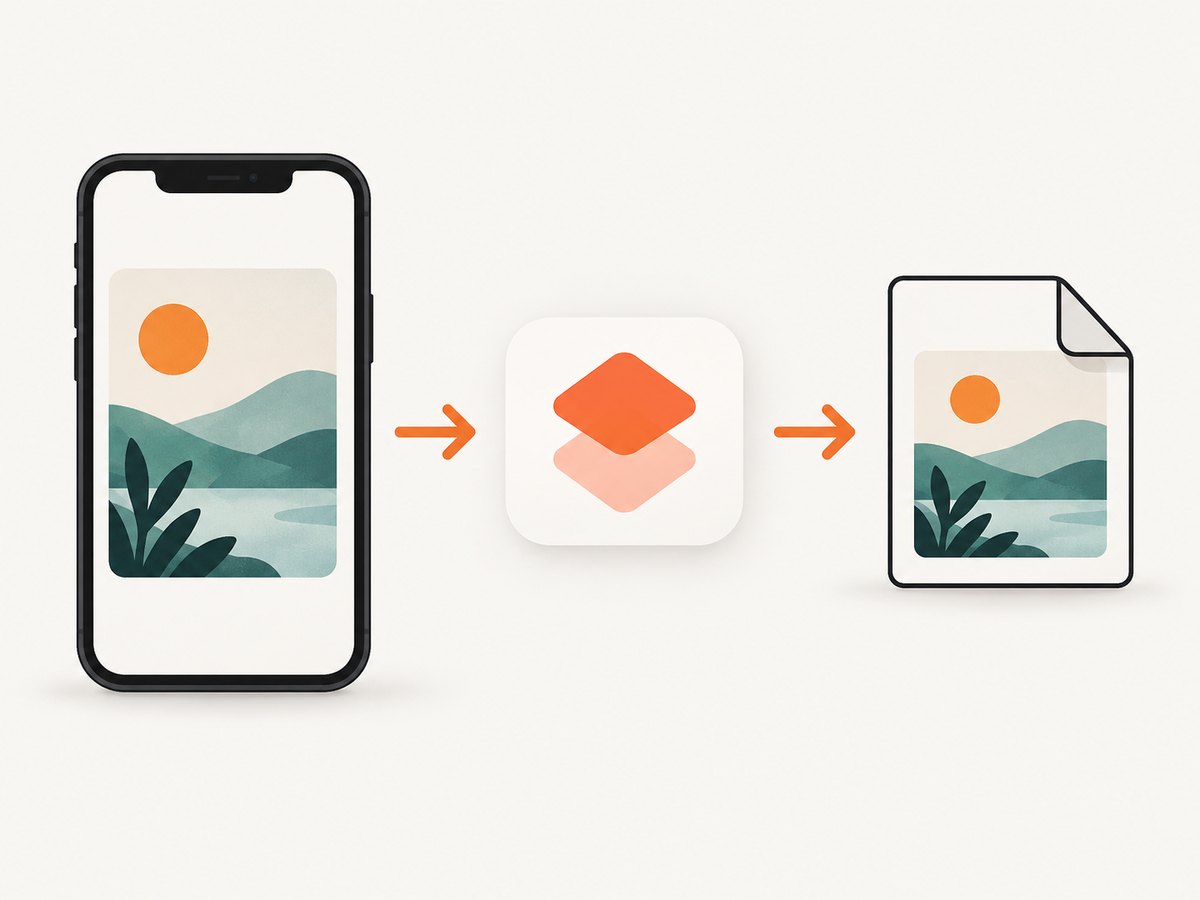
Short answer: take the screenshot, then convert the saved image to JPEG. iPhone does not provide a JPG capture option. In the Screen Capture settings, SDR screenshots are PNG and HDR screenshots are HEIF; JPEG is produced by exporting or converting the image afterward.
1. Find the screenshot you want to convert
Screenshots are saved to the Photos library by default. Open Photos, tap Collections, scroll to Media Types, and choose Screenshots. Apple documents this location in its iPhone screenshot guide.
If you just captured the image, the save flow depends on your iOS version. On current iOS releases, the screenshot can open in a full-screen editor; on older releases, a thumbnail appears in the lower-left corner. Save it to Photos before converting it.
2. Convert one screenshot with Shortcuts
Shortcuts is the most repeatable built-in method. Apple’s transform-actions documentation specifically describes converting PNG content to JPEG. Action names and their exact placement can vary slightly between iOS versions, so use the action search rather than relying on a fixed button layout.
- Open Shortcuts and tap + to create a new shortcut.
- Add an input action that receives an image. You can configure the shortcut to accept images from the share sheet, or choose an image when the shortcut runs.
- Search the action list for Convert, Image, or JPEG. Add the image conversion action and set its output format to JPEG.
- Add a destination action such as saving the converted file to Photos or saving it in Files. A share action is also useful when you want to send the result immediately.
- Run the shortcut with the screenshot as its input. The result is a new JPEG copy.
Keep the original PNG or HEIF file if you may need its original format or quality later. Conversion does not turn the original into JPEG; it creates another file.
A practical share-sheet shortcut
For frequent conversions, configure the shortcut to appear in the Photos share sheet:
- In the shortcut’s details, enable Show in Share Sheet.
- Limit accepted input to images if your iOS version offers input-type filters.
- Place the conversion action before the save or share action.
- Run it from Photos: select a screenshot, tap Share, and choose the shortcut.
This keeps the original in Photos while writing a separate JPEG to the destination you selected.
3. Export as JPEG with Preview
If your iPhone includes Apple’s Preview app and the screenshot is available there, Preview can export an image as JPEG. Apple’s Preview documentation lists JPEG among the supported export formats.
- Open Preview and open the screenshot.
- Tap the actions menu next to the filename.
- Tap Export.
- Choose JPEG as the format.
- Adjust the size or quality control if shown.
- Tap Done, choose a location, and tap Save.
Preview is convenient for a single file when it is already accessible there. Shortcuts is usually better when you want the same conversion repeatedly or from the Photos share sheet.
4. Understand SDR, HDR, PNG, HEIF, JPG and JPEG
| Setting or format | What it means | When it matters |
|---|---|---|
| SDR screenshot | Saved as PNG according to Apple’s Screen Capture settings. | Broad compatibility with standard displays and tools. |
| HDR screenshot | Saved as HEIF according to Apple’s Screen Capture settings. | Preserves HDR brightness and color for compatible displays. |
| JPEG/JPG | Two common spellings for the JPEG image format. | Useful when a website, upload form, editor, or legacy workflow requires JPEG. |
Changing Settings > General > Screen Capture from HDR to SDR does not select JPEG; it changes the capture between HEIF and PNG. If you specifically need JPEG, convert the saved image.
5. Quality, file size and transparency considerations
- Conversion is not reversible. A JPEG copy cannot restore information discarded during JPEG encoding.
- Text and UI edges can show artifacts. Use the highest quality setting available when exporting if the screenshot contains small type or thin lines.
- Do not assume a fixed file-size reduction. The result depends on the image content and the selected quality or size setting.
- Keep the source for archival use. PNG, HEIF, or the original screenshot may be preferable for later editing or re-exporting.
- Transparency is usually irrelevant for screenshots. If your source includes transparent areas, check how the selected exporter flattens them.
6. Troubleshooting
The file still ends in .png or .heic
Renaming the extension does not convert the image. Run an actual conversion action in Shortcuts or export it from Preview as JPEG.
I cannot find the screenshot
Look in Photos > Collections > Media Types > Screenshots. If you used a full-screen screenshot editor, make sure you selected the option to save it to Photos or Files.
Shortcuts does not show a JPEG option
Search the action list for convert, image, or make. Apple’s transform actions are searchable by several keywords, and the label can differ by iOS release. Confirm that the input is an image before adding the conversion action.
The converted image looks softer
JPEG is a lossy format. Re-export with a higher quality or larger size setting, and keep the original screenshot for cases where pixel-perfect text is required.
The colors look different
HDR screenshots can contain brightness and color information that standard displays do not show fully. Apple says HDR capture requires an HDR display to show the full quality. Convert a copy, compare it on the target device, and retain the original if HDR fidelity matters.
I need to convert many screenshots
Use a share-sheet Shortcut that accepts multiple images if your iOS version supports multi-select input, then save the converted files to a dedicated album or Files folder. For very large batches, process in smaller groups and verify filenames and output locations.
7. Or skip the browser setup
If what you actually need is a JPEG screenshot of a web page rather than a conversion of an existing iPhone screenshot, ScreenshotNeo can capture the page directly through one GET request. Its API documentation covers the available output and capture options.
curl -G "https://api.screenshotneo.com/v1/shot" -d access_key=YOUR_API_KEY --data-urlencode url=https://stripe.com -o shot.webpimport requests
r = requests.get("https://api.screenshotneo.com/v1/shot", params={"access_key": "YOUR_API_KEY", "url": "https://stripe.com"}, timeout=90)
open("shot.webp", "wb").write(r.content)const q = new URLSearchParams({ access_key: 'YOUR_API_KEY', url: 'https://stripe.com' });
const res = await fetch(`https://api.screenshotneo.com/v1/shot?${q}`);- Cookie banners, newsletter popups, chat widgets, and more than 60 known consent platforms are removed before the shot.
- Bot checks, blank pages, failed loads, timeouts, and cache hits are not billed; response headers identify the page verdict and billing result.
- An MCP server lets Claude, Cursor, and other MCP clients take screenshots with AI-agent tools.
- The Free plan includes 1,000 screenshots per month with no card, and paid plans start at $5 for 3,000 shots.
Create a free ScreenshotNeo account to try it without a card.
8. Cost and workflow notes
Converting a screenshot with Shortcuts or Preview uses the tools on your iPhone and does not require a paid conversion service. The trade-off is manual setup and the need to manage output files. A Shortcut reduces repeated work; Preview exposes export controls for a one-off file.
For website captures, an API can be more reliable than opening a browser manually when you need repeatable URLs, consistent viewports, or automated output. ScreenshotNeo supports PNG, JPEG, WebP, and PDF output along with options such as full-page capture, custom CSS and JavaScript, waits, blocking, cookies, headers, caching, and bulk capture.
FAQ
Can I make the iPhone save every screenshot as JPG by default?
Apple’s documented Screen Capture choices are SDR and HDR, which produce PNG and HEIF respectively. Use a Shortcut or an export step for JPEG.
Is JPG different from JPEG?
No. JPG and JPEG commonly refer to the same format; Apple generally writes “JPEG.”
Will converting remove the screenshot from Photos?
Normally the conversion creates a new file. Keep or delete the original separately according to your needs.
Which method is best for a recurring workflow?
Use a share-sheet Shortcut when you repeatedly convert screenshots. Use Preview when you need a quick export with visible size or quality controls.


