How to Save a JavaScript-Generated Screenshot
Learn how to save canvas images and Playwright page screenshots as files, handle CORS and downloads, and use ScreenshotNeo when you do not want to manage a browser.

There are two different jobs that developers call a “JavaScript-generated screenshot.” If JavaScript has already drawn pixels into a browser <canvas>, export that canvas with canvas.toBlob(), create an object URL, and trigger a download. If you need an image of a rendered webpage, component, or full page from Node.js, use Playwright’s page.screenshot().
This distinction determines the API, where the code runs, and the failure modes. Canvas export gives you the pixels inside one canvas. Playwright captures what a browser renders, including HTML, CSS, fonts, and other visible elements.
Choose the right capture method
| Route | Best for | Output | Main limitation |
|---|---|---|---|
canvas.toBlob() plus an object URL |
An image already drawn in a browser canvas | A named browser download | The canvas must be origin-clean; cross-origin images require CORS |
Playwright page.screenshot() |
A page, element, or full-page capture from Node.js | A file path or in-memory buffer | You must install and run a browser automation environment |
Save a canvas image as a file in the browser
Use toBlob() for normal exports. It creates a Blob without turning the entire image into a large base64 string. The temporary object URL can then be attached to an anchor whose download attribute supplies the filename.

const canvas = document.querySelector("canvas");

canvas.toBlob((blob) => {
  if (!blob) {
    console.error("Canvas export failed");
    return;
  }

  const url = URL.createObjectURL(blob);
  const link = document.createElement("a");
  link.href = url;
  link.download = "screenshot.png";
  document.body.appendChild(link);
  link.click();
  link.remove();

  // Release the URL after the download has been initiated.
  URL.revokeObjectURL(url);
}, "image/png");
PNG is the required export format. If you omit the type, or request a format the browser does not support, the result falls back to PNG. JPEG and WebP are commonly available, but check support when the format is part of your contract. The second argument can include a quality value for lossy formats:
canvas.toBlob((blob) => {
  if (!blob) return;
  const url = URL.createObjectURL(blob);
  const a = Object.assign(document.createElement("a"), {
    href: url,
    download: "chart.webp"
  });
  a.click();
  setTimeout(() => URL.revokeObjectURL(url), 0);
}, "image/webp", 0.85);
Show a preview before releasing the URL
Do not revoke an object URL while an image preview, context-menu action, or later save action still needs it. Keep the URL until the preview is removed, then revoke it.
canvas.toBlob((blob) => {
  if (!blob) return;
  const url = URL.createObjectURL(blob);
  const preview = document.querySelector("#preview");
  preview.src = url;
  preview.onload = () => {
    // Revoke only after the preview has finished using the resource.
    URL.revokeObjectURL(url);
  };
}, "image/png");
For very large canvases, avoid toDataURL() unless you specifically need a data URL. It encodes the whole image into an in-memory string, which increases memory pressure. MDN recommends toBlob() with URL.createObjectURL() for typical exports (MDN toBlob(), MDN toDataURL()).
Canvas export and cross-origin images
A canvas becomes tainted when it draws an image or other resource from another origin without the required CORS permission. Calling toBlob(), toDataURL(), or captureStream() then throws a SecurityError.
Both sides must participate. Set the image’s crossOrigin value before assigning src, and make sure the remote server sends an appropriate Access-Control-Allow-Origin header:
const image = new Image();
image.crossOrigin = "anonymous";
image.onload = () => {
  const canvas = document.querySelector("canvas");
  const context = canvas.getContext("2d");
  canvas.width = image.naturalWidth;
  canvas.height = image.naturalHeight;
  context.drawImage(image, 0, 0);
};
image.src = "https://assets.example.com/photo.jpg";
Setting crossOrigin alone cannot bypass the restriction. If the source server does not grant access, use a same-origin proxy that you control, host the asset on your own origin, or capture the rendered page with a browser automation tool instead.
Save a webpage screenshot with Playwright
For a page screenshot, install Playwright and its browser binaries, then write directly to a path. The file extension determines the format when you provide path.
npm install playwright
npx playwright install chromium
// save-page.mjs
import { chromium } from "playwright";
const browser = await chromium.launch();
const page = await browser.newPage({ viewport: { width: 1440, height: 900 } });
await page.goto("https://example.com", { waitUntil: "networkidle" });
await page.screenshot({ path: "screenshot.png", fullPage: true });
await browser.close();Run it with node save-page.mjs. If you omit path, Playwright returns a buffer, which is useful for an HTTP response, object storage upload, or image-processing pipeline.
const png = await page.screenshot({ fullPage: false });
await import("node:fs/promises").then((fs) => fs.writeFile("latest.png", png));
Element, viewport, format, and scale options
Use a locator to capture one component instead of the whole page:
await page.locator(".invoice-preview").screenshot({ path: "invoice.png" });Common options include:
fullPage: truecaptures the complete scrollable page.type: "png" | "jpeg"selects the image format; the path extension usually infers it.qualityapplies to JPEG and WebP captures, not PNG.animations: "disabled"can make repeated captures deterministic.scale: "css" | "device"controls CSS-pixel versus device-pixel output.maskandstylecan hide or restyle sensitive regions during a capture.
Wait for the state that actually matters to your image. A network-idle event does not guarantee that a chart, web font, or lazy image has finished rendering.
await page.goto("https://example.com/dashboard", { waitUntil: "domcontentloaded" });
await page.waitForSelector("canvas.chart");
await page.evaluate(() => document.fonts.ready);
await page.waitForTimeout(300);
await page.screenshot({ path: "dashboard.webp", type: "webp", quality: 82 });
When the website triggers a download
A page may generate an image and start a download instead of exposing it in the DOM. Playwright emits a download event. Save the temporary file before closing its browser context:
const downloadPromise = page.waitForEvent("download");
await page.getByRole("button", { name: "Export image" }).click();
const download = await downloadPromise;
await download.saveAs("exports/generated-screenshot.png");
The downloaded file is temporary and is deleted when the browser context closes unless you call saveAs() (see the Playwright download documentation).
Reliable capture workflow
- Identify the source. Use canvas export for pixels in one canvas; use Playwright for page appearance.
- Make rendering deterministic. Fix viewport, color scheme, timezone, locale, and device scale when visual diffs matter.
- Wait for content. Wait for a selector, fonts, images, and application-specific readiness signals.
- Choose output deliberately. PNG preserves sharp text and transparency; JPEG/WebP reduce size with lossy compression.
- Persist files explicitly. Save Playwright buffers and download events before closing the context.
- Clean up. Close the browser and revoke object URLs after the user no longer needs them.
Troubleshooting
| Symptom | Likely cause | Fix |
|---|---|---|
SecurityError from toBlob() |
Tainted canvas | Enable CORS on every drawn resource, proxy it through your origin, or use Playwright. |
blob is null |
Export failed or an unsupported encoder was requested | Check canvas dimensions and request PNG; handle the null result. |
| Downloaded file is blank | Capture ran before the canvas or page finished drawing | Wait for a readiness selector, fonts, images, or a short application-specific delay. |
| Lazy images are missing | They were never loaded outside the viewport | Scroll them into view, trigger the app’s lazy-load code, or use a capture service that loads full-page assets. |
| Playwright says browser executable is missing | Browser binaries were not installed | Run npx playwright install chromium in the deployment environment. |
| Screenshot is clipped | Viewport capture was used for a page taller than the viewport | Set fullPage: true, or capture a specific element. |
| Download disappears after the script exits | It remained in Playwright’s temporary directory | Await download.saveAs() before closing the context. |
| Fonts differ between runs | Font loading or environment differs | Await document.fonts.ready and use a consistent browser image. |
Performance, reliability, and cost considerations
Canvas export is usually cheap because the pixels already exist in the page, but very large canvases consume memory during encoding. Prefer PNG for transparency and crisp diagrams; use JPEG or WebP when smaller files matter and artifacts are acceptable.
Playwright startup, browser memory, page JavaScript, third-party requests, and full-page layout all affect latency. Reuse a browser process for batches, create isolated contexts for separate sessions, block unnecessary analytics where permitted, and set explicit timeouts. Retry transient navigation failures, but do not blindly retry a deterministic CORS or selector error.
For repeatable pipelines, record the URL, viewport, browser version, output type, and readiness condition alongside the file. This makes visual regressions and intermittent failures diagnosable.
Or skip the browser setup
ScreenshotNeo provides a website screenshot API when you want a single request instead of maintaining Playwright infrastructure. It accepts a URL and returns PNG, JPEG, WebP, or PDF. See the ScreenshotNeo API documentation for all options.
cURL
curl -G "https://api.screenshotneo.com/v1/shot" \
  -d access_key=YOUR_API_KEY \
  --data-urlencode url=https://stripe.com \
  -o shot.webp
Python
import requests

r = requests.get(
    "https://api.screenshotneo.com/v1/shot",
    params={"access_key": "YOUR_API_KEY", "url": "https://stripe.com"},
    timeout=90,
)
r.raise_for_status()
open("shot.webp", "wb").write(r.content)
Node.js
const q = new URLSearchParams({ access_key: 'YOUR_API_KEY', url: 'https://stripe.com' });
const res = await fetch(`https://api.screenshotneo.com/v1/shot?${q}`);
if (!res.ok) throw new Error(`Screenshot failed: ${res.status}`);
const data = Buffer.from(await res.arrayBuffer());
await import('node:fs/promises').then((fs) => fs.writeFile('shot.webp', data));
ScreenshotNeo can load lazy images for full-page captures, capture an element by CSS selector, emulate dark mode and device presets, set a custom viewport and retina scale, run custom CSS or JavaScript, click before capture, wait for a selector, delay, or network idle, and block ads, trackers, requests, or resource types. It also supports headers, cookies, user agents, authorization, timezone, geolocation, transparent backgrounds, resizing, configurable cache TTLs, signed public image links, asynchronous jobs with signed webhooks, bulk capture of up to 100 URLs per call, a usage API, and an OpenAPI specification.
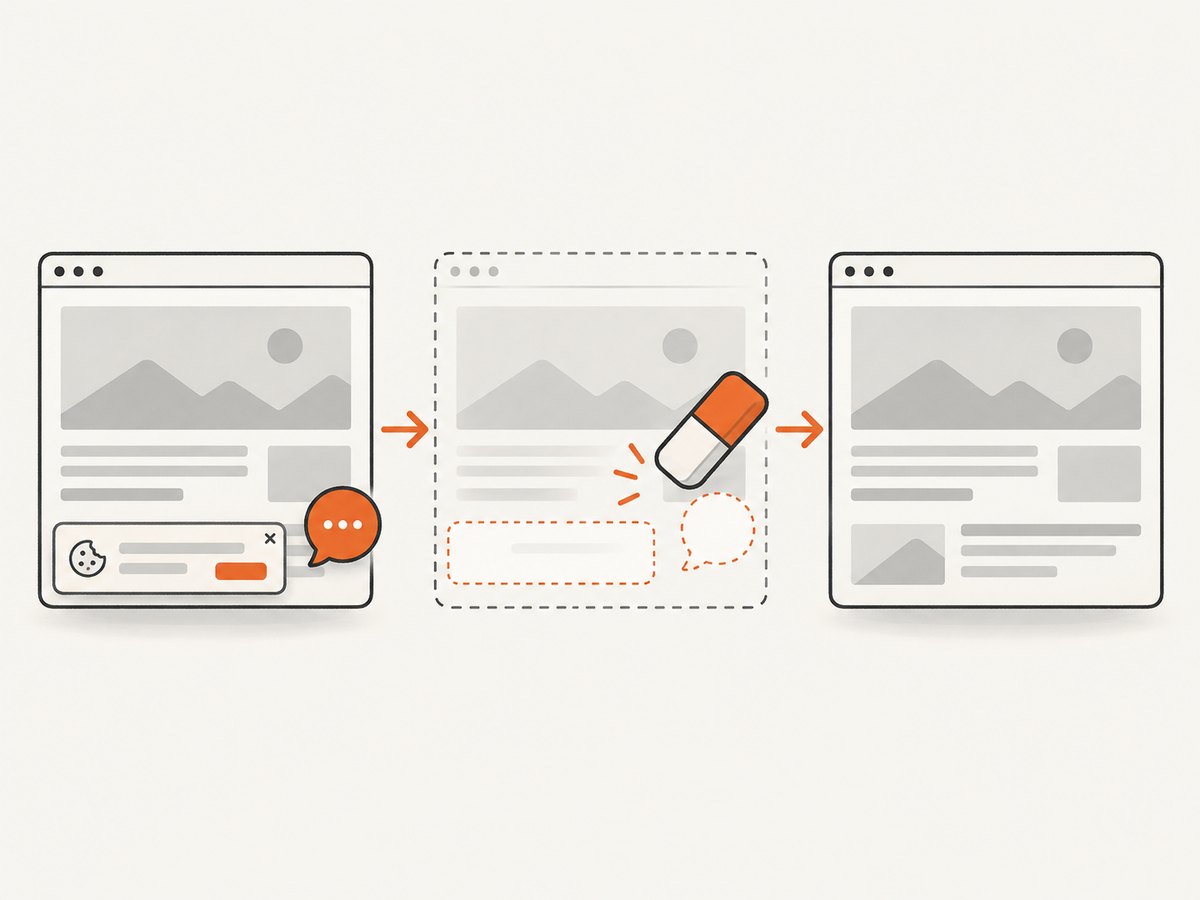
Before capture it accepts cookie or consent banners and removes more than 60 known consent platforms, newsletter popups, and chat widgets; each step can be disabled. Bot checks, CAPTCHAs, blank pages, timeouts, failed loads, and cache hits are not billed. Response headers identify the page verdict and whether the request was billed.
An MCP server exposes take_screenshot, get_page_info, and capture_pdf for Claude, Cursor, and other MCP clients. The Free plan includes 1,000 shots per month with no card; paid plans start at $5 for 3,000 shots, and every feature is available on every plan. Create a free ScreenshotNeo account.
FAQ
Can I save a canvas as JPEG?
Yes. Pass "image/jpeg" and a quality value to toBlob(). The browser may fall back to PNG if the type is unsupported.
Does Playwright capture only what is visible?
By default it captures the viewport. Set fullPage: true for the full scrollable page, or call locator.screenshot() for one element.
Why is my canvas export blocked even with crossOrigin?
The remote server must also send a compatible CORS header. Client-side JavaScript cannot override a server’s CORS policy.
When should I use an API instead of Playwright?
Use an API when you want URL-to-image capture without browser installation, patching, and lifecycle management. Keep Playwright when your workflow needs custom in-process browser logic or tests.