How to Save a JavaScript Screenshot to a Server with jQuery and ASP.NET
Capture an element with html2canvas, upload a PNG with jQuery, and safely save it in ASP.NET. Includes CORS fixes, validation, limits, and ScreenshotNeo.
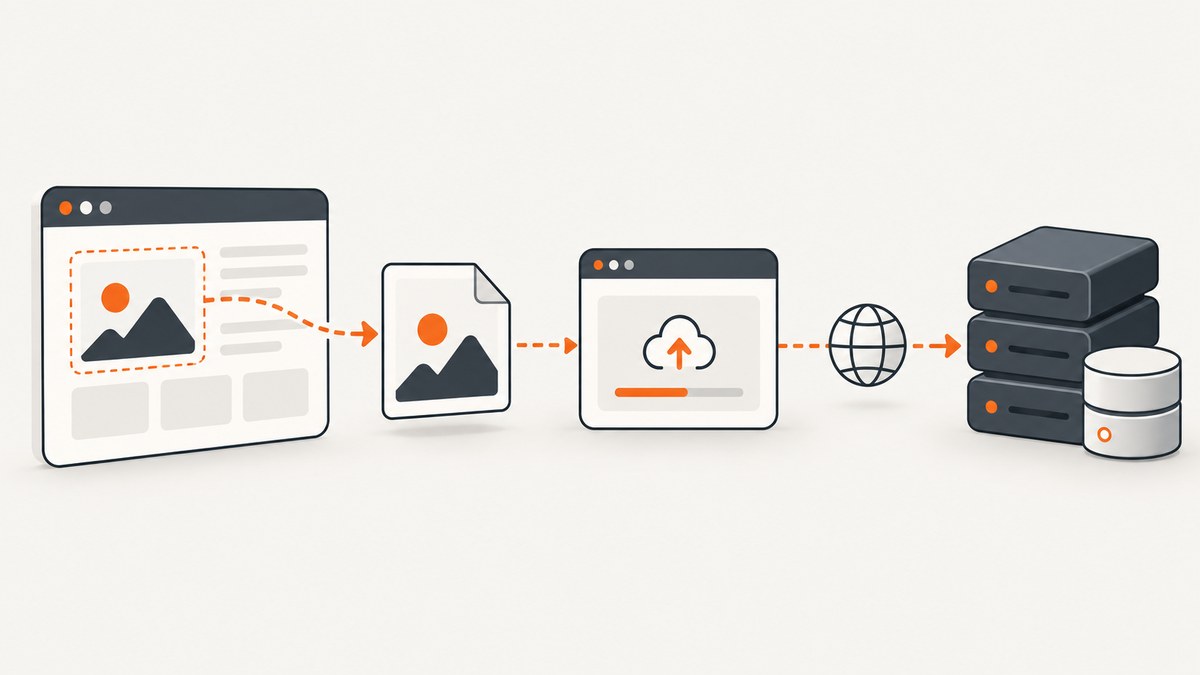
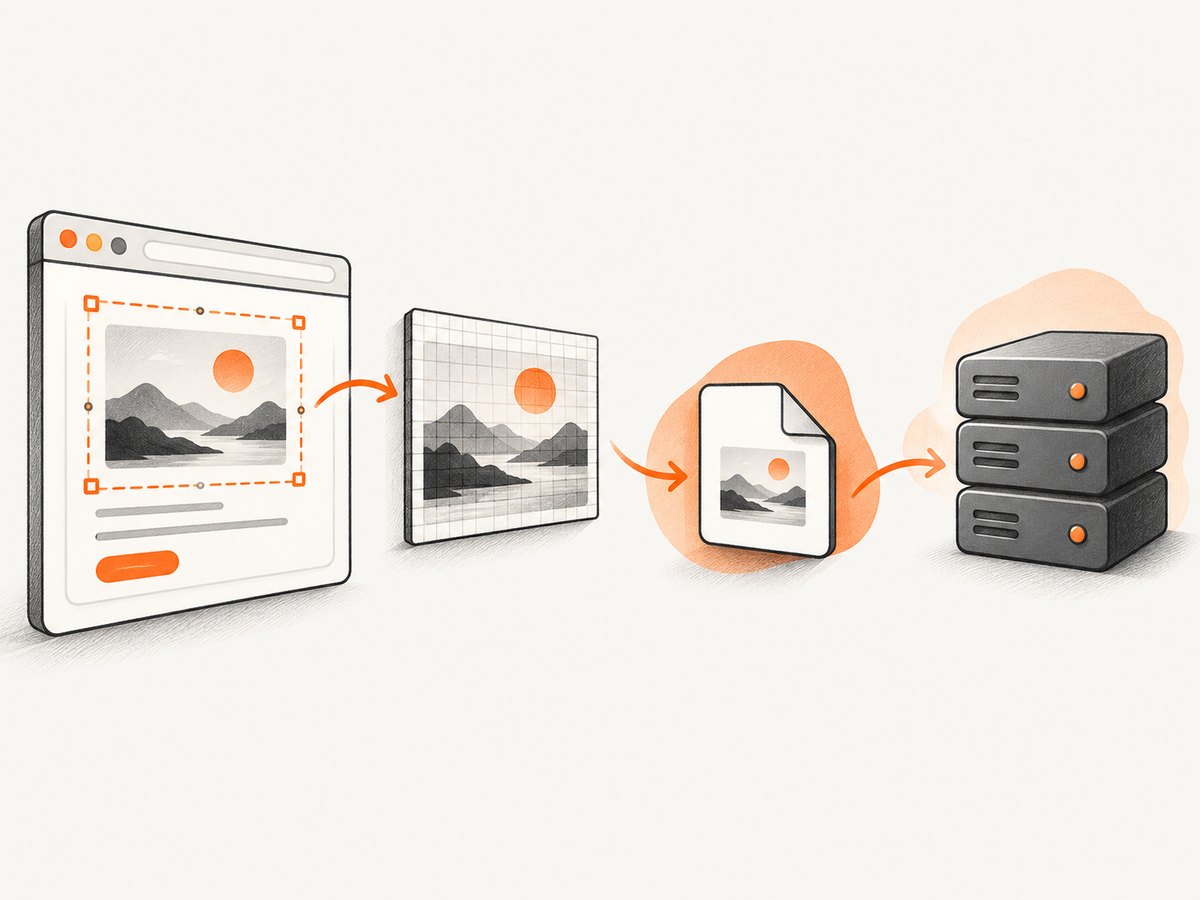
To save a JavaScript screenshot with jQuery and ASP.NET, render the target element with html2canvas, export the canvas as a PNG Blob or data URL, send it to an authenticated ASP.NET endpoint, validate the bytes on the server, and save the file using a generated name. The complete flow is browser-side: html2canvas reconstructs an image from the DOM and supported CSS; it does not capture native browser pixels.
This distinction matters. The official getting-started guide shows the Promise-based canvas workflow, while the project explains that the result is based on information available in the DOM and may differ from the page’s exact visual representation. If you need a true server-side browser screenshot, use browser automation or a screenshot API instead.
1. The complete request flow
- Give the page element a stable selector such as
#capture. - Call
html2canvas(element)after the content and fonts are ready. - Export the canvas with
canvas.toBlob()for a binary upload, orcanvas.toDataURL('image/png')for a simple base64 request. - Use jQuery AJAX to send the image to an ASP.NET action.
- On the server, authenticate the request, enforce a byte limit, decode the payload, verify it is a PNG, generate the filename, and write it to controlled storage.
- Return an identifier or URL created by the server.
The Blob route is preferable for large images because base64 increases the payload size and creates an additional long string in browser memory. The data URL route is convenient for small screenshots and is included below.
2. Add html2canvas and mark up the element
Install from npm when your application has a bundler:
npm install html2canvasThen import it in your JavaScript entry point:
import html2canvas from 'html2canvas';For a page that uses script tags, load a built release of html2canvas before your capture code. Keep the version pinned in production so a dependency update does not silently change rendering behavior.
<section id="capture" class="receipt">
  <h1>Order receipt</h1>
  <p>Order #4821</p>
  <div class="total">$42.00</div>
</section>

<button id="save-screenshot" type="button">Save screenshot</button>
<div id="status" role="status"></div>
Wait until images, fonts, and data-driven content have loaded. A capture started while a chart is still drawing or a web font is still downloading can contain incomplete content.
3. Browser code: export and upload a PNG with jQuery
Option A: multipart Blob upload
This version avoids manually stripping the data URL prefix. It sends the PNG as a normal multipart file.
import html2canvas from 'html2canvas';

$('#save-screenshot').on('click', function () {
  var $button = $(this);
  var element = document.querySelector('#capture');

  if (!element) {
    $('#status').text('The capture element was not found.');
    return;
  }

  $button.prop('disabled', true);
  $('#status').text('Rendering…');

  html2canvas(element, {
    useCORS: true,
    backgroundColor: '#ffffff',
    scale: window.devicePixelRatio || 1
  }).then(function (canvas) {
    return new Promise(function (resolve, reject) {
      canvas.toBlob(function (blob) {
        if (blob) {
          resolve(blob);
        } else {
          reject(new Error('The browser could not create a PNG blob.'));
        }
      }, 'image/png');
    });
  }).then(function (blob) {
    var formData = new FormData();
    formData.append('file', blob, 'screenshot.png');

    return $.ajax({
      url: '/Screenshot/Save',
      method: 'POST',
      data: formData,
      processData: false,
      contentType: false,
      headers: {
        'RequestVerificationToken': $('input[name="__RequestVerificationToken"]').val()
      }
    });
  }).done(function (result) {
    $('#status').text('Saved as ' + result.id);
  }).fail(function (xhr) {
    var message = xhr.responseJSON && xhr.responseJSON.error
      ? xhr.responseJSON.error
      : 'The screenshot could not be saved.';
    $('#status').text(message);
  }).always(function () {
    $button.prop('disabled', false);
  });
});
Option B: data URL upload
This shape follows the simple official example: call toDataURL('image/png'), then send the result in a jQuery POST. The ASP.NET action must remove the data:image/png;base64, prefix before decoding.
html2canvas(document.querySelector('#capture'), { useCORS: true })
  .then(function (canvas) {
    var dataUrl = canvas.toDataURL('image/png');

    return $.ajax({
      type: 'POST',
      url: '/Screenshot/SaveBase64',
      data: { imageData: dataUrl },
      headers: {
        'RequestVerificationToken': $('input[name="__RequestVerificationToken"]').val()
      }
    });
  })
  .done(function (result) {
    console.log('Saved screenshot:', result.id);
  })
  .fail(function (xhr) {
    console.error('Upload failed:', xhr.responseText);
  });
Use the Blob version when screenshots may be large. Set a practical capture size and reject oversized requests rather than allowing an attacker or accidental page state to consume all application memory.
4. ASP.NET Core endpoint for a multipart PNG
The following controller accepts the Blob upload. It validates the content type, length, PNG signature, and generated storage path. Authentication and antiforgery configuration depend on your application, so apply the endpoint’s normal authorization policy.
using Microsoft.AspNetCore.Authorization;
using Microsoft.AspNetCore.Mvc;

[Authorize]
[AutoValidateAntiforgeryToken]
public sealed class ScreenshotController : Controller
{
    private const long MaxBytes = 10 * 1024 * 1024;
    private readonly IWebHostEnvironment _environment;

    public ScreenshotController(IWebHostEnvironment environment)
    {
        _environment = environment;
    }

    [HttpPost]
    public async Task<IActionResult> Save(IFormFile file, CancellationToken cancellationToken)
    {
        if (file is null || file.Length == 0)
            return BadRequest(new { error = "A PNG file is required." });

        if (file.Length > MaxBytes)
            return BadRequest(new { error = "The screenshot exceeds the 10 MB limit." });

        if (!string.Equals(file.ContentType, "image/png", StringComparison.OrdinalIgnoreCase))
            return BadRequest(new { error = "Only PNG uploads are accepted." });

        await using var input = file.OpenReadStream();
        var signature = new byte[8];
        var read = await input.ReadAsync(signature, cancellationToken);
        var pngSignature = new byte[] { 137, 80, 78, 71, 13, 10, 26, 10 };

        if (read != pngSignature.Length || !signature.SequenceEqual(pngSignature))
            return BadRequest(new { error = "The uploaded bytes are not a valid PNG." });

        var id = Guid.NewGuid().ToString("N");
        var directory = Path.Combine(_environment.ContentRootPath, "App_Data", "screenshots");
        Directory.CreateDirectory(directory);
        var path = Path.Combine(directory, id + ".png");

        await using var output = System.IO.File.Create(path);
        input.Position = 0;
        await input.CopyToAsync(output, cancellationToken);

        return Ok(new { id, fileName = id + ".png" });
    }
}
For public downloads, return a controlled route that checks authorization and streams the file. Do not place untrusted uploads in a directory where the web server can execute scripts. For production workloads, replace the local filesystem with your object-storage abstraction and keep the same validation rules.
5. ASP.NET MVC 5 endpoint for a base64 request
Classic ASP.NET MVC receives the data URL as a form value. The server must reject malformed input before calling Convert.FromBase64String.
[Authorize]
[HttpPost]
[ValidateAntiForgeryToken]
public ActionResult SaveBase64(string imageData)
{
    const int maxBytes = 10 * 1024 * 1024;

    if (String.IsNullOrWhiteSpace(imageData))
        return new HttpStatusCodeResult(400, "Image data is required.");

    const string prefix = "data:image/png;base64,";
    if (!imageData.StartsWith(prefix, StringComparison.OrdinalIgnoreCase))
        return new HttpStatusCodeResult(400, "Only PNG data URLs are accepted.");

    byte[] bytes;
    try
    {
        bytes = Convert.FromBase64String(imageData.Substring(prefix.Length));
    }
    catch (FormatException)
    {
        return new HttpStatusCodeResult(400, "The base64 payload is invalid.");
    }

    if (bytes.Length == 0 || bytes.Length > maxBytes)
        return new HttpStatusCodeResult(400, "The image is empty or too large.");

    var pngSignature = new byte[] { 137, 80, 78, 71, 13, 10, 26, 10 };
    if (bytes.Length < pngSignature.Length || !bytes.Take(8).SequenceEqual(pngSignature))
        return new HttpStatusCodeResult(400, "The payload is not a PNG.");

    var id = Guid.NewGuid().ToString("N");
    var directory = Server.MapPath("~/App_Data/screenshots");
    Directory.CreateDirectory(directory);
    System.IO.File.WriteAllBytes(Path.Combine(directory, id + ".png"), bytes);

    return Json(new { id, fileName = id + ".png" });
}
6. Capture options that affect the result
| Option | Use it for | Important limit |
|---|---|---|
useCORS: true |
Cross-origin images that explicitly allow your origin. | The image server must send suitable CORS headers. |
backgroundColor |
Making transparent or semi-transparent designs render against a chosen color. | It changes the canvas background, not the page itself. |
scale |
Controlling output density. | Higher scale multiplies memory and output dimensions. |
windowWidth, windowHeight |
Matching a viewport used by responsive CSS. | These are viewport settings; they do not guarantee unlimited canvas dimensions. |
width, height, x, y |
Restricting the rendered region. | Use the element’s actual dimensions when a full element is required. |
allowTaint |
Permitting cross-origin images to taint the canvas. | A tainted canvas cannot safely export its pixels; prefer CORS or a permitted proxy. |
proxy |
Loading remote images through a same-origin proxy. | Only proxy URLs you are authorized to fetch, with SSRF protections. |
For a full element, measure its scroll dimensions before capture:
var element = document.querySelector('#capture');
var canvasOptions = {
  useCORS: true,
  width: element.scrollWidth,
  height: element.scrollHeight,
  windowWidth: element.scrollWidth,
  windowHeight: element.scrollHeight,
  scale: Math.min(window.devicePixelRatio || 1, 2)
};
Very large canvases can exceed browser limits and become blank or truncated. Limits vary by browser, operating system, GPU, and device. Split a long document into sections, reduce scale, or capture a smaller region when necessary.
7. External images, fonts, and blank output
html2canvas cannot read pixels from an image that violates the browser’s same-origin rules. useCORS only helps when the remote image server supplies the required CORS headers. If it does not, use an authorized same-origin proxy or host the asset from your own origin. Do not disable browser security as a workaround.
Common causes of incomplete output include:
- An image URL redirects to a host that does not send CORS headers.
- The capture begins before images or web fonts finish loading.
- A CSS effect is unsupported by html2canvas.
- The element is hidden with
display: noneor has zero dimensions. - A canvas, video, or cross-origin image is already tainted.
- The target is taller or wider than the browser’s practical canvas limit.
Wait for images explicitly when needed:
await Promise.all(Array.from(document.images).map(function (image) {
  if (image.complete) return Promise.resolve();
  return new Promise(function (resolve) {
    image.addEventListener('load', resolve, { once: true });
    image.addEventListener('error', resolve, { once: true });
  });
}));
8. Security checklist for the ASP.NET upload
- Require authentication or another authorization decision.
- Use antiforgery protection for cookie-authenticated browser requests.
- Set a request and decoded-byte limit before writing to disk.
- Allow only the formats your application needs; check magic bytes, not only the browser-provided MIME type.
- Generate the identifier and extension on the server. Never trust the submitted filename.
- Store files outside executable web paths or use controlled object storage.
- Apply quotas per user or tenant to prevent storage exhaustion.
- Scan or process images in an isolated service if your threat model requires it.
- Log the request identifier, authenticated subject, byte count, and validation result without logging sensitive image data.
9. Troubleshooting
| Symptom | Cause | Fix |
|---|---|---|
SecurityError from toDataURL |
A cross-origin resource tainted the canvas. | Configure CORS on the image host or use an authorized proxy. |
| External images are missing | The image was not loaded when capture started, or CORS failed. | Wait for images and inspect the browser network panel for CORS errors. |
| The image is blank | The element has no dimensions, is hidden, or the canvas is too large. | Check bounding dimensions, capture a visible element, reduce scale, and split large pages. |
| ASP.NET returns 400 | Prefix, base64 data, MIME type, signature, or size validation failed. | Confirm the client sends PNG bytes and inspect the server’s specific validation message. |
| ASP.NET returns 413 | Web-server or framework request limits are smaller than the image. | Keep the client capture smaller or raise the limit deliberately at every request layer. |
| Only part of a long element appears | Viewport and element dimensions do not match, or a browser canvas limit was reached. | Set dimensions from scrollWidth/scrollHeight, lower scale, or capture in sections. |
| Fonts look different | The web font was not ready or is unavailable to the renderer. | Wait for document.fonts.ready and verify the font request succeeds. |
| POST succeeds but the file cannot be found | The process lacks write permission or the path is not the one used by downloads. | Use an application storage abstraction, check permissions, and return a server-generated identifier. |
10. Performance, reliability, and cost
Client-side rendering uses the user’s CPU, memory, browser, device scale, and network. A high-DPI phone can produce a much larger canvas than a desktop at the same CSS dimensions. Cap scale, avoid capturing unnecessary whitespace, and release references after upload so garbage collection can reclaim the canvas.
Uploads are more reliable when they are short and retryable. Send a generated idempotency key if your endpoint supports it, or make the server detect a repeated client request before creating another record. Return a small JSON response instead of the image itself. For long-running image processing, queue work after validation and report a job identifier.
The browser method has no separate screenshot service charge, but it shifts rendering and upload work to each client and requires you to operate storage, authentication, limits, and cleanup. Server-side browser automation adds browser infrastructure and session management. Compare rendering fidelity, cross-origin access, execution location, authentication handling, maximum dimensions, and operational complexity before choosing.
11. Or skip the browser setup
ScreenshotNeo provides a one-request website screenshot API when you need a server-side capture instead of reconstructing a DOM in a user’s browser. See the ScreenshotNeo API documentation for the available parameters.
curl -G "https://api.screenshotneo.com/v1/shot" -d access_key=YOUR_API_KEY --data-urlencode url=https://stripe.com -o shot.webpimport requests
r = requests.get("https://api.screenshotneo.com/v1/shot", params={"access_key": "YOUR_API_KEY", "url": "https://stripe.com"}, timeout=90)
open("shot.webp", "wb").write(r.content)const q = new URLSearchParams({ access_key: 'YOUR_API_KEY', url: 'https://stripe.com' });
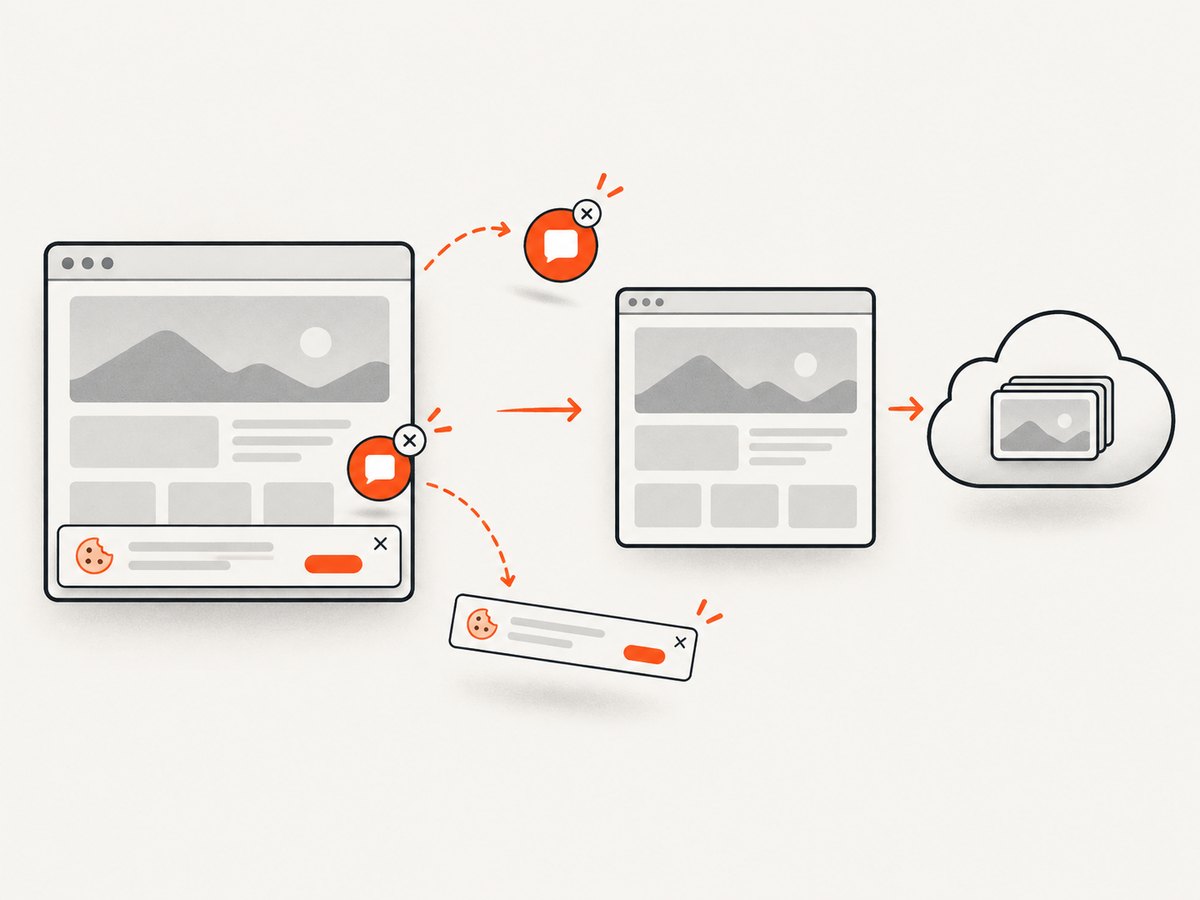
const res = await fetch(`https://api.screenshotneo.com/v1/shot?${q}`);ScreenshotNeo accepts cookie and consent banners before capture and removes more than 60 known consent platforms, newsletter popups, and chat widgets. Bot checks, blank pages, timeouts, failed loads, and cache hits are not billed, and the response identifies the page verdict and billing result in X-Page-Verdict and X-Billed headers. Its MCP server gives Claude, Cursor, and other MCP clients take_screenshot, get_page_info, and capture_pdf tools.
You can also select an element, capture a full page with lazy images loaded, choose dark mode or a device preset, set a viewport and retina scale, run custom CSS or JavaScript, click before capture, hide selectors, wait for a selector or network idle, block requests and resource types, provide headers, cookies, user agents, authorization, timezone, and geolocation, create PDFs, resize images, cache with a chosen TTL, generate signed links, submit async jobs with signed webhooks, capture up to 100 URLs per bulk call, and read usage through the API. Every feature is available on every plan. The free plan includes 1,000 screenshots per month with no card; paid plans start at $5 for 3,000 screenshots.
Create a free ScreenshotNeo account to try the API with 1,000 screenshots per month and no card.
12. FAQ
Can html2canvas capture a whole webpage?
It can render a large selected element when dimensions and browser limits allow it. For very long pages, split the capture or use a server-side browser tool.
Can html2canvas run in Node.js?
No. It relies on browser APIs such as window, document, and computed styles. The project’s FAQ points to Puppeteer or Playwright for server-side screenshots.
Should I use PNG or JPEG?
Use PNG for text, interfaces, and transparency. Use JPEG only when you deliberately want smaller photographic output and can accept lossy compression.
Why does the result differ from a native screenshot?
html2canvas reconstructs pixels from the DOM and supported CSS. Unsupported effects, cross-origin resources, fonts, and browser differences can change the result.
Where should uploaded screenshots be stored?
Use an application storage abstraction or controlled object storage. Keep untrusted files outside executable web paths and return a server-generated identifier rather than accepting a client filename.


