How to Save a jsPDF File to a Specific Folder with JavaScript
Learn how to save jsPDF files to a chosen folder in browsers and Node.js, with file-picker, download, filesystem, and troubleshooting examples.
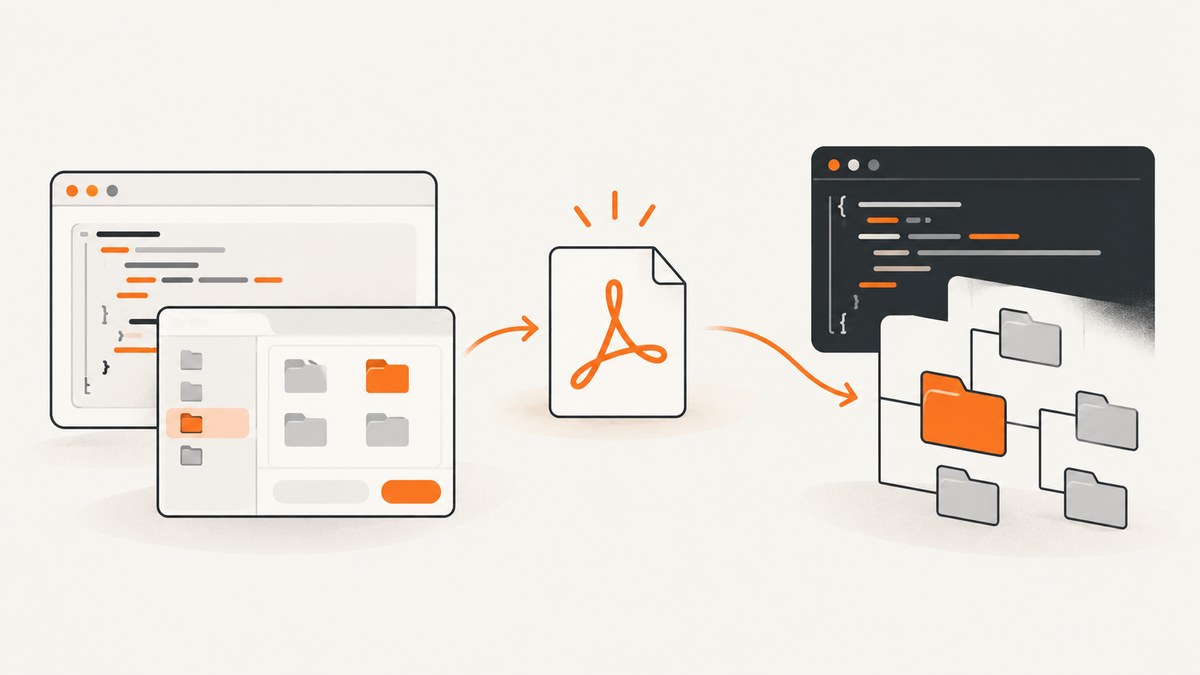
Short answer: the correct method depends on where your JavaScript runs. In a browser, doc.save("file.pdf") starts the normal download flow; a web page generally cannot silently force an arbitrary local folder. If the browser supports the File System Access API, let the user choose a destination with showSaveFilePicker(). In Node.js, write the generated PDF bytes to an explicit filesystem path with Node’s fs API.
1. Identify the JavaScript runtime
Use this decision table before choosing code:
| Where the code runs | How the destination is chosen | Recommended approach |
|---|---|---|
| Browser | The browser or the user controls the download location | doc.save(), or a supported save-file picker |
| Node.js | Your application supplies a filesystem path | Generate PDF data and call fs.writeFile() |
jsPDF’s documentation shows doc.save("a4.pdf") for browser usage and documents its Node example as saving in the current working directory. The current working directory is not necessarily the directory containing your script, so use an explicit path when the location matters. See the jsPDF documentation and source.
2. Browser: use the normal download flow
This is the simplest browser implementation:
<!doctype html>
<html>
  <body>
    <button id="download">Download PDF</button>
    <script src="https://cdnjs.cloudflare.com/ajax/libs/jspdf/2.5.1/jspdf.umd.min.js"></script>
    <script>
      document.querySelector('#download').addEventListener('click', () => {
        const { jsPDF } = window.jspdf;
        const doc = new jsPDF();
        doc.text('Hello world!', 10, 10);
        doc.save('example.pdf');
      });
    </script>
  </body>
</html>
The filename is controlled by your code, but the destination folder is controlled by browser download settings. A path such as C:\\Users\\you\\Desktop\\example.pdf is not a documented arbitrary-folder argument to doc.save().
3. Browser: let the user choose a specific folder
Chrome documents window.showSaveFilePicker() as part of the File System Access API. It opens a browser-controlled save dialog and returns a file handle. The call must normally happen from a user gesture such as a button click. Browser support varies, so always provide the ordinary download fallback. See Chrome’s File System Access API guide.
<button id="save-pdf">Choose folder and save</button>
<script src="https://cdnjs.cloudflare.com/ajax/libs/jspdf/2.5.1/jspdf.umd.min.js"></script>
<script>
  function makePdfBytes() {
    const { jsPDF } = window.jspdf;
    const doc = new jsPDF();
    doc.text('PDF saved to a user-selected location.', 10, 10);
    return doc.output('arraybuffer');
  }

  async function saveWithPicker() {
    const bytes = makePdfBytes();
    const handle = await window.showSaveFilePicker({
      suggestedName: 'report.pdf',
      types: [{
        description: 'PDF document',
        accept: { 'application/pdf': ['.pdf'] }
      }]
    });
    const writable = await handle.createWritable();
    try {
      await writable.write(bytes);
      await writable.close();
    } catch (error) {
      await writable.abort();
      throw error;
    }
  }

  function fallbackDownload() {
    const { jsPDF } = window.jspdf;
    const doc = new jsPDF();
    doc.text('PDF saved through the browser download flow.', 10, 10);
    doc.save('report.pdf');
  }

  document.querySelector('#save-pdf').addEventListener('click', async () => {
    try {
      if ('showSaveFilePicker' in window) {
        await saveWithPicker();
      } else {
        fallbackDownload();
      }
    } catch (error) {
      if (error.name === 'AbortError') return; // The user cancelled the dialog.
      console.error('Could not save the PDF:', error);
      fallbackDownload();
    }
  });
</script>
doc.output('arraybuffer') is the byte-producing form used by this example. Confirm the output method against the jsPDF version installed in your project, because APIs can differ between releases.
Browser checklist
- Run the picker from a click or other user action.
- Handle
AbortErrorwhen the user cancels. - Keep a
doc.save()fallback for browsers without the picker. - Do not promise users that your page can silently write anywhere on their disk.
- Use HTTPS and test the exact browsers your application supports before relying on the File System Access API.
4. Node.js: write the PDF to an explicit path
Node can write to paths available to the process, subject to operating-system permissions and whether the parent directory exists. The Node filesystem documentation describes fs.writeFile() for this operation: Node.js file system API.
const path = require('node:path');
const fs = require('node:fs/promises');
const { jsPDF } = require('jspdf');

async function main() {
  const doc = new jsPDF();
  doc.text('Hello from Node.js', 10, 10);

  // Resolve an explicit destination instead of relying on process.cwd().
  const outputPath = path.resolve(__dirname, 'exports', 'report.pdf');
  await fs.mkdir(path.dirname(outputPath), { recursive: true });

  const pdfBytes = doc.output('arraybuffer');
  await fs.writeFile(outputPath, Buffer.from(pdfBytes));
  console.log(`Wrote ${outputPath}`);
}

main().catch((error) => {
  console.error('PDF write failed:', error);
  process.exitCode = 1;
});
Install jsPDF with npm install jspdf. If your project uses ES modules, replace require() with imports and use an equivalent directory-resolution strategy. The important sequence is: create the document, obtain its bytes, create the destination directory, then write the bytes.
Using jsPDF’s documented Node save call
const { jsPDF } = require('jspdf');
const doc = new jsPDF();
doc.text('Hello world!', 10, 10);
doc.save('a4.pdf');
This saves to the process’s current working directory according to the jsPDF documentation. Use process.cwd() to inspect that directory, or use the filesystem example above when you need a known folder.
5. Paths, permissions, and filenames
- Relative paths: resolve them deliberately. A relative path is interpreted from the process working directory, which can change depending on how the script is started.
- Missing folders: call
mkdir(..., { recursive: true })before writing. - Permissions: the Node process needs write permission for the destination and every parent directory.
- Invalid names: sanitize user-provided filenames. Avoid path separators, reserved device names, and untrusted path traversal such as
../../secret.pdf. - Existing files:
writeFile()replaces an existing file by default. Choose a unique name or check first if overwriting is unsafe. - Large documents: prefer a buffer or stream strategy appropriate to your jsPDF version and available memory.
6. Troubleshooting
| Symptom | Cause | Fix |
|---|---|---|
| The PDF downloads but is in the wrong folder | Browser download rules control the destination | Use showSaveFilePicker() for an interactive destination choice, or ask the user to change browser download settings. |
C:\\... appears as a filename |
A local path was passed to browser doc.save() |
Pass only a filename in the browser; use the picker or move the write to Node.js. |
showSaveFilePicker is not a function |
The target browser does not expose that API | Feature-detect it and fall back to doc.save(). |
AbortError |
The user cancelled the save dialog | Treat cancellation as a normal outcome and do not show a failure message. |
ENOENT in Node |
The parent directory does not exist | Create it with fs.mkdir(path.dirname(file), { recursive: true }). |
EACCES or EPERM |
The process lacks filesystem permission | Choose a writable directory and correct its operating-system permissions. |
| Output is empty or corrupt | Bytes were converted incorrectly or the write completed before data was ready | Use the jsPDF version’s documented byte-output method and await the write promise. |
| File goes beside the wrong script | process.cwd() differs from the script directory |
Log process.cwd() and resolve an explicit absolute destination. |
7. Reliability, performance, and cost
For browser downloads, the main reliability issue is user-agent behavior: the browser may ask for permission, apply download preferences, or lack the picker API. Keep the fallback path and report write errors clearly. For Node.js, await the write, create the directory first, and log the resolved destination. Atomic replacement can be added for applications where readers must never observe a partially written file: write a temporary file in the same directory, then rename it after the write succeeds.
PDF generation happens in memory in the examples, so memory use grows with document size. Avoid generating the same document repeatedly; reuse source data and choose a predictable filename. Browser APIs have no per-file service charge, while Node’s cost is the compute and storage used by your own runtime.
8. Or skip the browser setup
If your workflow starts with a web page and you need a clean visual asset before placing it into a PDF, ScreenshotNeo provides a single screenshot request instead of maintaining browser automation:
curl -G "https://api.screenshotneo.com/v1/shot" -d access_key=YOUR_API_KEY --data-urlencode url=https://stripe.com -o shot.webpimport requests
r = requests.get("https://api.screenshotneo.com/v1/shot", params={"access_key": "YOUR_API_KEY", "url": "https://stripe.com"}, timeout=90)
open("shot.webp", "wb").write(r.content)const q = new URLSearchParams({ access_key: 'YOUR_API_KEY', url: 'https://stripe.com' });
const res = await fetch(`https://api.screenshotneo.com/v1/shot?${q}`);See the ScreenshotNeo API documentation for request options. Cookie and consent banners, newsletter popups, and chat widgets are removed before the shot. Bot checks, blank pages, failed loads, timeouts, and cache hits are not billed, and response headers identify the page verdict and billing status. ScreenshotNeo also provides an MCP server so AI agents can call take_screenshot, get_page_info, and capture_pdf. The Free plan includes 1,000 screenshots per month with no card; paid plans start at $5 for 3,000 shots. Create a free ScreenshotNeo account.
9. FAQ
Can browser JavaScript save directly to a known folder?
Not silently in the general case. Use the browser’s normal download flow or ask the user to choose a destination with a supported file picker.
Does doc.save() accept an absolute path?
The documented browser call takes a filename. An arbitrary local folder path is not established by the jsPDF save API.
Why does Node save to a different folder than expected?
Because jsPDF’s default Node save location is the current working directory. Resolve and write an explicit path when location matters.
Is a browser picker a server-side file API?
No. It gives the user-controlled browser session a file handle. Server-side code still needs its own upload or filesystem workflow.


