How to Save a PDF Opened in the Browser with Selenium
Learn when to use Selenium print-to-PDF, when to download an existing PDF, and how to save reliable files in local and CI environments.
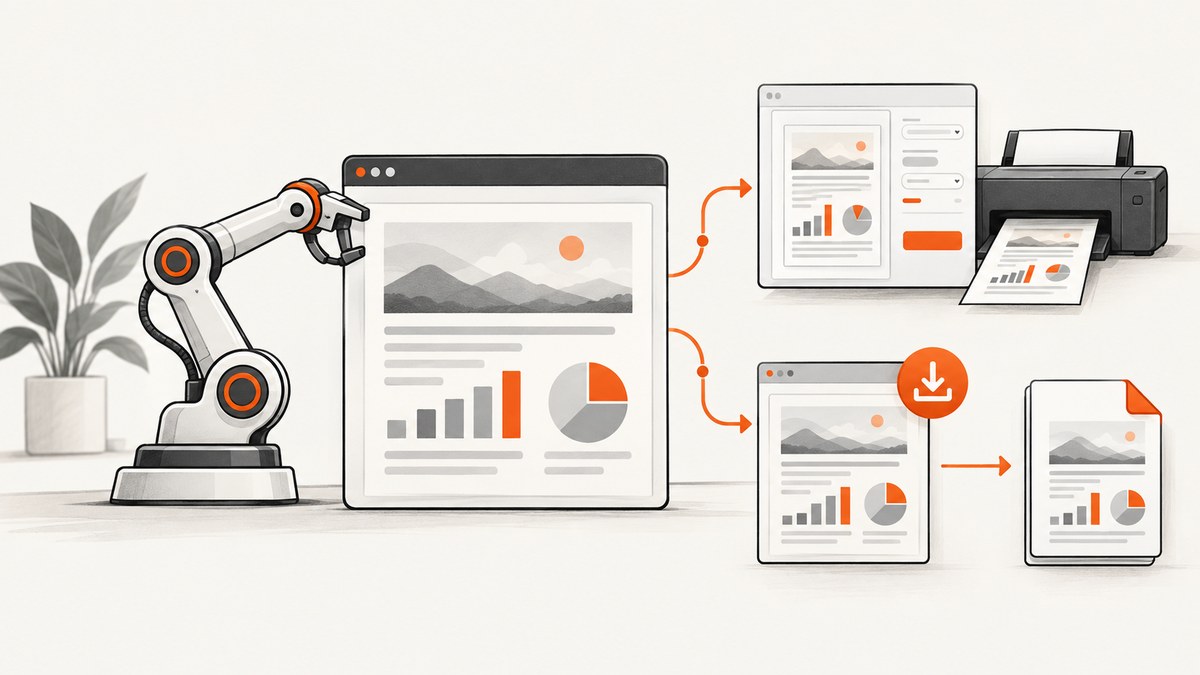
Direct answer: first decide whether the browser is displaying an HTML page that must be rendered into a PDF, or an existing PDF file returned by a URL. For an HTML report, use Selenium’s print command, decode the returned PDF data, and write it to disk. For an existing PDF, configure the browser to download application/pdf files, navigate or click the link, then wait for the completed file while checking for temporary download files.
These paths solve different problems. Printing uses the browser’s layout engine and honors print CSS. Downloading preserves the PDF bytes produced by the server. The examples below use Python and Selenium, then show equivalent JavaScript, cURL, and Node.js approaches where an HTTP request is appropriate.
1. Identify which PDF you have
| Situation | Use | What you save |
|---|---|---|
| An HTML report, invoice, or dashboard | Selenium print API | A new PDF rendered by the browser |
A URL that responds with application/pdf |
Configured browser download | The server’s existing PDF bytes |
| A known PDF URL with transferable authentication | HTTP client such as cURL, Python, or Node | The HTTP response body |
Do not try to inspect PDF text or click elements inside Chrome’s built-in PDF viewer. The viewer is not the original page DOM. If the document already exists on the server, download it. If the page is HTML, print the page before the viewer is involved.
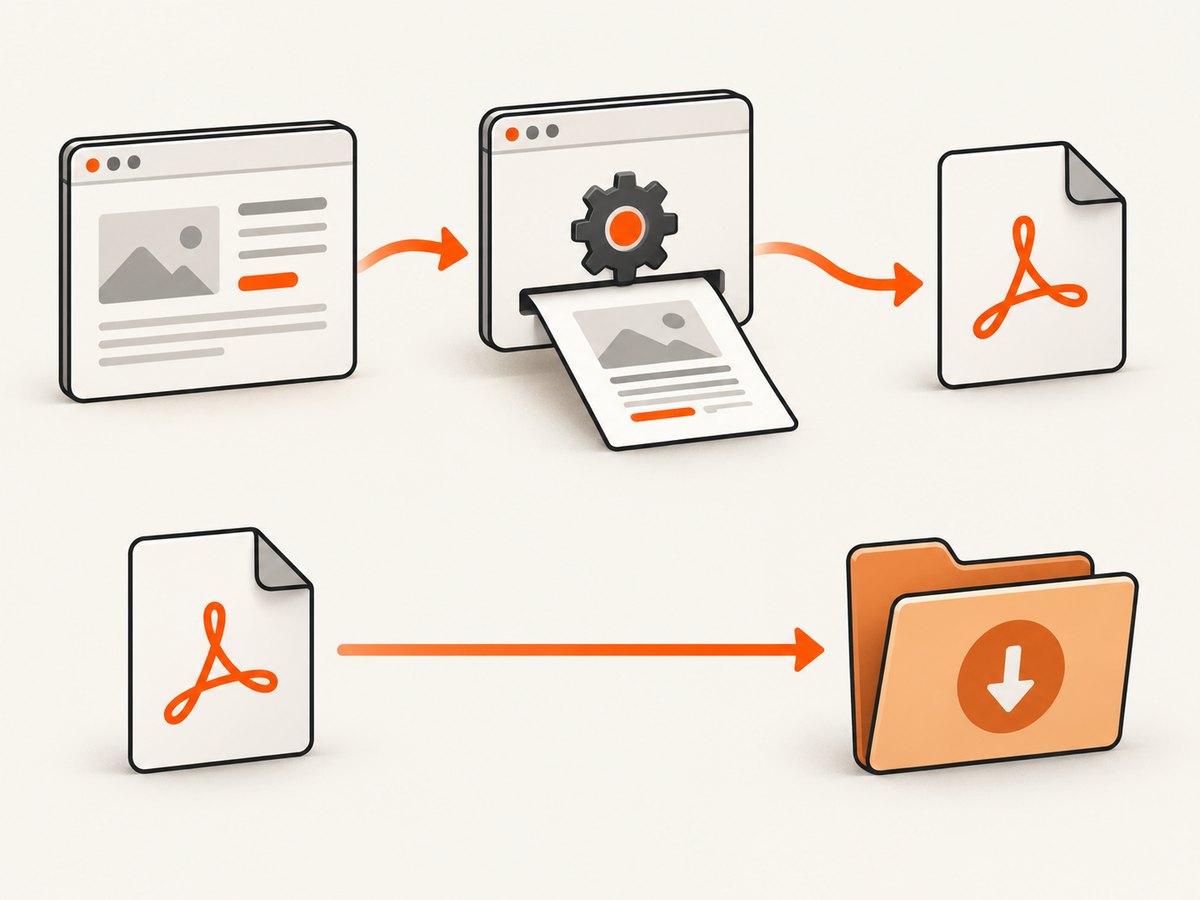
2. Print an HTML page to PDF with Selenium (Python)
Selenium’s print-page command returns PDF data encoded as base64. Decode it and write the bytes to a deterministic path. Chromium’s documented print flow runs in headless mode.
from pathlib import Path
import base64
from selenium import webdriver
from selenium.webdriver.chrome.options import Options
from selenium.webdriver.common.print_page_options import PrintOptions

out = Path("artifacts/report.pdf")
out.parent.mkdir(parents=True, exist_ok=True)

options = Options()
options.add_argument("--headless=new")
# Add this in containers where Chrome needs it:
# options.add_argument("--no-sandbox")
# options.add_argument("--disable-dev-shm-usage")

driver = webdriver.Chrome(options=options)
try:
    driver.get("https://example.test/report")

    print_options = PrintOptions()
    # Optional: print_options.page_ranges = ["1-3"]
    pdf_b64 = driver.print_page(print_options)
    if not pdf_b64:
        raise RuntimeError("Selenium returned empty PDF data")

    pdf_bytes = base64.b64decode(pdf_b64)
    if not pdf_bytes.startswith(b"%PDF-"):
        raise RuntimeError("The returned data is not a PDF")
    out.write_bytes(pdf_bytes)
    print(f"Saved {out} ({len(pdf_bytes)} bytes)")
finally:
    driver.quit()
See Selenium’s Print Page documentation and the browser documentation for binding and browser capability details.
Print options that affect the output
- Page ranges: set
print_options.page_ranges = ["1-3"]when you only need selected pages. Keep ranges valid for the generated document. - CSS: the browser applies print media rules such as
@media print. Hide navigation, expand important sections, and set page breaks in your application CSS. - Timing: wait for data and fonts before calling
print_page. A simple explicit wait is safer than assumingdriver.getmeans every asynchronous request has finished.
from selenium.webdriver.common.by import By
from selenium.webdriver.support.ui import WebDriverWait

# After driver.get(...):
WebDriverWait(driver, 30).until(
    lambda d: d.find_element(By.CSS_SELECTOR, "[data-report-ready='true']")
)
3. Print an HTML page with Selenium in JavaScript
The JavaScript binding exposes the same browser print command. The exact return type is binding-specific, so decode the returned base64 value before writing it.
import { Builder } from "selenium-webdriver";
import chrome from "selenium-webdriver/chrome";
import { writeFile, mkdir } from "node:fs/promises";

const options = new chrome.Options().addArguments("--headless=new");
const driver = await new Builder().forBrowser("chrome").setChromeOptions(options).build();
try {
  await driver.get("https://example.test/report");
  const pdfBase64 = await driver.printPage({});
  await mkdir("artifacts", { recursive: true });
  await writeFile("artifacts/report.pdf", Buffer.from(pdfBase64, "base64"));
} finally {
  await driver.quit();
}
Check the version of the JavaScript package you use for the precise printPage and print-options signatures. Java bindings expose the corresponding PrintsPage interface and PrintOptions.
4. Download an existing PDF instead of opening the viewer
If the target URL already serves a PDF, set download preferences before navigation. Configure a clean directory for each run, navigate to the URL or click the link, and wait until the final file appears.
Firefox example
from pathlib import Path
from selenium import webdriver
from selenium.webdriver.firefox.options import Options

folder = Path("artifacts/pdfs").resolve()
folder.mkdir(parents=True, exist_ok=True)

opts = Options()
opts.set_preference("browser.download.folderList", 2)
opts.set_preference("browser.download.dir", str(folder))
opts.set_preference("browser.helperApps.neverAsk.saveToDisk", "application/pdf")
# Bypass the built-in viewer in Firefox versions that support this preference.
opts.set_preference("pdfjs.disabled", True)

driver = webdriver.Firefox(options=opts)
try:
    driver.get("https://example.test/file.pdf")
finally:
    driver.quit()
The MIME type in browser.helperApps.neverAsk.saveToDisk must match the server's response. If the server sends a different type, inspect the response headers and adjust the preference. Selenium's Firefox documentation describes browser-specific capabilities. The pdfjs.disabled preference is version-sensitive, so verify it with the Firefox version used by your project.
Chrome download setup
Chrome's user-facing setting is Settings → Privacy and security → Site Settings → Additional content settings → PDF documents → Download PDFs. In automation, set an explicit download directory through the Chrome options and preferences supported by your Selenium binding before opening the PDF URL. Keep the directory outside the source tree or use a per-run temporary directory.
from pathlib import Path
from selenium import webdriver
from selenium.webdriver.chrome.options import Options

folder = Path("artifacts/chrome-pdfs").resolve()
folder.mkdir(parents=True, exist_ok=True)

opts = Options()
opts.add_argument("--headless=new")
opts.add_experimental_option("prefs", {
    "download.default_directory": str(folder),
    "download.prompt_for_download": False,
    "download.directory_upgrade": True,
    "plugins.always_open_pdf_externally": True,
})

driver = webdriver.Chrome(options=opts)
try:
    driver.get("https://example.test/file.pdf")
finally:
    driver.quit()
Chrome's help page explains the distinction between opening PDFs and downloading them: Chrome PDF download settings.
5. Wait for the completed file safely
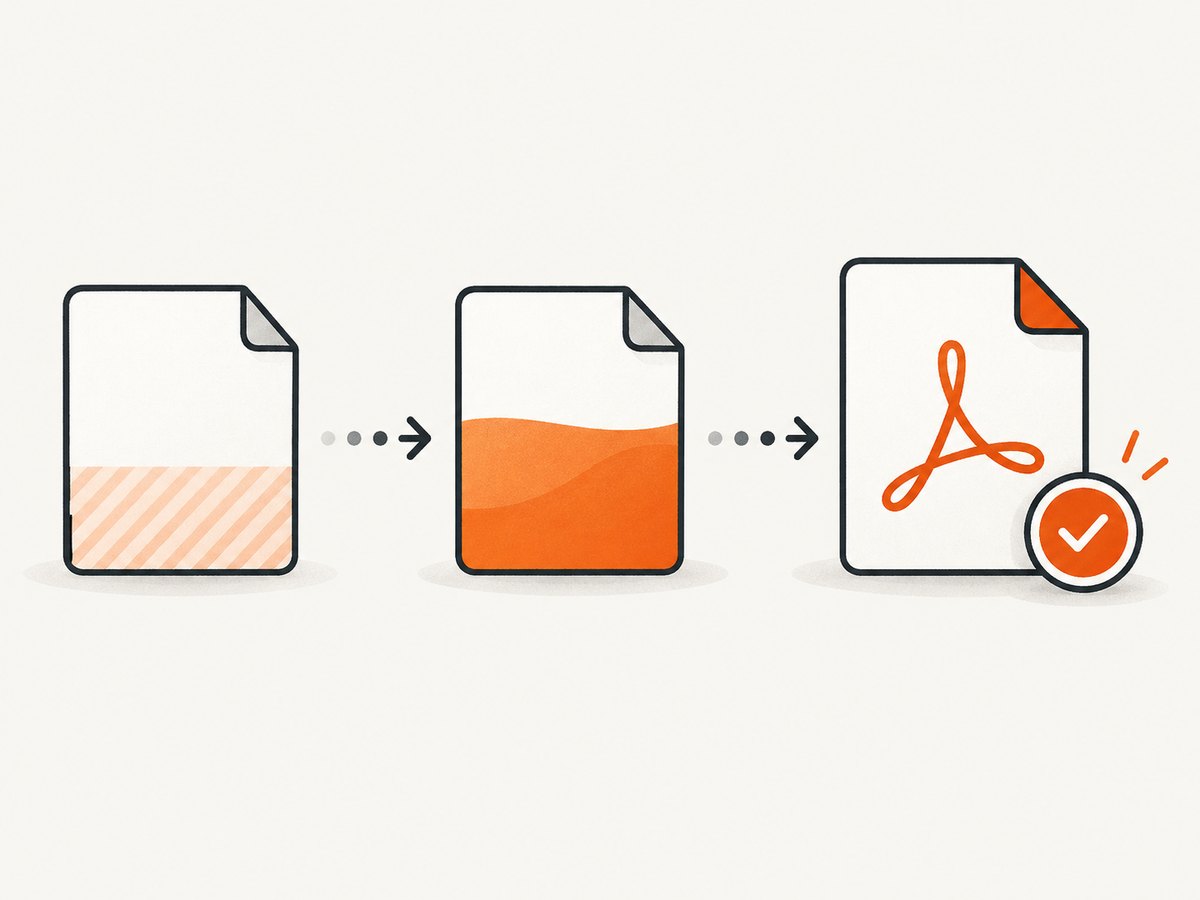
A navigation call returning does not prove that a download has finished. Chromium commonly writes a .crdownload file while Firefox commonly uses .part. Poll for the expected final file, require a nonzero size, and ensure no temporary file remains.
import time
from pathlib import Path

def wait_for_pdf(folder: Path, timeout: float = 60) -> Path:
    deadline = time.monotonic() + timeout
    while time.monotonic() < deadline:
        temporary = list(folder.glob("*.crdownload")) + list(folder.glob("*.part"))
        pdfs = [p for p in folder.glob("*.pdf") if p.is_file() and p.stat().st_size > 0]
        if pdfs and not temporary:
            candidate = max(pdfs, key=lambda p: p.stat().st_mtime)
            if candidate.read_bytes()[:5] == b"%PDF-":
                return candidate
        time.sleep(0.25)
    raise TimeoutError(f"No completed PDF appeared in {folder}")

# Clean old files before navigation so an old PDF cannot pass the check.
for old in folder.glob("*"):
    if old.is_file():
        old.unlink()

driver.get("https://example.test/file.pdf")
path = wait_for_pdf(folder)
print(path)
For downloads with generated names, record the directory contents before navigation and select only the new file. For predictable pipelines, rename the completed file to a deterministic name after validation.
6. Preserve authentication and session state
Private PDFs often require cookies, an Authorization header, a client certificate, or a redirect through a login page. If Selenium performs the navigation, the browser session supplies its cookies automatically. A direct HTTP request is equivalent only when you transfer the necessary authentication safely.
Do not copy an access token into a URL query string unless the application explicitly requires it. Prefer an authenticated browser session or an HTTP Authorization header. If a download returns an HTML login page, the first bytes will not be %PDF-; inspect the final URL and response headers before debugging the filesystem code.
7. Direct retrieval when the PDF URL is known
HTTP retrieval avoids viewer automation when the URL and authentication are straightforward. Always follow redirects, send required cookies or headers, and validate the response.
curl -L --fail --silent --show-error \
  -H "Authorization: Bearer $PDF_TOKEN" \
  "https://example.test/file.pdf" \
  -o artifacts/file.pdf

python - <<'PY'
from pathlib import Path
import requests

r = requests.get(
    "https://example.test/file.pdf",
    headers={"Authorization": "Bearer YOUR_TOKEN"},
    timeout=60,
    allow_redirects=True,
)
r.raise_for_status()
if not r.content.startswith(b"%PDF-"):
    raise RuntimeError("Response is not a PDF")
Path("artifacts/file.pdf").write_bytes(r.content)
PY
const response = await fetch("https://example.test/file.pdf", {
headers: { Authorization: `Bearer ${process.env.PDF_TOKEN}` },
redirect: "follow",
});
if (!response.ok) throw new Error(`HTTP ${response.status}`);
const bytes = Buffer.from(await response.arrayBuffer());
if (bytes.subarray(0, 5).toString() !== "%PDF-") throw new Error("Not a PDF");
await (await import("node:fs/promises")).writeFile("artifacts/file.pdf", bytes);8. Troubleshooting checklist
| Symptom | Likely cause | Fix |
|---|---|---|
| The tab shows a PDF viewer and no file is saved | PDF downloads are not enabled | Set Chrome download preferences or Firefox MIME preferences before navigation. |
Only a .crdownload or .part file exists |
Download is still active or failed | Poll with a timeout; check network errors, disk space, and server response. |
| The saved file is HTML | Redirect to login, access denied, or an error page | Check status, final URL, content type, cookies, and authorization; validate the %PDF- signature. |
print_page returns empty data |
Unsupported mode, browser issue, or page failure | Use headless Chromium, update Selenium and the driver, wait for page readiness, and capture browser logs. |
| Printed PDF misses charts or images | Resources or web fonts have not loaded | Wait for a ready selector, network idle condition, or explicit application signal before printing. |
| Layout differs from the screen | @media print rules or print margins |
Inspect print CSS and use print-specific page breaks and visibility rules. |
| Works locally but fails in CI | Missing browser, sandbox restrictions, writable directory, or shared-memory limits | Install matching browser and driver versions, create the output directory, and use container flags only when required by the environment. |
9. Reliability, performance, and cost considerations
- Reliability: isolate each run in a fresh directory, remove stale files, set explicit timeouts, and verify the PDF signature. Always call
quit()in afinallyblock. - Performance: reuse a driver for a controlled batch of pages, but clear session state when documents must be isolated. Printing avoids a second network request; downloading an existing PDF usually avoids browser rendering.
- Large files: reserve disk space and stream direct HTTP responses when appropriate. For Selenium-managed downloads, wait for completion before moving files.
- Reproducibility: pin browser, driver, Selenium, and Firefox/Chrome versions in CI. Record the URL, final URL, browser version, and file size in logs.
- Cost: Selenium itself is open-source software, but the browser, CI runners, storage, bandwidth, and any upstream PDF service still have operational costs.
10. Or skip the browser setup
If your goal is a clean screenshot or PDF from a URL rather than browser interaction, ScreenshotNeo provides a single API request. Its PDF options include paper size, margins, landscape mode, and page ranges. The API also supports authentication headers and cookies when the page is protected.
Read the ScreenshotNeo API documentation for the complete option list. A minimal request is:
curl -G "https://api.screenshotneo.com/v1/shot" -d access_key=YOUR_API_KEY --data-urlencode url=https://stripe.com -o shot.webpimport requests
r = requests.get("https://api.screenshotneo.com/v1/shot", params={"access_key": "YOUR_API_KEY", "url": "https://stripe.com"}, timeout=90)
open("shot.webp", "wb").write(r.content)const q = new URLSearchParams({ access_key: 'YOUR_API_KEY', url: 'https://stripe.com' });
const res = await fetch(`https://api.screenshotneo.com/v1/shot?${q}`);Cookie banners, newsletter popups, and chat widgets are removed before the shot. Bot checks, blank pages, timeouts, failed loads, and cache hits are not billed, and response headers report the page verdict and billing status. An MCP server lets Claude, Cursor, and other MCP clients take screenshots with take_screenshot, inspect pages with get_page_info, and capture PDFs with capture_pdf. The free plan includes 1,000 screenshots each month with no card; paid plans start at $5 for 3,000 shots. Create a free ScreenshotNeo account.
11. Short FAQ
Can Selenium save a PDF that is already open?
Yes, but the dependable method is to configure downloading before opening the URL. Do not rely on selectors inside the built-in viewer.
Does Selenium print the same PDF the server generated?
No. Printing creates a new PDF from the rendered HTML. Downloading retrieves the server's existing bytes.
Why does my PDF contain a login page?
The request is unauthenticated or a redirect was not followed with the required cookies or headers. Check the final URL and validate the first bytes.
How do I save only selected pages?
Use Selenium print page ranges, or request page ranges from a PDF service that supports them.
What is the safest success check?
Require a completed filename, nonzero size, no temporary download suffix, and a file header beginning with %PDF-.


