How to Save a PDF Online and Return Its URL in Node.js
Upload a PDF from Node.js, return a usable URL, and choose between Cloudinary, S3 presigned uploads, and ScreenshotNeo.
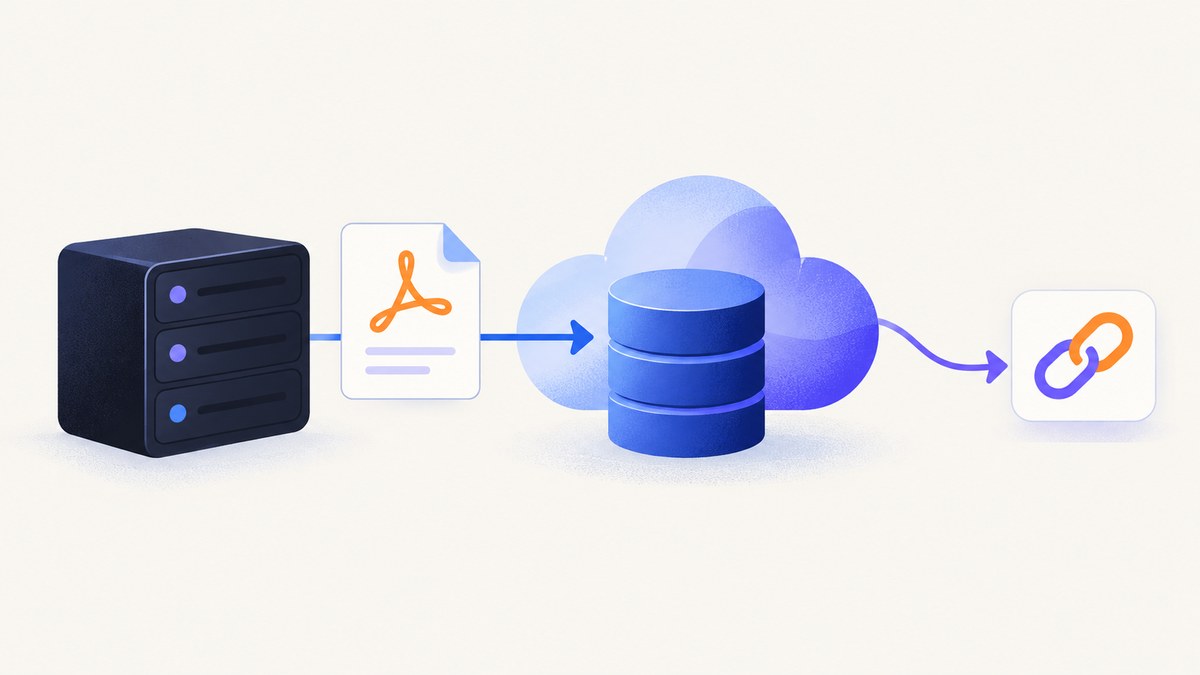
To save a PDF online and return its URL in Node.js, upload the file to a hosted storage service, wait for the upload response, then return the provider’s delivery URL from your API. Cloudinary is the shortest managed-media path: its Node.js SDK accepts a PDF, returns a response containing secure_url, and can apply media transformations. Amazon S3 gives you lower-level object storage and presigned URLs for direct client uploads, but upload authorization and download access are separate decisions.
This guide covers server uploads, browser-to-provider uploads, S3 presigned uploads, access control, large files, error handling, retries, and a production API shape. The examples keep credentials on the server and return JSON rather than exposing provider secrets.
Choose the right upload architecture
| Option | Best for | URL behavior | PDF considerations |
|---|---|---|---|
| Cloudinary Node.js SDK | Applications that need a managed media workflow | Return secure_url from the upload response |
PDFs are treated as image assets by default, enabling image-style transformations |
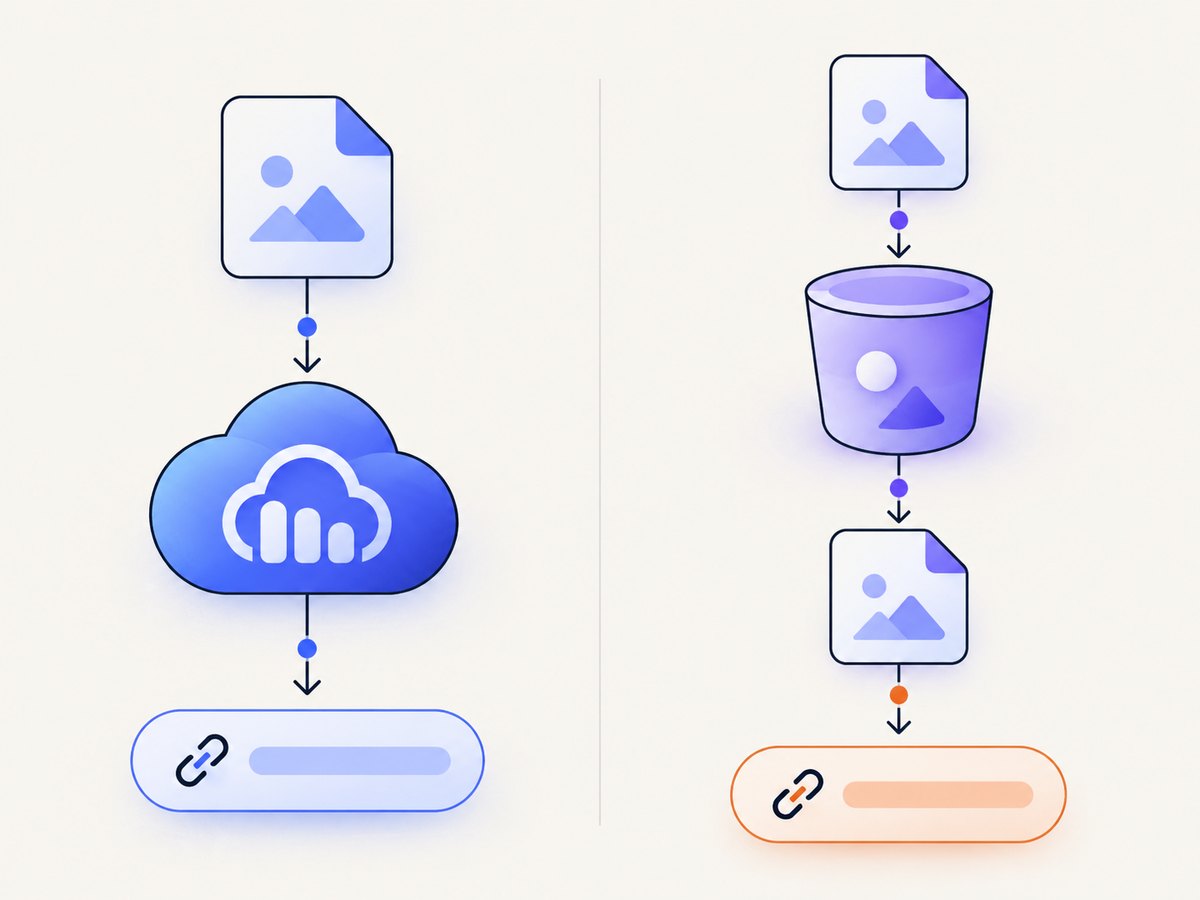
| Cloudinary direct upload | Keeping large file bytes off your Node.js server | Your server signs the request; the client receives the provider response | Signed browser uploads require a server-generated signature |
| S3 presigned URL | General object storage and client-side uploads | The presigned URL authorizes upload; your application must separately design a usable download URL | Uploading to an existing key replaces that object, so generate unique keys when appropriate |
Cloudinary’s standard upload method supports files up to 100 MB subject to account limits. Larger files require a streaming or chunked upload method; check the current account documentation before selecting an implementation. Password-protected PDFs cannot be uploaded as Cloudinary image assets. You can upload them as raw assets, but raw assets do not support transformations. See the Cloudinary upload parameters, Node.js upload guide, and Upload API reference.
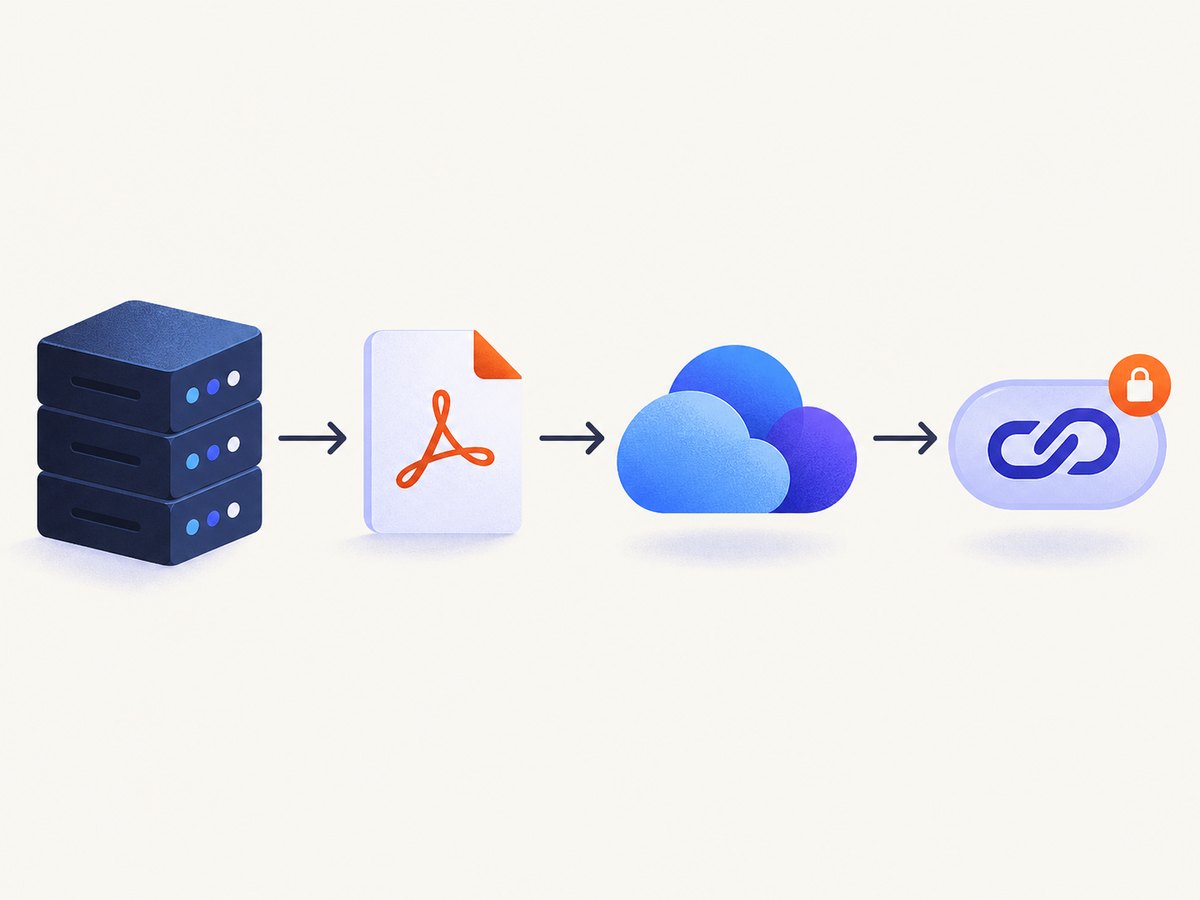
Upload a PDF with Cloudinary in Node.js
1. Create a project and keep credentials server-side
Install the official SDK and configure it with environment variables. Never place the API secret in browser JavaScript, a mobile app, or a public repository.
npm install cloudinary express multer dotenv
# .env
CLOUDINARY_CLOUD_NAME=your_cloud_name
CLOUDINARY_API_KEY=your_api_key
CLOUDINARY_API_SECRET=your_api_secret
2. Accept a multipart upload and return secure_url
This complete Express example accepts a form field named pdf, uploads the temporary file, and returns the URL plus the provider’s public identifier. The resource_type: 'image' setting is explicit, although it is Cloudinary’s default for PDFs.
import 'dotenv/config';
import express from 'express';
import multer from 'multer';
import { v2 as cloudinary } from 'cloudinary';
import fs from 'node:fs/promises';

cloudinary.config({
  cloud_name: process.env.CLOUDINARY_CLOUD_NAME,
  api_key: process.env.CLOUDINARY_API_KEY,
  api_secret: process.env.CLOUDINARY_API_SECRET
});

const app = express();
const upload = multer({
  dest: 'tmp/',
  limits: { fileSize: 100 * 1024 * 1024 },
  fileFilter: (_req, file, cb) => {
    cb(null, file.mimetype === 'application/pdf');
  }
});

app.post('/pdfs', upload.single('pdf'), async (req, res) => {
  if (!req.file) {
    return res.status(400).json({ error: 'Send a PDF in the pdf form field.' });
  }

  try {
    const result = await cloudinary.uploader.upload(req.file.path, {
      resource_type: 'image',
      folder: 'my-app/pdfs',
      use_filename: true,
      unique_filename: true
    });

    return res.status(201).json({
      url: result.secure_url,
      publicId: result.public_id,
      format: result.format,
      bytes: result.bytes
    });
  } catch (error) {
    console.error('PDF upload failed', error);
    return res.status(502).json({ error: 'The PDF could not be stored.' });
  } finally {
    await fs.rm(req.file.path, { force: true }).catch(() => {});
  }
});

app.listen(3000, () => console.log('Listening on http://localhost:3000'));
Start the server and send a file:
curl -F "pdf=@./invoice.pdf" http://localhost:3000/pdfs
A successful response contains a URL similar to the value of Cloudinary’s secure_url. Store public_id with your application record if you may later delete, replace, or transform the asset. The upload response also includes fields such as url, format, resource_type, created_at, and bytes.
Upload from a buffer or stream
If another service already produced the PDF, avoid writing it to disk by using the SDK’s stream or data-upload methods. The exact method depends on how your application receives bytes. Keep the same rules: validate type and size, await the upload result, and return the resulting secure_url only after the provider confirms success.
Direct browser upload
Cloudinary also documents direct browser uploads. Your Node.js server generates a short-lived signature; the browser then sends the PDF directly to Cloudinary. This reduces bandwidth through your application server, but the signing endpoint still must protect the API secret and constrain the parameters it signs. Do not confuse a client-side upload preset or signature with making every uploaded PDF public by default. Define an access policy first.
Return a URL safely from your own API
A URL is useful only when its access behavior matches your application. Before returning it, decide whether the PDF is public, authenticated, or temporary.
- Public documents: return the provider’s HTTPS delivery URL and make sure the asset is intended for public access.
- Private documents: return an application URL such as
/pdfs/:id; authenticate that route and proxy or redirect only after authorization. - Temporary sharing: issue a time-limited signed delivery URL when the provider supports it. Store the asset identifier, not only the current URL, so you can issue a new link later.
Do not return a URL before the upload promise resolves. If your database write succeeds but the upload fails, mark the record as failed or pending and retry deliberately; otherwise users will receive links that do not resolve.
Use Amazon S3 presigned URLs
S3 presigned URLs are useful when the browser or another client should upload bytes without receiving AWS credentials. Your Node.js service creates a time-limited upload authorization, the client performs the PUT, and your service records the object key. AWS documents that the permissions in the URL are limited by the signing principal. Uploading to a key that already exists replaces that object, so use a UUID-based key unless replacement is intentional. Read the AWS presigned upload documentation.
npm install @aws-sdk/client-s3 @aws-sdk/s3-request-presigner express
import express from 'express';
import crypto from 'node:crypto';
import { S3Client, PutObjectCommand } from '@aws-sdk/client-s3';
import { getSignedUrl } from '@aws-sdk/s3-request-presigner';

const app = express();
const bucket = process.env.S3_BUCKET;
const region = process.env.AWS_REGION;
const s3 = new S3Client({ region });

app.post('/pdf-upload-url', async (_req, res) => {
  const key = `pdfs/${crypto.randomUUID()}.pdf`;
  const command = new PutObjectCommand({
    Bucket: bucket,
    Key: key,
    ContentType: 'application/pdf'
  });

  const uploadUrl = await getSignedUrl(s3, command, { expiresIn: 900 });
  res.json({ key, uploadUrl, expiresIn: 900 });
});

app.listen(3000);
The client must send the same content type that was signed:
const response = await fetch('/pdf-upload-url', { method: 'POST' });
const { key, uploadUrl } = await response.json();

const put = await fetch(uploadUrl, {
  method: 'PUT',
  headers: { 'Content-Type': 'application/pdf' },
  body: pdfFile
});
if (!put.ok) throw new Error(`S3 upload failed: ${put.status}`);

// Tell your API that the upload completed, then let the API return a
// delivery URL according to your bucket and authentication design.
await fetch('/pdfs/complete', {
  method: 'POST',
  headers: { 'Content-Type': 'application/json' },
  body: JSON.stringify({ key })
});
The presigned upload URL is not automatically the permanent public download URL. S3 upload authorization and object delivery are separate concerns. Your application may use a controlled download endpoint, a configured public delivery path, or another signed download mechanism. Do not construct a public URL and assume it works without checking bucket and object permissions.
Handle edge cases before production
- Wrong file type: check the declared MIME type and, where security requires it, inspect the file signature. A filename ending in
.pdfis not proof of content. - Password-protected PDFs: Cloudinary cannot treat them as image assets; use a raw upload when transformations are unnecessary.
- Large files: enforce a request limit, stream or chunk uploads, and check current provider plan limits. Cloudinary’s documented ordinary upload ceiling is 100 MB subject to account limitations.
- Duplicate submissions: accept an idempotency key or derive a stable application key. Otherwise a retry can create multiple assets.
- Overwrites: S3 replaces an object when the same key is reused. Generate unique keys unless replacement is part of the design.
- Interrupted uploads: persist a pending record, retry with bounded backoff, and run a cleanup job for abandoned temporary files or multipart uploads.
- Untrusted PDFs: do not render or execute uploaded content on your server. Restrict who can download private files and apply malware scanning where your threat model requires it.
Troubleshooting
| Symptom | Likely cause | Fix |
|---|---|---|
401 or invalid signature |
Missing or incorrect provider credentials | Load environment variables on the server, verify the cloud name and secret, and restart the process. |
| Cloudinary rejects a protected PDF | Password-protected files are unsupported as image assets | Use resource_type: 'raw' when transformations are not needed. |
| Upload succeeds but URL returns forbidden | Asset or bucket is private | Return an authenticated application URL or issue a supported signed delivery URL. |
| S3 reports signature mismatch | Signed headers differ from the actual PUT |
Send the exact content type and headers used when generating the presigned URL; check region and clock settings. |
| File disappears after response | Temporary local path was deleted before upload completion | Await the upload promise and clean up only in a finally block afterward. |
| Large upload times out | Proxy, server, or provider request limit | Use direct browser upload or a streaming/chunked method and increase timeouts within platform limits. |
| Duplicate PDFs after retry | No idempotency strategy | Persist an idempotency key and reuse a deterministic asset key or return the original result. |
Performance, reliability, and cost notes
For small PDFs, a server-mediated upload is simple and usually adequate. For large files or high concurrency, direct browser upload removes the file bytes from your Node.js process and reduces memory pressure. Stream data instead of buffering entire files, cap upload size before parsing, and keep connection timeouts longer than the expected transfer time.
Use a database record with states such as pending, uploaded, and failed. Record the provider, object key or public ID, byte count, content type, and returned URL. Retry only transient network or provider errors, with exponential backoff and a maximum attempt count. Do not retry validation failures or authentication errors blindly.
Cost depends on the provider plan, storage, bandwidth, transformations, and request volume. The supplied documentation does not establish a price comparison between Cloudinary and S3, so measure your own traffic and read current plan terms. Cache stable delivery URLs at your application boundary when appropriate, while preserving authorization for private files.
Or skip the browser setup
If what you actually need is a PDF or image capture of a web page, ScreenshotNeo provides a single website screenshot API request and can return a PDF. It removes cookie banners, newsletter popups, and chat widgets before capture; bot checks, blank pages, failed loads, timeouts, and cache hits are not billed. The response identifies the page verdict and billing status with X-Page-Verdict and X-Billed headers. An MCP server lets Claude, Cursor, and other MCP clients call take_screenshot, get_page_info, and capture_pdf.
See the ScreenshotNeo API documentation for all options, including PDF paper size, margins, landscape mode, page ranges, custom CSS and JavaScript, selectors, device presets, wait conditions, blocking rules, headers, cookies, caching, signed links, asynchronous jobs, bulk capture, and usage reporting.
curl -G "https://api.screenshotneo.com/v1/shot" -d access_key=YOUR_API_KEY --data-urlencode url=https://stripe.com -o shot.webp
import requests
r = requests.get("https://api.screenshotneo.com/v1/shot", params={"access_key": "YOUR_API_KEY", "url": "https://stripe.com"}, timeout=90)
open("shot.webp", "wb").write(r.content)
const q = new URLSearchParams({ access_key: 'YOUR_API_KEY', url: 'https://stripe.com' });
const res = await fetch(`https://api.screenshotneo.com/v1/shot?${q}`);
There is a free plan with 1,000 screenshots per month and no card. Paid plans start at $5 for 3,000 shots. Create a free ScreenshotNeo account.
FAQ
Should I return the provider URL or my own URL?
Return the provider URL for intentionally public files. For private or revocable access, return your own authenticated endpoint and keep the provider identifier in your database.
Can I upload a PDF directly from a browser?
Yes. Cloudinary supports signed direct browser uploads, and S3 presigned URLs authorize browser uploads without sharing AWS credentials. In both cases, your server still controls authorization and records completion.
What should I store besides the URL?
Store the provider name, public ID or object key, content type, byte count, upload status, owner, and creation time. The identifier lets you replace or delete an asset and issue a new delivery URL.
Is a presigned S3 upload URL also a download link?
No. It authorizes the upload operation. Configure and expose download access separately.


