How to Save a PDF from a Print Dialog with Puppeteer
Use Puppeteer’s page.pdf() to save a webpage directly to a PDF file, with control over paper size, margins, print styling, and output handling.

Short answer: Puppeteer does not need to click through a browser’s native print dialog to save a PDF. Navigate to the page, wait until its content is ready, then call await page.pdf({ path: 'output.pdf' }). Puppeteer writes the PDF to that path and renders with print CSS by default. Puppeteer’s PDF guide documents this workflow.
The phrase “save from a print dialog” can mean two different things. If a person needs to see the browser’s print interface and choose a destination, that is an interactive workflow. If your script needs to save a PDF unattended, use Puppeteer’s PDF API. The HTML Standard defines window.print() as prompting the user to print; page.pdf() creates PDF output directly. [WHATWG HTML Standard]
1. Save a webpage as a PDF
Install Puppeteer in a Node.js project, then run this ES module. The example launches a browser, opens a page, waits for a network-idle navigation state, writes the PDF, and closes the browser even if an error occurs.
import puppeteer from 'puppeteer';

const browser = await puppeteer.launch();
try {
  const page = await browser.newPage();
  await page.goto('https://example.com', { waitUntil: 'networkidle2' });
  await page.pdf({ path: 'output.pdf' });
} finally {
  await browser.close();
}
Save the file as save-pdf.mjs and run it with node save-pdf.mjs. Puppeteer’s official guide uses this basic sequence. PDF generation waits for fonts by default. [PDF generation guide]
To choose where the file goes, set path. A relative path such as output.pdf is resolved from the process’s current working directory. Use an absolute path when the job runner’s working directory might vary:
await page.pdf({ path: '/tmp/reports/monthly-report.pdf' });Ensure the parent directory exists and that the process has permission to write there. The PDF API does not create missing directories for you.
2. Set page readiness before printing
The page must be fully rendered enough for your use case before calling page.pdf(). The example uses waitUntil: 'networkidle2', which waits for navigation with a period of low network activity. You can also call page.waitForNetworkIdle() explicitly. [Puppeteer Page.waitForNetworkIdle API]
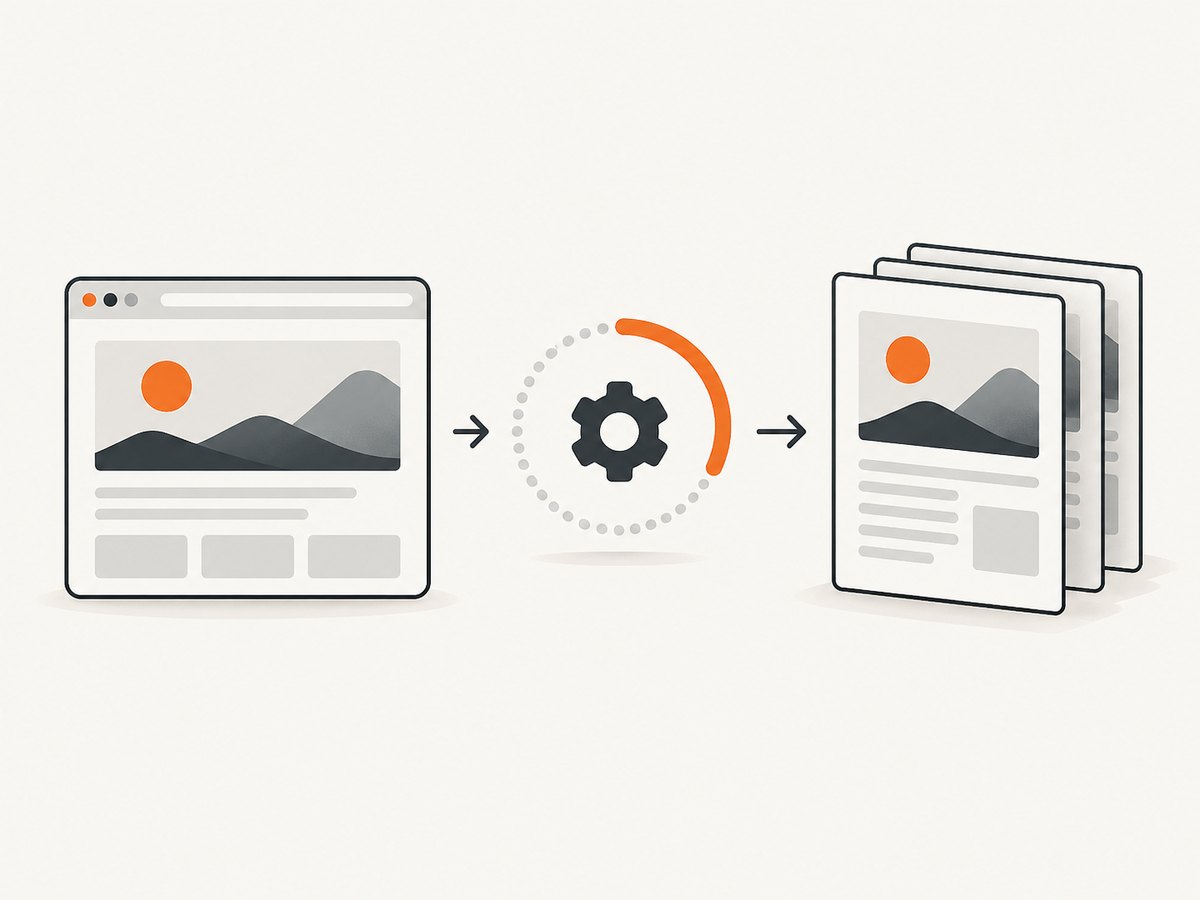
Network idleness is a useful signal, but it does not prove that every single-page application has finished fetching and rendering its data. Some pages make delayed requests, retain open connections, or render content after navigation has completed. Prefer an application-specific readiness condition when one is available:
await page.goto('https://example.com/report', { waitUntil: 'domcontentloaded' });
await page.waitForSelector('[data-report-ready="true"]', { timeout: 15000 });
await page.pdf({ path: 'report.pdf' });
If the site does not expose a readiness selector, wait for a known element or application state that indicates the content you need is present. A fixed delay can be used for a known animation or delayed element, but it is less reliable than waiting for the actual condition because page load times vary.
Check dynamic content and lazy loading
- Wait for the report, chart, or data table to appear, not just for the initial HTML document.
- If content loads when scrolled into view, scroll through the page before printing and wait for the content to render.
- For pages with animations, decide whether to wait for them to finish or disable them with print CSS.
- Use a bounded timeout for application-specific waits so a broken page does not leave a worker stuck indefinitely.
3. Configure paper size, margins, and print layout
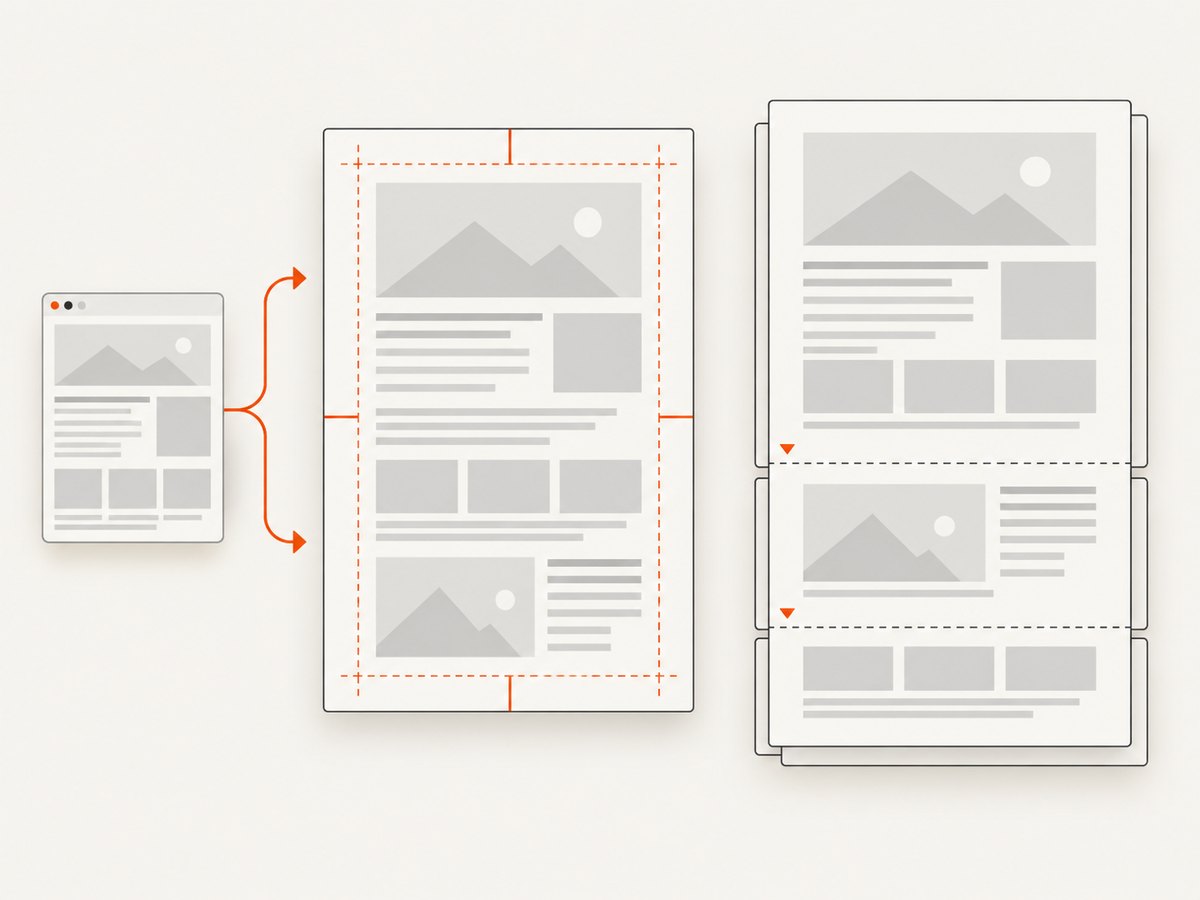
page.pdf() accepts a PDFOptions object. Start with the smallest set of options that expresses the desired document. This example uses A4, prints background graphics, and leaves consistent margins:
await page.pdf({
  path: 'report.pdf',
  format: 'A4',
  printBackground: true,
  margin: {
    top: '12mm',
    right: '10mm',
    bottom: '12mm',
    left: '10mm',
  },
});
For current option details, see the Puppeteer PDFOptions API. Check the documentation matching your installed Puppeteer version before relying on options in a production job.
| Option | What it controls | Practical note |
|---|---|---|
path |
Where the PDF is written | Relative paths use the current working directory. Omit it when handling the returned bytes in memory. |
format |
Named paper size, such as A4 or Letter | Letter is the documented default. A specified format takes precedence over explicit width and height. |
width, height |
Custom paper dimensions | Use units such as mm, cm, in, or px. These are useful for nonstandard page sizes. |
landscape |
Landscape orientation | Set to true for wide tables or charts; verify the result still fits the chosen paper. |
margin |
Top, right, bottom, and left whitespace | Margins can be strings with units or values in the API’s accepted format. Reserve room for headers and footers. |
scale |
Scales page content | Use small adjustments to address clipping or oversized content; inspect readability after shrinking. |
preferCSSPageSize |
Whether CSS @page dimensions take priority |
Set true when the page’s print stylesheet defines the intended page size. Otherwise content is scaled to fit the paper setting. |
printBackground |
Background colors and images | Defaults to false. Set true when the design relies on colored backgrounds or background graphics. |
displayHeaderFooter |
Print header and footer templates | Enable when adding page numbers or other supported template content. |
pageRanges |
Which pages to include | Useful for extracting selected page ranges from a long document. |
waitForFonts |
Whether to wait for fonts to load | Defaults to true. A background page may need to be brought to the front if fonts do not settle. |
For CSS-controlled page dimensions, define an @page rule and set preferCSSPageSize: true. For example:
await page.addStyleTag({ content: `
  @page { size: A4 landscape; margin: 12mm; }
  @media print {
    .screen-only { display: none !important; }
    .report { break-inside: avoid; }
  }
` });

await page.pdf({
  path: 'report.pdf',
  preferCSSPageSize: true,
  printBackground: true,
});
Print-specific CSS can also be part of the website itself. Use break-before, break-after, and break-inside rules to guide pagination. CSS support and layout depend on the browser rendering engine, so inspect representative output when a document’s page breaks matter.
Print CSS versus screen CSS
Puppeteer’s PDF output uses print CSS media by default. That is usually right for a document intended to be printed. If the page’s screen styling is specifically what you need, switch media before creating the PDF:
await page.emulateMediaType('screen');
await page.pdf({ path: 'screen-layout.pdf' });
If a PDF differs from what you see in a normal browser tab, first check whether a print stylesheet hides, rearranges, or restyles content. Then check paper size, CSS @page, margins, scale, and background printing. Puppeteer notes that print rendering can alter colors; CSS -webkit-print-color-adjust can request exact colors when color fidelity matters. [Puppeteer Page.pdf API]
4. Return PDF bytes instead of writing a file
When you omit path, Puppeteer returns PDF data as a Uint8Array rather than writing a file to disk. This is useful when your application needs to store the document in object storage, return it from a service, or pass it to another library. [Puppeteer Page.pdf API]
const pdfBytes = await page.pdf({ format: 'A4', printBackground: true });

// Example: write the returned bytes with Node's filesystem API.
import { writeFile } from 'node:fs/promises';
await writeFile('output.pdf', pdfBytes);
In a web server, set the response content type to application/pdf and send the bytes through the framework’s response API. Avoid buffering very large documents in memory if the service handles many concurrent jobs; size concurrency and memory limits for the pages you expect to render.
5. Troubleshooting common PDF problems
| Symptom | Likely cause | Fix |
|---|---|---|
| The PDF file is missing | The process wrote to a different working directory, the parent directory does not exist, or the process cannot write there. | Use an absolute path, create the parent directory before printing, and check filesystem permissions. |
| The PDF is blank or missing data | Printing began before client-side content finished loading, or the page navigated to an error state. | Wait for an application-specific selector or state. Check the final page URL and whether the expected content exists before calling page.pdf(). |
| The PDF looks unlike the browser tab | PDF generation uses print media by default and the site may have print-specific CSS. | Inspect @media print and @page. Use page.emulateMediaType('screen') only when screen styling is intended. |
| Background colors or images are absent | printBackground defaults to false. |
Set printBackground: true. Check that the images are loaded and permitted to render. |
| Text uses a fallback font | The web font had not loaded, failed to load, or did not settle before output. | Keep the default waitForFonts: true, check font requests, and bring the page to the front if a background page prevents font readiness. |
| Content is clipped at the edges | Paper dimensions, margins, or content width do not agree. | Check the selected format and CSS page size. Adjust margins or scale, or switch to landscape for genuinely wide content. |
| Large gaps or awkward page breaks | Print CSS has not been designed for pagination, or elements resist breaking across pages. | Add print rules for page breaks, remove fixed screen-height constraints, and test the document at the intended paper size. |
| Navigation or PDF generation times out | The page keeps network activity open, an external resource is stalled, or a readiness condition never appears. | Use a readiness condition appropriate to the page, set bounded timeouts, and handle navigation and PDF errors so the browser is closed in a finally block. |
| The output has the wrong pages | The requested page range is invalid or does not match the produced document. | Check the PDF’s actual page count and the pageRanges syntax in the installed version’s API docs. |
6. Reliability, speed, and operating cost
A reliable PDF job has three separate stages: load the page, confirm the content is ready, and generate the document. Treat each stage as fallible. Close the browser in a finally block, place a limit on navigation and readiness waits, and record enough context to identify the URL and stage when a job fails. Reuse browser processes where your service architecture supports it, while isolating pages and controlling concurrency so a large rendering workload does not exhaust memory.
Rendering time depends on the page, its network requests, fonts, scripts, image sizes, and the length of the document. The research sources provide no benchmark for a typical page, so do not plan capacity around a universal seconds-per-PDF number. Measure representative pages in your own environment. For repeated captures of the same content, caching can reduce repeated browser work if the page’s content and freshness requirements allow it.
Self-hosted Puppeteer has infrastructure costs: browser compute, memory, network egress, storage, and the engineering time required to manage browser versions and failures. Large PDFs and high parallelism raise resource use. Set job limits, avoid unnecessary heavy page resources where appropriate, and retain only the output and logs your workflow needs.
7. Or skip the browser setup
If you need a website PDF without maintaining a browser worker, ScreenshotNeo provides a website screenshot API and MCP server. Its PDF options include paper size, margins, landscape orientation, and page ranges. See the ScreenshotNeo documentation for API details.
curl -G "https://api.screenshotneo.com/v1/shot" \
  -d access_key=YOUR_API_KEY \
  --data-urlencode url=https://stripe.com \
  -d format=pdf \
  -o page.pdf
Cookie and consent banners are accepted like a visitor would accept them, and 60+ known consent platforms, newsletter popups, and chat widgets are removed before the shot; each step can be turned off. Bot checks, blank pages, timeouts, failed loads, and cache hits cost nothing, with the result reported in X-Page-Verdict and X-Billed headers. An MCP server exposes take_screenshot, get_page_info, and capture_pdf to Claude, Cursor, and other MCP clients. The free plan includes 1,000 shots per month without a card; paid plans start at $5 for 3,000 shots.
Sign up for ScreenshotNeo’s free 1,000 shots per month, with no card required.
8. Frequently asked questions
Can Puppeteer click “Save as PDF” in the native print dialog?
The documented automated PDF workflow is page.pdf(), which writes or returns PDF output directly. The sources here do not establish a supported recipe for automating the native print dialog’s Save controls. Use the direct API for unattended PDF generation.
Does window.print() save a file?
window.print() prompts the user to print. It is an interactive print workflow; it is not the documented Puppeteer method for saving an unattended PDF file. [WHATWG HTML Standard]
What is the Puppeteer option for the output PDF path?
Pass a string in the path option, such as await page.pdf({ path: 'report.pdf' }). Relative paths resolve from the current working directory.
Can I save only selected pages?
Yes. Use pageRanges in the PDF options and confirm its accepted syntax in the documentation for your installed Puppeteer version.
Why does Puppeteer use print styling?
PDF generation is intended to create print output, so print media is used by default. Call page.emulateMediaType('screen') before generating the PDF if the screen-media layout is the one you need.
Does Puppeteer wait for web fonts?
Yes. The PDF API’s waitForFonts option defaults to true. Font readiness does not guarantee that your application’s data or every delayed visual element is ready, so wait for those separately.


