How to Save a PDF With Selenium WebDriver
Learn how to download linked PDFs or print the current page to PDF with Selenium, including Chrome setup, remote sessions, errors, and alternatives.
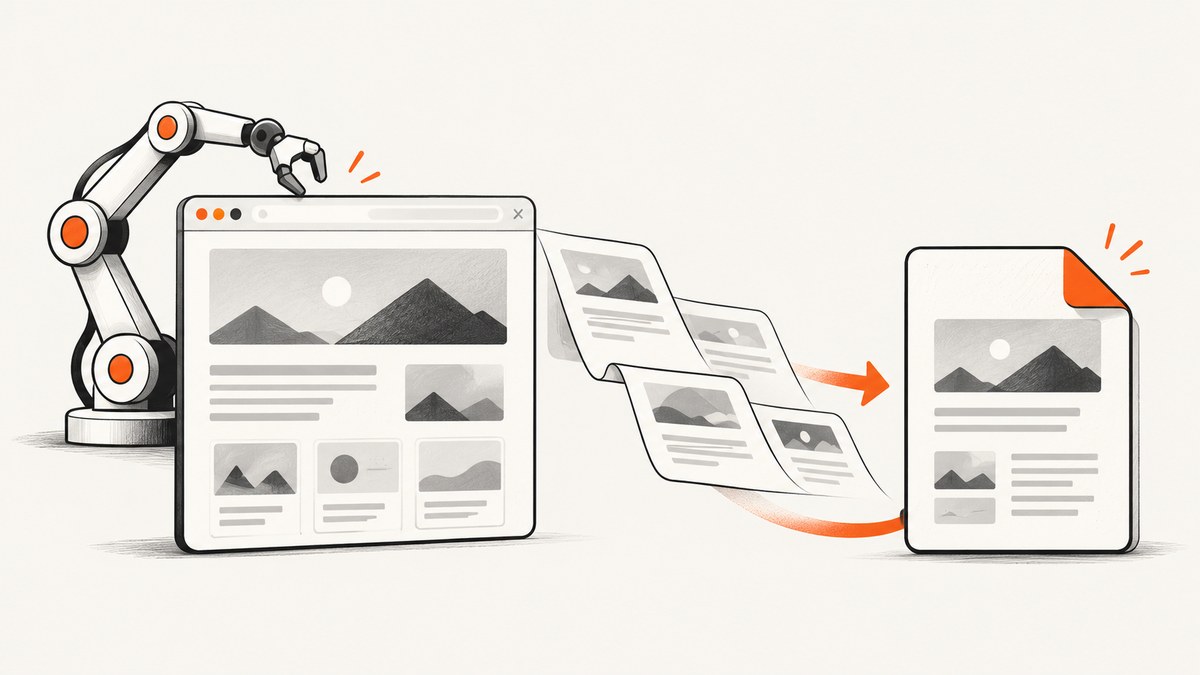
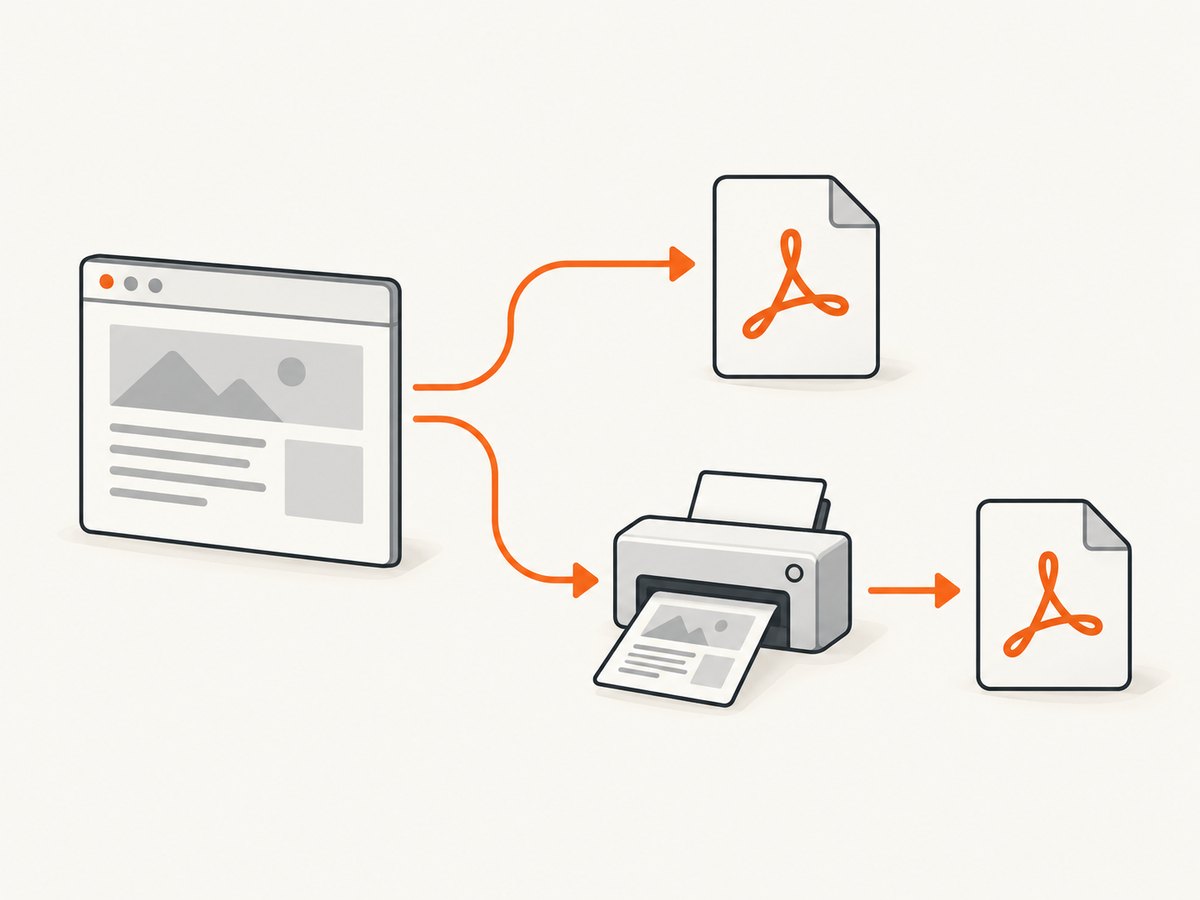
There are two different ways to save a PDF with Selenium WebDriver: download a PDF that a website already provides, or print the page currently rendered by the browser. Configure downloads before creating the browser session for the first workflow. Use WebDriver’s print-page command for the second.
Choose the PDF workflow
| Task | Use | Result |
|---|---|---|
| Save a PDF linked by a site | Configure the browser download directory, then click or navigate to the PDF link | The server-provided PDF file |
| Save the page currently displayed | Call WebDriver’s print-page function | A PDF representation of the rendered page |
| Run on Selenium Grid | Enable managed downloads and retrieve the file from the remote browser | A copy transferred to the test runner |
These operations have different settings and failure modes. A PDF viewer opening in a tab is not the same as a completed file download.
Download an existing PDF with Selenium and Chrome
1. Install Selenium
python -m pip install seleniumThe example below uses Python, Chrome, and a local WebDriver session. Confirm the option names against the Selenium and ChromeDriver versions used by your project.
2. Configure a unique absolute download directory
from pathlib import Path
import time
from selenium import webdriver
from selenium.webdriver.common.by import By

# Use a directory dedicated to this test run.
download_dir = (Path.cwd() / "selenium-pdf-download").resolve()
download_dir.mkdir(parents=True, exist_ok=True)

options = webdriver.ChromeOptions()
options.add_experimental_option("prefs", {
    "download.default_directory": str(download_dir),
    "download.prompt_for_download": False,
    "download.directory_upgrade": True,
    "plugins.always_open_pdf_externally": True,
})

driver = webdriver.Chrome(options=options)
try:
    driver.get("https://example.com/page-with-pdf")
    driver.find_element(By.CSS_SELECTOR, "a[href$='.pdf']").click()

    # ChromeDriver does not wait for downloads. Poll for completion instead
    # of relying on one fixed sleep value.
    deadline = time.time() + 90
    pdf_path = None
    while time.time() < deadline:
        partial = list(download_dir.glob("*.crdownload"))
        pdfs = [p for p in download_dir.glob("*.pdf") if p.stat().st_size > 0]
        if pdfs and not partial:
            pdf_path = max(pdfs, key=lambda p: p.stat().st_mtime)
            break
        time.sleep(0.25)

    if pdf_path is None:
        raise TimeoutError("The PDF download did not finish within 90 seconds")
    print(f"Saved PDF: {pdf_path}")
finally:
    driver.quit()
Set the download behavior before creating webdriver.Chrome. Use a full, unique path; relative paths and some protected directories can fail, and Windows paths need the correct separators. ChromeDriver does not wait for a download to finish, so quitting immediately can interrupt it.
Triggering a download reliably
- Click the actual download control after the page has loaded.
- If the link is known, navigate directly to its URL with
driver.get(pdf_url)after download preferences are configured. - Wait for the file to become stable and for temporary download files to disappear.
- Use a per-run directory so an older PDF cannot be mistaken for the new one.
Chrome can open PDFs in its built-in viewer instead of downloading them. The plugins.always_open_pdf_externally preference requests an external download, but site response headers, browser policy, and Chrome versions can affect behavior. Chrome’s PDF settings also let users choose whether PDFs open in Chrome or download.
Print the current page to a PDF
Printing captures what WebDriver is displaying; it does not download the PDF linked by the page. Selenium exposes this through the print-page command. The returned value is PDF data encoded for the language binding, which you write to a file.
import base64
from pathlib import Path
from selenium import webdriver

output = Path.cwd() / "page.pdf"
driver = webdriver.Chrome()
try:
    driver.get("https://example.com")
    pdf_base64 = driver.print_page()
    output.write_bytes(base64.b64decode(pdf_base64))
    print(f"Saved PDF: {output.resolve()}")
finally:
    driver.quit()
Check the print-page support and options for your exact browser and language binding. A print PDF reflects the rendered document, not necessarily the original server PDF, and browser print implementations can differ.
Print options
Bindings expose print settings differently. Where supported, configure page size, orientation, margins, scale, background graphics, and page ranges through the binding’s print options object. If an option is ignored, verify support in the current Selenium and browser documentation rather than assuming Chrome and Firefox behave identically.
JavaScript example for a linked PDF
import { Builder, By } from "selenium-webdriver";
import chrome from "selenium-webdriver/chrome.js";
import fs from "node:fs/promises";
import path from "node:path";

const downloadDir = path.resolve("selenium-pdf-download");
await fs.mkdir(downloadDir, { recursive: true });
const options = new chrome.Options();
options.setUserPreferences({
  "download.default_directory": downloadDir,
  "download.prompt_for_download": false,
  "download.directory_upgrade": true,
  "plugins.always_open_pdf_externally": true
});

const driver = await new Builder().forBrowser("chrome").setChromeOptions(options).build();
try {
  await driver.get("https://example.com/page-with-pdf");
  await (await driver.findElement(By.css("a[href$='.pdf']"))).click();
  // Poll downloadDir from Node until the .pdf exists and temporary files are gone.
} finally {
  await driver.quit();
}
Remote WebDriver and Selenium Grid
With a remote browser, the configured download directory is on the remote machine. It is not automatically your local test runner’s directory. Selenium Grid managed downloads can list files and transfer a named file back to the client.
- Enable Grid’s managed-download feature.
- Enable downloads for the WebDriver session.
- Trigger the download and wait until it is complete.
- Request the named file into a local directory.
The file-list operation is an immediate snapshot; it does not wait for an in-progress download. Poll or otherwise synchronize before requesting the file. Keep credentials and downloaded documents protected on both machines.
Common errors and fixes
| Symptom | Likely cause | Fix |
|---|---|---|
| No file appears | Download preferences were set after the session started | Set Chrome options before constructing WebDriver. |
| PDF opens in a viewer | Chrome handled the response internally | Request external PDF handling, check Chrome PDF settings, and inspect the link’s response. |
| Old PDF is reported as new | Shared directory or loose file matching | Use a unique directory and require a newly modified, non-empty file. |
| File is truncated or unreadable | Browser quit during download | Wait for temporary files to disappear and for size to stabilize before quitting. |
| Download path is rejected | Relative path, protected directory, or malformed Windows path | Resolve an absolute path in a writable directory. |
| Remote test cannot find the file | File exists only on the Grid node | Use managed downloads or copy it from the remote host. |
print_page is missing or fails |
Binding, browser, or driver does not support the command as used | Upgrade or check the exact binding’s print-page documentation; use a compatible browser. |
| Printed PDF lacks lazy images | Printing began before content loaded | Wait for a selector, scroll or otherwise trigger lazy content, then print. |
Performance, reliability, and cost considerations
- Reuse a browser session when capturing several pages, but isolate download directories when tests run in parallel.
- Prefer condition-based waits (file existence, size stability, and disappearance of temporary files) over a fixed sleep.
- Large PDFs, slow servers, authentication, redirects, and client-side generation all increase completion time.
- For repeatable output, pin browser and driver versions and record the URL, options, and print settings.
- Downloaded files consume disk space on the machine running the browser. Clean temporary directories after successful assertions.
- For remote runs, include transfer time and remote storage in your timeout budget.
- Selenium itself does not charge per capture; infrastructure, browser execution, storage, and bandwidth are your costs.
Or skip the browser setup
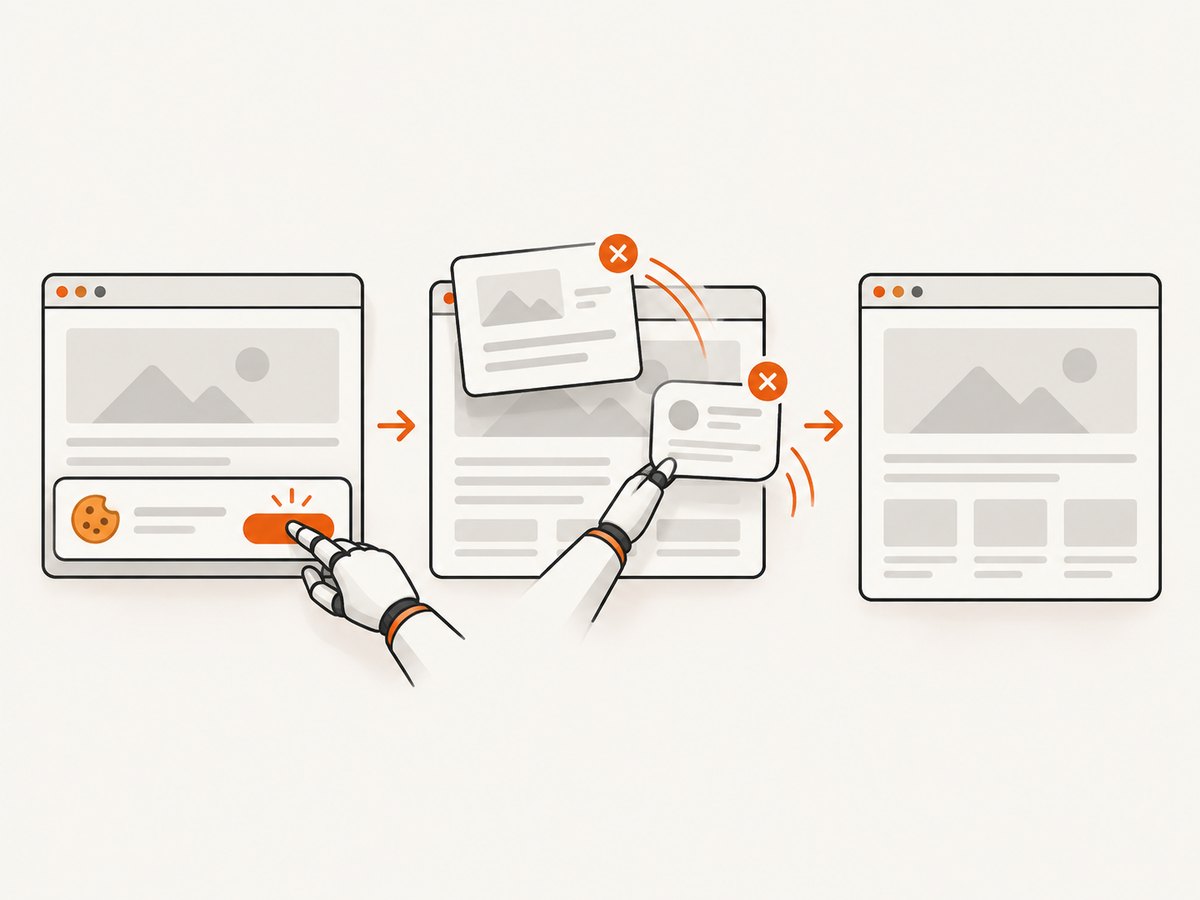
ScreenshotNeo provides a single HTTP request for a screenshot or PDF. Its capture flow accepts cookie and consent banners before the shot and removes more than 60 known consent platforms, newsletter popups, and chat widgets. Bot checks, blank pages, timeouts, failed loads, and cache hits are not billed, and response headers identify the page verdict and billing status. Its MCP server lets Claude, Cursor, and other MCP clients call take_screenshot, get_page_info, and capture_pdf.
See the ScreenshotNeo API documentation for the available PDF parameters, including paper size, margins, landscape mode, and page ranges.
curl -G "https://api.screenshotneo.com/v1/shot" -d access_key=YOUR_API_KEY --data-urlencode url=https://stripe.com -o shot.webpimport requests
r = requests.get("https://api.screenshotneo.com/v1/shot", params={"access_key": "YOUR_API_KEY", "url": "https://stripe.com"}, timeout=90)
open("shot.webp", "wb").write(r.content)const q = new URLSearchParams({ access_key: 'YOUR_API_KEY', url: 'https://stripe.com' });
const res = await fetch(`https://api.screenshotneo.com/v1/shot?${q}`);ScreenshotNeo includes 1,000 screenshots a month free with no card. Paid plans start at $5 for 3,000 shots. Create a free ScreenshotNeo account.
FAQ
Can Selenium download a PDF without clicking?
Yes. After configuring downloads, navigate directly to the PDF URL when the server response permits a download.
Does printing save the original PDF file?
No. Printing creates a PDF from the current rendered page. Downloading a link retrieves the server-provided document.
Where is a remote PDF saved?
Initially on the remote browser machine. Use Grid managed downloads to transfer it to the client.
Is a fixed sleep enough?
No. Network speed and file size vary. Poll for completion and validate the resulting file.
Can I use Firefox?
Yes, but options and profile behavior differ by browser and binding. Verify the current Firefox and Selenium documentation for your versions.


